Delete Account Apple Mail Process and Considerations
To remove an email account from Apple Mail, navigate to System Settings > Internet Accounts on macOS or Settings > Mail > Accounts on iOS and iPadOS. Selecting the target account allows you to disable Mail or remove the account entirel...
To remove an email account from Apple Mail, navigate to System Settings > Internet Accounts on macOS or Settings > Mail > Accounts on iOS and iPadOS. Selecting the target account allows you to disable Mail or remove the account entirely. This process detaches local email views while preserving your server-side messages for standard IMAP and Exchange accounts.
Contents
Understanding Account Removal vs. Permanent Deletion
Before removing an account from the Apple Mail application, it is essential to distinguish between removing an account configuration from a local app and permanently deleting an email address or account from a service provider.
When you remove an email account from Apple Mail, you are removing the authorization token and server connection settings from your specific Apple device. The underlying email account hosted by providers such as Google (Gmail), Microsoft (Outlook/Exchange), Yahoo, or an independent web host remains intact. You can continue to access your messages by logging into the provider's web portal or by adding the account back to Apple Mail at a later date.
However, if your goal is to permanently destroy an email address, terminate an @icloud.com account, or delete your entire Apple Account (formerly Apple ID), removing the account from the Apple Mail desktop or mobile client is only the initial interface step.
- Email Account in Apple Mail Settings
- Turn Off Mail / Remove (Client-Side Account Removal)
- Clears local cached emails from app
- Retains emails on host server (IMAP)
- Reversible by re-adding account
- Delete Account Provider (Server-Side Account Termination)
- Destroys server mailbox & stored data
- Releases/deactivates email address
- Permanent and non-reversible
- Turn Off Mail / Remove (Client-Side Account Removal)
The underlying account protocol—whether IMAP, POP3, or Exchange—determines what happens to your local messages during removal:
- IMAP (Internet Message Access Protocol): Messages are stored primarily on the email provider's server. Apple Mail caches synchronized copies locally. Deleting the account from Apple Mail clears the local cache from your Mac, iPhone, or iPad, but all emails, sent items, and custom folders remain preserved on the mail server.
- Exchange / ActiveSync: Functions similarly to IMAP. Emails, calendar events, and contact lists hosted on Microsoft Exchange or Microsoft 365 remain safely stored on the server when removed from the client.
- POP3 (Post Office Protocol 3): Messages are typically downloaded from the server to your local device storage and deleted from the server upon download. Deleting a POP3 account from Apple Mail can result in permanent data loss of all localized emails unless you back up your mailboxes prior to removal.
Pre-Deletion Considerations and Data Protection
Removing an email account without prior audit can disrupt daily workflows, remove synced personal data, or permanently erase local archives. Before removing an account from Apple Mail, evaluate the following prerequisites and items.
1. Identify Synced Services Beyond Mail
Most modern email accounts—especially Google Workspace, Microsoft 365, Exchange, and iCloud—sync more than just messages. When you delete an Internet account from your Apple device, you may simultaneously remove:
- Contacts: Address book entries synchronized exclusively through that account.
- Calendars: Shared personal or corporate calendars and scheduled invitations.
- Reminders & Notes: Task lists and notes stored within the account's cloud infrastructure.
If you only want to stop receiving email notifications while keeping your contacts or calendar events active, you should disable the Mail slider rather than deleting the account entirely.
2. Export and Back Up Local Mailboxes (macOS)
If you are using POP3, or if you have stored local folders under the On My Mac section in Apple Mail, perform an explicit mailbox export before proceeding with removal.
To export mailboxes on macOS:
- Open the Apple Mail application.
- Select the mailbox or folder you wish to preserve from the sidebar.
- Right-click (or Control-click) the mailbox and select Export Mailbox...
- Choose a destination folder on your local drive or an external storage device, then click Choose.
Apple Mail saves the mailbox in standard .mbox format. This file can be re-imported into Apple Mail or transferred to another email client at any time.
3. Check Rules, Signatures, and VIP Lists
Custom rules, email signatures bound to specific accounts, and VIP sender classifications are tied to your Apple Mail configuration. Deleting an account clears account-specific signature assignments and can deactivate automated sorting rules that rely on the deleted account's address.
How to Delete an Email Account from Apple Mail on macOS
Managing internet accounts on macOS is handled through centralized system settings rather than inside the Mail application itself. This ensures that credential updates or removals apply across system apps.
Option A: Complete Account Removal via System Settings
Follow these steps to completely remove an email account from your Mac:
Click the Apple menu () in the top-left corner of your screen and select System Settings.
In the left sidebar, scroll down and click Internet Accounts.
Locate and click on the specific email account you wish to delete (e.g., Gmail, Exchange, or your custom domain).
In the account details window, click the Delete Account... button located at the bottom.
A confirmation dialog will ask whether you want to remove the account from your Mac or from all devices connected to your iCloud Keychain. Select Remove from Mac.
System Settings
Internet Accounts
Select Account
Delete Account...
Confirm: Remove from Mac
Option B: Disabling Mail Services Only
If you wish to retain synced contacts, notes, or calendars associated with the account while stopping Apple Mail from checking or displaying emails:
- Open System Settings > Internet Accounts.
- Select the target account.
- Toggle off the Mail switch.
This action immediately removes the account's mailboxes from the Apple Mail sidebar without purging synced contacts or calendar events from your Mac.
How to Delete an Email Account from Apple Mail on iOS and iPadOS
Removing an email account from an iPhone or iPad follows a parallel structure to macOS, managed directly through the centralized Settings app.
Steps for Modern iOS and iPadOS Releases
Open the Settings app on your iPhone or iPad.
Scroll down and tap Mail.
Tap Accounts.
Select the email account you want to remove.
To stop retrieving email while retaining contacts and calendars, toggle the Mail switch to the Off position.
To remove the account and all associated data from the device, tap Delete Account at the bottom of the screen.
Confirm by tapping Delete from My iPhone (or Delete from My iPad).
Settings
Mail
Accounts
Select Account
Delete Account
Confirm
Note: If the account was installed as part of an Enterprise Mobile Device Management (MDM) profile or a configuration profile provided by an employer or school, the Delete Account button may be unavailable. In such cases, the account must be removed by deleting the management profile under Settings > General > VPN & Device Management.
How to Delete or Deactivate an iCloud Mail Account or Alias
Deleting an @icloud.com, @me.com, or @mac.com address requires different steps than standard third-party accounts because iCloud Mail is integrated into your broader Apple Account ecosystem.
Disabling iCloud Mail on a Single Device
To stop using your primary iCloud Mail address on a specific device without closing your overall Apple Account:
- On macOS: Go to System Settings > [Your Name] > iCloud, locate iCloud Mail, click it, and turn off Sync this Mac.
- On iOS/iPadOS: Go to Settings > [Your Name] > iCloud > iCloud Mail, and toggle off Use on this iPhone.
Deleting an iCloud Mail Alias
If you use secondary email aliases created under your primary iCloud account, you can disable or permanently delete those aliases without impacting your main Apple Account:
- Navigate to iCloud Mail Web Portal using a desktop browser and log in with your credentials.
- Click the Settings Gear Icon at the top of the sidebar and select Preferences... (or Settings).
- Click Accounts in the left panel.
- Select the alias you wish to delete from the list of accounts.
- Click Delete Alias (or uncheck Enable alias if you wish to temporarily pause incoming messages).
- Confirm the deletion.
Caution: Once an iCloud Mail alias is permanently deleted, it cannot be reclaimed or reassigned to any Apple Account in the future.
Deleting the Entire Apple Account (Permanent Termination)
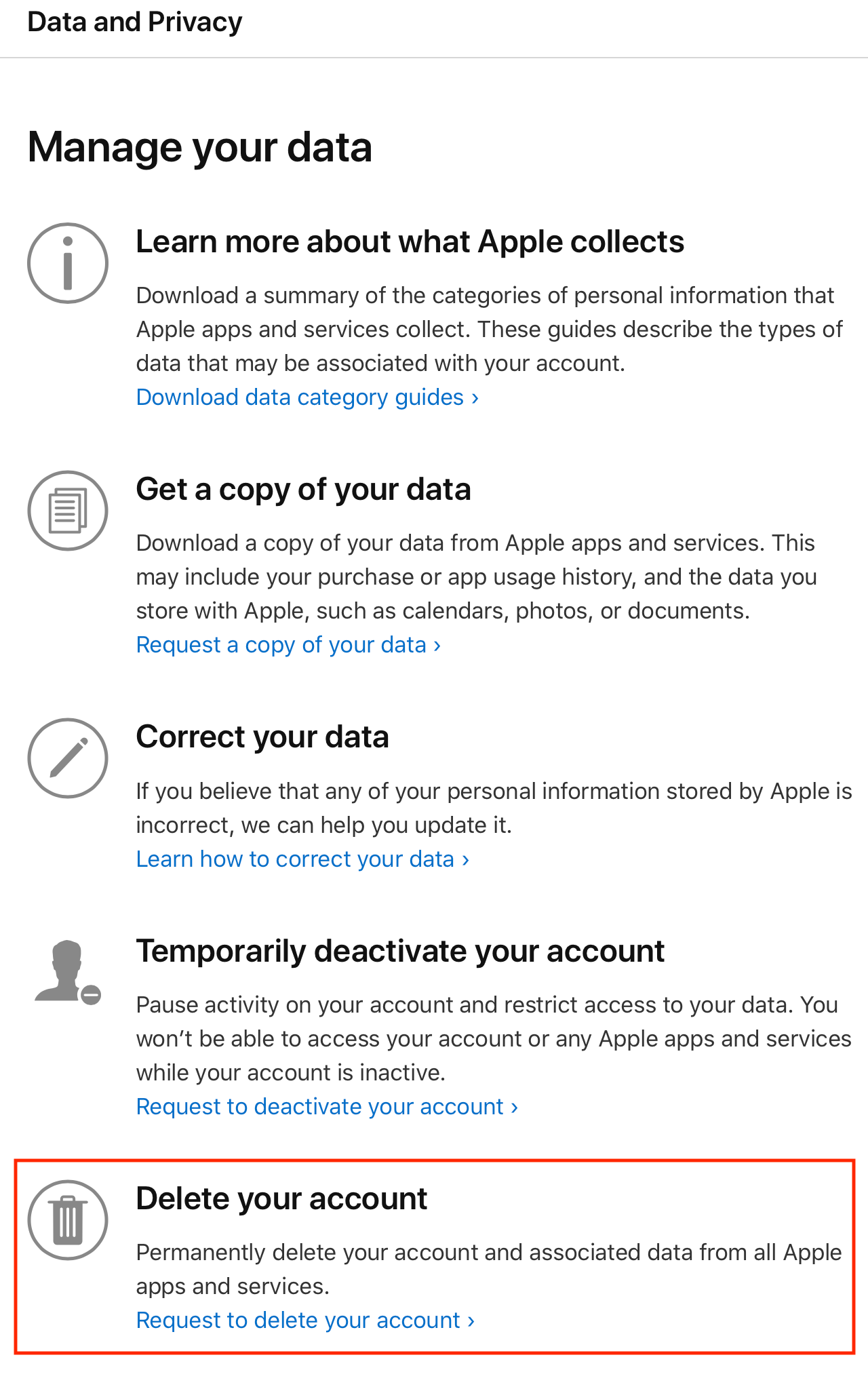
If your goal is to permanently destroy your primary @icloud.com email address along with all associated cloud data, you must submit an account deletion request to Apple:
- Go to Apple's Data and Privacy Portal.
- Sign in with the Apple Account credentials for the account you intend to delete.
- Locate the section labeled Delete your account and select Request to delete your account.
- Review the required disclosures regarding access loss to App Store purchases, iCloud storage, iMessage, and Mail.
- Select a primary reason for deletion, follow the verification steps, and record the unique access code provided by Apple.
Account deletion at the Apple ID level is permanent and non-reversible once processing completes.
Technical Comparison of Account Removal Scenarios
The table below outlines how different account types, protocols, and deletion methods affect local and server data retention.
| Deletion Scenario | Protocol / Account Type | Local Device Impact | Server Data Impact | Reversibility | Impact on Synced Contacts/Calendars |
|---|---|---|---|---|---|
| Remove Account from App | IMAP (Gmail, Yahoo, Custom) | Local cached messages cleared | All emails preserved on server | Fully reversible by re-adding account | Removed if tied to same account |
| Remove Account from App | POP3 | All downloaded emails erased permanently | Depends on server retention settings | Irreversible for local-only messages | N/A (POP3 handles mail only) |
| Remove Account from App | Microsoft Exchange / 365 | Local cache cleared | Server data intact | Fully reversible | Contacts, Calendars & Tasks removed |
| Disable Mail Switch | Any Protocol | Mail hidden/purged from Mail app | Server data intact | Fully reversible by turning switch back on | Contacts and Calendars remain active |
| Delete iCloud Alias | iCloud Mail Alias | Alias inbox removed from all clients | Alias permanently deactivated | Cannot be recreated or reused | None (Main account remains active) |
| Delete Apple Account | iCloud Primary (@icloud.com) |
All device data unlinked | All server emails, backups & files purged | Irreversible after grace period | All synced iCloud data permanently erased |
Troubleshooting and Common Issues
1. Account Re-Appears After Deletion
If an email account re-appears in Apple Mail shortly after you delete it, the account is likely being synchronized across your devices via iCloud Keychain or enforced by a profile:
- Resolution A: Ensure you select Remove from All Devices when prompted during deletion on macOS, or manually delete the account from all signed-in devices.
- Resolution B: Check for installed profiles under Settings > General > VPN & Device Management (iOS) or System Settings > Privacy & Security > Profiles (macOS). Remove the managing profile if authorized to do so.
2. Orphaned Outgoing (SMTP) Servers
Occasionally, deleting an account from Apple Mail removes incoming mail server configurations but leaves the associated SMTP (Outgoing) server saved in Apple Mail's global list. This can cause sending errors when Mail attempts to use an inactive server for other accounts.
To remove orphaned SMTP servers on macOS:
- Open Apple Mail.
- Navigate to Mail > Settings > Accounts.
- Select any remaining active account and click the Server Settings tab.
- Click the Outgoing Mail Server (SMTP) dropdown menu and choose Edit SMTP Server List...
- Select the unused SMTP server from the list and click the Minus (-) button at the bottom.
- Click OK and save your changes.
3. Missing Local Folders After POP3 Account Deletion
If you delete a POP3 account without exporting mailboxes, the messages residing in the local mailbox structures are moved to the Trash or purged entirely from your file system.
To attempt recovery on macOS:
- Open Finder, press
Cmd + Shift + G, and enter the directory path:~/Library/Mail/V10(the version number digit, such as V10 or V12, varies based on your macOS version). - Search through the subfolders for
.mboxbundles containing your missing messages. - Alternatively, restore your
~/Library/Mail/directory from a recent Time Machine backup prior to the deletion date.
Frequently Asked Questions
Does deleting an account from Apple Mail delete my actual emails?
No, provided your account uses standard IMAP or Microsoft Exchange protocols. Deleting the account from the Apple Mail app only removes local cached copies from your device. Your emails remain safely stored on your email provider's server and can be accessed via webmail or by re-adding the account. However, if your account is configured as POP3, deleting it may permanently erase emails stored strictly on your local device.
Why can't I delete an email account from my iPhone settings?
If the Delete Account option is missing or grayed out in your iPhone settings, the account is likely managed by an enterprise Mobile Device Management (MDM) system, a corporate security profile, or Screen Time restrictions. Navigate to Settings > General > VPN & Device Management to inspect installed profiles, or check Settings > Screen Time > Content & Privacy Restrictions to ensure account changes are allowed.
What is the difference between turning off Mail and deleting an account?
Turning off the Mail switch in account settings hides and removes email data from the Apple Mail app while keeping the underlying credential configuration intact on your device. This allows synced services like Contacts, Calendars, and Notes to continue working. Deleting the account removes the account credentials entirely, severing all synced services associated with that account from your device.
How do I delete an @icloud.com email address without losing my Apple Account?
You cannot delete your primary @icloud.com email address while keeping the underlying Apple Account active, as it serves as a core account identifier. However, you can disable iCloud Mail sync under Settings > [Your Name] > iCloud > iCloud Mail. If you want to delete a secondary email address created as an iCloud alias, you can delete it by logging into icloud.com, opening Mail Settings, selecting Accounts, and deleting the specific alias.
How do I export my emails before removing an account from Apple Mail?
On macOS, open the Apple Mail app, right-click (or Control-click) any mailbox or folder in the left sidebar, and choose Export Mailbox.... Select a destination folder to save the mailbox as an .mbox file. This export file can be stored as an offline archive or imported back into Apple Mail or another email client at any time using File > Import Mailboxes....
Practical Recommendation & Next Steps
Before taking action to remove an account from Apple Mail, execute the following workflow:
- Verify your account protocol: Open Apple Mail settings to confirm whether your account uses IMAP, Exchange, or POP3.
- Back up critical data: If you use POP3 or local "On My Mac" folders, perform an explicit
.mboxexport for all critical mailboxes. - Audit shared services: Determine if Contacts or Calendars depend on the account. If so, choose Disable Mail instead of Delete Account.
- Execute removal via system settings: Use System Settings > Internet Accounts on macOS or Settings > Mail > Accounts on iOS/iPadOS for a clean removal.
- Clean up orphaned SMTP entries: If operating on macOS, verify that old outgoing SMTP servers are purged from Apple Mail to prevent future sending conflicts across your remaining accounts.
Image Gallery