How to Make Calls Go Straight to Voicemail on iPhone and Android
To send incoming calls straight to voicemail without your phone ringing, the most effective method is enabling Do Not Disturb or Focus mode in your settings. Alternatively, you can use unconditional call forwarding by dialing 21 follow...
To send incoming calls straight to voicemail without your phone ringing, the most effective method is enabling Do Not Disturb or Focus mode in your settings. Alternatively, you can use unconditional call forwarding by dialing 21 followed by your voicemail number and the # key to redirect all network traffic.
Contents
Managing your digital availability has become a critical skill in 2026, as the "always-on" nature of mobile communication continues to challenge personal productivity and mental well-being. Whether you are trying to avoid a specific caller, minimize distractions during a deep-work session, or preserve battery life, knowing how to manipulate call routing is essential. Most modern smartphones offer several layers of call management, ranging from simple OS-level toggles to advanced carrier-side redirections.
Understanding the Network Handshake: Why Calls Go to Voicemail
When someone dials your number, the cellular network initiates a "handshake" with your device. Under normal circumstances, the network sends a signal to your phone, which triggers the ringer. If you do not answer within a set timeframe (usually 20–30 seconds), or if you manually decline the call, the network redirects the data packet to your carrier’s voicemail server.
Forcing a call "straight to voicemail" essentially means bypassing the ringing phase of this handshake. This can happen at two levels:
- Device-Side: Your phone receives the signal but is instructed by the software to immediately reject it or ignore the ringer, pushing the caller to the "no answer" state instantly.
- Network-Side: The carrier is instructed to redirect the call before it ever reaches your physical device.
Method 1: Using Do Not Disturb and Focus Modes
In 2026, both iOS and Android have evolved their "Do Not Disturb" (DND) features into sophisticated Focus Modes. This is the least intrusive method because it allows you to maintain data connectivity for apps while silencing all or specific voice calls.
Configuring Focus on iOS
On an iPhone, Focus modes allow you to create specific profiles for work, sleep, or personal time. To route calls to voicemail:
- Open Settings and tap Focus.
- Select the profile you wish to use (e.g., "Do Not Disturb").
- Tap People and ensure that under "Allow Calls From," you have selected "Allowed People Only" with no one on the list, or "Favorites" if you only want emergency contacts to break through.
- Toggle the Focus mode on via the Control Center.
When DND is active, the caller will hear the standard number of rings on their end, but your phone will remain silent and the call will eventually roll to voicemail. However, if you want the call to go to voicemail immediately (after just one ring or none), you may need to combine this with "Silence Unknown Callers."
Configuring Focus on Android
Android 16 and similar iterations utilize a unified "Priority Mode."
- Swipe down to access Quick Settings and long-press Do Not Disturb.
- Navigate to Schedules or Exceptions.
- Under Calls, select "None" or "Contacts Only."
- Ensure that "Allow Repeat Callers" is toggled off if you want to prevent someone from breaking through by calling twice within 15 minutes.
Method 2: The "Secret" Carrier Codes (MMI Codes)
If you want a foolproof way to ensure your phone never even attempts to ring, you should use Unconditional Call Forwarding. This happens at the carrier level, meaning even if your phone is turned off or in a dead zone, the calls are redirected.
To use this, you need your carrier’s specific voicemail access number. You can usually find this by dialing *#61# and pressing call; your phone will display the number it currently uses for delayed forwarding.
| Action | GSM Code (AT&T, T-Mobile, International) | Result |
|---|---|---|
| All Calls to Voicemail | *21*[Voicemail Number]# |
Immediate redirection of all incoming traffic. |
| Check Status | *#21# |
Displays if forwarding is active. |
| Deactivate | ##21# |
Returns phone to normal ringing operations. |
| Forward if Busy | *67*[Voicemail Number]# |
Sends calls to voicemail only if you decline the call. |
Note: Some carriers may charge for call forwarding if it is not included in your monthly plan, though most modern 5G/6G unlimited plans include this as a standard feature.
Method 3: Silence Unknown Callers and Spam Protection
A common reason for wanting calls to go straight to voicemail is the high volume of automated "robocalls." Both Apple and Google have integrated AI-driven screening that acts as a gatekeeper.
For iPhone Users
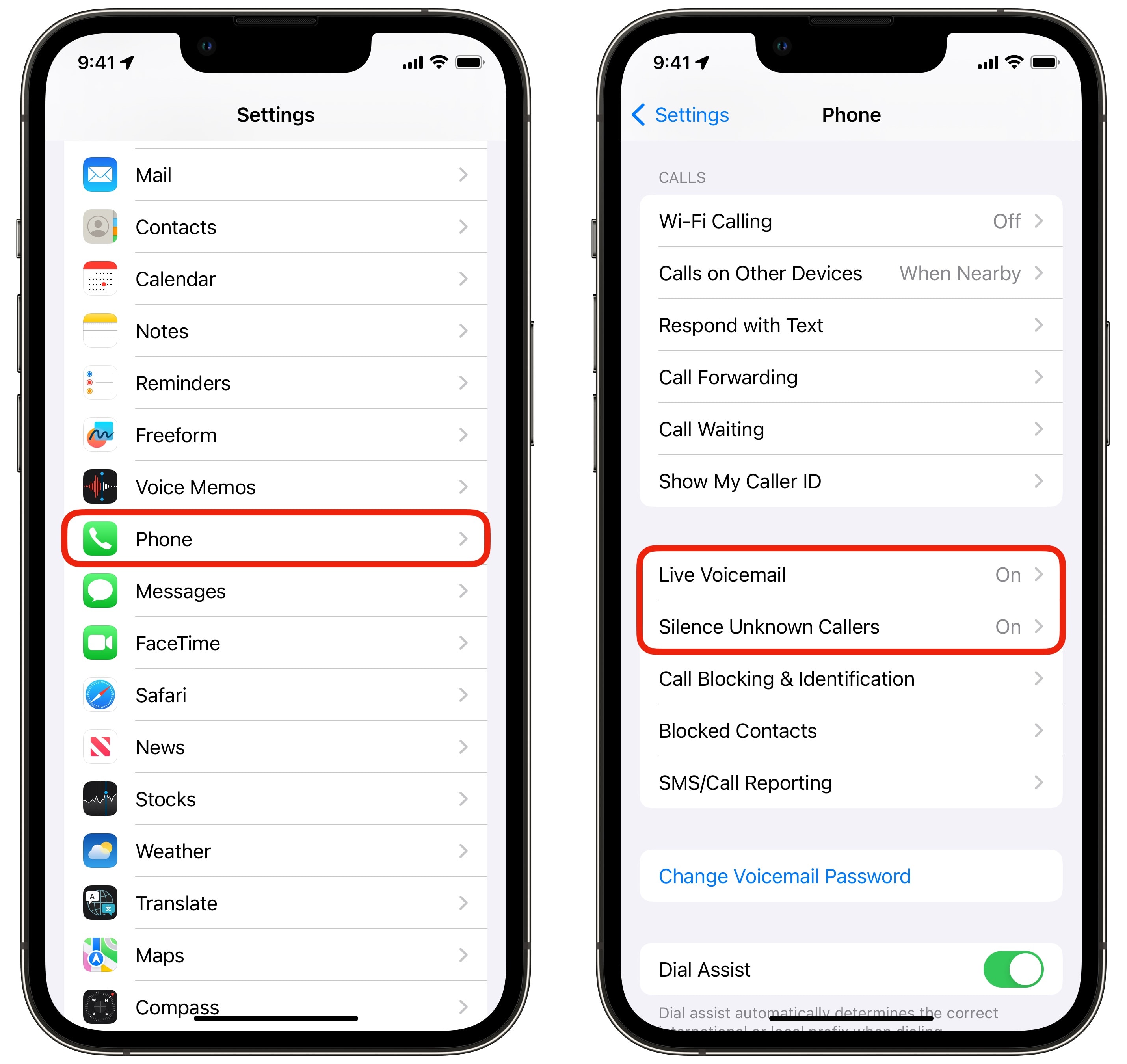
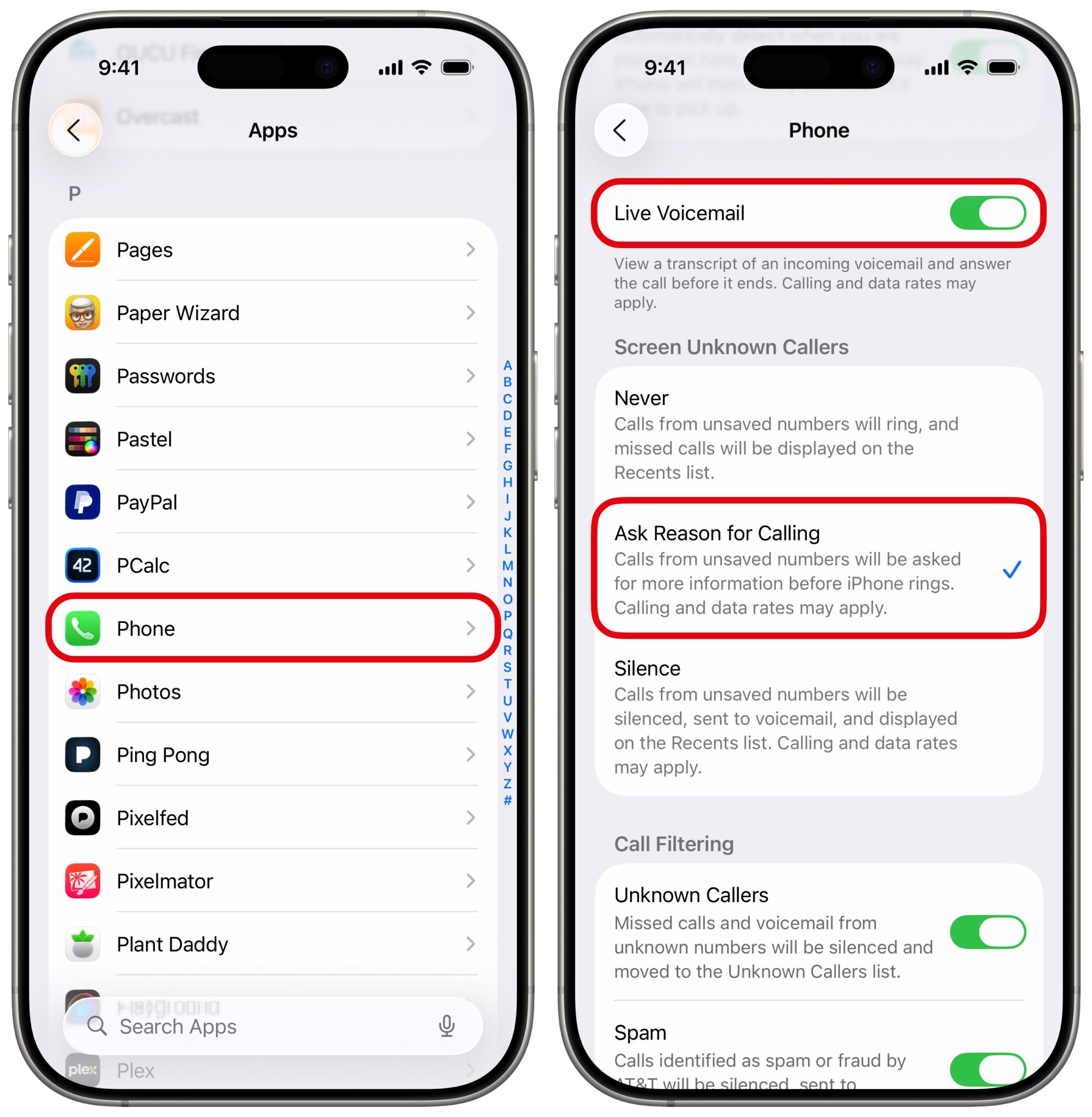
Navigate to Settings > Phone > Silence Unknown Callers. When enabled, any number not in your Contacts, Recent Outgoing Calls, or Siri Suggestions will be silenced and sent directly to voicemail. You will still receive a notification that a call was missed, and the caller can leave a message. This is particularly useful for maintaining a "clean" notification shade while still being reachable for important business.
For Android Users (Call Screen)
Google’s Call Screen is the gold standard for this. In the Phone app settings, you can set "Unknown Callers" to be automatically screened. The Google Assistant will answer the call, ask who is calling, and provide you with a real-time transcript. If the AI determines the call is likely spam, it disconnects it; otherwise, it offers the caller the option to be put through or go to voicemail.
Method 4: Sending Specific Contacts to Voicemail
Sometimes the goal isn't to silence everyone, but rather one specific person. Instead of "blocking" them—which often results in a recording saying "this caller is not accepting calls"—you can set their specific contact entry to go straight to voicemail.
- On Android: Open the Contacts app, select the person, tap the three dots (menu), and select Route to voicemail. This ensures that whenever that specific ID hits your phone, the software rejects it instantly.
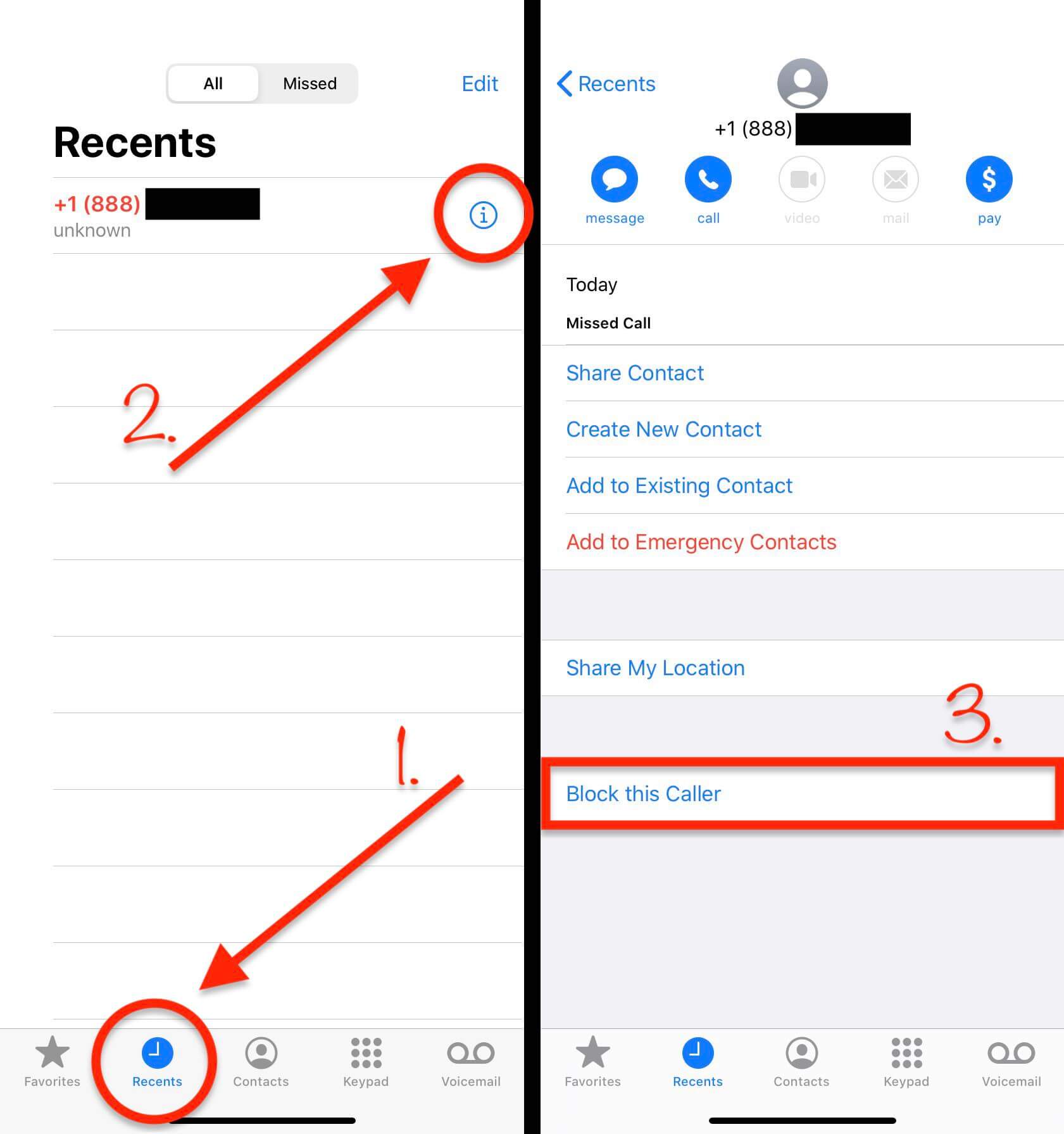
- On iOS: iOS does not have a native "Route to Contact to Voicemail" button that keeps them unblocked but silent. The workaround is to assign that contact a "Silent" ringtone and vibration pattern. Alternatively, you can block the contact, which in most modern carrier configurations (as of 2026) sends them directly to a generic carrier mailbox anyway.
Technical Limitations and Troubleshooting
While the methods above are reliable, several factors can interfere with your ability to route calls effectively:
- VoIP and Wi-Fi Calling: If you are using Wi-Fi calling, the MMI codes (*21#) may not work reliably. The network often requires a handshake with a cellular tower to update your forwarding status. If you receive an "Unexpected Error" message, disable Wi-Fi, connect to LTE/5G/6G, and try again.
- Visual Voicemail Syncing: Sometimes, when forcing calls to voicemail via Focus modes, the notification for a new voicemail may be delayed. This is because the phone treats the incoming data packet as "low priority" under your Focus rules.
- Third-Party Security Apps: Apps like RoboKiller or Hiya often "hook" into your dialer. If you have one of these installed, their internal settings may override your system's Do Not Disturb rules. Ensure the app is configured to "Allow System Handling" if you want your native settings to take precedence.
Comparison of Methods
| Method | Best For | Caller Experience | Privacy Level |
|---|---|---|---|
| Focus/DND | General Productivity | Hears full rings, then VM | High (Hidden) |
| MMI Codes | Complete Disconnection | Immediate VM | Absolute |
| Airplane Mode | Short-term Focus | "The person you are calling is unavailable" | Low (Nuclear) |
| Silence Unknowns | Spam Prevention | Hears rings, then VM | High |
| Contact Routing | Specific Individuals | Immediate VM | Discreet |
Frequently Asked Questions
Does Airplane Mode send calls to voicemail?
Yes, but with a caveat. When Airplane Mode is active, your phone is disconnected from the network. Most carriers will recognize the device as "unreachable" and send the caller to voicemail immediately. However, some older systems might play a recording stating the subscriber is out of the coverage area before offering the voicemail option.
Will the caller know I sent them to voicemail?
It depends on the method. If you use Do Not Disturb, the caller hears the standard number of rings (usually 4 to 5), so it looks like you simply missed the call. If you use Call Forwarding (21), the call connects to voicemail instantly. A savvy caller might realize they were redirected if the voicemail picks up on the first ring every time.
Why does my phone still ring when Do Not Disturb is on?
This usually happens because of "Exceptions." Check your settings to see if "Allow Repeat Callers" is enabled or if the caller is on your "Favorites" list. In 2026, many phones also have "Emergency Bypass" settings within individual contacts that allow specific people to ring through regardless of your global settings.
Can I set a custom voicemail for specific callers?
Directly within the OS, this is difficult. However, many carrier apps (like the AT&T or Verizon voicemail apps) allow you to set "Conditional Greetings." You can assign a specific greeting to a contact group so that when they are routed to voicemail, they hear a personalized message while others hear a generic one.
Is there a way to send calls to voicemail without a "Missed Call" notification?
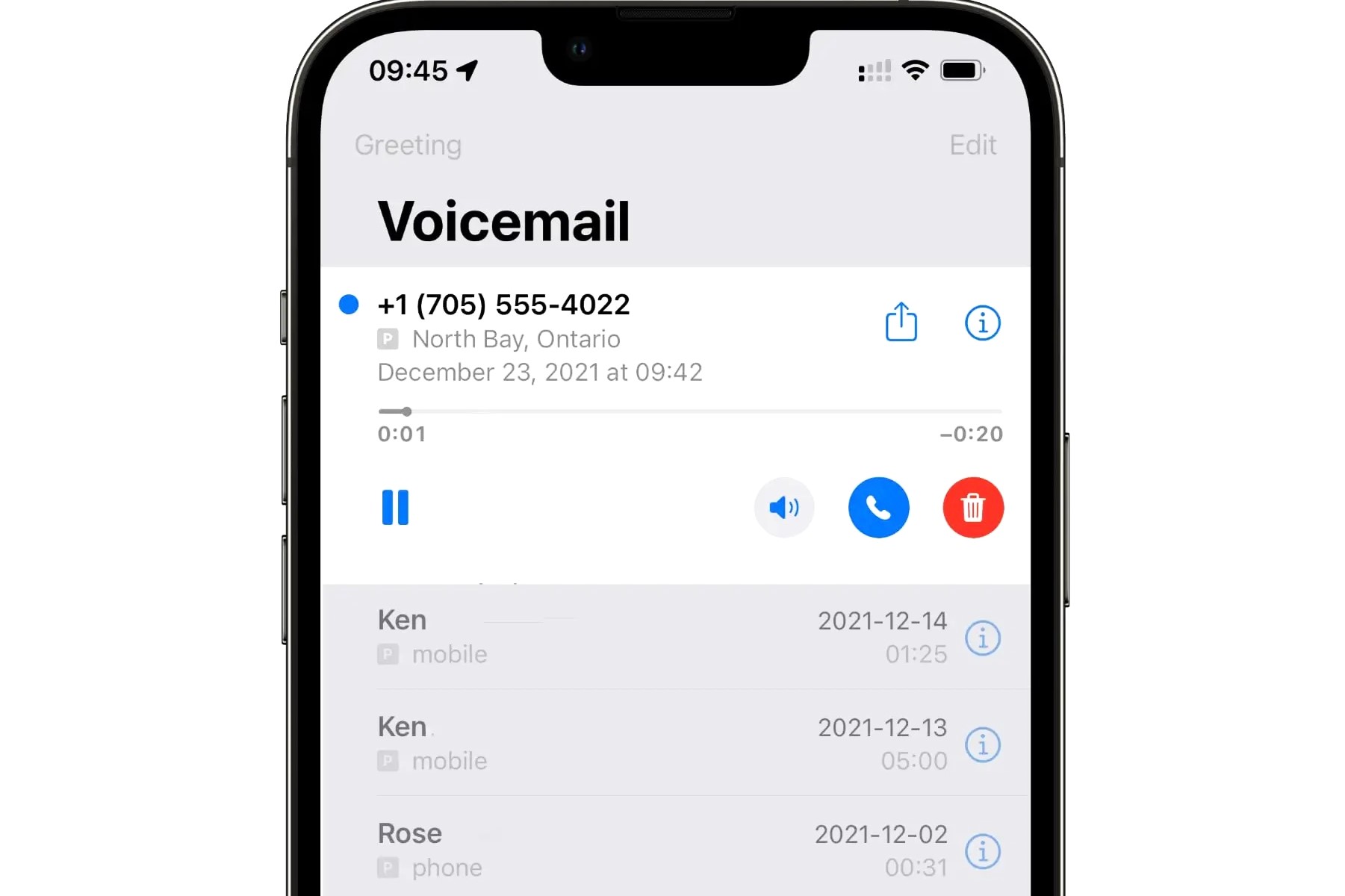
Using the Carrier Forwarding method (*21#) is the only way to avoid a missed call notification on your device's native dialer. Since the call is intercepted by the network before it hits your phone, your phone never registers a "missed" event, though you will still get a "New Voicemail" alert.
Final Recommendation
For the best balance of privacy and professionalism, use Focus Modes (Do Not Disturb) for daily management and MMI Codes for times when you need to be completely off the grid without turning off your phone. If your goal is specifically to eliminate spam, the Silence Unknown Callers feature on iOS or Call Screen on Android provides the most seamless experience without requiring manual intervention for every call. Always verify your carrier's specific voicemail number before attempting to set up manual forwarding to avoid routing your calls into a digital void.
Image Gallery