How to Switch Email Without Losing Data
Switching email providers without losing data involves a three-step process: backing up your current messages and contacts, using IMAP or dedicated migration tools to transfer data to the new server, and configuring email forwarding. T...
Switching email providers without losing data involves a three-step process: backing up your current messages and contacts, using IMAP or dedicated migration tools to transfer data to the new server, and configuring email forwarding. This ensures a seamless transition where historical archives remain accessible while your new address becomes active.
Contents
Moving from one email ecosystem to another—such as shifting from Gmail to Outlook, or migrating a custom business domain to a new host—often feels daunting due to the risk of losing years of digital correspondence. However, as of 2026, the interoperability between major mail servers has reached a point where manual "copy-pasting" is rarely necessary. Whether you are seeking better privacy, more storage, or integrated productivity suites, preserving your data integrity is the primary objective of any successful migration.
The Essential Pre-Migration Checklist
Before initiating a transfer, you must understand the current state of your data. Email isn't just a list of messages; it includes attachments, contact lists, calendar appointments, and even specific folder hierarchies.
1. Identify Your Current Protocol (IMAP vs. POP3)
Most modern email accounts use IMAP (Internet Message Access Protocol), which keeps your emails on the server and syncs them across devices. If your current setup uses POP3 (Post Office Protocol), your emails are likely stored only on one local device and deleted from the server after downloading. Migrating from a POP3 setup requires finding that specific local database file (often a .pst or .mbox file) to ensure no data is left behind on a single hard drive.
2. Audit Your Storage Usage
Check how much data you are actually moving. Most free providers offer 15GB to 50GB of storage. If your archive exceeds the limit of your new provider, the migration will fail or stall. Use this opportunity to delete massive attachments or "Promotions" folders that no longer serve a purpose.
3. Verify Account Access and Security
Ensure you have the "App Passwords" or "Two-Factor Authentication (2FA)" settings ready. Many migration tools cannot bypass standard 2FA without a specific one-time code generated for "Less Secure Apps" or third-party integrators.
Method 1: Using Built-in Provider Migration Tools
By 2026, major cloud providers like Google Workspace, Microsoft 365, and Proton Mail have refined their native "Import" wizards. These are the most reliable methods for general users because they handle the server-to-server handshake automatically.
Moving to Gmail/Google Workspace
Google offers a robust import tool found under Settings > Accounts and Import > Import mail and contacts.
- How it works: You provide the email address and password of your old account. Google connects via POP3 or IMAP to fetch messages and contacts.
- The Advantage: It continues to "fetch" new mail arriving at the old address for 30 days, giving you a buffer period.
- The Limitation: It may struggle with complex folder structures from niche providers.
Moving to Outlook/Microsoft 365
Microsoft provides an "Import" feature within the Outlook web interface and a more powerful "Migration Manager" for enterprise users.
- The Process: You can connect your old account as a "Connected Account." Outlook then clones the folder structure and begins a background sync.
- The Advantage: Microsoft 365 is particularly adept at importing .PST files, which are the standard for professional archiving.
Moving to Privacy-Focused Providers (e.g., Proton Mail)
Proton Mail utilizes an "Easy Switch" tool. Because Proton uses end-to-end encryption, the migration tool decrypts the mail from your old provider (like Gmail or Yahoo) and re-encrypts it into your Proton mailbox. This is a critical distinction, as it preserves your privacy while maintaining the integrity of your historical data.
Method 2: The Manual "Desktop Client" Bridge
If you are moving between smaller providers or want total control over the process, the "Desktop Client Bridge" is the most flexible method. This involves using a program like Mozilla Thunderbird or Microsoft Outlook Desktop to act as a middleman.
Step-by-Step Manual Transfer
- Install a Desktop Mail Client: Download and install a client that supports multiple IMAP accounts.
- Add Both Accounts: Add your "Old Email" and your "New Email" to the client using their IMAP settings.
- Wait for Sync: Let the client download all the headers and messages from your old account. This may take several hours depending on the size of your inbox.
- Drag and Drop: In the folder view, select the folders or messages in your old account and literally "drag" them into the inbox or a subfolder of the new account.
- Server Upload: The desktop client will see these "new" messages in the new account and begin uploading them to the new provider's server.
This method is the most "data-safe" because you can visually verify that every folder has been replicated before you ever close the old account.
Migrating Contacts and Calendars
Email messages are only half the battle. Your address book and schedule are often stored in different database formats that do not move via IMAP.
Exporting Contacts
Most email services allow you to export contacts into a CSV (Comma Separated Values) or vCard (VCF) file.
- Use CSV for moving between Outlook and Gmail.
- Use vCard for moving to Apple Mail or mobile-centric ecosystems.
- Warning: Check for "Custom Fields." If you have detailed notes in your contacts, a standard CSV might truncate them. Always verify a few entries after importing.
Exporting Calendars
Calendars almost universally use the .ics (iCalendar) format.
- Go to your old calendar's settings.
- Select "Export" or "Download Calendar."
- In your new calendar, select "Import" and upload the .ics file.
- Note: This moves existing appointments but will not sync "Shared Calendars" from other people. You will need to ask those individuals to re-share their calendars with your new address.
Managing the Transition Period
Data loss often occurs not during the migration itself, but in the weeks following, when people send emails to your old address.
1. Set Up Email Forwarding
Do not delete your old account immediately. Log into the old account's settings and set up Automatic Forwarding to your new address. This ensures that any stray emails reach you instantly.
2. The Auto-Responder Strategy
Create a "Vacation Responder" on the old account. Instead of saying you are on holiday, state: "My email address has changed to [New Address]. Please update your records. This account will be decommissioned on [Date]." This trains your contacts to use the new address.
3. Update Service Logins
This is the most time-consuming part of switching email. Your email is often your digital identity for banking, social media, and utility bills.
- Priority 1: Financial institutions and government services.
- Priority 2: Primary social media and recovery emails for other accounts.
- Priority 3: Shopping and newsletters.
| Migration Method | Best For | Technical Difficulty | Data Integrity Risk |
|---|---|---|---|
| Native Import Wizard | Gmail, Outlook, Yahoo | Low | Low (Automated) |
| Desktop Client Bridge | Niche providers, Large archives | Medium | Very Low (Manual check) |
| Third-Party Tools | Enterprise/Business moves | High | Medium (Depends on tool) |
| POP3 Manual Export | Legacy accounts, Offline storage | Medium | High (If file is corrupted) |
Technical Considerations for Custom Domains
If you are switching email providers while keeping the same custom domain (e.g., switching your @yourname.com from GoDaddy to Google Workspace), the process involves DNS (Domain Name System) changes.
When you change your MX (Mail Exchanger) Records, there is a period called "Propagation" that can take up to 48 hours. During this time, some emails might go to the old server and some to the new one.
- Pro Tip: Lower your TTL (Time to Live) value in your DNS settings to 300 seconds (5 minutes) at least one day before the move. This speeds up the update process across the internet and minimizes "split-delivery" issues where data could be scattered across two providers.
Common Pitfalls and How to Avoid Them
- Attachment Size Limits: Some providers might reject an imported email if it contains an attachment larger than their current limit (e.g., trying to move a 30MB attachment to a provider with a 25MB limit). These emails will simply fail to import.
- Folder Nesting: Gmail uses "Labels" rather than "Folders." If you move from a folder-based system to Gmail, your nested folders may appear as "Folder/Subfolder" labels, which can look messy initially.
- Date Stamp Issues: If you use a "Forwarding" method to move old mail instead of an "Import" method, all your old emails will appear as if they were sent on the day of the migration, ruining your archive's chronology. Always use IMAP migration or Import tools to preserve original headers.
Frequently Asked Questions
Can I switch email providers and keep my old email address?
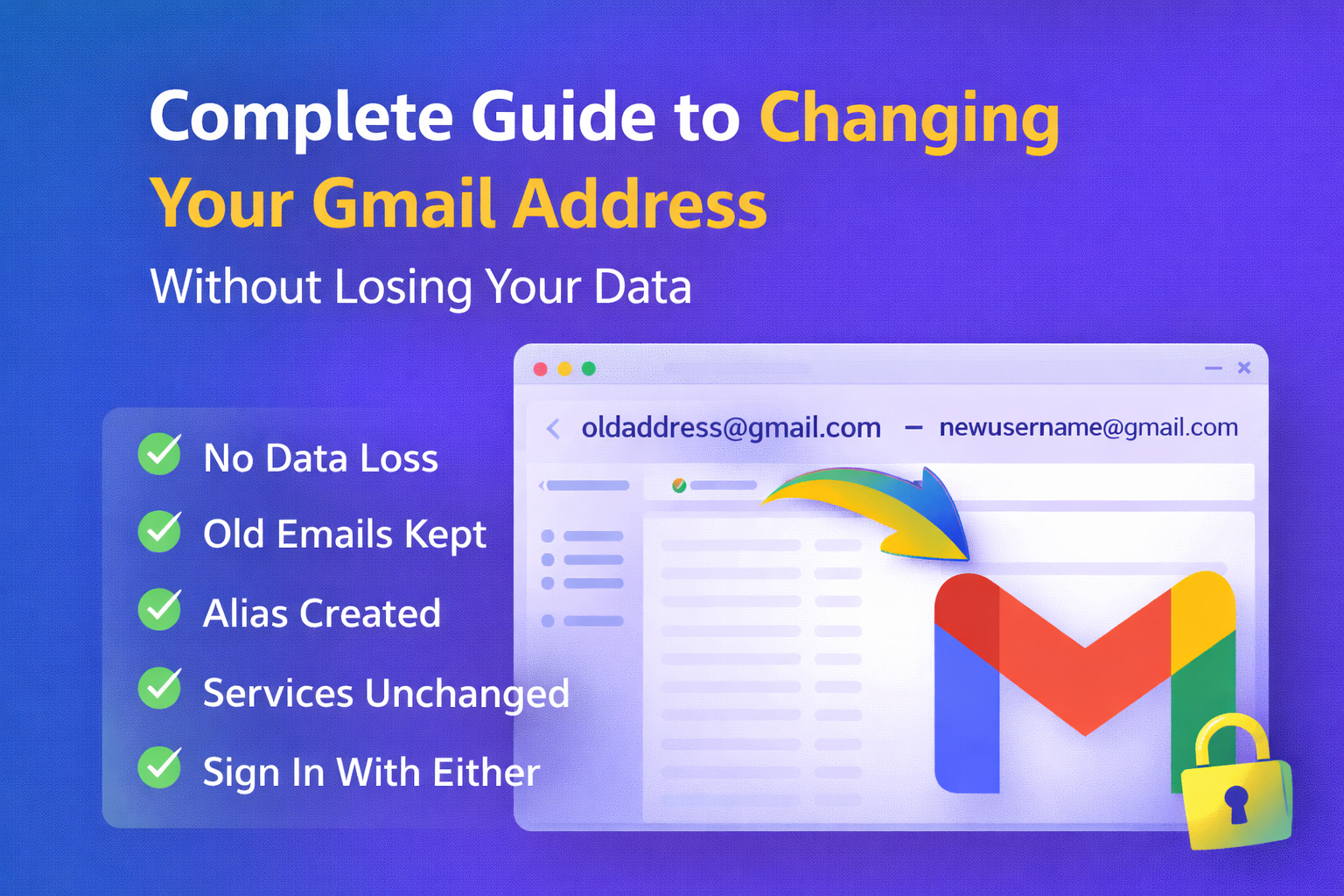
Only if you own a custom domain (e.g., @company.com). If you use a provider-specific domain like @gmail.com or @outlook.com, you cannot "take it with you." You must create a new address and forward the old one.
How long does it take for a full migration to complete?
For a standard 10GB inbox, a server-to-server import usually takes 2 to 24 hours. A manual desktop sync depends entirely on your upload speed; moving 10GB of data on a standard home connection can take several hours of active processing.
Will my "Sent" folder be migrated as well?
Yes, provided you use the IMAP or Import Wizard methods. These methods sync all folders, including Sent, Drafts, and custom archives. POP3 methods often only download the Inbox, so be extra cautious if using legacy settings.
Do I need to keep my old account open forever?
It is recommended to keep the old account active for at least 3-6 months. This allows you to catch annual subscriptions or infrequent contacts who may have missed your change-of-address notification.
What happens to my 2FA and recovery settings?
Before closing an old email account, ensure it is not listed as the "Recovery Email" for your other important accounts (like your bank or Apple ID). If you lose access to the old email, you might be locked out of those services permanently.
Final Recommendation
For most users in 2026, the Native Import Wizard provided by the new host is the safest and most efficient choice. It handles the server-side complexities and requires the least amount of local bandwidth. If you are a power user or moving between unconventional hosts, the Desktop Client Bridge using Thunderbird remains the "gold standard" for ensuring every single byte of data is accounted for. Always perform a local backup to an external drive or cloud storage before you hit the final "Delete Account" button on your old provider.
Image Gallery