Choosing the Right Free Online Shared Calendar for Your Needs
A free online shared calendar allows multiple users to view, edit, and synchronize schedules in real time, serving as a centralized hub for coordination. Selecting the best platform requires balancing feature sets—such as cross-platfor...
A free online shared calendar allows multiple users to view, edit, and synchronize schedules in real time, serving as a centralized hub for coordination. Selecting the best platform requires balancing feature sets—such as cross-platform compatibility, permission controls, and integration capabilities—against the specific collaboration needs of individuals, families, or small professional teams.
Contents
Understanding the Role of Shared Calendars in 2026
In an increasingly distributed environment, the ability to maintain a "single source of truth" for time management is essential. A shared calendar is more than a digital agenda; it is a communication tool that reduces friction in planning. Whether you are managing household chores, coordinating project deadlines, or organizing team shifts, these platforms function by hosting an event database in the cloud. When one user updates an entry, the server pushes that update to all authorized devices in near-real-time.
For most users in 2026, the primary goal is achieving interoperability. A robust shared calendar must work seamlessly across desktop browsers, mobile applications (iOS and Android), and potentially integrate with existing communication tools like email clients or project management software.
Key Factors for Selection
Before committing to a specific service, evaluate the following operational requirements to ensure the tool aligns with your workflow:
- Platform Ecosystem: If your team primarily uses a specific operating system, opting for a native solution (like Google Calendar for Android/Workspace users or Apple Calendar for iCloud users) often provides the smoothest user experience due to deep system-level integration.
- Permission Granularity: Consider whether you need "view-only" access for some members while others require full "edit" privileges. Managing these roles is critical for preventing accidental deletions or unauthorized changes.
- Offline Accessibility: Reliable applications maintain a local cache, allowing you to view and sometimes edit your schedule while disconnected from the internet, syncing the changes automatically once a connection is re-established.
- Notification Management: An effective system offers customizable alerts. Look for options that allow for push notifications, email reminders, and SMS alerts to ensure that time-sensitive events are never missed.
Comparison of Major Free Online Shared Calendar Solutions
Choosing the right tool depends on your existing digital footprint and the depth of collaboration required. The following table compares common solutions available as of 2026.
| Service | Primary Strength | Best For | Offline Access |
|---|---|---|---|
| Google Calendar | Ecosystem Integration | Professional/Personal Hybrid | Strong (Web/App) |
| Apple Calendar | Privacy & OS Integration | Apple Device Users | Strong (Native) |
| Outlook.com | Professional Scheduling | Office 365 Users | Moderate |
| TimeTree | Social Connectivity | Families & Couples | Limited |
Deep Dive into Popular Platforms
Google Calendar
Google Calendar remains the industry standard due to its ubiquity and "Share" functionality. By creating a new calendar within your Google account, you can share it with specific email addresses. You can grant levels of access ranging from "See only free/busy" to "Make changes and manage sharing." Its strength lies in its ability to parse invitations from Gmail automatically, adding flight details, reservations, and appointments without manual entry.
Apple Calendar (iCloud)
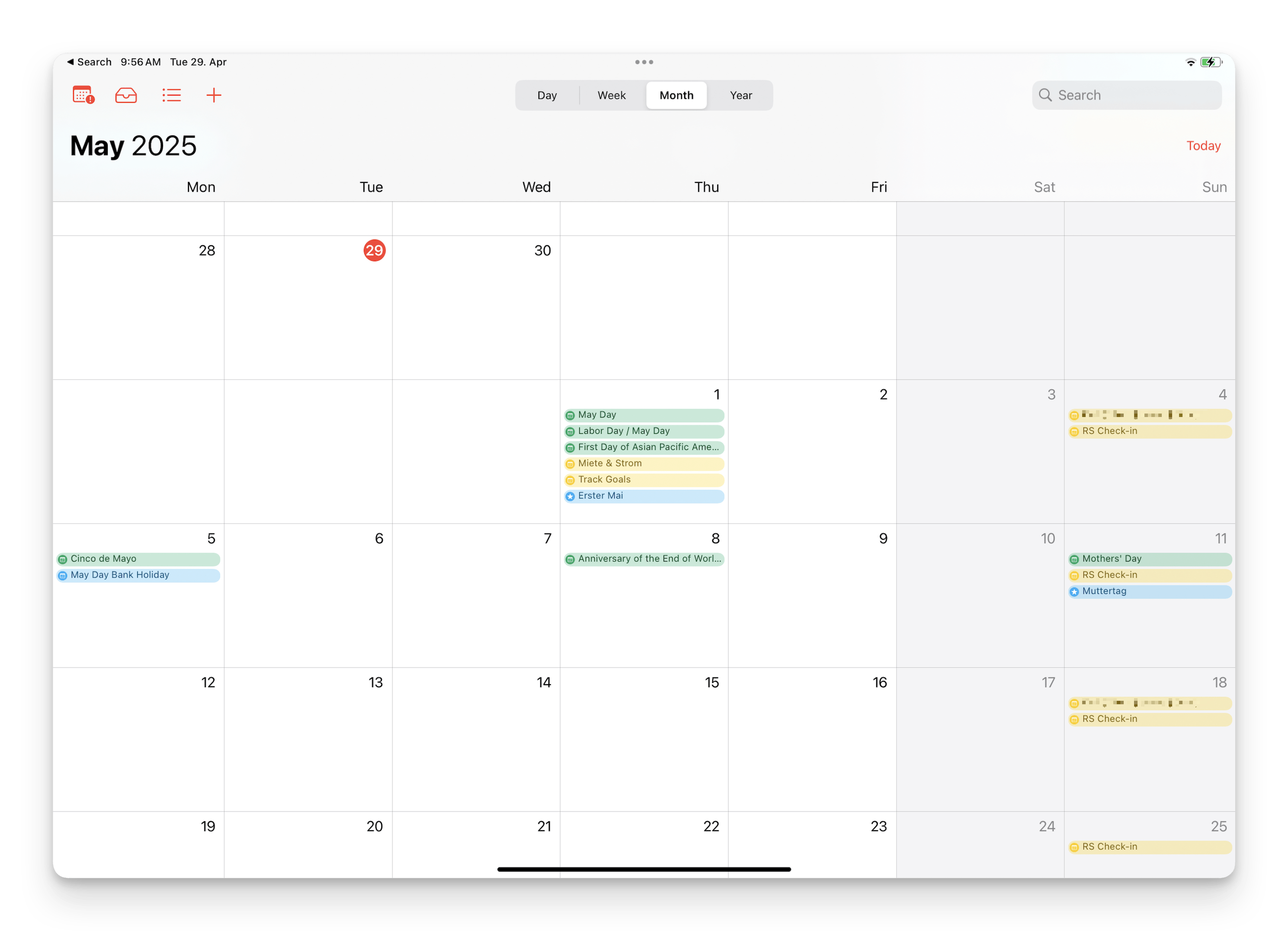
For users committed to the Apple ecosystem, the shared iCloud calendar is the most intuitive choice. By selecting the "Share Calendar" icon next to an existing calendar, you can send invitations via Apple ID. This platform excels in its privacy features and smooth synchronization across iPhone, iPad, and Mac. While it is more limited on non-Apple hardware—requiring browser-based access—it offers high stability for those within the ecosystem.
TimeTree
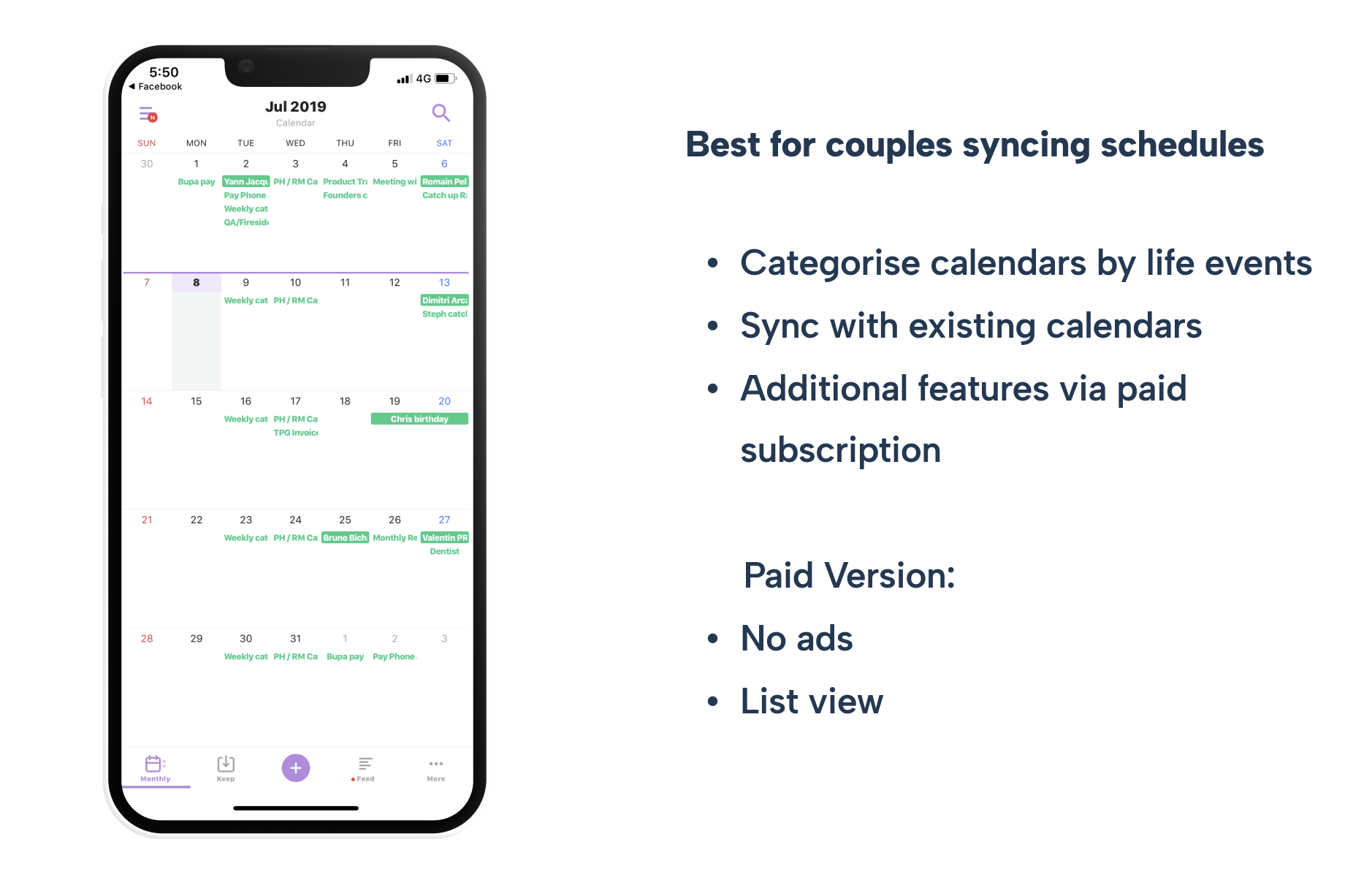
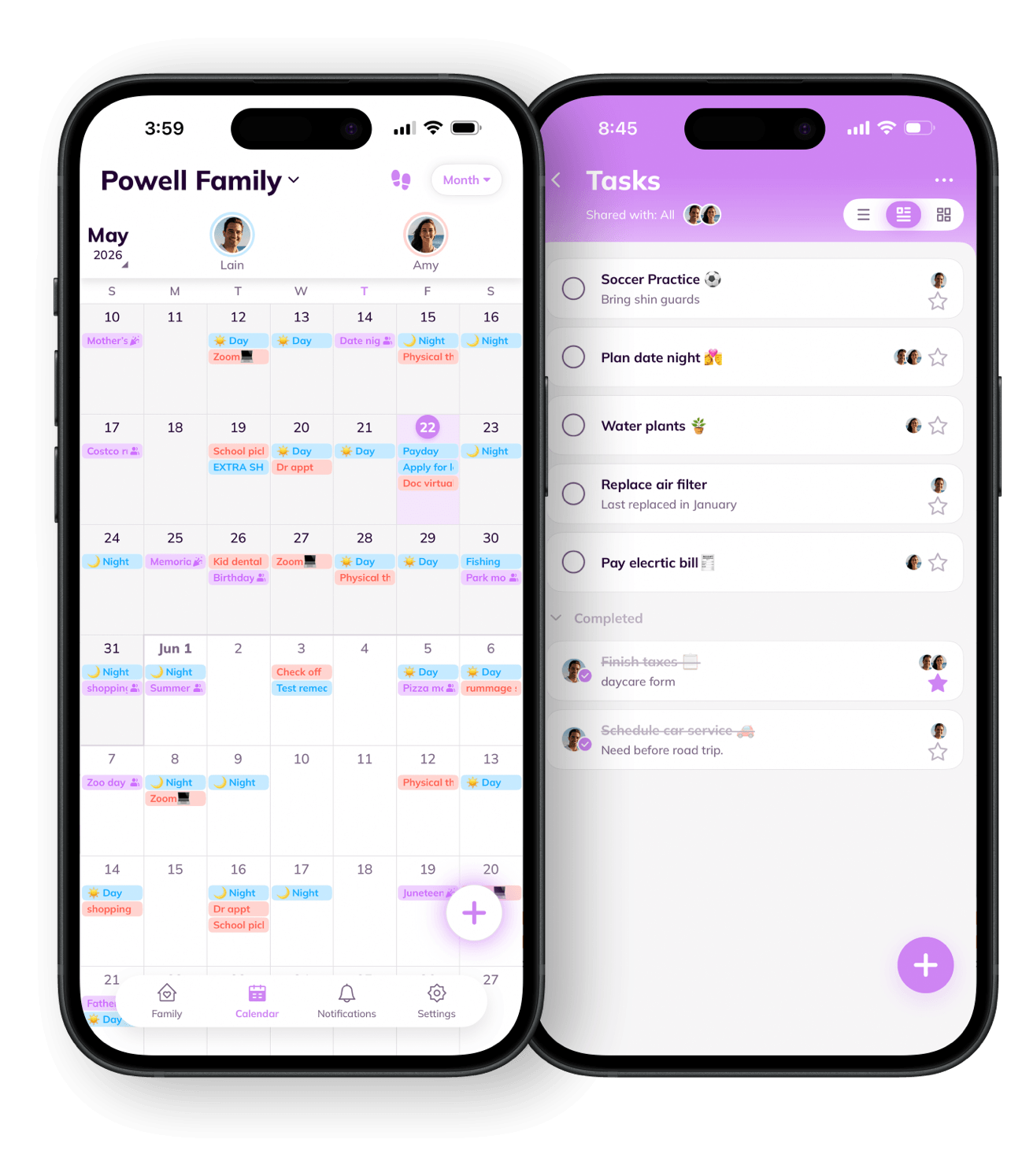
Unlike the heavy-duty productivity suites from tech giants, TimeTree is designed specifically for shared environments. It includes built-in chat functions for each event, making it ideal for families or project groups that need to discuss the details of an appointment directly within the calendar interface. This reduces the need to toggle between a calendar app and a messaging app to confirm plans.
Implementation and Common Troubleshooting
Transitioning to a shared calendar often hits a snag during the initial synchronization phase. If a team member is not seeing updates, check these three common failure points:
- Sync Intervals: Some mobile devices restrict background data refresh to save battery. Ensure your calendar app has permission for background data usage.
- Account Permissions: Verify that the "Share" settings were saved correctly. Often, users send an invitation but fail to finalize the "Save" step in the settings menu, leaving the secondary user without access.
- Time Zone Conflicts: If users are in different geographic locations, ensure that "Time Zone Support" is enabled in your settings. This allows the calendar to automatically adjust event times based on the user's local context, preventing missed meetings caused by time offsets.
Security and Privacy Considerations
When using free online services, be mindful of the data you store. While these platforms utilize industry-standard encryption for data in transit and at rest, you are ultimately responsible for the information shared. Avoid including sensitive personal identification numbers, passwords, or highly confidential professional data in public or broadly shared calendar events. For professional settings, ensure that your organization’s data governance policies permit the use of third-party cloud-based scheduling tools.
Frequently Asked Questions
Can I use a shared calendar if my family members use different phones? Yes. Most modern calendar services are platform-agnostic. Google Calendar and Outlook.com, for example, have dedicated apps for both iOS and Android. Even if members are on different devices, they can all sync to the same underlying account or shared URL.
Does a shared calendar notify others when I change an event? It depends on the platform settings. In most cases, you can toggle notifications on or off. Generally, if you move an event, the system updates the information globally. Some services send an automated notification to participants, while others simply update the view without triggering a new alert.
Can I keep some events private while sharing the rest of the calendar? Most platforms allow you to create multiple calendars under one account. You might have a "Public/Shared" calendar for joint events and a "Private" calendar for your personal work, which remains hidden from others even if they have access to the main account.
Is there a limit to how many people can join a shared calendar? For free tiers, there is usually no hard limit on the number of viewers, though there may be limits on how many individuals can have "edit" access or create events. Review the specific terms of service for your chosen provider to ensure your group size is supported.
What happens if I delete a shared calendar event? If you have "edit" permissions, deleting an event removes it for everyone. Use caution with administrative rights, and consider whether your chosen platform supports a "Trash" or "Recycle Bin" feature, which allows for the restoration of accidentally deleted entries within a specific timeframe (often 30 days).
Recommendation for Immediate Action
Start by auditing the devices currently used by your group. If everyone is already using a Google account, establish a single "master" calendar account or share individual calendars with one another to minimize friction. Create a test event and confirm it appears on all devices before inputting critical schedules. If your group requires discussion features, download and configure an account on a purpose-built platform like TimeTree to streamline your communication alongside your logistics.
Image Gallery