How to Set Up Outlook Configuration: A Complete Technical Guide
Setting up your Outlook configuration requires identifying your email service provider, gathering your incoming and outgoing mail server settings, and entering your account credentials into the Microsoft Outlook application. Whether yo...
Setting up your Outlook configuration requires identifying your email service provider, gathering your incoming and outgoing mail server settings, and entering your account credentials into the Microsoft Outlook application. Whether you are connecting a Microsoft 365 enterprise account, a consumer Outlook.com address, or a third-party provider like Gmail or Yahoo via IMAP or POP3, proper configuration ensures secure, reliable synchronization across your desktop and mobile devices.
Contents
Understanding Outlook Configuration Fundamentals
To successfully configure Microsoft Outlook, you must first understand how the application communicates with electronic mail servers. Outlook functions as an email client rather than an email service provider by itself. This means it relies on underlying communication protocols to retrieve messages from a remote mail server and transmit outbound communications across the internet.
The two primary protocols utilized for incoming mail retrieval are Internet Message Access Protocol (IMAP) and Post Office Protocol version 3 (POP3). IMAP serves as the modern standard for most users because it maintains a synchronized two-way connection between your local Outlook application and the remote mail server. When you read, move, or delete a message on your desktop, those changes reflect instantly on your webmail and mobile devices. POP3, by contrast, downloads messages from the server to a single local device and typically deletes the server copy afterward. This makes POP3 less suitable for multi-device environments but useful for offline archiving.
For outbound mail transmission, the application exclusively relies on the Simple Mail Transfer Protocol (SMTP). SMTP handles the secure handoff of outgoing messages from your local client to your mail provider's outgoing gateway. Modern Outlook configurations pair IMAP or POP3 with secure SMTP ports, enforcing Transport Layer Security (TLS) or Secure Sockets Layer (SSL) encryption to protect your login credentials and message contents from interception.
Prerequisites and Information Gathering
Before opening the Microsoft Outlook application to add a new profile or mailbox, you must collect specific technical parameters from your email hosting provider or system administrator. Attempting to configure an account without these prerequisites frequently results in connection timeouts, authentication errors, or unsecured transmissions.
You will need to verify and document the following pieces of data:
- Email Address and Password: The complete account address and your current login credentials. Note whether your organization enforces Multi-Factor Authentication (MFA), which may require an app password instead of your standard password.
- Incoming Mail Server Hostname: The domain address for retrieving mail, typically structured as
imap.domain.comorpop.domain.com. - Incoming Server Port: The numerical endpoint for incoming data. IMAP typically uses port 993 for secure connections, while POP3 uses port 995.
- Outgoing Mail Server (SMTP) Hostname: The domain address for sending mail, often formatted as
smtp.domain.com. - Outgoing Server Port: The numerical endpoint for transmission. Port 587 with STARTTLS encryption or port 465 with SSL encryption are the industry standards.
- Encryption Method: Explicit confirmation of whether your provider requires SSL, TLS, or auto-detected encryption settings.
Step-by-Step Outlook Setup Procedures
The configuration process varies slightly depending on whether you are launching Outlook for the very first time on a fresh installation or adding an additional mailbox to an existing profile. The procedures outlined below apply to modern iterations of Outlook on Windows and macOS.
Automated Account Discovery
Microsoft Outlook features an automated account setup wizard designed to query Microsoft's Autodiscover service or common provider records. For major enterprise environments utilizing Microsoft 365, Exchange Online, or consumer domains like Outlook.com, Hotmail, and Gmail, manual server entry is rarely required.
- Open Microsoft Outlook from your desktop applications menu or Finder.
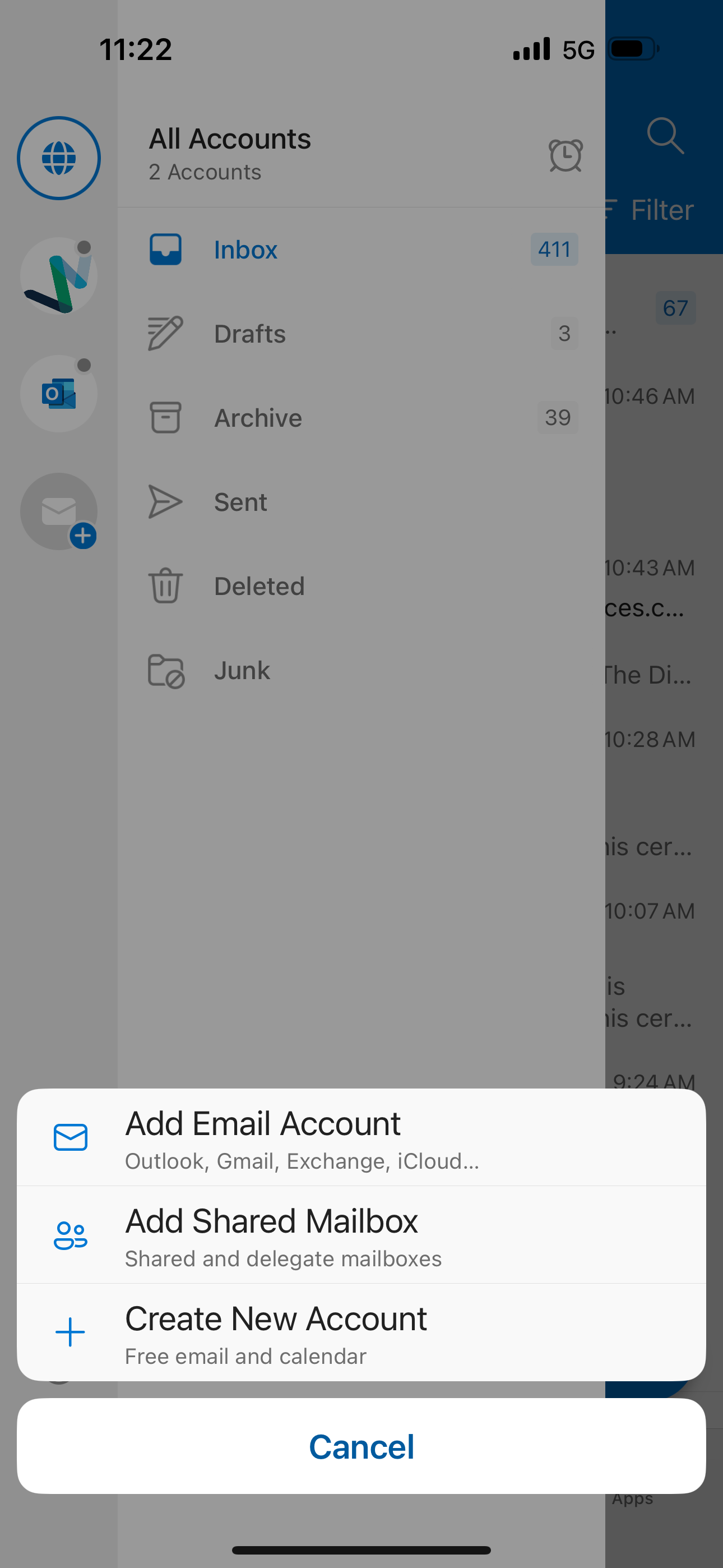
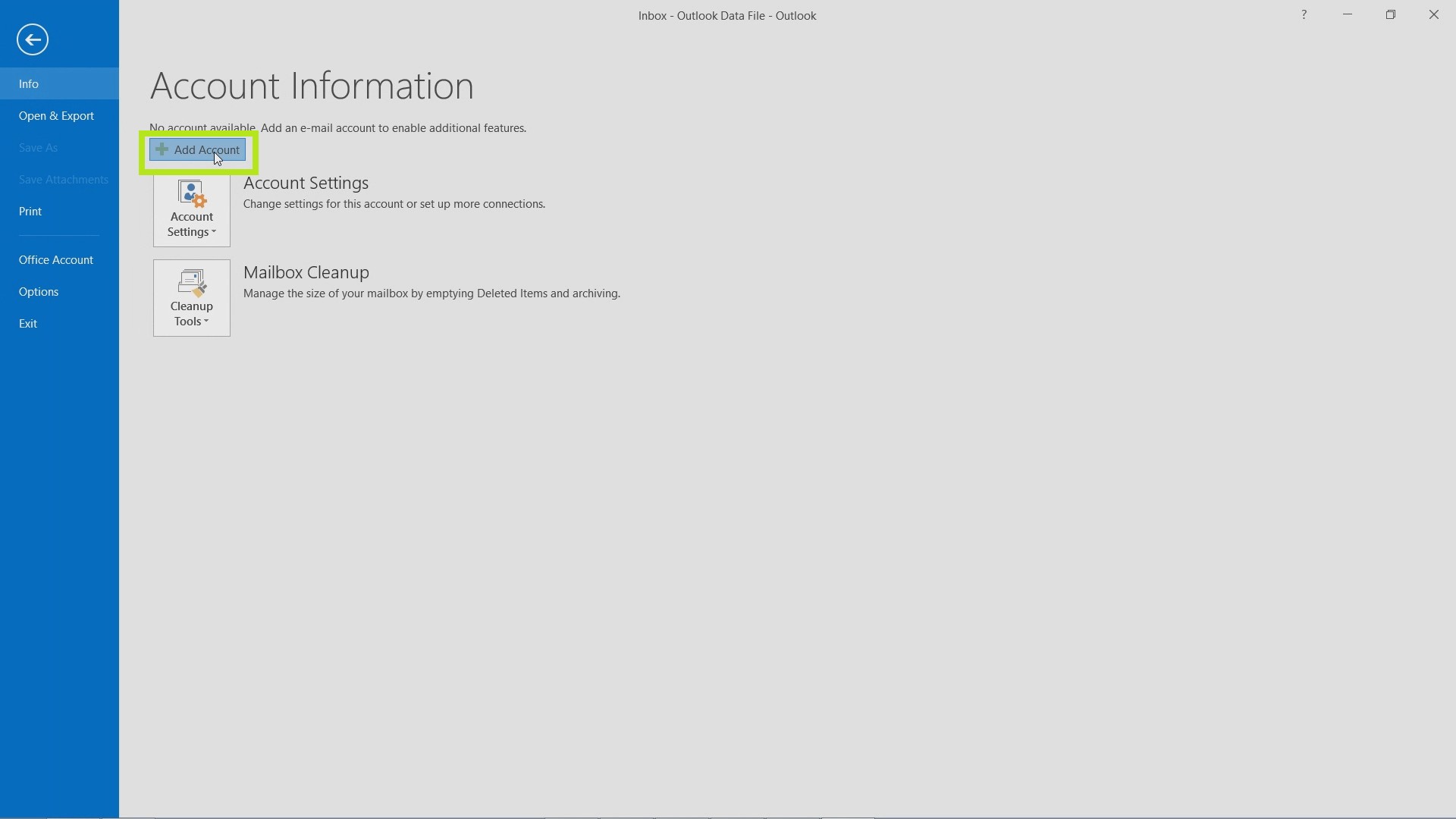
- If this is your first time launching the application, enter your full email address on the welcome screen. If you already have Outlook open, navigate to File, select Add Account, and enter your email address.
- Click Advanced options if you wish to manually configure your account, or simply click Connect to let the automated wizard detect your server type.
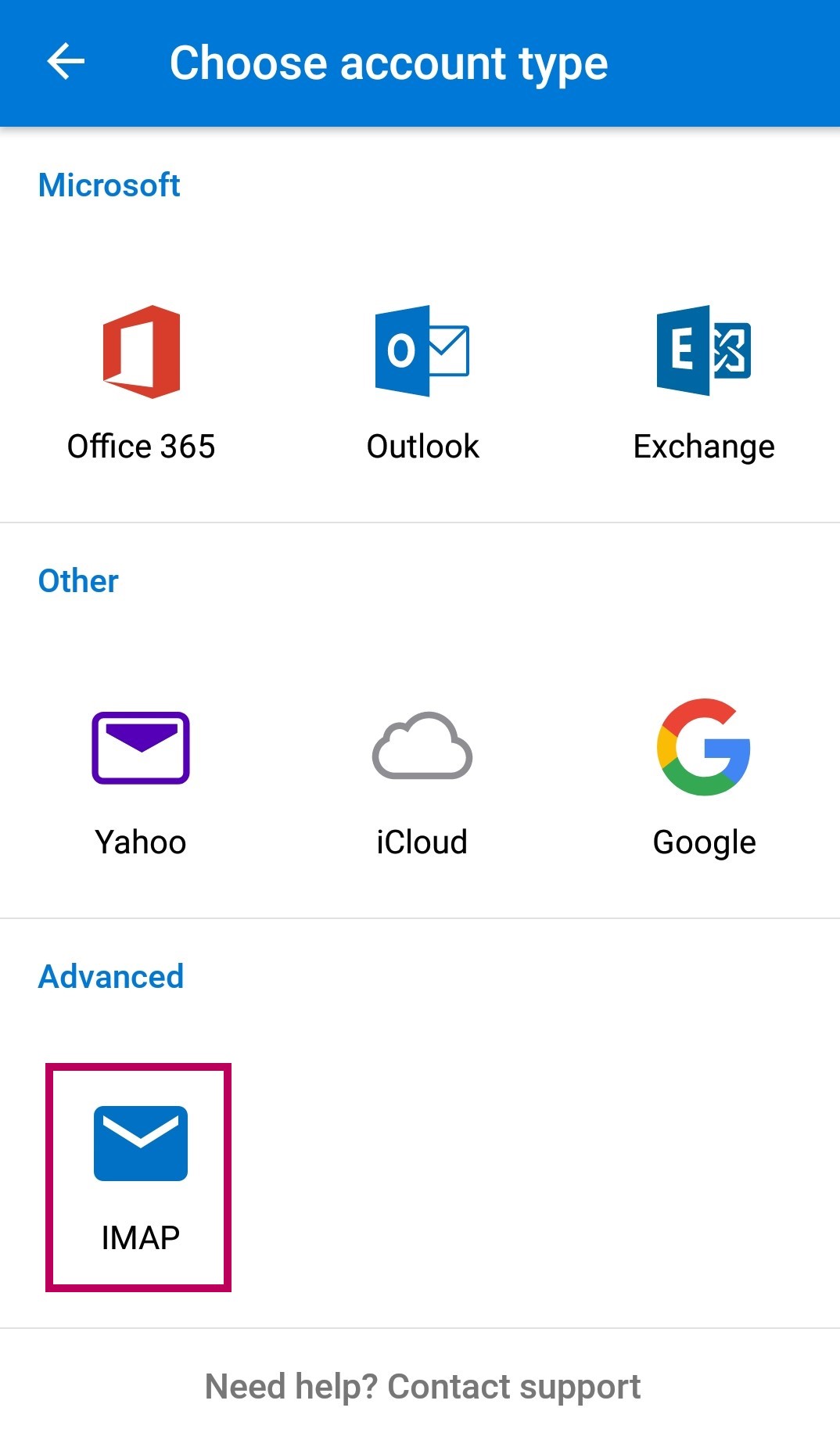
- If prompted, select your account type—typically Microsoft 365, Exchange, or IMAP/POP.
- Enter your account password when redirected to your provider's secure sign-in portal. Complete any required Multi-Factor Authentication prompts.
- Once authentication succeeds, click Done or choose to add another email address. Outlook will begin synchronizing your mailbox folders and messages.
Manual IMAP and POP Configuration
When setting up custom business domains, private web hosting accounts, or legacy email servers that do not support automated discovery, you must configure the parameters manually.
| Protocol | Typical Server Port | Encryption Method | Primary Function |
|---|---|---|---|
| IMAP | Port 993 | SSL / TLS | Two-way synchronization of folders across multiple devices. |
| POP3 | Port 995 | SSL / TLS | One-way download of incoming mail to a single local client. |
| SMTP | Port 587 or 465 | STARTTLS / SSL | Transmission and routing of outbound email messages. |
To execute a manual setup:
- Open Outlook, navigate to File > Add Account, and enter your email address.
- Expand Advanced options and check the box labeled Let me set up my account manually. Click Connect.
- Select your desired protocol by clicking either IMAP or POP.
- Enter your incoming server hostname and port number. Select the appropriate encryption method from the dropdown menu (such as SSL/TLS).
- Enter your outgoing SMTP server hostname, port number, and corresponding encryption method.
- Click Next, enter your account password, and click Connect. If the credentials and ports are accurate, Outlook will establish a secure connection and confirm the setup.
Verifying and Testing Your Configuration
Once the setup wizard completes, you must verify that your configuration handles both inbound and outbound traffic correctly. An incomplete configuration may allow you to receive messages while failing to transmit them, or vice versa.
To test your new Outlook configuration, compose a new email message and send it to an external address or back to yourself. If the message leaves the Outbox folder and appears in your Sent Items folder within moments, your SMTP outbound settings are functioning correctly. Next, verify inbound mail flow by confirming that recent messages from your server appear in your Inbox.
You can also inspect your connection status directly within the application. On Windows systems, hold the Ctrl key and right-click the Outlook tray icon in the Windows taskbar, then select Connection Status. This dialog box displays active connections, authentication states, and latency for your mailboxes, allowing you to confirm that IMAP or Exchange sessions are fully established.
Common Configuration Errors and Troubleshooting
Even with accurate server parameters, technical hurdles can disrupt the Outlook setup process. Identifying the root cause of common errors saves time and prevents repeated authentication failures.
Authentication and Password Failures
If Outlook repeatedly prompts you for your password or displays an authentication error, verify that you are not affected by modern security policies. Many email providers and Microsoft 365 tenants disable basic authentication in favor of modern authentication protocols. If your organization enforces strict security policies, ensure your client version supports modern authentication, or generate a dedicated application-specific password if you are using two-factor authentication with third-party providers like Google or Yahoo.
Port and Firewall Blocks
Network firewalls, corporate routers, and local security software frequently block non-standard network ports. If your connection times out during manual setup, verify that ports 993, 995, 465, and 587 are not blocked by your local firewall or internet service provider. Switching temporarily to a different network connection can help determine if a local network policy is causing the timeout.
Incorrect Server Hostnames
Typographical errors in incoming or outgoing server hostnames are the leading cause of setup failure. Double-check your provider documentation to ensure there are no trailing spaces or misconfigured subdomains in your server entries.
Frequently Asked Questions
What is the difference between IMAP and POP3 configuration in Outlook?
IMAP keeps your emails stored on the remote server while mirroring them across all connected devices, ensuring that reading or deleting a message on your phone updates your desktop client. POP3 downloads messages directly to your local computer and removes them from the server by default, restricting your mailbox access to that single device.
Why does Outlook keep asking for my password after setup?
This typically occurs due to outdated credentials, cached security tokens, or a conflict with modern multi-factor authentication requirements. Ensure your password is correct, check if your provider requires an app-specific password, and verify that your Outlook application is updated to the latest build.
Can I set up multiple email accounts in a single Outlook profile?
Yes. Outlook allows you to manage multiple email accounts—including Microsoft 365, Exchange, IMAP, and POP accounts—within a single desktop profile. Navigate to File > Add Account to incorporate additional mailboxes into your workspace.
How do I find my incoming and outgoing server settings?
Your incoming and outgoing server settings are provided by your email hosting provider or IT administrator. You can typically find them within your webmail account settings under security, mobile setup, or POP/IMAP configuration guides.
What should I do if my SMTP outgoing mail is stuck in the Outbox?
Messages stuck in the Outbox usually indicate an incorrect SMTP port, misconfigured encryption settings, or authentication failure on the outgoing server. Open your account settings, verify your outbound port and encryption type against your provider's documentation, re-enter your password, and test the connection.
Next Actions and Recommendations
To maintain a secure and stable email environment, ensure your Microsoft Outlook client receives regular software updates through your system administrator or Microsoft 365 subscription channel. Periodically review your connected devices and account activity logs to monitor for unauthorized access. If your organization transitions to cloud-based infrastructure, consult your IT department before modifying existing IMAP or POP setups to prevent workflow disruptions.
Image Gallery