How to Split a PDF File into Multiple Files
Splitting a PDF file into multiple files can be accomplished efficiently using built-in operating system tools, offline software utilities, or secure web-based services. The optimal method depends on your privacy requirements, technica...
Splitting a PDF file into multiple files can be accomplished efficiently using built-in operating system tools, offline software utilities, or secure web-based services. The optimal method depends on your privacy requirements, technical comfort level, and whether you need to extract specific page ranges, split by file size, or divide every single page into an individual document.
Contents
As digital workflows grow increasingly document-heavy, managing monolithic files becomes a persistent bottleneck. Whether you are dealing with a 500-page financial report, a scanned textbook, or a dense legal bundle, sharing or archiving the entire document is rarely practical. Extracting specific sections allows you to target your audience, reduce file attachments below email size limits, and secure sensitive information by omitting unrelated data. Understanding the underlying mechanisms of PDF document architecture helps ensure your splits preserve text fidelity, vector graphics, and metadata without data corruption.
Prerequisites and Preparation Before Splitting
Before executing any file-splitting operation, verify the structural integrity and security permissions of your source PDF. Preparing your files correctly prevents errors, missing fonts, or restricted access issues during processing.
Checking Document Permissions and Security
Many PDF documents are protected by owner passwords or digital rights management (DRM) restrictions that prevent modification, extraction, or splitting.
- Owner Passwords: If a PDF restricts printing or editing, standard splitting tools may throw an error or require you to input the master password.
- Signatures and Certifications: Digitally signed PDFs lose their cryptographic validation if modified or split. If you must split a signed document, understand that the resulting child files will break the original digital signature chain.
- Flattening Forms: Interactive AcroForms or XFA forms can behave unpredictably when extracted. If your PDF contains fillable form fields, consider "flattening" the document (converting form layers into static vector graphics) to preserve visual integrity.
Backing Up Original Files
Never perform destructive operations directly on your sole copy of a critical document. Always create a dedicated working directory on your local drive and copy the source PDF there. This safeguards against software crashes, accidental overwrites, or partial write errors that could corrupt the original master file.
Method 1: Using Built-in Operating System Tools (No Third-Party Software)
If you use macOS, you can split PDF files natively without installing external applications or uploading sensitive data to third-party web servers.
Using macOS Preview
Apple's default image and PDF viewer, Preview, provides a robust, visual interface for extracting and splitting pages.
- Open the PDF: Double-click the target PDF to open it in Preview. If it opens in another application, right-click (or Control-click) the file, select Open With, and choose Preview.
- Enable Thumbnails: Navigate to the top menu bar, click View, and select Thumbnails. A sidebar will appear displaying miniature representations of every page in the document.
- Isolate Target Pages: To extract a single page, click and drag its thumbnail out of the Preview sidebar directly onto your desktop or into an empty folder. Preview instantly generates a new, independent PDF containing just that page.
- Extract Page Ranges: To extract multiple consecutive pages, click the first page thumbnail, hold down the Shift key, and click the last page thumbnail in your desired range. Drag the highlighted group onto your desktop.
- Assemble Custom Splits: To create a custom multi-page document, select your desired pages in the sidebar, drag them onto the desktop together, or drag pages from one Preview window into the sidebar of another open Preview window.
Limitations of Built-In OS Tools
While Preview is exceptional for macOS users handling casual document tasks, it lacks advanced automation features. You cannot split a 1,000-page document into individual single-page files automatically with a single click; you must manually drag and drop page groups. Furthermore, Windows operating systems lack a comparable native PDF-splitting utility in File Explorer, requiring Windows users to rely on desktop software or web tools.
Method 2: Utilizing Dedicated Desktop Software
For enterprise-grade reliability, high-volume processing, or advanced splitting rules (such as splitting every $N$ pages or dividing by bookmark chapters), dedicated desktop applications are the industry standard.
Adobe Acrobat Pro
Adobe Acrobat Pro remains the definitive professional standard for PDF manipulation.
- Open the Tool: Launch Adobe Acrobat Pro and open your target document.
- Navigate to Organize Pages: Go to the Tools menu panel on the right side of the interface and select Organize Pages. Alternatively, use the top menu bar and select Organize Pages under the View or Document dropdowns.
- Select the Split Command: In the secondary toolbar that appears at the top of the document view, click the Split button.
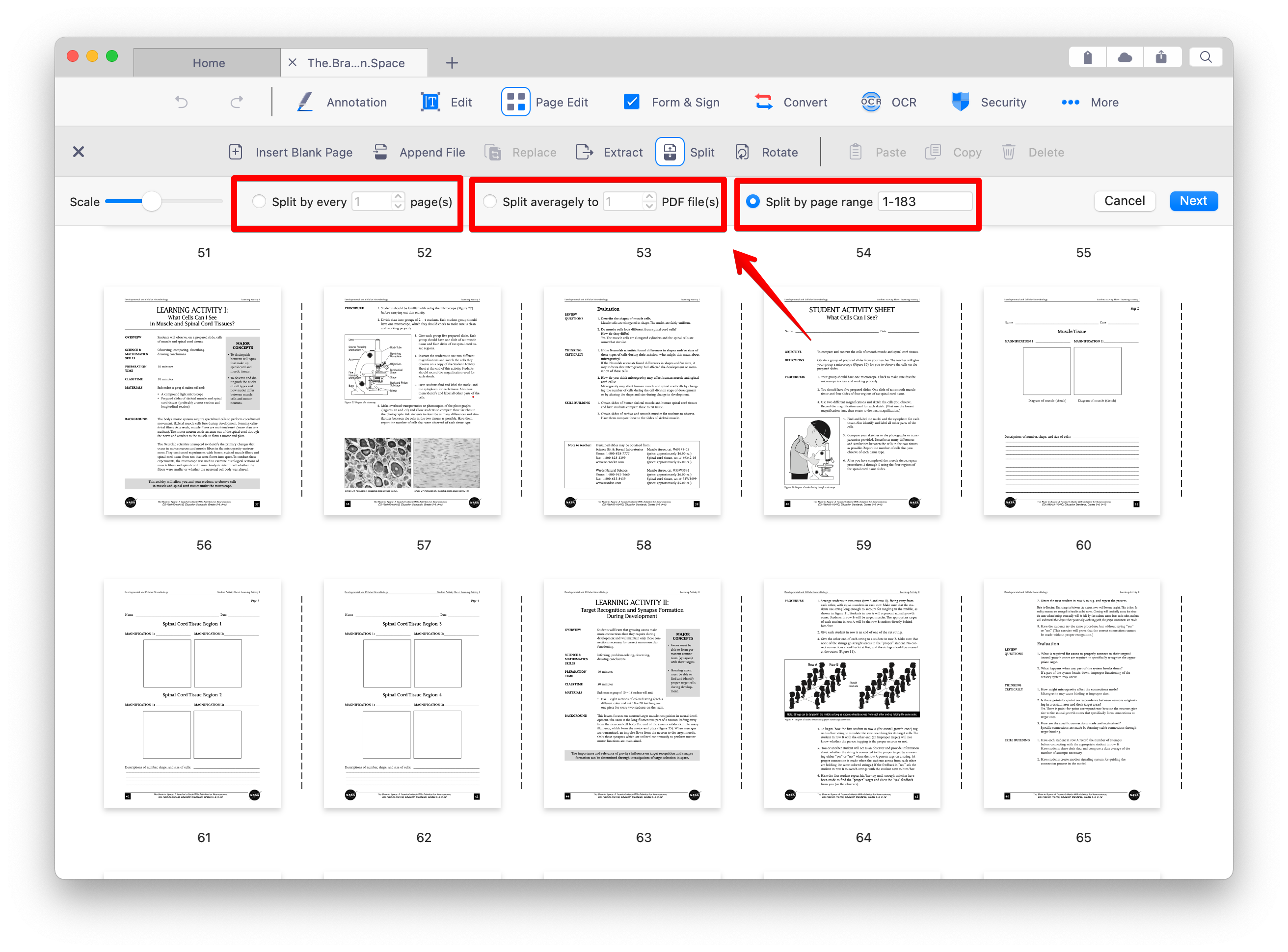
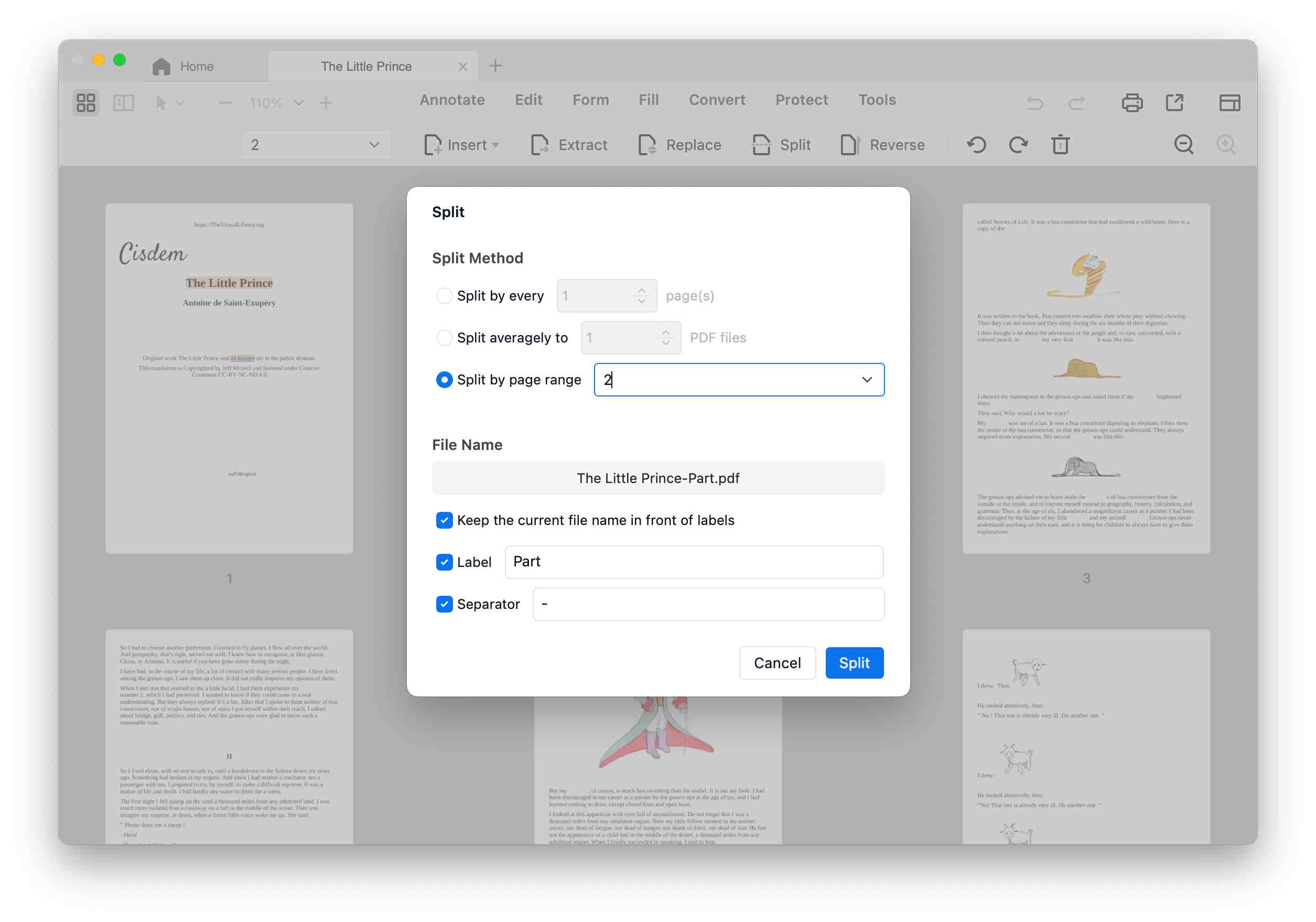
- Configure Split Parameters: A configuration dialog box opens, offering three primary criteria:
- Number of Pages: Divide the document evenly every $X$ pages (e.g., every 10 pages).
- File Size: Split the file whenever it reaches a specific megabyte threshold (useful for strict email attachment caps).
- Top-Level Bookmarks: Automatically split the document wherever a bookmark has been defined in the table of contents.
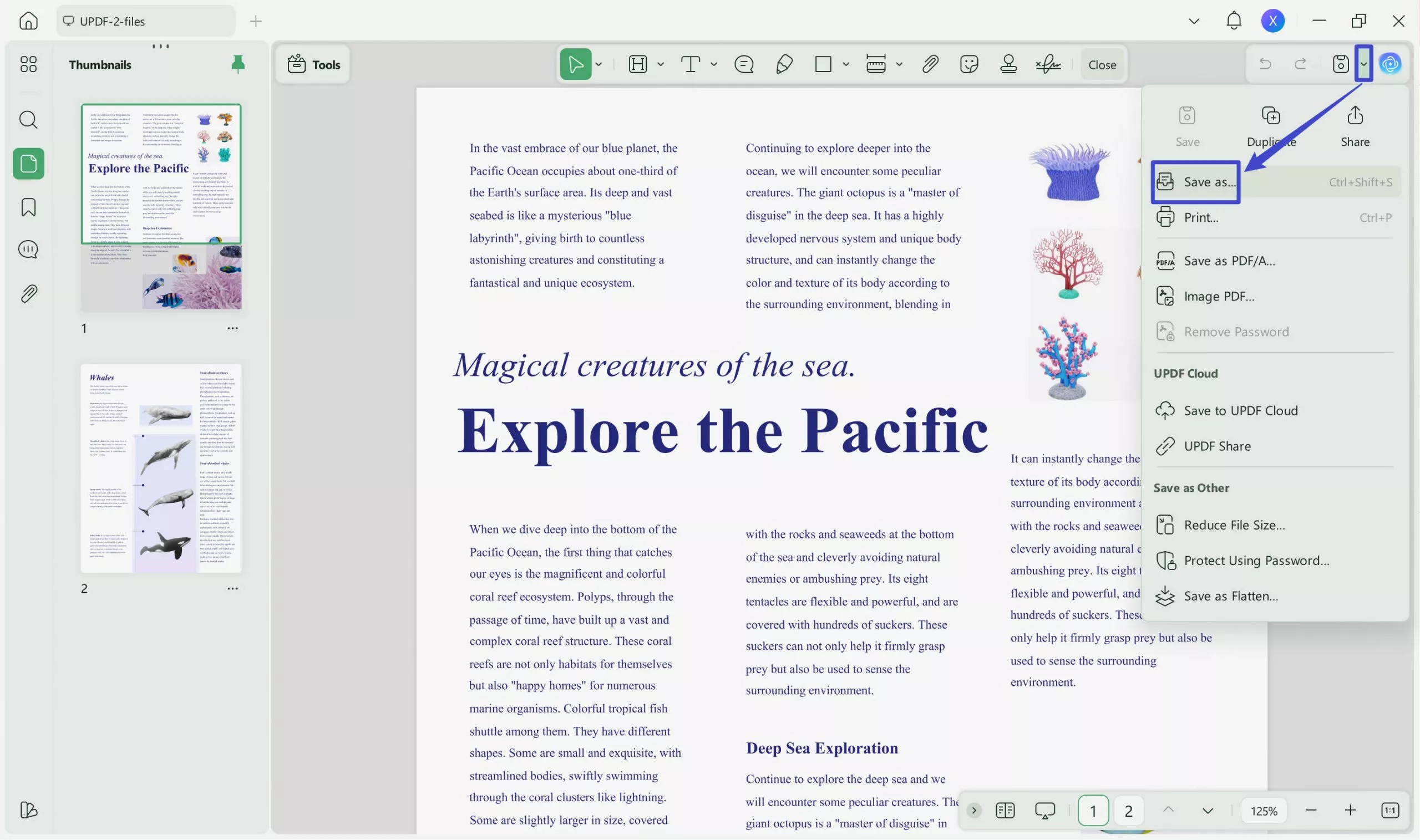
- Output Options: Click Output Options to define your destination folder, naming conventions (such as adding prefixes or suffixes), and whether to overwrite existing files. Click OK, then click Split to execute.
Open-Source and Free Desktop Utilities
If Adobe Acrobat Pro is unavailable, several respected open-source and freemium desktop utilities provide secure, local splitting capabilities:
- PDFsam (PDF Split and Merge): Available in a free basic edition, PDFsam allows users to split PDFs by page numbers, after specific pages, by file size, or by bookmark levels. Because it runs locally on your machine, your data never leaves your computer.
- pdftk (PDF Toolkit): A command-line utility prized by system administrators and developers. A typical command to burst a PDF into individual single-page files takes the form of
pdftk input.pdf burst.
Method 3: Using Web-Based PDF Splitters
Browser-based PDF tools offer convenience and cross-platform compatibility without requiring local software installations. However, they introduce privacy considerations that must be evaluated.
Workflow for Online Splitters
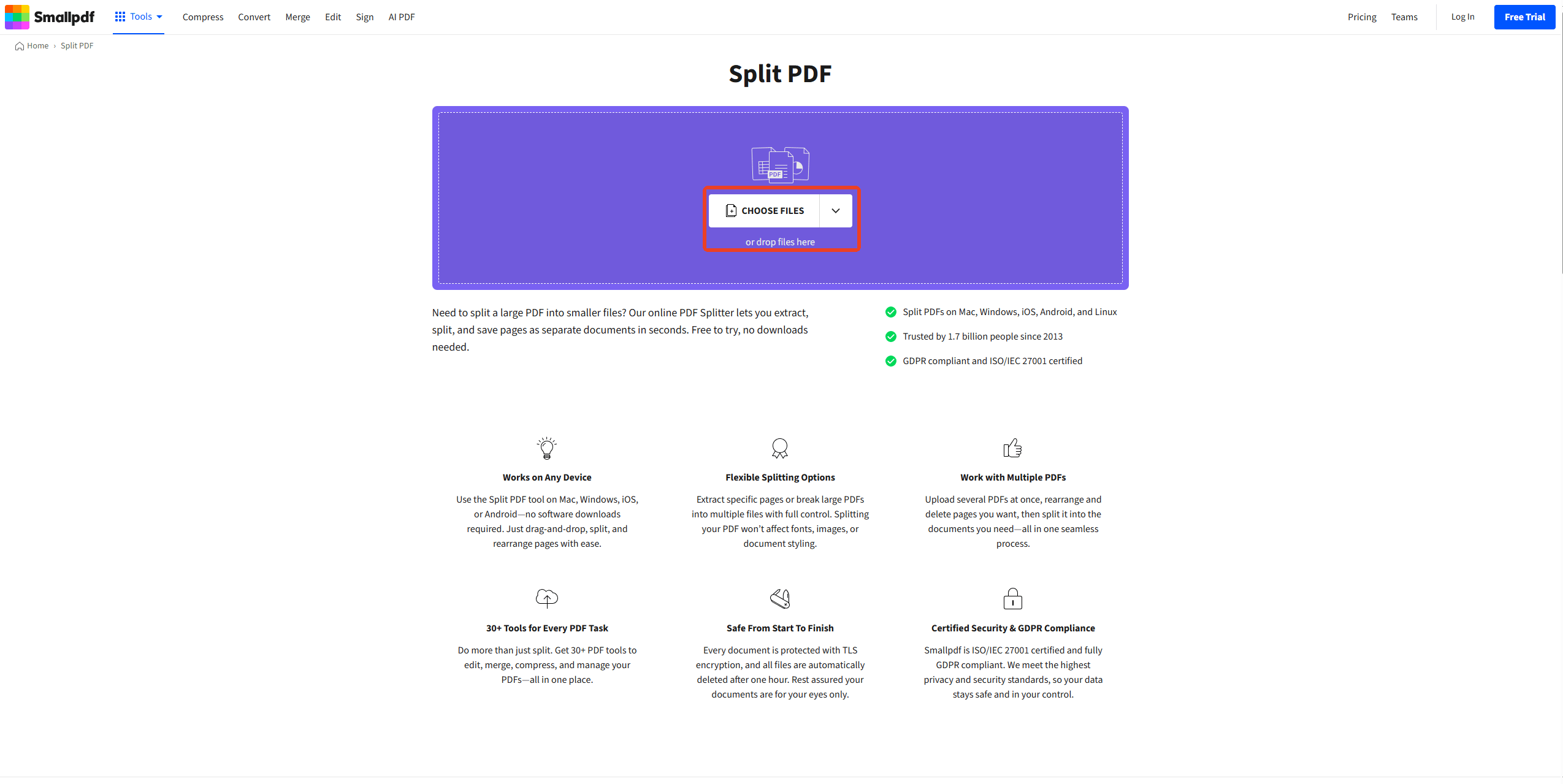
- Select a Reputable Service: Choose an established platform (such as Adobe online, Smallpdf, ILovePDF, or Soda PDF).
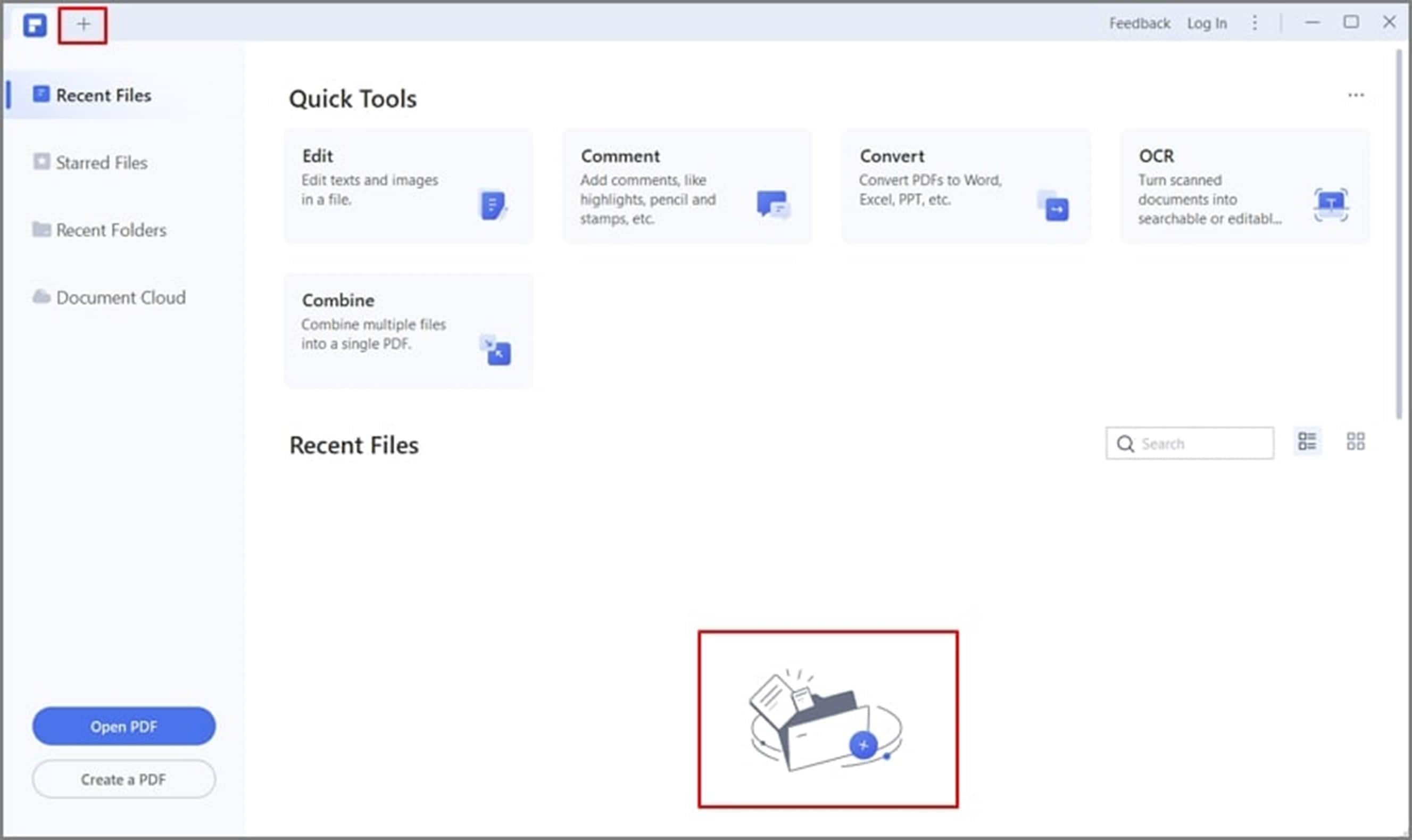
- Upload the File: Drag and drop your PDF into the browser upload zone or click Select File to browse your local drives.
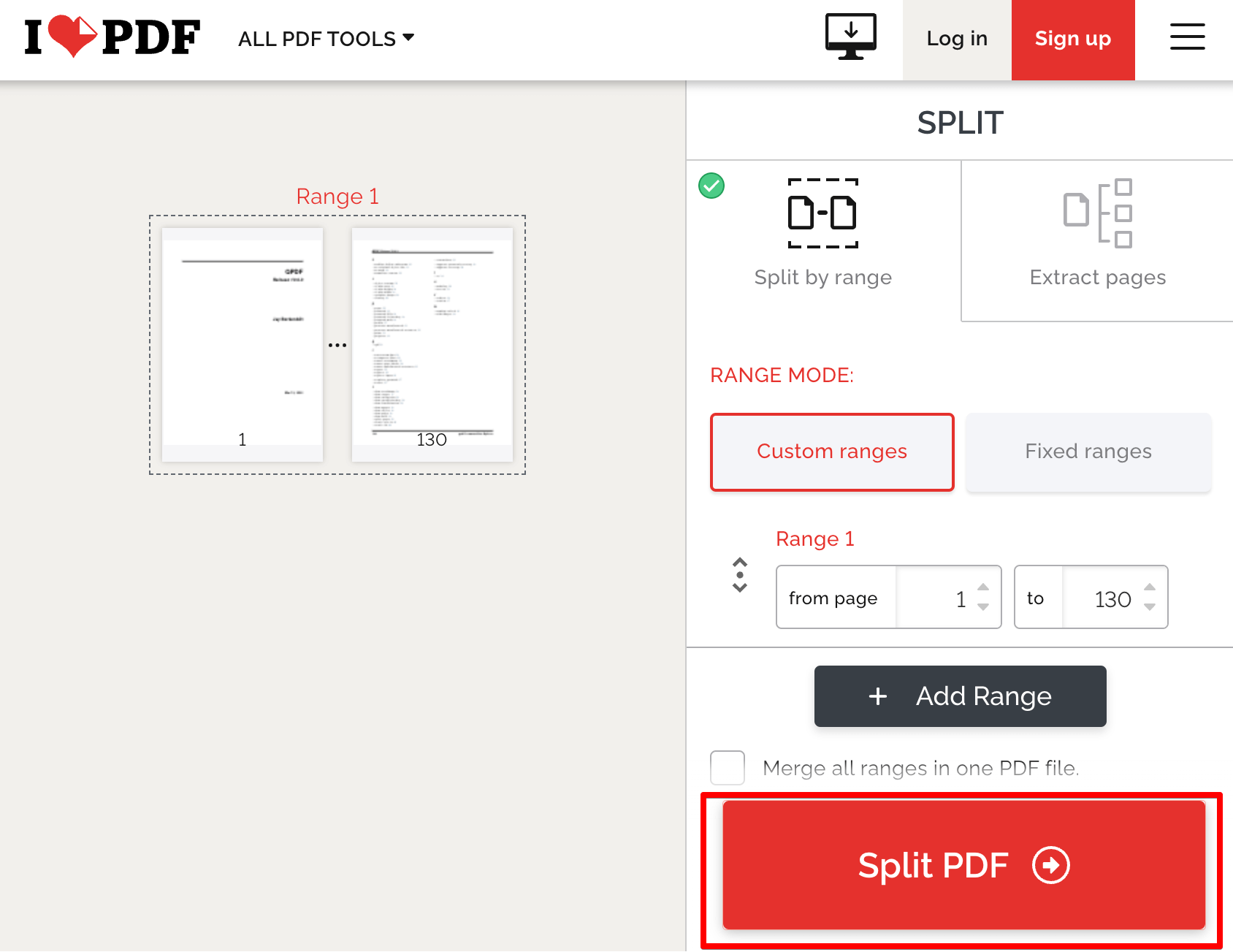
- Define Split Rules: Depending on the platform, choose whether to extract specific page ranges visually or split the entire file into individual pages.
- Process and Download: Click the conversion button. Once processing finishes, download the resulting ZIP archive containing your split files.
Security and Privacy Risks of Online Tools
When using web-based tools, your document is transmitted over HTTPS to a remote cloud server.
- Confidential Data: Never upload documents containing Personally Identifiable Information (PII), protected health information (HIPAA-regulated data), proprietary source code, or confidential financial records to unvetted free web services.
- Data Retention Policies: Review the platform's privacy policy to confirm whether uploaded files are automatically purged from their servers within a specified window (typically 1 to 2 hours) or retained for analytical purposes.
Comparison of PDF Splitting Methods
| Method | Platform | Privacy / Security | Cost | Automation / Advanced Rules | Best Suited For |
|---|---|---|---|---|---|
| macOS Preview | macOS Only | High (Local processing) | Free (Built-in) | Low (Manual drag-and-drop) | Quick visual extractions on Apple devices. |
| Adobe Acrobat Pro | Windows, macOS | High (Local processing) | Paid Subscription | High (Bookmarks, size, page counts) | Enterprise workflows, professional publishing, forms. |
| PDFsam (Basic) | Windows, macOS, Linux | High (Local processing) | Free / Open-Source | Medium (Bookmarks, fixed page intervals) | Privacy-conscious users needing bulk splitting. |
| Web-Based Tools | Browser-Based (Any OS) | Variable (Cloud upload required) | Free tier / Paid | Medium (Visual selection, fixed splits) | Quick, non-confidential files on guest computers. |
Troubleshooting Common PDF Splitting Errors
Even standard PDF operations can occasionally encounter friction due to corrupted cross-reference tables, unexpected font encodings, or strict security flags.
Error: "Document Could Not Be Saved" or "File Is Damaged"
This error usually indicates that the source PDF contains structural corruption within its internal object dictionary.
- Solution: Open the PDF in a comprehensive reader, choose File > Print, and select Save as PDF (or use a virtual PDF printer driver). This process re-renders the document stream, strips out corrupted metadata structures, and generates a clean flat PDF that can subsequently be split without error.
Error: Blank Pages or Missing Fonts After Splitting
When splitting files derived from legacy desktop publishing software, text layers may become unlinked or unmapped.
- Solution: Ensure you are using an updated PDF engine that supports modern font embedding standards (such as PDF 1.7 or PDF 2.0 specifications). If text appears as unselectable graphics, run an Optical Character Recognition (OCR) pass through the document before attempting to split or extract text blocks.
Frequently Asked Questions
Can I split a PDF file without losing image quality or text searchability?
Yes. Professional splitting tools and native OS utilities manipulate the existing object structure and page streams of the document rather than re-encoding or compressing its contents. As long as you do not apply an explicit downsampling or lossy compression filter during the split, text remains fully vector-based and searchable, and raster images retain their original DPI and color profiles.
Is it safe to use free online PDF splitters for confidential documents?
It depends entirely on the service provider's security infrastructure and compliance certifications (such as SOC 2, GDPR, or HIPAA compliance). Free, ad-supported web tools often store uploaded files temporarily on cloud servers. For sensitive legal, financial, or medical documents, you should exclusively use local desktop applications like Adobe Acrobat Pro or open-source utilities like PDFsam to ensure data never leaves your secure network environment.
How do I split a large PDF into individual single-page files automatically?
Most advanced desktop software and select web utilities feature a "Burst" or "Split into single pages" mode. In Adobe Acrobat Pro, you configure the split by setting the page count interval to "1 page." In open-source command-line tools like pdftk, running the burst command automatically parses every page of the source document into an individually numbered PDF file (pg_0001.pdf, pg_0002.pdf, etc.) within seconds.
Why do some PDF files refuse to be split?
Files refuse to split primarily due to owner-level security permissions, encryption keys, or digital signatures. If an author or corporate administrator applied a master password restricting document assembly and page extraction, standard tools will block the operation. You must enter the correct administrative password to lift these restrictions before attempting to divide the file.
Does splitting a PDF reduce its total file size?
Not necessarily. Splitting a document divides the overall data payload into smaller, more manageable components, but the sum of the child files' sizes will roughly equal the size of the original master file (plus a minimal amount of overhead for duplicated font resources or document catalog dictionaries). If your goal is to reduce file size rather than divide content, you should apply a PDF compression or optimization tool prior to splitting.
Next Actions
To proceed, evaluate your specific document requirements. If you are handling confidential internal data, download a trusted local utility or use native system tools. If you need automated processing based on chapter bookmarks or file size caps, prepare your backup copies and configure your desktop software parameters accordingly to begin your document workflow efficiently.
Image Gallery