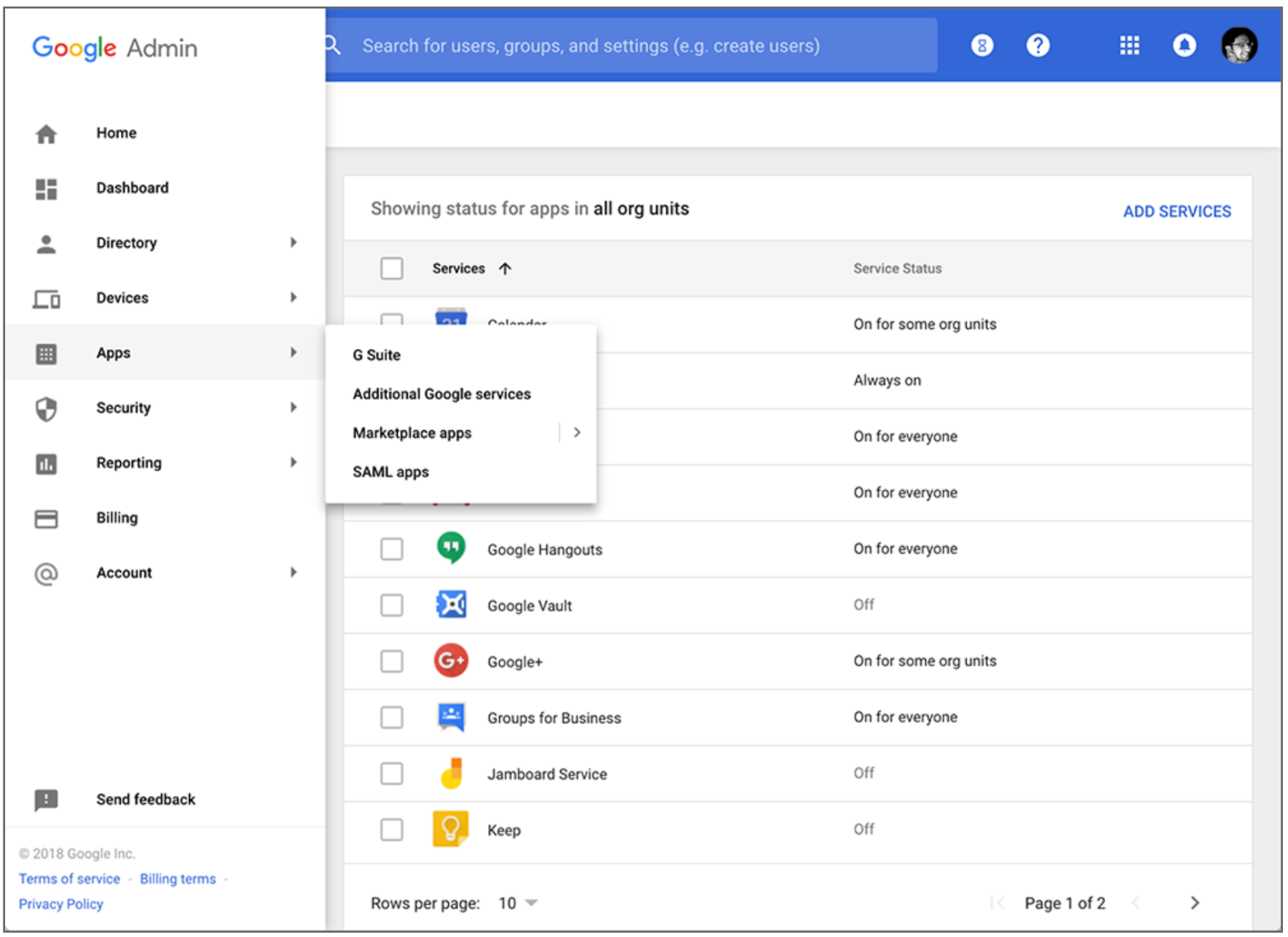
How to Access the Google Admin Console for Your Organization
To access the Google Admin Console for your organization, open a web browser and navigate directly to admin.google.com. Sign in using your fully qualified organizational email address (such as name@yourcompany.com) and password. Person...
To access the Google Admin Console for your organization, open a web browser and navigate directly to admin.google.com. Sign in using your fully qualified organizational email address (such as name@yourcompany.com) and password. Personal Google accounts ending in @gmail.com cannot sign in to the Google Admin Console.
Contents
Prerequisites for Logging into the Google Admin Console
Before attempting to log into the Google Admin Console, system administrators and IT personnel must ensure that specific account conditions and security protocols are satisfied. The Admin Console serves as the centralized management hub for Google Workspace, Cloud Identity, and Chrome Enterprise services across an enterprise. Access is strictly controlled based on account domain types, assigned administrative privilege levels, and configured authentication policies.
1. Organizational Account Credentials
The primary requirement for logging into the Admin Console is an active administrator account attached to your organization's managed domain.
- Managed Domain Account: Your user address must use the domain assigned to your organization's account (e.g.,
admin@example.com). - Personal Gmail Accounts: Accounts ending in
@gmail.comor@googlemail.comare unmanaged personal accounts. If you attempt to log in using a personal address, Google returns an error indicating that the account does not have access to an administrative control panel.
2. Administrative Roles and Permissions
Simply having a company email address on Google Workspace does not automatically grant console access. Your user profile must be explicitly assigned an administrative role by an existing Super Admin.
- Super Administrator: Grants unrestricted administrative rights across all features, organizational units (OUs), domain settings, user accounts, security policies, and billing.
- System/Delegated Administrator: Grants targeted access restricted to specific management tasks. For instance, a User Management Admin can reset passwords and create accounts but cannot modify billing settings or access organizational security keys.
3. Authentication and Security Policy Requirements
Depending on your organization's identity architecture, accessing the portal may require extra identity verification steps beyond a standard username and password:
- 2-Step Verification (2SV): Many organizations mandate multi-factor authentication (MFA). You will need access to your designated authentication method, such as a hardware security key (FIDO2/WebAuthn), prompt on a trusted device, or an authenticator app.
- Single Sign-On (SSO): If your organization federates identity management through a third-party Identity Provider (IdP) such as Microsoft Entra ID (formerly Azure AD), Okta, or Ping Identity, entering your organizational email at the Google login screen will automatically redirect you to your company's SSO login portal.
Step-by-Step Guide to Accessing the Google Admin Console
Accessing the dashboard requires navigating to the correct URL and completing identity verification. Following a clean browser setup prevents credential conflicts, especially if you manage multiple personal or client Google accounts on the same computer.
Step-by-Step Access Flow
- Open Incognito / Private Browser Window
- Navigate to admin.google.com
- Enter Organizational Email (e.g., admin@company.com)
- Authenticate via Password + 2SV or IdP SSO Redirect
- Land on the Main Google Admin Dashboard
Step 1: Open a Dedicated Browser Profile or Private Window
Account switching errors are the single most common barrier to logging into the Admin Console. To avoid caching conflicts with personal Google accounts, launch a dedicated browser session:
- Open an Incognito (Chrome), Private (Firefox/Safari), or InPrivate (Microsoft Edge) window.
- Alternatively, create a separate Chrome profile dedicated strictly to your organization's administrative duties.
Step 2: Navigate to the Official Admin Web Portal
Enter the direct web address into your browser's address bar:
- Primary URL: Navigate to admin.google.com.
- Alternative Domain Direct URL: You can also use
google.com/a/yourdomain.com(replacingyourdomain.comwith your organization's actual registered domain name). This automatically pre-fills the login context for your organization.
Step 3: Enter Your Administrative Account Credentials
On the standard Google sign-in prompt:
- Type your administrator email address (e.g.,
alex.smith@company.com). - Click Next.
- Enter your account password. If your account is configured for direct Google authentication, click Next.
Step 4: Complete Multi-Factor Authentication or SSO Verification
Depending on your security configuration:
- Google 2SV: Complete the prompt by tapping a security key, entering a code from your authenticator app, or approving the push notification sent to your mobile device.
- Third-Party SSO: If your domain uses SAML-based Single Sign-On, the browser will redirect to your company's identity provider URL. Log in with your enterprise corporate directory credentials. Once authenticated, the IdP will pass an encrypted assertion back to Google, redirecting you into the console.
Step 5: Verify Successful Login to the Admin Home Page
Upon successful authentication, you will land on the primary Google Admin Console dashboard. You will see administrative control cards such as Users, Groups, Organizational units, Devices, Apps, Security, and Billing. If any expected management tiles are missing, your account has been assigned a limited (delegated) privilege role rather than Super Admin status.
Google Admin Console Roles and Feature Availability
The interface options visible inside the Admin Console depend entirely on the specific admin privileges assigned to your account. Google Workspace uses Role-Based Access Control (RBAC) to enforce security boundaries across organizational infrastructure.
The following matrix outlines standard predefined roles, their target permissions, and what sections of the Google Admin Console are accessible:
| Administrative Role | Console Access Level | Accessible Admin Modules | Key Administrative Functions |
|---|---|---|---|
| Super Admin | Full Access | All Modules (Users, Billing, Security, Apps, Domains) | Full control over organizational settings, security policies, API controls, user creation, and role assignments. |
| User Management Admin | Partial Access | Users, Groups, Support | Creating and deleting user accounts, resetting user passwords, managing organizational units, updating user profile details. |
| Groups Admin | Partial Access | Groups, Access Control | Creating and managing Google Groups, managing group memberships, modifying group access permissions and posting rules. |
| Help Desk Admin | Restricted Access | Users (View/Reset only), Support | Resetting passwords for non-admin users, viewing user security status, generating verification codes. |
| Services Admin | Functional Access | Apps, Chrome, Devices | Managing Google Workspace service settings (Gmail, Drive, Calendar), turning apps on/off for specific organizational units. |
| Mobile/Device Admin | Functional Access | Devices, Endpoints | Managing mobile devices, setting screen lock policies, approving enterprise devices, remote wiping compromised hardware. |
Organizations can also define Custom Roles within Security > Access control > Admin roles to restrict privileges to granular scopes, such as managing specific organizational units without granting global domain control.
Troubleshooting Common Access and Login Errors
Authentication issues occur frequently during setup, role migration, or multi-account usage. The following solutions address the standard technical errors encountered when connecting to the Google Admin Console.
Common Access Errors
- "Doesn't look like a Google Account": Unregistered Domain/Email
- "You don't have access": Logged into @gmail.com
- 2-Step Verification Lockout: Use Backup / Super Admin
- Redirect Loop / Cookie Failure: Clear Cookies / Incognito
Error: "Doesn't look like a Google Account"
This message appears when the email address typed into the login field has not been provisioned within Google Workspace or Cloud Identity.
- Cause: Typing mistake in the domain name, or the organization has not finished setting up Google Workspace for that specific email address.
- Resolution: Double-check the exact spelling of the administrative address. Confirm with your IT department or cloud partner that your account has been properly provisioned within the workspace tenant.
Error: "You don't have access to the Google Admin console"
This screen displays when you sign in with an authentic Google identity that lacks administrative rights, or when you are logged into a personal account in the same browser session.
Account Conflict Resolution
Active Session: user@gmail.com (Personal - No Access)
Target Session: admin@company.com (Organizational - Admin Access)
Solution: Click Profile Icon, Sign Out of All, Or Use Incognito
Cause: The browser automatically passed existing
@gmail.comsession cookies to the Admin Console endpoint. Alternatively, your corporate account (user@company.com) is authenticated, but no administrative role has been granted.Resolution: Click the profile avatar in the upper right corner of the page, sign out of all active Google sessions, and log in exclusively with your administrative credentials. If your corporate account still receives this error, contact a Super Admin in your organization to assign your account an administrative role.
Redirect Loops and Account Switcher Conflicts
When managing multiple corporate and personal Google accounts, browsers frequently attempt to validate access using the default signed-in profile (Profile 0), causing continuous redirects between myaccount.google.com and admin.google.com.
- Resolution: Clear your web browser's cache and cookies for Google domains, or launch an isolated private browser window. To prevent recurring session conflicts, configure separate native browser profiles within Google Chrome or Microsoft Edge for administrative tasks versus standard daily communication.
Account Lockout: Lost Password or 2-Step Verification Device
If the primary Super Admin loses their authentication key, phone, or password, standard access workflows are suspended.
- Secondary Super Admin Intervention: If your organization maintains more than one Super Admin account, a secondary administrator can navigate to Users inside the console, select the locked-out account, and issue a temporary password or generate a set of 2SV backup verification codes.
- Automated Admin Account Recovery: If all administrative accounts are locked out, navigate to the portal login screen, enter the Super Admin email, click Forgot password?, and follow the automated recovery instructions. Google will require you to verify domain ownership by adding a specialized DNS record (TXT or CNAME) to your public DNS host platform (e.g., Cloudflare, GoDaddy, Namecheap). Details on DNS verification mechanisms can be referenced directly through the official Google Workspace Admin Help Center.
Best Practices for Managing Admin Console Access
Maintaining control over your Google Admin Console is essential for protecting your organization's sensitive operational data, email flows, and user identities. Implementing structured administrative safeguards minimizes corporate vulnerability and prevents complete system lockouts.
1. Enforce Mandatory Multi-Factor Authentication
Passwords alone do not provide adequate protection for management portals. Configure mandatory 2-Step Verification across all administrative accounts.
- Security Key Enforcement: Require hardware security keys (FIDO2/WebAuthn standards) for all Super Admin profiles to protect against modern phishing campaigns and credential interception attacks.
- Disallow Weak Authentication: Restrict SMS and voice-call verification where possible, as these channels are vulnerable to SIM-swapping exploits.
2. Maintain Dedicated "Break-Glass" Emergency Accounts
To prevent total administrative lockouts during SSO provider outages or credential loss, organizations should establish redundant emergency access.
- Create at least two active Super Admin accounts within the domain.
- Ensure at least one Super Admin account remains bypass-exempt from third-party SAML Single Sign-On (SSO) federated routes, allowing direct access at
admin.google.comif your primary identity platform experiences an outage. - Store emergency "break-glass" credentials and offline backup codes in a secure physical safe or enterprise password vault.
3. Implement the Principle of Least Privilege
Avoid relying on a single Super Admin account for routine administrative operations.
- Provision custom administrative roles with targeted permissions for day-to-day staff tasks. For example, helpdesk analysts should only be given rights to view accounts and execute password resets.
- Periodically review active privilege assignments by navigating to Security > Access control > Admin roles and auditing user assignments to prevent role creep.
Frequently Asked Questions
What is the official direct web address for the Google Admin Console?
The direct web URL to access the Google Admin Console is admin.google.com. You can also reach the sign-in portal for a specific corporate domain by navigating to google.com/a/your-domain.com, substituting your-domain.com with your active business domain.
Can I access the Google Admin Console using a personal @gmail.com account?
No. The Google Admin Console is an enterprise management portal designed exclusively for managing Google Workspace, Cloud Identity, and Google for Education organizations. Personal accounts ending in @gmail.com or @googlemail.com are personal, unmanaged accounts and cannot log in to the console.
Why does the page continuously refresh or load my personal Gmail when I go to admin.google.com?
This occurs when your web browser defaults to an active personal Google session stored in its local cookies. To fix this, log out of all active Google accounts, open an Incognito or Private browsing window, or set up a dedicated browser profile registered exclusively to your business email address.
What should I do if the only Super Admin for our organization is locked out?
If no secondary Super Admin is available to reset access, start the self-service automated recovery workflow at the login prompt by clicking Forgot password?. Google will require you to demonstrate administrative control over the domain by adding a specific CNAME or TXT record to your domain's public DNS record management portal.
Is there a mobile application for accessing the Google Admin Console?
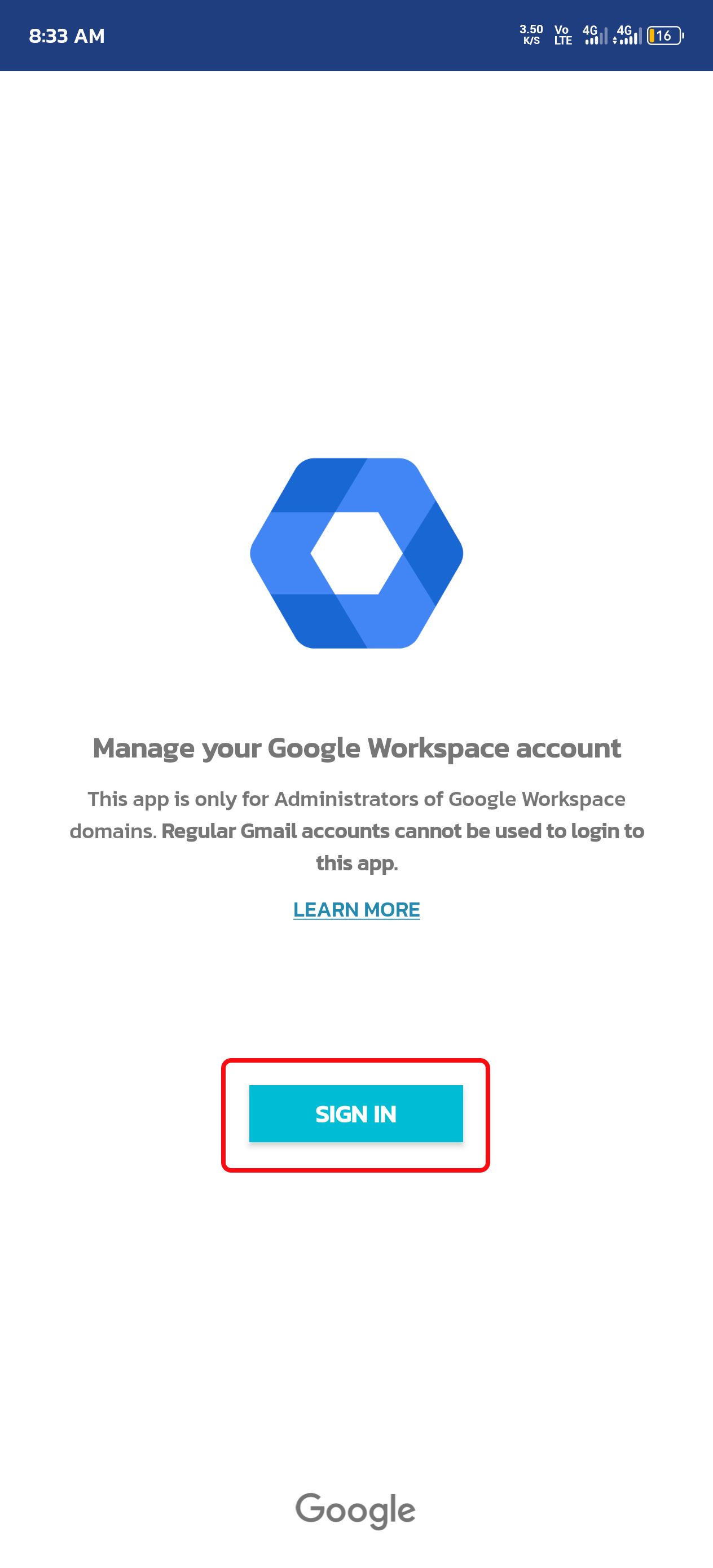
Yes. Google offers the Google Admin mobile application, available on Android via the Google Play Store and iOS via the Apple App Store. The mobile app allows authorized administrators to manage users, add accounts, audit logs, inspect group memberships, reset user passwords, and contact Google Support directly from a smartphone.
How do I grant administrative access to another user in my company?
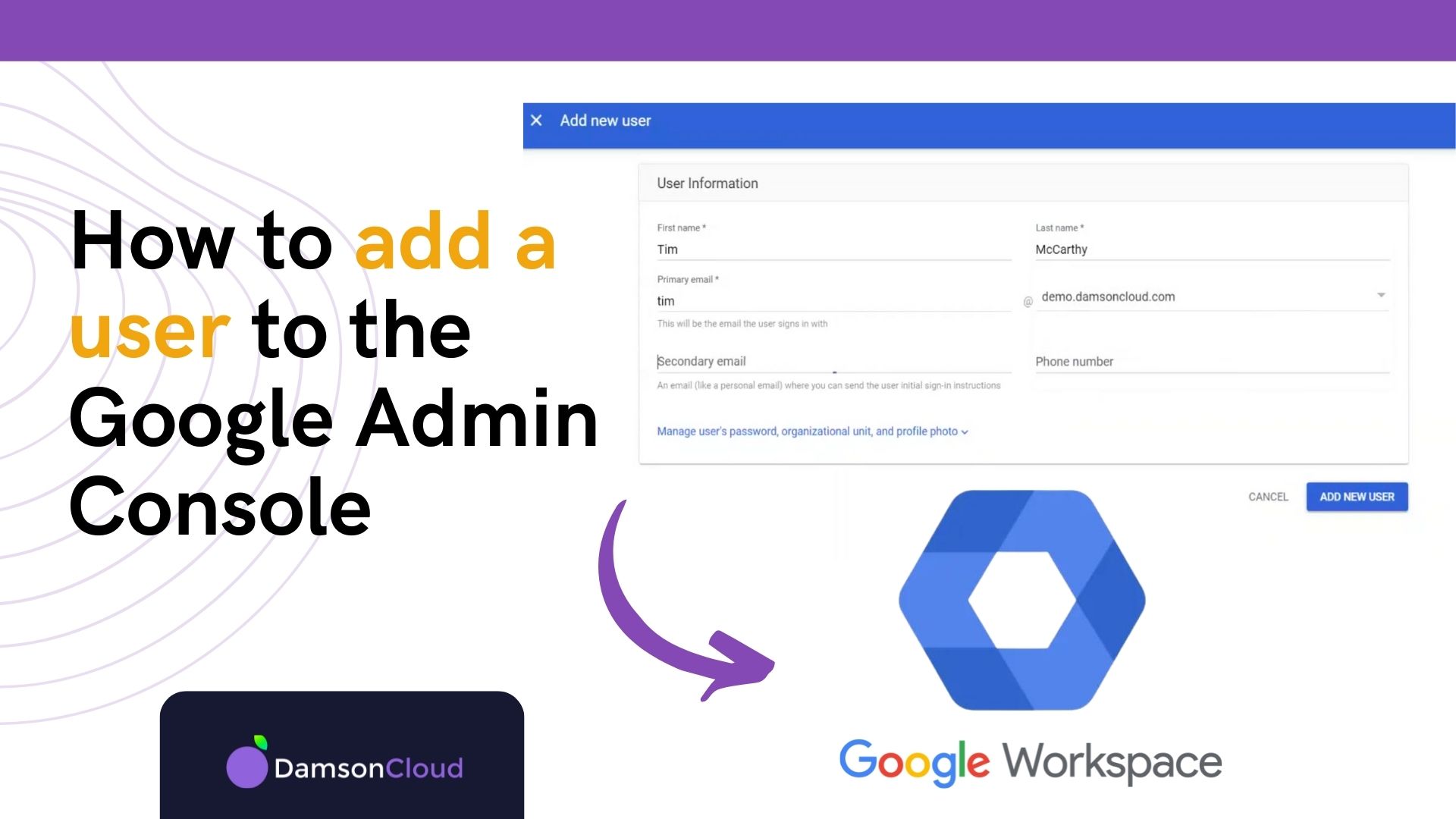
To assign administrative access, log into the Google Admin Console as a Super Admin. Navigate to Directory > Users, select the intended user, scroll down to the Admin roles and privileges section, click Assign roles, toggle the appropriate administrative role (such as User Management Admin or Super Admin), and click Save.
Recommended Next Steps
Now that you know how to log into your Google Admin Console, ensure your account access remains secure and functional:
- Verify Session Isolation: Configure a separate Chrome profile for administrative operations to avoid multi-account cookie conflicts.
- Audit Administrative Roles: Navigate to Security > Access control > Admin roles within the console to verify that only authorized personnel possess active Super Admin privileges.
- Configure Emergency Recovery Options: Ensure your administrative profile has up-to-date recovery phone numbers, secondary recovery email addresses, and generated 2SV backup codes stored in an enterprise password manager.
Image Gallery