How to Connect Your Phone to a Projector: A Comprehensive 2026 Guide
To connect your phone to a projector, you can use a wireless connection via protocols like AirPlay, Miracast, or Google Cast, or a wired connection using a USB-C to HDMI or Lightning to HDMI adapter. The best method depends on your dev...
To connect your phone to a projector, you can use a wireless connection via protocols like AirPlay, Miracast, or Google Cast, or a wired connection using a USB-C to HDMI or Lightning to HDMI adapter. The best method depends on your device’s operating system and the projector's input capabilities.
Contents
Connecting a mobile device to a projector has evolved from a niche technical task into a standard requirement for boardrooms, classrooms, and home theaters. As of 2026, the landscape of mobile connectivity has stabilized around high-bandwidth wireless standards and universal physical ports, yet compatibility hurdles remain. This guide explores every viable method to bridge the gap between your smartphone and the big screen, ensuring a stable, high-definition experience.
Identifying Your Phone’s Connection Capabilities
Before selecting a cable or a streaming protocol, you must identify the hardware standards supported by your smartphone. The connection method is dictated almost entirely by the device's port type and its internal software architecture.
Android Devices and USB-C Alt Mode
Most modern Android smartphones released in the last few years utilize the USB-C standard. However, not all USB-C ports are created equal. To connect directly via a cable, your phone must support DisplayPort Alternate Mode (Alt Mode). This allows the USB-C port to transmit video signals directly to an HDMI or DisplayPort input. High-end devices, such as the Samsung Galaxy S-series and Google Pixel 8 and newer models, typically support this feature. Budget-tier Android devices may only support charging and data transfer, requiring a wireless workaround instead of a direct wired link.
Apple iPhone and the Transition to USB-C
Following the transition that began with the iPhone 15, the current 2026 lineup of iPhones utilizes USB-C. These devices support direct video out, making them highly compatible with standard USB-C to HDMI adapters. Older iPhones (iPhone 14 and earlier) utilize the proprietary Lightning port, which requires a specific "Digital AV Adapter" containing a small conversion chip to translate the proprietary signal into HDMI.
Projector Inputs and Wireless Radios
On the receiving end, you must verify what your projector accepts. Most modern projectors feature at least one HDMI 2.1 port. Smart projectors often come with built-in Wi-Fi and Bluetooth, supporting native mirroring protocols like Miracast or AirPlay. If your projector is an older "dumb" model, you will likely need an intermediary device, such as a streaming dongle or a specific adapter, to facilitate the connection.
Wired Connection Methods: The Gold Standard for Stability
Wired connections remain the preferred choice for professional presentations and gaming due to their zero-latency performance and immunity to Wi-Fi interference.
USB-C to HDMI Adapters
For iPhone 15 and newer, as well as flagship Android devices, a USB-C to HDMI adapter is the simplest solution.
- Plug the USB-C end into your phone.
- Connect a standard HDMI cable from the adapter to the projector.
- Select the correct HDMI source on the projector’s remote.
- Your phone screen should mirror automatically.
When purchasing an adapter, look for one that supports Power Delivery (PD). Projecting video consumes significant battery life; an adapter with a secondary USB-C charging port allows you to keep the phone powered throughout a long movie or presentation.
Lightning to HDMI (Legacy iPhones)
If you are using an older iPhone, you must use the Apple Lightning Digital AV Adapter. Third-party versions of this adapter exist, but they frequently fail to play content from streaming services like Netflix or Disney+ due to High-bandwidth Digital Content Protection (HDCP) compliance issues. The official adapter ensures that the encrypted handshake between the phone and the projector is successful.
MHL and SlimPort (Obsolete Standards)
You may encounter references to MHL (Mobile High-Definition Link) or SlimPort in older tutorials. As of 2026, these standards are largely obsolete. If you are using a device from the early 2010s, you might need an MHL cable, but for any modern setup, USB-C Alt Mode has superseded these technologies.
Wireless Connection Methods: Convenience and Mobility
Wireless connections offer the freedom to move around the room, which is ideal for educators and dynamic speakers. However, they are susceptible to lag and signal drops in crowded Wi-Fi environments.
Apple AirPlay 2
For iPhone users, AirPlay is the most seamless wireless method. Many modern smart projectors from brands like Epson, LG, and Samsung now support AirPlay 2 natively.
- How to connect: Ensure both the phone and projector are on the same Wi-Fi network. Open the Control Center on your iPhone, tap "Screen Mirroring," and select your projector from the list.
- Best For: High-quality video streaming and photo sharing with minimal setup.
Miracast and Wi-Fi Direct
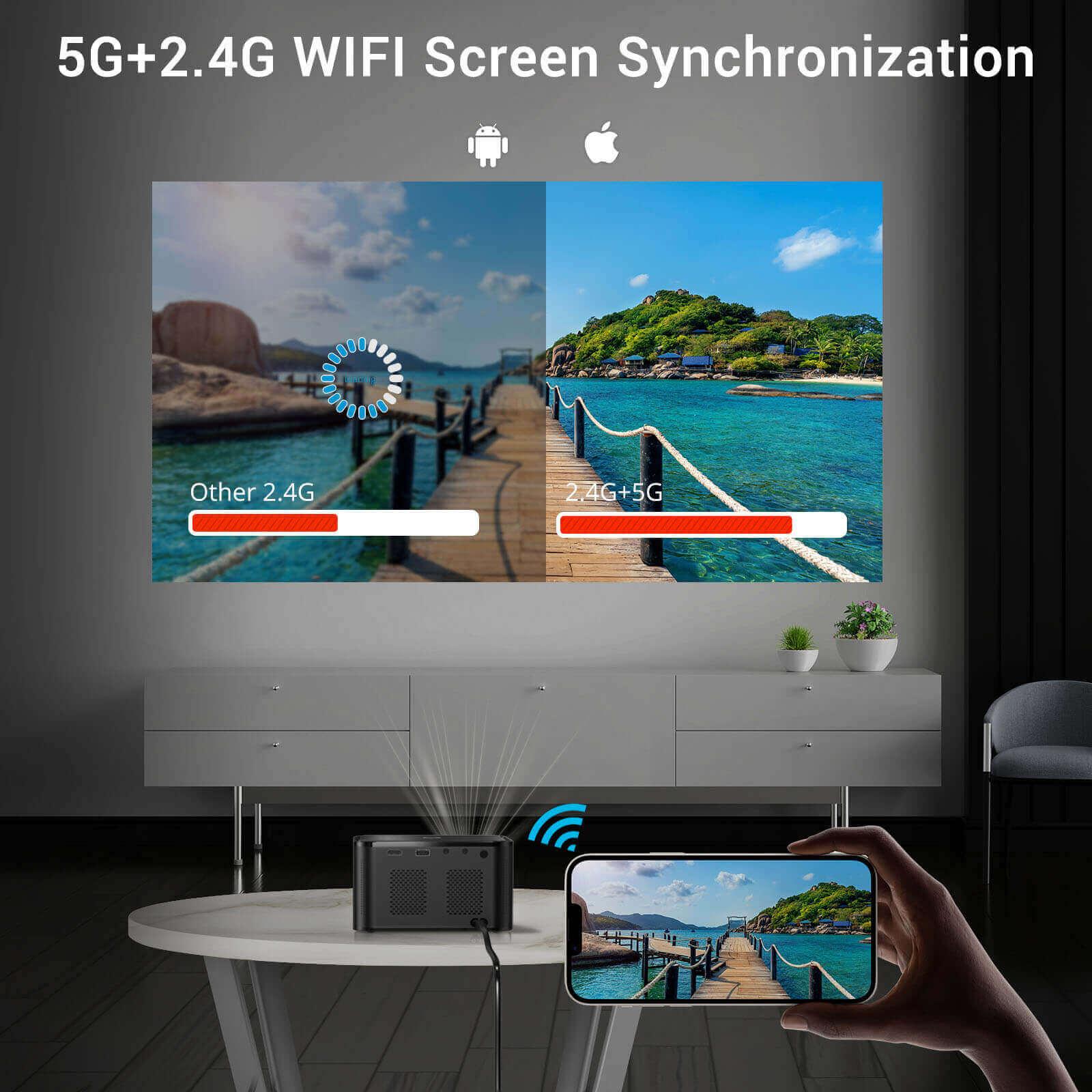
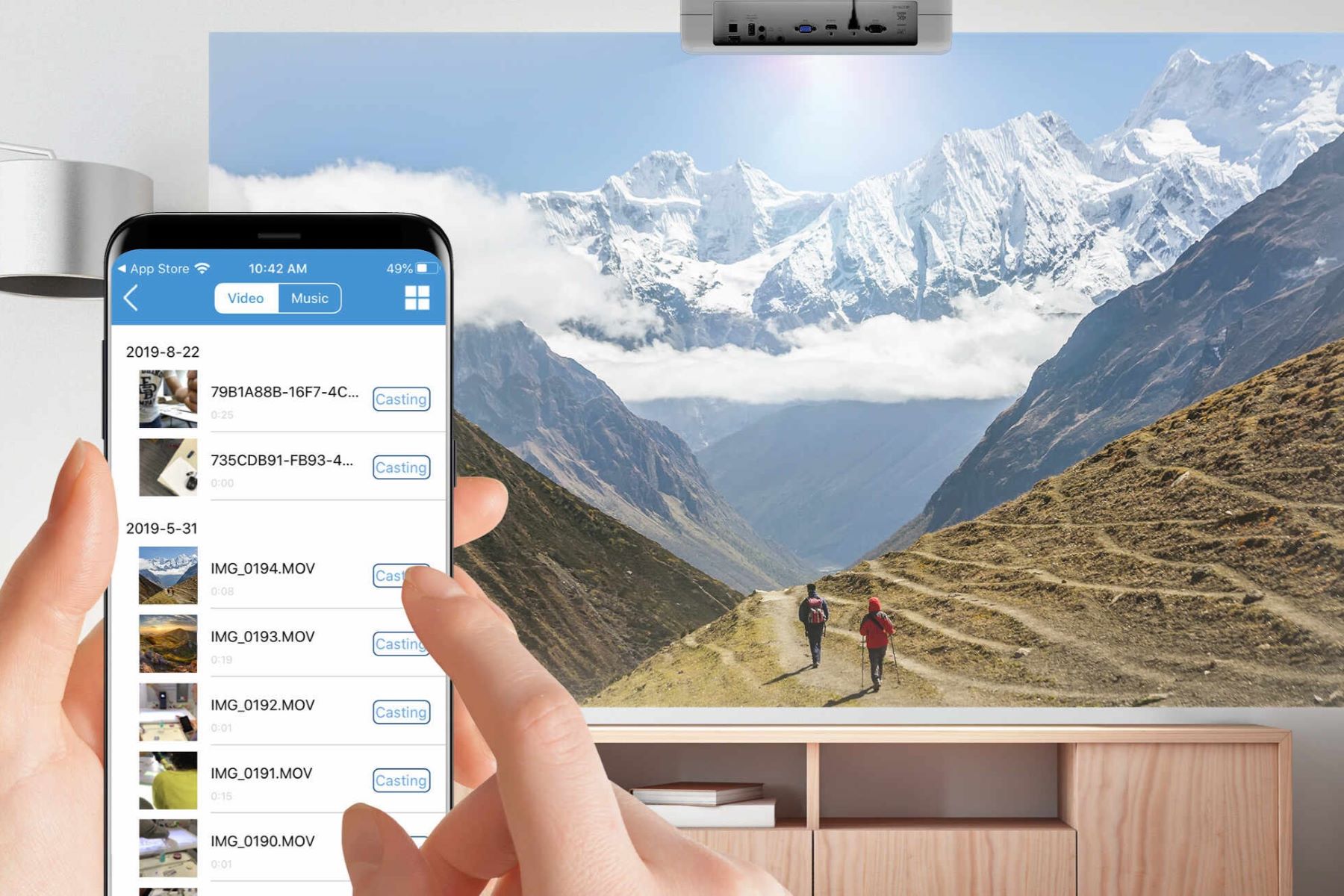
Miracast is a "screen-mirroring" standard used by many Android devices and Windows laptops. It creates a direct peer-to-peer Wi-Fi connection between the phone and the projector, meaning you don't necessarily need a local Wi-Fi router.
- How to connect: On your Android phone, look for "Cast," "Smart View," or "Wireless Projection" in the quick settings menu. Ensure the projector is in "Mirroring Mode."
- Technical Note: Miracast can be temperamental with high-resolution 4K content, often capping out at 1080p to maintain a stable connection.
Google Cast (Chromecast)
If your projector does not have built-in wireless, plugging a Google Chromecast or a streaming stick (like a Xiaomi or Roku device) into the projector’s HDMI port is a highly effective workaround.
- Benefit: Unlike simple mirroring, "Casting" allows the projector to pull the video stream directly from the internet while your phone acts as a remote. This saves phone battery and allows you to use your phone for other tasks without interrupting the projection.
Comparison of Connection Methods
| Method | Latency | Max Resolution | Power Usage | Best Use Case |
|---|---|---|---|---|
| USB-C to HDMI | Zero | 4K / 120Hz | High (unless PD used) | Gaming & Professional Demos |
| AirPlay 2 | Low | 4K | Moderate | iPhone Video Streaming |
| Miracast | Moderate | 1080p | Moderate | Android Business Presentations |
| Chromecast | Low | 4K | Low (on phone) | Movie Nights / Home Theater |
| Lightning Adapter | Zero | 1080p | High | Legacy iPhone Connectivity |
Troubleshooting Common Connection Issues
Even with the right equipment, the "No Signal" message is a common frustration. Most issues stem from software handshakes or cable quality.
Resolving HDCP Errors
If you can mirror your home screen but the screen goes black when you start a movie on Netflix or Amazon Prime, you are likely facing an HDCP (High-bandwidth Digital Content Protection) error. This occurs when the projector or the adapter is not recognized as a "secure" device by the streaming app. To fix this, ensure you are using high-speed HDMI 2.1 cables and official adapters. Wireless mirroring via Miracast often fails HDCP checks; using a native app on a streaming stick is a more reliable solution.
Aspect Ratio and Scaling
Smartphones typically have aspect ratios like 19.5:9 or 21:9, while projectors are usually native 16:9 or 16:10. This results in "letterboxing" (black bars on the sides).
- The Fix: Check your projector’s "Aspect" settings and look for a "Zoom" or "Fit to Screen" option. On Samsung phones, "Smart View" allows you to change the aspect ratio on the phone to match the external display specifically.
Audio Routing Problems
A common issue is the video appearing on the screen while the audio continues to play from the phone's small speakers.
- For Wired: HDMI carries both audio and video. If there is no sound, check if the projector has built-in speakers or an "Audio Out" port. You may need to connect the projector to external speakers via a 3.5mm jack or Bluetooth.
- For Wireless: Ensure the projector’s volume is not muted. On Android, you can go to Media Output settings to ensure the "Cast" device is selected as the primary audio sink.
Using Streaming Dongles as a Bridge
If your projector is mounted on a ceiling and lacks smart features, running a long HDMI cable to your phone is impractical. In this scenario, streaming dongles (Amazon Fire Stick, Roku, or Chromecast) act as the perfect bridge. By plugging these into the projector, you turn it into a smart device. You can then use the phone to "hand off" content to these sticks, which then handle the heavy lifting of decoding the video. This is the most robust method for 2026 home theater setups, as it supports Dolby Vision and Atmos formats that mobile mirroring often strips away.
Frequently Asked Questions
Can I connect my phone to a projector using only a USB charging cable?
No, a standard USB-A to USB-C charging cable generally cannot transmit video signals. Most projectors have a USB port, but it is typically intended for playing media from a flash drive or providing power to a streaming stick. You must use a dedicated HDMI adapter or a USB-C cable specifically rated for Video/DisplayPort Alt Mode.
Why is there a lag when I play games wirelessly?
Wireless lag, or latency, is caused by the time it takes for your phone to compress the video frame, send it over the air, and for the projector to decompress it. For gaming, especially fast-paced titles, a wired USB-C to HDMI connection is essential to eliminate this delay.
Do I need an internet connection to mirror my screen?
It depends on the method. Miracast and wired HDMI connections do not require an internet connection or a Wi-Fi router. However, AirPlay and Chromecast typically require both devices to be on the same local Wi-Fi network with active internet access to verify licenses and stream content.
Can I connect my phone to a projector via Bluetooth?
Bluetooth does not have the bandwidth required to transmit high-quality video signals. Bluetooth on a projector is almost exclusively used for audio output—connecting the projector to an external soundbar or headphones. It cannot be used to mirror your phone’s screen.
Does connecting to a projector damage my phone's battery?
Projecting video is a processor-intensive task that generates heat and drains the battery quickly. While it won't "damage" the battery in the short term, the heat generated from high-brightness video output can accelerate battery degradation over time. Using an adapter with Power Delivery (PD) to charge the phone while projecting is highly recommended.
Practical Recommendation for 2026
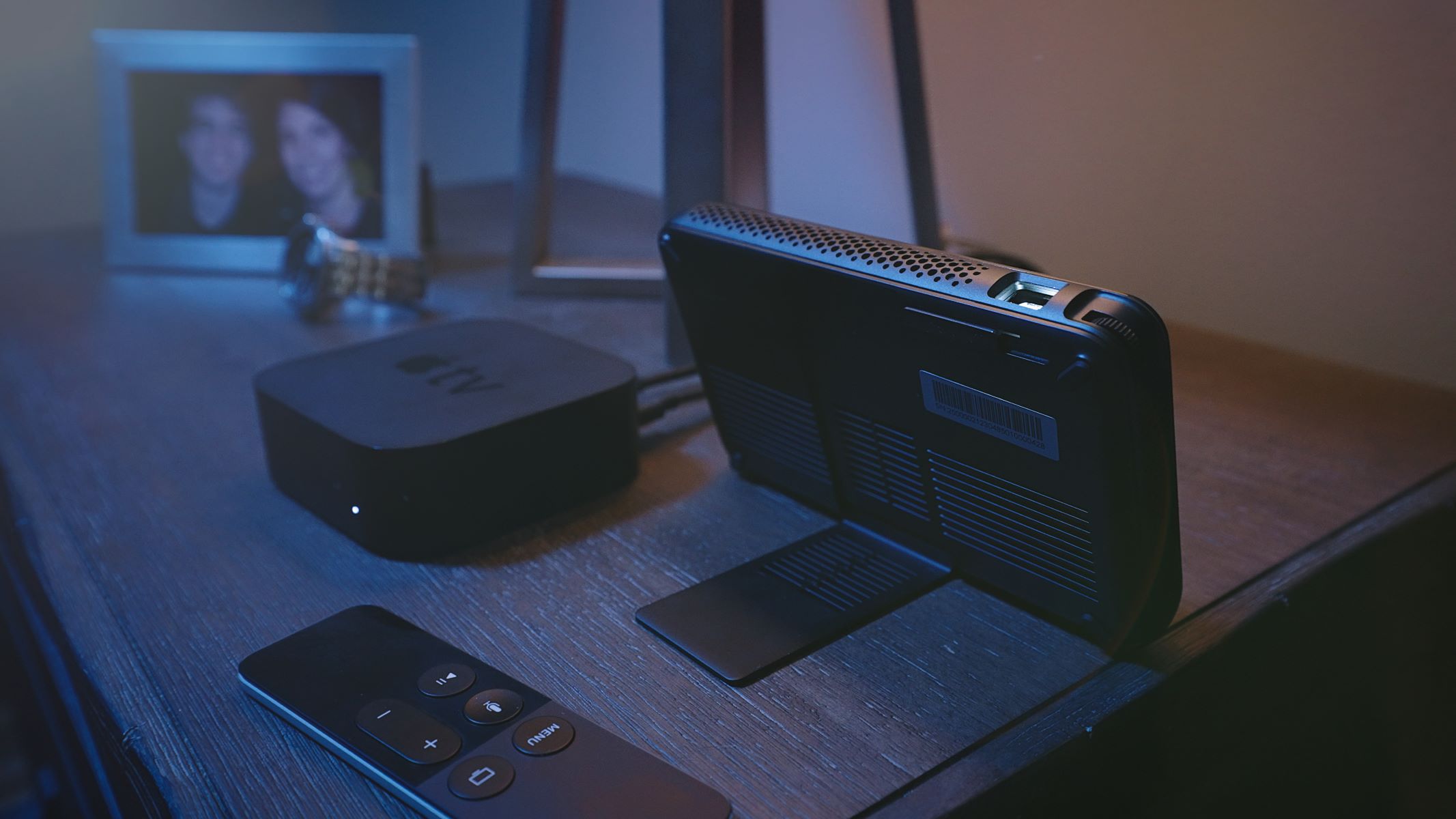
For the best balance of quality and reliability, always carry a high-quality USB-C to HDMI adapter that supports 4K at 60Hz and Power Delivery. While wireless methods are convenient for casual use, the wired connection is the only way to guarantee a successful "handshake" in high-pressure environments like business meetings or when viewing high-bitrate HDR content. If you are setting up a permanent home theater, skip mirroring entirely and use a dedicated streaming device (like an Apple TV or Shield TV) that your phone can control remotely.
Image Gallery