How to Use AWS Cost Management Tools
To use AWS cost management tools effectively, navigate to the AWS Billing and Cost Management console to activate Cost Explorer for visualization. Establish operational guardrails by creating AWS Budgets for real-time alerts, implement...
To use AWS cost management tools effectively, navigate to the AWS Billing and Cost Management console to activate Cost Explorer for visualization. Establish operational guardrails by creating AWS Budgets for real-time alerts, implement a rigorous resource tagging strategy for cost attribution, and utilize AWS Compute Optimizer to identify rightsizing opportunities for your infrastructure.
Contents
Managing cloud expenditures in 2026 requires more than a passive glance at a monthly invoice. As AWS services have become more specialized and architectures more distributed, the "set it and forget it" approach to infrastructure leads to significant waste. The AWS Cost Management suite provides a multifaceted framework designed to help organizations move from reactive payment to proactive financial engineering, often referred to as FinOps.
Navigating the AWS Billing and Cost Management Console
The journey begins in the AWS Billing and Cost Management console. In 2026, this dashboard serves as the centralized hub for all financial data, providing a high-level overview of your current month-to-date spend, forecasted month-end costs, and any active discount programs such as Savings Plans or Reserved Instances (RIs).
Prerequisites and Permissions
Before attempting to use these tools, ensure your IAM (Identity and Access Management) permissions are correctly configured. Accessing cost data is a sensitive operation and is typically restricted from standard developer roles. You will need the aws-portal:ViewBilling and aws-portal:ViewUsage permissions, or more granular access if you are managing specific tools like AWS Budgets. For organizations using AWS Organizations, the management account (payer account) has visibility across all member accounts, which is essential for consolidated billing.
Initial Setup and Data Activation
By default, some detailed cost tracking features are not active. Your first step should be to enable AWS Cost Explorer. Once activated, AWS begins processing your historical data, which may take up to 24 hours to populate. Cost Explorer is the primary tool for visualization, allowing you to see patterns over a 12-month lookback period and providing a 12-month forecast based on your historical usage.
Visualizing Spend with AWS Cost Explorer
AWS Cost Explorer is the most accessible tool for understanding where your money is going. It allows you to filter and group your spend by various dimensions such as Service, Region, Usage Type, and Cost Allocation Tags.
Creating Custom Reports
To get the most out of Cost Explorer, avoid looking at the "Total Cost" view in isolation. Instead, create custom reports that focus on specific business units or projects. For instance, you can group by "Service" and filter by a specific "Linked Account" to see which services are driving costs in a development environment versus a production environment.
In 2026, Cost Explorer features enhanced granularity, allowing users to view data at an hourly or daily level. This is particularly useful for identifying "spiky" workloads—such as batch processing jobs or Lambda functions—that might be running more frequently than intended.
Utilizing Forecasting and Trend Analysis
The forecasting engine in Cost Explorer uses machine learning models to predict your future spend. By reviewing these forecasts weekly, you can identify potential budget overruns before they happen. If the forecast indicates a 20% increase in RDS (Relational Database Service) costs, you can investigate whether this is due to planned scaling or an unoptimized query pattern.
Implementing Proactive Controls with AWS Budgets
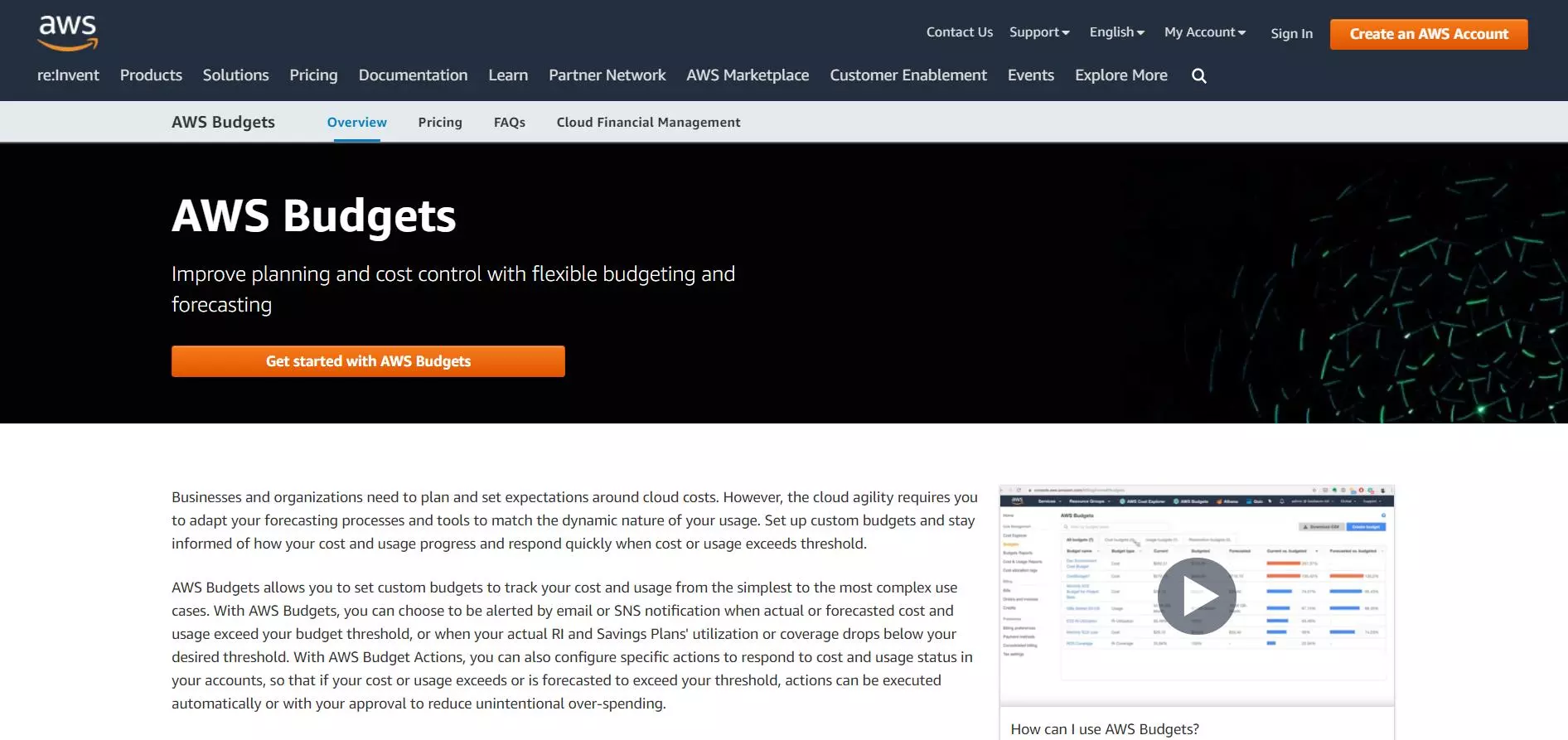
While Cost Explorer is for analysis, AWS Budgets is for action. It allows you to set custom budgets that track your cost or usage and alert you when you exceed (or are forecasted to exceed) your budgeted amount.
Setting Up Cost and Usage Budgets
You can create several types of budgets:
- Cost Budgets: Monitor the actual or forecasted cost against a target amount.
- Usage Budgets: Monitor the usage of specific services (e.g., monitoring the number of S3 requests or EC2 instance hours).
- Savings Plans and RI Budgets: Track the utilization and coverage of your commitment-based discounts.
Budget Actions and Automation
A critical feature for 2026 is AWS Budget Actions. Instead of just sending an email notification, Budget Actions can trigger specific responses when a threshold is met. For example, if a "Sandbox" account exceeds $500, a Budget Action can automatically apply an IAM policy that prevents the creation of any new resources, effectively capping the spend until a manager intervenes.
Deep Data Analysis with AWS Cost and Usage Report (CUR)
For large-scale enterprises or those requiring granular data for custom accounting, the AWS Cost and Usage Report (CUR) is the "single source of truth." It provides the most detailed cost and usage data available, including metadata about reserved instances, savings plans, and even the specific resources (by ARN) that generated the cost.
Integrating CUR with Amazon Athena
Because CUR files can be massive (often gigabytes of CSV or Parquet data), they are typically delivered to an Amazon S3 bucket. To use this data effectively, you should integrate CUR with Amazon Athena, a serverless query service. By using standard SQL, you can run complex queries such as:
- "What is the cost per microservice based on resource tags?"
- "Which S3 buckets have the highest transfer costs to specific regions?"
- "How much are we spending on untagged resources?"
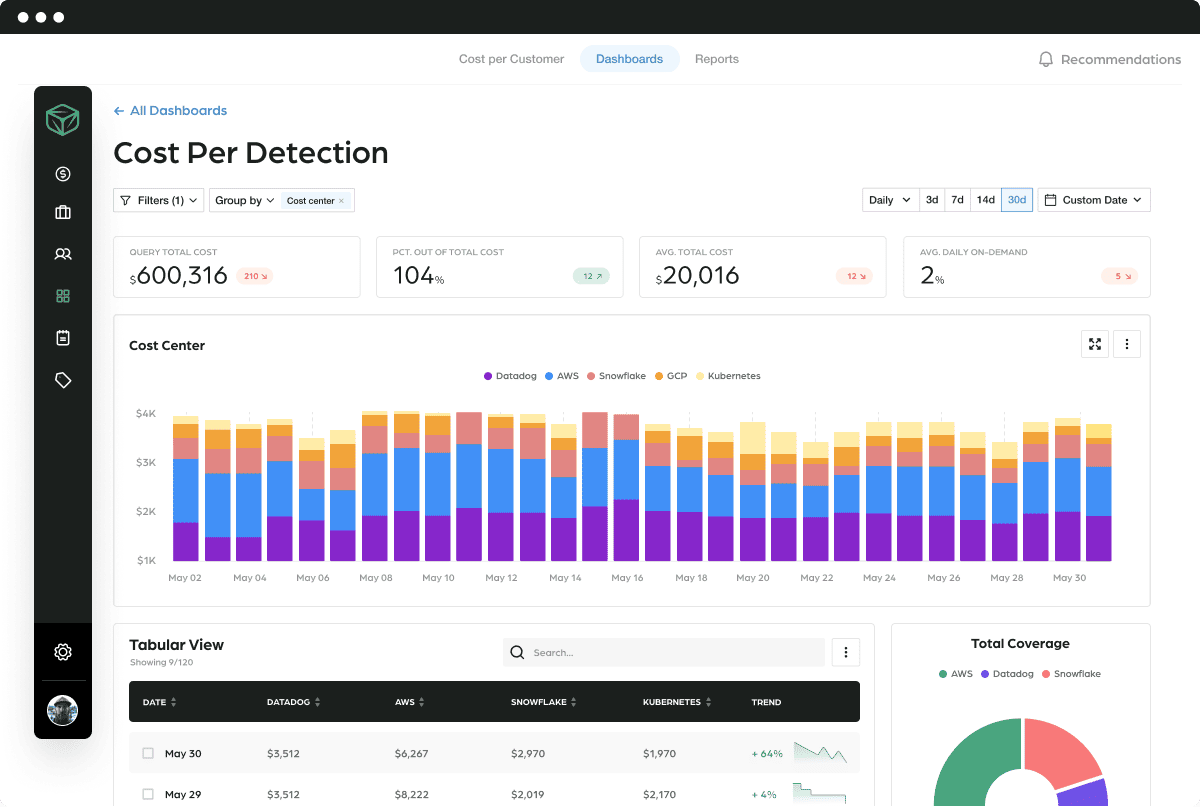
This data can then be visualized in Amazon QuickSight to create executive-level dashboards that provide real-time visibility into the organization’s cloud health.
Optimization through AWS Compute Optimizer and Trusted Advisor
AWS cost management isn't just about tracking spend; it’s about reducing waste. AWS Compute Optimizer uses machine learning to analyze your resource utilization and suggests ways to reduce costs or improve performance.
Rightsizing Recommendations
Compute Optimizer evaluates EC2 instances, EBS volumes, Lambda functions, and Fargate tasks. It might suggest moving an m5.large instance that has consistently low CPU utilization to a t3.medium, potentially saving up to 40% on that specific resource. In 2026, these recommendations have become even more precise, accounting for memory utilization and network throughput in its analysis.
AWS Trusted Advisor
AWS Trusted Advisor provides a broader look at your account health. Under the "Cost Optimization" pillar, it identifies:
- Idle Load Balancers: Resources that are active but not processing traffic.
- Unassociated Elastic IP Addresses: IPs that incur a small hourly charge when not attached to a running instance.
- Underutilized Amazon EBS Volumes: Volumes with very low IOPS that could be snapshotted and deleted.
The Role of Cost Allocation Tags
None of the tools mentioned above work at peak efficiency without a robust tagging strategy. Tags are key-value pairs attached to AWS resources that allow you to categorize and track costs according to your business structure.
Establishing a Tagging Policy
In 2026, many organizations use AWS Tag Policies (part of AWS Organizations) to enforce tagging at the time of resource creation. Mandatory tags often include:
Environment(Dev, Test, Prod)CostCenter(Accounting code)Owner(Individual or team responsible)Project(Specific initiative)
Once resources are tagged, you must go to the Billing Console and activate these as Cost Allocation Tags. This allows the tags to appear as filterable dimensions in Cost Explorer and as columns in the Cost and Usage Report.
Comparing Key AWS Cost Management Tools
| Tool | Primary Purpose | Best For | Data Granularity |
|---|---|---|---|
| Cost Explorer | Visualization & Trends | High-level analysis and forecasting | Daily/Hourly |
| AWS Budgets | Alerting & Governance | Setting financial guardrails | Monthly/Quarterly |
| Cost & Usage Report | Deep-dive Auditing | Complex queries and custom BI | Resource-level |
| Compute Optimizer | Infrastructure Rightsizing | Reducing waste in EC2/Lambda/EBS | Instance-level |
| Billing Conductor | Showback/Chargeback | Multi-tenant or MSP billing | Account-level |
Advanced Cost Management in 2026: AI and Anomalies
By 2026, AWS Cost Anomaly Detection has become a standard requirement for cloud operations. This tool uses machine learning to learn your normal spending patterns. If a developer accidentally launches a massive GPU cluster or a script goes haywire and generates millions of S3 requests, Cost Anomaly Detection will alert you immediately—often within hours—rather than waiting for a budget threshold to be hit at the end of the day.
Furthermore, Amazon Q, the AWS generative AI assistant, can now be used directly within the billing console. You can ask natural language questions such as, "Why did my S3 costs increase by 15% last Tuesday?" and the assistant will analyze your CUR data to provide a specific root-cause analysis, such as "A large data migration project in the US-West-2 region increased PUT requests."
Frequently Asked Questions
Why is there a discrepancy between my Cost Explorer data and my actual invoice?
Cost Explorer typically displays "unblended" costs, which represent the usage at the time it occurred. Your invoice may reflect "blended" rates (common in Organizations with consolidated billing), taxes, and one-time fees (like RI purchases) that might be distributed differently in the visualizer. Always ensure you are comparing like-for-like metrics (e.g., Amortized Costs vs. Unblended Costs).
Can I automate the shutdown of resources if my budget is exceeded?
Yes, using AWS Budgets Actions, you can automate the execution of an IAM policy or an AWS Systems Manager (SSM) document. This allows you to stop EC2 instances or prevent the creation of new resources automatically once a specific budget threshold is reached, providing a hard cap on spending.
How do I track costs for a specific department in a shared AWS account?
The most effective way is through Cost Allocation Tags. By tagging every resource with a Department tag, you can filter your reports in Cost Explorer by that tag. For shared resources like a NAT Gateway or a large database, you may need to use a pro-rata allocation method based on the percentage of usage identified in the Cost and Usage Report.
What is the difference between Savings Plans and Reserved Instances?
Savings Plans are more flexible, offering a discount in exchange for a commitment to a consistent amount of usage (measured in $/hour) for a 1- or 3-year term. Reserved Instances (RIs) are often tied to specific instance configurations or regions. Most 2026 cloud strategies prioritize Savings Plans for compute and RIs for specific database engines (RDS).
Is there a cost to use AWS cost management tools?
Most core tools, including Cost Explorer, AWS Budgets (the first 62 days of a budget are free), and Cost Anomaly Detection, are provided at no additional cost or very low cost. However, storing CUR files in Amazon S3 and querying them with Amazon Athena will incur standard S3 storage and Athena query charges based on data volume.
Practical Recommendation
To gain immediate control over your AWS environment, your next action should be to define and enforce a tagging policy. Without accurate tagging, even the most advanced tools cannot provide the context needed to make informed financial decisions. Start by activating Cost Explorer today and setting up a monthly budget with a 80% and 100% threshold alert to ensure you are never surprised by your month-end invoice.
AWS Cost Management Official Documentation AWS Cost Explorer User Guide AWS Budgets Documentation AWS Cost and Usage Report (CUR) Guide AWS Compute Optimizer FinOps Foundation Framework
Image Gallery