Understanding Spectrum Router Lights: A Complete Guide to Colors and Troubleshooting
Spectrum router lights function as a visual diagnostic interface, where a solid blue light indicates a successful internet connection and a solid red light signifies a critical connectivity failure. While flashing blue lights typically...
Spectrum router lights function as a visual diagnostic interface, where a solid blue light indicates a successful internet connection and a solid red light signifies a critical connectivity failure. While flashing blue lights typically represent a device in the process of booting or establishing a "handshake" with the Spectrum network, flashing red lights often signal a firmware update or a serious signal synchronization error that requires immediate attention.
Contents
Understanding the specific patterns and colors of your Spectrum router is essential for maintaining a stable home network in 2026. As residential hardware has evolved from multi-light displays to minimalist single-LED designs, the meaning behind each blink has become more concentrated. Whether you are using the latest Advanced WiFi 6E routers or a legacy model, this guide provides the technical depth necessary to interpret your hardware’s status and resolve issues without unnecessary service calls.
The Evolution of Spectrum Router Indicator Systems
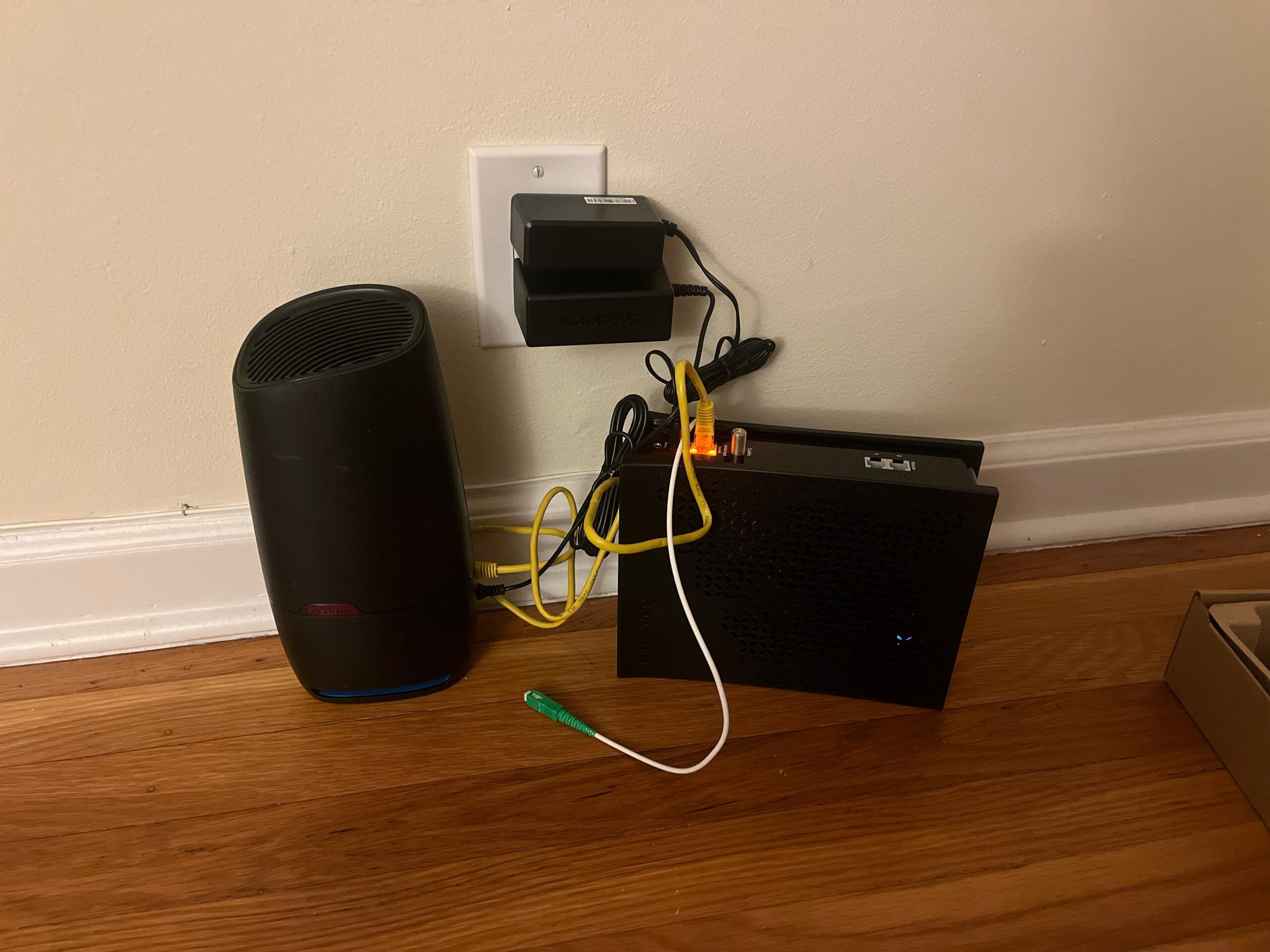
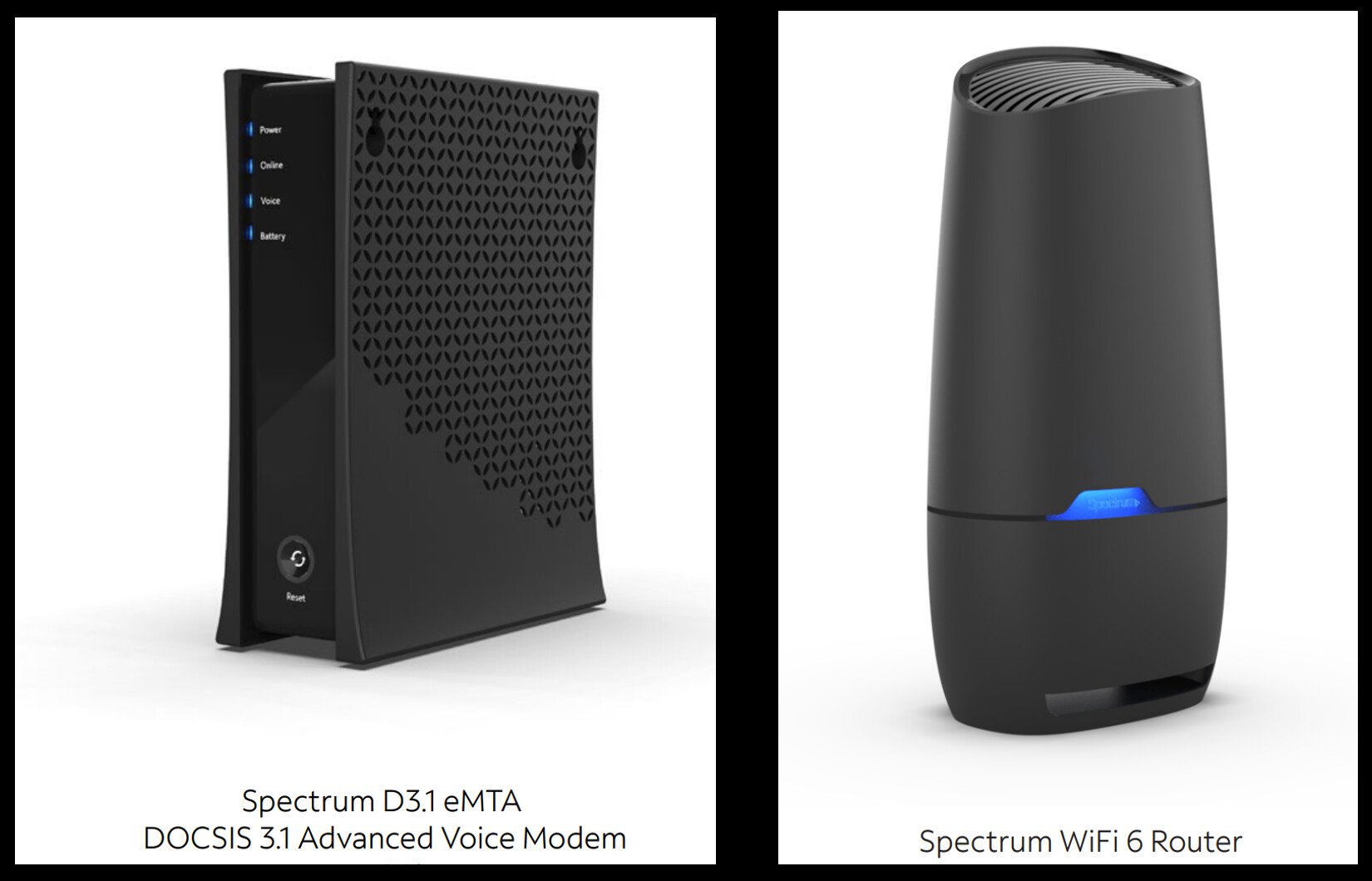
In recent years, Spectrum has transitioned its hardware fleet toward a more streamlined aesthetic. If you have a router issued or upgraded around 2024 through 2026, you likely have an Advanced WiFi model (such as the SAC2V1K or SAX1V1K series). These devices feature a single, multi-color LED on the front panel. This "Status" light uses different colors and pulse frequencies to communicate the health of your local area network (LAN) and wide area network (WAN) connections.
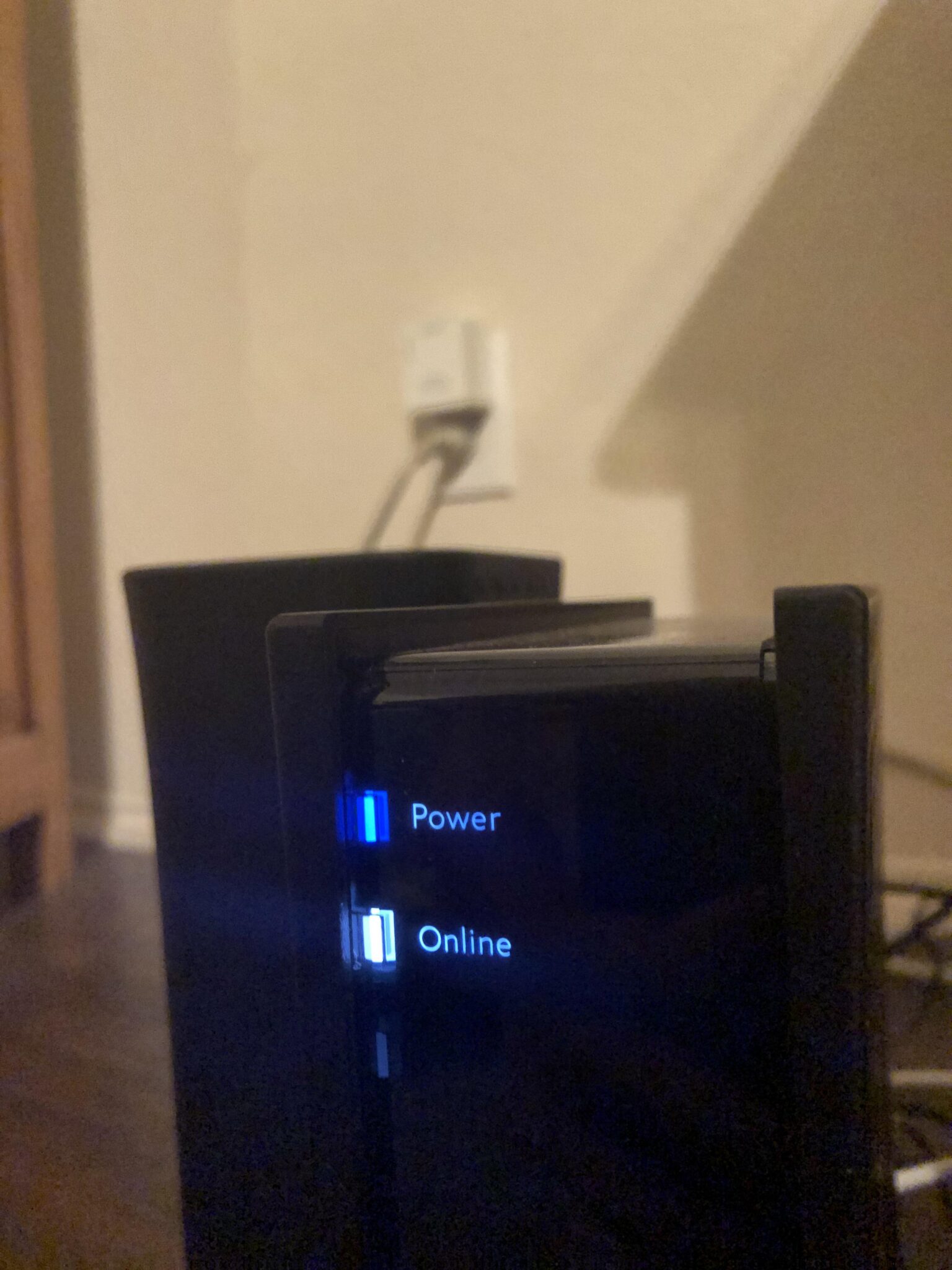
Older legacy routers, often manufactured by brands like Arris, Netgear, or Sagemcom, utilize a row of individual LEDs labeled "Power," "Online," "2.4GHz," "5GHz," and "WPS." While the multi-light system provides more granular data at a glance, the single-light system is designed to simplify troubleshooting for the average user by using color-coded urgency levels.
Single-Light Status Indicators (Advanced WiFi Routers)
Modern Spectrum Advanced WiFi routers rely on a primary LED to convey information. Interpreting these lights correctly is the first step in diagnosing why your internet might be lagging or non-functional.
Solid Blue Light
A solid blue light is the goal. This indicates that the router has successfully authenticated with the Spectrum headend and is broadcasting a functional WiFi signal. In 2026, with the prevalence of high-bandwidth smart homes, a solid blue light confirms that the internal DOCSIS 3.1 or 4.0 modem (if integrated) or the standalone modem connection is stable.
Flashing Blue Light
A flashing blue light indicates that the router is attempting to establish a connection. You will see this immediately after plugging the router in or after a power outage. The router is performing a "handshake" with the ISP's servers, acquiring an IP address, and synchronizing its clock. If the light flashes blue for more than ten minutes, it usually suggests that the router cannot find a valid signal from the modem or the wall jack.
Solid Red Light
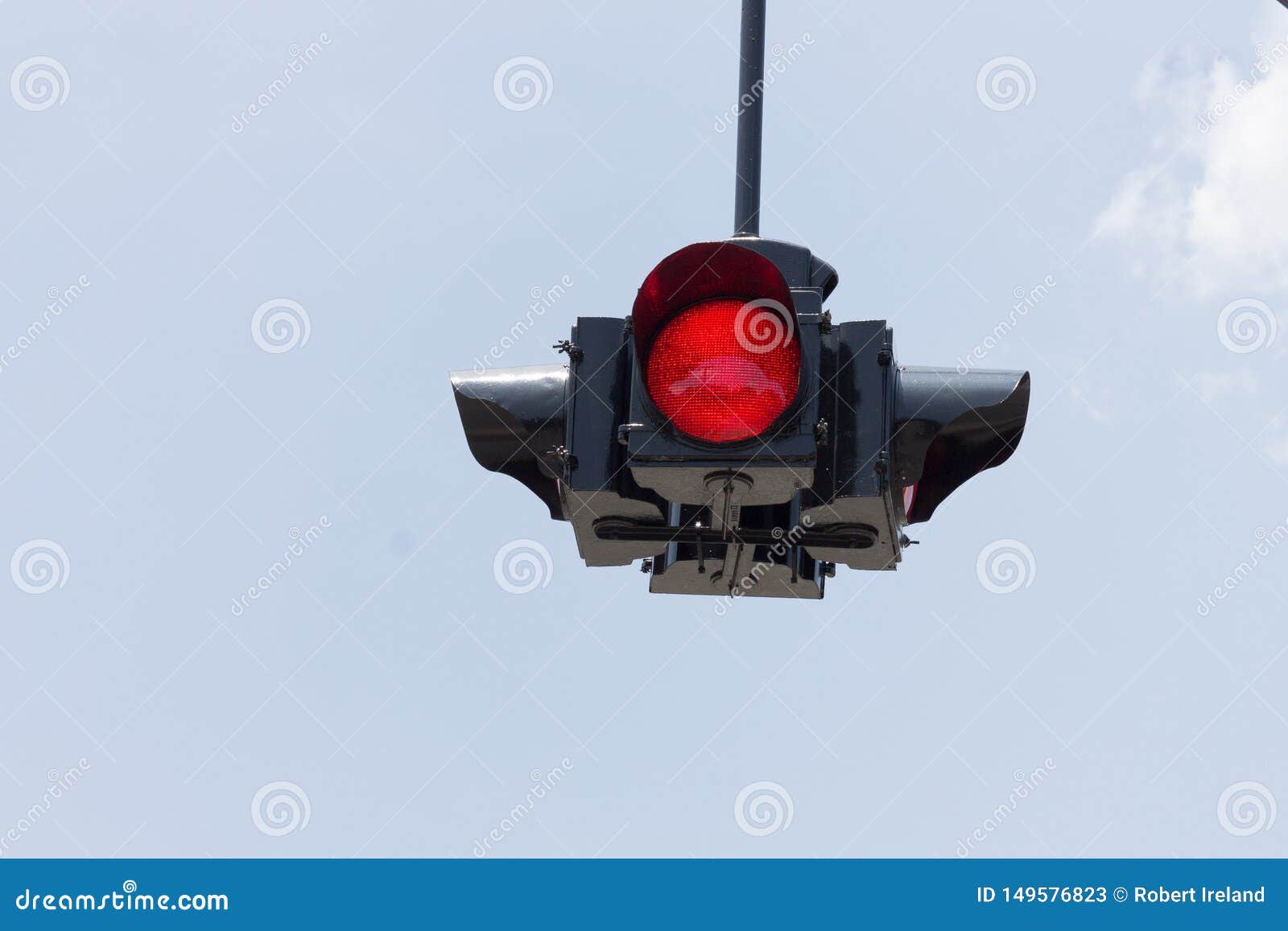
A solid red light is a critical error notification. It means the router has failed to connect to the internet entirely. This could be caused by a disconnected Ethernet cable between the modem and router, a localized service outage, or a hardware failure within the router itself.
Flashing Red Light
Crucially, a flashing red light often indicates a firmware update. In 2026, Spectrum pushes automated security patches and performance optimizations to its routers frequently. Do not unplug your router during a flashing red light sequence. Interrupting a firmware update can "brick" the device, rendering it permanently unusable. If the flashing persists for more than 20 minutes, it may indicate a failed update or a signal-to-noise ratio (SNR) issue that prevents the router from completing its boot cycle.
Multi-Light Systems: Understanding Legacy Hardware
If your router features multiple individual lights, the troubleshooting process is more specific to individual components of the network.
- Power Light: This should always be solid. If it is off, check the power adapter and the wall outlet. If it is flashing, the router’s internal power supply may be failing.
- Online Light: This is the most important light for internet connectivity. A solid light means you are online. A flashing light means the router is searching for the Spectrum network.
- 2.4GHz and 5GHz Lights: these represent your WiFi bands. If these are off, your wireless radio is disabled, even if the "Online" light is solid. This usually happens if the WiFi has been toggled off in the settings or via a physical button.
- WPS Light: This flashes when you press the Wi-Fi Protected Setup button. It remains active for a few minutes to allow new devices to join the network without a password before turning off automatically.
Comprehensive Light Status Reference Table
This table summarizes the most common light patterns found on Spectrum hardware as of 2026.
| Light Pattern | Meaning | Recommended Action |
|---|---|---|
| Solid Blue | Connected and Online | No action required. |
| Flashing Blue | Booting / Connecting | Wait 5–10 minutes for the process to complete. |
| Solid Red | No Internet Connection | Check Ethernet/Coax cables; restart modem and router. |
| Flashing Red | Firmware Update / Error | Do NOT unplug; wait 20 minutes; if it persists, call support. |
| Solid White | Powering On | Wait for the light to transition to blue. |
| Off | No Power | Check the power cord and wall outlet. |
| Alternating Blue/Red | Pairing Error | Restart the pairing process for your device or WPS. |
Deep-Dive Troubleshooting: Resolving Red and Flashing Lights
When your Spectrum router lights indicate an error (Red or persistent Flashing Blue), follow these structured steps to restore your service.
1. The Power Cycle Sequence
The most effective fix for most router light issues is a sequential power cycle. This clears the temporary memory (RAM) of both the modem and the router and forces a fresh handshake with Spectrum's servers.
- Unplug the power cables from both the modem and the router.
- Wait at least 60 seconds to allow the capacitors to fully discharge.
- Plug in the modem first and wait for its lights to stabilize (this can take 2–3 minutes).
- Once the modem shows a solid "Online" or "Power" light, plug in the router.
- Monitor the router light as it transitions from flashing blue to solid blue.
2. Inspecting Physical Connections
A common cause of a solid red light is a loose physical connection. Ensure the Ethernet cable connecting the modem's "WAN" or "Ethernet" port to the router's "Internet" port is clicked firmly into place. Furthermore, check the coaxial cable leading into the modem. If the copper core is bent or the connector is loose, the signal-to-noise ratio will drop, causing the router to lose its connection.
3. Identifying Firmware Update Delays
If you see a flashing red light, the router is likely communicating with Spectrum's ACS (Auto-Configuration Server). In 2026, these updates are more frequent to combat evolving cybersecurity threats. If the flashing red light occurs during peak hours, it might be a stalled update due to network congestion. If it does not resolve itself, a factory reset might be necessary, though this should be a last resort as it erases all custom WiFi names and passwords.
4. Signal Interference and Overheating
Electronic devices can sometimes trigger error lights if they overheat. Ensure your Spectrum router is placed in an open, well-ventilated area. Avoid placing it inside cabinets or behind large metal objects, which can cause the internal components to throttle and the "Status" light to indicate a hardware fault.
The Role of the My Spectrum App in 2026
Since physical lights can sometimes be ambiguous, Spectrum encourages the use of the My Spectrum App. By logging into the app, you can view the real-time status of your specific equipment. The app can distinguish between a "Signal Outage" (an issue with Spectrum’s lines in your neighborhood) and a "Device Offline" (an issue with your specific router or modem). If the app shows a neighborhood outage, no amount of troubleshooting your router lights will fix the problem; you must wait for Spectrum technicians to repair the external lines.
FAQs About Spectrum Router Lights
Why is my Spectrum router blinking blue for hours?
A router that blinks blue indefinitely is stuck in the "negotiation" phase. This usually means the router is powered on and working, but it isn't receiving a valid internet signal from the modem. Check the Ethernet cable between the two devices. If you have a gateway (modem/router combo), the issue is likely with the coaxial cable or a service outage in your area.
Can a red light mean my router is broken?
A solid red light indicates a loss of connection, not necessarily a broken device. However, if the light remains solid red even after you have replaced the cables and performed a factory reset, the internal WAN port or the radio chipset may have failed. In this case, you should take the device to a Spectrum store for a free replacement.
What does it mean if there are no lights on at all?
If all lights are off, the device is not receiving power. First, ensure the power toggle switch on the back of the router (if present) is set to "On." Then, test the wall outlet with another device, like a lamp. If the outlet works but the router remains dark, the power adapter (the "brick") has likely failed and needs replacement.
Is there a difference between a "pulsing" light and a "blinking" light?
On modern Advanced WiFi routers, a "pulse" (slow fade in and out) usually indicates a normal state like "Standby" or "Pairing Mode," whereas a rapid "blink" or "flash" indicates an active process like booting or data transfer error. Always refer to the frequency of the light; rapid flashing is generally a sign of a more urgent connection attempt or error.
How do I know if my router is updating?
Spectrum routers generally update automatically during low-usage hours (typically between 2:00 AM and 5:00 AM). During this time, the light will likely flash red or blue. If you wake up and find the light is solid blue, the update was successful. If the light is stuck on red in the morning, the update may have been interrupted by a power flicker.
Practical Recommendation for Users
If you encounter a persistent red or flashing light on your Spectrum router, your first action should always be to check the My Spectrum App on a mobile device using cellular data. This will immediately tell you if the problem is a broad regional outage or specific to your hardware. If no outage is reported, perform the 60-second power cycle described above. For users with older hardware, 2026 is an excellent time to request an upgrade to the WiFi 6E or WiFi 7 models, which offer more reliable diagnostic lights and better integration with modern smart home ecosystems.
Image Gallery