Navigating Amazon Virtual Server Hosting: A Complete Guide to AWS EC2
Amazon virtual server hosting, officially known as Amazon Elastic Compute Cloud (Amazon EC2), provides secure, resizable compute capacity in the cloud, allowing developers and enterprises to run applications on scalable virtual machine...
Amazon virtual server hosting, officially known as Amazon Elastic Compute Cloud (Amazon EC2), provides secure, resizable compute capacity in the cloud, allowing developers and enterprises to run applications on scalable virtual machines without managing physical hardware.
Contents
Introduction to Amazon Virtual Server Hosting
When organizations and developers look to deploy applications, host websites, or run complex data processing workloads, physical hardware often presents scaling bottlenecks, high capital expenditure, and maintenance overhead. Amazon Web Services (AWS) addresses these challenges through Amazon EC2, its flagship virtual server hosting infrastructure.
Amazon EC2 fundamentally changes how computing resources are provisioned. Instead of ordering, racking, and configuring physical servers in a local data center, users can launch virtual servers—known as instances—within minutes. These instances run in secure, isolated computing environments hosted within AWS global data centers.
Understanding how to navigate this ecosystem requires familiarity with instance types, pricing models, storage options, and security configurations. Whether you are migrating a legacy monolithic application or architecting a modern cloud-native microservices platform, mastering Amazon virtual server hosting is a foundational requirement for modern IT infrastructure management.
Core Concepts and Architecture
To effectively use Amazon virtual server hosting, you must understand the underlying components that make up an EC2 instance. An instance is not merely a virtual machine; it is a combination of compute power, memory, storage, and networking capabilities configured to execute specific workloads.
Instances, AMIs, and Regions
The core building block of Amazon EC2 is the instance. When you launch an instance, you select an Amazon Machine Image (AMI), which serves as the template containing the operating system, application server, and applications required for your server. AWS provides public AMIs featuring popular operating systems like Ubuntu, Red Hat Enterprise Linux, Windows Server, and Amazon Linux, alongside the ability to create and deploy custom AMIs.
AWS infrastructure is geographically distributed into Regions and Availability Zones (AZs). Regions are separate geographic areas, while AZs are isolated locations within each region equipped with independent power, cooling, and networking. Deploying virtual servers across multiple Availability Zones ensures high availability and fault tolerance, protecting applications against localized infrastructure failures.
Instance Families and Sizing
Amazon EC2 offers a wide variety of instance families tailored to distinct workload profiles. Choosing the correct instance family prevents over-provisioning (wasting money on unused resources) and under-provisioning (experiencing performance bottlenecks).
- General Purpose: Designed for a balanced mix of compute, memory, and networking resources. Ideal for web servers, containerized microservices, and small-to-midsize databases.
- Compute Optimized: Features high-performance processors suited for compute-bound applications, including high-performance computing (HPC), batch processing, media transcoding, and gaming servers.
- Memory Optimized: Built for workloads that process large datasets in memory, such as relational databases, in-memory caches (like Redis), and real-time big data analytics.
- Storage Optimized: Optimized for workloads requiring high, sequential read and write access to very large datasets on local storage, such as distributed file systems and NoSQL databases.
Comparison of Common EC2 Instance Families
| Instance Family | Primary Focus | Best Use Cases | Pricing Flexibility |
|---|---|---|---|
| General Purpose (e.g., T4g, M6i) | Balanced compute, memory, and networking | Web hosting, development environments, small databases | On-Demand, Savings Plans, Spot |
| Compute Optimized (e.g., C6g, C7i) | High-performance processors | Scientific modeling, batch processing, video encoding | On-Demand, Savings Plans, Spot |
| Memory Optimized (e.g., R6g, R7i) | High memory-to-vCPU ratios | In-memory databases, large data analytics, enterprise apps | On-Demand, Savings Plans, Spot |
| Storage Optimized (e.g., I4i, D3) | High I/O throughput, low latency | NoSQL databases, data warehouses, log processing | On-Demand, Savings Plans, Spot |
Pricing Models and Cost Optimization
Managing cloud expenditure is one of the most critical aspects of administering Amazon virtual server hosting. AWS offers several flexible pricing models designed to accommodate different usage patterns, budget constraints, and workload predictability.
On-Demand Instances
On-Demand instances allow you to pay for compute capacity by the hour or the second with no long-term commitments or upfront payments. This model offers ultimate flexibility, making it ideal for development, testing, and short-term or unpredictable workloads that cannot be interrupted. However, On-Demand pricing is typically the most expensive option per compute hour.
Savings Plans and Reserved Instances
For predictable, steady-state workloads, AWS offers Savings Plans and Reserved Instances.
- Savings Plans provide a reduction in hourly rates in exchange for a commitment to a consistent amount of usage (measured in USD per hour) for a one- or three-year term.
- Reserved Instances provide a billing discount by reserving specific instance configurations (family, region, tenancy) over the same duration.
Both mechanisms can reduce operational hosting costs by up to 72 percent compared to On-Demand rates.
Spot Instances
Spot Instances leverage spare, unused EC2 capacity within the AWS cloud, offering discounts of up to 90 percent off On-Demand prices. The primary trade-off is reliability: AWS can reclaim Spot Instances with a two-minute warning when the compute capacity is needed back for On-Demand users. Consequently, Spot Instances are best suited for fault-tolerant, flexible applications such as containerized workloads, CI/CD pipelines, and data processing jobs.
Security, Networking, and Storage
Securing and connecting your virtual servers requires careful configuration of virtual networking boundaries and persistent storage volumes.
Virtual Private Cloud (VPC) and Security Groups
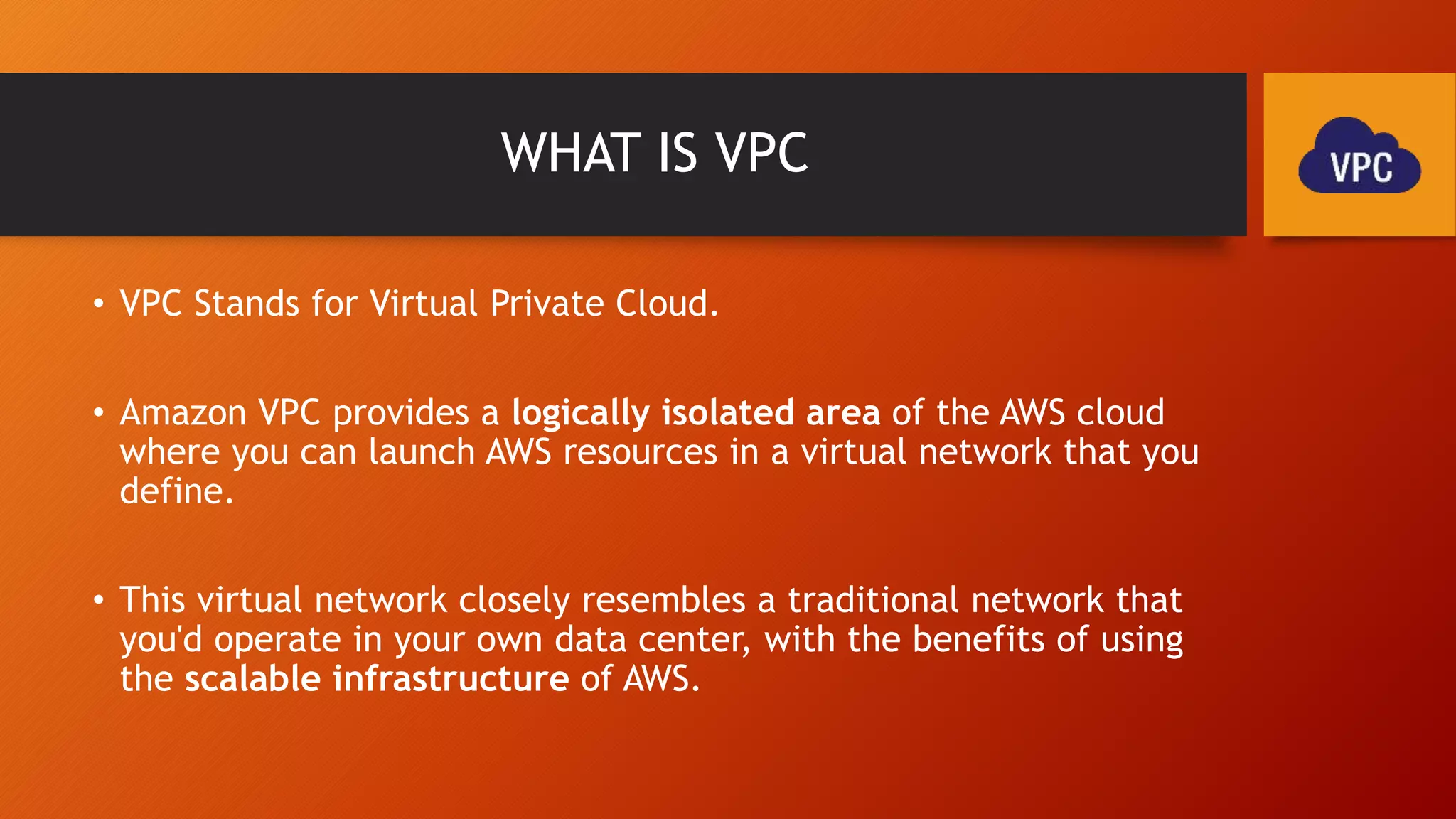
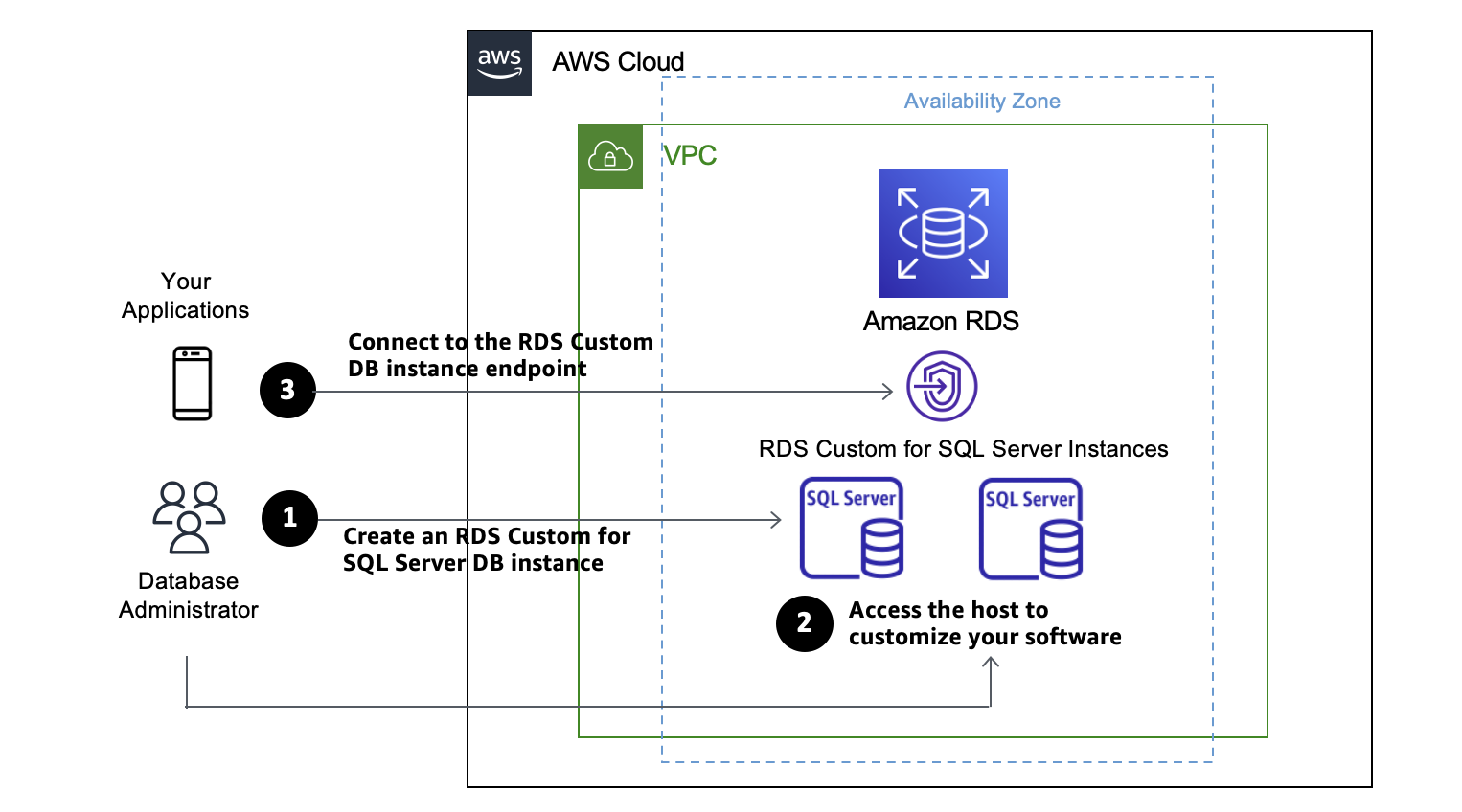
Every EC2 instance resides within an Amazon Virtual Private Cloud (VPC), a logically isolated section of the AWS cloud where you define your own virtual network. Within a VPC, you configure public subnets (connected to the internet via an internet gateway) and private subnets (isolated from direct internet access).
Access to individual instances is controlled via Security Groups and Network Access Control Lists (NACLs). Security Groups act as virtual firewalls at the instance level, governing inbound and outbound traffic based on protocols, ports, and source IP addresses. Adhering to the principle of least privilege—opening only necessary ports like HTTP (80), HTTPS (443), and SSH (22)—is essential for maintaining server integrity.
Storage Options: EBS and Instance Store
Amazon EC2 provides two primary forms of block storage for your virtual servers:
- Amazon Elastic Block Store (EBS): Durable, block-level storage volumes that persist independently from the life of an instance. EBS volumes attach seamlessly to EC2 instances and offer various performance tiers, including General Purpose SSD (gp3/gp2) and Provisioned IOPS SSD (io2).
- Instance Store: Physically attached storage located on hardware hosting the specific EC2 instance. While it offers very high performance and low latency, data stored on an instance store is ephemeral and is lost if the underlying host fails or the instance is stopped.
Step-by-Step Guide to Launching an EC2 Instance
Deploying your first virtual server on AWS involves navigating the EC2 Management Console or utilizing Infrastructure as Code (IaC) tools like Terraform or AWS CloudFormation. Below is the standard administrative workflow for manual provisioning through the AWS Console.
- Access the EC2 Console: Log into the AWS Management Console, navigate to the EC2 service dashboard, and click the "Launch instance" button.
- Configure Instance Details: Provide a descriptive name for your server and select an Amazon Machine Image (AMI) based on your operating system requirements, such as Ubuntu Server or Amazon Linux.
- Select Instance Type: Choose an instance family and size (e.g.,
t4g.microfor lightweight tasks orm6i.largefor production workloads) matching your performance requirements. - Configure Key Pair: Create or select an existing public/private key pair (PEM or PPK format). This file is required to securely connect to your Linux instance via SSH or Windows instance via Remote Desktop Protocol (RDP).
- Configure Network Settings: Select your target VPC and subnet. Ensure that "Auto-assign public IP" is enabled if your server requires direct internet accessibility.
- Configure Security Group: Define firewall rules to allow incoming traffic. For web servers, explicitly allow inbound HTTP and HTTPS traffic from anywhere (
0.0.0.0/0), and restrict SSH access to your specific office or home IP address for enhanced security. - Configure Storage: Allocate the required size and type for your root EBS volume (e.g., 30 GB of gp3 storage).
- Launch and Verify: Review your configuration summary and click "Launch Instance." Navigate back to the instances dashboard to verify that the server state transitions from
pendingtorunning.
Frequently Asked Questions
What is the difference between Amazon EC2 and traditional virtual private servers (VPS)?
Traditional VPS providers typically offer pre-configured virtual machines with fixed allotments of CPU, RAM, and storage bundled into a flat monthly fee. Amazon EC2 operates on a granular, elastic cloud infrastructure where servers are provisioned dynamically, billed by the second, and deeply integrated with hundreds of native cloud services like databases, object storage, and content delivery networks.
Can I scale my Amazon EC2 instances after they are launched?
Yes, Amazon EC2 allows you to scale vertically by stopping your instance and modifying its instance type to a larger or smaller size. For horizontal scaling—adding or removing instances dynamically based on traffic—you can integrate EC2 with Amazon EC2 Auto Scaling groups and Application Load Balancers.
How do I connect to my Amazon virtual server after it starts?
For Linux instances, you connect securely via Secure Shell (SSH) using the private key file downloaded during setup and the instance's public IP address. For Windows instances, you retrieve the automatically generated administrator password from the console and connect using Remote Desktop Protocol (RDP).
Are there free tier options available for Amazon EC2?
AWS offers an EC2 Free Tier for new accounts, providing 750 hours per month of t2.micro or t3.micro instance usage (depending on the region) running Linux or Windows for the first 12 months. This allows developers to test hosting environments without incurring charges, provided usage stays within specified limits.
What happens to my data if an EC2 instance stops or terminates?
Data stored on the root Amazon EBS volume generally persists when an instance is stopped, allowing you to restart the server later without data loss. However, if you explicitly terminate the instance, the root EBS volume is deleted by default unless you explicitly configure the volume settings to persist upon termination.
Conclusion and Next Actions
Amazon virtual server hosting via Amazon EC2 provides unmatched flexibility, security, and global scale for modern application deployment. Success in utilizing this infrastructure depends on selecting appropriate instance types, enforcing strict security group rules, utilizing cost-effective pricing models, and designing for high availability across multiple availability zones.
To take your implementation further, audit your current workload requirements, provision a test instance within the AWS Free Tier, implement automated backups using EBS snapshots, and explore integrating Infrastructure as Code to streamline future server deployments.
Image Gallery