Understanding What the Drive App Is: A Comprehensive Guide to Cloud Storage in 2026
The Drive app, primarily known as Google Drive, is a cloud-based storage and synchronization service that allows users to store files on remote servers, sync them across multiple devices, and share them with others. It serves as the ce...
The Drive app, primarily known as Google Drive, is a cloud-based storage and synchronization service that allows users to store files on remote servers, sync them across multiple devices, and share them with others. It serves as the central hub for the Google Workspace ecosystem, integrating seamlessly with productivity tools like Docs, Sheets, and Slides.
Contents
Cloud storage has transitioned from a luxury to a fundamental necessity for both personal and professional data management. As we navigate the digital environment of 2026, understanding how "the Drive app" functions is essential for anyone looking to secure their data, collaborate in real-time, and maintain access to their files from any location. While other "Drive" services exist—such as Microsoft’s OneDrive or Apple’s iCloud Drive—the term "Drive app" most frequently refers to the Google ecosystem due to its massive global adoption and integration with Android and ChromeOS.
The Core Architecture of Google Drive
At its most basic level, Google Drive is a file hosting service. When you upload a file to the Drive app, you are moving it from your local hardware (like a smartphone or laptop) to Google’s secure data centers. This transition offers several immediate benefits, including data redundancy (protection against hardware failure) and ubiquitous access.
The architecture of Drive is built on a "single-source-of-truth" model. Instead of having multiple versions of a document saved on different hard drives, a single file resides in the cloud. Any changes made to that file, whether from a mobile device or a desktop browser, are updated across all connected platforms in real-time. By 2026, this synchronization technology has become so refined that latency is virtually non-existent, even for large media files or complex database structures.
Cloud Storage vs. Local Storage
Understanding the difference between local and cloud storage is the first step in mastering the Drive app. Local storage refers to the physical hard drive or SSD inside your computer or phone. Cloud storage, like Drive, provides virtual space that you "rent" or use for free. This allows users with low-capacity devices to store terabytes of data that would otherwise be impossible to keep on the device itself.
Key Features and Functional Capabilities
The Drive app is not merely a digital filing cabinet; it is a sophisticated productivity environment. Its feature set is designed to handle a vast array of file types and user requirements.
Integration with Google Workspace
The most significant advantage of using the Drive app is its deep integration with Google’s suite of productivity tools. When you create a Google Doc, Sheet, or Slide, the file is automatically stored in Drive. There is no "Save" button because every keystroke is recorded and synced to the cloud instantly. This integration extends to Google Forms, Drawings, and even specialized third-party apps that can be connected directly to the Drive interface.
Advanced Search and AI Categorization
By 2026, the search functionality within the Drive app has evolved significantly through the integration of advanced AI, such as Gemini. Users no longer need to remember exact file names. You can search for "that PDF about the marketing budget from last Tuesday," and the app uses natural language processing to identify the correct document. Furthermore, optical character recognition (OCR) allows the Drive app to search for text within images and scanned PDF documents, making it an invaluable tool for digitizing paper records.
File Support and Previewing
The Drive app supports over 100 different file types, including Microsoft Office formats, Adobe Creative Cloud files, and various video and image extensions. One of its most useful features is the "Preview" mode, which allows users to view the contents of a file without needing the native software installed on their device. For example, you can view a complex Photoshop (.PSD) file or a CAD drawing directly within the Drive app interface.
How to Access and Use the Drive App
Accessibility is one of the pillars of the Drive app’s design. Users can interact with their stored data through three primary methods, each tailored to different workflows.
The Web Interface
For most users on a desktop or laptop, the web interface (accessed via drive.google.com) is the primary way to manage files. It offers a full range of administrative tools, including the ability to organize files into folders, manage sharing permissions, and access the "Trash" to recover deleted items. The web interface is operating-system agnostic, meaning it works identically on Windows, macOS, and Linux.
Drive for Desktop
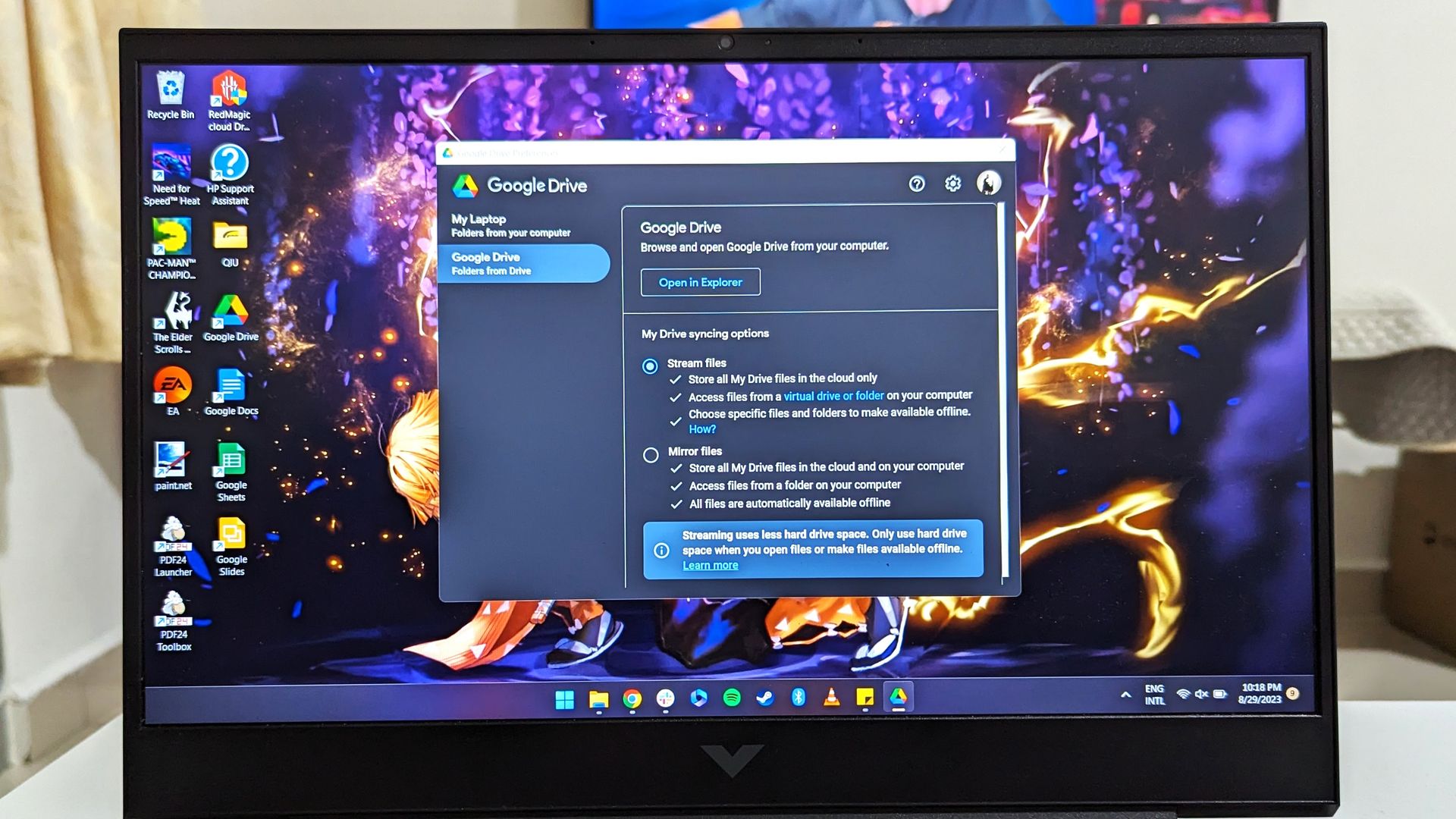
For power users and professionals, "Drive for Desktop" is a downloadable application that integrates the cloud directly into the computer's file explorer (File Explorer on Windows or Finder on macOS).
There are two primary modes for Drive for Desktop:
- Streaming: Files are stored in the cloud and only downloaded to the computer when they are opened. This saves significant hard drive space.
- Mirroring: All files are stored both in the cloud and on the local hard drive. This allows for full offline access but requires sufficient local storage capacity.
The Mobile Application
The mobile app, available for iOS and Android, is optimized for on-the-go access. It includes unique features like document scanning, where you can take a photo of a physical document and the app will automatically crop, enhance, and save it as a PDF directly to your Drive. In 2026, the mobile app also features robust offline capabilities, allowing users to designate specific files for access even without a cellular or Wi-Fi connection.
Collaboration and Sharing Protocols
One of the primary reasons organizations adopt the Drive app is its revolutionary approach to collaboration. Traditional file sharing involved emailing attachments, which often led to "versioning hell" (e.g., "Project_v1_final_final_EDITED.docx").
Permission Levels
The Drive app uses a granular permission system to control who can see or edit your data. When sharing a file or folder, you can choose from three main roles:
- Viewer: The user can see the file but cannot make changes or comments.
- Commenter: The user can see the file and add "suggestions" or comments, but cannot alter the original text directly.
- Editor: The user has full control to change content, delete files, and manage sharing settings.
Real-Time Co-Authoring
Multiple users can open the same document simultaneously. Each user is assigned a unique cursor color, allowing everyone to see who is typing what in real-time. This eliminates the need for merging changes from different contributors and significantly speeds up project timelines.
Security and Data Protection
Security is a common concern when moving sensitive data to the cloud. Google employs several layers of protection to ensure that files in the Drive app remain private and secure.
Encryption Standards
Data in the Drive app is encrypted both in transit (moving from your device to the server) and at rest (sitting on the server). Google uses 256-bit AES encryption, a standard recognized by the National Institute of Standards and Technology (NIST) as highly secure against modern cyber threats.
Two-Factor Authentication (2FA)
The most important security feature for any Drive user is Two-Factor Authentication. By requiring a second form of verification—such as a code sent to a mobile device or a physical security key—users can prevent unauthorized access even if their password is compromised. In 2026, passkeys have become a standard alternative to passwords, providing even more robust biometric security for Drive access.
Understanding Storage Quotas and Costs
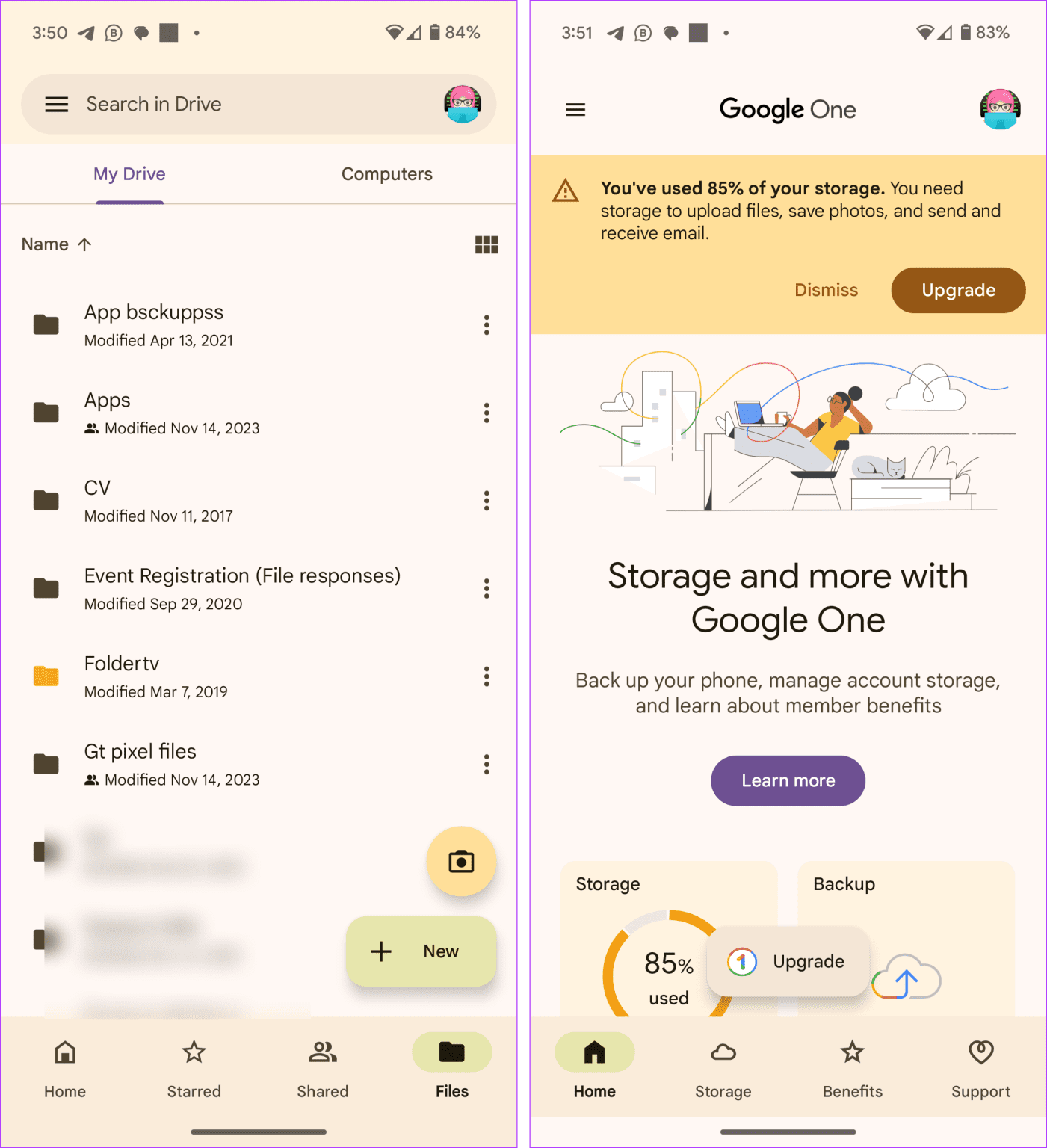
While Google offers a free tier for the Drive app, many users find they eventually need more space. It is important to note that your storage quota is shared across three main services: Google Drive, Gmail, and Google Photos.
Google One Subscription Plans (2026 Estimates)
| Plan Tier | Storage Capacity | Key Features | Monthly Estimated Cost |
|---|---|---|---|
| Free | 15 GB | Standard storage, Workspace integration | $0.00 |
| Basic | 100 GB | Expanded storage, Google experts access | $1.99 |
| Standard | 200 GB | 3% back in Google Store, shared with family | $2.99 |
| Premium | 2 TB | 10% back in Google Store, Workspace Premium | $9.99 |
| AI Premium | 2 TB+ | Gemini Advanced, advanced AI in Docs/Sheets | $19.99 |
Note: Prices and features are based on 2026 market projections and Google's established pricing trajectories.
Common Troubleshooting and Optimization
Even with a platform as stable as the Drive app, users may occasionally encounter hurdles. Understanding these common issues can prevent data loss and frustration.
Sync Conflicts
Sync conflicts occur when a file is edited on two different devices simultaneously while one or both are offline. When both devices reconnect, the Drive app may create two versions of the file to ensure no data is lost. Users should check the "Version History" (found under the File menu in Workspace apps) to merge these changes manually.
Storage Management
If your Drive is full, you will stop receiving emails in Gmail and won't be able to upload new files. The "Storage" section of the app provides a breakdown of what is taking up space. Large video files and high-resolution photos are usually the main culprits. Using the "Clean up space" tool can help identify and delete large or unnecessary files.
Offline Access Issues
To use the Drive app offline, you must enable the feature while you still have an active internet connection. On the web, this requires the "Google Docs Offline" Chrome extension. On mobile, you must toggle the "Available offline" switch for each specific file you wish to access without data.
Frequently Asked Questions
Is the Drive app the same as Google Drive?
Yes, "the Drive app" is the common shorthand for Google Drive. While there are other cloud storage apps with "Drive" in their name, Google's version is the most widely recognized and used globally.
Can I use the Drive app without a Google account?
No, a Google account is required to use the Drive app. However, you can view and sometimes edit files shared with you by others even if you don't have an account, depending on the specific sharing settings the owner has applied.
Does the Drive app use my phone's internal storage?
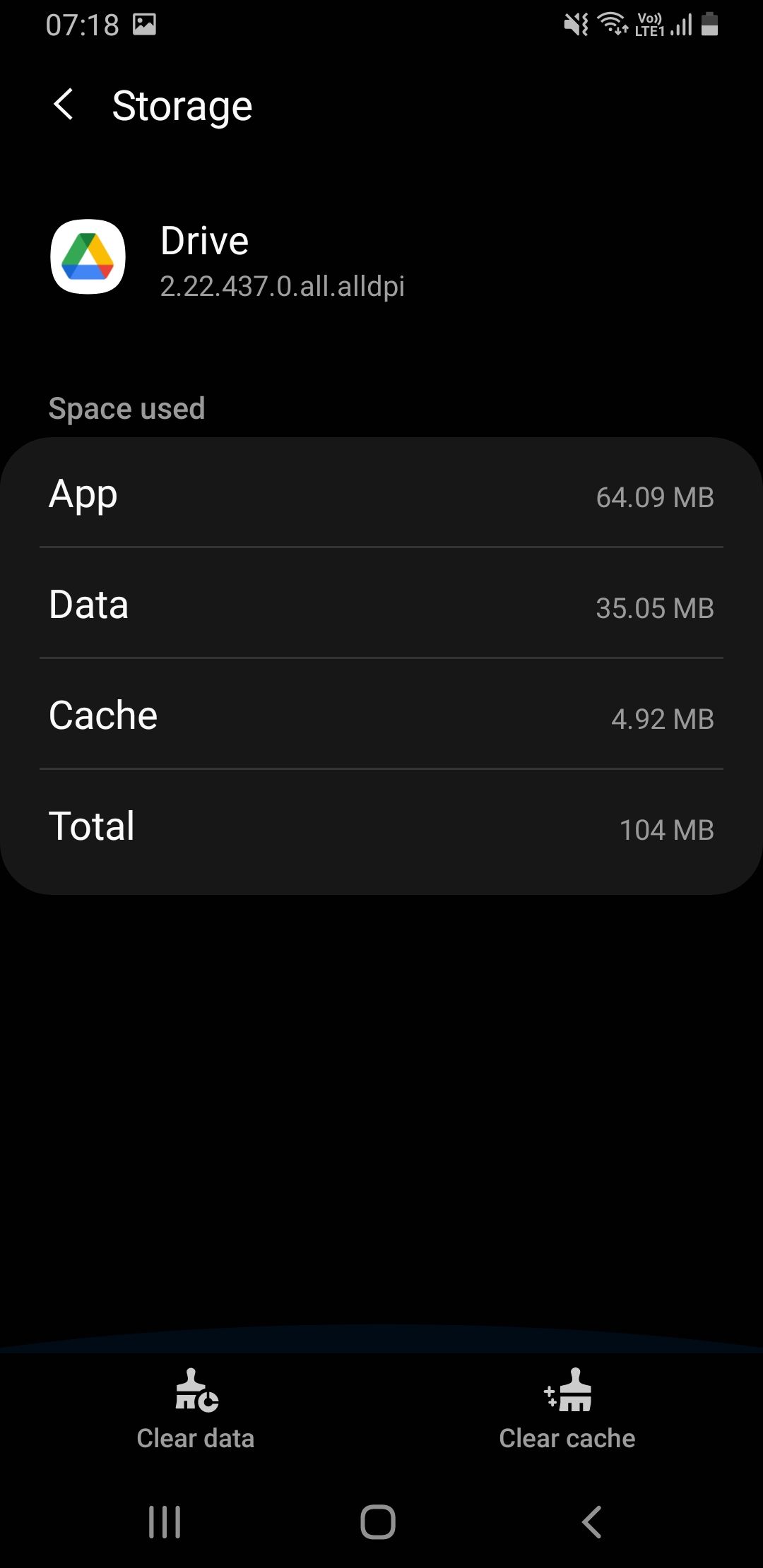
The mobile app primarily uses cloud storage, but it does use a small amount of "cache" memory to display file previews. If you mark files for "Offline Access," those specific files will be downloaded and take up physical space on your phone.
How do I recover a deleted file from the Drive app?
When you delete a file, it is moved to the "Trash" folder. Files remain in the Trash for 30 days before being permanently deleted automatically. You can restore a file during this window by right-clicking it in the Trash and selecting "Restore."
Is the Drive app safe for sensitive business documents?
For most businesses, Google Drive is extremely safe, especially when used with Google Workspace's enterprise-grade security controls. However, organizations in highly regulated industries (like healthcare or law) should ensure they are using the appropriate HIPAA or legal compliance configurations.
Moving Forward with the Drive App
To get the most out of the Drive app in 2026, the best next step is to perform a "digital audit" of your current files. Start by downloading the Drive for Desktop app to bridge the gap between your local computer and the cloud. Organize your existing documents into a logical folder structure and enable Two-Factor Authentication on your Google account immediately. By mastering these basics, you ensure that your data is not only safe but also working as efficiently as possible for your personal or professional needs.
Image Gallery