How to Install Widgets on iPhone: A Comprehensive Guide
Adding widgets to your iPhone is a straightforward process that allows you to customize your Home Screen and Lock Screen with glanceable information. By placing these interactive elements directly on your device’s interface, you can vi...
Adding widgets to your iPhone is a straightforward process that allows you to customize your Home Screen and Lock Screen with glanceable information. By placing these interactive elements directly on your device’s interface, you can view weather updates, calendar events, battery levels, or quick app shortcuts without needing to open the full applications. This guide explains how to access, add, and manage widgets to optimize your iOS experience.
Contents
Understanding iPhone Widgets and Prerequisites
Widgets are miniaturized, interactive versions of apps that reside on your iPhone’s Home Screen or Lock Screen. They are designed to provide real-time information or immediate access to specific features. Unlike standard app icons that merely serve as launch points, widgets dynamically update their content to show you what matters most—such as your next appointment, current flight status, or a curated photo memory.
Before you begin, ensure your device meets the software requirements. As of 2026, the widget framework is fully mature within the iOS ecosystem. You must be running a modern version of iOS (iOS 14 or later introduced the Home Screen widget capability, while iOS 16 and later enabled Lock Screen widgets). If you are unable to locate the widget menu, verify that your software is up to date by navigating to Settings > General > Software Update.
Adding Widgets to the Home Screen
The Home Screen is the primary location for widgets, allowing you to integrate data seamlessly alongside your app icons. Follow these steps to configure your layout:
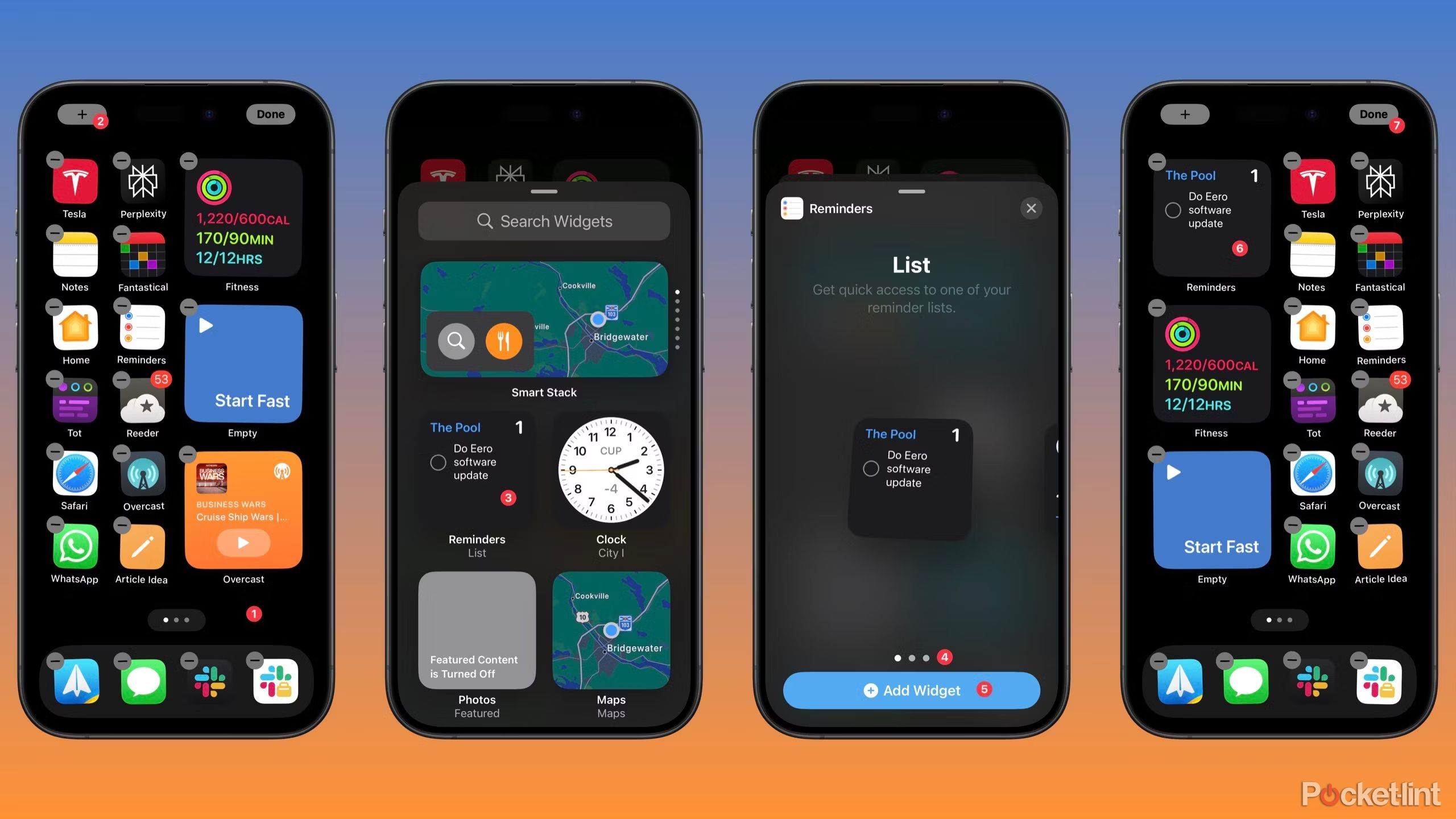
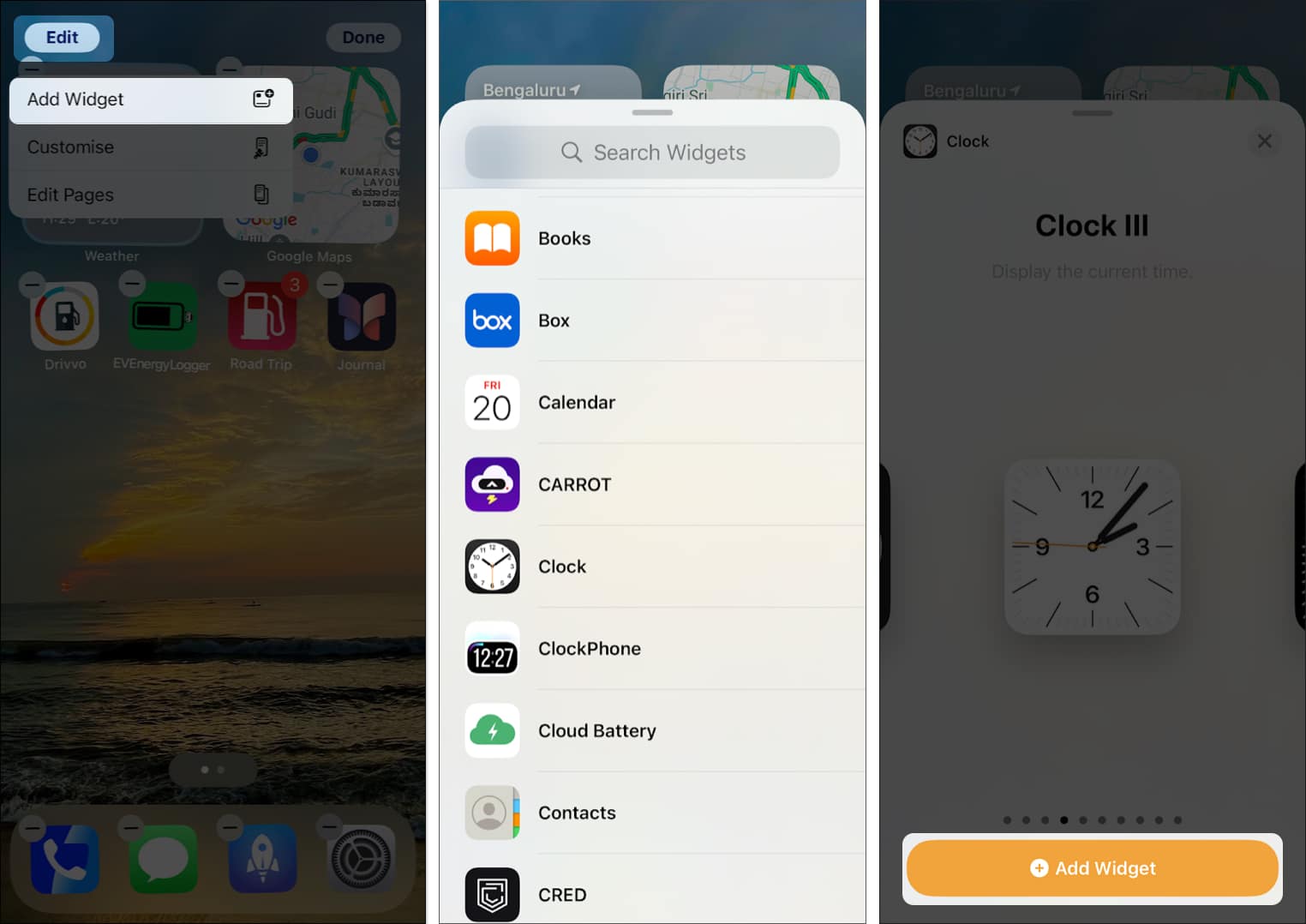
- Enter Jiggle Mode: Touch and hold any empty area on your Home Screen until the icons begin to jiggle. This signifies that you are in the customization environment.
- Open the Widget Gallery: Tap the plus (+) icon located in the top-left or top-right corner of the screen.
- Browse or Search: Use the search bar at the top of the gallery to find a specific app, or scroll through the list to view widgets available for the apps currently installed on your device.
- Select Size and Style: Many apps offer multiple widget sizes (Small, Medium, Large) or data configurations. Swipe horizontally on the preview card to cycle through these options.
- Placement: Tap the "Add Widget" button once you have selected your desired configuration. The widget will appear on your Home Screen. You can drag the widget to your preferred location before tapping "Done" to finalize the arrangement.
Utilizing Smart Stacks for Efficient Space
If you find yourself running out of space on your Home Screen, Apple’s "Smart Stack" feature is an effective solution. A Smart Stack allows you to layer multiple widgets on top of one another within a single footprint.
To create a stack, simply drag one widget on top of another. Your iPhone will automatically group them. You can then swipe up or down on the stack to reveal the different widgets contained within. A "Smart Rotate" feature is also available; by long-pressing a stack and selecting "Edit Stack," you can enable this setting, which uses on-device intelligence to surface the most relevant widget based on your time of day, location, or usage patterns.
Installing Widgets on the Lock Screen
In addition to the Home Screen, iOS provides dedicated space for widgets on your Lock Screen. These are generally smaller and focused on providing immediate information when you wake your phone.
- Access Customization: Wake your phone, but stay on the Lock Screen. Touch and hold the screen until the "Customize" button appears at the bottom.
- Select Lock Screen: Tap the "Customize" button and select the Lock Screen option.
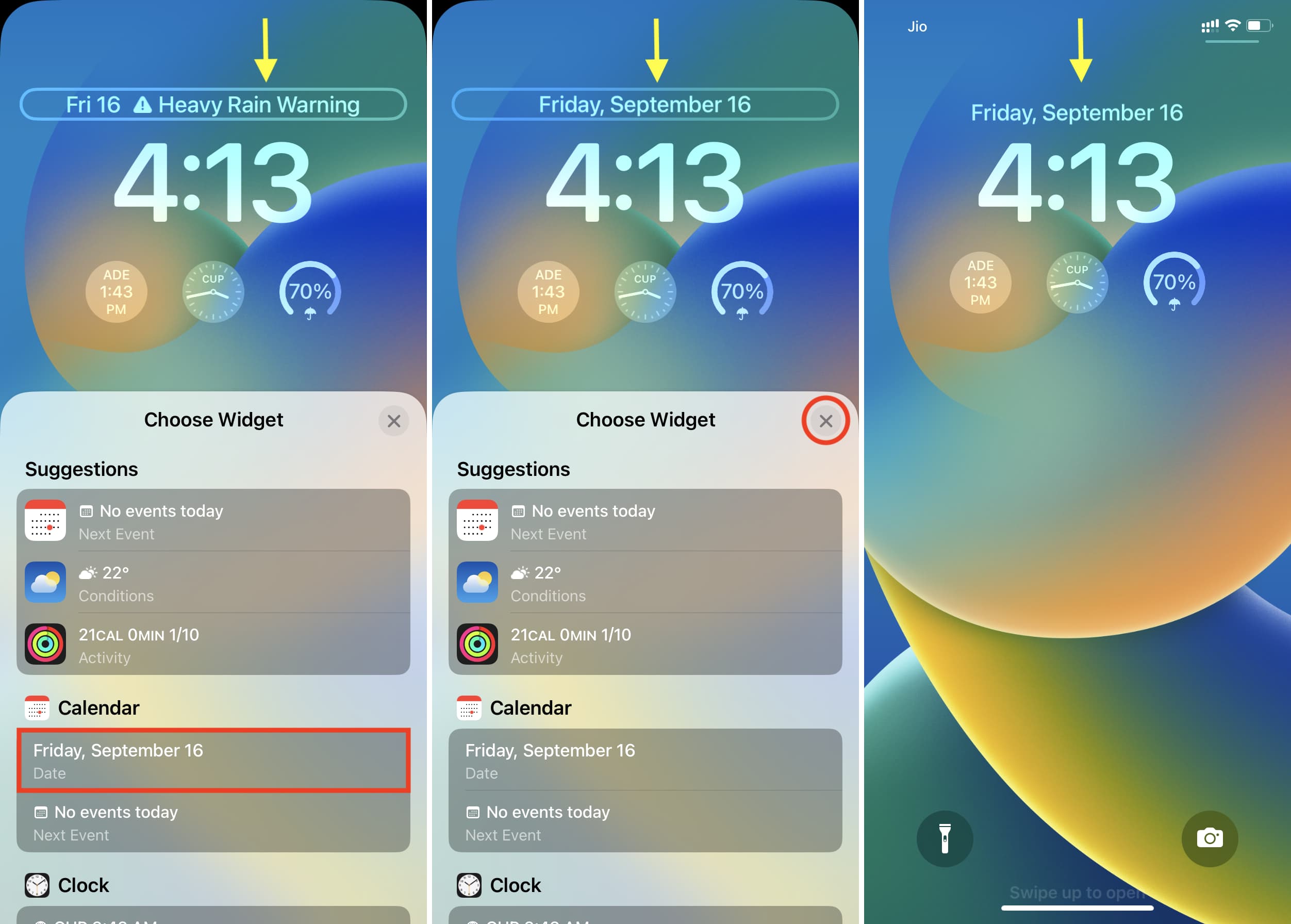
- Interact with the Widget Tray: You will see a frame around the time and the area below it. Tap on the widget box beneath the clock.
- Add Your Selection: The widget gallery will appear. Browse through the available options and tap or drag the ones you want to add to the Lock Screen area.
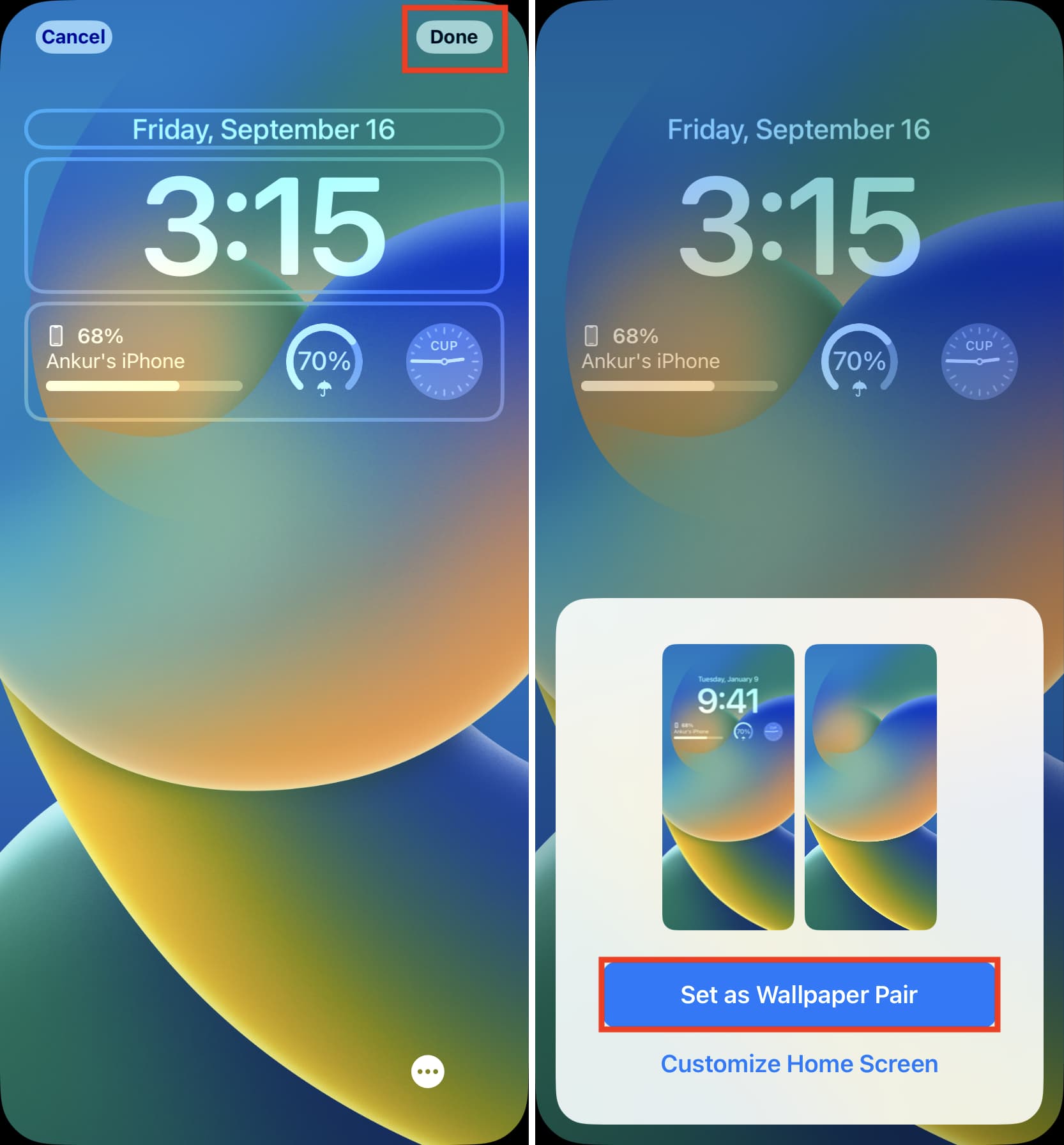
- Finalize: Once satisfied with your layout, tap the "X" to close the tray, then tap "Done" in the top-right corner to save your changes.
Comparative Overview of Widget Types
To help you decide which widgets best suit your productivity or monitoring needs, refer to the table below regarding common categories and their functionalities.
| Widget Category | Functionality | Primary Benefit |
|---|---|---|
| Productivity | Calendar, Reminders, Notes | Keeps schedule and tasks visible. |
| System | Battery, Connectivity, Storage | Monitors device hardware status. |
| Information | Weather, News, Stocks | Delivers live updates at a glance. |
| Interactive | Music Playback, Smart Home | Executes commands without opening apps. |
| Personal | Photos, Contacts, Fitness | Displays personalized health or memories. |
Managing and Troubleshooting Common Issues
While installing widgets is generally seamless, you may occasionally encounter scenarios where a widget does not display information correctly or fails to appear.
- Widget Not Appearing in Gallery: If an app is installed but its widget is not visible in the gallery, try opening the actual application first. Some apps require you to log in or configure settings within the main app before the widget can draw data.
- Outdated Information: Widgets rely on background refresh permissions. Ensure that you have not restricted background app activity for the specific app in Settings > General > Background App Refresh.
- Stuck or Frozen Widgets: If a widget stops responding, you can remove it by long-pressing it and selecting "Remove Widget." Add it again using the steps mentioned earlier to reset the connection.
- Third-Party App Requirements: Some third-party widgets require an active internet connection to pull live data. If your connectivity is poor, the widget may display a placeholder or "No Data" until the connection is restored.
Frequently Asked Questions
Can I create my own widgets?
While you cannot code native widgets directly on the iPhone without app development experience, you can use third-party apps like "Widgetsmith" or "Scriptable." These platforms provide templates or coding environments that allow you to design custom aesthetics or data flows for your Home Screen.
Why does my widget battery drain faster?
Widgets that update frequently, such as those tracking real-time weather or GPS-heavy fitness data, require more background processing power. If you notice a significant decline in battery life, consider removing unnecessary widgets or disabling their background refresh settings.
Do all apps support widgets?
No, not all applications support widgets. The developer must specifically build and include a widget extension for their app. If you do not see an app in the widget gallery, the developer has not provided a widget for that software.
Can I change the color of a widget?
Apple provides system-wide light and dark modes that affect the visual tone of many widgets. Some third-party apps also allow you to customize color themes and fonts within their internal settings before you add the widget to your Home Screen.
Is there a limit to how many widgets I can have?
There is no hard limit on the number of widgets, provided you have enough physical space on your Home Screen pages. However, adding an excessive number of widgets across many pages can impact system performance and battery longevity.
Final Recommendation
To get the most out of your iPhone, start by adding widgets that address your most frequent daily tasks—such as the Calendar for upcoming meetings or the Weather widget for quick commute checks. Experiment with "Smart Stacks" to keep your Home Screen organized while maintaining quick access to a high volume of information. Periodically review your widget layout every few months to remove tools you no longer use, ensuring your device remains clutter-free and efficient.
Image Gallery