PPI Properties: Understanding Pixel Density and Image Quality
Pixels Per Inch (PPI) measures the concentration of pixels within a one-inch segment of a digital display, serving as the definitive metric for evaluating screen sharpness and visual clarity. By determining how many discrete picture el...
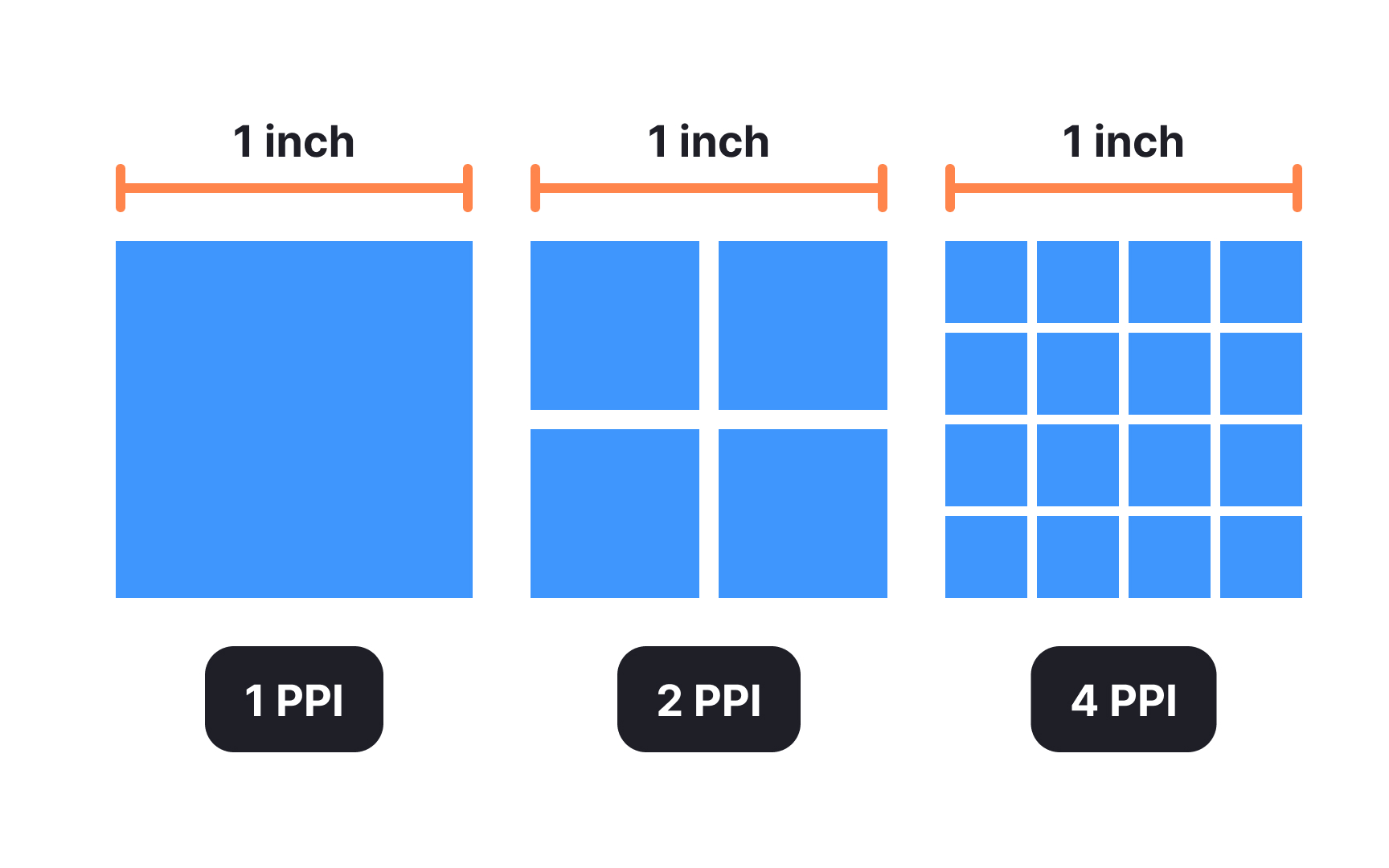
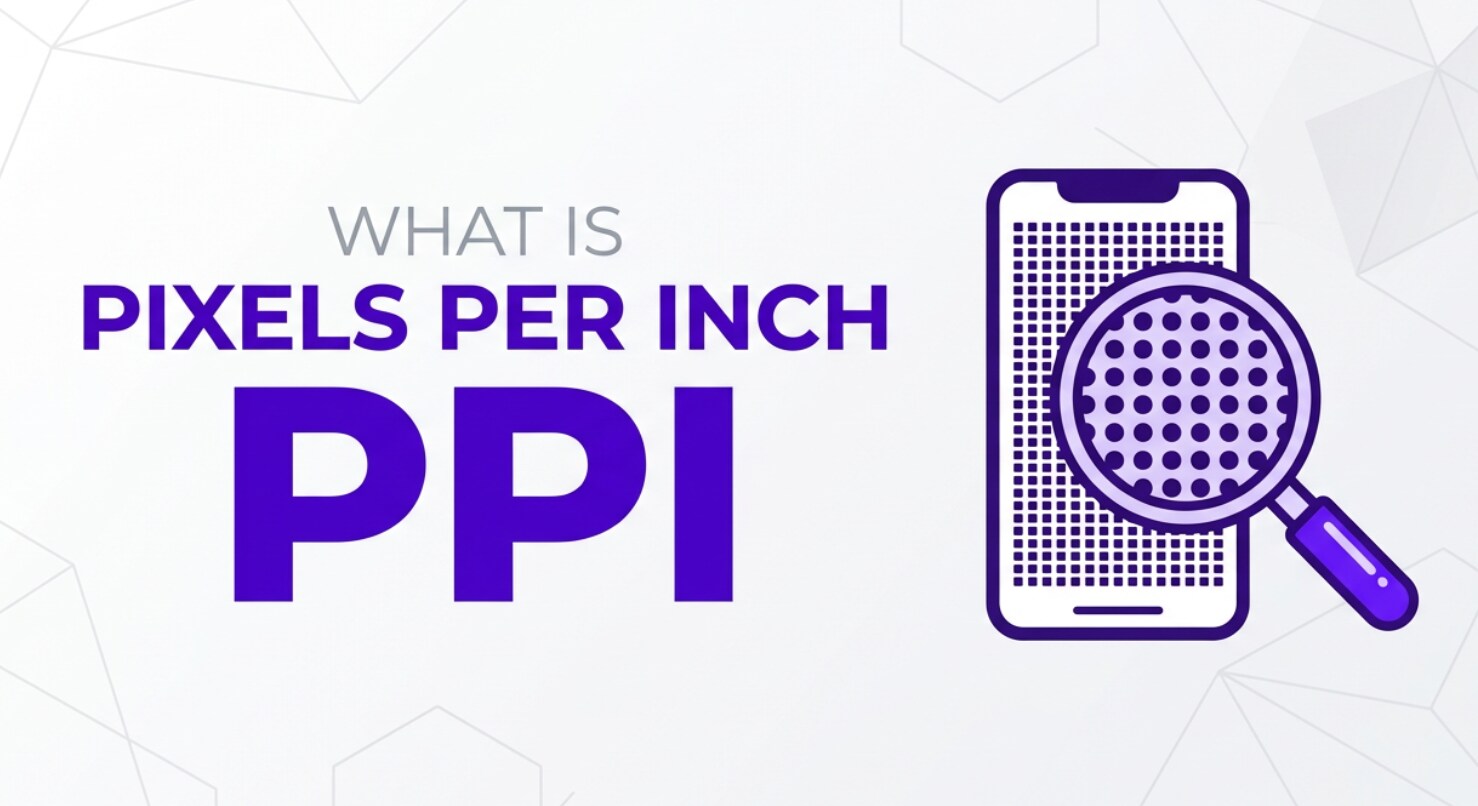
Pixels Per Inch (PPI) measures the concentration of pixels within a one-inch segment of a digital display, serving as the definitive metric for evaluating screen sharpness and visual clarity. By determining how many discrete picture elements are packed into a physical space, PPI dictates the granularity of detail, the smoothness of text, and the overall fidelity of images on monitors, smartphones, and tablets.
Contents
The Foundation of Pixel Density
At its core, a display is a grid of individual light-emitting diodes or liquid crystal elements, each capable of displaying color. Pixel density, expressed as PPI, describes the relationship between the physical dimensions of a screen and the total number of pixels available to render images. It is important to distinguish PPI from resolution: resolution refers to the total pixel count (e.g., 3840 x 2160 pixels in 4K), while PPI describes how that resolution is distributed across a specific screen size.
For example, a 24-inch monitor with a 1920 x 1080 resolution will have a lower PPI than a 15-inch laptop display with the same 1920 x 1080 resolution. Because the 15-inch screen forces the same number of pixels into a smaller physical area, those pixels are packed more tightly, resulting in a higher PPI and a sharper, more refined image.
Calculating PPI: The Mathematical Relationship
The calculation of PPI requires the Pythagorean theorem to account for the diagonal measurement of a screen. Since displays are measured diagonally, you must first determine the diagonal pixel count using the horizontal and vertical resolution dimensions.
The formula for PPI is: PPI = √ (Horizontal Pixels² + Vertical Pixels²) / Screen Diagonal in Inches
As you increase the screen size while keeping the resolution constant, the PPI drops. Conversely, increasing the resolution on a fixed-size screen raises the PPI. In professional environments, such as graphic design or medical imaging, high PPI is essential for rendering fine lines, gradients, and precise color transitions that would appear pixelated or "jagged" on lower-density displays.
PPI and Visual Perception
The human eye does not perceive individual pixels once the density exceeds a certain threshold. This concept is often referred to as a "Retina" display—a marketing term popularized by Apple to describe a screen density where, at a standard viewing distance, the human eye cannot distinguish individual pixels.
The relationship between PPI and viewing distance is critical. A smartphone, held mere inches from the eyes, requires a significantly higher PPI (often exceeding 400 or 500) to appear sharp. A large television, viewed from across a room, may have a relatively low PPI, yet still appear crystal clear because the density is high enough for the eye to integrate the pixels into a seamless image at that distance. Therefore, "image quality" is a subjective experience defined by both the hardware's PPI and the observer's physical distance from the screen.
Comparison Table: Display Density and Use Cases
| Device Category | Typical Size | Common Resolution | Approximate PPI | Primary Use Case |
|---|---|---|---|---|
| Smartphone | 6.1" | 2532 x 1170 | ~460 | Text rendering, mobile media |
| Laptop (Ultrabook) | 13.3" | 2560 x 1600 | ~227 | Professional productivity |
| Desktop Monitor | 27" | 3840 x 2160 | ~163 | Graphic design, 4K video |
| Desktop Monitor | 27" | 2560 x 1440 | ~109 | General office, gaming |
| Desktop Monitor | 24" | 1920 x 1080 | ~92 | Basic entry-level tasks |
Operational Impact on Software and Scaling
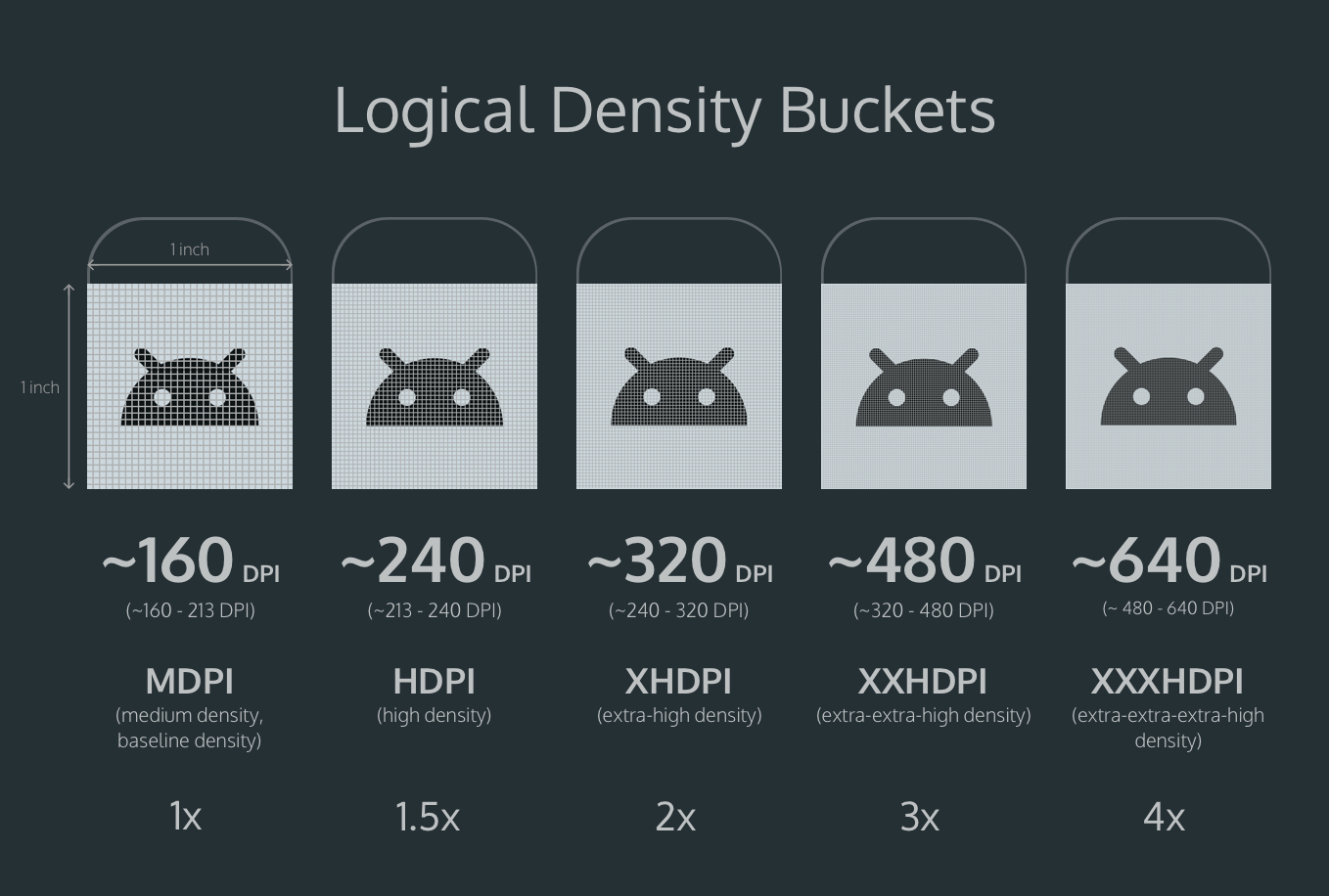
Operating systems handle high-PPI displays using a technique called UI scaling (often referred to as DPI scaling in Windows or HiDPI in macOS). Without scaling, a high PPI display would cause interface elements—like buttons, icons, and text—to appear microscopic because they occupy fewer physical millimeters of the screen.
When a display has a high PPI, the operating system renders elements at a higher resolution while simultaneously applying a scaling factor. This allows the physical size of an icon or font to remain consistent across different devices, while the underlying detail remains sharp. Troubleshooting "blurry" text on a new monitor is almost always a result of incorrect OS scaling settings rather than a fault of the hardware itself.
Common Misconceptions
- PPI equals sharpness: While PPI is a key component, image quality is also heavily dependent on color accuracy (gamut), contrast ratio, and panel type (IPS vs. OLED). A high PPI screen with poor color reproduction will still provide an inferior visual experience compared to a lower PPI screen with professional-grade color calibration.
- Higher is always better: Excessively high PPI on small screens can lead to diminished returns. Once the density reaches the limits of human visual acuity, further increases serve only to drain battery life in mobile devices and tax the GPU (graphics processing unit) of the host system without providing a perceivable benefit in sharpness.
- PPI is the same as DPI: PPI (Pixels Per Inch) relates to digital screens, whereas DPI (Dots Per Inch) is a print-industry term related to how a printer deposits ink droplets onto paper. While the concepts are mathematically similar, they are not interchangeable.
Troubleshooting Display Clarity
If you are evaluating the image quality of a display and find it lacking, follow these steps:
- Check Native Resolution: Always ensure your display is set to its "Native" resolution in the OS settings. Running a 4K monitor at 1080p causes interpolation, which results in significant blurring and loss of detail.
- Verify Scaling Settings: If icons are too small or too large, adjust the system display scaling (e.g., 125%, 150%) rather than changing the screen resolution.
- Inspect Viewing Distance: If you struggle to identify pixels, move slightly further away. High-PPI monitors should be viewed at a distance that allows the eye to perceive the total image composition rather than the individual pixel grid.
- Hardware Connection: Ensure you are using a cable standard (such as DisplayPort 1.4 or HDMI 2.1) capable of supporting the high bandwidth required for high-resolution, high-refresh-rate displays.
Conclusion
Understanding PPI is essential for anyone making informed purchasing decisions regarding visual technology. By recognizing that pixel density is only one part of the image quality equation—balanced by resolution, viewing distance, and OS scaling—users can effectively match hardware to their professional or personal needs. Whether you are a creative professional requiring the precision of a high-PPI panel for design or a user seeking comfortable text clarity for daily reading, selecting the right screen requires balancing these technical specifications against your specific workflow requirements.
Image Gallery