How to Make Blurry Text Readable: A Complete Guide to Image Enhancement and OCR
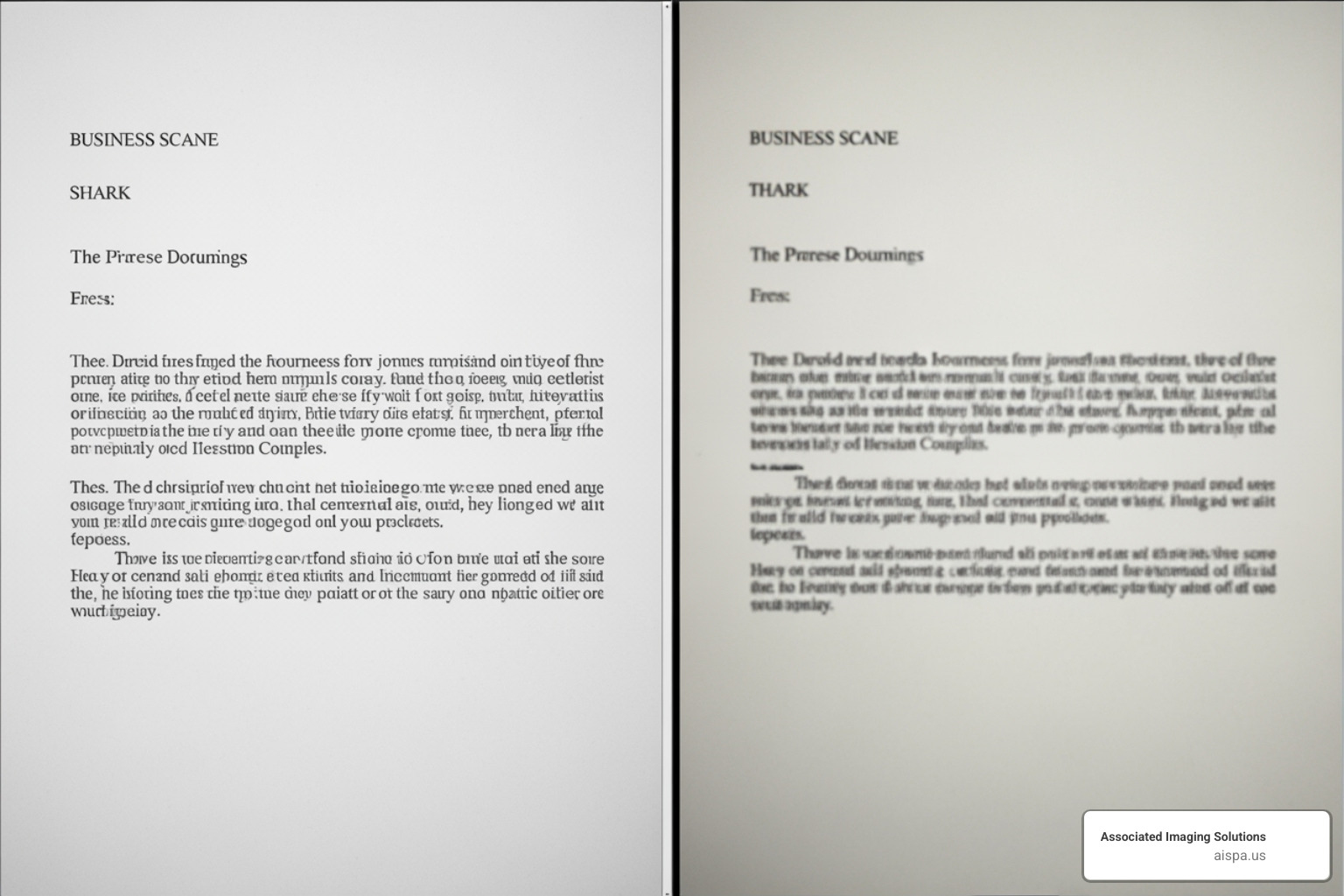
Making blurry text readable requires a combination of digital image enhancement, artificial intelligence upscaling, and Optical Character Recognition (OCR). To restore clarity, you can use AI tools to "deblur" pixels, manual photo edit...
Making blurry text readable requires a combination of digital image enhancement, artificial intelligence upscaling, and Optical Character Recognition (OCR). To restore clarity, you can use AI tools to "deblur" pixels, manual photo editors to increase contrast and sharpness, or advanced OCR engines to interpret and extract text from low-quality sources.
Contents
The frustration of encountering illegible text—whether it is a poorly scanned document, a shaky photograph of a whiteboard, or a low-resolution screenshot—is a common hurdle in both professional and personal contexts. By 2026, the technology surrounding image restoration has matured significantly, moving beyond simple sharpening filters into the realm of generative reconstruction. Understanding the underlying cause of the blur is the first step toward selecting the right tool to fix it.
Understanding the Types of Text Blur
Before attempting to fix an image, it is essential to identify what kind of degradation you are dealing with. Different types of blur require different mathematical and algorithmic approaches for restoration.
Motion Blur
Motion blur occurs when the camera or the subject moves during the exposure. This results in "streaking," where each point of light is stretched into a line. Rectifying this requires deconvolution algorithms, which attempt to reverse the path of motion to pull the pixels back into their original positions.
Gaussian and Out-of-Focus Blur
This is the most common type of blur, occurring when the lens is not properly focused on the text. The light spreads out in a circular pattern (a "bokeh" effect on a micro-scale), making edges soft and indistinct. High-pass filters and AI neural networks are particularly effective at identifying these soft edges and reconstructing them.
Pixelation and Low Resolution
Pixelation happens when an image has too few pixels to represent the detail of the characters. This often occurs when zooming in on a small thumbnail. Fixing this requires interpolation or, more effectively, AI Upscaling, which generates new pixels based on learned patterns of how letters should look.
Using AI-Powered Image Enhancers
In 2026, AI-powered restoration is the gold standard for making blurry text readable. Unlike traditional methods that merely manipulate existing pixels, AI models use deep learning to predict what the sharp version of a character should look like.
1. Generative AI Upscalers
Tools like Upscayl, Topaz Photo AI, and VanceAI utilize neural networks trained on millions of sharp and blurry image pairs. When you upload a blurry document, the AI identifies the structures of letters and "re-draws" them with high-fidelity edges.
- The Process: You upload the image, select a model specifically tuned for "Text" or "Standard Sharpening," and set the scale (e.g., 2x or 4x).
- The Benefit: It can turn a 72 DPI (dots per inch) image into a 300 DPI image that looks as if it were originally scanned at high resolution.
2. Specialized Deblurring Apps
Mobile applications such as Remini or PicWish have dedicated modes for document enhancement. These are ideal for quick fixes on the go. They prioritize contrast and edge detection to ensure that the "rings" or "ghosting" around blurry letters are minimized.
Manual Editing Techniques in Professional Software
If you prefer not to use AI or need more granular control, professional software like Adobe Photoshop or GIMP provides a suite of tools to manually enhance legibility.
The "Unsharp Mask" Method
Contrary to its name, the Unsharp Mask is a powerful sharpening tool. It works by increasing the contrast along the edges within an image.
- Open your image in the editor.
- Navigate to Filter > Sharpen > Unsharp Mask.
- Adjust the Amount (the strength of the effect), Radius (the width of the edge enhancement), and Threshold (which pixels are treated as edges). For text, a smaller radius with a higher amount usually yields the best results.
High Pass Filter Technique
The High Pass filter is an excellent way to isolate the "edges" of text from a blurry background.
- Duplicate your image layer.
- Apply Filter > Other > High Pass.
- Adjust the radius until you see the outlines of the letters appearing against a grey background.
- Change the layer's Blending Mode to Overlay or Hard Light. This forces the software to emphasize the sharp outlines of the text while ignoring the blurry "glow."
Adjusting Thresholds and Levels
Sometimes, the blur makes the text blend into the background. Using the Threshold tool can convert the image into pure black and white. This eliminates the grey "fuzz" around letters, making them stand out sharply. However, if the threshold is set too high, the letters may "choke" and become blobs; if too low, they may disappear.
Extracting Text from Blurry Images Using OCR
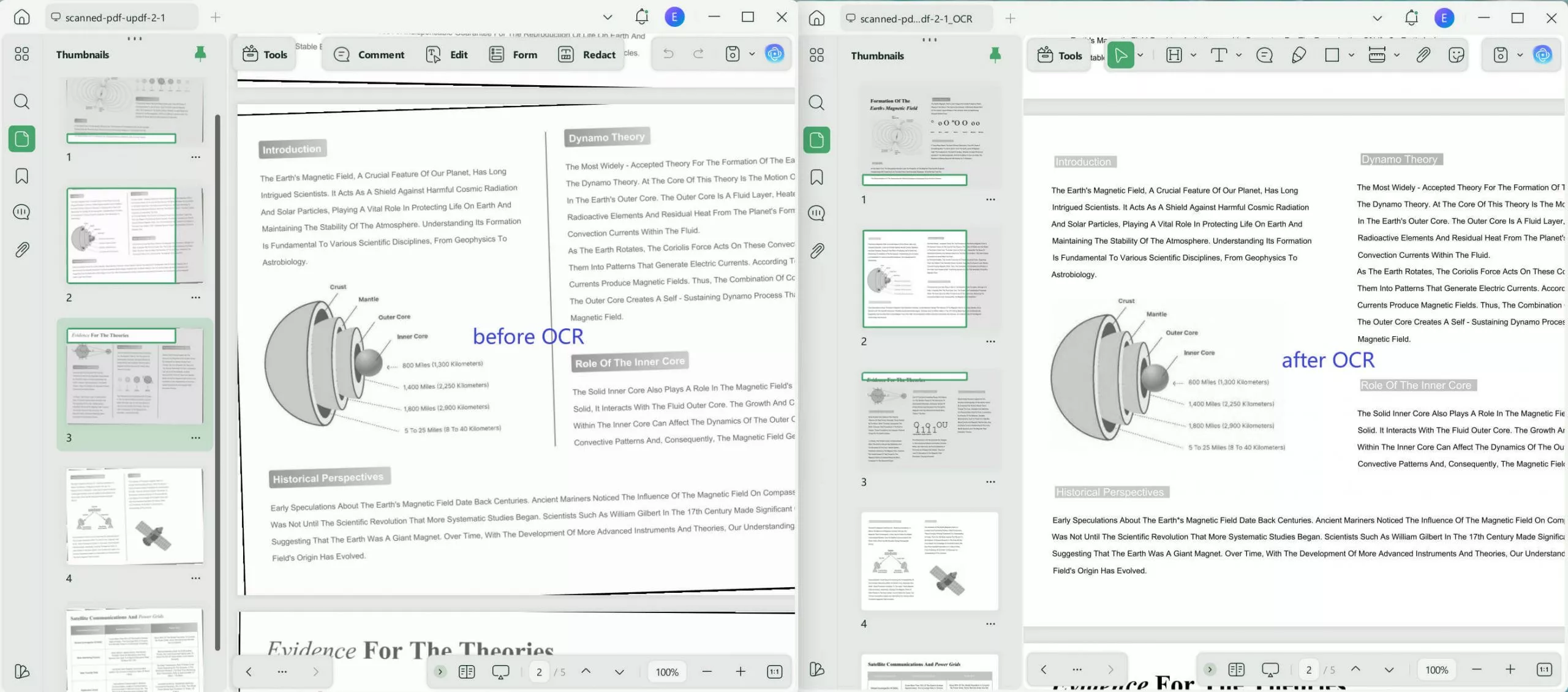
Sometimes, you don't need the image to look pretty; you just need the data. Optical Character Recognition (OCR) is the process of a computer "reading" the image and converting it into editable text.
Top OCR Tools for 2026
- Google Lens / Google Keep: Google’s OCR remains one of the most robust for handling low-light and slightly blurry text. Simply upload the photo to Google Keep and select "Grab image text."
- Adobe Acrobat Pro: Adobe’s built-in "Scan & OCR" feature uses sophisticated pre-processing to straighten, sharpen, and then read blurry PDFs.
- Tesseract OCR: For technical users, this open-source engine can be customized with specific "dictionaries" to help it guess words even when the visual data is poor.
Improving OCR Accuracy
OCR works best when the text is horizontal and high-contrast. If your image is blurry, try these steps before running OCR:
- De-skew: Ensure the text is perfectly horizontal.
- Increase Contrast: Make the text as black as possible and the background as white as possible.
- Crop: Remove any margins or distracting elements that aren't text.
Fixing Blurry Text on Your Computer Screen
If the text on your monitor looks blurry—a common issue with high-resolution displays or specialized software—the problem is likely a configuration setting rather than a corrupted file.
Windows ClearType Tuner
Windows uses a technology called ClearType to make fonts look sharper on LCD screens. If your system text looks fuzzy:
- Type "Adjust ClearType text" in the Windows search bar.
- Follow the wizard to pick the samples that look sharpest to your eyes.
DPI Scaling Settings
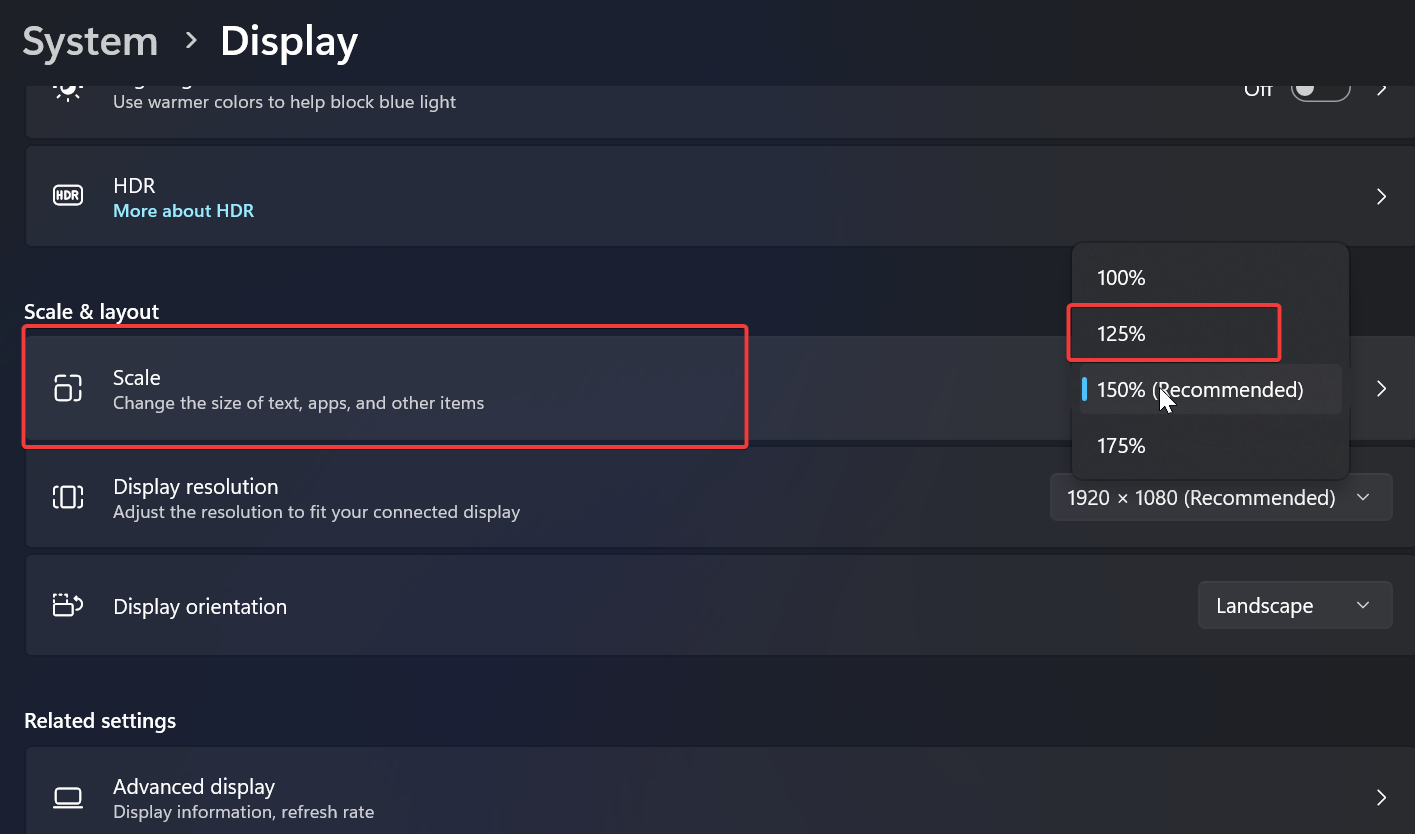
On modern 4K monitors, some older applications don't scale correctly, leading to "soft" or blurry text.
- Right-click the application icon and select Properties.
- Go to the Compatibility tab.
- Click Change high DPI settings.
- Check the box for "Override high DPI scaling behavior" and set it to System (Enhanced).
Comparison of Methods for Reading Blurry Text
| Method | Best For | Effort Level | Accuracy |
|---|---|---|---|
| AI Upscaling | Low-resolution, pixelated text | Low | High (Reconstructive) |
| Unsharp Mask | Slightly out-of-focus photos | Medium | Medium (Visual only) |
| OCR Extraction | Converting images to Word/Text | Low | Variable (Depends on Blur) |
| Thresholding | Text blending into the background | High | High (For legibility) |
| ClearType Tuning | System fonts and UI elements | Low | Permanent Fix |
Common Pitfalls and How to Avoid Them
When trying to make blurry text readable, it is easy to over-process the image, which can lead to "artifacts"—strange digital patterns that make the text even harder to read.
- Over-Sharpening: Excessive sharpening creates white "halos" around letters. This can cause the internal loops of letters (like 'e', 'a', and 'o') to close up, making them look like solid dots.
- AI Hallucinations: In 2026, generative AI is powerful but can occasionally "hallucinate." If a letter is too blurry, the AI might guess a 'c' is an 'o'. Always double-check critical information, like dates or financial figures, against the original blurry source.
- Ignoring Lighting: If you are taking a photo of text, avoid using a flash directly on glossy paper, as the resulting glare creates a "white blur" that no amount of software can fix.
FAQ
Can I fix text that is completely "censored" or scribbled out?
No. There is a fundamental difference between "blurry" text (which still contains some original data) and "censored" text. If the text has been blacked out or heavily pixelated for privacy, the original data has been removed from the file. Restoration is generally impossible without the original unedited file.
Why does my text get blurrier when I zoom in?
This is due to "interpolation." Most image viewers try to smooth out pixels when you zoom in to avoid a "blocky" look. To see the raw data, you may need to disable "image smoothing" in your viewer settings or use an AI upscaler to add actual detail.
What is the best free tool for unblurring text?
As of 2026, Upscayl is widely considered the best free, open-source desktop application for this purpose. For web-based solutions, Adobe Express offers free basic enhancement tools that are very effective for document sharpening.
Can I unblur text in a video?
Yes, but it is more complex. You must use "Super Resolution" video software (like Topaz Video AI) which compares multiple frames to reconstruct a sharper version of the text. Because a video has multiple frames of the same text, the software can often achieve better results than with a single photo.
Does "Enhance" like in movies actually exist?
To an extent, yes. While the "CSI-style" enhancement of a license plate from three miles away is still largely fictional, modern AI can reconstruct text from images that were previously considered "lost" to blur, provided there is enough residual data for the neural network to identify character shapes.
Final Recommendation
For the most reliable results, start with an AI Upscaler to reconstruct the character shapes, then apply a High Pass filter in a photo editor to define the edges, and finally run the result through an OCR engine like Google Lens to extract the text. This multi-layered approach ensures that you aren't just looking at a clearer image, but that you have accurately captured the information within it.
Image Gallery