How to Link Google Forms to Google Sheets: A Step-by-Step Guide
To link Google Forms to Google Sheets, open your form in Google Forms, navigate to the Responses tab, and click Link to Sheets (or the green Google Sheets icon). Choose whether to create a new spreadsheet or select an existing spreadsh...
To link Google Forms to Google Sheets, open your form in Google Forms, navigate to the Responses tab, and click Link to Sheets (or the green Google Sheets icon). Choose whether to create a new spreadsheet or select an existing spreadsheet, then click Create or Select. All current and future responses will automatically sync to your sheet in real time.
Contents
Why Link Google Forms to Google Sheets?
Google Forms is an efficient tool for collecting feedback, survey results, registrations, and job applications. However, analyzing data inside the default Google Forms interface has clear structural limitations. While Forms generates basic charts and summary statistics, it does not support complex data filtering, custom mathematical calculations, cross-referencing with existing business records, or automated reporting workflows.
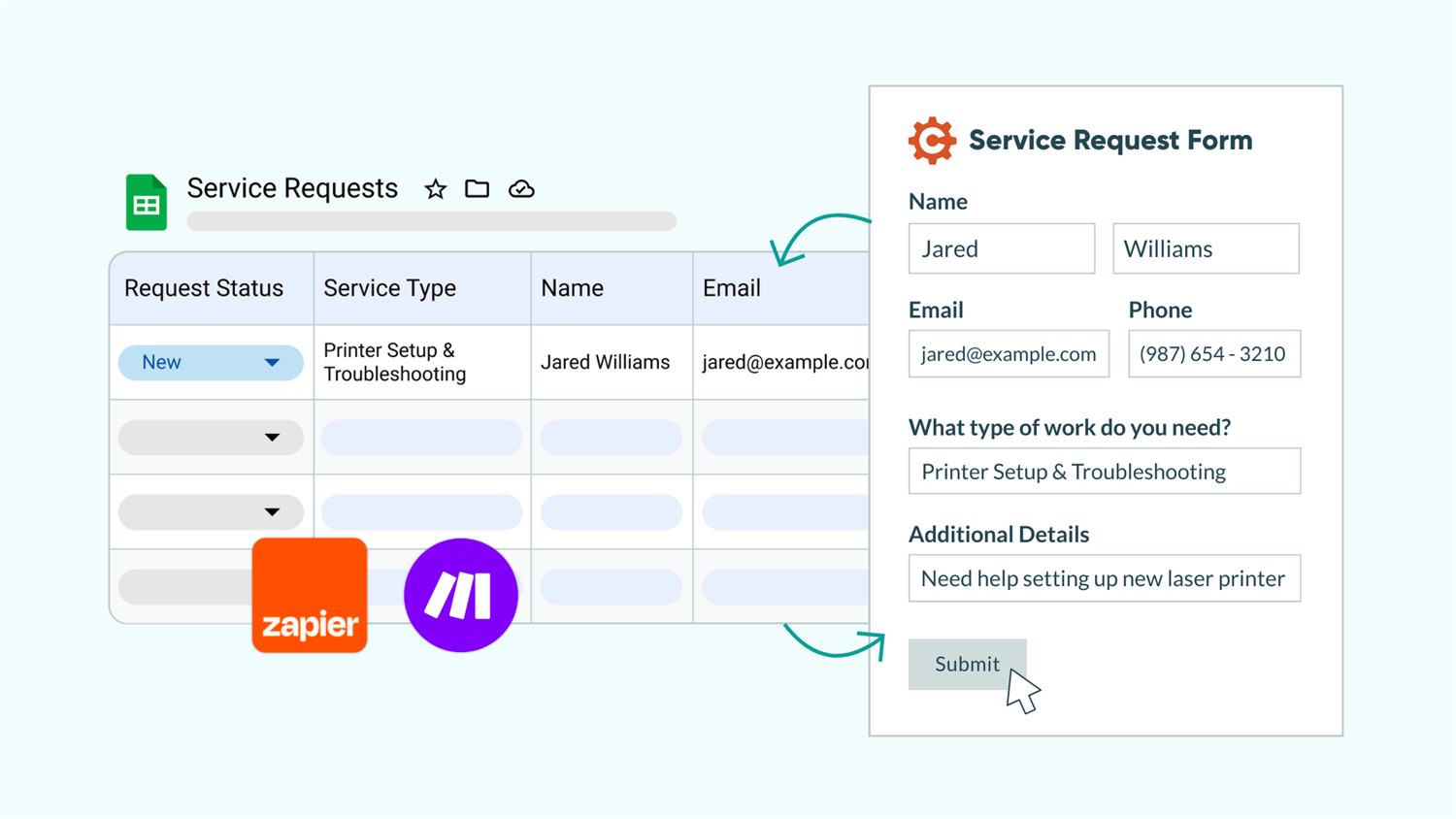
Connecting Google Forms directly to Google Sheets solves these limitations by converting unstructured submission data into a live relational database tab. Every submission generates a timestamped row instantly, allowing teams to:
- Automate Data Entry: Eliminate manual copy-pasting of customer, client, or research inputs into spreadsheets.
- Perform Advanced Calculations: Apply functions like
SUMIFS,XLOOKUP,QUERY, andPIVOTdirectly to response data. - Build Live Dashboards: Connect the linked Google Sheet to visualization tools such as Google Looker Studio or internal corporate dashboards.
- Integrate Third-Party Workflows: Trigger automated notification workflows, automated email sending, or CRM updates using Google Apps Script or automation platforms like Zapier and Make.
Prerequisites and Access Requirements
Before establishing a connection between Google Forms and Google Sheets, confirm that your account meets the following technical and permission requirements:
- Edit Access to the Google Form: You must be an Owner or Editor of the Google Form. Viewers or commenters cannot alter response destinations.
- Edit Access to the Target Google Sheet: If you intend to link the form to an existing spreadsheet, your Google Account must have Editor permissions on that target file.
- Domain and Shared Drive Alignment: If you are operating within a Google Workspace organization (enterprise, government, or education tenant), both the form and the spreadsheet should ideally reside in the same domain or shared drive. Linking across separate Google Workspace domains may be restricted by your organization's domain-level data loss prevention (DLP) policies.
Method 1: Linking Google Forms to Google Sheets from Google Forms
This is the standard and most reliable method to link a form to a new or existing spreadsheet.
Step 1: Open the Responses Tab
Navigate to Google Forms and open the form you want to link. At the top center of the editor screen, click on the Responses tab.
Step 2: Click the "Link to Sheets" Icon
In the top-right corner of the Responses tab summary panel, click Link to Sheets (represented by the green Google Sheets icon).
Step 3: Choose Destination Type
A dialog box titled Select response destination will appear on your screen presenting two distinct choices:
- Create a new spreadsheet: Generates a brand-new Google Sheets file in your Google Drive root folder (or the current folder where the form is saved). The default title matches your form title with
(Responses)appended to the end. - Select existing spreadsheet: Allows you to append the responses as a new worksheet tab inside an already established Google Sheets file.
Select response destination ◯ Create a new spreadsheet: [ Form Title (Responses) ] ⊙ Select existing spreadsheet [ Cancel ] [ Create / Select ]
Step 4: Finalize the Connection
- If you chose Create a new spreadsheet, click Create. Google Forms will create the file and automatically open it in a new browser tab.
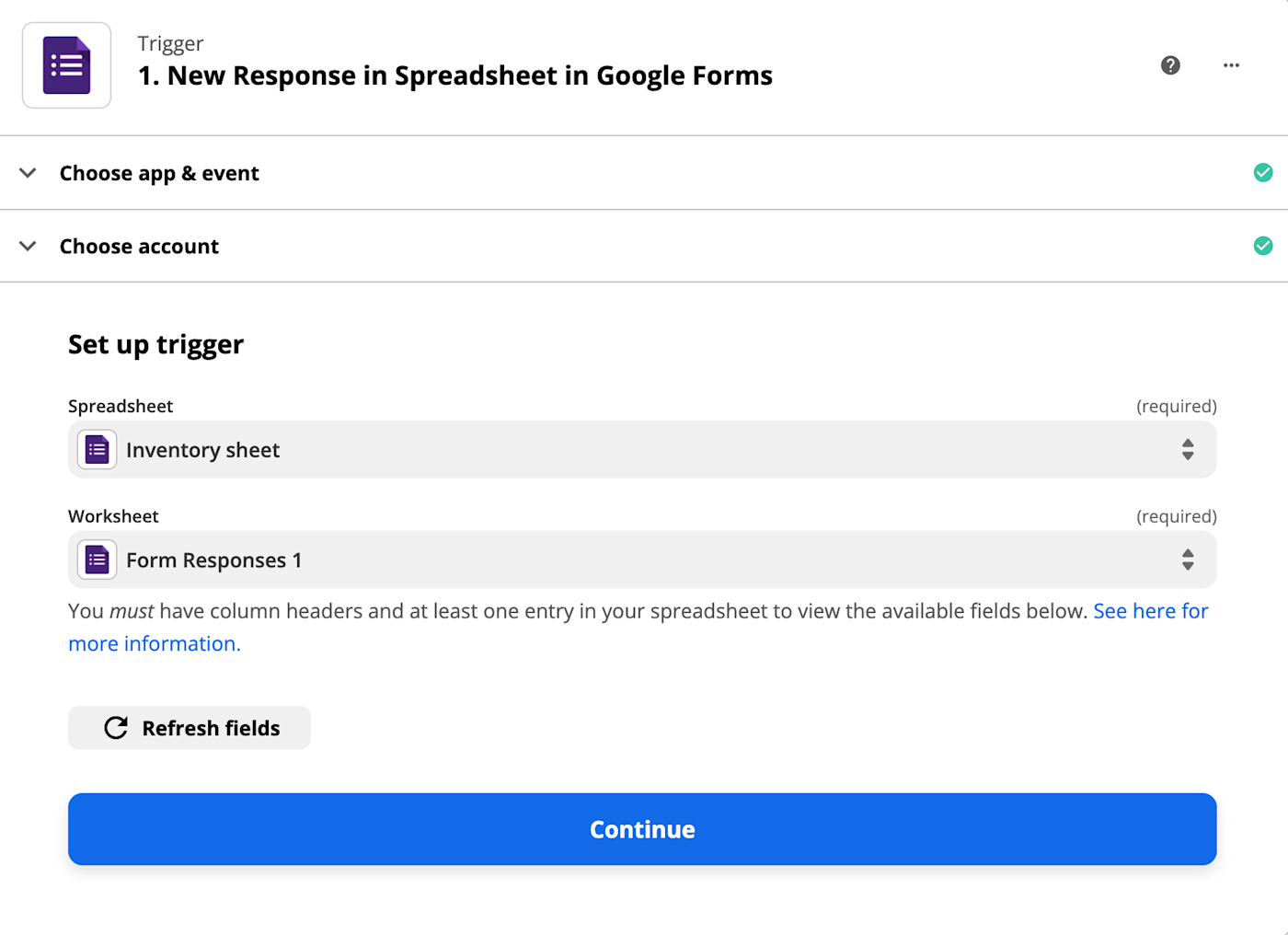
- If you chose Select existing spreadsheet, click Select. A Google Drive file-picker window will launch. Choose your target file and click Select. A new tab named
Form Responses 1will automatically be appended to that workbook.
Method 2: Creating a Google Form directly from Google Sheets
If you are already working inside a Google Spreadsheet and want to collect data that feeds directly into your active workbook, you can create the form directly from the Sheets interface.
- Open your Google Sheet.
- In the top menu bar, click Tools > Create a new form (or Insert > Form depending on your Google Workspace version).
- Google Sheets will create a new, untitled form in a new browser tab, automatically linked back to your open spreadsheet.
- A new worksheet tab labeled
Form Responses 1will appear in your spreadsheet, designated by a purple Google Forms icon next to the tab name. - Add questions to your form. As questions are saved, the column headers in the
Form Responses 1tab update automatically to match the question titles.
How Data Streams from Forms into Sheets
Understanding how Google Forms writes data to Google Sheets prevents standard formula errors and data corruption issues later in your workflow.
Column Mapping and Headers
- Column A (Timestamp): Google Forms automatically reserves Column A for the submission date and time. This field cannot be disabled within native Google Forms settings.
- Columns B through N: Every form question maps sequentially to subsequent columns based on the order of questions in the form at the moment of linking.
- Header Syncing: Editing a question title in Google Forms automatically updates the corresponding column header text in Row 1 of your linked spreadsheet.
Dynamic Row Insertion Behavior
When a user submits a response, Google Forms inserts a brand-new row directly below the last recorded entry rather than simply filling out empty existing cells.
Because Forms inserts new rows into the spreadsheet grid:
- Pre-populated formulas placed in empty rows below existing data will be pushed downward.
- Formatting applied to empty, blank rows below your data will often be bypassed by the inserted row.
Best Practices for Managing Linked Data
Because Google Forms dynamically alters row structures, direct edits to the raw response tab (Form Responses 1) can break formatting, disrupt formulas, and corrupt structural data. Follow these verified data architecture standards to preserve clean records.
1. Maintain a Dedicated "Raw Data" Tab
Never apply manual edits, cell color highlights, or custom mathematical formulas directly within the Form Responses 1 tab. Treat this tab strictly as an immutable read-only raw landing zone for incoming data.
2. Create a Working Tab with Dynamic References
Create a second worksheet tab (e.g., named Working Data or Analysis) to process data. Use dynamic array formulas to clone the raw responses into your working tab automatically.
To import all data dynamically from the response sheet into your working tab, enter this formula into cell A1 of your new working sheet:
={ 'Form Responses 1'!A:Z }
This creates an exact, real-time mirror of your response data. Any newly added form submissions will appear in your working tab instantly without risking direct edits to the original source tab.
3. Use ARRAYFORMULA for Automatic Calculations
If you need calculated columns alongside your response entries (such as converting text values to numbers, calculating score totals, or extracting dates), use ARRAYFORMULA placed in Row 1 (the header row) of your working sheet.
For example, to calculate a 10% sales tax on a order amount stored in Column C, place the following formula in cell D1 of your working sheet:
=ARRAYFORMULA(IF(ROW(C:C)=1, "Tax Amount", IF(ISBLANK(C:C), "", C:C * 0.10)))
This single formula automatically processes existing entries and applies calculations to future incoming form responses without requiring you to manually drag formulas down new rows.
Unlinking, Changing, or Relinking Response Destinations
There are technical scenarios where you may need to detach a Google Form from its current Google Sheet, redirect incoming responses to a different workbook, or resynchronize historical submissions.
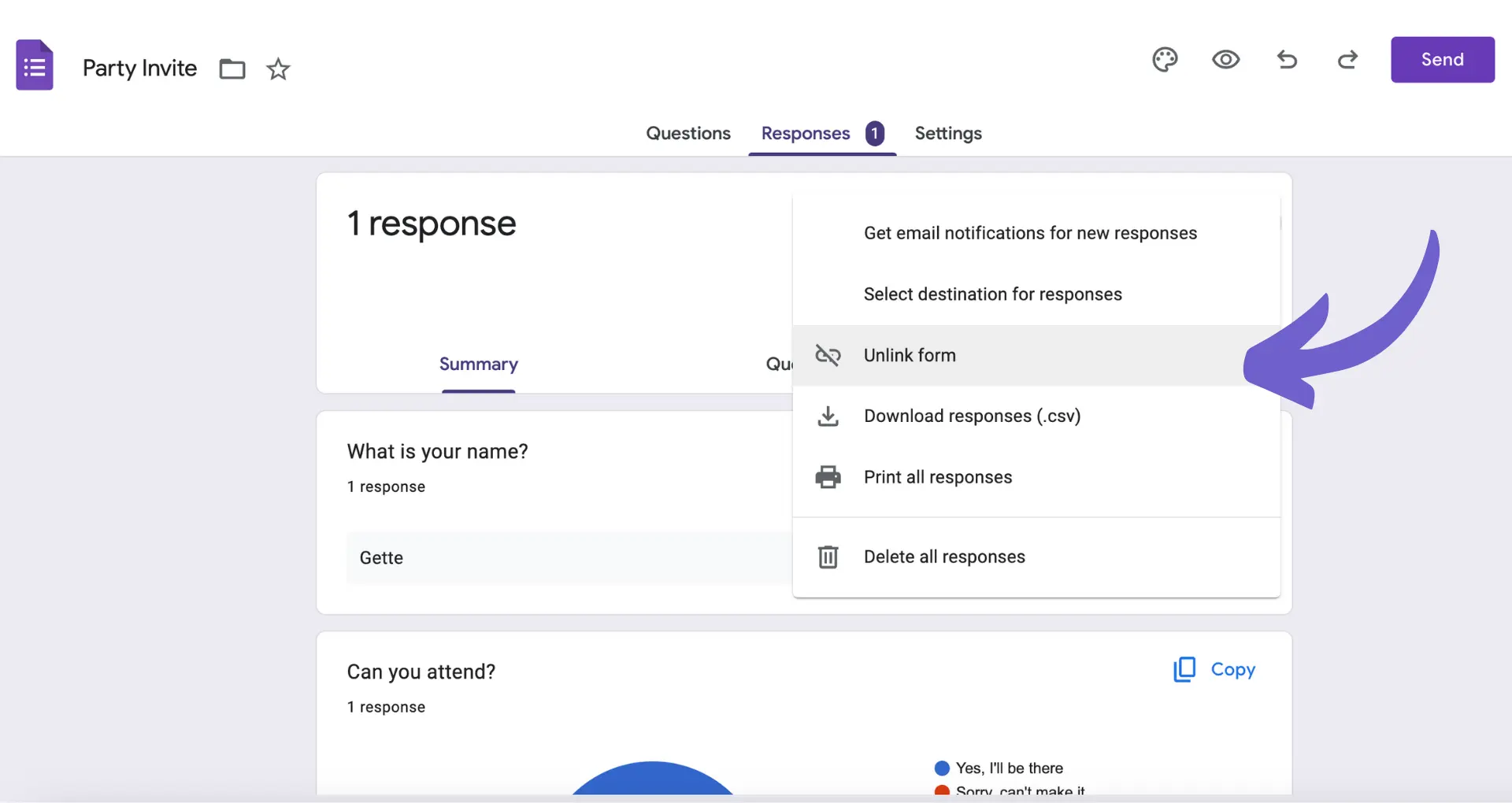
How to Unlink a Google Form from a Google Sheet
- Open your Google Form and select the Responses tab.
- Click the three vertical dots (More Options menu) adjacent to the green Sheets icon.
- Select Unlink form.
- A confirmation dialog will appear. Click Unlink.
Note: Unlinking stops new submissions from writing to the sheet. Existing data inside the Google Sheet is preserved intact and will not be deleted.
How to Redirect to a New Sheet or Resynchronize Submissions
If form submissions are out of sync or you want to route future responses to a clean file:
- Unlink the form using the steps above.
- Click the three vertical dots menu again.
- Select Select response destination.
- Choose Create a new spreadsheet or Select existing spreadsheet.
- Click Create or Select.
Google Forms will export all historical responses gathered since the form's creation into the newly designated sheet tab, instantly re-establishing full dataset integrity.
Troubleshooting Common Google Forms to Sheets Errors
The following reference table covers standard technical errors encountered when linking Google Forms to Google Sheets, along with verified root causes and solutions.
| Issue / Error Symptom | Primary Root Cause | Verified Resolution |
|---|---|---|
| New responses appear at the bottom of the sheet below blank rows. | Formulas or manual edits were placed in empty cells below your data range. Google Forms treats those cells as "populated" and inserts new rows below them. | Delete all empty rows below your active data. Use ARRAYFORMULA in Row 1 instead of copying formulas down individual rows. |
| Formulas in adjacent columns do not auto-calculate for new responses. | Google Forms inserts entire new rows, pushing pre-copied standard formulas down out of range. | Wrap your formulas inside an ARRAYFORMULA in the top header row or perform calculations on a separate working worksheet tab. |
| Changes to form questions created duplicate or displaced column headers. | Modifying, deleting, or reordering questions in Google Forms creates structural shifts in spreadsheet mapping. | Avoid reordering questions after live data collection starts. If necessary, unlink and relink the form to regenerate clean headers. |
| "Access Denied" or missing permission error when selecting an existing sheet. | Your Google Account lacks Edit permissions on the target Google Sheet, or the sheet is in a restricted domain/Shared Drive. | Confirm Editor permissions on the destination spreadsheet file or consult your Google Workspace IT administrator regarding cross-domain sharing. |
| Submissions appear in Google Forms but fail to update in Google Sheets. | The sync bridge between the form and sheet has become disconnected or broken. | Click the three dots on the Responses tab, choose Unlink form, then re-select the destination using Select response destination. |
Frequently Asked Questions (FAQ)
What happens to existing form responses if I link to Google Sheets later?
When you link a Google Form to a Google Sheet after receiving submissions, Google Forms automatically imports all historical responses into the newly linked spreadsheet. No prior submission data is lost.
Can I link multiple Google Forms to a single Google Sheet?
Yes. You can link multiple distinct Google Forms to one single Google Sheet workbook. Each linked form will automatically create its own independent response tab (e.g., Form Responses 1, Form Responses 2) within that shared workbook.
Will deleting a row in Google Sheets delete the response in Google Forms?
No. The link between Google Forms and Google Sheets is a one-way synchronization (Forms to Sheets). Deleting a row or editing cell values in your Google Sheet will not alter or remove the original submission stored in your Google Form database.
Why are my Google Sheets dates and timestamps formatted incorrectly?
Google Forms outputs standard ISO timestamp formats. If the timestamp column appears misformatted, highlight Column A in your spreadsheet, navigate to Format > Number in the Google Sheets menu bar, and select Date time or your preferred regional locale settings.
Can I un-link a form and link it to a different sheet without losing data?
Yes. Unlinking a form only disconnects the live data transport pipe. It does not delete data from the form or the existing spreadsheet. When you link the form to a brand-new destination sheet, Google Forms recreates the entire history of responses in the new file.
Recommended Next Steps
Now that your Google Form is linked to Google Sheets, optimize your data pipeline by implementing these best practices:
- Protect Your Source Tab: Right-click the
Form Responses 1tab at the bottom of your Google Sheet, select Protect sheet, and restrict editing access to prevent accidental cell modification. - Set Up Automated Notifications: Configure spreadsheet notification rules by clicking Tools > Notification settings > Edit notifications in Google Sheets to receive daily digests or immediate email alerts whenever a new form response is submitted.
- Build Dynamic Reports: Create a secondary worksheet tab within your file and use
=QUERY('Form Responses 1'!A:Z, "SELECT * WHERE ...")to extract filtered subsets of your response data for clean presentation and executive summary reporting.
Image Gallery