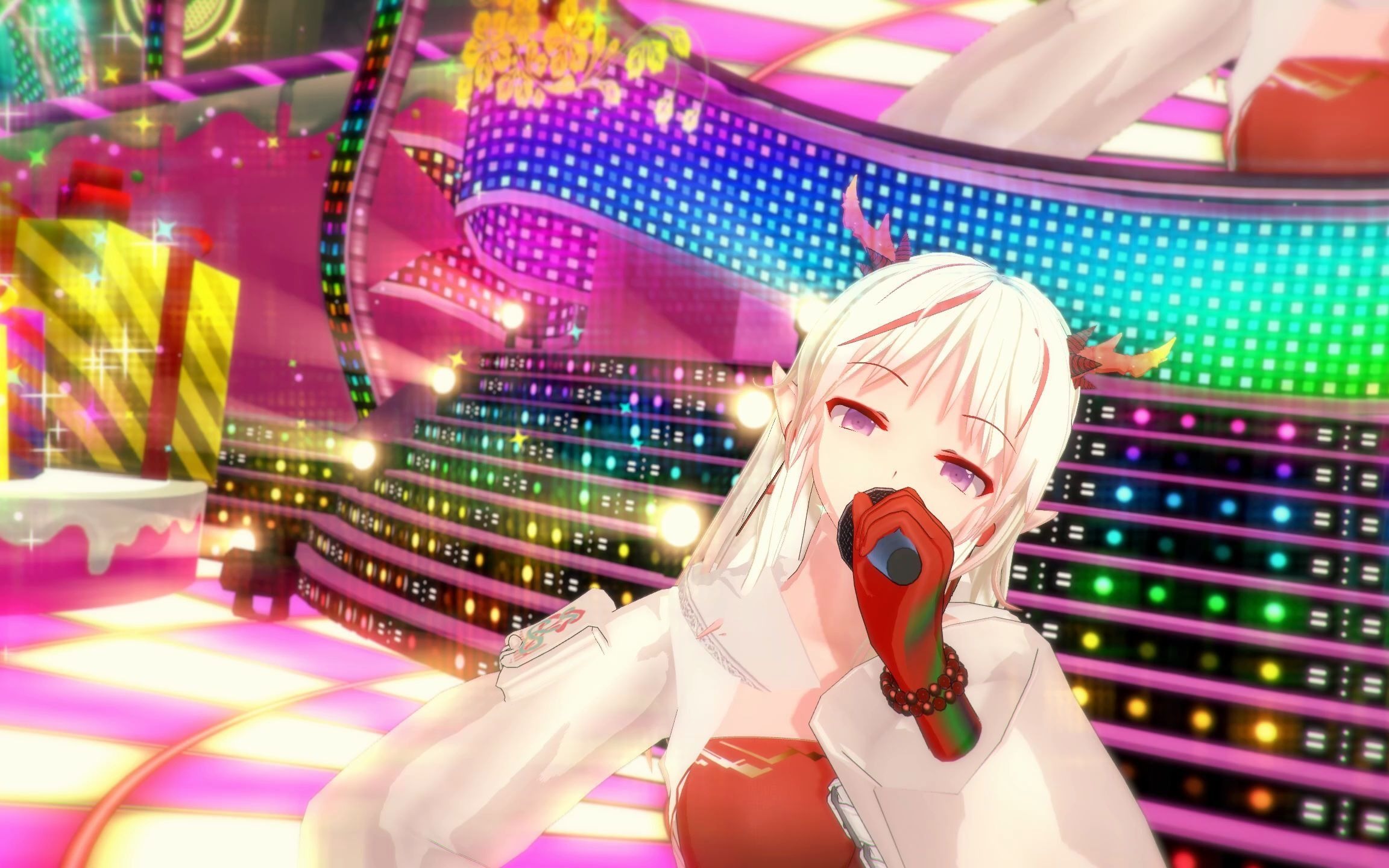
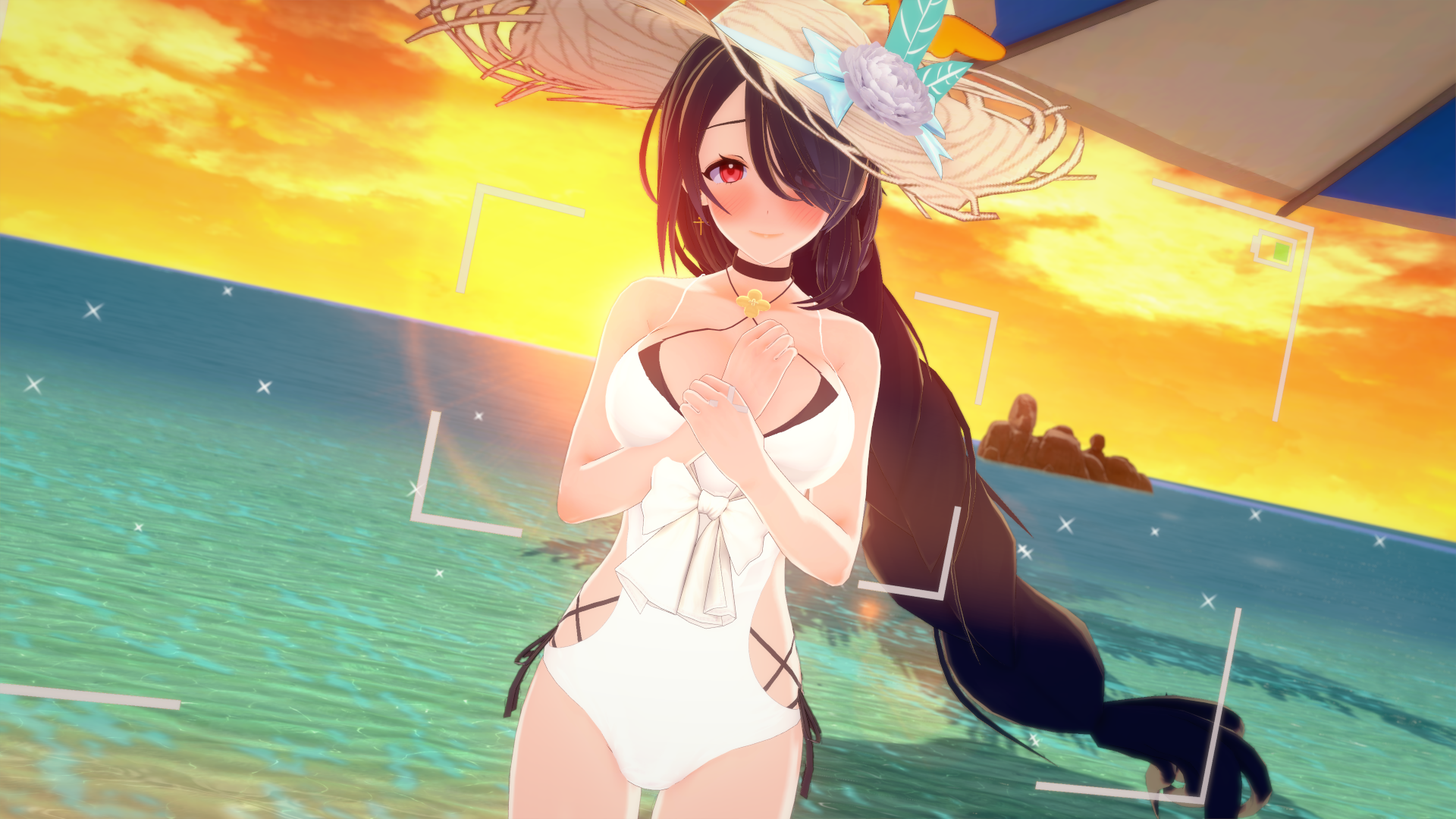
The Ultimate Koikatu Guide: Masterbuilding and Modding in 2026
Note: This comprehensive guide focuses specifically on the character creation, modding ecosystems, and optimization frameworks for the 3D simulation title Koikatu (and its successor frameworks) as maintained by the global community in...
Note: This comprehensive guide focuses specifically on the character creation, modding ecosystems, and optimization frameworks for the 3D simulation title Koikatu (and its successor frameworks) as maintained by the global community in 2026.
Contents
Navigating the deep simulation architecture and expansive customization mechanics of Illusion's premier title requires a structured approach. Whether you are a newcomer trying to understand base game parameters or an advanced user managing complex mod load orders, mastering this platform demands familiarity with modern utility tools, physics engines, and asset management frameworks. This 2026 reference manual breaks down installation protocols, asset pipelines, advanced studio workflows, and troubleshooting methods to ensure optimal performance.
Understanding the Ecosystem and Technical Architecture
The core framework relies heavily on BepInEx as the primary plugin loader. Over the years, community-driven development has transformed the base application into a heavily extensible platform. Modern setups depend on standardized asset bundles, custom shaders, and real-time IK (Inverse Kinematics) controllers that elevate character fidelity far beyond vanilla limitations.
To achieve stability and prevent runtime crashes, your system must run updated runtime libraries and maintain organized directory structures. Below is an overview of the essential components required for a stable deployment:
| Component Name | Primary Function | Version Standard | Critical Dependency |
|---|---|---|---|
| BepInEx | Core plugin injection and mod framework | v5.4.x (IL2CPP/Mono compatible) | .NET Framework 4.8 / .NET 6+ |
| Sideloader Modpack | Dynamic asset loading without modifying core files | Latest Stable (2026 Release) | BepInEx Framework |
| KKManager | Automated mod installation, updates, and dependency tracking | v2.x Branch | Internet Connection for Repository Sync |
| Shader Replacer | Enhances material rendering, lighting, and textures | Standard PBR Suite | DirectX 11 / 12 Capable GPU |
Step-by-Step Installation and Mod Management Workflow
Setting up a clean installation requires careful adherence to directory placement and update sequences. Skipping steps often results in missing textures, broken character cards, or startup crashes.
- Clean Base Installation: Verify that your core application files are uncompressed to a non-system directory (avoiding paths like Program Files to prevent Windows User Account Control permission conflicts). Launch the vanilla executable at least once to generate necessary registry entries and user directories.
- Deploying the Plugin Loader: Extract the BepInEx archive directly into the root directory where the main executable resides. Run the executable once more to let BepInEx generate its configuration folders and plugin subdirectories.
- Integrating KKManager: Download the latest version of KKManager and place the executable inside your root directory. Use this tool to automatically fetch and install foundational plugins such as Extended Save, Material Editor, and GraphicSettings.
- Managing Asset Packs: Utilize KKManager's drag-and-drop feature for
.zipmod archives. The manager automatically routes card files, hair assets, clothing, and accessories into the appropriateBepInEx/pluginsorUserDatasubfolders. - Verifying Load Order: Open the configuration menu via the in-game shortcut (typically F1) to ensure all plugins initialize without throwing red error text in the console window.
Advanced Character Creation and Customization Techniques
Character creation serves as the primary gateway for the community. Moving beyond basic sliders involves manipulating advanced mesh modifiers, custom bone scaling, and overlay textures.
Mastering Coordinate Layers
Clothing and Accessory Hierarchies: Utilize the extended slot plugins to attach multiple accessories to a single bone. By adjusting parent-child transformations, you can create intricate outfits that deform naturally with character movement rather than clipping through body meshes.
- Color Matrix and Material Tuning: Take advantage of the Material Editor to adjust specular highlights, glossiness, and emission maps. This prevents characters from looking overly plastic under dynamic lighting.
- Custom Eye and Face Sculpting: Use custom blendshapes to push facial proportions outside standard limits. Pay close attention to eye tracking parameters to ensure natural gaze behavior during interaction scenes.
- Hair Physics Configuration: Adjust stiffness and gravity settings for custom hair mods to prevent erratic clipping during animations.
Studio Mode Mastery and Scene Composition
Studio mode transforms the platform from a simple simulation into a robust 3D photography and animation suite. Building complex scenes requires understanding lighting nodes, camera paths, and pose interpolation.
- Lighting Setup: Never rely solely on default ambient lighting. Implement a three-point lighting system using custom point and spot lights with adjusted shadow softness and color temperatures to add depth to your scenes.
- Pose Tinkering and Joint Manipulation: Use the bone editing tools to fine-tune finger placements, spine curvature, and facial expressions. Save successful poses as presets for rapid workflow deployment in future projects.
- Prop Integration: Import external 3D models via sideloader packs to build detailed environments, utilizing the coordinate grid for precise alignment.
Pros and Cons of Modding and Platform Expansion
| Feature / Aspect | Advantages | Disadvantages |
|---|---|---|
| Community Mods | Infinite expandability, vast clothing libraries, enhanced graphics. | Potential incompatibility between older mods and current engine updates. |
| KKManager | Streamlined updates, dependency resolution, automated sorting. | Requires active internet connection; occasional repository sync delays. |
| Studio Customization | Limitless creative freedom for posing, lighting, and rendering. | Steep learning curve for advanced bone manipulation and lighting rigs. |
| Performance Impact | Unlocks high-definition textures and advanced shaders. | Higher VRAM and RAM consumption; potential framerate drops on mid-range hardware. |
Troubleshooting Common Errors and Performance Bottlenecks
Even with automated managers, users frequently encounter specific technical hurdles. Applying targeted troubleshooting steps resolves most issues quickly.
- Infinite Loading Screen on Startup: This typically indicates an outdated plugin or a broken dependency. Check the
BepInEx/LogOutput.logfile to identify which specific DLL or asset bundle failed to load, then update or remove the offending file. - Missing Textures (Pink or White Materials): Caused by missing shader packs or incorrect asset paths. Ensure you have installed the latest shader compilation packages via your mod manager.
- Character Cards Failing to Load: If a card throws an error regarding missing mods, use KKManager's card scanner utility to identify missing dependencies and download the required hair or clothing packs.
- Performance Stuttering: Lower the shadow resolution and disable excessive post-processing filters (such as heavy screen-space reflections or ambient occlusion) in the graphic settings menu if your GPU experiences frame drops.
Frequently Asked Questions
What is the safest way to install mods without breaking the game?
Using KKManager is the safest method because it automatically handles directory paths and flags missing dependencies. Always back up your UserData folder before performing bulk updates.
Why are my newly installed clothes not appearing in the character creator?
This usually happens if the mod was packed incorrectly or lacks the necessary Sideloader plugin. Verify that the mod resides within the BepInEx/plugins folder and that your plugin loader is fully up to date.
How can I fix game crashes when entering Studio mode?
Crashes in Studio mode are frequently caused by corrupted scene files or outdated prop mods. Clear your temporary cache and verify that all custom items used in the scene have matching, updated versions installed.
Can I transfer character cards between different versions of the software?
Yes, character cards are generally backward compatible, but cards utilizing newer custom bone modifiers or material extensions may require updated plugins on the receiving installation to display correctly.
What system specifications are recommended for heavy mod setups?
A dedicated GPU with at least 8GB of VRAM, 16GB of system RAM, and an installation on a fast NVMe SSD are strongly recommended to handle high-resolution texture packs and dense mod load orders smoothly.
How do I update BepInEx safely?
Download the latest stable release from the official repository and extract the files directly over your existing installation root, ensuring you replace conflicting files while keeping your custom configuration intact.
Conclusion and Next Steps
Mastering the ecosystem requires patience, organization, and a methodical approach to file management. By leveraging modern utility managers like KKManager, keeping your plugin framework updated, and carefully structuring your asset libraries, you can maintain a stable, high-performance environment for both character creation and studio rendering. Begin by securing a clean base installation, implement your core plugins systematically, and expand your asset library incrementally to ensure seamless operation throughout your workflow.
Image Gallery