How to Block People on Twitter (X): A Complete 2026 Guide
To block someone on Twitter (now known as X), navigate to the profile of the account you wish to restrict, click or tap the three-dot icon (More), and select Block. This action prevents the user from following you, tagging you in photo...
To block someone on Twitter (now known as X), navigate to the profile of the account you wish to restrict, click or tap the three-dot icon (More), and select Block. This action prevents the user from following you, tagging you in photos, or interacting with your posts. In 2026, blocking remains a vital tool for maintaining digital safety and personalizing your social media experience.
Contents
Understanding the Mechanics of Blocking in 2026
Blocking on X has evolved significantly over the last few years. While the primary function remains the same—severing the direct connection between two accounts—the platform has implemented several updates to how visibility works for blocked users. In late 2024 and through 2025, changes were made to ensure that public posts remain visible to all, even if a user is blocked, though the blocked party remains unable to interact with that content.
When you block an account, the following technical restrictions are immediately applied:
- Interaction Lockdown: The blocked user cannot reply to your posts, repost your content, or "Like" your updates.
- Direct Message Barrier: Blocked users cannot send you DMs, and existing conversation threads are archived and hidden.
- Tagging Restrictions: The user can no longer tag you in photos or mention you in a way that generates a notification for you.
- Following Status: Both accounts will automatically unfollow each other. If you unblock the user later, you must manually refollow them to restore the connection.
It is important to distinguish between "Public" and "Protected" accounts. If your account is public, a blocked user can still view your posts if they are not logged in or if they use a secondary account. For absolute privacy, blocking should be used in conjunction with "Protected" (private) account settings.
How to Block a User on X (Web Browser)
For users accessing X via a desktop or laptop, the interface provides several entry points for blocking. This is often the most efficient way to manage a large number of accounts or clean up your "Followers" list.
Blocking from a Profile
- Navigate to the profile page of the account you want to block.
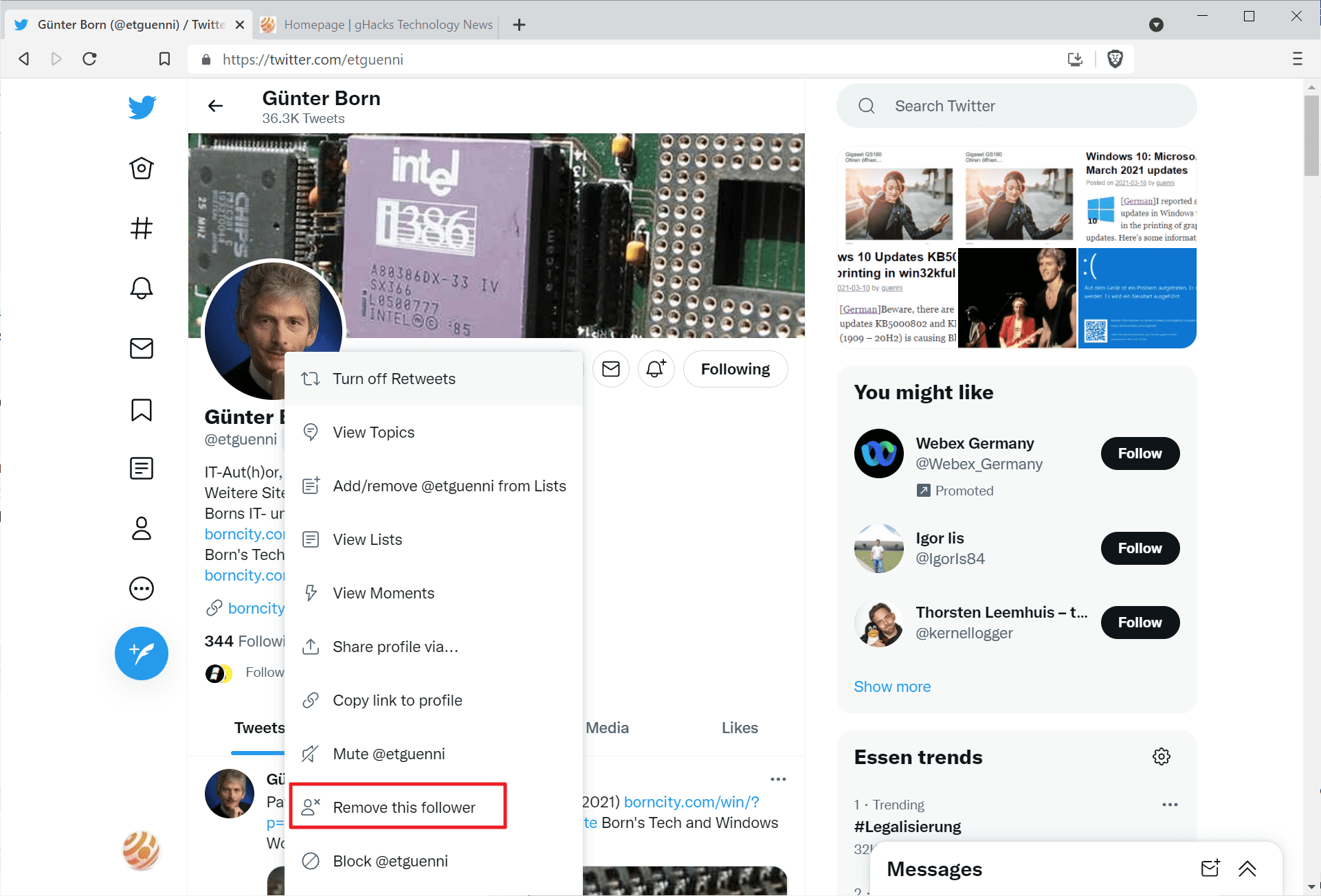
- Locate the three-dot icon (More) positioned next to the "Follow" or "Following" button.
- Select Block [Username] from the dropdown menu.
- A confirmation prompt will appear, outlining what the block entails. Click Block to confirm.
Blocking from a Post (Timeline)
If you encounter an offensive or unwanted post in your feed, you do not need to visit the user’s profile to block them:
- Click the three-dot icon at the top right of the specific post.
- Select Block [Username].
- Confirm the action in the pop-up window.
Blocking from the timeline is particularly useful for dealing with "spam bots" or viral posts that attract unwanted engagement. It minimizes your exposure to the account’s other content while immediately removing the current post from your view.
How to Block a User on Mobile (iOS and Android)
The mobile application for X is designed for rapid interaction, making the blocking process streamlined for users on the go. The steps are virtually identical across both iOS and Android platforms.
Step-by-Step Mobile Instructions
- Tap the profile picture of the user to open their account page.
- Tap the three-dot icon (overflow menu) located in the top right corner of the screen.
- Tap Block.
- Confirm the block in the dialog box that appears.
Once blocked, the user’s posts will be hidden from your timeline. If you visit their profile manually, you will see a "Blocked" label, and their posts will be hidden behind a warning message unless you choose to view them.
The Difference Between Blocking, Muting, and Reporting
Many users confuse blocking with muting or reporting. Choosing the right tool depends on whether you want to stop seeing the user, stop them from seeing you, or alert the platform to a violation of safety guidelines.
| Feature | Visibility to You | Visibility to Them | Notification Sent? | Interaction Allowed? |
|---|---|---|---|---|
| Block | Posts are hidden; Profile shows "Blocked" | Can see public posts; cannot interact | No | No |
| Mute | Posts hidden from your timeline | They can still see and interact with you | No | Yes (but you won't see it) |
| Report | Account/Post is flagged for review | No change unless combined with block | No | Yes |
| Soft Block | No change (until they notice they don't follow you) | No change (unfollowed automatically) | No | Yes |
When to Mute Instead of Block
Muting is a "stealth" option. If you want to stop seeing someone’s posts without them knowing you’ve restricted them, muting is the better choice. In 2026, the algorithm also treats muted accounts as a signal of low interest, gradually reducing the prevalence of similar content in your "For You" feed.
When to Report
Blocking is a personal preference, but reporting is for safety. If an account is engaging in targeted harassment, hate speech, or sharing illegal content, you should Report the account to X Safety before blocking them. Reporting provides the platform with the necessary data to suspend the account entirely.
Managing Your Block List and Unblocking
Over time, you may want to review the accounts you have blocked. X provides a centralized "Blocked Accounts" management page where you can see every account you have restricted.
Accessing the Block List
- Go to the Settings and Support menu.
- Select Settings and privacy.
- Click on Privacy and safety.
- Select Mute and block.
- Click on Blocked accounts.
From this menu, you can unblock accounts by simply clicking the Blocked button next to their name. This is also the location where you can import or export block lists if you use third-party safety tools, though X has restricted many of these API-based tools in recent years.
Advanced Privacy: The "Soft Block" Technique
A "Soft Block" is a method used to force someone to unfollow you without permanently keeping them on your block list. This is useful for removing "ghost followers" or people you no longer want as an audience member without the drama of a permanent block.
To execute a soft block:
- Block the user following the steps above.
- Immediately go to your Blocked accounts list.
- Unblock the user.
The result of this sequence is that the user is forced to unfollow you, and you unfollow them. Because you unblocked them immediately, they can still see your posts and refollow you if they choose, but it serves as a subtle "reset" of the digital relationship.
Common Issues and Troubleshooting
Why can I still see a blocked user’s posts?
If you are mentioned in a thread by a third party, you may still see posts from a blocked user within that conversation. Additionally, if the blocked user is quoted in a "Quote Post" by someone you follow, the content may still appear. You must block or mute the secondary accounts involved if the content remains visible.
Can blocked users see my profile?
As of the 2024-2025 updates to X's infrastructure, blocked users can view your profile and public posts if they navigate directly to your URL. However, they cannot follow you, see your "Followers/Following" list in detail (depending on current privacy settings), or engage with your media. To prevent a blocked user from seeing your content entirely, you must set your account to Protected.
Does blocking affect my "For You" algorithm?
Yes. Blocking is a strong negative signal to the recommendation engine. By blocking an account, you are telling the system not only to hide that user but also to reduce the weight of similar topics or clusters associated with that account in your personalized feed.
Frequently Asked Questions
Does someone know when I block them?
X does not send a notification when you block an account. However, if the blocked user visits your profile page, they will see a message stating, "You are blocked. You cannot follow or see [Username]'s posts." There is no way to block someone "invisibly" if they check your profile directly.
Can I block people who have already blocked me?
Yes. If you visit the profile of someone who has blocked you, you can still click the three-dot menu and select "Block" them back. This is often done to ensure that even if they unblock you in the future, the restriction remains in place from your side.
Will blocking someone delete my old DMs with them?
No, blocking does not delete the message history for either party. The conversation will be moved to a hidden "Filtered" or "Archived" section, and you will no longer be able to send new messages to each other. If you want the messages gone, you must manually delete the conversation thread.
Can I block an entire list of people at once?
While X once allowed "Block Lists" via third-party apps, current API restrictions in 2026 make this more difficult. Some browser extensions still offer "bulk block" features for followers of a specific account, but use these with caution as they can sometimes trigger platform rate limits or security flags.
What is the limit on how many people I can block?
There is no official public limit on the number of accounts you can block. Users have been known to block tens of thousands of accounts without issue. However, performing hundreds of blocks in a very short window (minutes) may trigger a temporary "rate limit" on your account to prevent automated bot behavior.
Final Recommendation
For the best balance of privacy and platform utility in 2026, use the Block feature decisively for harassment or persistent spam, but rely on the Mute feature for annoying acquaintances or topics you find uninteresting. If you are concerned about a blocked user "lurking" on your public profile, the most effective solution is to navigate to Settings > Privacy and safety > Audience and tagging and toggle on Protect your posts. This ensures that only approved followers can ever see your content, rendering the "Block" function a complete barrier.
Image Gallery