How to Block Contact iOS Devices Effectively
Blocking unwanted communication on iOS devices requires understanding multiple built-in mechanisms that handle phone calls, text messages, FaceTime interactions, and third-party applications. By utilizing the native tools provided with...
Blocking unwanted communication on iOS devices requires understanding multiple built-in mechanisms that handle phone calls, text messages, FaceTime interactions, and third-party applications. By utilizing the native tools provided within Apple’s operating system, users can completely restrict specific numbers, email addresses, and accounts from reaching their devices, ensuring an optimized and secure digital environment.
Contents
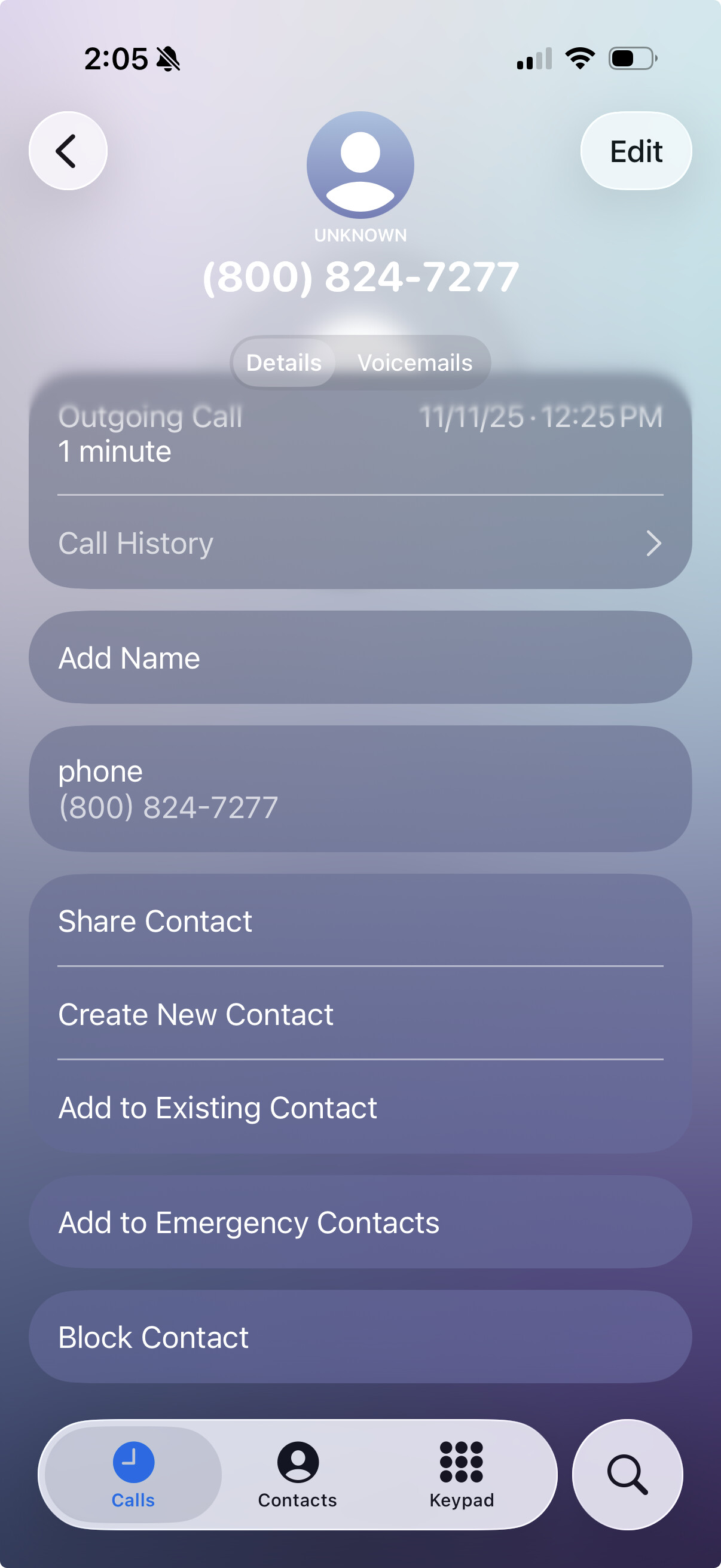
To block a contact on an iOS device effectively, open the Phone app, navigate to your Recent calls list, tap the "i" (information) icon next to the troublesome number or name, scroll to the bottom of the contact card, and select "Block this Caller." This action stops incoming phone calls, FaceTime calls, and text messages from that specific entity across your registered Apple devices.
Understanding Communication Channels on iOS
Apple designs its ecosystem to sync communications across multiple channels, which means blocking a contact requires a multifaceted approach. A simple phone number block may stop standard cellular calls and SMS text messages, but advanced communicators often use alternative pathways like iMessage email aliases, FaceTime IDs, and third-party messaging platforms.
When you initiate a block on iOS, the operating system intercepts the communication at the system level. For standard cellular calls, the carrier network may route the caller straight to voicemail, but the phone itself will not ring, and a visual notification will not appear on your lock screen. For iMessage and FaceTime, the blocked party receives no indication that they have been blocked; their messages simply remain undelivered on their end (showing no "Delivered" status), and their video or audio calls will ring indefinitely without an answer on your device.
Furthermore, because Apple IDs can link multiple email addresses and phone numbers to a single contact card, blocking a single number might not completely sever communication if that person uses an alternate alias. Reviewing the entire contact card to ensure all associated phone numbers and email addresses are blocked is a crucial prerequisite for achieving complete digital isolation from an unwanted party.
Step-by-Step Methods to Block Contacts and Numbers
Depending on where a number originates—whether from your contact list, a recent call, a text message, or an email—iOS provides several direct pathways to establish a block. Executing these steps correctly ensures that no trace of the blocked communication disrupts your daily routine.
Blocking Directly from the Phone App
The most common method for blocking unwanted callers involves the Phone application. This technique works best for numbers that have recently called you or are saved in your address book.
- Open the Phone application on your iOS device.
- Tap on the Recents tab at the bottom of the screen to view your call history.
- Locate the number or contact you wish to restrict.
- Tap the blue Info (i) icon located to the right of the caller's name or number.
- Scroll down to the bottom of the details page and tap Block this Caller.
- Confirm your choice by tapping Block Contact when the prompt appears.
Blocking Through the Messages Application
If an unknown number or a saved contact is sending unwanted text or multimedia messages, you can block them directly inside the Messages app without navigating to your call logs.
- Open the Messages app and open the conversation thread with the sender.
- Tap the sender’s name or profile icon at the top of the conversation screen.
- Tap the info button or the chevron arrow next to the name to open the contact details.
- Tap info again if directed to a secondary menu, then select Block this Caller.
- Confirm the action to finalize the restriction.
Managing Blocks via System Settings
For users who prefer a centralized approach, iOS allows you to manage all blocked contacts, phone numbers, and email addresses directly through the main Settings application. This method is ideal for auditing your current security posture or adding numbers manually.
| App/Menu Location | Primary Function | What Gets Blocked |
|---|---|---|
| Settings > Phone > Blocked Contacts | Manages cellular and carrier-level blocks | Phone calls, FaceTime audio/video |
| Settings > Messages > Blocked | Manages text-based communication blocks | SMS, MMS, and iMessage interactions |
| Settings > FaceTime > Blocked | Manages video and audio calling blocks | FaceTime calls from phone numbers and emails |
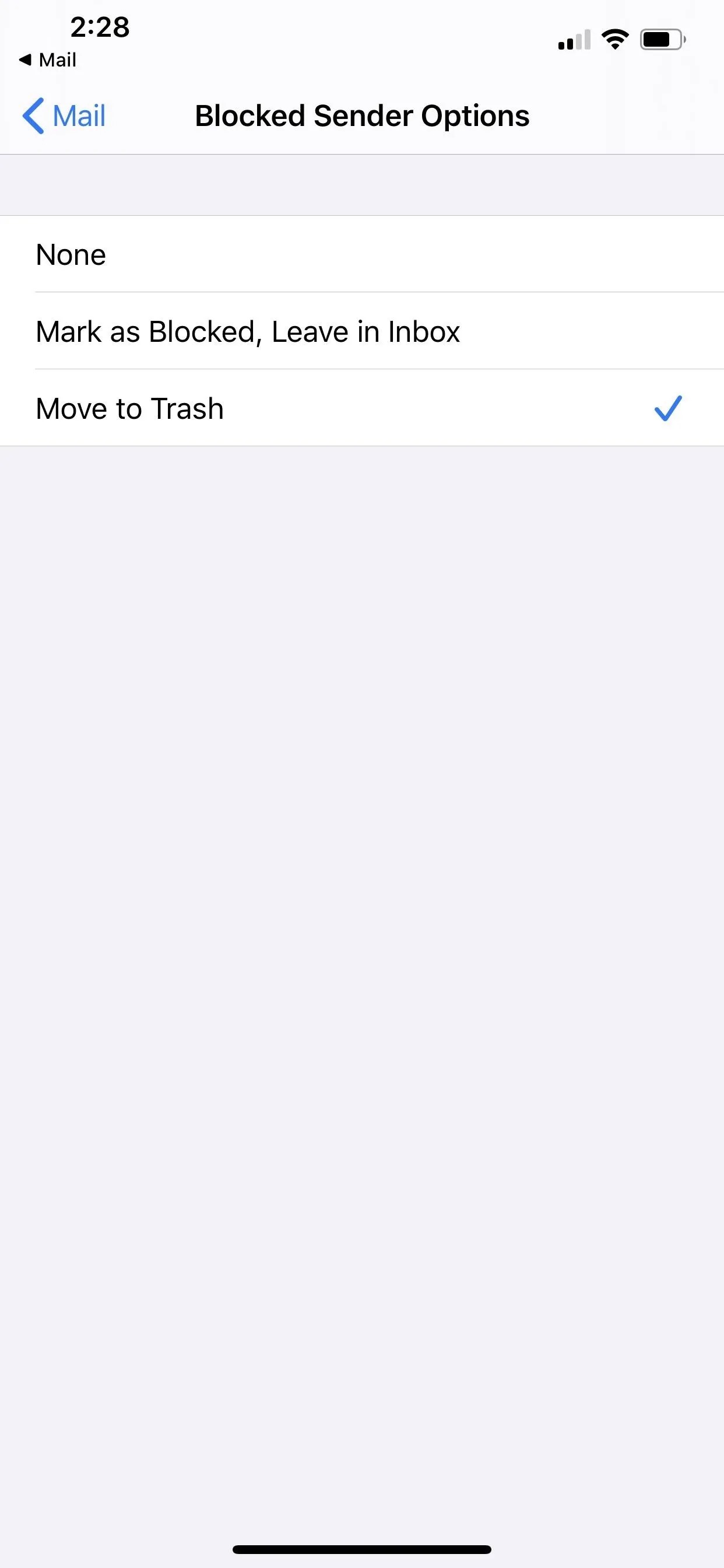
| Settings > Mail > Blocked | Manages unwanted electronic mail | Incoming emails from specific addresses |
To add a number manually through Settings, navigate to Settings > Messages > Blocked (or Settings > Phone > Blocked Contacts), scroll to the bottom of the list, tap Add New, and select the desired contact from your address book.
Handling Unknown and Spam Callers
While blocking known contacts or visible numbers is straightforward, dealing with anonymous callers, spoofed numbers, and automated spam requires proactive configuration tools built into modern versions of iOS.
Silence Unknown Callers
Apple includes a native feature designed to mitigate the disruption caused by numbers not stored in your contacts, recent outgoing calls, or Siri Suggestions. When enabled, calls from unknown parties ring silently and route directly to voicemail.
- Navigate to Settings > Phone.
- Scroll down and tap Silence Unknown Callers.
- Toggle the switch to the On position.
When an unknown number calls, your phone remains silent, but the call logs the event in your Recents tab and sends the caller to your configured voicemail box, allowing you to review legitimate messages later.
Utilizing Third-Party Call Filtering Apps
To combat sophisticated spam and robocalls, iOS supports third-party identification and blocking extensions. Applications such as Hiya, Truecaller, or carrier-specific security apps can integrate directly with the iOS dialer to cross-reference incoming numbers against global databases of known fraudsters and telemarketers.
- Download a reputable call-filtering application from the App Store.
- Go to Settings > Phone.
- Tap Call Blocking & Identification.
- Enable the toggle next to the downloaded application to grant it permission to block and identify callers automatically.
Troubleshooting Common Blocking Issues
Even after configuring blocks correctly, users occasionally encounter scenarios where blocked contacts manage to bypass restrictions. Understanding why these failures occur helps maintain tight control over your device.
Shared Apple IDs and Family Sharing
One common oversight involves shared Apple IDs within families or households. If multiple devices share a single Apple ID for messaging and FaceTime, a block enacted on one device may not propagate seamlessly to another, or contacts synced via iCloud can reappear. To resolve this, ensure each user maintains a distinct Apple ID, or check the specific device settings under Settings > Messages > Send & Receive to verify that only individual phone numbers and email addresses are active for that specific hardware.
Email-Based iMessages and Bypass Attempts
Blocked users who realize their phone number has been restricted often resort to using alternative email addresses linked to their Apple ID to send iMessages. Because iOS treats email addresses as distinct communication vectors, you must ensure that every associated email alias used by the unwanted party is individually blocked within your Messages and FaceTime settings menus.
Carrier-Level Blocking Alternatives
If software-level blocks on iOS prove insufficient against persistent harassment, contact your mobile network operator. Major carriers offer network-level blocking tools and companion security applications that intercept calls and messages before they ever reach the physical hardware of your iPhone, providing an additional layer of administrative enforcement.
Frequently Asked Questions
Will a blocked contact know they have been blocked on iOS?
Apple does not send a notification to a blocked party. When they call you, the phone will ring once silently or go straight to voicemail. When they send an iMessage, the message will fail to show a "Delivered" receipt underneath the text bubble, remaining indefinitely in an unconfirmed state.
Can a blocked contact leave a voicemail on my iPhone?
Depending on your carrier, blocked callers may still be able to leave a voicemail, but those messages do not trigger a standard push notification. Instead, iOS routes these messages into a separate "Blocked Messages" folder at the very bottom of your Voicemap list in the Phone app, allowing you to check them discreetly if necessary.
How do I unblock a contact on iOS?
To restore communication, go to Settings > Phone > Blocked Contacts (or Settings > Messages > Blocked), swipe left across the name or number you wish to restore, and tap Unblock. Alternatively, you can open their contact card in the Phone or Contacts app and select Unblock this Caller.
Does blocking a contact on iOS also block them on other Apple devices?
If your iPhone, iPad, and Mac are all signed into the same iCloud account and share the same phone number and email configuration for Messages and FaceTime, blocking a contact on your iPhone will automatically apply the restriction across your other synced Apple ecosystem devices.
What happens to existing text message threads after blocking a contact?
Blocking a contact prevents future incoming communication, but it does not automatically delete your historical conversation threads. Existing text messages and call logs remain in your device history until you manually delete them by swiping left on the conversation thread in your Messages or Phone app.
Summary and Recommended Next Actions
Effectively blocking contacts on iOS requires a comprehensive review of your Phone, Messages, and FaceTime settings to ensure all associated phone numbers and email aliases are restricted. For ongoing protection against spam and unknown harassment, enable Silence Unknown Callers and integrate a trusted carrier-approved filtering application. Regularly audit your blocked lists via the system settings menu to keep your communication channels secure and orderly.
Image Gallery