How to Set an Outlook for Mac Out of Office Message
Setting an Out of Office message in Outlook for Mac involves navigating the application’s automated reply settings, which allow you to communicate your availability status to colleagues and external contacts during periods of absence....
Setting an Out of Office message in Outlook for Mac involves navigating the application’s automated reply settings, which allow you to communicate your availability status to colleagues and external contacts during periods of absence. By configuring these settings, you ensure that anyone sending you an email receives a predefined response, maintaining professional communication standards even when you are unavailable to monitor your inbox.
Contents
Prerequisites for Automated Replies
Before attempting to enable an Out of Office (or "Automatic Replies") feature, it is critical to confirm the type of email account you are using. In the Outlook for Mac environment, the availability of this feature is dictated by your account’s server-side configuration rather than the software version alone.
- Account Type: Automated replies generally require a Microsoft Exchange account or a Microsoft 365 business account. If you are using a standard IMAP or POP account (such as some older private ISP accounts), the "Automatic Replies" option may be greyed out or completely absent from your Tools menu.
- Connectivity: Since the Out of Office message is processed by the server—not your local Mac—you do not need to keep your computer turned on for the message to be sent. Once configured, the server handles all incoming traffic until you disable the feature or the specified end date is reached.
- Application Version: Ensure your Outlook for Mac client is updated to the latest available version as of 2026. Frequent updates ensure that security protocols and server communication remain synchronized, preventing errors where the status is set locally but not acknowledged by the Exchange server.
Configuring Your Automatic Replies
To set your message, follow these steps within the Outlook interface:
- Open Outlook on your Mac.
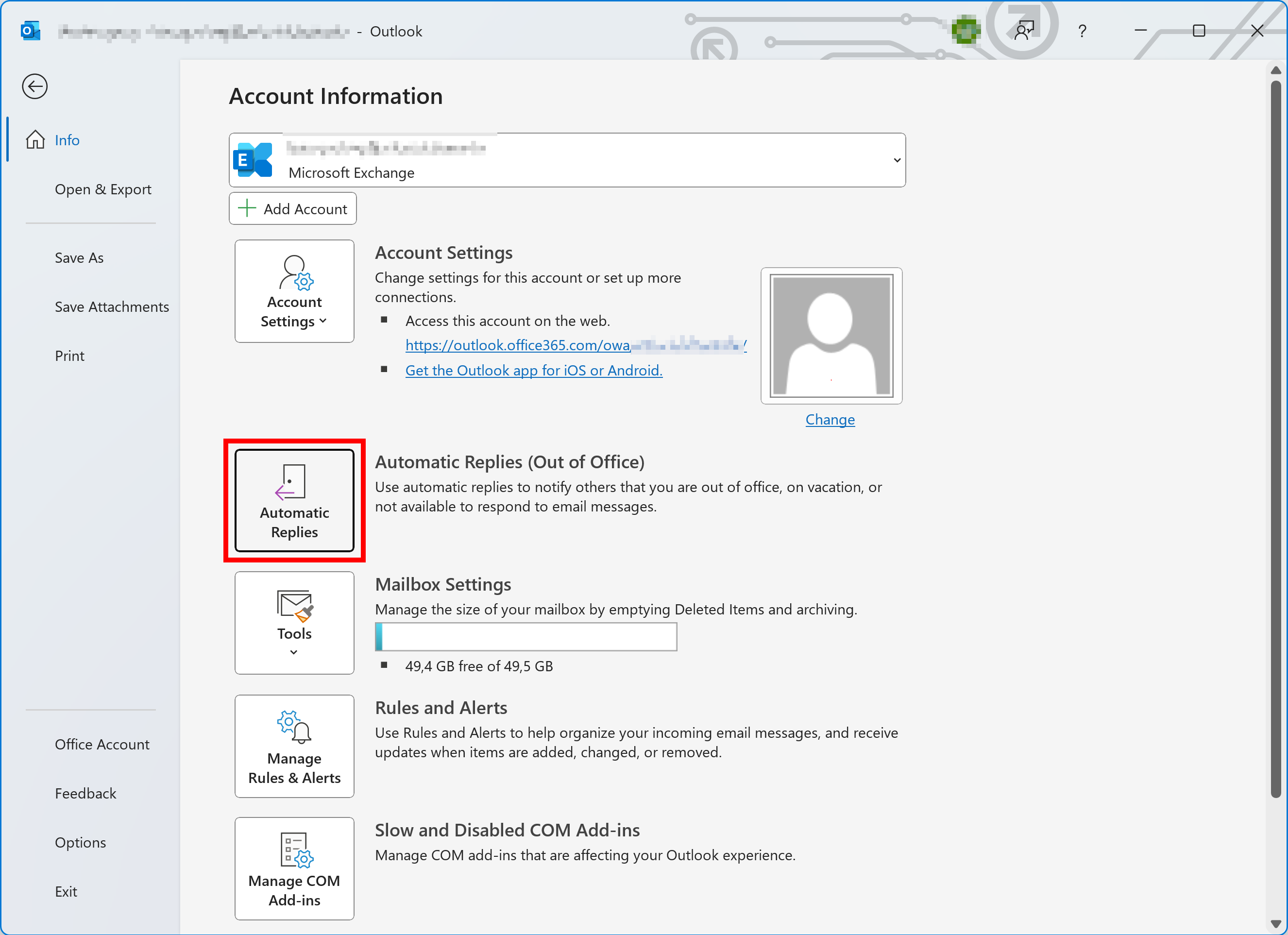
- In the top menu bar, click on Tools and select Automatic Replies... from the dropdown menu.
- A dialog box will appear. Check the box labeled Send automatic replies for account [Your Account Name].
- Define your timeframe by checking Only send replies during this time period. Select your Start date and time, and your End date and time. If you do not select a time period, the replies will remain active indefinitely until you manually toggle them off.
- Draft your message in the Inside My Organization tab. This message will be sent to colleagues within your corporate directory.
- If you wish to notify external senders as well, check the box Send replies outside my organization. You can choose to send these replies to Address book contacts only or All external senders.
- Click OK to save your settings.
Customizing Your Message Content
While the technical implementation is straightforward, the content of your message reflects on your professional brand. A well-constructed out-of-office response should be concise yet informative.
When drafting your response, consider the following elements:
- Duration of Absence: State clearly when you will be away and, more importantly, your expected date of return.
- Urgency Handling: If you are unreachable, state this clearly. If there is a point of contact for urgent matters, include their name and email address, but ensure you have secured their permission beforehand.
- Expectation Management: Inform the sender that their email may not be reviewed until your return. This manages response-time expectations and reduces the likelihood of follow-up inquiries.
Comparison of Automated Reply Settings
Different account types and configurations handle automated responses differently. The following table provides a quick reference for understanding these variations:
| Feature | Exchange/Microsoft 365 | IMAP/POP Accounts |
|---|---|---|
| Server-Side Handling | Supported | Not Supported |
| Duration Scheduling | Available | Manual Toggle Only |
| Internal vs. External | Separate Messages | Single Message Only |
| System Requirement | Always Active | Must Keep App Open |
Troubleshooting Common Issues
Users occasionally encounter scenarios where the Out of Office message fails to send as expected. If you find your automated replies are not working, investigate these common failure points:
- The Option is Missing: If you do not see the "Automatic Replies" option under Tools, your email provider does not support server-side automated replies. In this case, you may need to set up a "Rule" within Outlook, though this requires your Mac to remain powered on and Outlook to be running continuously.
- Formatting Errors: Avoid using complex HTML or large image files in your automated response. Some corporate security filters may flag or block these messages if they appear to be malicious signatures or automated spam. Stick to plain text or simple, clean formatting.
- Timezone Discrepancies: Ensure your Mac’s system clock is synchronized with the network time. If your local time and the Exchange server time differ significantly, your automatic replies may start or stop prematurely.
- External Filtering: If you have selected the option to reply to external senders, ensure your company’s Exchange policy actually permits this. Some organizations disable external automated replies as a security measure to prevent "email harvesting," where attackers confirm the existence of active email accounts by sending emails that trigger automated responses.
Managing Expectations After Returning
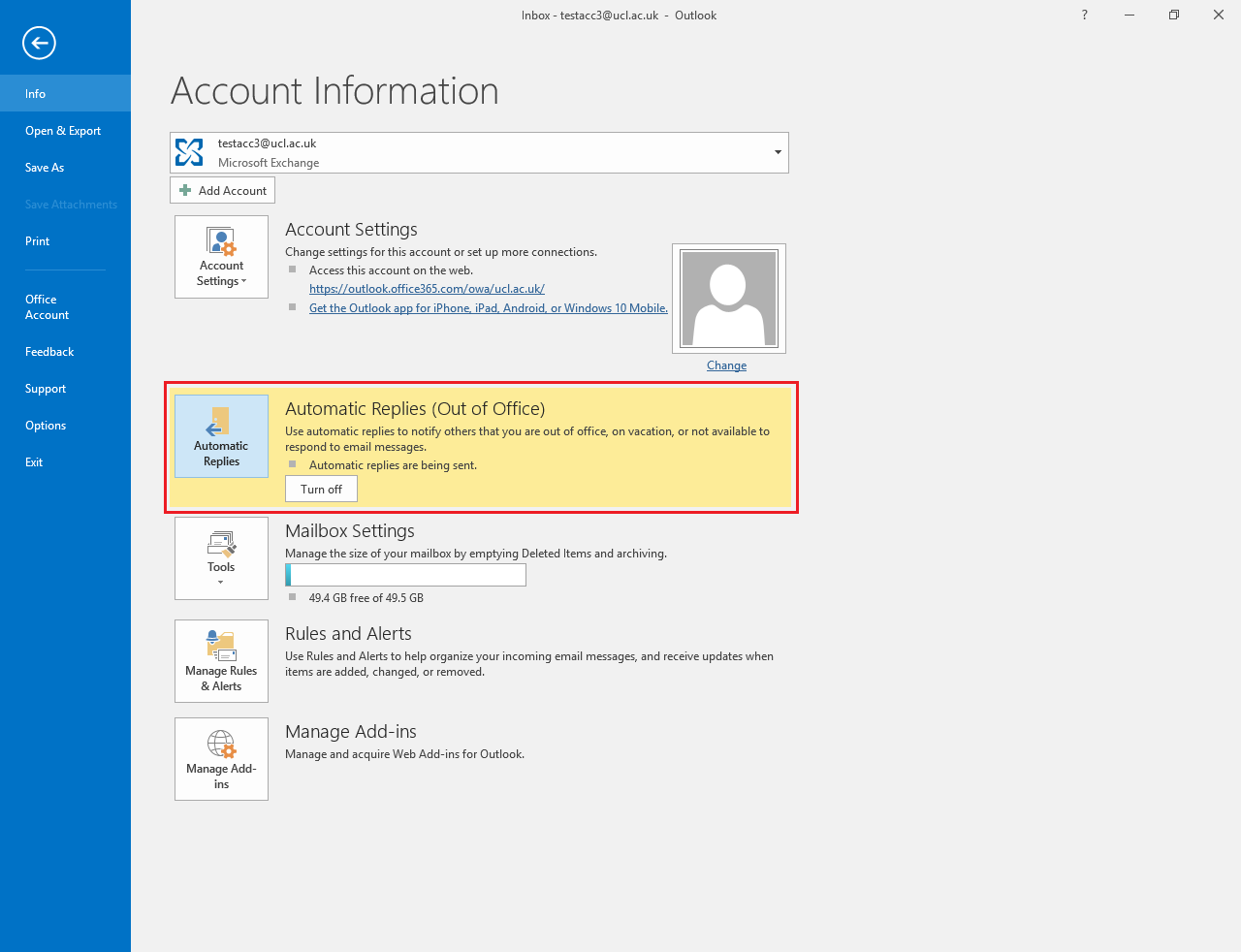
Once you return, remember that simply arriving at your desk is not the final step. Outlook for Mac will usually prompt you with a notification that "Automatic Replies are on" the first time you open the application after your return date. Always click "Turn Off" when prompted.
If you scheduled your return date correctly, the system should deactivate the feature automatically. However, verifying that the checkbox is cleared in the Tools > Automatic Replies menu provides peace of mind. Furthermore, if you included a colleague’s name as a point of contact, reach out to them briefly to thank them for covering for you. This maintains goodwill and professional etiquette, ensuring that your absence does not negatively impact team synergy.
Frequently Asked Questions
Can I set different messages for internal colleagues and external clients? Yes. In the Automatic Replies window, you have two distinct tabs: "Inside My Organization" and "Outside My Organization." You can keep your internal message casual or brief, while providing a more formal or detailed message to external partners or customers.
Will my out-of-office message work if I shut down my Mac? If you are using an Exchange or Microsoft 365 account, yes. The message is stored on the Microsoft server, and the server sends the reply regardless of your computer's status. If you are using a POP/IMAP account via an Outlook Rule, the Mac must be awake and the application must be open to process the incoming emails.
How do I disable the message before my scheduled end date? Go to the Tools menu in Outlook, select Automatic Replies, and uncheck the box labeled Send automatic replies for account.... Click OK. This immediately overrides the scheduled timeframe and stops the replies.
Why are my external replies not being sent to everyone? You may have checked the box "Address book contacts only." This restricts auto-replies to known contacts, ignoring general inquiries or emails from addresses not saved in your Outlook directory. If you want everyone to receive a response, select "All external senders" instead.
Is there a way to verify that my message is working? The most reliable way is to send an email to your account from a personal or secondary email address. Do not test it using an email address within the same organization, as you will only trigger the internal message, not the external one.
Does changing my status in Teams affect my Outlook auto-reply? In 2026, many integrated environments sync these states. However, Outlook settings and Teams "Status" settings are managed by different underlying configurations. While some business accounts allow for status synchronization, it is best practice to set your Outlook Out of Office explicitly to ensure the automated email reply is active.
Recommendation
For the most reliable results, rely on the native Automatic Replies feature within the Tools menu of Outlook for Mac. Avoid creating custom "Rules" for out-of-office messages unless you are using a non-Exchange account, as rules are dependent on your local machine and are more prone to failure. Always conduct a test email from an external address after enabling the feature to confirm that your message text and timing are configured exactly as intended.
Image Gallery