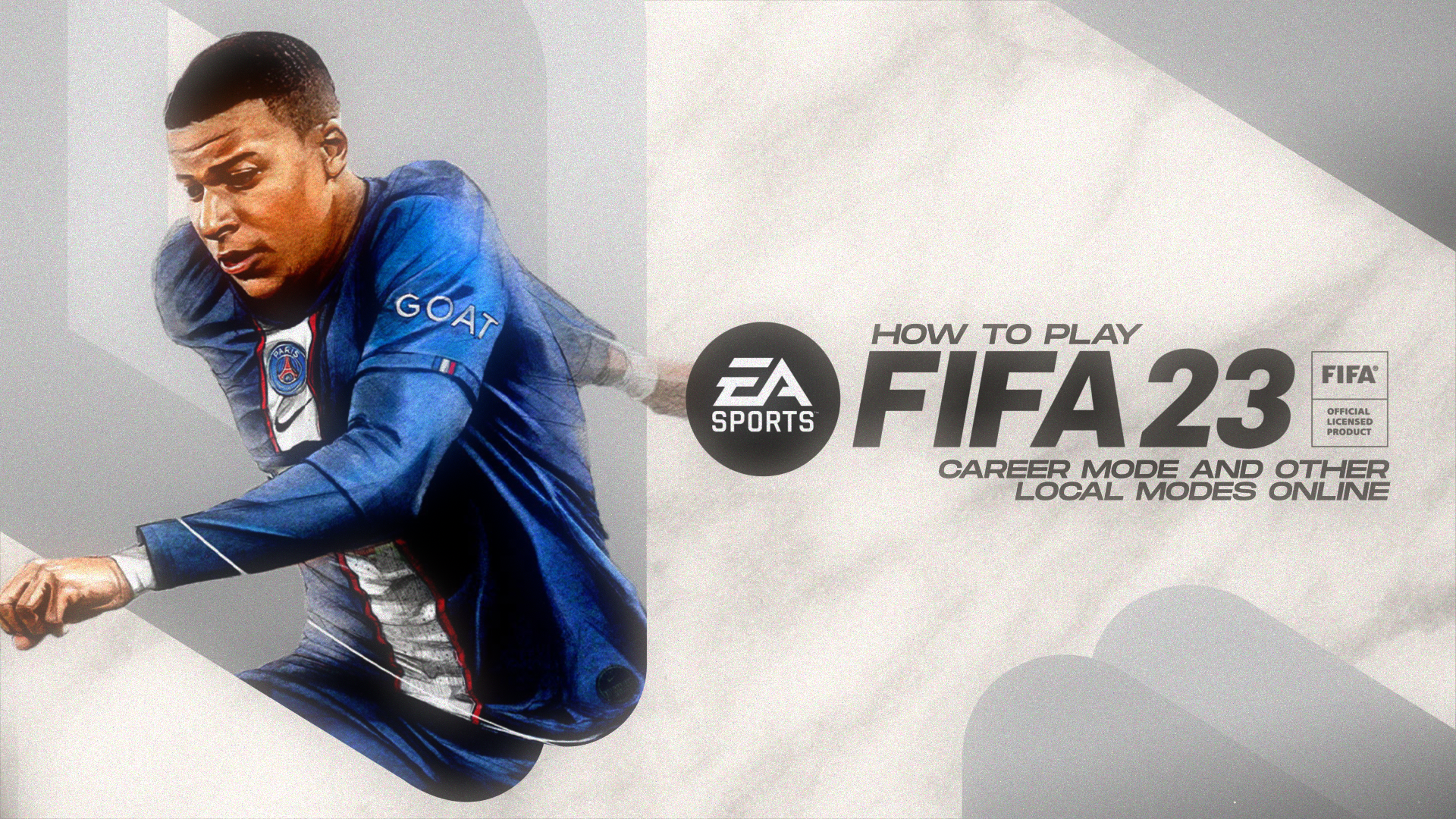
How to Play FIFA on PC: Complete Access, Requirements, and Setup Guide
Playing FIFA on PC offers the ultimate virtual football experience, featuring superior frame rates, custom modding communities, ultra-wide resolutions, and seamless controller support. Whether you want to dive into Ultimate Team, caree...
Playing FIFA on PC offers the ultimate virtual football experience, featuring superior frame rates, custom modding communities, ultra-wide resolutions, and seamless controller support. Whether you want to dive into Ultimate Team, career mode, or casual local matches, setting up the game on a computer requires an understanding of digital storefronts, system prerequisites, and performance optimization to ensure a smooth gameplay session on the pitch.
Contents
Understanding the Shift from FIFA to EA Sports FC on PC
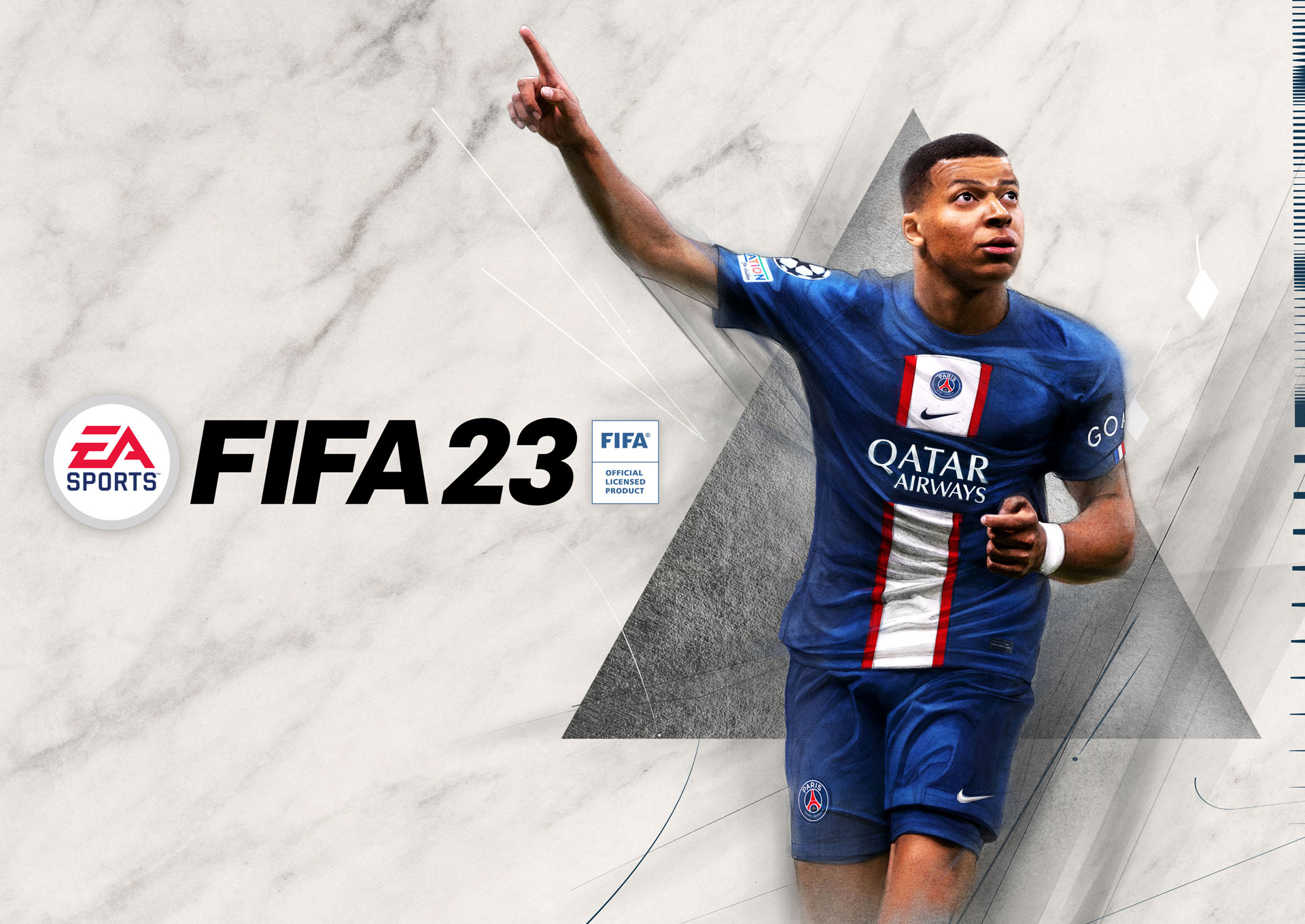
Before attempting to access the game on a computer, it is vital to understand recent branding and structural shifts in the franchise. The long-running partnership between EA Sports and the Fédération Internationale de Football Association (FIFA) concluded, meaning titles released from 2023 onward carry the EA Sports FC moniker rather than the traditional FIFA title.
However, millions of players still refer to the franchise generically as "FIFA," and older legacy titles up to FIFA 23 remain available across various digital libraries. For current-generation gameplay, players purchase and install the latest iterations of EA Sports FC, which feature updated rosters, hyper-motion technology, and cross-play capabilities. Understanding this naming convention prevents confusion when searching digital storefronts for the latest football simulation.
System Requirements and Hardware Prerequisites
Running modern football simulation titles on a computer demands adequate hardware to maintain stable frame rates, particularly during fast-paced online matches where input lag or stutters can ruin a competitive game. Developers establish baseline minimum specifications alongside recommended configurations to guide hardware upgrades.
Minimum vs. Recommended Specifications
To achieve a baseline experience, your machine must meet or exceed specific hardware thresholds. Falling below these requirements can result in heavily degraded frame rates, slow menu transitions, and graphical stuttering during cutscenes and goal celebrations.
- Operating System: 64-bit Windows 10 or Windows 11.
- Processor (CPU): Intel Core i5-6600K at 3.5 GHz or AMD Ryzen 5 1600 at 3.2 GHz (Minimum); Intel Core i7-6700 at 3.4 GHz or AMD Ryzen 7 2700X at 3.7 GHz (Recommended).
- Memory (RAM): 8 GB (Minimum); 12 GB or 16 GB (Recommended).
- Graphics (GPU): NVIDIA GeForce GTX 1050 Ti (4 GB) or AMD Radeon RX 570 (4 GB) (Minimum); NVIDIA GeForce GTX 1660 or AMD Radeon RX 5600 XT (Recommended).
- Storage: Approximately 100 GB to 110 GB of available space, with Solid State Drive (SSD) storage strongly recommended to reduce loading times.
The Importance of Storage Types
While traditional Hard Disk Drives (HDDs) will technically store the game files, modern sports titles stream vast amounts of turf data, stadium textures, and audio commentary dynamically. Installing the game on a modern NVMe or SATA SSD is practically mandatory to avoid extended loading screens during career mode simulations and match matchmaking phases.
Digital Storefronts and Where to Buy the Game
Unlike older eras where physical discs dominated PC gaming, modern football titles are distributed entirely through digital storefronts. Choosing the correct platform ensures smooth installation, automatic updates, and access to online communities.
| Platform / Launcher | Availability | Primary Requirement | Notes |
|---|---|---|---|
| EA App | All modern titles & legacy games | EA Account | Direct publisher client; requires background runtime even when launching via third-party stores. |
| Steam | Selected recent titles & older entries | Steam Account + EA App | Launches through Steam but links automatically to an active EA account upon first boot. |
| Epic Games Store | Select franchise entries | Epic Account + EA App | Frequently runs promotional discounts; triggers the EA App background launcher automatically. |
| EA Play / EA Play Pro | Subscription service | Membership Fee | Offers full-game access via monthly or annual subscription models without upfront purchase costs. |
Step-by-Step Installation and Setup Procedure
Setting up the game requires a sequence of account links and software installations. Executing these steps in order prevents common authentication errors and launcher crashes.
- Create or Log into Your EA Account: Navigate to the official EA website or download the EA App installer. Register a secure account or sign in with existing credentials.
- Purchase or Subscribe: Acquire the game via your preferred digital storefront (Steam, Epic Games Store, or directly through the EA App) or subscribe to EA Play Pro.
- Install the Client Software: Ensure the EA App is installed and running on your system, as it acts as the master digital rights management (DRM) and online matchmaking client for the franchise.
- Download and Verify Files: Select the game from your library, choose your installation directory (verify you have over 100 GB of free SSD space), and initiate the download.
- Configure Anticheat Software: Modern iterations of the franchise feature kernel-level anti-cheat software (EA AntiCheat) to combat online hacking and script tampering. During installation, permit the anticheat client to install alongside the game files and ensure your Windows Security or third-party antivirus does not block its kernel services.
Controller Support and Customization Options
While keyboard and mouse controls are technically supported for basic menu navigation, playing a football simulation effectively requires a dedicated game controller. A gamepad unlocks full 360-degree movement, precise skill-move execution, and accurate passing combinations.
Supported Controller Types
- Xbox Controllers (Xbox One / Xbox Series X|S): Feature native, plug-and-play support on Windows operating systems due to Microsoft's XInput architecture. Button prompts match onscreen icons automatically.
- PlayStation Controllers (DualShock 4 / DualSense): Fully compatible, though they may require Steam Input configuration or third-party wrapper software (such as DS4Windows) if launching the game outside of Steam to ensure proper button mapping.
- Third-Party Gamepads: Most XInput-compliant controllers work instantly, while DirectInput controllers may require manual calibration via Windows game controller settings.
Optimizing Performance and Troubleshooting Common Issues
Even with high-end hardware, PC players occasionally encounter technical hurdles ranging from stuttering frame rates to launch failures. Applying targeted fixes resolves the vast majority of performance bottlenecks.
Fixing Stuttering and Frame Rate Drops
- Lock Frame Rates: If your monitor operates at 60Hz or 144Hz, cap your frames in the game's graphics settings or via your GPU control panel (NVIDIA Control Panel / AMD Software) to match your display's refresh rate. Uncapped frame rates frequently cause micro-stutters during dynamic camera pans.
- Adjust DirectX Settings: In the game launcher configuration settings, switch between DirectX 11 and DirectX 12 depending on your GPU architecture. Some older graphics cards handle DX11 far more stably than DX12.
- Disable Overlay Software: Aggressive background overlays from Discord, GeForce Experience, or Xbox Game Bar can interfere with the EA App and trigger performance drops. Disable unnecessary overlays during gameplay.
Resolving EA AntiCheat Launch Errors
If the game fails to open and presents an error code related to EA AntiCheat:
- Navigate to your game installation folder (typically
C:\Program Files\EA\AC). - Run the
EAAntiCheat.Installer.exefile as an administrator. - Select the game from the dropdown menu and click Uninstall, then click Install to refresh the service files.
- Ensure Secure Boot is enabled in your computer's BIOS settings, as modern kernel-level anti-cheat programs require this motherboard security protocol to initialize on Windows 11.
Frequently Asked Questions
Can I play FIFA on PC with a friend on PlayStation or Xbox?
Yes, modern iterations of the franchise support cross-play functionality across same-generation hardware platforms. You can invite friends playing on PlayStation 5 or Xbox Series X|S to online head-to-head matches or co-op modes, provided cross-play is enabled in your online settings menu and you add them via your EA Friends list.
Do I need a continuous internet connection to play?
An active internet connection is required to authenticate the license upon launch, access online modes like Ultimate Team, and receive roster updates. However, offline game modes such as Kick-Off, Career Mode, and Tournament offline matches can be played in offline mode once the initial verification is complete.
Is it possible to use mods for PC gameplay?
PC version history features robust community modding support, allowing users to install custom face scans, updated tournament structures, and aesthetic kits via tools like Mod Manager. Note that running mods while connected to official online servers or Ultimate Team can trigger security flags and account bans; mods should be restricted strictly to offline career and local match modes.
Why is my game stuck on a black screen during startup?
Black screen issues upon launch are frequently caused by outdated graphics card drivers, resolution mismatches, or conflicting background applications. Updating your GPU drivers to the latest WHQL-certified version, running the EA App as an administrator, and deleting corrupted settings files inside your Documents folder typically resolves the launch loop.
Can I use a keyboard and mouse to play competitively?
While keyboard and mouse configurations work for basic offline menus, competitive online play requires a gamepad. A keyboard lacks the analog sticks necessary for nuanced player movement, defensive jockeying, and complex skill moves required at higher tiers of competition.
Final Recommendations for PC Players
To secure the best possible virtual football experience on your computer, ensure your operating system and graphics drivers are fully updated before downloading large game files. Always prioritize installing the title on an NVMe SSD to eliminate match-loading delays, and connect a trusted controller via a wired USB cable or stable wireless adapter to minimize input latency. By verifying your system specs against publisher requirements and properly configuring background security permissions, you will enjoy smooth, responsive gameplay on the virtual pitch.
Image Gallery