How to Signature on Gmail: Complete Professional Setup Guide for 2026
Professional digital communication relies heavily on a clean, standardized, and properly configured email signature. Setting up your email signature in Gmail establishes brand consistency, builds immediate credibility with recipients,...
Professional digital communication relies heavily on a clean, standardized, and properly configured email signature. Setting up your email signature in Gmail establishes brand consistency, builds immediate credibility with recipients, and provides necessary contact channels without requiring manual entry every time you draft a message. Whether you are transitioning to the latest Workspace interface or setting up an account for the first time, mastering this configuration process ensures your correspondence remains polished across desktop and mobile applications.
Contents
Understanding Gmail Signature Architecture in 2026
Google Workspace and standard consumer Gmail accounts utilize distinct structural paradigms for managing sign-offs. Modern deployment requires understanding how web browser settings synchronize with mobile clients, ensuring that your corporate identity or personal brand translates seamlessly across platforms.
The web-based implementation engine allows for rich-text editing, embedded hyperlinks, social media icon integration, and inline image placement. However, mobile application environments often strip complex HTML or enforce strict character limits, making structural optimization essential.
Core Specifications for Modern Email Sign-Offs
- Dimensions: Keep horizontal image widths under 400 pixels to prevent layout distortion on high-density mobile screens.
- Typography: Stick to web-safe system fonts such as Arial, Verdana, or Roboto to ensure consistent rendering across disparate mail user agents like Apple Mail, Outlook, and webmail clients.
- File Formats: Utilize PNG-8 or optimized JPEG formats for embedded logos to maintain crisp visual fidelity while minimizing file weight and load times.
Step-by-Step Configuration Guide for Desktop Browsers
Executing the configuration process directly within the desktop web interface offers the highest level of control over formatting and multi-account signature management. Follow this sequential workflow to establish your primary sign-off.
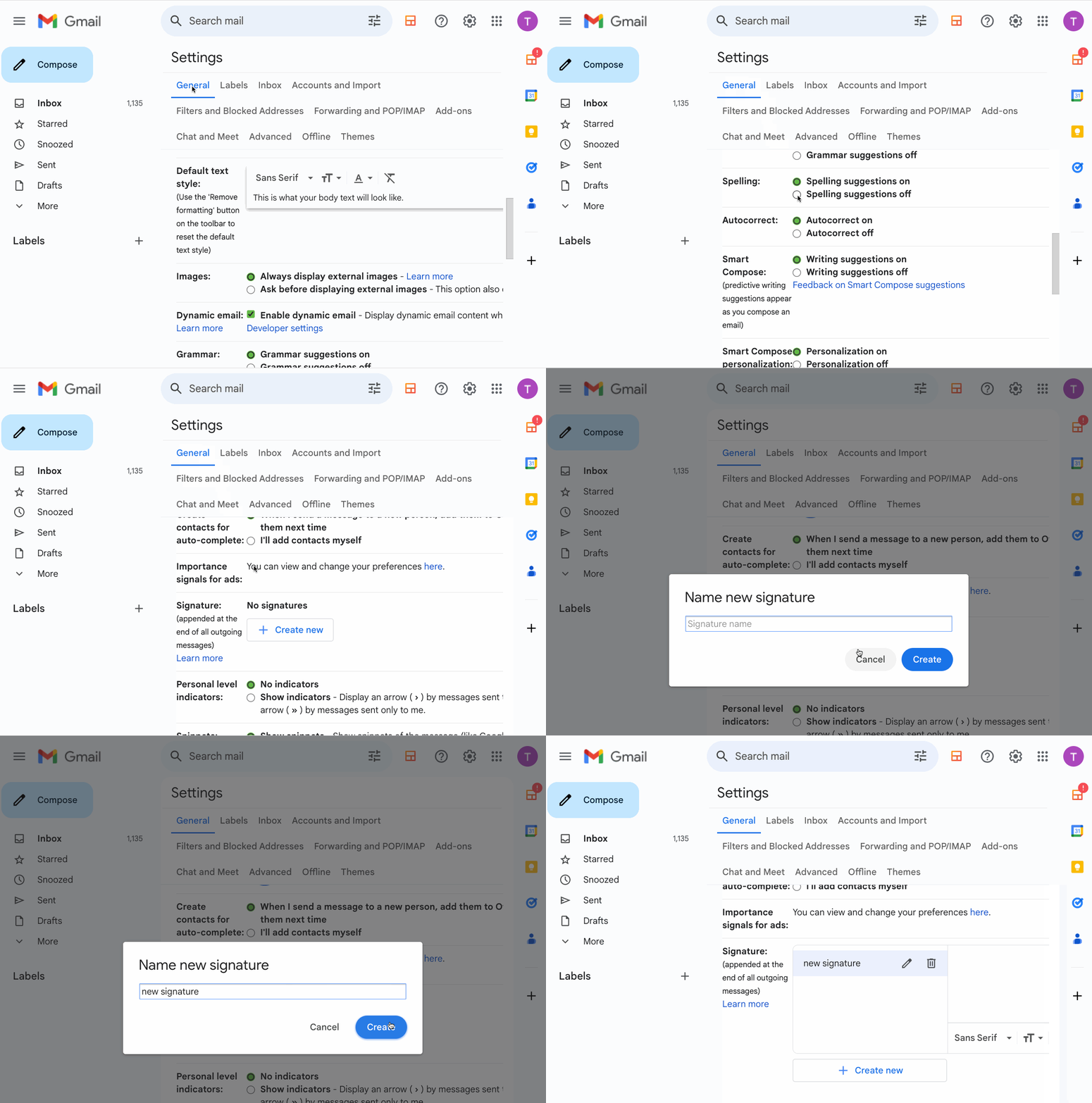
- Access Account Settings: Open your web browser, navigate to Gmail, and click on the Gear icon located in the upper right-hand corner of the interface. Select See all settings from the dropdown menu to open the comprehensive configuration dashboard.
- Locate the Signature Section: Remain on the General tab and scroll down until you reach the Signature block.
- Initialize a New Template: Click the + Create new button. Enter a descriptive title for the template (e.g., "Corporate Primary" or "Freelance Q1") to distinguish between multiple templates if you manage several aliases.
- Draft and Format Your Content: Utilize the built-in rich text editor to input your name, job title, company name, phone number, and digital contact channels. Apply bold styling to your name and primary title for immediate visual hierarchy.
- Insert Hyperlinks and Visuals: Highlight your website text or company name, click the Link icon in the toolbar, and input your destination URL. Use the Insert Image tool to upload your verified company logo or brand asset.
- Assign Default Rules: Beneath the text editor, locate the Signature defaults parameters. Assign your newly created template independently for For new emails use and On reply/forward use dropdown menus.
- Save Modifications: Scroll to the absolute bottom of the General settings page and click the Save Changes button to commit your configurations to the server.
Advanced Configuration: Multiple Signatures and Aliases
Power users and enterprise professionals frequently manage multiple send-as addresses from a single inbox. Gmail allows administrators and individual contributors to assign unique sign-offs based on the active sending address.
To configure distinct signatures for aliases, navigate back to the Settings > General > Signature panel. Once you have created multiple templates using the + Create new utility, look at the signature defaults section. Gmail automatically lists every configured email alias associated with your account. You can map a specific signature template to each distinct email address, ensuring that when you toggle your "From" field during composition, the corresponding sign-off populates automatically.
Synchronizing Signatures Across Mobile Applications
Mobile synchronization historically presented challenges for Gmail users, but recent platform updates allow direct native editing within Android and iOS applications.
Configuring on Android Devices
- Open the Gmail application on your Android device.
- Tap the three horizontal menu lines in the top left corner, scroll down, and select Settings.
- Choose the specific Google account where you wish to add a sign-off.
- Tap on Mobile signature and input your plain text or basic formatting layout.
- Tap OK to save. Note that mobile signatures created natively on Android are text-only and do not automatically sync with your desktop HTML templates unless managed via enterprise Google Workspace policies.
Configuring on iOS Devices (iPhone/iPad)
- Open the Gmail app and tap the menu icon to access Settings.
- Select your target account under the Google Accounts header.
- Tap Signature settings and toggle the Mobile Signature switch to the active position.
- Input your desired text configuration. The app saves changes automatically as you exit the menu.
Comparative Analysis of Signature Deployment Methods
Evaluating the right approach to building and deploying signatures involves balancing design complexity against cross-platform reliability.
| Deployment Method | Advantages | Disadvantages | Best Suited For |
|---|---|---|---|
| Native Web Editor | Quick setup, no coding required, direct integration with Gmail accounts. | Limited layout control, prone to formatting breaks if pasted from external word processors. | Individual users, freelancers, and small business owners. |
| HTML Source Injection | Pixel-perfect design, advanced CSS styling, custom responsive grid layouts. | Requires coding knowledge, potential security blocking of external images by mail clients. | Enterprise organizations and marketing departments. |
| Third-Party Add-ons | Centralized IT management, automatic directory synchronization, consistent branding enforcement. | Requires subscription fees, additional workspace permissions and security reviews. | Mid-size to large enterprises scaling remote workforces. |
Troubleshooting Common Configuration Errors
Even with precise execution, technical glitches can disrupt the appearance or functionality of your email sign-off. Review these troubleshooting protocols to resolve common errors quickly.
- Broken Images: If your company logo appears as a broken link or a blank box, verify that the image is hosted on a secure, publicly accessible HTTPS server rather than pasted from a local clipboard or internal drive.
- Formatting Corruption: Copying and pasting text directly from Microsoft Word or desktop publishing software often brings hidden formatting tags into Gmail. Always draft your content directly within the native editor or paste text as plain text using keyboard shortcuts before applying styling.
- Missing Sign-Off on Replies: If your sign-off disappears during email threads, check your default settings to ensure you have explicitly assigned a template to the On reply/forward use parameter. Additionally, ensure you have not placed your sign-off below the default "Gmail reply separator" block without checking how the thread collapses older messages.
Frequently Asked Questions
How do I add clickable social media icons to my Gmail signature?
To add clickable social media icons, upload pre-sized image files (such as 32x32 pixel PNGs) to your signature editor using the image insertion tool, highlight the uploaded image, and click the link icon to attach your specific profile URL. This method ensures your icons remain cleanly aligned and responsive across devices.
Why does my signature look different when I send emails to Outlook users?
Microsoft Outlook utilizes the Microsoft Word rendering engine for HTML emails rather than standard web browser engines, which can cause spacing, font, and table alignment discrepancies. Mitigate this issue by using web-safe system fonts, avoiding complex CSS padding, and keeping your overall table widths under 600 pixels.
Can I enforce a company-wide signature for all employees in Google Workspace?
Yes, Google Workspace administrators can enforce centralized signatures through third-party directory tools or Google Workspace Marketplace extensions. Native administrative controls within the Google Admin console also offer basic organizational unit (OU) routing options for standard disclaimer text.
Why is my signature disappearing when I reply to messages?
This occurs when the signature settings are configured only for new messages and left unassigned for replies and forwards. Navigate back to your General settings and ensure your template is selected under both the initial composition and reply dropdown menus.
How do I remove an old signature template I no longer use?
Scroll to the signature settings panel in your Gmail preferences, select the specific template title you wish to delete from the dropdown menu, and click the trash can icon next to the title. Confirm the prompt to permanently purge the template from your account.
Image Gallery