SharePoint Markdown: How It Works and Implementation Guide
Markdown in SharePoint is a lightweight markup language that allows users to create formatted content using plain-text syntax. By utilizing the dedicated Markdown Web Part, editors can efficiently structure pages with headers, lists, a...
Markdown in SharePoint is a lightweight markup language that allows users to create formatted content using plain-text syntax. By utilizing the dedicated Markdown Web Part, editors can efficiently structure pages with headers, lists, and tables without the overhead of complex HTML or the intermittent formatting frustrations often associated with standard rich-text editors.
Contents
As we navigate through 2026, the landscape of digital collaboration within the Microsoft 365 ecosystem continues to prioritize speed, portability, and "documentation-as-code" mentalities. While SharePoint has long offered a WYSIWYG (What You See Is What You Get) experience through its standard Text Web Part, the Markdown Web Part remains the preferred tool for developers, IT professionals, and technical writers. It bridges the gap between raw data and professional presentation, ensuring that documentation remains clean, consistent, and easily transferable between different platforms.
Understanding the Fundamentals: What is Markdown?
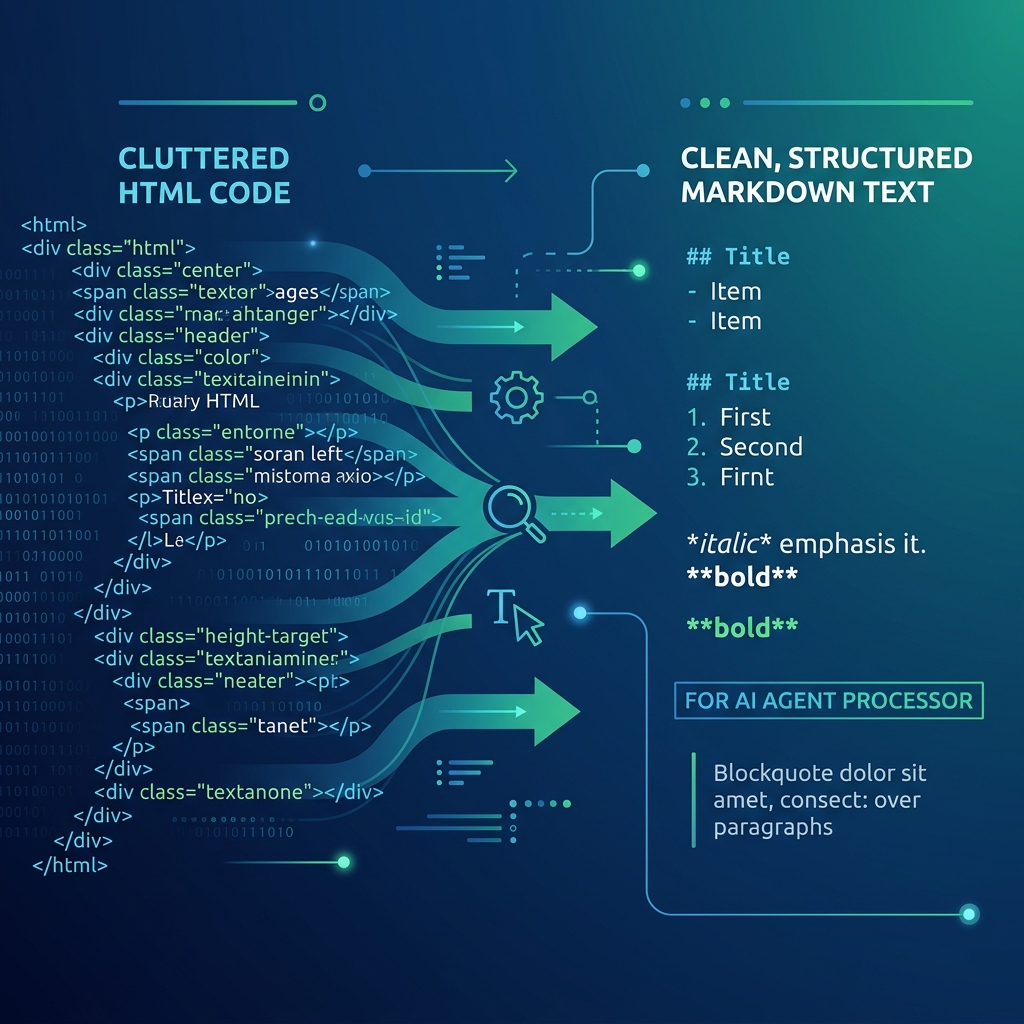
To understand how Markdown works within SharePoint, one must first understand its origin and purpose. Created in 2004 by John Gruber and Aaron Swartz, Markdown was designed to be a "plain text formatting syntax" that is optionally convertible to HTML. The goal was readability; a Markdown document should be publishable as-is, as plain text, without looking like it’s been marked up with tags or formatting instructions.
In the context of SharePoint Online in 2026, Markdown serves as a structural backbone for Communication and Team sites. Unlike traditional word processing where formatting is hidden behind a graphical interface, Markdown makes the structure of the document explicit. For example, instead of highlighting text and clicking a "Bold" button, you wrap the text in double asterisks. This transparency prevents the "ghost formatting" issues—where unwanted CSS or HTML tags linger in the background—that often plague complex SharePoint pages.
The SharePoint Markdown Web Part: How It Works
The primary vehicle for Markdown within the SharePoint environment is the Markdown Web Part. This component allows page authors to write or paste Markdown-formatted text directly into a source window, which SharePoint then renders into clean HTML for the end user.
Adding the Web Part to a Page
To implement Markdown on a SharePoint page, follow these verified steps:
- Edit Mode: Navigate to the SharePoint page where you wish to add content and click Edit in the top-right corner.
- The Toolbox: Hover your mouse above or below an existing web part until you see a circle with a plus sign (+). Click it to open the web part toolbox.
- Selection: Search for "Markdown" and select the Markdown Web Part.
- Configuration: A two-pane interface typically appears (or a toggle between "Edit" and "Preview"). In the Edit pane, you input your syntax.
- Publishing: Once the syntax is entered, clicking outside the web part or selecting Republish will commit the changes, rendering the text as formatted content for all visitors.
The Rendering Engine
SharePoint utilizes a specific implementation of Markdown that aligns closely with CommonMark, though it has specific nuances designed to fit the SharePoint Modern UI. When you type # Header 1 into the web part, the SharePoint engine interprets the # symbol as an
HTML tag. Because SharePoint 2026 emphasizes accessibility and mobile responsiveness, the rendered Markdown is automatically styled to match the site’s theme, ensuring that headers, links, and tables remain legible across all device types.
Supported Syntax and Technical Specifications
While there are many "flavors" of Markdown (such as GitHub Flavored Markdown or Stack Overflow Markdown), SharePoint focuses on a core set of features that provide the most utility for internal documentation and communication.
Text Hierarchy and Emphasis
Headers are defined by the number of hash symbols used at the start of a line.
#results in a Level 1 Header (Page Title equivalent).##results in a Level 2 Header (Section Title).###results in a Level 3 Header (Subsection).
Emphasis is handled through asterisks or underscores. Use **text** for bold and *text* for italics. These can be combined to create bold-italicized text using three asterisks.
Lists and Quotes
Markdown excels at organizing information.
- Unordered Lists: Use a dash
-, plus+, or asterisk*followed by a space. - Ordered Lists: Use numbers followed by a period (e.g.,
1.). Interestingly, the numbers do not have to be in sequence in the source code; the renderer will automatically sequence them (e.g., typing1.,1.,1.will result in 1, 2, 3). - Blockquotes: Use the
>symbol to indent text and apply a distinct visual style, which is ideal for highlighting key warnings or executive summaries.
Links and Media
Hyperlinks follow the format [Link Text](URL). This is particularly useful for internal SharePoint navigation because it allows for clean descriptive text without exposing long, unsightly SharePoint URLs. For images, the syntax is similar: . However, in 2026, images used in the Markdown Web Part generally must be hosted on a publicly accessible URL or within a SharePoint library where the user has at least "Read" permissions.
Markdown vs. The Standard Text Web Part
Choosing between Markdown and the standard Text Web Part often depends on the technical proficiency of the author and the intended use of the content.
| Feature | Markdown Web Part | Standard Text Web Part |
|---|---|---|
| Interface | Code-based (Syntax) | WYSIWYG (Visual) |
| Portability | High (Copy-paste to GitHub/DevOps) | Low (Format loss during copy) |
| Consistency | Strict (Follows site theme) | Variable (Allows manual font changes) |
| Table Support | Syntax-driven (Pipes and dashes) | Grid-based UI |
| Learning Curve | Moderate (Requires learning syntax) | Low (Intuitive) |
| Code Snippets | Native support via backticks | Limited/Requires separate web part |
The standard Text Web Part is excellent for quick updates and users who prefer a Microsoft Word-like experience. However, the Markdown Web Part is superior for technical documentation. It supports inline code using single backticks (`code`) and code blocks using triple backticks (```). This makes it indispensable for IT departments documenting scripts or developers sharing API endpoints within a SharePoint-based intranet.
Operational Limitations and Common Mistakes
Despite its power, Markdown in SharePoint has limitations that users must navigate to avoid broken layouts or unrendered text.
- Strict Spacing: Many Markdown errors stem from missing spaces. For example,
#Header(no space) will often fail to render as a header, remaining as plain text. The correct syntax is# Header. - HTML Sanitization: For security reasons, SharePoint sanitizes the output of the Markdown Web Part. You cannot inject
tags or complex CSS styles through Markdown. While some basic HTML tags might work, they are not officially supported and may break during platform updates. - Table Complexity: While Markdown supports tables, they are rudimentary. You cannot easily merge cells or apply complex coloring to individual rows within the Markdown syntax. If a highly complex data visualization is required, a Power BI embed or a synced Excel table is a better choice.
- Theme Overrides: You cannot manually change font colors or sizes in the Markdown Web Part. The colors are inherited from the SharePoint Site Theme. While this ensures a professional look, it can be frustrating for users who want to use "Red" text for warnings. In these cases, using a Blockquote (
>) is the recommended alternative.
Advanced Use Cases: Documentation as Code
In 2026, the integration of SharePoint with tools like GitHub and Azure DevOps has solidified the role of Markdown. Many organizations now use a "Documentation as Code" workflow. Technical writers maintain documentation in a repository (like GitHub) using .md files. When these files are updated, automated workflows can push the raw Markdown text into a SharePoint Markdown Web Part using the SharePoint REST API or Microsoft Graph.
This approach ensures that the "source of truth" remains version-controlled in a repository while remaining accessible to the wider company through a user-friendly SharePoint interface. This synergy is a primary reason why "what it means" in the modern enterprise is often synonymous with "interoperability."
Frequently Asked Questions
Can I use the Markdown Web Part in SharePoint on-premises?
The Markdown Web Part is primarily a feature of SharePoint Online (Microsoft 365). While SharePoint Server Subscription Edition has received many "Modern" features, organizations using older versions like 2016 or 2019 will generally need to rely on third-party add-ins or custom SPFx (SharePoint Framework) components to achieve the same functionality.
How do I create a table in SharePoint Markdown?
Tables are created using pipes | to separate columns and hyphens - to create the header row. A basic table looks like this:
| Header 1 | Header 2 | | -------- | -------- | | Cell 1 | Cell 2 |
Ensure there is a blank line before and after the table to ensure the engine recognizes the block of text as a table.
Does SharePoint Markdown support "Checkboxes" or Task Lists?
Standard Markdown syntax for checkboxes (e.g., - [ ] Task) is not always natively rendered as interactive elements in the SharePoint Markdown Web Part. While it may display the text and brackets, they are usually static. For interactive task management, the Microsoft Planner or Microsoft To Do integrations are recommended.
Why does my Markdown look different in the preview than on the published page?
The preview window within the Edit mode provides a close approximation of the final result, but the final published page is subject to the site’s global CSS and container widths. Elements like large tables or long code blocks may wrap differently once the page is live. Always verify the layout on a mobile device after publishing.
Can I link to files within the same SharePoint site using Markdown?
Yes. You can use relative paths or absolute URLs. For the best experience, use the absolute URL provided by the "Copy Link" feature in the SharePoint document library. This ensures that the link remains functional even if the folder structure is rearranged.
Recommendations for Implementation
To maximize the value of Markdown in your SharePoint environment, establish a set of internal "style guidelines." Encourage your technical teams to use Markdown for all SOPs (Standard Operating Procedures) and system documentation. This ensures that if your organization ever migrates to a different platform or utilizes AI-driven knowledge management tools, your data is already in a structured, "machine-readable" format that is much easier to parse than legacy rich-text formats.
Furthermore, leverage the Markdown Web Part for "Frequently Asked Questions" sections. The clean header structure (### Question) makes it easy for users to scan the page, and the lightweight nature of the web part ensures that the page loads quickly, even on slower mobile connections.
Image Gallery