WhatsApp Message Notification Customization Options: The Complete 2026 Guide
WhatsApp notification customization allows users to modify how they receive alerts for individual chats, group conversations, and calls. By navigating to the app’s settings or specific chat info screens, you can change alert tones, vib...
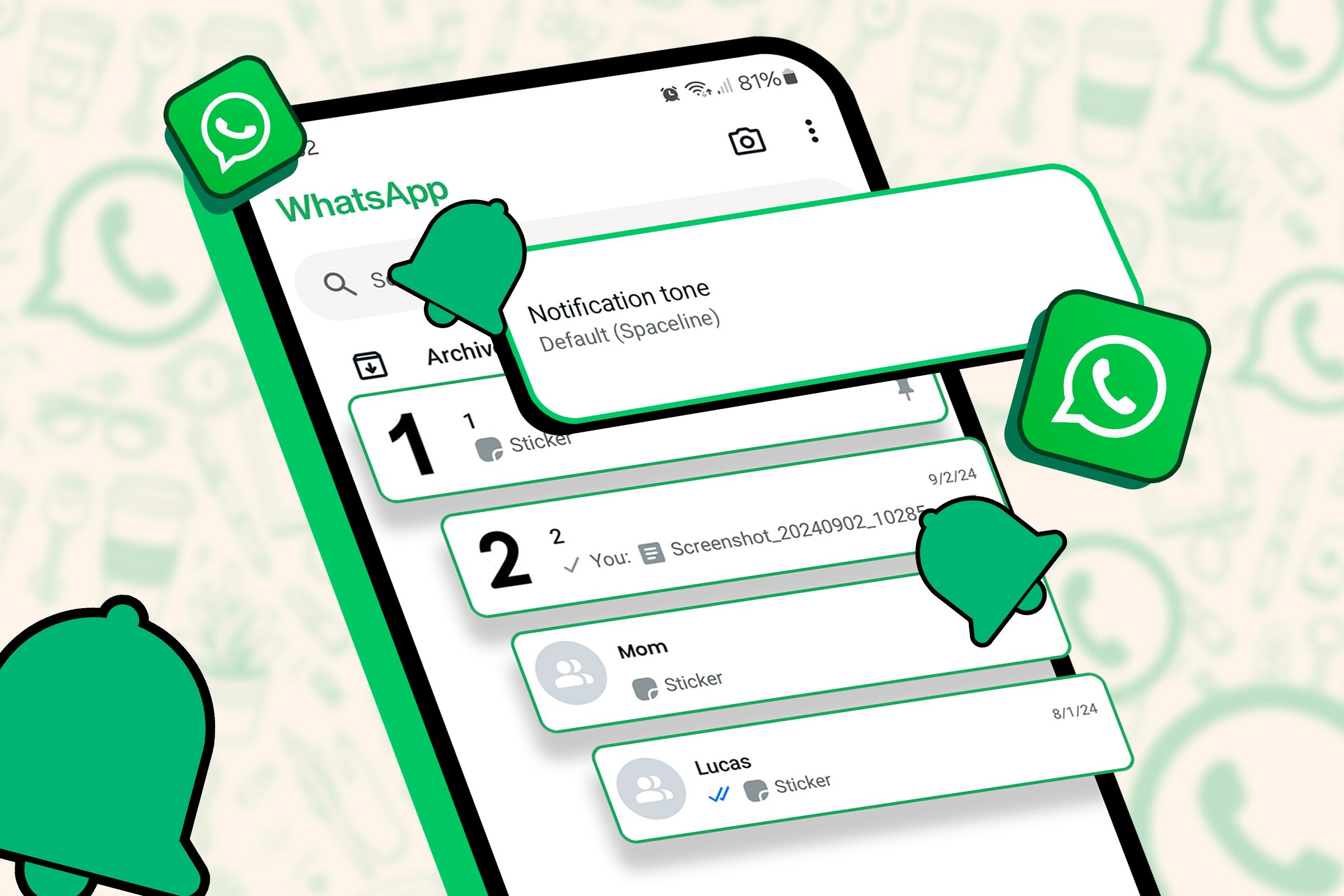
WhatsApp notification customization allows users to modify how they receive alerts for individual chats, group conversations, and calls. By navigating to the app’s settings or specific chat info screens, you can change alert tones, vibration patterns, high-priority previews, and reaction alerts to distinguish between urgent messages and routine updates.
Contents
In 2026, as digital communication continues to saturate our daily lives, managing notification fatigue has become a critical skill for productivity and mental well-being. WhatsApp remains the dominant global messaging platform, and its suite of notification tools is more robust than ever. Whether you are looking to silence noisy group chats or ensure you never miss a message from a specific family member, understanding the full range of customization options is essential.
Prerequisites for Notification Customization
Before diving into specific settings, ensure your environment is set up to allow these changes to take effect. Customization within the app is often superseded by operating system (OS) settings.
Application and OS Permissions
For any notification customization to work, WhatsApp must have permission to send notifications at the system level. On both Android and iOS, go to your phone’s Settings > Notifications > WhatsApp and ensure "Allow Notifications" is toggled on. If this is disabled, any changes you make within the WhatsApp app will be moot.
App Version Consistency
As of 2026, WhatsApp frequently rolls out "server-side" updates that may change the UI slightly. Always ensure you are running the latest version of WhatsApp from the Google Play Store or Apple App Store. This guide assumes you are using the standard version of the app, though most features apply to WhatsApp Business as well.
Global Notification Settings
Global settings apply to all messages and calls by default. These are the "baseline" configurations you set when you want a uniform experience across the app.
Message and Group Alerts
To access global settings, tap Settings (on iOS, the gear icon at the bottom right; on Android, the three dots at the top right followed by Settings) and select Notifications. Here, the menu is divided into "Messages" (individual chats) and "Groups."
- Notification Tones: You can select from a variety of system sounds. In 2026, many users prefer short, unobtrusive "pings" for groups and more distinct melodies for individual messages.
- Vibration Patterns: You can choose between "Off," "Default," "Short," or "Long." This is particularly useful for users who keep their phones on silent but need to distinguish between a message and a call based on the haptic feedback in their pocket.
- Popup Notifications (Android Specific): While Google has limited popup functionality in newer Android versions in favor of "Bubbles," some legacy support remains for showing a window in the middle of the screen. Most modern users now rely on the notification shade.
High Priority Notifications
Found in the global settings, "Use high priority notifications" (on Android) or "Show Previews" (on iOS) determines if a preview of the message text appears at the top of the screen. Turning this off is a common privacy move for those who do not want their messages readable by bystanders when the phone is locked.
Customizing Individual and Group Chats
The most powerful aspect of WhatsApp's notification system is the ability to override global settings for specific people or groups. This allows for "auditory caller ID," where you know who is messaging you based solely on the sound.
How to Enable Custom Notifications
- Open the specific chat (individual or group) you wish to customize.
- Tap on the name of the contact or group at the top of the screen to open the "Chat Info" or "Group Info" page.
- Select Notifications (or Custom Notifications on some Android builds).
- Toggle on Use custom notifications.
Once enabled, you can specify a unique ringtone, vibration pattern, and even the color of the notification LED (on supported Android hardware). This is highly recommended for work-related groups or "Inner Circle" family members to ensure they stand out from the noise of general chatter.
Muting Conversations
Muting is the inverse of customization. If a group is too active but you don't want to leave it, you can mute it for:
- 8 Hours
- 1 Week
- Always (Permanent)
When muting, you can also choose whether to "Show notifications." If you uncheck this box, the messages will silently wait for you inside the app without ever appearing on your lock screen or in your notification bar.
Advanced Notification Features in 2026
With the evolution of mobile operating systems, WhatsApp has integrated more deeply with system-level features like Focus Modes and Notification Summaries.
Reaction Notifications
WhatsApp allows users to react to messages with emojis. By default, these generate a notification. If you find these distracting, you can disable "Reaction Notifications" in the global settings. This keeps your lock screen clean, only alerting you when someone actually writes a response rather than just "liking" a message.
Call Customization
WhatsApp calls (voice and video) have their own notification section. Similar to messages, you can set a custom ringtone for calls globally or per-person. In 2026, with the rise of WhatsApp for professional consulting and international business, setting a professional, distinct ringtone for WhatsApp calls helps distinguish them from standard cellular or VoIP calls.
Notification Channels (Android Only)
Android users have access to "Notification Channels," a system-level feature that categorizes WhatsApp alerts into "Group Notifications," "Message Notifications," "Call Notifications," and "Other." By long-pressing the WhatsApp icon and going to App Info > Notifications, users can set the importance level of each category. For example, you can set "Calls" to "Urgent" (makes sound and pops up) while setting "Groups" to "Silent" (no sound, just appears in the tray).
Platform Comparison Table
The availability of notification features varies slightly depending on whether you are using a smartphone, a desktop app, or a web browser.
| Feature | Android App | iOS App | WhatsApp Desktop | WhatsApp Web |
|---|---|---|---|---|
| Custom Tones per Chat | Yes | Yes | No | No |
| High Priority Previews | Yes | Yes | Yes | Limited |
| Mute "Always" | Yes | Yes | Yes | Yes |
| Reaction Notifications Toggle | Yes | Yes | Yes | No |
| Haptic/Vibration Control | Yes (Deep) | Yes (System-led) | No | No |
| LED Color Customization | Yes (Hardware dep.) | No | No | No |
Troubleshooting Common Notification Issues
Even with perfect customization, notifications can sometimes fail to appear. This is rarely a bug in WhatsApp itself and usually a conflict with power management or system settings.
Battery Optimization
Many Android manufacturers (like Samsung, Xiaomi, and OnePlus) employ aggressive "Battery Optimization" that "kills" apps in the background. If you aren't receiving notifications, go to your phone's Battery Settings > WhatsApp and select "Don't Optimize" or "Unrestricted." This ensures the WhatsApp background process remains active to deliver alerts instantly.
Do Not Disturb and Focus Modes
On iOS, "Focus Modes" (Work, Sleep, Personal) can filter out WhatsApp notifications even if the app settings say otherwise. Ensure WhatsApp is added to the "Allowed Apps" list for your active Focus Mode. On Android, check that "Do Not Disturb" isn't active, or if it is, that WhatsApp is set as an "Exception."
Connection Latency
In some regions or on certain networks, "WhatsApp Web" or "Desktop" may experience a delay in syncing with the phone. In 2026, the Multi-Device feature is the standard, meaning your desktop doesn't need your phone to be online. However, if notifications are delayed, try logging out of all linked devices and re-linking them to refresh the push token.
FAQs
Can I set a different notification sound for every single person?
Yes. By using the "Custom Notifications" feature within each individual's Chat Info page, you can assign a unique ringtone or alert sound to every contact in your list. This allows you to identify the sender without ever looking at your device.
How do I hide the message sender's name on my lock screen?
On iOS, go to WhatsApp Settings > Notifications and toggle off "Show Preview." On Android, this is often handled by the system: go to Settings > Apps > WhatsApp > Notifications, and look for "Lock screen" settings to select "Hide sensitive content."
Why do I keep getting notifications for muted groups?
This usually happens because "Show Notifications" was checked when you muted the group. To fix this, un-mute the group and mute it again, making sure the "Show notifications" checkbox is unchecked. Also, ensure you haven't been "Mentioned" (@yourname), as mentions often bypass mute settings depending on your configuration.
Can I customize the notification sound for WhatsApp Web?
As of 2026, WhatsApp Web offers very limited sound customization. You can toggle sounds on or off, but you generally cannot upload custom MP3s or select from a library of tones like you can on the mobile app. The sound played is the default system alert for your web browser.
Is there a way to prioritize work messages over personal ones?
The best way to achieve this is through a combination of Custom Notifications and OS-level Focus Modes. Assign a distinct, louder tone to work contacts and, on your phone, create a "Work Focus" that only allows notifications from the WhatsApp "Work" contacts or specific group folders.
Summary and Practical Recommendation
Mastering WhatsApp message notification customization options is the most effective way to regain control over your digital environment. By moving away from a "one-tone-fits-all" approach, you reduce the psychological urge to check your phone every time it pings.
Recommendation: Start by muting all non-essential "broadcast" style groups. Then, identify your top five most important contacts and assign each a unique "Custom Notification" sound. Finally, disable "Reaction Notifications" to significantly reduce the number of low-value alerts hitting your lock screen. This tiered approach ensures you remain reachable for what matters while silencing the noise of the modern digital world.
Image Gallery