Apple CarPlay in the 2019 Lexus RX 350: Integration and Compatibility Guide
Apple CarPlay is natively available in the 2019 Lexus RX 350, serving as the first model year for the luxury crossover to include this feature as a standard equipment inclusion. Drivers can access the interface by connecting a compatib...
Apple CarPlay is natively available in the 2019 Lexus RX 350, serving as the first model year for the luxury crossover to include this feature as a standard equipment inclusion. Drivers can access the interface by connecting a compatible iPhone to the vehicle's dedicated USB data port, which facilitates seamless integration of navigation, communication, and media streaming apps directly onto the Lexus Enform multimedia display.
Contents
Understanding the 2019 Lexus RX 350 Multimedia Ecosystem
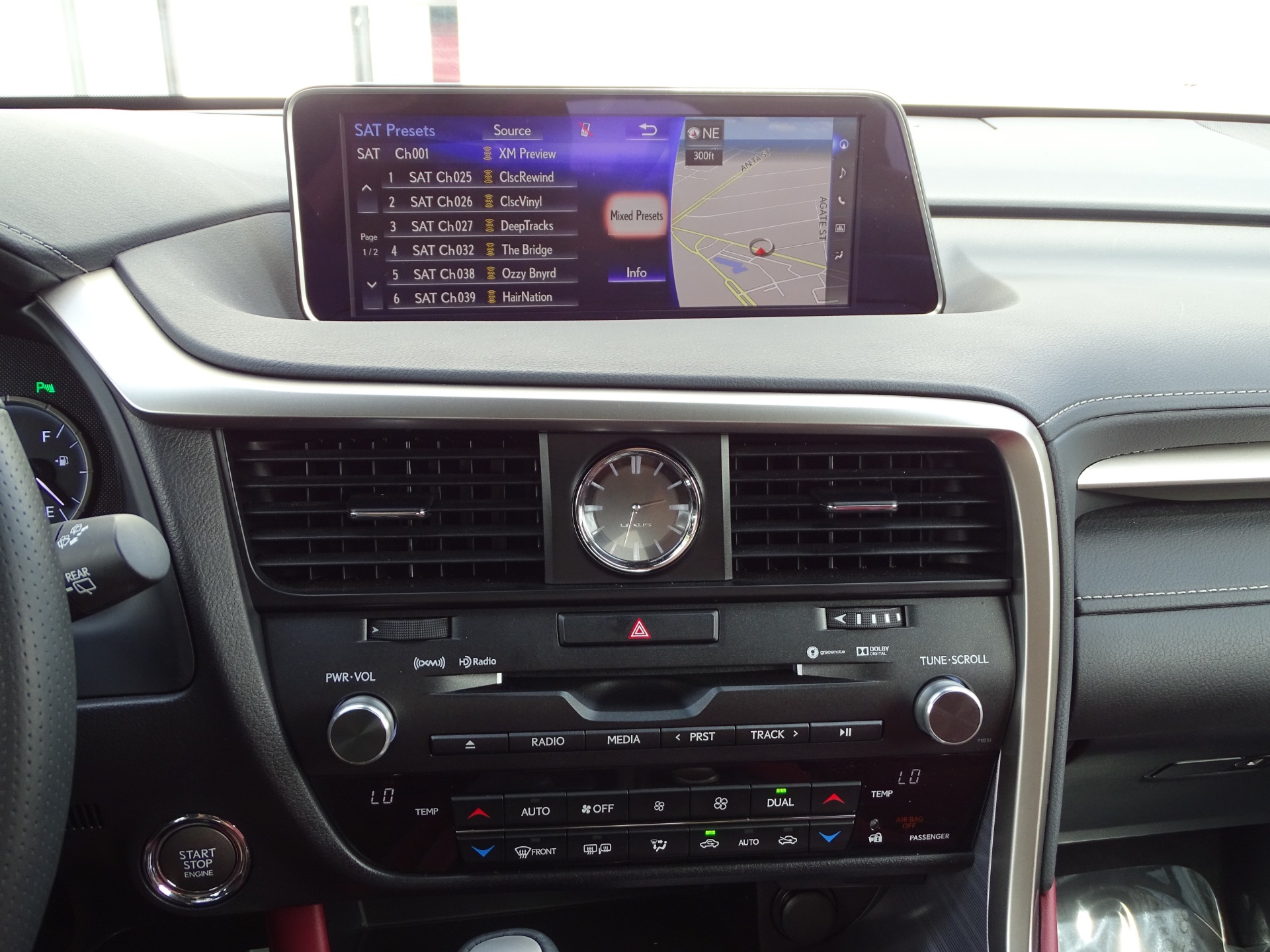
The 2019 model year represented a significant shift in the Lexus ownership experience regarding in-car connectivity. Prior to this release, Lexus utilized its proprietary Enform system exclusively, which relied on the Remote Touch interface—a controller that many users found challenging to navigate while driving.
With the introduction of Apple CarPlay in the 2019 RX 350, Lexus provided a standardized alternative to its own interface. This integration allows users to bypass the stock navigation and music menus in favor of a familiar iOS layout. It is important to note that the 2019 system does not support Wireless CarPlay; a physical connection via a certified Apple Lightning cable is required to initialize the software. Furthermore, the system is strictly wired, meaning even if your iPhone supports wireless connectivity, the vehicle hardware demands a physical link to the vehicle’s communication bus to launch the projected interface.
Prerequisites for Activation
To utilize Apple CarPlay effectively, you must ensure both your hardware and your software meet specific baseline requirements. Because the 2019 Lexus RX 350 uses a factory-integrated system, the setup process is generally plug-and-play, provided the following conditions are met:
- Certified Hardware: Use an Apple-certified (MFi) Lightning cable. While generic cables may charge the phone, they often lack the data transmission integrity required for the CarPlay protocol, leading to frequent disconnects or failure to launch.
- iPhone Compatibility: Ensure your iPhone is running a current, supported version of iOS. While the 2019 model is compatible with older versions, updating your OS ensures the best performance and compatibility with third-party applications like Google Maps, Waze, or Spotify.
- Siri Settings: Apple CarPlay requires Siri to be enabled on your iPhone to function. If you have disabled Siri for privacy or personal preference, the CarPlay handshake will be rejected by the vehicle system.
- USB Port Selection: The 2019 Lexus RX 350 typically features multiple USB ports in the center console. Ensure you are plugged into the port designated for data transfer. Often, only one of the two ports is wired to the infotainment head unit; the others may be dedicated solely to power delivery.
Step-by-Step Configuration Process
Once you have the necessary hardware ready, initializing the system is straightforward. Follow these steps to establish your first connection:
- Power On: Start the vehicle's ignition or put it into Accessory mode to power the infotainment screen.
- Physical Connection: Insert the Lightning cable into the data-capable USB port, then connect it to your iPhone.
- Initial Prompt: Your iPhone will display a prompt asking for permission to use CarPlay while the phone is locked. Select "Allow."
- System Selection: On the Lexus display screen, look for the "CarPlay" icon or a menu prompt asking if you wish to launch the application. If the screen does not switch automatically, select the "Menu" button on your console, then navigate to the "Setup" screen to ensure CarPlay is enabled in the "General" settings.
- Interface Navigation: Once active, the Lexus Remote Touch pad will act as your cursor. Sliding your finger across the pad moves the highlight box on the screen; pressing down on the pad confirms your selection.
Comparative Features of CarPlay vs. Native Lexus Enform
| Feature | Apple CarPlay | Lexus Enform (Native) |
|---|---|---|
| Navigation | Real-time traffic via Apple/Google Maps | Static maps with Enform updates |
| Interface | Familiar iOS app icons | Lexus-specific menu hierarchy |
| Voice Control | Native Siri integration | Lexus Voice Command |
| Music Streaming | Apple Music, Spotify, Pandora | Basic Bluetooth audio or USB storage |
| Connection | Wired only (Lightning cable) | Bluetooth/USB/Wi-Fi |
Troubleshooting Common Connectivity Issues
If your 2019 Lexus RX 350 fails to recognize your iPhone, the issue is rarely a hardware failure and almost always a handshake disruption. If you experience intermittent connectivity, follow this systematic approach to restoration:
- Cable Integrity: The most common point of failure is a frayed or aging Lightning cable. Test your connection with a brand-new, Apple-certified cable before investigating vehicle-side issues.
- USB Port Debris: Inspect the USB port in the center console for lint or debris. A compromised connection inside the port can prevent the data handshake, even if the phone receives a charge.
- Software Handshake: If the phone is charging but CarPlay does not launch, go to your iPhone's Settings > General > CarPlay. Select "Lexus" from the list of available cars and select "Forget This Car." Restart your phone and reconnect to the vehicle to force a new authentication.
- Siri Conflicts: Ensure that your iPhone's "Allow CarPlay While Locked" setting is enabled in your phone's privacy settings. If this is disabled, the system will frequently time out or require a manual unlock of your phone each time you start the car.
Limitations and Operational Considerations
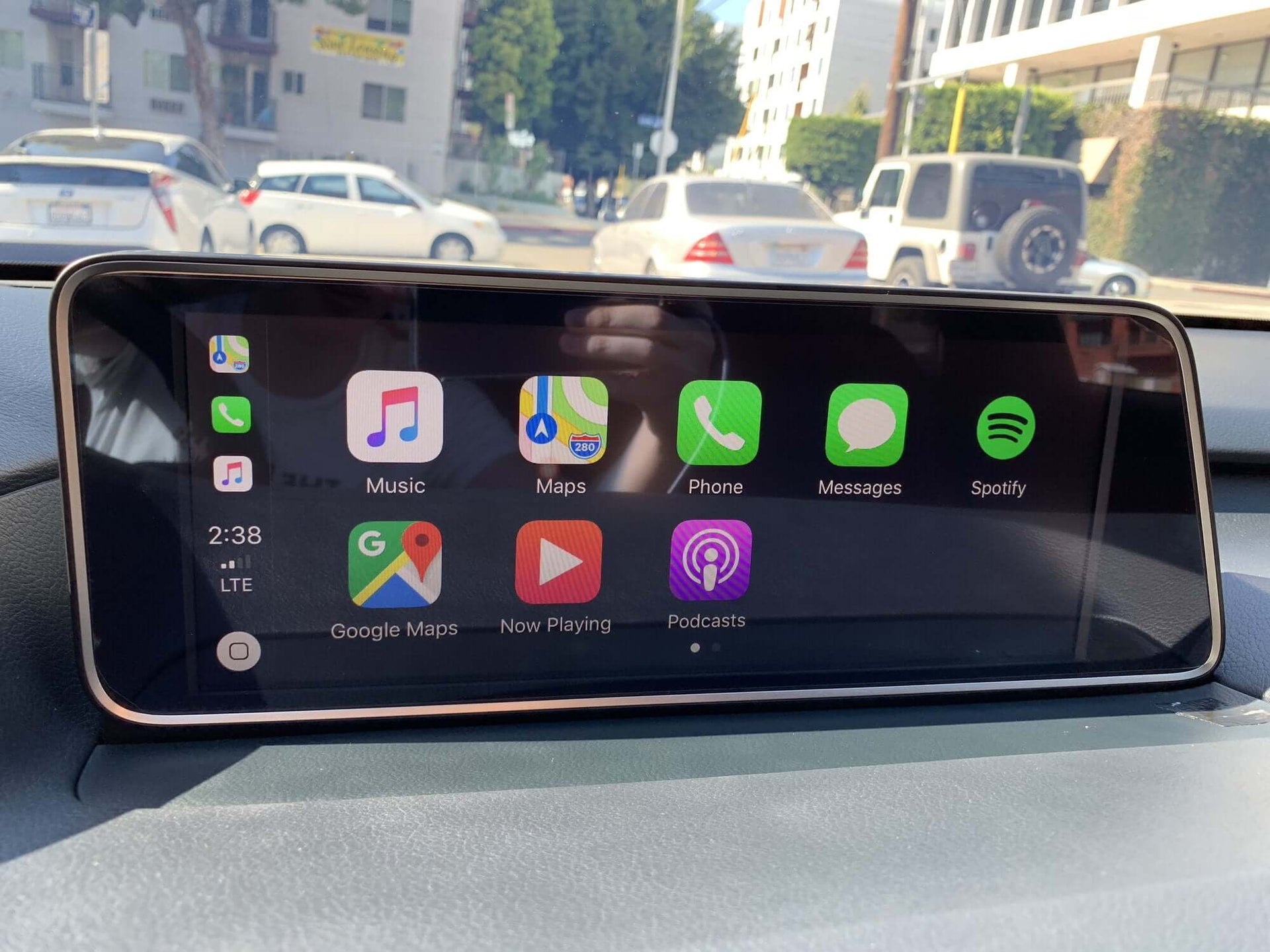
While Apple CarPlay provides significant utility, users of the 2019 Lexus RX 350 should remain aware of certain operational limitations. First, the screen aspect ratio of the 2019 model is not optimized for modern widescreen CarPlay layouts; consequently, you may see a sidebar or unused screen space on the right side of the display. This is a factory limitation of the 2019 infotainment software and cannot be updated via over-the-air firmware patches.
Second, using the Remote Touch pad to navigate CarPlay is widely considered the primary drawback for Lexus owners. Because the pad was designed for a native, menu-driven interface, clicking through icons in Apple Maps or scrolling through long playlists can feel imprecise compared to a touchscreen interface. It is highly recommended to rely on Siri voice commands as much as possible to avoid the distraction of using the touchpad while the vehicle is in motion.
Frequently Asked Questions
Does the 2019 Lexus RX 350 support Wireless CarPlay? No. The 2019 model only supports wired Apple CarPlay through the center console USB port. There is no official software update from Lexus to enable wireless functionality for this specific model year.
Can I use Google Maps or Waze on my 2019 RX 350 display? Yes. Once you have successfully launched Apple CarPlay, third-party navigation apps like Google Maps, Waze, and Apple Maps become available as options on the vehicle display. Ensure your iPhone is updated to the latest iOS to guarantee app compatibility.
What should I do if my music keeps cutting out? Audio stuttering is usually caused by a poor physical connection between the phone and the USB cable. Ensure your cable is not pinched in the center console lid and that the connector is firmly seated in your phone’s charging port.
Does CarPlay use my phone’s data plan? Yes. Since CarPlay projects your iPhone's apps onto the car display, all navigation, music streaming, and voice command data are processed through your iPhone’s cellular connection.
Will using CarPlay drain my iPhone battery? Actually, the opposite is true. While the phone is connected via the Lightning cable to provide the CarPlay projection, the vehicle will simultaneously charge your device, ensuring that even with high data usage, your battery level remains stable during your commute.
Final Next Steps
For the best experience in your 2019 Lexus RX 350, prioritize the purchase of a high-quality, short Lightning cable—specifically one that is roughly 1 foot in length to prevent tangling in the center console. Once you have established a stable connection, take a moment to configure your "CarPlay Dashboard" settings on your iPhone; this allows you to customize which apps appear on the vehicle display, hiding those you do not use to streamline your interface while driving.
Image Gallery