How to Download an Article from a Website for Offline Access
Downloading an article from a website allows you to preserve digital content for offline reading, archival purposes, or research. Depending on the website’s architecture and your specific needs, you can achieve this by exporting the co...
Downloading an article from a website allows you to preserve digital content for offline reading, archival purposes, or research. Depending on the website’s architecture and your specific needs, you can achieve this by exporting the content as a PDF, utilizing browser-based "Reader" modes, or employing specialized web-clipping tools to remove advertisements and formatting clutter.
Contents
Understanding the Methods of Digital Archival
Before attempting to save content, it is important to understand that not all web pages are structured in the same way. Some sites utilize dynamic content, such as infinite scrolling or JavaScript-rendered elements, which can complicate simple saving processes. Furthermore, copyright protections and paywalls may restrict your ability to download or redistribute specific content.
Most users seek to download articles for three primary reasons: offline accessibility during travel, long-term archiving to prevent "link rot" (where the original URL becomes inaccessible), or formatting for readability on e-ink devices like e-readers.
Method 1: Using the Native Print-to-PDF Function
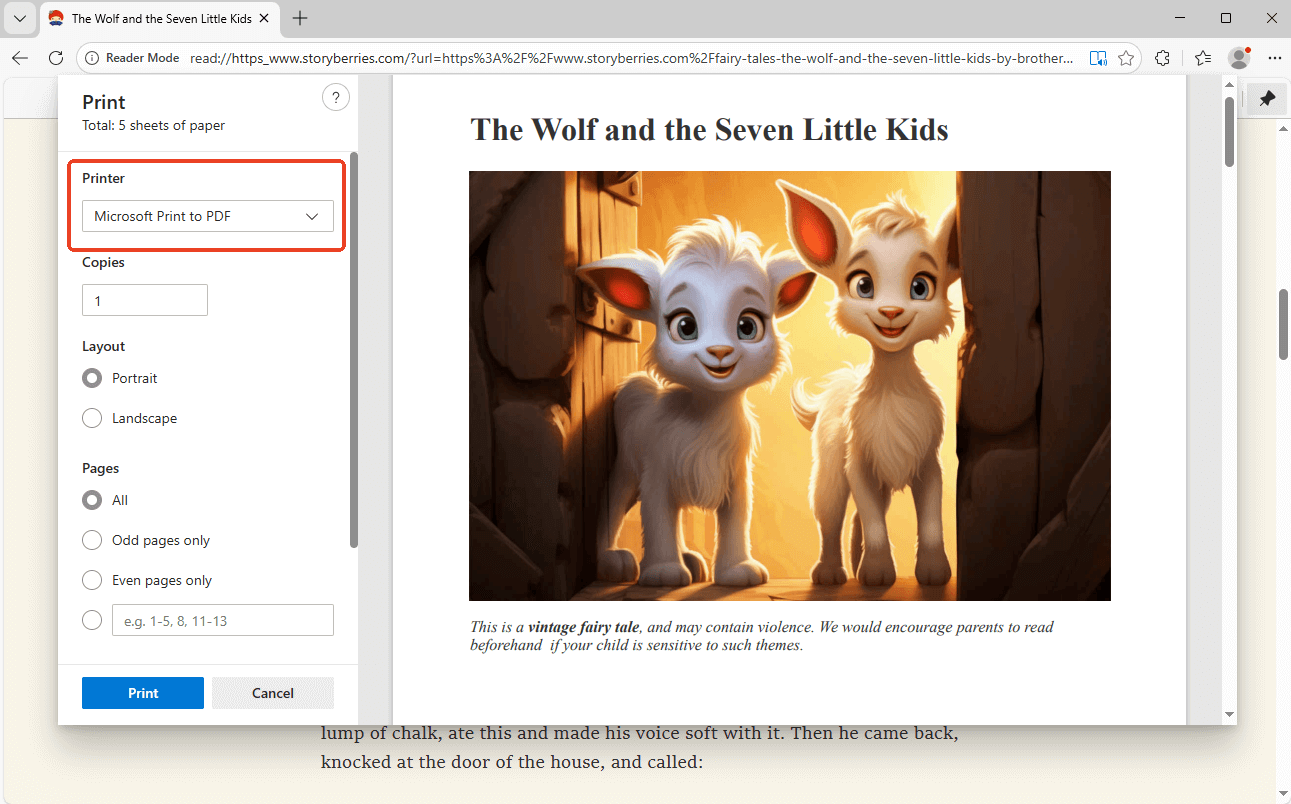
The most universal way to save an article is to treat it as a document. Every major modern web browser—including Chrome, Firefox, Safari, and Edge—includes a "Print" function that allows you to output a webpage as a Portable Document Format (PDF) file.
Steps for Desktop Browsers:
- Navigate to the target article: Ensure the page is fully loaded.
- Access the Print menu: You can trigger this by pressing
Ctrl + P(Windows) orCmd + P(macOS). - Change the Printer Destination: In the print dialog window, look for the "Destination" dropdown menu. Select "Save as PDF" instead of your physical printer.
- Refine the Layout: Many browsers provide options to adjust margins, include or exclude headers/footers, and enable background graphics. For a cleaner result, toggle the "Background Graphics" option if you want to keep images or styling.
- Save: Click the "Save" button and select your file destination.
This method is highly effective for archiving but can sometimes include unwanted advertisements or site navigation menus.
Method 2: Utilizing Browser Reader Modes
Most contemporary browsers offer a "Reader View" or "Immersive Reader." This tool strips away sidebars, headers, footers, and advertisements, leaving only the primary text and media of the article. This is often the preferred method for creating clean, distraction-free PDF files.
How to Activate Reader Mode:
- Safari (macOS/iOS): Look for the "Reader" icon (represented by lines of text) on the left side of the URL address bar. Once active, go to "File" > "Export as PDF."
- Firefox: Click the "Toggle Reader View" icon in the address bar (or press
F9). Once the formatting changes, use the print function to save the simplified version. - Edge/Chrome: These browsers often require an extension or the "Print" preview settings to enable a similar simplified view.
Method 3: Dedicated Web Clipping Tools
For frequent research or personal knowledge management (PKM), browser extensions designed for clipping offer superior control over what data is captured. Tools such as Notion Web Clipper, Evernote Web Clipper, or Obsidian Web Clipper allow you to capture specific segments of a page, strip unnecessary elements, and save the content directly into your local database or cloud notes.
Why Use Specialized Clipping Tools?
- Metadata preservation: These tools often automatically capture the author, original URL, and publication date.
- Format conversion: Many convert the webpage directly into Markdown (.md) or HTML, which is easier to edit or format later compared to a static PDF.
- Cross-platform sync: Clips are typically stored in the cloud, ensuring your archived articles are available on your smartphone, tablet, and computer.
Comparison of Methods
| Feature | Print-to-PDF | Reader Mode | Clipping Extensions |
|---|---|---|---|
| Ease of Use | Very High | High | Moderate |
| Cleanliness | Moderate | Very High | High |
| Metadata | Low | Low | Very High |
| Offline Sync | Manual | Local Storage | Automatic |
| Cost | Free | Free | Often Free/Freemium |
Legal and Ethical Considerations
When downloading articles, it is vital to respect intellectual property rights. Most publishers grant permission for personal, non-commercial use, which includes saving a copy for your own archival or offline reading. However, reproducing, distributing, or scraping content for commercial purposes without explicit permission is a violation of copyright law in most jurisdictions. Always check the footer of the website or their Terms of Service (ToS) if you plan to save large volumes of content or use the text for public-facing projects.
Troubleshooting Common Issues
The Page Does Not Render Correctly
If an article looks broken when saved as a PDF, it is often due to the website using complex CSS or JavaScript that the printer driver cannot interpret.
- The Fix: Try using a different browser (e.g., if Chrome fails, try Firefox) or manually copying the text and pasting it into a word processor like Microsoft Word or a Markdown editor.
Paywalls and Subscription Content
If a website employs a "hard" paywall, the print functions will often only capture the landing page or the header of the article.
- The Fix: You must be logged into your account or subscription for the browser to render the full article. Once authenticated, the print/save methods will capture the full content as visible to you.
Images or Charts Are Missing
Some websites use "lazy loading" for images, where images are only fetched when you scroll down to them. If you print a page immediately upon loading, these images may not appear.
- The Fix: Scroll to the bottom of the page and ensure all images have loaded before triggering the print or capture command.
Frequently Asked Questions
Can I save an article as an ePub file for my e-reader?
Yes. You can use tools like "DotEPUB" or browser extensions designed to convert web pages into the ePub format. These provide a much better reading experience on devices like Kindles or Kobos compared to large, fixed-layout PDFs.
Why do some webpages look messy after I download them?
Webpages are designed for the screen, not for print. When you convert them to PDF, you are essentially asking the printer driver to flatten a complex, layered design. Using a browser's "Reader View" before printing is the most effective way to eliminate this mess.
Is it legal to download articles for my personal library?
Generally, yes, provided you are not distributing the copies or using them to create a derivative work for commercial gain. Personal archiving falls under fair use in many jurisdictions, but you should not republish the content elsewhere.
What is the best format for archiving articles?
Markdown (.md) is considered the gold standard for research because it is lightweight, human-readable, and future-proof. PDFs are better for maintaining the exact visual layout of the original article.
Next Steps
To begin your archival project, evaluate your volume. If you only need to save an occasional article, the built-in "Print to PDF" function in your browser is sufficient. If you are conducting academic research or building a personal library, install a dedicated web-clipping extension. By organizing these files into a folder structure or a note-taking application today, you ensure that your reference material remains accessible regardless of future changes to the original website.
Image Gallery