How to Create and Install Custom Roku Themes in 2026
Customizing your Roku interface allows you to move beyond the standard purple aesthetic and tailor your streaming environment to your personal taste. Whether you are looking to apply a professional preset from the Roku Theme Store or d...
Customizing your Roku interface allows you to move beyond the standard purple aesthetic and tailor your streaming environment to your personal taste. Whether you are looking to apply a professional preset from the Roku Theme Store or develop a completely bespoke theme using the Roku SDK, the process involves navigating specific menus and, in some cases, developer-level side-loading.
Contents
As of 2026, Roku OS continues to prioritize a streamlined user experience, which means that while customization is possible, it is governed by strict performance guidelines to ensure the interface remains snappy and responsive. This guide provides a comprehensive look at how to access, install, and even build custom Roku themes, ranging from simple wallpaper swaps to advanced developer configurations.
Understanding the Roku Theme Ecosystem
Before diving into the "how-to," it is essential to distinguish between the three primary levels of Roku customization. Roku does not offer a completely open-source UI like some Android-based launchers; instead, it uses a tiered approach to visual modifications.
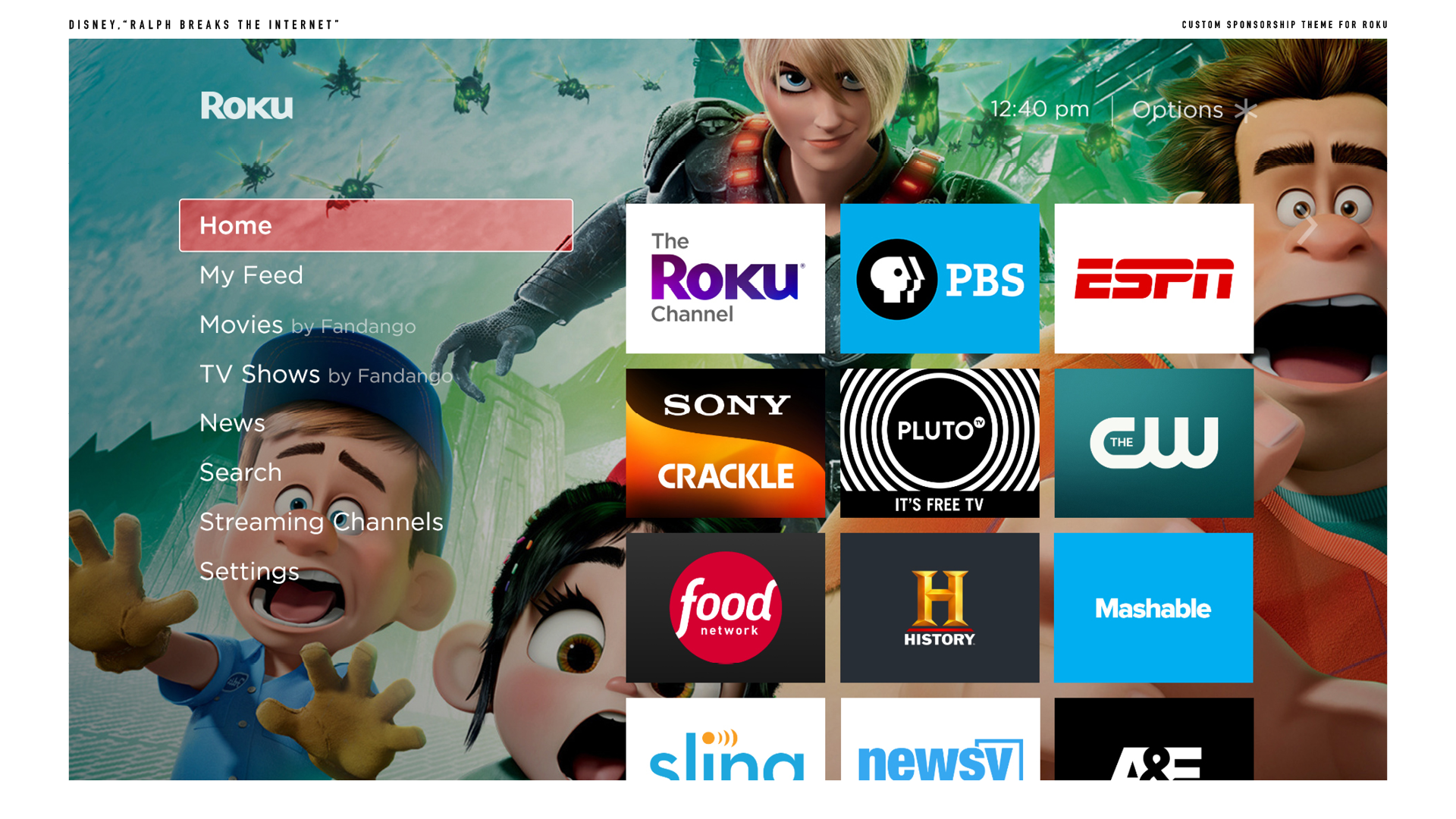
- Official Roku Themes: These are curated packages found in the Roku Theme Store. They include coordinated wallpapers, sounds, and screensavers. Many are free, while others are tied to promotional events or require a one-time purchase.
- User-Generated Wallpapers (Photo Streams): This is the most common form of "custom" theming for the average user. It allows you to upload personal photos or curated galleries via the Roku mobile app to serve as your backdrop.
- Developer Side-loaded Themes: For those with technical knowledge, the Roku SDK (Software Development Kit) allows for the creation of unique theme packages. These must be side-loaded onto the device via the Roku Web Installer, a process typically used by developers but accessible to enthusiasts.
How to Change Official Roku Themes
The simplest way to refresh your Roku's look is through the built-in Theme Store. Roku regularly updates this repository with seasonal themes, movie-themed backgrounds, and abstract designs.
Accessing the Theme Store
To browse available themes, navigate to Settings > Theme > Themes. Here, you will see a list of installed options and a link to "Get More Themes." The store categorizes themes by popularity, newest additions, and genre.
Applying and Managing Themes
Once you find a theme you like, select "Apply" (if it is already downloaded) or "Buy/Get" (if it is new). It is important to note that themes consume internal storage. If your Roku device is low on space—common with older Roku Express models—the device may offload unused themes. If you select an offloaded theme, you will see a brief progress bar as the device re-downloads the assets from Roku’s servers.
Interactive and Dynamic Themes
By 2026, Roku has expanded its "Dynamic" theme offerings. Unlike static wallpapers, dynamic themes feature subtle animations, such as falling snow or moving clouds. These themes are more resource-intensive and are generally optimized for higher-end hardware like the Roku Ultra or Roku Pro Series TVs.
Personalizing with Roku Photo Streams
If you want a truly unique background without writing code, Roku Photo Streams is the official solution. This feature bridges the gap between stock themes and developer tools by allowing you to use your own digital assets.
Setting Up a Photo Stream
- Install the Roku Mobile App: Ensure you have the latest version of the Roku app on your smartphone (iOS or Android).
- Connect to Your Device: Make sure your phone and Roku are on the same Wi-Fi network.
- Upload Images: Within the app, navigate to the "Photo Streams" section. You can create a new stream and upload photos directly from your phone's gallery.
- Set as Wallpaper: On your Roku device, go to Settings > Theme > Screensaver (or Wallpaper) and select your newly created Photo Stream.
This method is ideal for family photos, high-resolution photography, or custom-designed graphics you have created in tools like Photoshop or Canva. To ensure the best visual quality on 4K Roku devices, your images should ideally be 3840 x 2160 pixels in a 16:9 aspect ratio.
Technical Guide: Building a Custom Roku Theme Package
For power users and developers, creating a custom theme involves packaging assets according to the Roku SceneGraph specifications. A Roku theme is essentially a specialized zip file containing a manifest and specific directory structures.
The Theme Package Structure
A standard custom theme package requires the following components:
- Manifest File: A plain text file that defines the theme name, version, and specific attributes like font colors and focus highlights.
- Images Folder: Contains the background images (URIs) for various resolutions (SD, HD, FHD).
- Sounds Folder (Optional): Contains
.wavor.mp3files for UI navigation sounds (e.g., click, back, select).
Designing for Different Resolutions
Roku devices are used on a wide range of screens. When designing custom assets, you must provide multiple versions of your images to prevent scaling artifacts:
- FHD (1080p): 1920 x 1080
- 4K (UHD): 3840 x 2160 (Recommended for 2026 standards)
The manifest file must explicitly point to these assets. For example, the attribute overhangPrimaryLogoFHD would point to the location of your logo image optimized for 1080p displays.
Side-loading the Theme
To test your custom theme, you must enable Developer Mode on your Roku:
- Using your remote, press: Home (3x), Up (2x), Right, Left, Right, Left, Right.
- Note the IP address provided and set a developer password.
- Access the Roku Web Installer by entering the device's IP address into a web browser on your computer.
- Upload your zipped theme package.
Note: Only one side-loaded application or theme can be active at a time on most Roku models. Side-loading is intended for personal testing and development; to share your theme with others, it must be submitted to the Roku Channel Store for certification.
Comparison of Customization Methods
| Feature | Roku Theme Store | Photo Streams | Developer Side-loading |
|---|---|---|---|
| Ease of Use | Very High | High | Low (Requires Coding) |
| Custom Assets | Limited to Store | User Photos | Full Control |
| Navigation Sounds | Included | Stock Only | Fully Customizable |
| Cost | Free to $4.99 | Free | Free (Dev Account Req) |
| Reliability | Guaranteed | High | High (if optimized) |
Limitations and Performance Considerations
While custom themes enhance aesthetics, they can impact system performance. Roku's operating system is designed to be lightweight. Large, unoptimized image files in a custom theme can lead to "UI lag," where the cursor moves slowly between tiles.
Memory Management
Roku devices have limited RAM compared to modern PCs. When creating a custom theme, ensure that your background images are compressed. Using standard JPEG compression can significantly reduce the memory footprint without a noticeable loss in visual quality on most televisions.
Accessibility and Legibility
A common mistake in custom theme design is choosing backgrounds that clash with the text. Roku's default font is typically white or light gray. If you choose a bright or busy custom wallpaper, ensure you use the manifest file to adjust the global text colors or add a semi-transparent "overlay" to the background image to maintain readability.
Troubleshooting Common Theme Issues
If your custom theme or wallpaper is not appearing correctly, consider these common solutions:
- Image Not Displaying: Verify that the file format is supported (usually JPG or PNG) and that the file size does not exceed the system limits (typically 5MB per image for backgrounds).
- Theme Reverts to Default: This often happens after a system update or if the device runs out of storage. Go back to the Theme menu to re-apply your selection.
- Side-loading Errors: Ensure the zip file structure is correct. The
manifestfile must be in the root directory, not tucked inside a sub-folder. - App Compatibility: Some apps (like Netflix or YouTube) use their own internal UI and will ignore your custom Roku theme settings once launched. This is standard behavior across the Roku platform.
Summary and Next Steps
Customizing your Roku in 2026 offers a balance between ease of use and technical depth. Most users will find that Roku Photo Streams provides the perfect level of personalization for high-resolution 4K and 8K displays. However, for those looking to change the very sounds and color schemes of the OS, the Roku Developer SDK remains the only path for total control.
To get started, try browsing the Theme Store for inspiration, or use the Roku mobile app to upload a few high-resolution landscapes. If you decide to venture into theme development, begin by reviewing the official Roku Developer Documentation to ensure your assets meet the current OS performance standards.
Frequently Asked Questions
Can I download third-party Roku themes from the internet?
You cannot directly download a theme file from a website to your Roku. Themes must be installed via the official Roku Theme Store or side-loaded as a developer package using the Roku Web Installer. Be cautious of any site claiming to offer "hacked" themes, as these can compromise your device's security.
Do custom themes drain more power or slow down my Roku?
Static themes have a negligible impact on power and speed. However, dynamic or animated themes may cause a slight delay in navigation on entry-level Roku hardware. If you notice a slowdown, switching back to a static "Default" or "Graphene" theme usually resolves the issue.
How do I delete a theme I no longer want?
To remove a theme, go to Settings > Theme > Themes. Highlight the theme you wish to remove and press the Asterisk (*) button on your remote. Select "Remove Theme." This will free up storage space on your device.
Can I use a video as a custom Roku background?
Standard Roku themes do not support video files as wallpapers to conserve system resources. However, you can use "Video Screensavers" available in the Theme Store, which function similarly but only activate when the device is idle.
Why does my custom wallpaper look blurry?
Blurriness usually occurs when the image resolution is lower than the TV's native resolution. For a 4K TV, ensure your custom images are exactly 3840 x 2160 pixels. Using a lower-resolution image (like 720p) will cause the Roku to upscale it, resulting in a soft or pixelated appearance.
Image Gallery