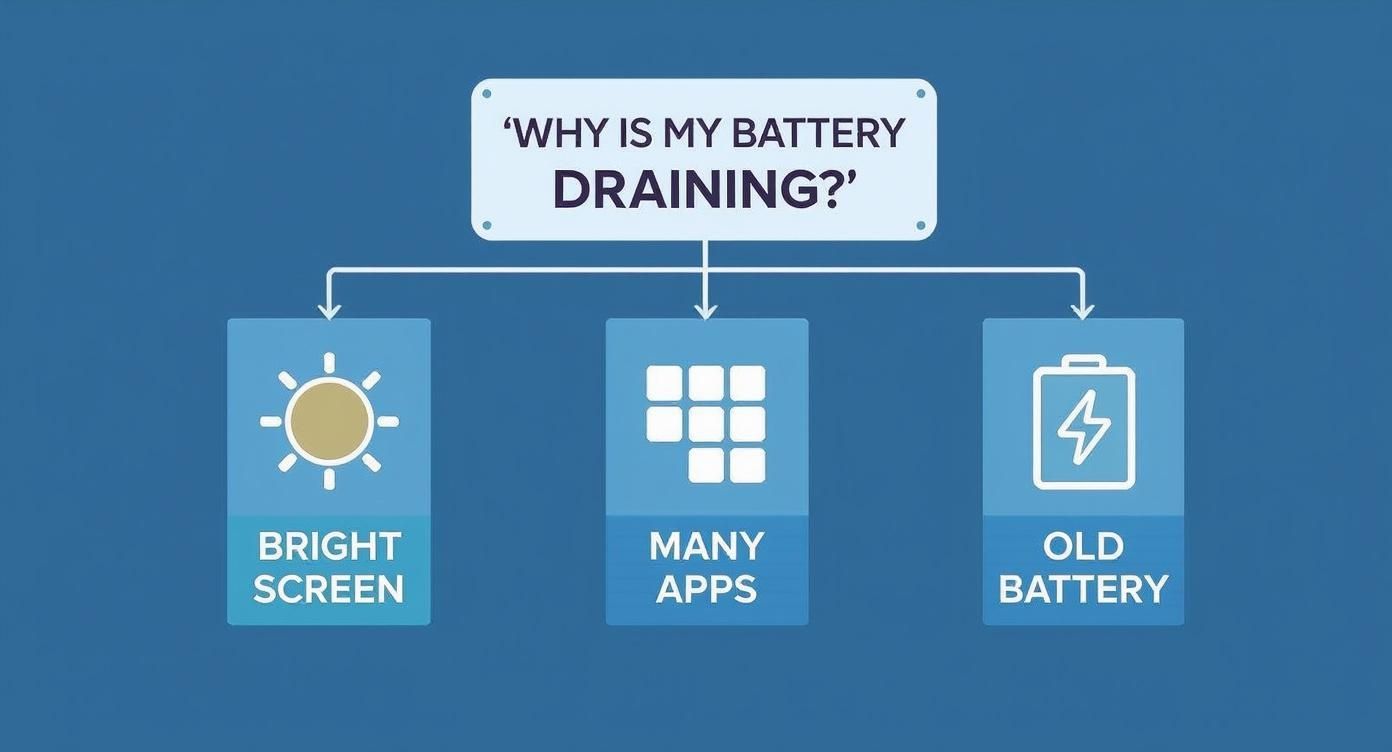
Why a Samsung Battery Drains Fast and How to Restore Longevity
A Samsung battery drains fast primarily due to background application activity, display brightness settings, outdated software, or gradual chemical degradation of the lithium-ion cells over time. By adjusting power settings, managing a...
A Samsung battery drains fast primarily due to background application activity, display brightness settings, outdated software, or gradual chemical degradation of the lithium-ion cells over time. By adjusting power settings, managing app permissions, and utilizing built-in diagnostic tools, most users can significantly extend their daily battery life and improve long-term hardware performance.
Contents
Understanding Lithium-Ion Battery Health
Samsung smartphones utilize lithium-ion (Li-ion) batteries, which are industry standards for mobile devices due to their high energy density and lack of "memory effect." However, these batteries are subject to chemical aging. Every time you charge your phone from 0% to 100%, you complete a charge cycle. Most Samsung batteries are designed to retain up to 80% of their original capacity after several hundred full cycles.
If your device is more than two years old, your battery may be suffering from natural capacity loss. This means that even if the software reports 100% charge, the physical amount of electricity the battery can store has decreased. While software optimizations can mitigate the symptoms of a degraded battery, physical wear is permanent.
Common Software Triggers for Rapid Drain
Before assuming your hardware is failing, it is vital to inspect the software environment. Many common drain issues stem from processes running silently in the background:
- High Refresh Rates: Many modern Samsung devices feature 120Hz displays. While this provides a smooth visual experience, it draws significantly more power than the standard 60Hz mode.
- Excessive Background Apps: Applications that constantly sync data, monitor locations, or perform background refreshes prevent the phone’s processor from entering a "deep sleep" state.
- Connectivity Searching: Weak cellular signals force the modem to increase power output to maintain a connection, which is one of the fastest ways to deplete a charge.
- System Updates: Following a major Android or One UI update, the device often performs background optimizations (like re-indexing files). This can cause higher-than-normal drain for 48 to 72 hours after installation.
Step-by-Step Optimization Guide
To regain control over your battery usage, follow these systematic troubleshooting steps within the settings menu.
1. Analyze Battery Usage Statistics
Navigate to Settings > Battery and device care > Battery. Here, you will see a graph showing your usage. Tap on the graph to view which apps have consumed the most power since your last full charge. If you notice an app you rarely use at the top of the list, uninstall it or restrict its background activity.
2. Implement Adaptive Power Saving
Samsung’s "Adaptive battery" feature limits battery usage for apps you do not use often. Ensure this is enabled by going to Battery > Background usage limits. You can also toggle on "Power saving" mode, which limits CPU speed and reduces brightness when you need the device to last until the end of the day.
3. Manage Display Settings
The screen is the largest power consumer on any smartphone.
- Auto-Brightness: Ensure this is turned on, as it prevents the screen from being unnecessarily bright in dimly lit rooms.
- Screen Resolution: If you own a premium model, you may have the option to lower the resolution from WQHD+ to FHD+. This reduces the workload on the GPU.
- Dark Mode: On Samsung’s AMOLED screens, black pixels are physically turned off. Using a dark system theme significantly reduces power draw compared to a light theme.
Hardware-Related Troubleshooting
If you have applied all software optimizations and the battery still drains rapidly, consider these physical factors:
| Factor | Impact on Battery | Resolution |
|---|---|---|
| Extreme Temperatures | Accelerates degradation | Keep device between 0°C and 35°C |
| Damaged Fast Charger | Causes irregular charging | Use genuine Samsung-certified cables |
| High Cycle Count | Reduces max capacity | Consider professional battery replacement |
| Background Syncing | Persistent drain | Disable "Sync" for non-essential accounts |
When to Seek Professional Support
If your battery percentage jumps erratically (e.g., dropping from 30% to 10% in seconds) or the back of the phone feels hot even when idle, the battery cell itself may be compromised. Samsung provides the Samsung Members app, which includes an "Interactive diagnostics" tool. Use this to perform a battery health check. If the status is labeled "Action required" or "Weak," it is likely time to have the battery replaced at an authorized service center. Avoid DIY replacements if you are not experienced with micro-electronics, as the adhesive used in modern Samsung devices requires specialized heating equipment to remove safely without damaging the internal components.
Frequently Asked Questions
Does fast charging destroy my Samsung battery? Fast charging does not destroy your battery, but it does generate more heat than standard charging. Heat is the primary enemy of lithium-ion longevity. If you find your phone is consistently hot while fast charging, consider switching to a standard charger overnight.
Why does my phone drain battery while I'm sleeping? This is often caused by "wake locks," where an app prevents the phone from entering sleep mode. Check your battery settings to identify apps running in the background while the screen is off, and use the "Deep sleeping apps" feature in Settings to put them in a permanent suspended state.
Can a factory reset fix battery drain? Yes, a factory reset can resolve battery drain if it is caused by corrupt system files or a "rogue" application. However, this should be treated as a last resort. Always back up your data to the cloud or a computer before attempting a reset.
Is it bad to charge my Samsung to 100%? For long-term battery health, keeping the charge between 20% and 80% is optimal for chemical stability. Samsung includes a "Protect battery" feature in the settings (found in Battery settings) that limits the maximum charge to 80% to extend the total lifespan of the cell.
How long should a Samsung battery last on a single charge? Battery life varies wildly based on usage habits. A typical mid-to-high-end Samsung phone should comfortably last a full day of moderate use. If you find yourself needing to charge by midday, you likely have specific apps or settings configured to high-performance modes that are consuming excess power.
Final Next Actions
Start by checking your Battery Usage logs to identify the "culprit" app. If no single app is responsible, enable Adaptive Battery and Dark Mode. If the drain continues to be excessive, use the Samsung Members diagnostic tool. If the diagnosis returns a "Weak" or "Action Required" status, contact an authorized service provider to discuss a battery replacement. Doing this early prevents potential safety issues associated with swelling or extreme heat.
Image Gallery