A Comprehensive Guide to Creating a Google Cloud Account
Creating a Google Cloud account involves registering a standard Google account, providing verified payment information for the platform’s pay-as-you-go model, and completing identity verification. This process grants you access to the...
Creating a Google Cloud account involves registering a standard Google account, providing verified payment information for the platform’s pay-as-you-go model, and completing identity verification. This process grants you access to the Google Cloud Console, where you can provision computing resources, manage storage buckets, and deploy complex machine learning models or enterprise-grade applications.
Contents
Understanding the Google Cloud Platform Ecosystem
Google Cloud (officially Google Cloud Platform or GCP) is a suite of cloud computing services that runs on the same infrastructure that Google uses internally for its end-user products, such as Google Search and YouTube. Before initiating the account creation process, it is essential to understand that GCP is distinct from a personal Google account or Google Workspace. While you use a Google identity to sign in, the GCP environment is built for developers, data engineers, and IT architects.
The platform operates on a resource-hierarchical model. Once your account is active, you do not just "have a cloud"; you create a Project. A project serves as the foundational container for all your resources, including Virtual Machines (Compute Engine), databases (Cloud SQL), and networking components. Understanding this structure is vital because billing, access control, and API activations are all tied to the project level rather than the user account level.
Prerequisites for Registration
To successfully register for a Google Cloud account, you must have several items ready. Without these, the automated verification system may flag your application, leading to a delay or account suspension.
- Google Account: You must have an existing Google account (an email address ending in @gmail.com or a managed G Suite/Google Workspace account). If your organization manages your account, ensure they have enabled the Google Cloud Platform service.
- Valid Payment Method: Google Cloud requires a payment profile to be linked to your billing account. This can be a credit card, a debit card, or a bank account, depending on your region. Even if you intend to use the free tier, a payment method is mandatory for identity verification and to handle potential overages.
- Accurate Billing Information: You must provide a physical address and contact details that match the billing profile of your payment instrument. Mismatched data is a primary cause of registration failure.
- Phone Number for Verification: During setup, you will be required to verify your identity via SMS or voice call to a mobile or landline number.
Step-by-Step Account Setup Process
The registration process is streamlined but requires precision. Follow these steps to ensure a compliant and functional setup:
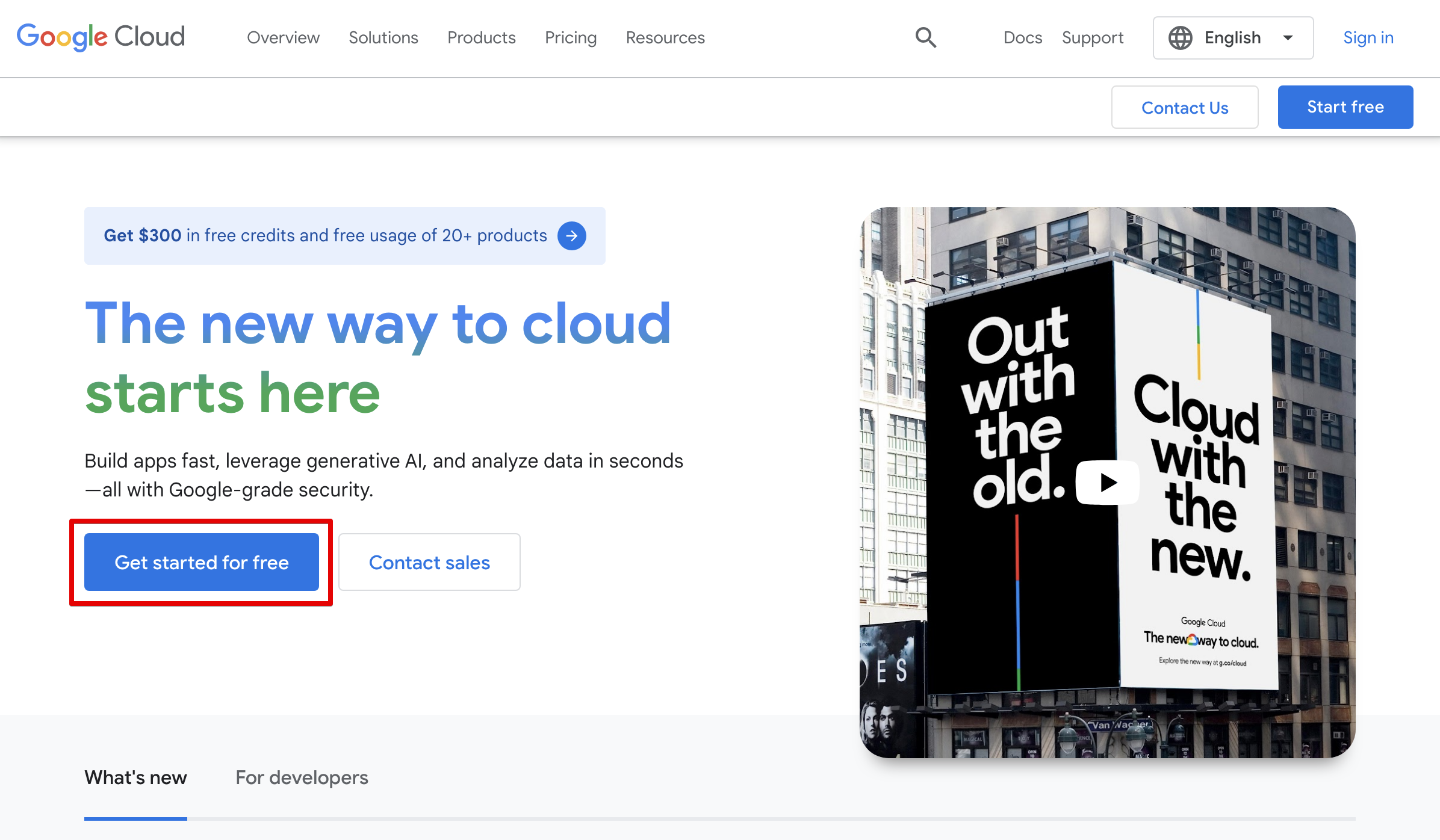
- Initiate Registration: Visit the Google Cloud console sign-up page. Sign in with your chosen Google account credentials.
- Define Location and Entity: Select your country of residence or business operation. You will be asked to classify whether you are an individual user or a business entity. Selecting "Business" may trigger additional tax information requirements depending on your jurisdiction.
- Establish Billing Identity: You will be prompted to create a "Billing Account." This account acts as the financial engine for your projects. You will link your credit card or payment profile here. Google will perform a temporary authorization hold to verify the card’s validity; ensure your card allows international or digital transactions.
- Identity Verification: Google may ask for additional documentation if the automated checks are inconclusive. This is a standard security measure to prevent fraud and maintain platform integrity.
- Dashboard Access: Once verification completes, you will be redirected to the Google Cloud Console dashboard. Here, you will be prompted to create your first project.
Managing Costs and the Free Tier
One of the primary benefits of creating a Google Cloud account in 2026 is the persistent Free Tier and the promotional trial credits. However, it is critical to distinguish between the two.
- Free Trial Credits: New users typically receive a one-time credit (often $300, though this varies by region and promotional eligibility) to explore services over a set period (usually 90 days). Once the trial expires or the credits are consumed, you must upgrade to a paid account to continue using services.
- Always Free Tier: Certain services (e.g., small Compute Engine instances in specific regions, a set amount of storage, or limited BigQuery queries) are free even after the trial ends, provided they stay within specified usage limits.
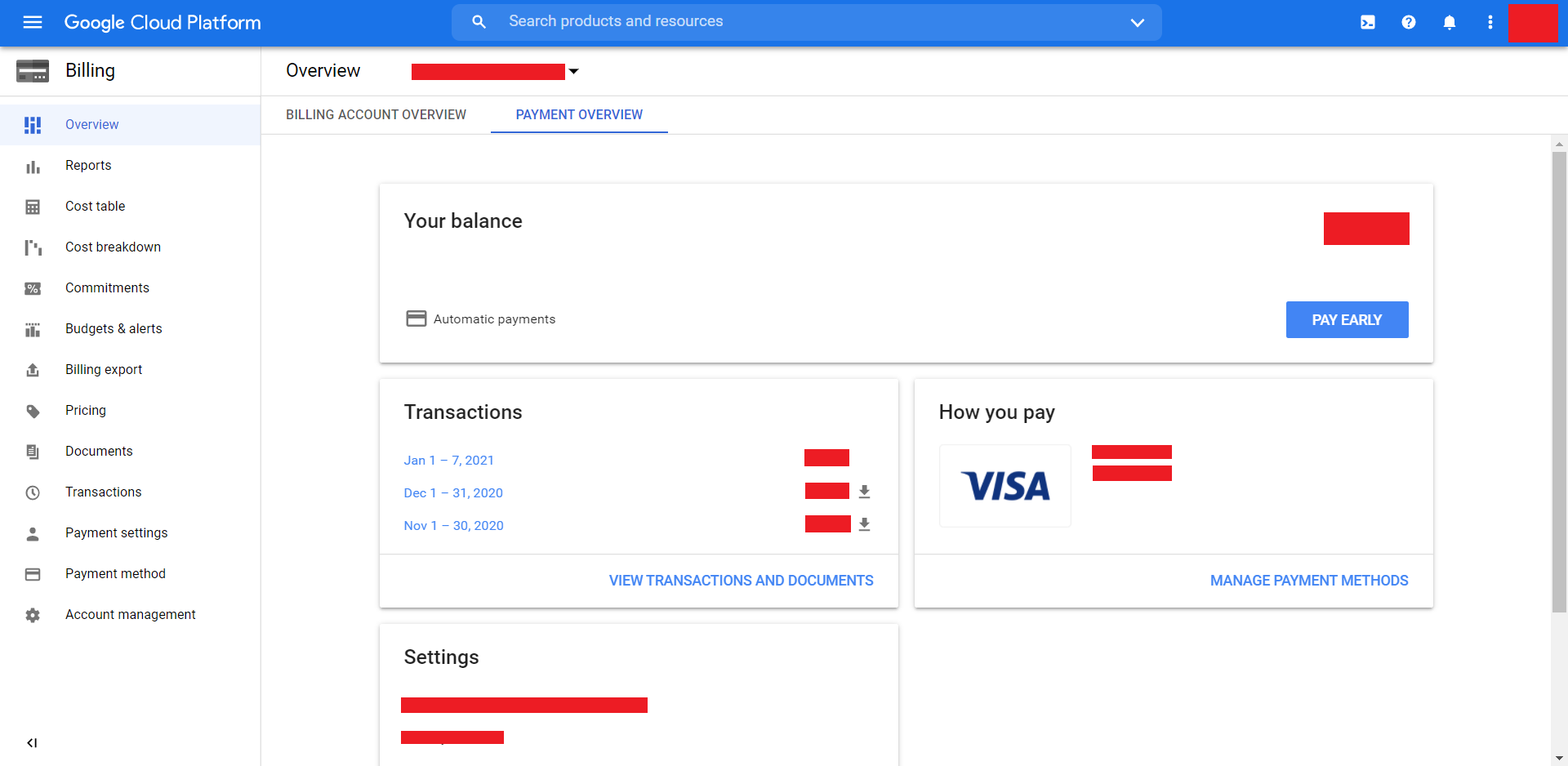
Warning on Automatic Billing: It is a common mistake to assume that all services are free. You should set up Budgets and Alerts in the Billing section of the console immediately after account creation. This ensures that if your resource consumption exceeds your expectations, you receive an automated notification before significant charges accrue.
Comparison of Account Types
| Feature | Personal/Individual Account | Business/Organization Account |
|---|---|---|
| Identity Management | Managed via standard Google login | Managed via Cloud Identity/Workspace |
| Billing Responsibility | Personal liability | Corporate/Entity liability |
| Collaboration | Limited sharing features | Advanced IAM (Identity & Access Mgmt) |
| Tax Documentation | Minimal requirements | Required for VAT/Tax compliance |
Troubleshooting Common Registration Issues
If you encounter errors during the "creating a google cloud account" process, the most frequent culprits are as follows:
- Payment Method Rejection: If your card is declined, ensure it supports "Card Not Present" (CNP) transactions. Virtual cards or prepaid cards are frequently rejected by the automated fraud detection system.
- Verification Loop: If you are stuck in a verification loop, do not attempt to create multiple accounts. This can lead to a permanent ban. Contact Google Cloud Support via the help widget on the sign-up page; they can manually verify your details.
- Disabled Services: If you are using a workspace account managed by your school or employer, your administrator may have disabled access to Google Cloud. You will need to request permission from your internal IT department.
Frequently Asked Questions
Can I use a single account for multiple projects? Yes. You can manage hundreds of different projects under one Google Cloud account. Each project acts as a silo, allowing you to separate development, staging, and production environments, as well as distinct client workloads.
Do I need a credit card if I only use free services? Yes. Google requires a payment instrument for every account to ensure accountability and to verify that the user is not a bot. You will not be charged unless you opt-in to paid tiers or exceed the usage limits of the "Always Free" services.
What is the difference between a project and a billing account? A project is a container for your technical resources (VMs, databases). A billing account is the financial entity that pays for those resources. You can link multiple projects to a single billing account for consolidated invoicing.
How do I delete my Google Cloud account? To remove your account, you must first close all active projects in the Cloud Console. Once all projects are shut down and the billing account is disabled, the Google Cloud service will eventually be deactivated for your user profile.
Is my data secure during the account creation process?
Yes. Google employs industry-standard encryption for all data submitted during the registration process. However, always ensure you are accessing the official portal, verified by checking that the URL is cloud.google.com.
Recommendation for New Users
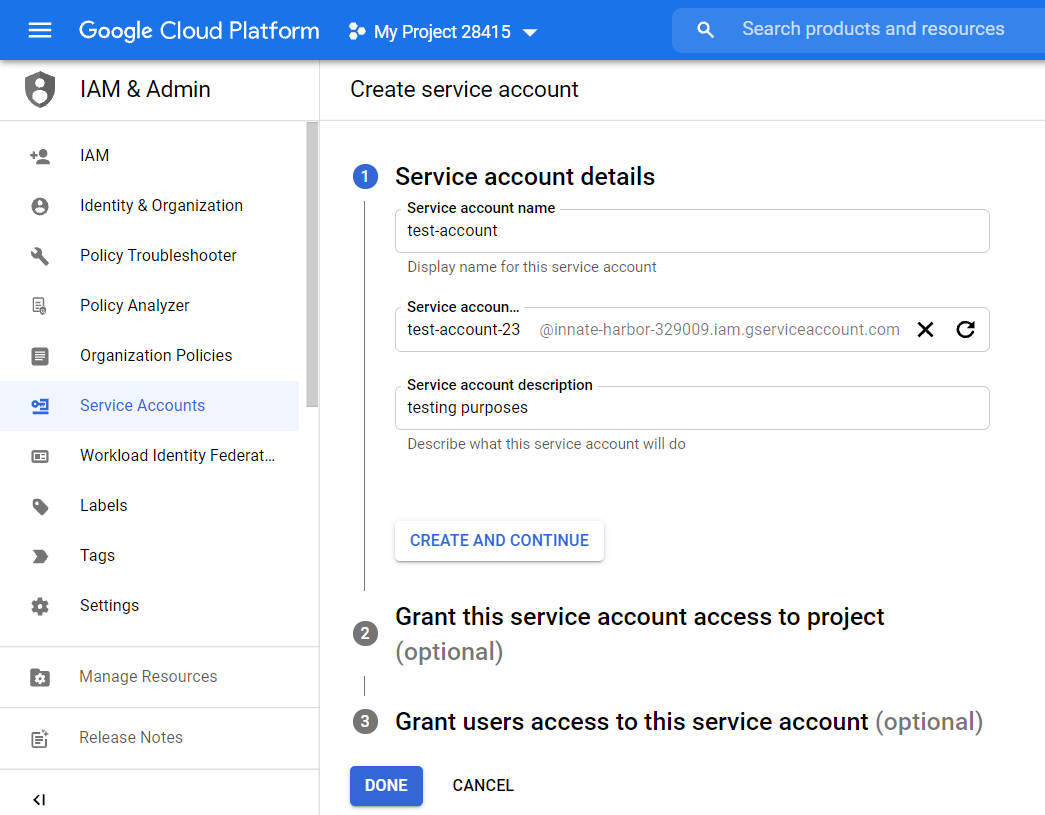
Upon completing the creation of your Google Cloud account, your immediate next step should be to navigate to the IAM (Identity and Access Management) section. Even if you are a sole developer, avoid using the root "Owner" account for daily tasks. Create a service account or a secondary user account with limited privileges. This "principle of least privilege" is the single most effective way to protect your cloud infrastructure from accidental deletion or unauthorized access. Following this, familiarize yourself with the Quotas page to understand the default limits on your resources, ensuring your applications have the necessary headroom to scale.
Image Gallery