Roku TV Setup Without Internet: A Comprehensive Offline Guide
Setting up a Roku TV without an active internet connection is possible for basic media consumption, but it requires specific expectations regarding functionality. While you can perform the initial physical setup and use the television...
Setting up a Roku TV without an active internet connection is possible for basic media consumption, but it requires specific expectations regarding functionality. While you can perform the initial physical setup and use the television as a display for external devices like cable boxes, game consoles, or Blu-ray players, the smart features—including channel installation, system updates, and streaming app access—remain inaccessible without a network connection.
Contents
Understanding the Limitations of Offline Use
Roku TVs are fundamentally designed as network-connected devices. Their primary value proposition centers on the Roku OS, which relies on cloud-based servers to deliver content updates, user interface changes, and streaming service authentication.
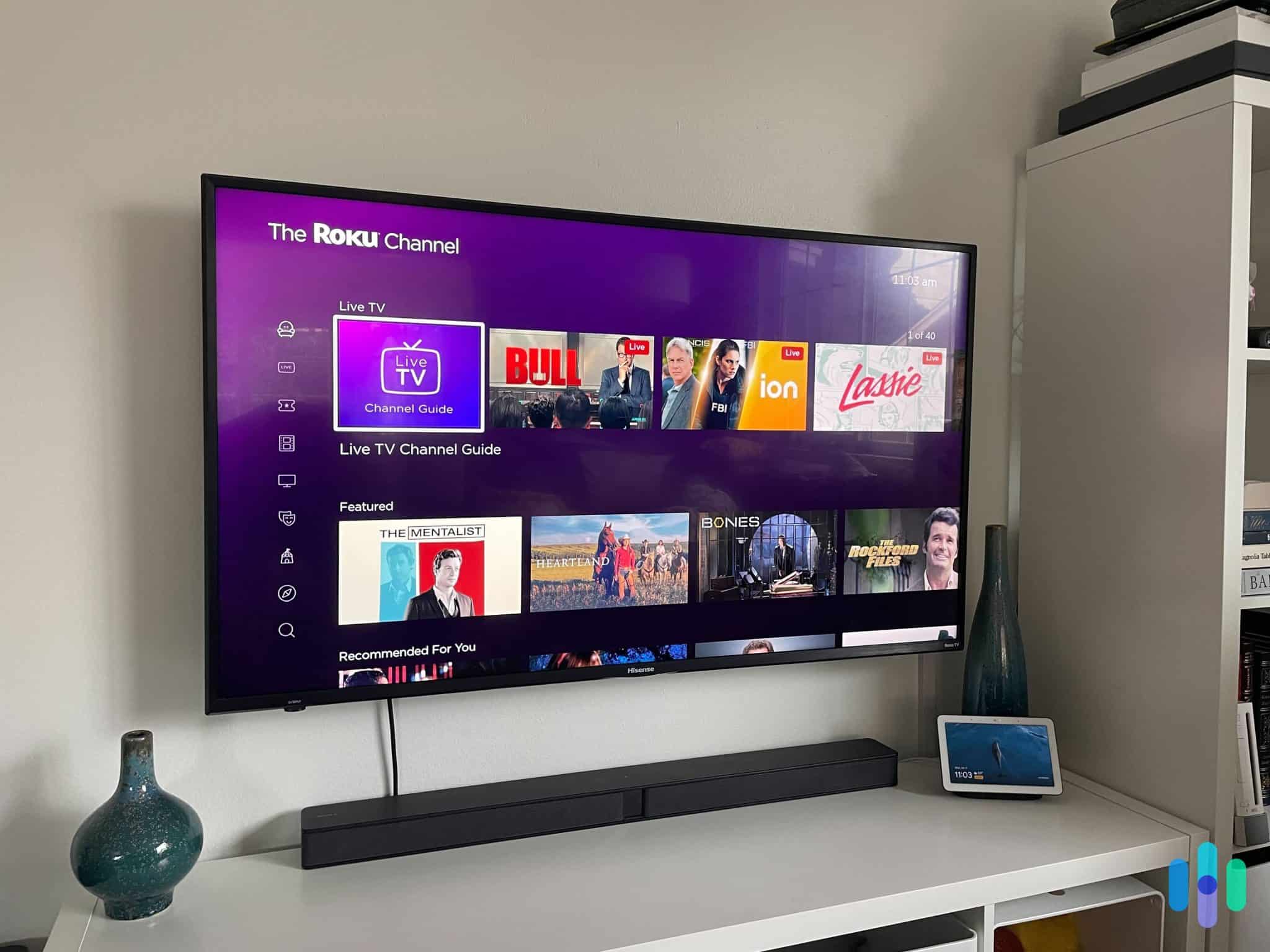
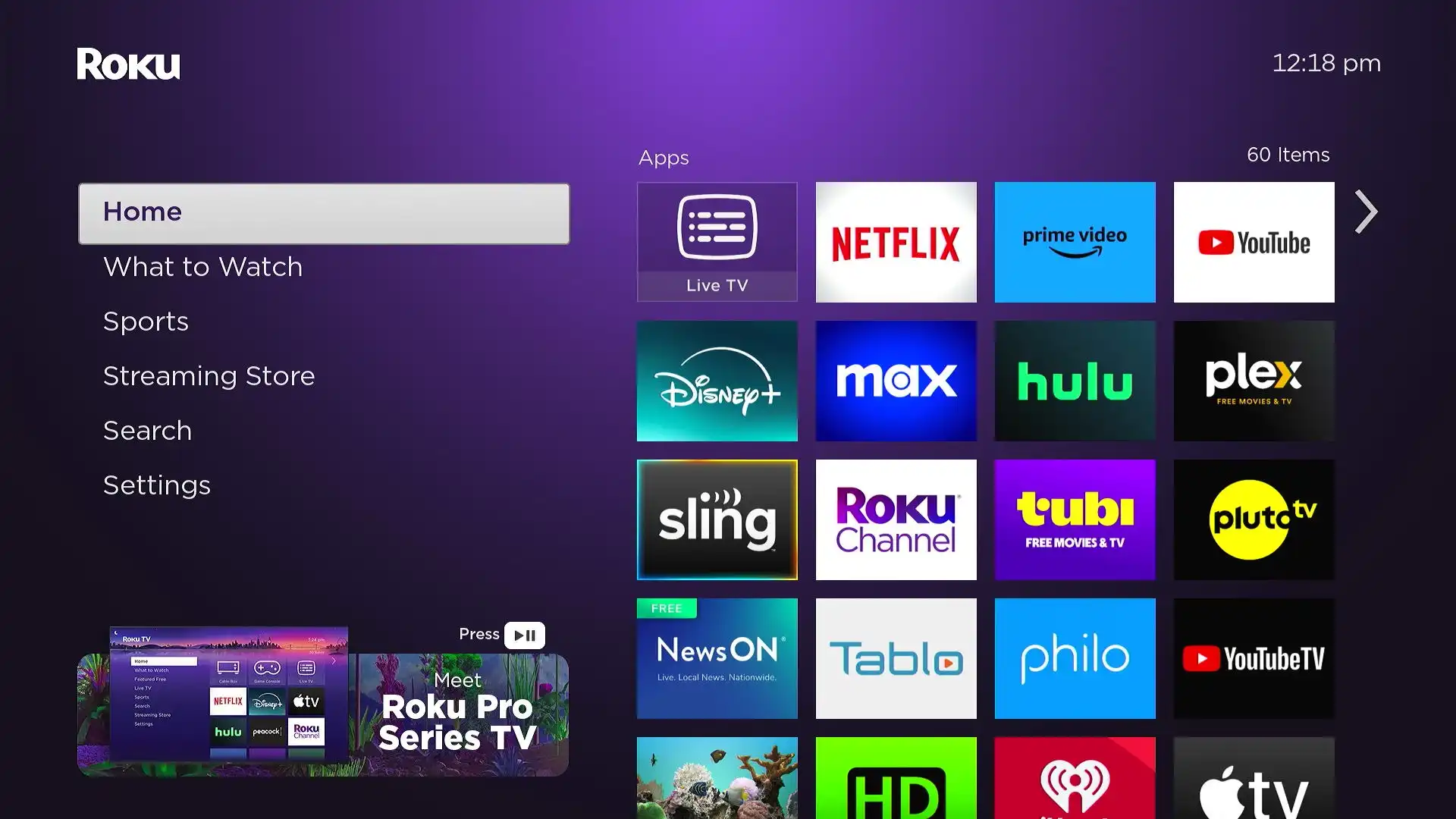
When you boot a Roku TV without an internet connection, you are effectively using a high-definition monitor. The "Home" screen will display limited options, and you will be unable to add new channels or sign in to services like Netflix, Hulu, or Disney+. Essentially, the device functions as a standard television, relying entirely on external hardware plugged into its HDMI or AV inputs for content delivery. If your goal is to use the built-in streaming apps, an internet connection is mandatory for at least the initial activation and account configuration process.
Initial Physical Setup and Hardware Connections
Before attempting to use your Roku TV, you must ensure the physical hardware is prepared. Follow these steps to ensure the device is ready for offline operation:
- Placement and Mounting: Place your Roku TV on a stable surface or mount it to a wall using a compatible VESA-standard mount. Ensure there is adequate ventilation around the rear of the unit.
- External Device Integration: Since the Roku OS will be limited, connect your primary media sources now. Use high-quality HDMI cables to connect your cable box, satellite receiver, antenna, or gaming console to the available ports on the back or side of the TV.
- Powering the Unit: Connect the power cable to a wall outlet or a surge-protected power strip.
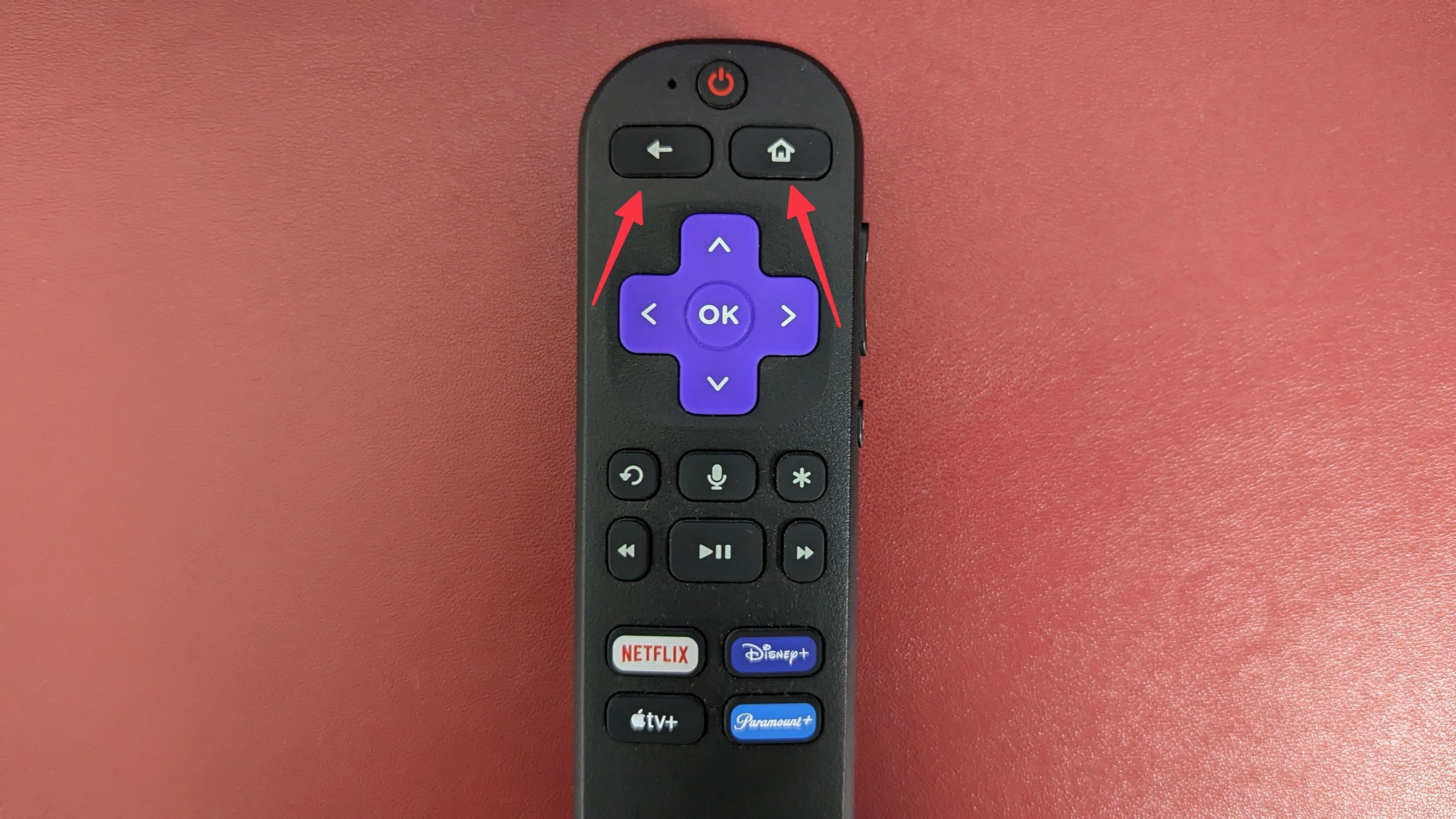
- Input Selection: Use the physical "Input" button on the TV chassis or your remote control to switch to the HDMI port where your external device is connected.
Navigating the Roku TV Without Network Access
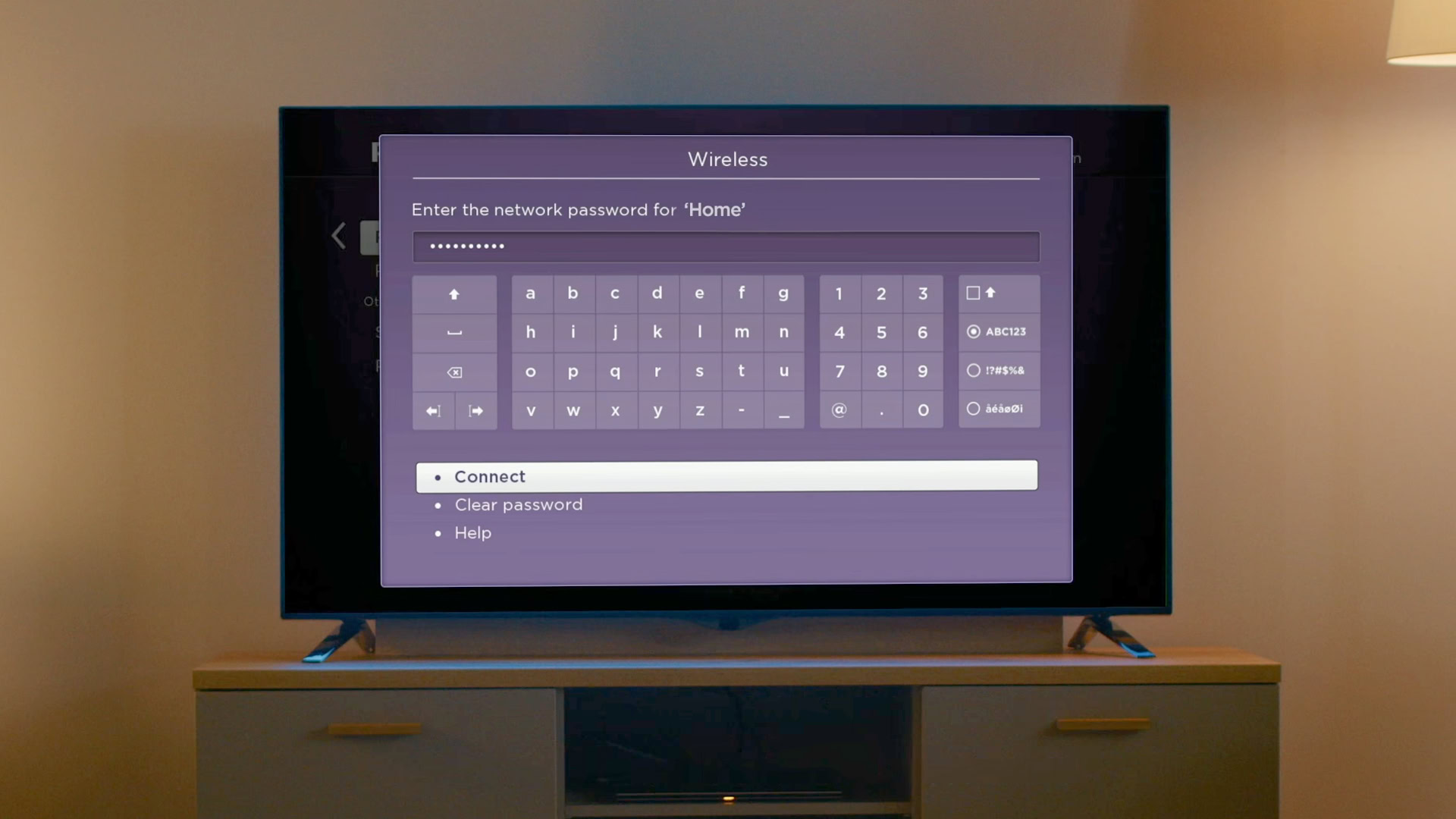
Once the TV is powered on, it will typically prompt you to set up a network connection during the initial startup wizard. If you do not have internet, you must bypass or skip these steps.
- Bypassing the Setup Wizard: Most Roku TV models allow you to select "Set up for home use" or "Connect to the internet later" during the guided setup. If you do not see a "skip" option, you may be stuck in a loop. In such cases, some users may find they must temporarily provide a mobile hotspot connection just long enough to activate the TV and bypass the registration screen, after which the internet can be disconnected permanently.
- Managing Inputs: With the TV in an offline state, the "Home" screen may look sparse. Focus on the "Inputs" tiles. You can rename these tiles (e.g., "Cable Box," "Xbox," "DVD Player") within the Settings menu so you can easily identify your connected hardware.
- Antenna Usage: If you have an Over-the-Air (OTA) antenna, plug it into the "Antenna/Cable In" port. Once you select the "Live TV" input, you can perform a channel scan. This process does not require internet; the TV uses its internal tuner to find broadcast signals in your immediate geographic area.
Comparison of Features: Online vs. Offline
The following table outlines what functionality you can expect from your Roku TV based on its network status.
| Feature | Connected to Internet | Offline / No Internet |
|---|---|---|
| Streaming Apps (Netflix, etc.) | Fully Functional | Unavailable |
| Roku Channel Store | Accessible | Unavailable |
| Firmware/OS Updates | Automatic | Unavailable |
| Live TV (Antenna) | Functional | Functional |
| External HDMI Devices | Functional | Functional |
| Voice Search/Remote App | Supported | Not Supported |
Why Firmware Updates Matter
One of the most significant drawbacks to permanent offline usage is the lack of system updates. Roku periodically releases firmware patches to improve security, address performance bugs, and support new hardware peripherals. While your TV will function fine without these updates in the short term, you may eventually encounter compatibility issues with newer external hardware or resolution formats. If you find your TV behaving erratically after several years, temporarily connecting it to a network to check for updates is the recommended diagnostic step.
Troubleshooting Common Offline Issues
If you are unable to bypass the startup screen or if your device is performing unexpectedly, consider these troubleshooting steps:
- Factory Reset: If the TV was previously used by someone else and is locked to their account, you may need to perform a factory reset. Look for a small "Reset" button on the back of the TV. With the device powered on, press and hold this button for 10–15 seconds until the power light flashes. This will clear all stored user data and return the TV to its out-of-box state.
- Check Input Cables: If you have no picture on your external devices, ensure your HDMI cables are seated firmly. Older HDMI cables may not support 4K signals; try swapping cables if you experience a "No Signal" message.
- Antenna Signal Strength: If you are using an antenna but see a black screen, ensure the coaxial cable is screwed in tightly. Navigate to the Live TV settings to re-run the "Channel Scan" to ensure the TV is searching for the correct local frequencies.
Frequently Asked Questions
Can I use a Roku TV as a computer monitor without the internet? Yes. You can connect a computer via an HDMI cable. Once the computer is connected, switch the Roku TV input to the corresponding HDMI port. The TV will act as a standard display for your PC or Mac.
Will I be able to access the Roku Channel store later? No. The Roku Channel store requires a persistent internet connection to fetch the catalog of available apps and to download them to the TV’s internal storage.
Does a Roku TV work with a DVD or Blu-ray player? Yes. Connect the player to an available HDMI port on the TV. Switch the input to the port you selected, and the Roku TV will display the video output from your disc player normally.
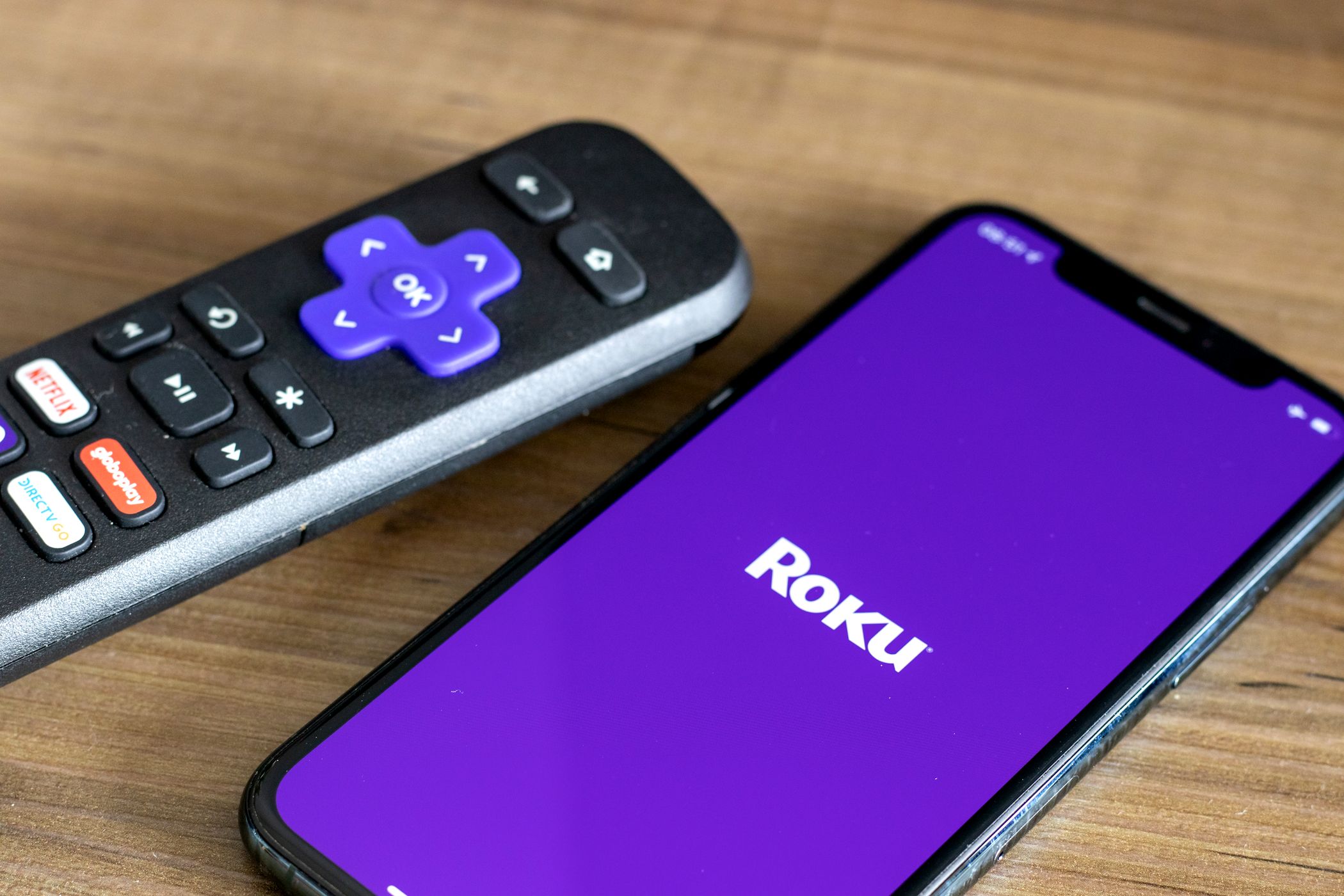
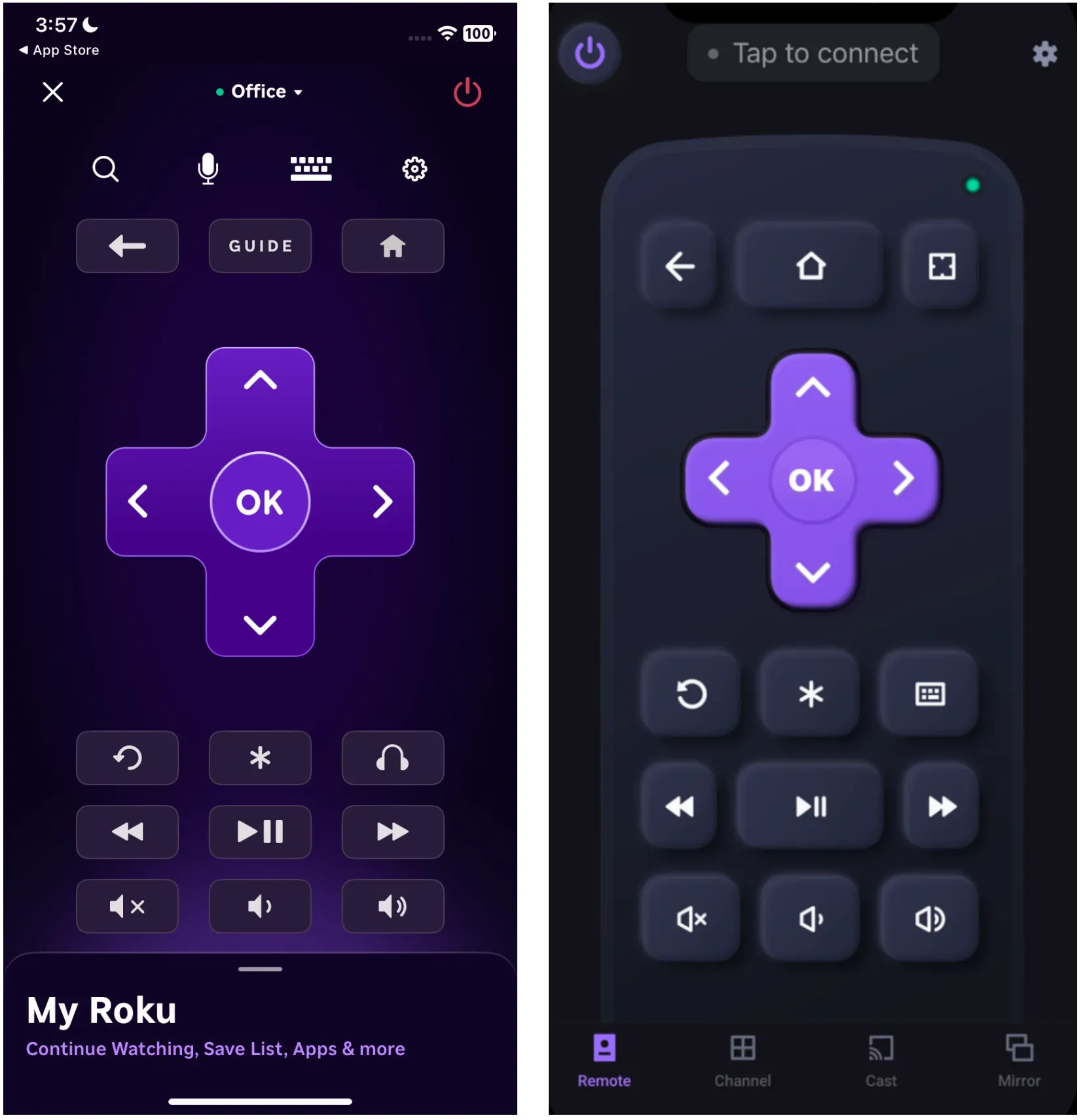
Can I use the Roku mobile app to control the TV offline? No. The Roku mobile app requires both your phone and the Roku TV to be on the same local network. Without a router or internet-enabled Wi-Fi, the app cannot detect or pair with the television.
How do I adjust picture settings without the internet? Picture settings (Brightness, Contrast, Color, Aspect Ratio) are controlled via the Settings menu on the Roku interface. These settings are stored locally on the television, so you can adjust them at any time without needing an internet connection.
Final Recommendation
If you choose to use your Roku TV in an offline environment, treat it as a dedicated display device. Ensure your external hardware—such as an antenna, Blu-ray player, or gaming console—is high-quality, as these will be your primary sources of entertainment. While the "Smart" features of the Roku OS will remain dormant, the TV remains a highly capable display for various multimedia needs. If you ever decide to enable the smart features, a standard home Wi-Fi or wired Ethernet connection will instantly unlock the full suite of streaming services and system capabilities.
Image Gallery