What is AR Doodle on Samsung? A Comprehensive Guide to Augmented Reality Drawing
AR Doodle is an advanced camera feature on Samsung Galaxy devices that allows users to create three-dimensional drawings and animations within a real-world environment using augmented reality (AR) technology. By utilizing the device’s...
AR Doodle is an advanced camera feature on Samsung Galaxy devices that allows users to create three-dimensional drawings and animations within a real-world environment using augmented reality (AR) technology. By utilizing the device’s cameras and sensors, it "anchors" digital sketches to specific faces or spatial locations, ensuring the drawings move realistically as the camera shifts.
Contents
Samsung’s ecosystem has long been at the forefront of integrating creative tools into its mobile hardware. AR Doodle represents a significant leap from traditional 2D photo editing into the realm of spatial computing. Whether you are using a stylus-equipped Galaxy Note or S-series Ultra, or simply your fingertip on a Galaxy A-series device, AR Doodle transforms the viewfinder into a canvas where digital ink interacts with the physical world.
The Evolution of AR Doodle in the Samsung Ecosystem
Originally introduced alongside the Galaxy Note 10 series, AR Doodle was designed to showcase the precision of the S Pen and the processing power of Samsung’s dedicated Neural Processing Units (NPUs). As of 2026, the feature has evolved from a niche novelty into a robust component of the AR Zone suite, benefiting from years of improvements in machine learning and depth-sensing technology.
The primary appeal of AR Doodle lies in its ability to track movement. Unlike a standard filter that overlays an image on top of a video, AR Doodle uses Simultaneous Localization and Mapping (SLAM) and facial recognition algorithms. This allows the software to understand the geometry of the room or the specific contours of a person's face. If you draw a crown on a friend’s head and they move across the room, the crown stays fixed to their head in 3D space, maintaining the correct perspective and scale.
Core Modes: Face vs. Everywhere
To use AR Doodle effectively, it is essential to understand the two distinct modes of operation. The device automatically prompts the user to select or identifies the environment based on what the camera perceives.
1. Face Mode
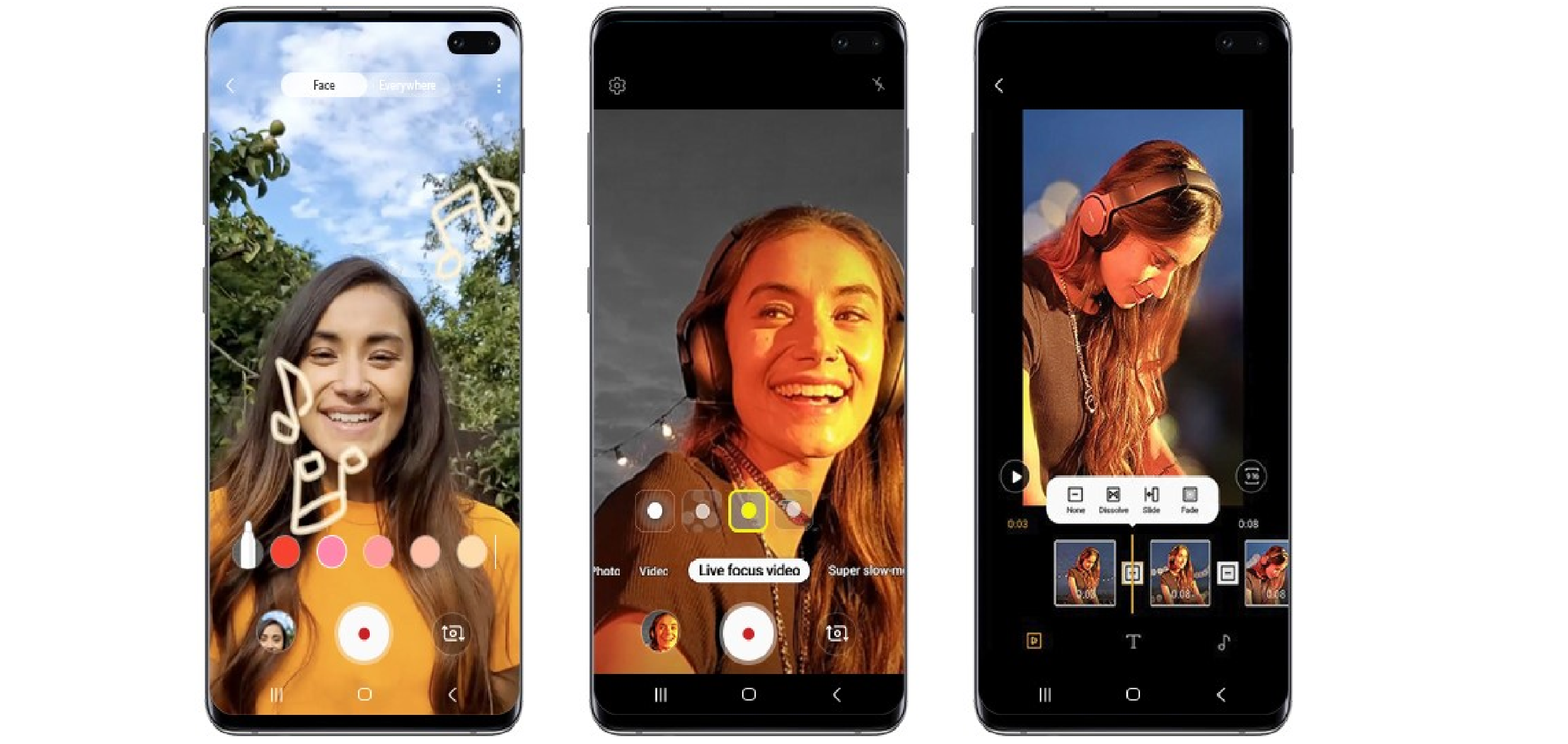
In Face mode, the software uses the front or rear camera to identify human facial features. It maps "landmarks"—specific points on the eyes, nose, mouth, and forehead. When you draw in this mode:
- Tracking: The drawing is tethered to the face. If the subject blinks, turns their head, or moves closer to the lens, the doodle scales and rotates accordingly.
- Creative Potential: This is commonly used for creating digital masks, glowing eyes, or handwritten captions that follow a speaker.
- Limitations: Face mode typically supports a limited number of faces simultaneously (usually up to three) to maintain tracking stability.
2. Everywhere Mode
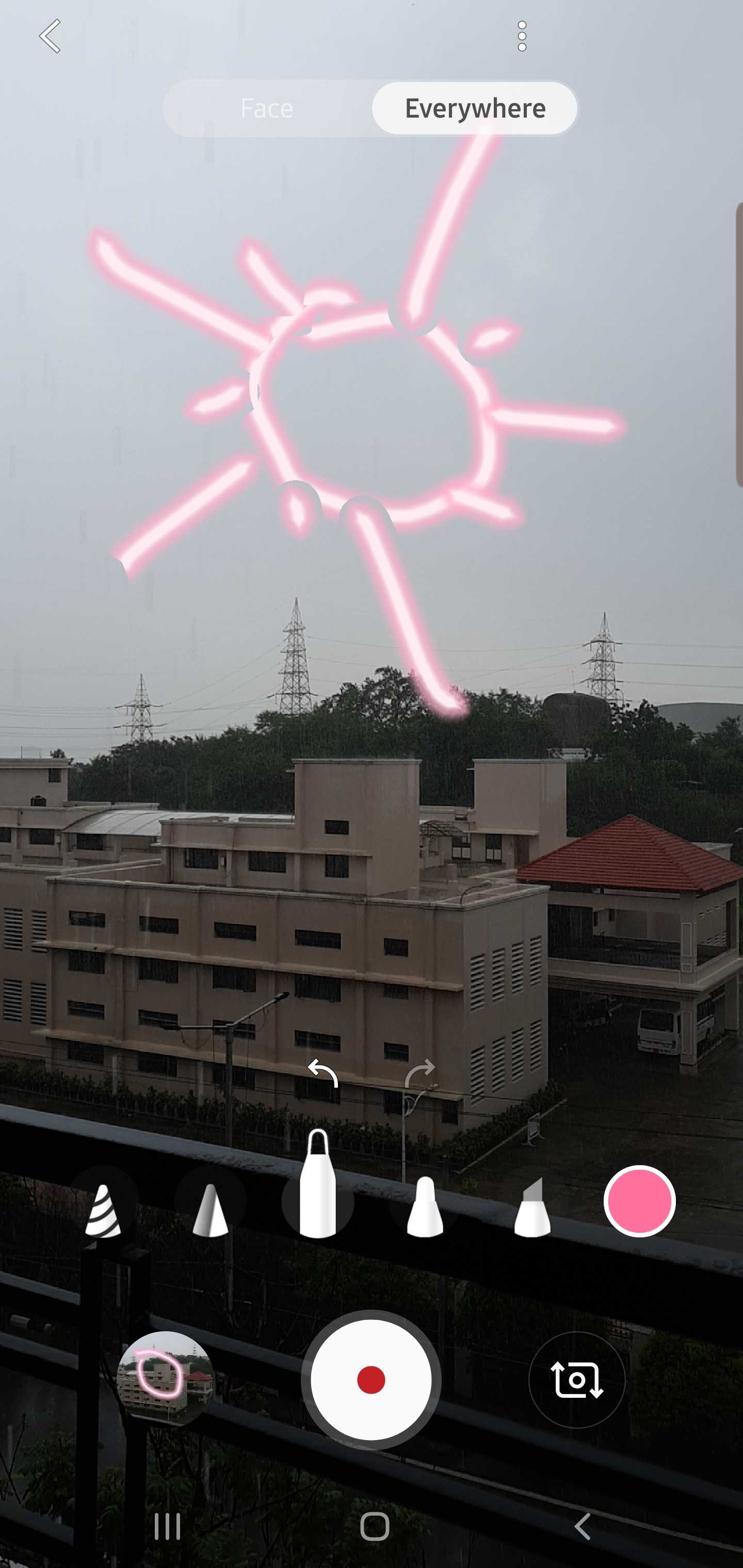
Everywhere mode (sometimes referred to as "Space" mode) utilizes the rear camera and specialized sensors like the ToF (Time-of-Flight) sensor or advanced AI depth estimation found in newer 2024–2026 models.
- Tracking: The software identifies flat surfaces or points in 3D space. You can draw a floating path in the air or leave a message on a wall.
- Persistence: As you walk around the room with your phone, the drawing stays exactly where you "left" it in the air. You can even walk through or behind your drawings if the depth mapping is sufficiently detailed.
- Environmental Awareness: This mode requires a well-lit environment with identifiable textures (like a carpeted floor or a brick wall) to help the sensors maintain a "lock" on the environment.
Technical Prerequisites and Device Compatibility
While AR Doodle is a staple of the Samsung experience, its performance varies based on hardware. As of 2026, the feature is most performant on devices equipped with high-end processors that can handle real-time spatial rendering without significant latency.
| Feature Component | Requirement/Detail | Supported Devices (Examples) |
|---|---|---|
| Operating System | One UI 2.0 or higher | Galaxy S10 through Galaxy S26 series |
| Primary App Hub | AR Zone / Camera App | Most Galaxy devices produced after 2019 |
| Input Method | S Pen or Finger | S26 Ultra, Z Fold series, Tab S10 |
| Tracking Tech | ARCore & Samsung AR Engine | All AR-compatible Galaxy phones |
| Optimal Sensors | LiDAR / ToF / AI Depth Engine | Ultra and Foldable flagship models |
For the best experience, a device with an S Pen is highly recommended. The pressure sensitivity and fine tip of the S Pen allow for much more intricate designs than a finger. However, Samsung has optimized the touch interface so that users on the Galaxy A and M series can still participate in AR creation effectively.
How to Access and Use AR Doodle
Accessing AR Doodle is straightforward, though its location can vary slightly depending on your version of One UI.
- Open the Camera App: Launch the native Samsung camera.
- Navigate to "More": Swipe through the camera modes (Photo, Video, Portrait) until you see the More option.
- Enter AR Zone: Tap on the AR Zone icon. This is the centralized hub for all augmented reality features, including AR Emoji, AR Mirror, and AR Doodle.
- Launch AR Doodle: Select the AR Doodle icon.
- Select Your Mode: The phone will attempt to detect a face. If it finds one, it defaults to Face mode. If you point it at an open space, it will switch to "Everywhere" mode.
- Draw and Record: Choose your pen type, color, and thickness. Once your masterpiece is ready, hit the record button to capture a video of the AR elements interacting with the world.
Pro-Tips for Better Tracking
- Lighting is Key: AR tracking relies on visual contrast. Shadows or extremely bright highlights can confuse the sensors, causing your drawings to "drift" or disappear.
- Avoid Reflective Surfaces: Mirrors and glass can break the SLAM algorithm, as the phone cannot tell if the object is in front of or behind the surface.
- Slow Movements: When initially "mapping" the room in Everywhere mode, move the camera slowly in a circular motion to allow the AI to build a reliable spatial map.
The Science Behind the Magic: How It Works
AR Doodle isn't just a simple drawing overlay; it is a sophisticated implementation of computer vision. When you start the app, the phone’s processor performs thousands of calculations per second.
First, the Image Signal Processor (ISP) takes the raw data from the camera. Simultaneously, the Inertial Measurement Unit (IMU)—the gyroscope and accelerometer—tracks how you are moving the phone. The ARCore engine (developed by Google and customized by Samsung) fuses this data.
In Face mode, the AI identifies the geometry of the human face. It doesn't just see a flat image; it understands the bridge of the nose as a "peak" and the eye sockets as "valleys." When you draw a line across the forehead, the software interprets that line as being mapped to those specific 3D coordinates.
In Everywhere mode, the phone looks for "feature points"—high-contrast spots in the environment. It uses these points to create a "point cloud," which is essentially a 3D skeleton of your room. Your doodles are then placed within this coordinate system. In 2026, with the integration of more advanced Generative AI, Samsung devices can even suggest "intelligent doodles" that interact with the physical properties of objects, such as digital water that "flows" over a real table.
Practical Applications for AR Doodle
While many use AR Doodle for social media fun (like Instagram Reels or TikToks), there are several practical and educational applications for the technology:
- Educational Demonstrations: Teachers can use AR Doodle to draw arrows and labels in real-time over physical objects during a video lesson, helping students identify parts of a machine or biological specimens.
- Interior Design Previsualization: Before moving furniture, a user can "sketch" the dimensions of a new sofa in their living room to see how much space it will occupy.
- Interactive Storytelling: Parents can create immersive "magic" worlds for children, drawing floating stars or animated characters that appear to live within the home.
- Wayfinding: You can record a video for a friend arriving at a complex location, drawing neon paths on the floor to show them exactly which door to enter.
Troubleshooting Common Issues
Despite the technological advancements of 2026, users may still encounter occasional hurdles.
Drawing is Drifting or Moving: This is usually caused by a loss of "tracking." If the environment is too dark or too "plain" (like a blank white wall), the camera can't find feature points to anchor to. Try moving to a better-lit area or adding a physical object to the frame to give the camera something to lock onto.
The Feature is Missing: If you cannot find AR Doodle in your camera settings, ensure that the AR Zone app is updated via the Galaxy Store. Some budget models may not support the "Everywhere" mode due to a lack of necessary sensors, though they may still support "Face" mode.
Overheating and Battery Drain: AR processing is resource-intensive. It engages the GPU, NPU, and camera sensors simultaneously. It is normal for the device to become warm during extended use. If the phone becomes too hot, One UI may throttle performance or close the app to protect the hardware.
Frequently Asked Questions
Can I save AR Doodles as photos?
While AR Doodle is primarily designed for video—since the "magic" is in the movement—you can take a screen capture or use the shutter button within the AR Doodle interface to save a still image of your creation. However, the 3D depth effect is best preserved in video format.
Does AR Doodle work on Zoom or third-party video calls?
Direct integration into third-party apps like Zoom or Microsoft Teams is currently limited. To show an AR Doodle during a call, you typically need to record the video first and share it, or use a screen-sharing feature while the AR Zone app is active.
Is AR Doodle different from AR Emoji?
Yes. AR Emoji creates a digital avatar of the user that mimics their expressions. AR Doodle is a free-form drawing tool. While both live within the AR Zone, they serve different creative purposes. You can, however, sometimes use them together by drawing "on top" of your AR Emoji.
Do I need an S Pen to use AR Doodle?
No. While the S Pen provides much better precision and feels more like drawing on a real surface, AR Doodle is fully functional using your fingertip. Samsung's software includes "smoothing" algorithms that help make finger-drawn lines look cleaner and more professional.
Can I share my 3D doodles with other Samsung users?
You can share the recorded videos and photos like any other media file. As of 2026, there are limited ways to share the "live" 3D coordinate data for another person to view in their own AR environment, though this is a growing area of development for Samsung's collaborative AR tools.
Summary and Next Steps
AR Doodle on Samsung is a powerful testament to how far mobile photography has come. It bridges the gap between static content and interactive, spatial experiences. If you haven't explored this feature yet, the best way to learn is through experimentation.
Your Next Action: Open your Camera app, navigate to the AR Zone, and try the Everywhere mode in a well-lit room. Start by drawing a simple floating shape and walking around it to see how the phone maintains the object’s position in 3D space. Once you master the spatial anchoring, you can begin using it to create more complex, professional-looking content for your social or personal projects.
Image Gallery