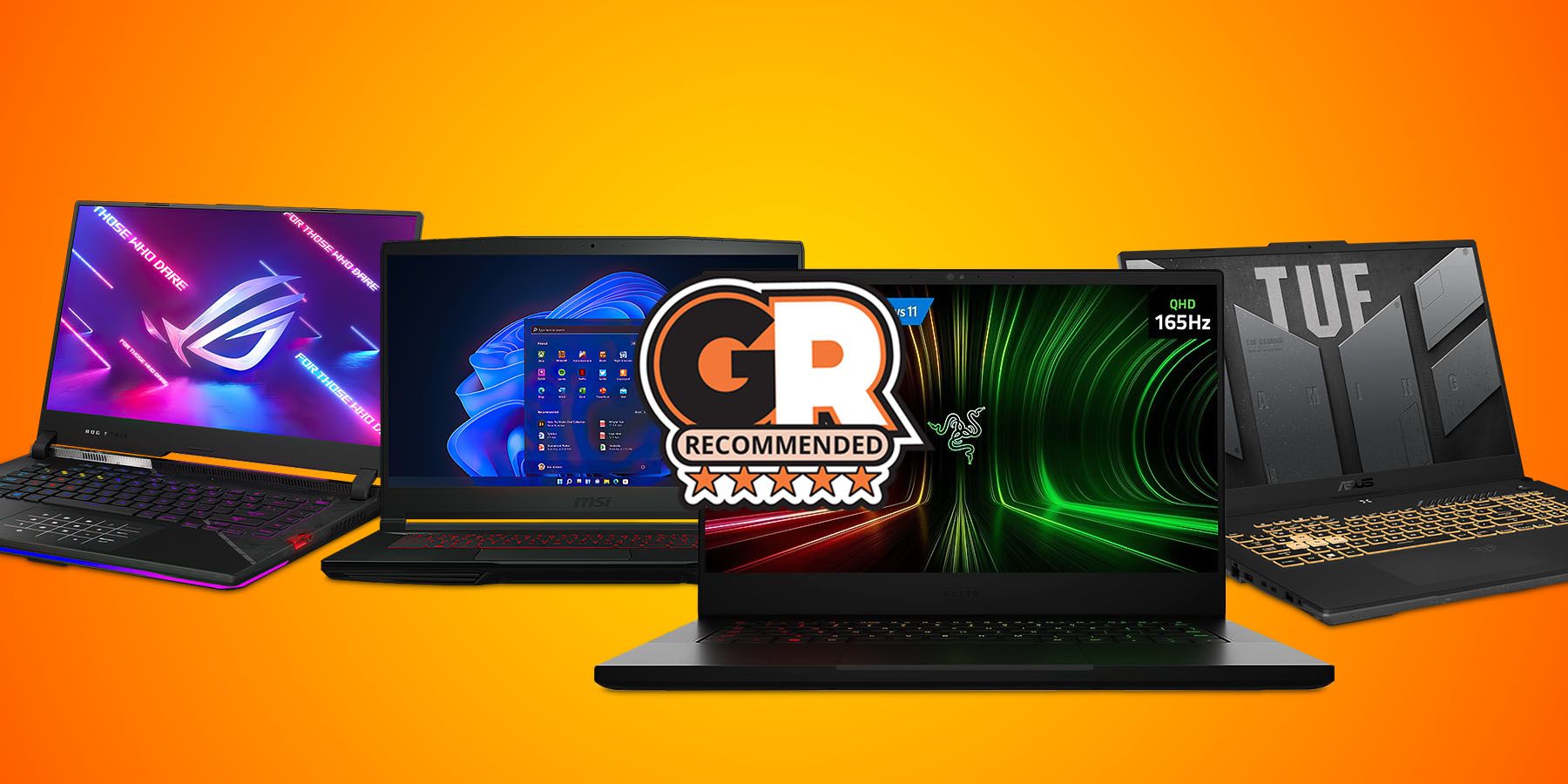
Choosing the Best Good Laptop for Home Use
Finding the best good laptop for home use requires balancing daily reliability, comfortable ergonomics, and versatile performance to handle everything from web browsing and household budgeting to streaming media and occasional remote w...
Finding the best good laptop for home use requires balancing daily reliability, comfortable ergonomics, and versatile performance to handle everything from web browsing and household budgeting to streaming media and occasional remote work.
Contents
Selecting a computer for household use can feel overwhelming given the vast array of technical specifications, brand lineups, and price points available on the market. Unlike corporate machines optimized for strict IT policies or specialized gaming rigs built for maximum frame rates, a home laptop must serve multiple family members with diverse needs. It needs to boot up quickly, handle multiple browser tabs without stuttering, feature a comfortable keyboard for typing emails, and offer a durable build quality that withstands casual use on the couch, kitchen counter, or home desk.
Evaluating your specific household requirements, understanding essential hardware components, and recognizing the trade-offs between different operating systems will ensure you invest in a reliable device that serves your household well for years to come.
Assessing Household Use Cases and Performance Needs
Before examining processor speeds and storage capacities, you must define how your household intends to use the laptop. A machine purchased exclusively for paying bills and checking recipes has vastly different hardware requirements than one shared by a college student writing research papers and a parent editing family photo libraries.
Most home computing tasks fall into a few distinct categories:
- Essential Tasks: Web browsing, checking email, online banking, streaming high-definition video, and managing household schedules.
- Productivity and Education: Creating text documents, building spreadsheets, participating in video conference calls for remote work or school, and running basic educational software.
- Entertainment and Casual Creation: Playing light casual games, organizing digital photo collections, and performing basic audio or video trimming.
If your household stays within the boundaries of essential tasks and basic productivity, you do not need to overspend on high-end components. However, buying a severely underpowered machine to save a small amount of money often leads to frustration, slow response times, and premature replacement. Striking the right balance means identifying the hardware specifications that guarantee smooth, lag-free performance for everyday workflows.
Decoding Core Hardware Specifications
Navigating laptop spec sheets involves understanding a few critical components. Manufacturers often use complex terminology, but focusing on four primary pillars—the processor, memory, storage, and display—will give you a clear picture of how a laptop will perform in real-world home use.
Processor (CPU)
The central processing unit acts as the brain of the computer. For standard home use, modern multi-core processors provide more than enough power. Look for current-generation Intel Core i3 or i5 processors, AMD Ryzen 3 or 5 chips, or Apple’s base M-series processors (such as the M1, M2, or M3). These processors handle multitasking efficiently without consuming excessive battery power. Avoid ultra-budget, legacy, or low-end processors (such as older Celeron or Pentium chips) if you want the laptop to remain responsive over several years of operating system updates.
System Memory (RAM)
Random access memory determines how many tasks the computer can manage simultaneously. If you open twenty browser tabs while streaming music and running a word processor, your RAM capacity prevents the system from freezing.
- 8GB RAM: This is the absolute baseline for modern home use. It handles web browsing, streaming, and basic office applications comfortably.
- 16GB RAM: Highly recommended if multiple household members share the device, if you keep numerous applications open simultaneously, or if you want future-proofing for heavier software updates.
Storage Type and Capacity
Solid-State Drives (SSDs) have entirely replaced traditional mechanical hard drives in modern laptops. SSDs offer near-instant boot times, rapid file transfers, and greater durability against physical bumps because they contain no moving parts. For a home laptop, aim for a minimum of 256GB of storage. If your household stores large media libraries, high-resolution family photos, or downloaded movies locally, upgrade to a 512GB or 1TB drive to avoid running out of space.
Display and Ergonomics
Because home laptops are frequently used on laps, kitchen tables, and living room sofas, physical comfort matters immensely. Look for a screen size between 13 and 15 inches, which provides a comfortable viewing area while maintaining portability. A Full HD resolution (1920x1080 pixels) ensures crisp text and clear video streaming. Additionally, pay attention to keyboard tactile feedback and trackpad responsiveness, as a cramped keyboard or sticky trackpad quickly frustrates daily users.
Comparing Operating Systems for the Home Environment
Choosing an operating system shapes your software compatibility, security maintenance, and overall user experience. The three primary options—Windows, macOS, and ChromeOS—each cater to different preferences and technical comfort levels.
| Operating System | Best Suited For | Key Advantages | Primary Limitations |
|---|---|---|---|
| Microsoft Windows | General households, casual gamers, legacy software users | Vast software compatibility, wide hardware selection, excellent file management | Susceptible to traditional malware; background updates can occasionally disrupt workflows |
| Apple macOS | Creative tasks, ecosystem integration, long-term hardware longevity | Premium build quality, seamless continuity with iPhones, exceptional battery life | Higher initial purchase price; limited hardware upgradeability |
| Google ChromeOS | Web-centric users, younger students, budget-conscious households | Fast booting, highly secure, simple interface, affordable hardware options | Dependent on internet connectivity; limited ability to run native desktop software like full Microsoft Office |
When selecting an operating system, consider the devices your household already uses. If everyone owns an iPhone or iPad, an Apple MacBook integrates smoothly into that ecosystem. If your family relies on standard PC applications, custom file organization, or casual PC gaming, a Windows laptop provides the necessary flexibility. If your daily computer use revolves around web browsers, Google Docs, streaming services, and online learning portals, a Chromebook offers a streamlined, low-maintenance alternative.
Practical Cost Considerations and Budgeting
Setting a realistic budget helps narrow choices and prevents feature creep. Home laptops generally fall into three distinct pricing tiers, each offering different value propositions.
Budget Tier ($300 – $500)
Laptops in this price range handle basic web browsing, checking email, and writing documents adequately. When shopping in this tier, verify that the machine includes an SSD and at least 8GB of RAM, as some ultra-budget models still ship with sluggish storage or inadequate memory. Build quality in this bracket often relies on plastic chassis materials, and battery life may be modest.
Mid-Range Tier ($500 – $900)
This tier represents the sweet spot for most households. Mid-range laptops offer robust performance, premium aluminum or reinforced composite chassis builds, comfortable keyboards, bright Full HD or better displays, and reliable battery life. Machines in this category easily handle multitasking, remote work requirements, and moderate entertainment use without slowing down prematurely.
Premium Tier ($900 and Above)
Premium laptops feature high-end materials, exceptional build quality, high-resolution touch or OLED displays, powerful processors, and thin, lightweight designs. While wonderful for enthusiasts or professionals who require specialized computing power, these machines often exceed the practical needs of standard household tasks.
Common Mistakes to Avoid When Buying a Home Laptop
Navigating sales pitches and technical jargon can lead to costly missteps. Keep these common pitfalls in mind during your search:
- Buying Based Solely on Brand Name: While brand reputation matters for customer support and warranty service, every major manufacturer produces both excellent models and subpar budget entries. Always evaluate a specific model based on its individual hardware specifications and independent reviews.
- Ignoring Port Selection: Modern ultra-thin laptops often eliminate standard USB ports, HDMI outputs, and SD card readers in favor of minimalist USB-C connections. Ensure the laptop you choose has the ports you need, or budget for an external dongle or docking station.
- Overlooking Battery Life Claims: Manufacturer battery life estimates are typically tested under ideal laboratory conditions with dim screen settings. Real-world home usage—streaming video, running multiple tabs, and maintaining bright screens—drains batteries much faster. Look for independent reviews that test real-world battery endurance.
- Neglecting Upgradeability: Most modern consumer laptops feature soldered RAM and storage components that cannot be upgraded later. Buying a machine with adequate memory and storage upfront prevents obsolescence.
Maintaining and Protecting Your Home Laptop
Once you select and purchase your home laptop, proper setup and ongoing maintenance ensure long-term reliability.
- Perform Initial Updates: Upon unboxing, connect the laptop to Wi-Fi and run all operating system updates, security patches, and firmware updates to ensure optimal stability and security.
- Establish User Accounts: If multiple family members share the device, set up individual user profiles or accounts. This keeps personal files private, organizes individual preferences, and prevents accidental deletion of important documents.
- Implement Security Best Practices: Enable the built-in operating system security suite (such as Windows Defender or macOS security features), avoid downloading unverified software from unknown sources, and educate younger household members on basic phishing awareness.
- Practice Proper Physical Care: Keep food and beverages away from the keyboard to prevent liquid damage, use a padded sleeve or bag if transporting the machine around the house or outdoors, and avoid blocking cooling vents while using the laptop on soft surfaces like beds or couches.
Frequently Asked Questions
How much RAM do I actually need for a home laptop?
For standard home use—such as web browsing, streaming video, paying bills, and writing documents—8GB of RAM is the recommended minimum. If your household frequently multitasks with dozens of browser tabs open, runs heavy productivity applications, or wants the machine to remain fast for many years, investing in 16GB of RAM is a worthwhile upgrade.
Can a home laptop double as a gaming machine?
Standard home laptops equipped with integrated graphics can handle casual web-based games, older titles, and lightweight indie games. However, modern 3D PC gaming requires a dedicated graphics processing unit (GPU) and robust cooling systems. If heavy gaming is a primary requirement, look specifically for entry-level or mid-range gaming laptops rather than standard consumer machines.
How long should a good home laptop last?
A well-maintained mid-range home laptop typically remains functional and responsive for four to six years. Battery degradation and operating system updates eventually impact older hardware, making proper physical care and regular software maintenance key to maximizing its lifespan.
Is a touchscreen necessary for home use?
A touchscreen is largely a matter of personal preference rather than a necessity. While some users enjoy tapping through web pages or scrolling documents intuitively, traditional non-touch laptops are typically less expensive, offer slightly better battery life, and feature matte screen finishes that reduce annoying glare under household lighting.
Should I buy an extended warranty for my laptop?
Most laptops come with a standard one-year manufacturer warranty that covers hardware defects. Extended warranties or accidental damage protection plans can offer peace of mind if the laptop will be used by children or moved around frequently, but review the policy terms carefully to ensure coverage details justify the additional upfront cost.
Conclusion and Next Actions
Choosing the best good laptop for home use comes down to accurately matching your household's daily routines with the right combination of processor speed, memory, and build quality. Focus on machines with at least 8GB of RAM, a reliable solid-state drive, and a comfortable keyboard and display. Begin by listing your household's non-negotiable tasks, establish a realistic mid-range budget, and compare operating systems based on your familiarity and existing device ecosystems. Review independent testing for real-world battery performance and port availability before making your final purchase.
Image Gallery