Troubleshooting and Resolving iCloud WhatsApp Backup Restoration Failures
If you cannot restore your WhatsApp backup from iCloud, the issue is typically caused by a mismatch in Apple ID credentials, insufficient iCloud storage space, an unstable network connection, or a corrupted previous backup file. To res...
If you cannot restore your WhatsApp backup from iCloud, the issue is typically caused by a mismatch in Apple ID credentials, insufficient iCloud storage space, an unstable network connection, or a corrupted previous backup file. To resolve this, ensure you are signed into the same Apple ID used to create the backup, verify your phone number matches the original account, and confirm that your iPhone has enough free storage to accommodate the data being restored.
Contents
Understanding the WhatsApp iCloud Backup Architecture
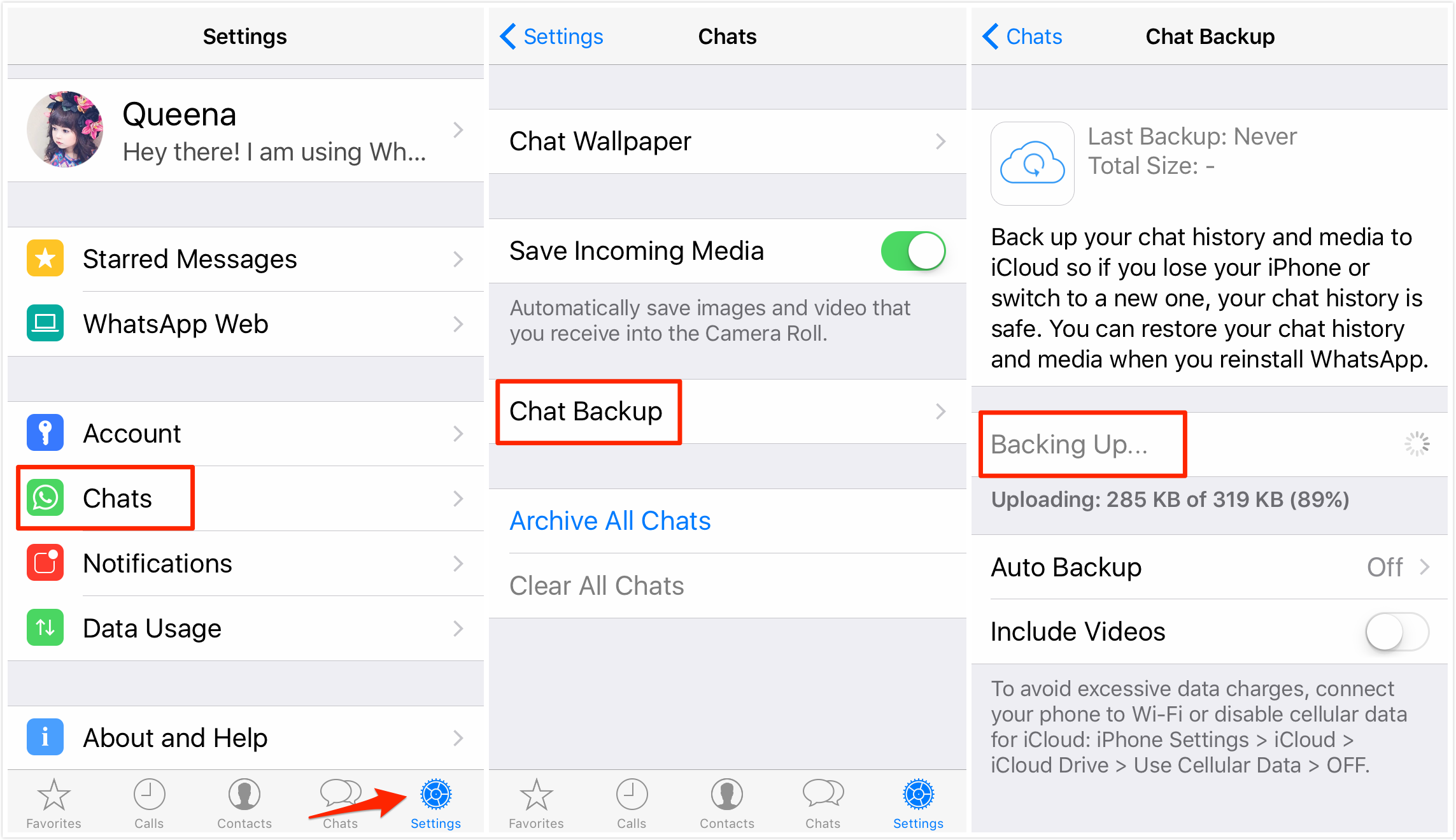
WhatsApp utilizes Apple’s iCloud infrastructure to store chat history, media files, and voice notes. Unlike Android, which leverages Google Drive for cross-platform versatility, WhatsApp backups on iOS are tightly integrated into the Apple ecosystem. This integration means that the backup is bound not just to your phone number, but specifically to the Apple ID that was active on the device at the time the backup was generated.
When you attempt to restore your data—usually during the initial setup of WhatsApp on a new device or after reinstalling the app—the application performs a handshake with the iCloud servers. If this handshake fails, the app will either skip the restoration process entirely or become stuck on the "Restoring" screen. Understanding this dependency is the first step in diagnosing why your specific restoration is failing.
Essential Prerequisites for a Successful Restore
Before attempting complex troubleshooting, you must verify that your environment meets the strict requirements set by both Meta and Apple. A failure in any one of these areas will prevent the restoration of your chat history.
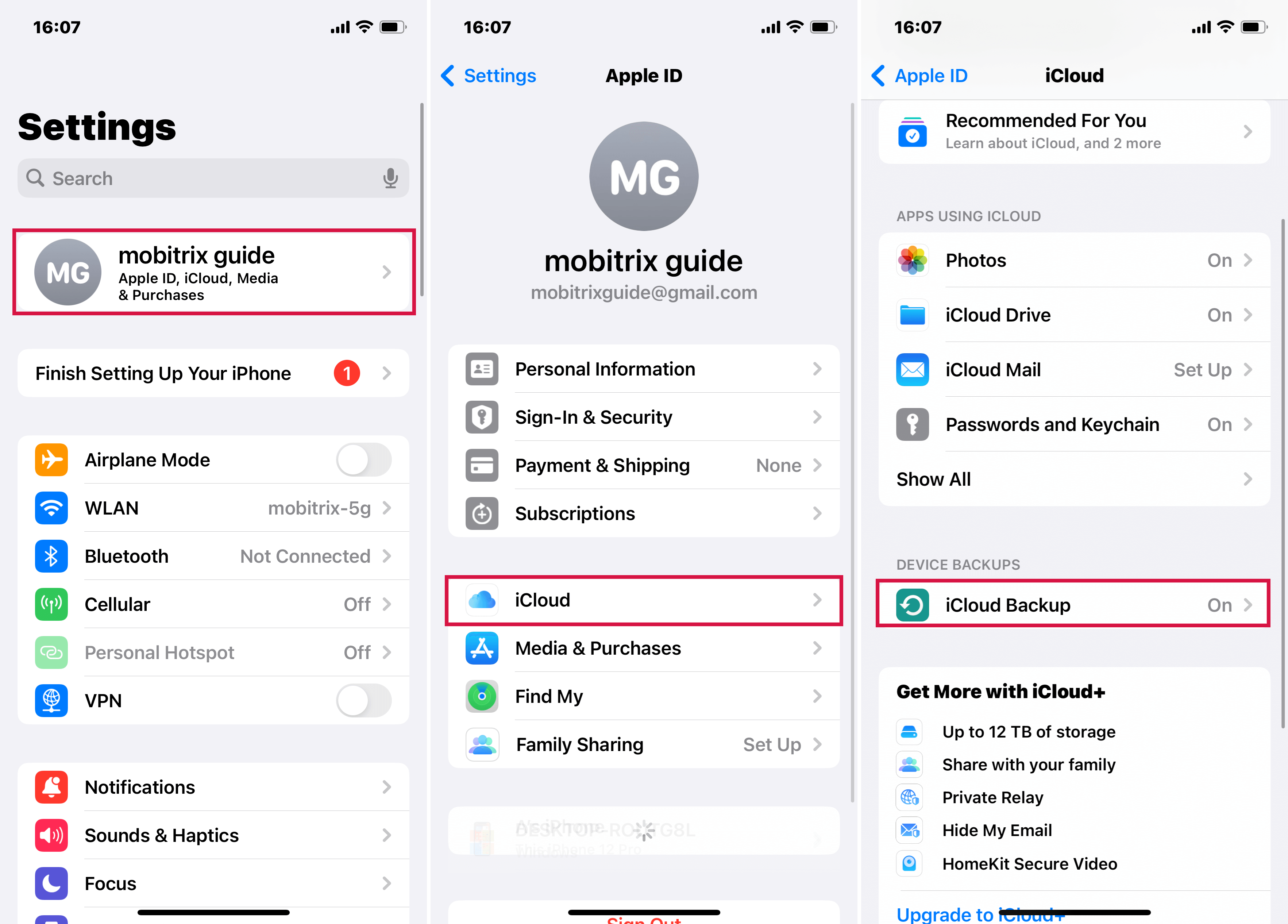
- Apple ID Consistency: You must be signed into the exact same Apple ID in your iPhone’s system settings (Settings > [Your Name]) that you used to perform the original backup in WhatsApp.
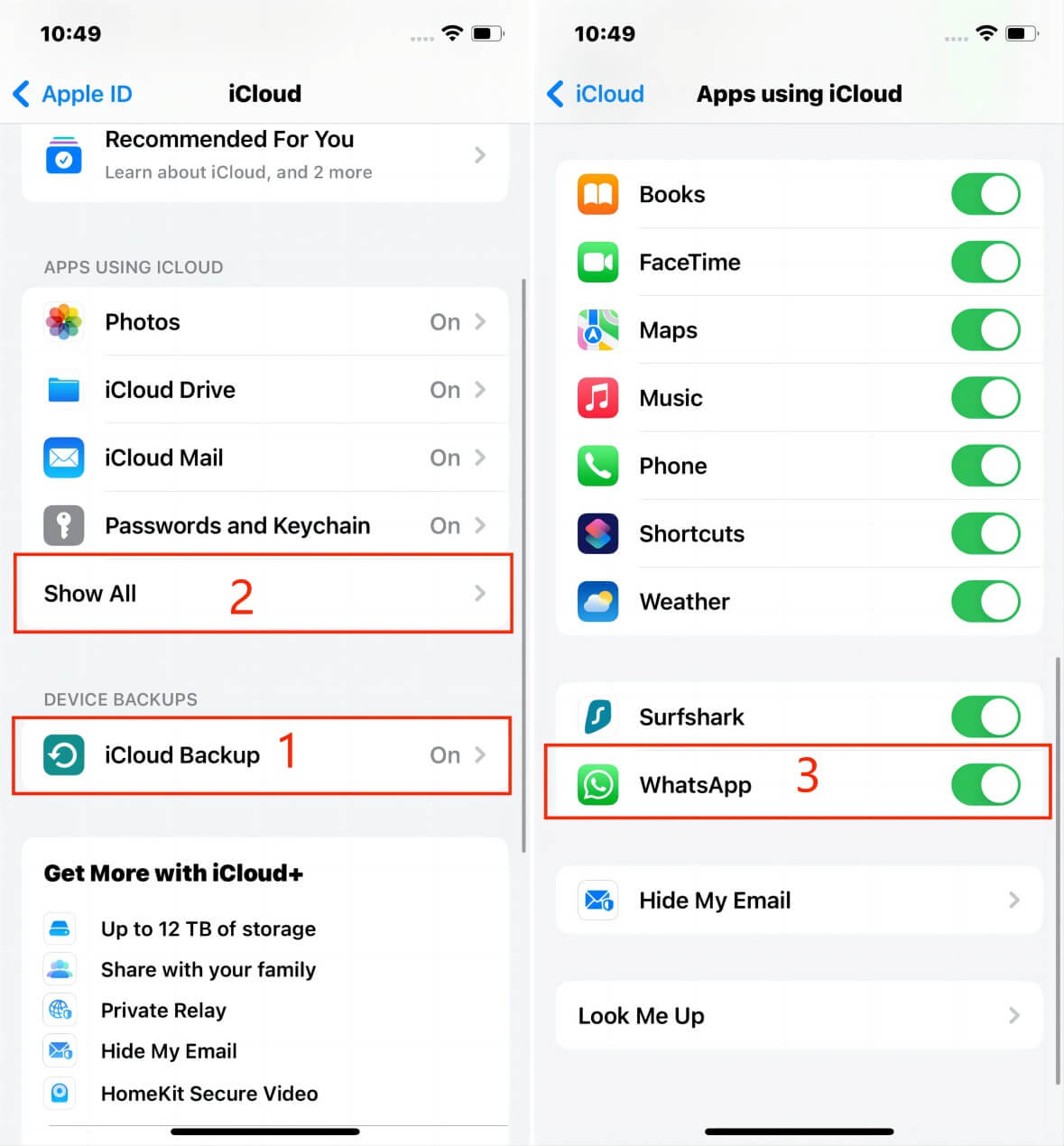
- iCloud Drive Status: Ensure that iCloud Drive is toggled to "On" in your device settings. Without this, WhatsApp cannot communicate with the container where the data is stored.
- Phone Number Verification: The phone number used for the WhatsApp account must be identical to the one used when the backup was created. Using a new number will prevent the server from authorizing the restoration of the old account data.
- Sufficient Storage: Your iPhone must have more free space available than the total size of the backup you are trying to download. If your backup is 5GB, but you only have 4GB of internal storage, the restoration process will terminate prematurely.
- Stable Network Environment: WhatsApp backups can involve several gigabytes of data. Using cellular data can lead to timeouts or incomplete downloads. Always use a stable, high-speed Wi-Fi connection.
Step-by-Step Diagnostic and Troubleshooting Sequence
If you meet all the prerequisites and the restoration still fails, follow this systematic approach to identify the bottleneck.
1. Check iCloud Server Status
Occasionally, the fault lies with Apple’s servers rather than your device. Check the official Apple System Status page to ensure "iCloud Drive" and "iCloud Backup" are green. If there is a service outage, you must wait until the issue is resolved before attempting the restore again.
2. Manage iCloud Storage Limits
A common, often overlooked issue is the "near-full" state of your iCloud account. Even if your iPhone has internal storage, if your iCloud storage is near capacity, the process may hang. Check your iCloud storage usage in Settings > [Your Name] > iCloud > Manage Storage. If you are near your limit, consider clearing old backups or unused files to ensure a smooth data transfer.
3. Forced Network Reset
Network-related interruptions are the leading cause of restoration stalls. If the process is frozen:
- Toggle Airplane Mode on and off to reset the radio signals.
- Forget and rejoin your Wi-Fi network.
- Reset network settings (Settings > General > Transfer or Reset iPhone > Reset > Reset Network Settings). Note: This will erase saved Wi-Fi passwords.
4. The "Reinstall and Re-verify" Protocol
If the restoration gets stuck at 0% or a specific percentage, the local temporary files may be corrupted.
- Delete the WhatsApp application.
- Restart your iPhone to clear the system cache.
- Reinstall WhatsApp from the App Store.
- Verify your phone number again.
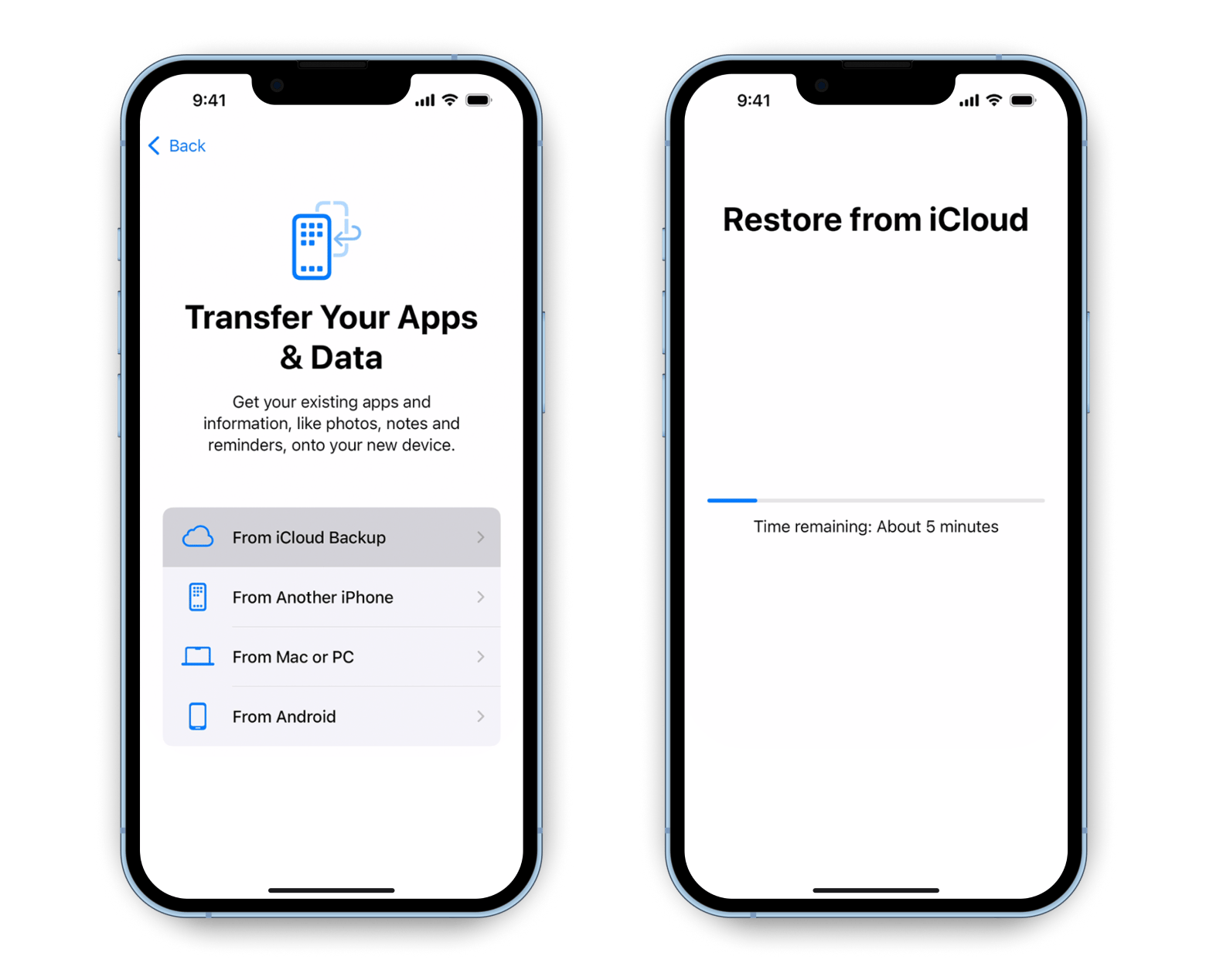
- When prompted, tap "Restore Chat History." Keep the app open and the screen awake during the process.
Comparison of Backup Restoration Hurdles
| Issue Type | Symptoms | Primary Fix |
|---|---|---|
| Credentials | "No Backup Found" prompt | Sign into correct Apple ID |
| Storage | Process hangs at 99% | Free up iPhone/iCloud storage |
| Network | "Could not connect to iCloud" | Switch to stable 5GHz Wi-Fi |
| Data Corruption | App crashes during restore | Reinstall app; restart iPhone |
Advanced Troubleshooting: When Standard Methods Fail
If you remain unable to restore, you may be dealing with a corrupted backup file on the server. While Apple and WhatsApp do not offer a public tool to "repair" a backup file, you can attempt to force the cloud to re-index the data.
- Turn off iCloud Drive for WhatsApp: Navigate to Settings > [Your Name] > iCloud > Show All (under Apps Using iCloud) and toggle off WhatsApp. Wait 60 seconds, toggle it back on, and try the restoration process again. This forces the device to re-request the data manifest from Apple's servers.
- Version Mismatch: Ensure your iOS is updated to the latest available version for your device in 2026. WhatsApp frequently updates its app to match new iOS APIs; running an outdated operating system can lead to compatibility failures during the restore phase.
Frequently Asked Questions
Can I restore a WhatsApp backup from Android to iPhone? No, direct restoration via iCloud is impossible. You must use the "Move to iOS" app during the initial setup of a new iPhone to transfer chat history from an Android device. iCloud backups are exclusively for iPhone-to-iPhone transfers.
Why does the restore process keep restarting? This usually indicates an unstable Wi-Fi connection. If the connection drops during the download, WhatsApp may attempt to restart the process to maintain data integrity. Stay near your router and ensure your device does not enter sleep mode.
What happens if I skip the restore process? If you tap "Skip," you will be unable to retrieve that specific backup later without uninstalling and reinstalling the app. You cannot merge a backup into an existing set of chats; you must perform the restore during the initial account activation.
Is there a maximum size for WhatsApp iCloud backups? While there is no hard "maximum" set by WhatsApp, your backup size is limited by your available iCloud storage. If your backup exceeds your plan's storage limit, it will fail to upload or remain in an incomplete state.
Final Recommendation
If you have verified your network stability, confirmed your Apple ID, ensured adequate storage, and performed a clean reinstallation, yet the issue persists, the backup file itself may be irrecoverable. At this stage, your only alternative is to check if you have a local iTunes (or Finder) backup of your entire iPhone. If you have a full device backup, restoring your entire iPhone from that computer backup will restore your WhatsApp data alongside your other applications and settings, bypassing the iCloud-specific restoration path.
Image Gallery