How to Write on a PDF File Online: A Comprehensive Guide
Writing on a PDF file online is a straightforward process that involves using browser-based tools to annotate, fill out forms, or insert text directly onto an existing document without the need to download specialized desktop software....
Writing on a PDF file online is a straightforward process that involves using browser-based tools to annotate, fill out forms, or insert text directly onto an existing document without the need to download specialized desktop software. This task is primarily accomplished through PDF editors or cloud-based document management services that render the file in a web viewer, allowing users to layer text, signatures, and shapes over the document's original structure.
Contents
Understanding the Mechanics of Online PDF Editing
When you "write" on a PDF online, you are not typically altering the underlying source code of the original file. Instead, most online editors create a temporary layer on top of the document. When you add text to a PDF through a web interface, the tool identifies the document's coordinates, places a text box at the specified location, and then exports a "flattened" version of the file once you decide to save or download. This process ensures that the recipient sees your text as if it were part of the original document, though the technical reality is that you are creating a new version of the PDF.
Because these services function entirely within your web browser, they are platform-agnostic. Whether you are using a Windows PC, a macOS device, or a mobile operating system, the functionality remains consistent as long as you have a modern, updated browser.
Prerequisites and Requirements
Before selecting a service to write on your PDF, consider the following requirements:
- Internet Connectivity: Since these tools run server-side, a stable connection is required to upload, process, and download the document.
- File Permissions: If the PDF is "read-only," password-protected, or encrypted with digital rights management (DRM), standard online editors may not be able to modify it. You will need the owner's password to remove restrictions before editing.
- Privacy Awareness: Uploading sensitive documents (such as tax returns, medical records, or legal contracts) to third-party web servers carries inherent privacy risks. Always verify that the service provider offers encrypted connections (HTTPS) and that they automatically delete files from their servers after a set period.
Steps to Write on a PDF Online
While user interfaces vary between services, the workflow for editing a PDF online is generally universal. Follow these steps to complete the task effectively:
- Access the Service: Navigate to a reputable PDF editor website. Common examples include Adobe Acrobat Online, Smallpdf, or Sejda.
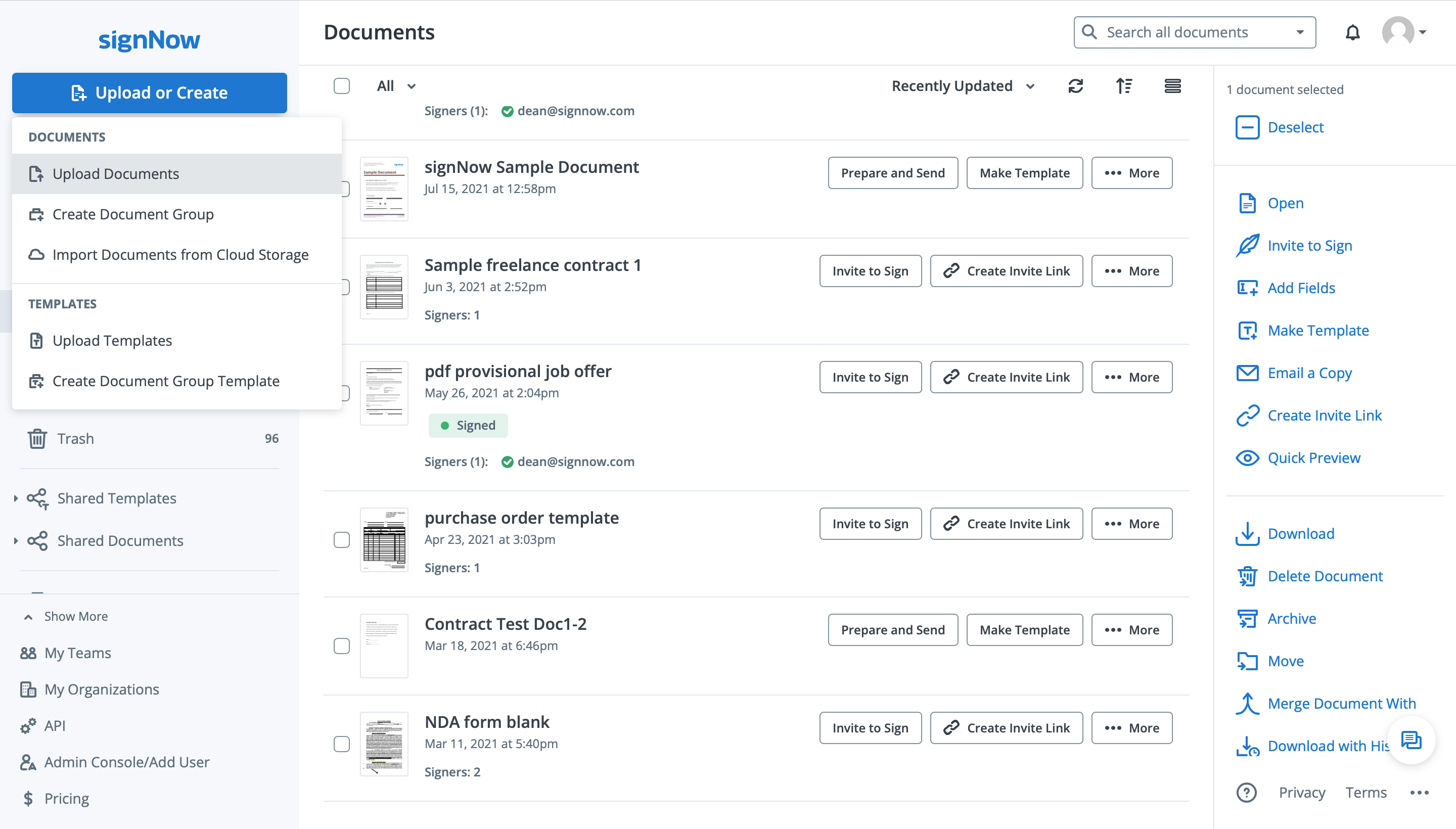
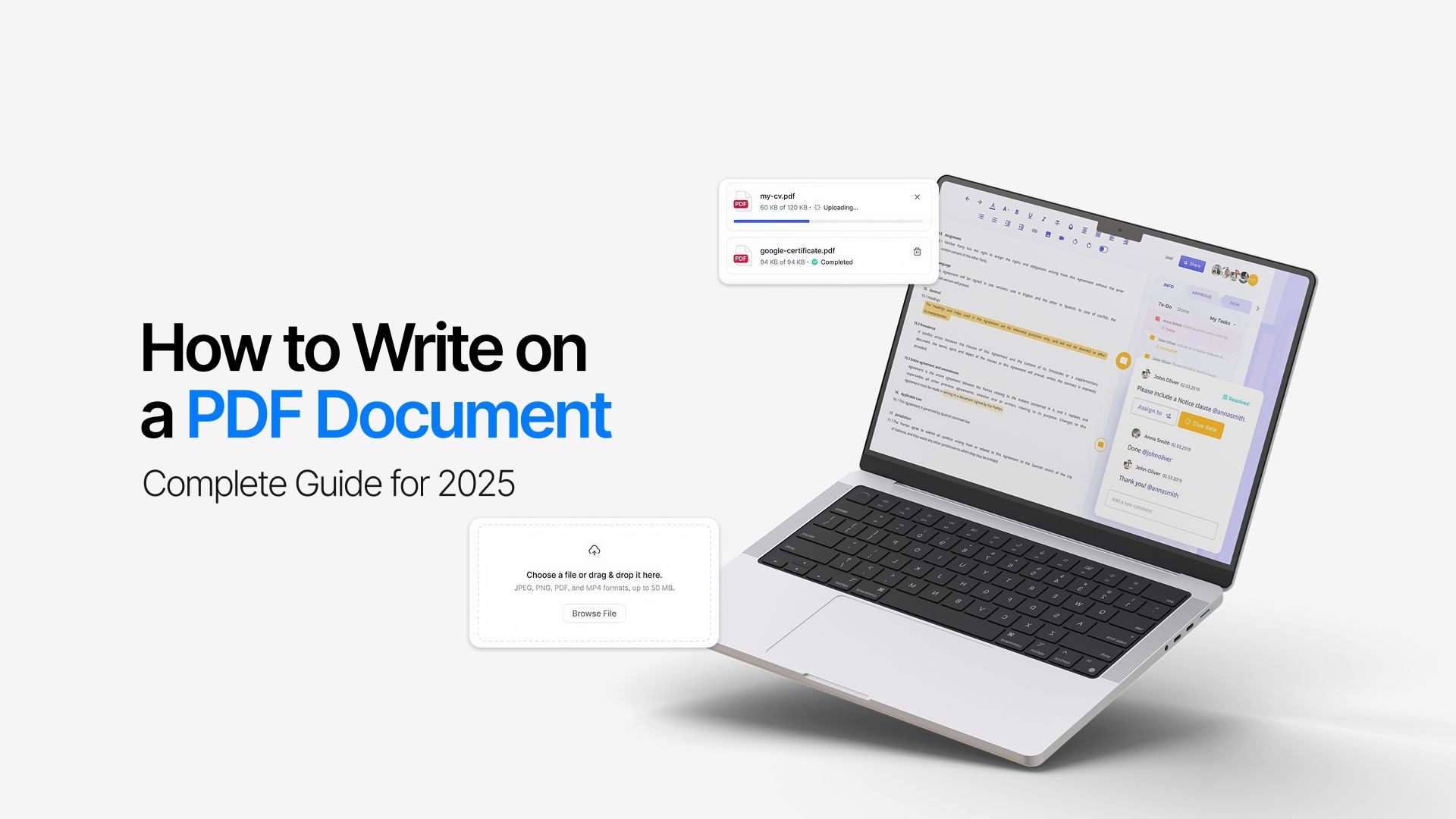
- Upload the Document: Use the "Upload" or "Select File" button to bring your document into the browser. Some services also support dragging and dropping the file directly into the window.
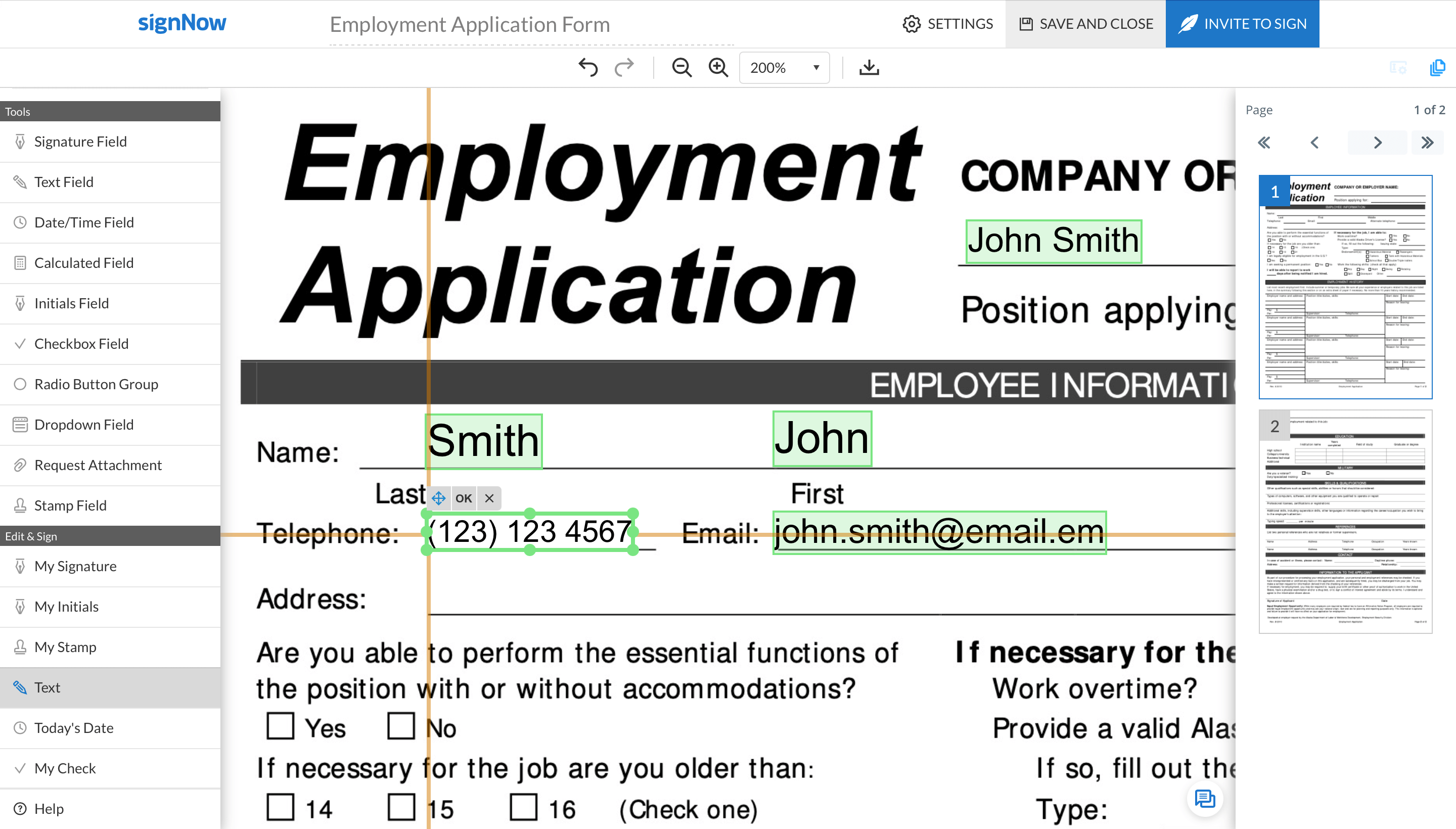
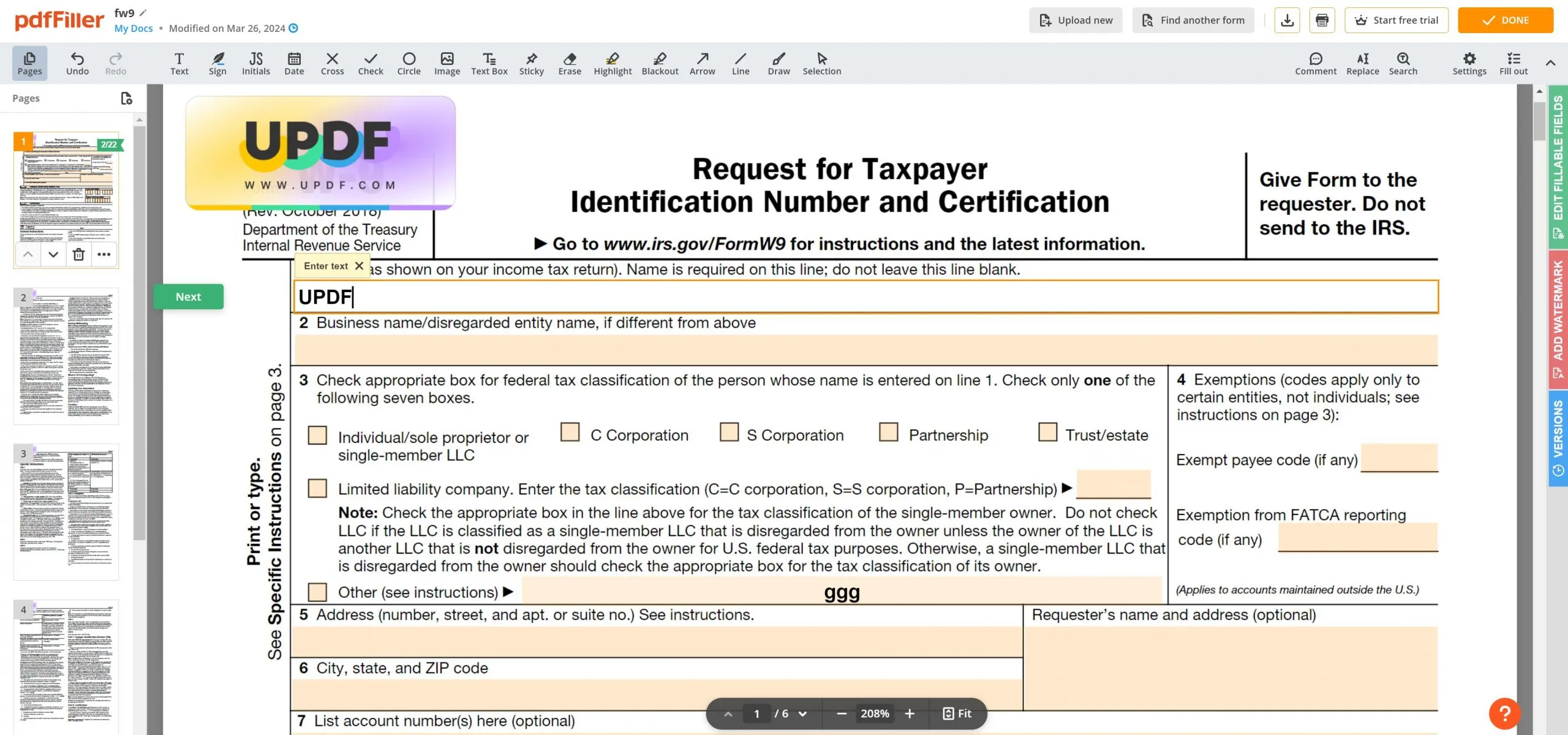
- Select the Text Tool: Look for an icon labeled "Text," "Add Text," or an "A" symbol in the toolbar.
- Place the Cursor: Click on the specific area of the PDF where you intend to write. A text box will appear.
- Type and Format: Enter your content. Most editors allow you to adjust the font size, color, and alignment to match the existing text style of the document.
- Review: Carefully check for typos and alignment. Once you click away from the text box, some editors may lock the text in place, making it harder to move without deleting and starting over.
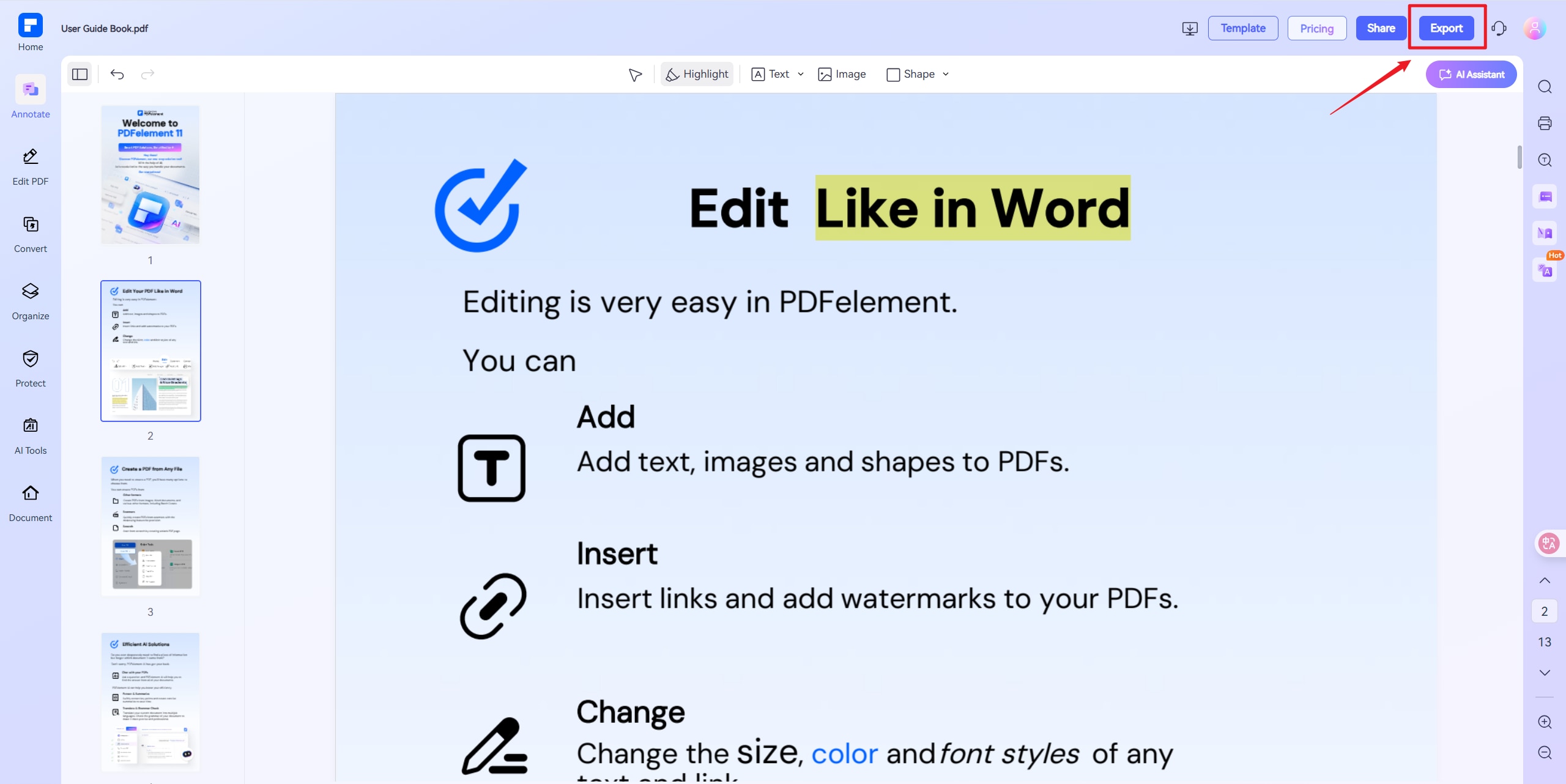
- Finalize and Download: Locate the "Save," "Export," or "Download" button. The service will process the document and provide you with a link to save the modified file back to your local device.
Comparison of Popular Online PDF Editing Approaches
| Service | Best For | Typical Limitations |
|---|---|---|
| Adobe Acrobat Online | High-fidelity accuracy and industry standard | Limited free features; requires account for full access |
| Smallpdf | Quick, one-off edits and simple forms | Restricts the number of free tasks per day |
| Sejda PDF | Privacy-conscious users (auto-deletes files) | Lower file size and page count limits on free tier |
| Google Drive/Docs | Collaborative workflows and basic conversion | Often alters original document formatting during import |
Managing Document Security and Confidentiality
When you process documents online, you are entrusting your data to a third party. If you are handling documents containing Personally Identifiable Information (PII) or proprietary corporate data, you must exercise extreme caution.
Prioritize services that explicitly state they do not store user documents or that utilize temporary storage with automated deletion protocols. Avoid uploading highly confidential documents to services that lack clear privacy policies or that offer "free" editing in exchange for the right to use your uploaded data for training or analytical purposes. In high-stakes legal or financial environments, it is often safer to use offline desktop applications to maintain complete control over the data.
Troubleshooting Common Issues
- Non-Selectable Text: If you cannot click into a document to edit, it is likely a "scanned" document (an image of a page) rather than a digital PDF. In this case, you will need a service that uses Optical Character Recognition (OCR) to convert the image into editable text.
- Font Mismatch: Online editors may not have access to the exact fonts used in your document. You may need to select a generic substitute like Helvetica or Arial to minimize the visual discrepancy.
- Large File Errors: Many free online tools have a maximum file size limit (often 50MB to 100MB). If your PDF is larger, you may need to compress the file using a separate tool before attempting to write on it.
Frequently Asked Questions
1. Is it safe to write on confidential documents using online PDF tools? Generally, you should avoid uploading highly sensitive or classified documents to public online editors. Unless the service specifically guarantees end-to-end encryption and immediate file destruction, your data may persist on their servers, posing a security risk.
2. Can I change the existing text in a PDF online? Most free online tools are designed to "overlay" new text on top of the document. They do not typically have the capability to edit or delete existing text that was part of the original file. For sophisticated text editing, professional desktop software is usually required.
3. Why does my PDF look different after I download it? When you edit a PDF, the tool must re-save the file. During this process, some formatting elements, metadata, or complex vector graphics may be flattened or slightly compressed, which can cause minor visual changes.
4. Can I write on a PDF using my smartphone? Yes, most online PDF editors are mobile-responsive. You can access the same sites via your mobile browser, upload files from your phone's storage, and use your touchscreen to place and type in text boxes.
5. What should I do if the online editor cannot recognize my file? Ensure your file is in .pdf format. If the file is encrypted or password-protected, the online tool will not be able to open it. You must remove the security protections using your original password before uploading it to an online editor.
Next Steps for Optimal Results
To achieve the best outcome, start by identifying the specific requirements of your document. If you only need to add a few words or a signature, a simple browser-based tool is sufficient. If you are dealing with complex layouts or sensitive legal information, consider using dedicated desktop software or ensure you are using a provider with enterprise-grade privacy commitments. For documents that must remain pristine, keep a copy of the original "clean" version before you begin any editing, as the process of overlaying text can occasionally create permanent artifacts on the resulting file.
Image Gallery