Spectrum 110 Cable Box Setup: Complete Installation and Activation Guide
Setting up a Spectrum 110 cable box involves unpacking the hardware, connecting the coaxial and HDMI cables to your television, powering on the device, and completing the on-screen activation process either via remote control or by con...
Setting up a Spectrum 110 cable box involves unpacking the hardware, connecting the coaxial and HDMI cables to your television, powering on the device, and completing the on-screen activation process either via remote control or by contacting Spectrum customer support. This straightforward installation process allows subscribers to access digital television programming, interactive guides, and on-demand content directly through their home entertainment system.
Contents
Navigating home entertainment technology often brings up questions about hardware compatibility, wiring sequences, and software synchronization. For Spectrum subscribers, transitioning to or installing a standard cable receiver like the Spectrum 110 box requires a systematic approach. Understanding each step ensures optimal video and audio quality, prevents common connection errors, and minimizes activation delays. This comprehensive guide outlines the entire workflow, from unboxing and physical wiring to initial booting, activation, troubleshooting, and hardware management.
Understanding the Spectrum 110 Cable Box and Prerequisites
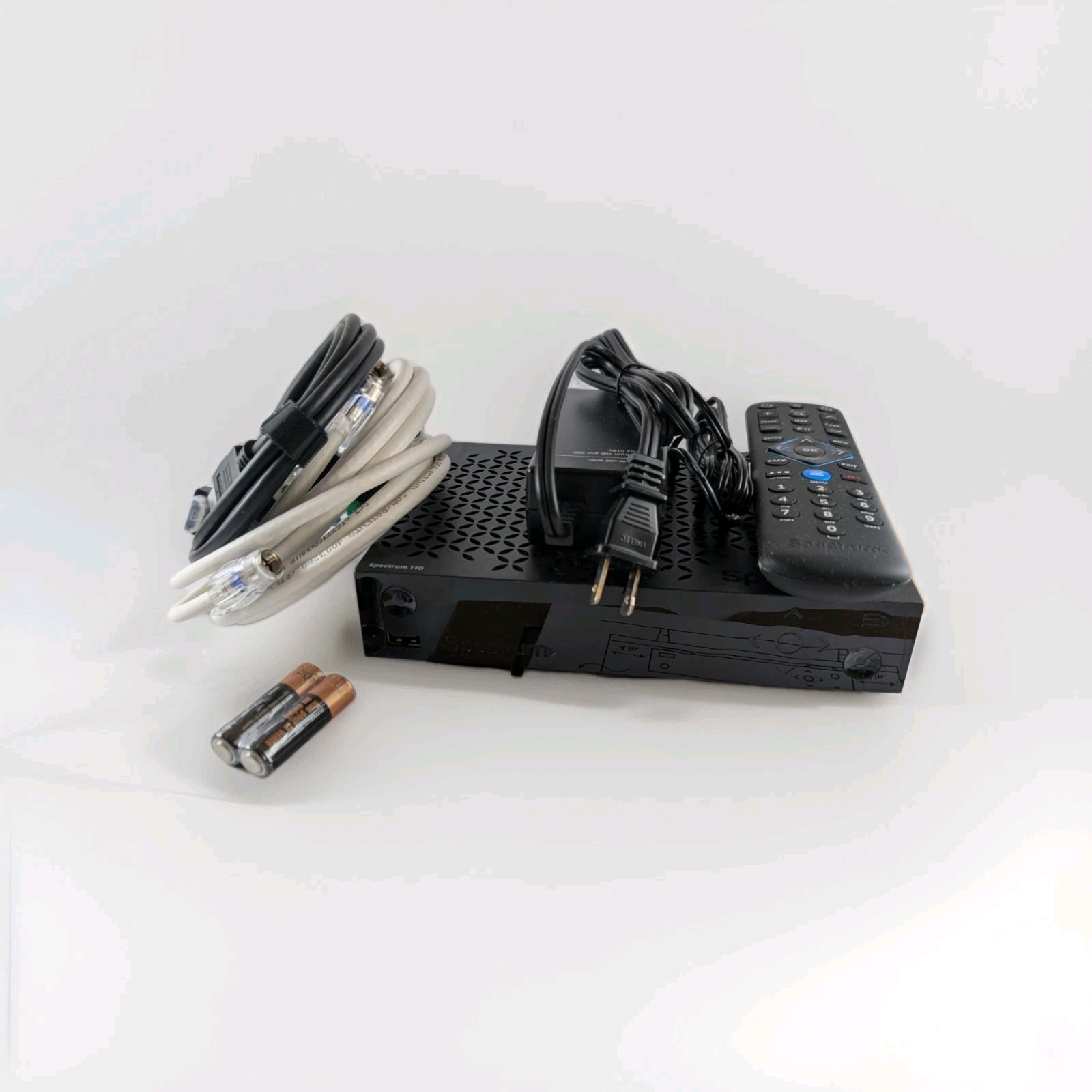
Before unboxing your equipment, it is important to understand what the Spectrum 110 cable box is and what conditions must be met for a successful setup. The hardware package provided by Spectrum typically includes the set-top box, an AC power adapter, a coaxial cable, an HDMI cable, and a remote control with matching batteries.
The Spectrum 110 box serves as a digital receiver that decodes incoming signals from the cable provider's network, translating them into high-definition audio and video streams for your display. Unlike modern IP-based streaming media players that rely exclusively on broadband internet, traditional digital cable boxes often utilize a hybrid architecture requiring a direct, active coaxial cable drop from the wall outlet to deliver linear television channels and reliable program guides.
To ensure a smooth setup experience, verify that you have the following prerequisites in place:
- An active Spectrum television subscription that includes hardware leasing or provision for the 110 box model.
- A television or monitor equipped with at least one available HDMI input port.
- A live, wall-mounted coaxial cable outlet that receives an uninterrupted signal from the outside service drop.
- An accessible electrical power outlet or surge protector strip.
- Your Spectrum account details or billing phone number, which may be required if phone-based activation becomes necessary.
Step-by-Step Physical Installation Procedure
Proper physical connection is the foundation of a reliable home theater setup. Incorrect wiring can lead to a "no signal" error on your television screen or degraded picture quality. Follow these sequential steps to connect your Spectrum 110 box correctly:
- Unbox and Inspect: Carefully remove the Spectrum 110 cable box and its accessories from the packaging. Ensure that the power adapter, HDMI cable, coaxial cable, and remote control are present and undamaged.
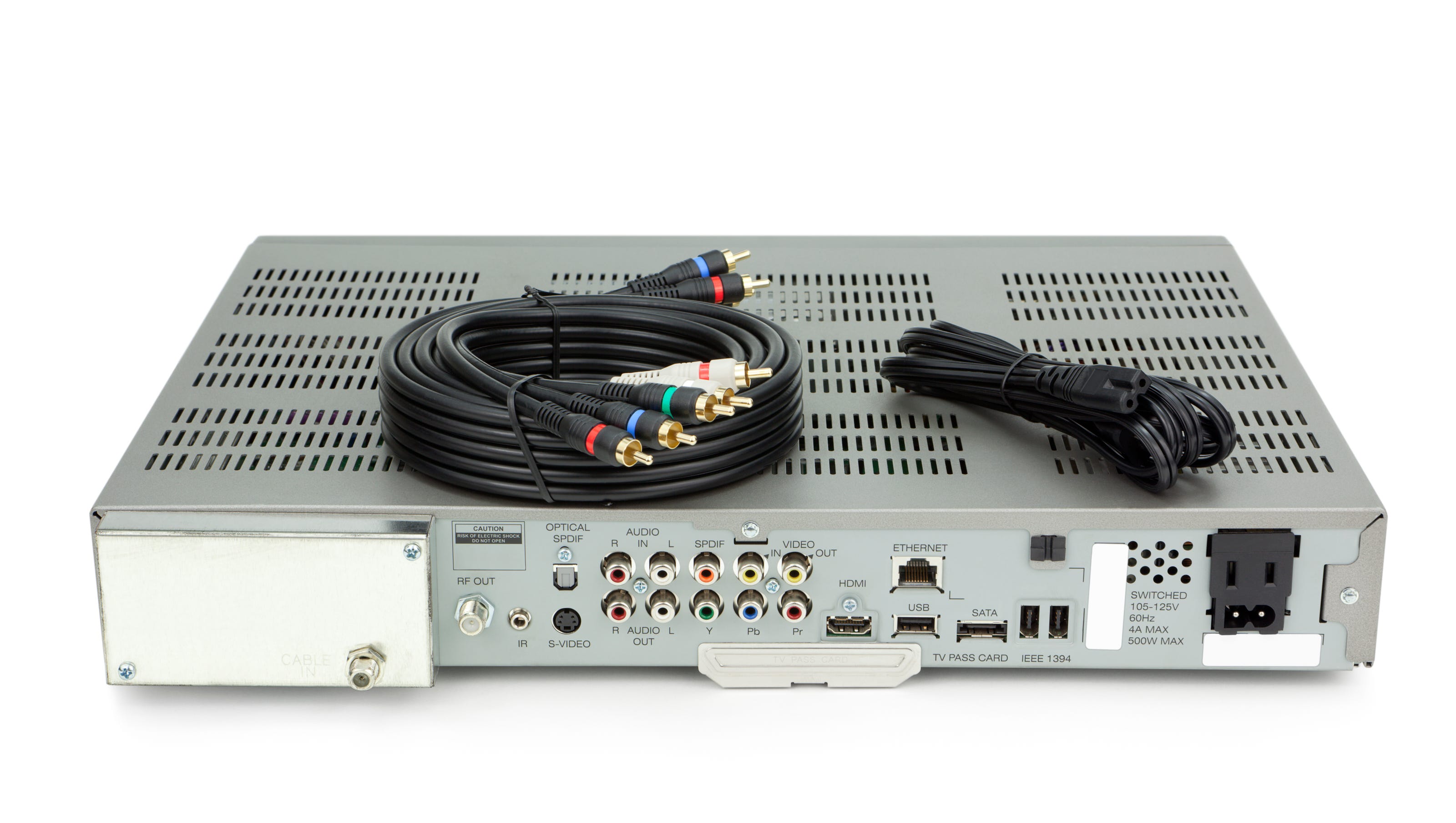
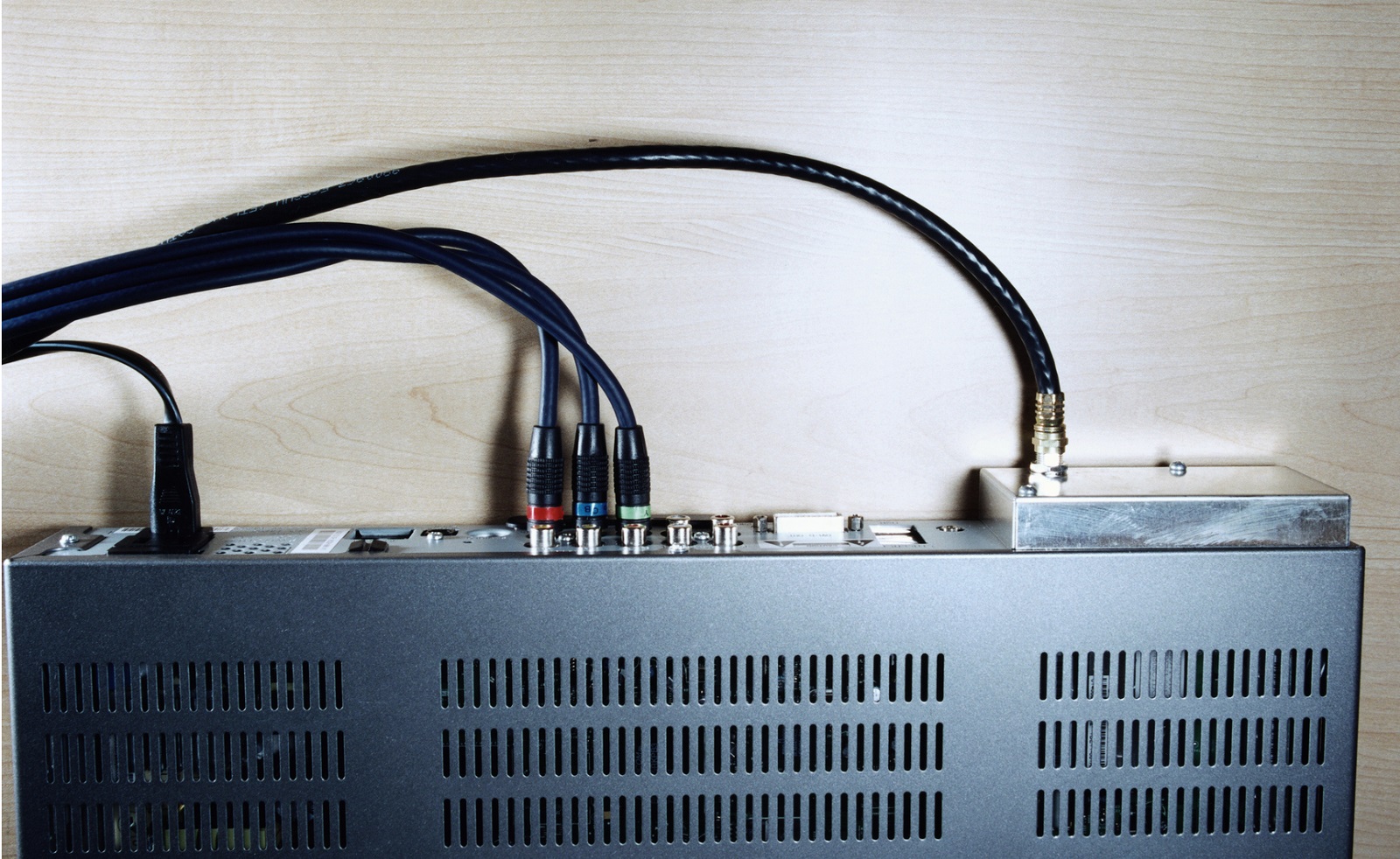
- Connect the Coaxial Cable: Take one end of the coaxial cable and screw it securely onto the "Cable In" or "RF In" port on the back of the Spectrum 110 box. Connect the opposite end of the coaxial cable to the active cable wall outlet in your room. Ensure both connections are hand-tightened to prevent signal leakage, which can cause pixelation or missing channels.
- Connect the HDMI Cable: Plug one end of the HDMI cable into the HDMI output port on the back of the cable box. Connect the other end into an open HDMI input port on your television (e.g., HDMI 1 or HDMI 2). Take note of the specific HDMI port number you choose.
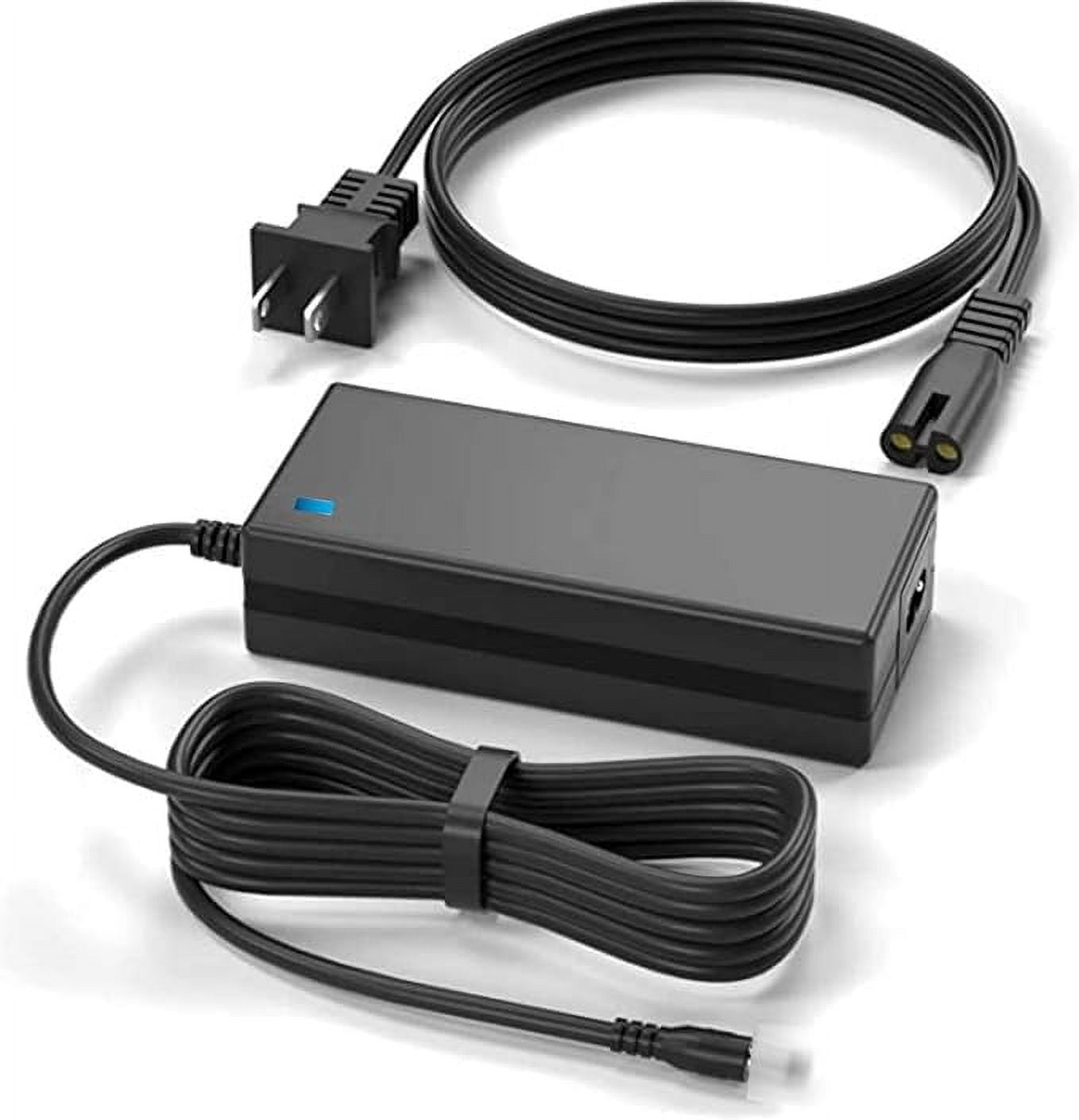
- Connect Power: Plug the barrel connector of the AC power adapter into the power input port on the back of the Spectrum 110 box. Then, plug the AC adapter block into a working electrical wall outlet or surge protector.
- Power On Devices: Turn on your television using its remote control. Press the "Input" or "Source" button on your television remote and select the corresponding HDMI port where you connected the cable box (for instance, if you plugged the HDMI cable into HDMI 2, select HDMI 2).
| Component | Function in Setup | Connection Point |
|---|---|---|
| Coaxial Cable | Delivers the live television signal from the wall | Wall Outlet to "Cable In" on Box |
| HDMI Cable | Transmits digital high-definition video and audio | HDMI Out on Box to HDMI In on TV |
| Power Adapter | Supplies electrical current to the receiver | Electrical Outlet to Power Port on Box |
| Remote Control | Navigates menus, channels, and activation prompts | Wireless infrared/RF to Box and TV |
Activating the Spectrum 110 Cable Box
Once the hardware is physically connected and your television displays the Spectrum input source, the device will initiate its boot sequence. This process can take several minutes as the box downloads firmware updates, synchronizes channel maps, and handshakes with the local cable network infrastructure.
The Initial Boot and Download Phase
When power is first supplied, indicator lights on the front panel of the Spectrum 110 box will typically flash while the internal software loads. Do not unplug or power down the device during this window, as interrupting a firmware update can corrupt the system memory. Once the boot sequence stabilizes, an on-screen activation prompt will appear.
Completing the Activation Process
Depending on your regional service tier and account configuration, activation generally follows one of two paths:
- Automatic Activation: Many modern boxes self-activate upon connection. The system reads your account authorization via the coaxial return path, registers the hardware serial number and MAC address, and populates the on-screen guide automatically.
- Manual Activation: If the screen displays an authorization error or a prompt to call customer service, use the phone number displayed on your television screen. A representative will verify your account number and send an electronic "hit" (refresh signal) to the device, unlocking your subscribed channels.
Troubleshooting Common Setup Issues
Even with careful installation, users occasionally encounter hurdles during the setup process. Addressing these issues systematically saves time and prevents unnecessary service calls.
No Picture or "No Signal" Message
If your television screen remains black or displays a "No Signal" warning, verify that your television is tuned to the correct HDMI input channel. Check that the HDMI cable is firmly seated in both the cable box and the television. If the issue persists, try swapping the HDMI cable with a known working cable or testing a different HDMI port on your television.
Missing Channels or Pixelation
If the box boots up successfully but certain channels display an error message (such as "Channel Not Available") or the picture breaks up into digital macroblocks, the issue usually stems from signal attenuation. Ensure that the coaxial cable is screwed on tightly at both the wall plate and the back of the box. Avoid using excessively long or damaged coaxial cables, and minimize the use of unpowered splitters, which degrade signal strength.
Remote Control Responsiveness
If the remote control does not change channels or adjust volume, check that the batteries are inserted with the correct polarity (+/-). Ensure there is a clear line of sight between the remote control and the front panel infrared sensor of the Spectrum 110 box. If the remote needs to be paired with your television for volume and power control, consult the accompanying instruction sheet for brand-specific pairing codes.
Frequently Asked Questions
Can I install a Spectrum 110 cable box myself instead of hiring a technician?
Yes, self-installation is fully supported by Spectrum for standard cable boxes. The hardware package comes with all necessary cables and instructions to complete the physical hookup and on-screen activation without professional assistance.
What should I do if my Spectrum 110 box gets stuck on a loading screen?
If the device remains frozen on a booting or loading screen for more than 15 minutes, perform a power cycle. Unplug the power cord from the back of the box, wait 30 seconds, and plug it back in. This forces the device to restart its connection sequence and clear temporary memory glitches.
Do I need an internet connection to use the Spectrum 110 cable box?
No, the Spectrum 110 cable box relies on the traditional coaxial cable network to deliver linear television programming and program guides. An active broadband internet connection is not required for basic cable box operation.
How do I return old Spectrum equipment if I am upgrading my box?
When replacing existing equipment, you can return your old cable box by taking it to a physical Spectrum retail store, dropping it off at an authorized shipping partner location (such as The UPS Store), or requesting a prepaid mail-in return kit from customer support. Always obtain and save a receipt confirming the equipment return.
What if my activation screen requires a PIN or account confirmation?
If the system prompts you for security credentials or a parental control PIN during activation, use the default PIN provided in your welcome materials (often 0000 or 1234) or contact Spectrum support to verify your account security settings.
Conclusion and Next Actions
Successfully setting up your Spectrum 110 cable box hinges on verifying your physical connections, ensuring a strong coaxial signal, and allowing the device sufficient time to complete its automated boot and activation sequence. By following the correct wiring order—connecting the coaxial cable, HDMI cable, and power supply in sequence—you lay the groundwork for reliable digital entertainment. Once your channels load and the interactive guide populates, take time to familiarize yourself with the remote control layout, set up favorite channels, and configure any desired parental controls. If you encounter persistent technical hurdles beyond standard troubleshooting, contact Spectrum customer service for remote line diagnostics or equipment replacement.
Image Gallery