Why Is My Roku Blinking Red? A Comprehensive Troubleshooting Guide
A Roku device blinking red typically indicates a power-related issue, specifically that the unit is not receiving sufficient voltage or amperage to initiate a full boot cycle. This often occurs when the device is plugged into a televis...
A Roku device blinking red typically indicates a power-related issue, specifically that the unit is not receiving sufficient voltage or amperage to initiate a full boot cycle. This often occurs when the device is plugged into a television’s USB port instead of the provided wall power adapter, or when the connection cable has suffered physical degradation.
Contents
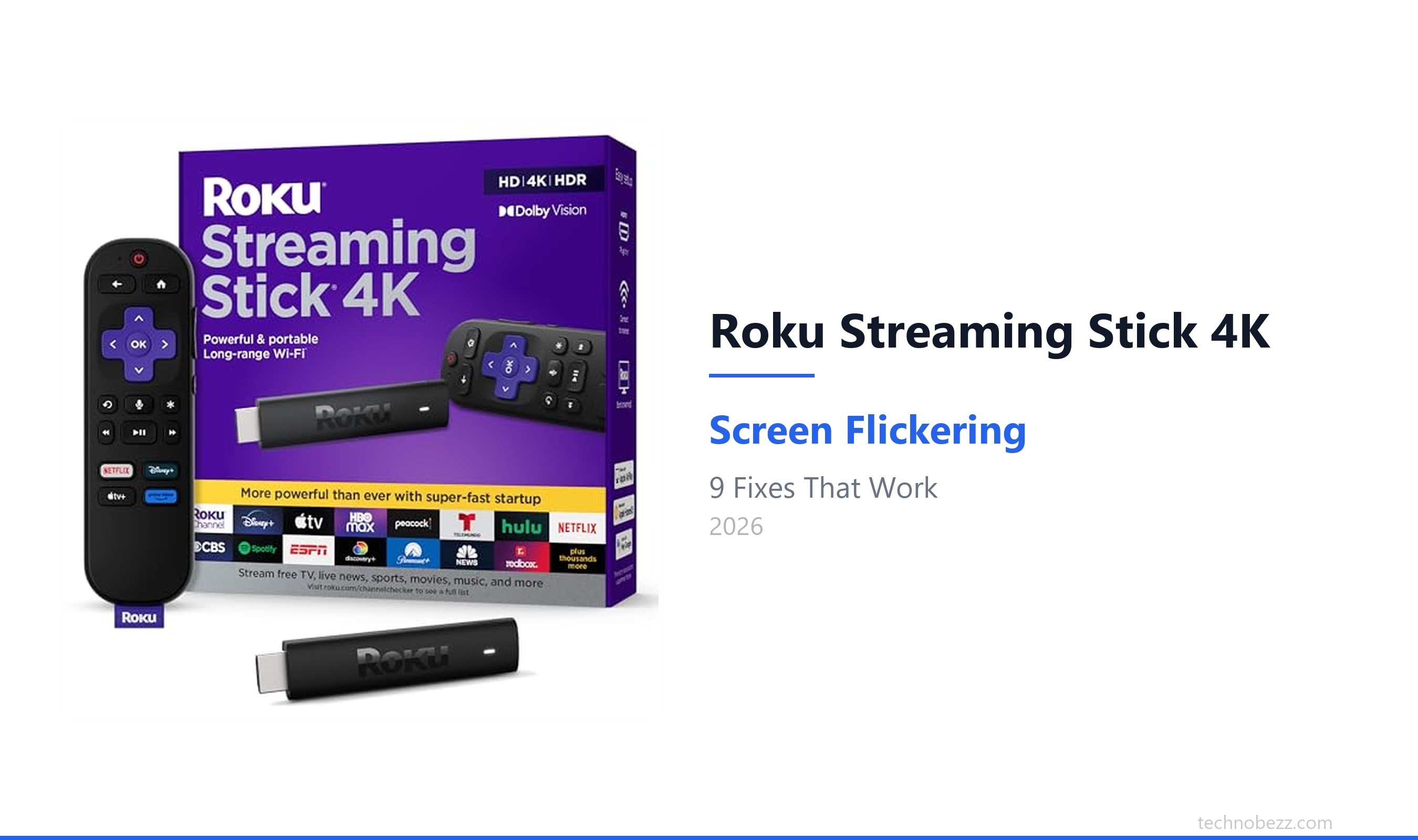
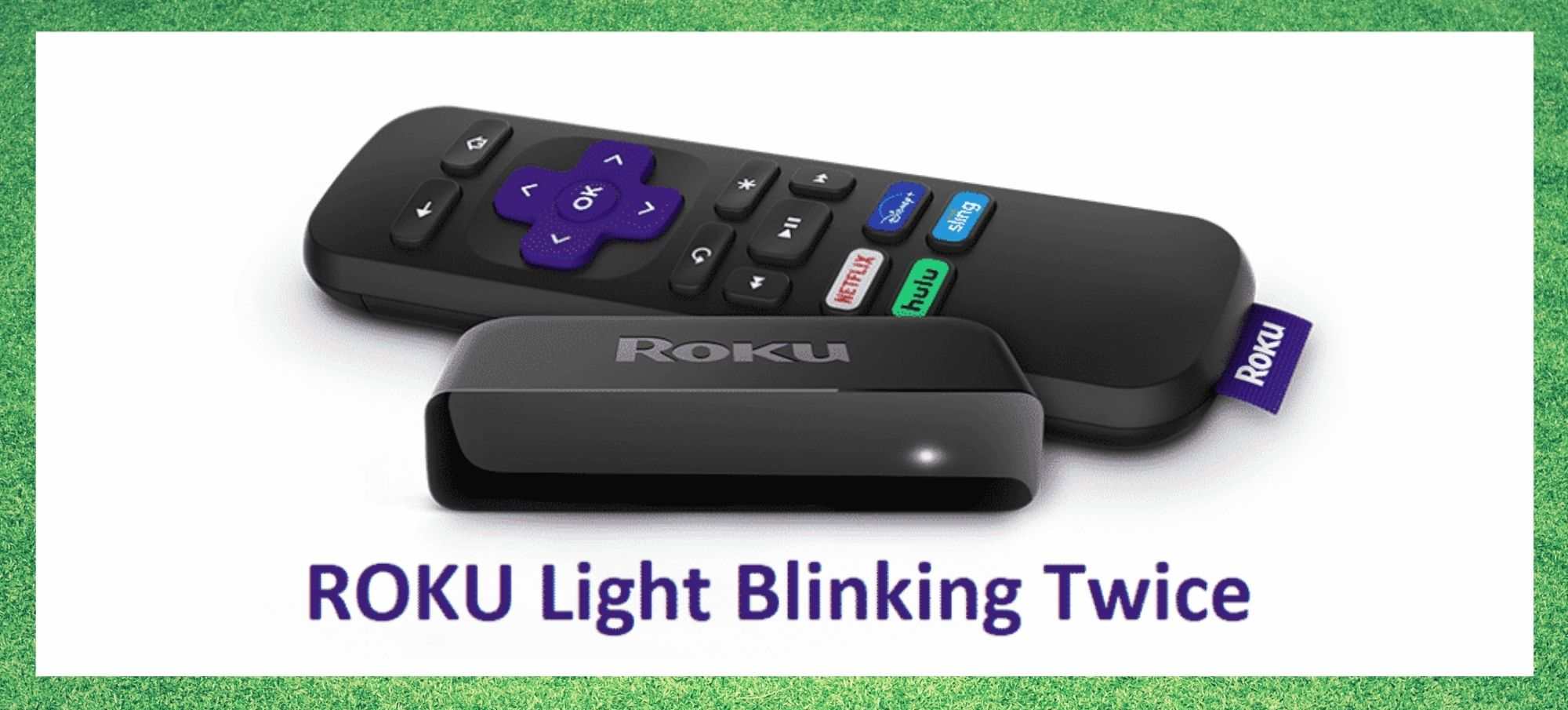
When your streaming experience is interrupted by a blinking red light on your Roku device, it serves as a visual diagnostic signal from the hardware. Unlike a solid red light, which may indicate a system error or overheating on certain models, a blinking red light is almost universally a power delivery failure. Understanding the ecosystem of your Roku hardware—whether you are using a Roku Streaming Stick, a Roku Express, or a Roku Ultra—is the first step in resolving this disruption.
Understanding the Power Requirements of Roku Devices
Roku devices are engineered with specific electrical input requirements to function reliably. While many modern televisions feature USB ports, these ports are often designed to provide power for peripheral devices like flash drives or small accessories, rather than high-performance streaming hardware.
When you connect a Roku device directly to your TV's USB port, you are relying on the television to act as the power source. If the TV cannot supply a consistent, stable current that meets the minimum threshold required by the Roku, the device will enter a "power-starved" state. The blinking red light is the physical manifestation of the device attempting to boot up, failing due to a lack of power, and restarting in a continuous loop.
It is important to differentiate between the various models in the Roku lineup. The Roku Streaming Stick series, for instance, requires a stable current to manage its wireless radio, video processor, and operating system simultaneously. If the power supply fluctuates, even by a small margin, the device will cycle, resulting in the characteristic blinking pattern.
Troubleshooting the Power Supply Connection
To address the blinking red light, you must move from the television’s USB port to a dedicated power source. This is the most effective and common resolution for this specific indicator.
- Switch to a Wall Outlet: Locate the official Roku power adapter that was included in the original packaging. Unplug the USB cable from the television and connect it to the official power adapter. Plug this adapter directly into a functional wall outlet.
- Verify the Power Cable: If you have already been using the wall adapter, inspect the USB cable for any signs of fraying, bending, or damage to the insulation. Over time, the internal copper wiring can degrade, increasing resistance and preventing the required current from reaching the device. If the cable is damaged, replace it with a high-quality, high-speed USB cable that supports the power delivery specifications of your specific Roku model.
- Test the Outlet: Ensure the wall outlet itself is receiving power. You can test this by plugging a lamp or another small appliance into the same socket. If that device does not turn on, the issue lies with your home’s electrical system or a tripped circuit breaker, rather than the Roku hardware.
- Avoid Extension Cords and Power Strips: In some cases, low-quality extension cords or overloaded power strips can introduce voltage drops. For the most stable performance, plug the Roku adapter directly into the wall.
Comparing Power Source Reliability
The following table compares the different power delivery methods for Roku devices and their reliability in preventing the red blinking error.
| Power Source Method | Reliability | Risk Level | Recommendation |
|---|---|---|---|
| Official Wall Adapter | High | Low | Always preferred |
| High-Output USB Wall Brick | High | Low | Acceptable if Roku-compliant |
| TV USB Port (High Power) | Moderate | Medium | Use only if necessary |
| TV USB Port (Standard) | Low | High | Avoid; causes blinking red |
| Extension Cords/Strips | Variable | Medium | Use only if high-quality |
Addressing Overheating and System Crashes
While a blinking red light is usually power-related, it is worth noting the thermal environment of your device. Roku devices are small, compact computers that generate heat during high-definition or 4K streaming. If your Roku is placed in an enclosed cabinet, behind a wall-mounted TV with poor airflow, or in direct sunlight, the heat can cause the internal components to throttle their power usage to protect themselves from damage.
If you have already moved your device to a wall outlet and the light continues to blink red, check the device's temperature. If the casing is extremely hot to the touch, disconnect the device and allow it to cool for at least 30 minutes. Once it has cooled, ensure it is in a location with adequate ventilation. If the problem persists after cooling and ensuring stable power, the device may be experiencing an internal hardware failure that requires a factory reset or replacement.
Performing a System Reset
If you have confirmed that the power supply is robust and the device is not overheating, you may need to perform a hard reset. This process clears the temporary memory and forces the operating system to reload.
- Locate the Reset Button: Most Roku devices have a physical reset button. On streaming sticks, this is usually a small tactile button on the side or back of the unit. On set-top boxes, it is often a small pinhole that requires a paperclip to depress.
- Initiate the Reset: With the device plugged into power, press and hold the reset button for approximately 10 to 15 seconds.
- Observe the LED: The status light should change color or flash in a specific pattern, indicating that the device is wiping its settings and preparing for a fresh installation.
- Reconfigure: Once the device reboots, you will need to go through the initial setup process, including connecting to your Wi-Fi network and logging into your Roku account.
Note that a factory reset will remove all of your saved channel data, preferences, and login credentials. Only perform this step after you have exhausted the power-related troubleshooting methods.
Frequently Asked Questions
Does a blinking red light mean my Roku is broken? Not necessarily. In the vast majority of cases, it indicates that the device is not receiving enough power. It is an "error" state, but it is rarely a sign that the hardware itself is dead. Following the troubleshooting steps regarding power delivery usually resolves the issue.
Can I use a phone charger instead of the Roku power adapter? You can, but it is risky. You must ensure that the output of the charger (measured in volts and amperes) matches the requirements printed on your original Roku power adapter. If the phone charger provides less than the required amperage, you will likely continue to see the blinking red light.
Why did this start happening suddenly after months of working? Even if a setup worked previously, hardware components like power cables can slowly degrade, or the USB port on your TV may have suffered a minor electrical fluctuation. Additionally, firmware updates can sometimes increase the power draw requirements for a device to enable new features, exposing a power delivery weakness that was previously hidden.
Is there a way to tell if the Roku device itself is failing? If you have verified that the power supply is functional, tried a different wall outlet, and performed a factory reset, and the device still refuses to boot beyond a blinking red light, there is a high probability of an internal failure. At this point, you should check your device’s warranty status through the official Roku support portal.
Next Actions and Final Recommendations
If your Roku is currently stuck in a blinking red light state, start by immediately moving the power source from the TV USB port to a direct wall outlet using the official power adapter. This is the single most common "fix" for this issue. If you have misplaced your original adapter, procure a high-quality USB power block that meets or exceeds the voltage and current requirements listed on your device's chassis.
If the light persists after trying multiple power sources and cables, consider the environment of the device; if it is physically hot, allow it time to dissipate heat. Should these steps fail to restore your service, use your device's serial number to check for active warranty coverage on the Roku support website to determine if a replacement or professional service is required.
Image Gallery