How to Use a Task List for Google Calendar Efficiently
Using a task list integrated with Google Calendar allows you to bridge the gap between vague "to-do" items and concrete time management. By centralizing your daily responsibilities alongside your scheduled meetings, you create a unifie...
Using a task list integrated with Google Calendar allows you to bridge the gap between vague "to-do" items and concrete time management. By centralizing your daily responsibilities alongside your scheduled meetings, you create a unified operational environment that minimizes context switching and prevents deadlines from slipping through the cracks of a busy schedule.
Contents
Understanding the Integration of Google Tasks and Calendar
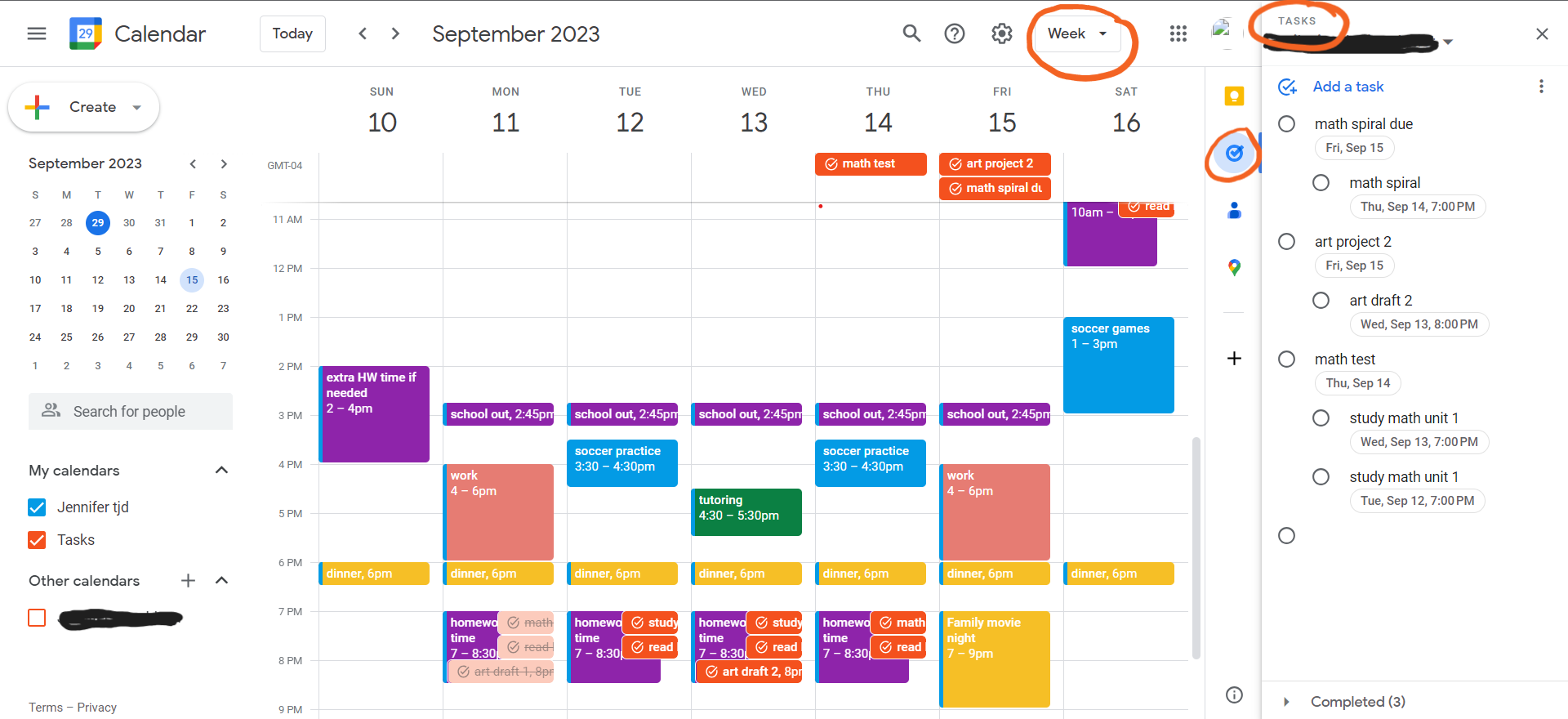
Google Calendar functions primarily as a time-blocking tool, while Google Tasks serves as a list-based management system. When you use them together, you essentially turn your calendar into a visual project management dashboard. Every task you create in the Tasks sidebar or app can be assigned a specific date and time, which automatically reflects on your calendar grid.
The primary efficiency gain here is visibility. Many professionals maintain separate lists in notebooks or third-party applications, which forces them to constantly toggle between their "work to do" and "time available." By centralizing this within Google Calendar, you can see how long a task will actually take against the backdrop of your existing commitments. If a task has no deadline, it remains in your sidebar as a reminder, ensuring you don't lose sight of long-term goals.
Prerequisites for Optimal Setup
To ensure the system works reliably, you must be logged into a Google Workspace or a standard Google account that has the sidebar enabled.
- Accessing the Sidebar: On your desktop browser, look at the right-hand panel of your Google Calendar. You will see an icon representing "Tasks." If it is hidden, ensure your "Side Panel" is toggled on at the bottom of the screen.
- Syncing Across Devices: Download the Google Tasks mobile application. Your tasks synchronize in real-time. If you mark a task as complete on your phone while commuting, it will disappear from your calendar view on your desktop before you even open your laptop.
- Account Consistency: Ensure you are using the same Google account for both your primary calendar and your task lists. Tasks are account-specific and do not natively share across different personal and business profiles unless you manually move them.
Step-by-Step Workflow for Efficiency
Efficiency is not about having a list; it is about the architecture of that list. Follow these steps to standardize your workflow:
1. Categorize with Multiple Lists
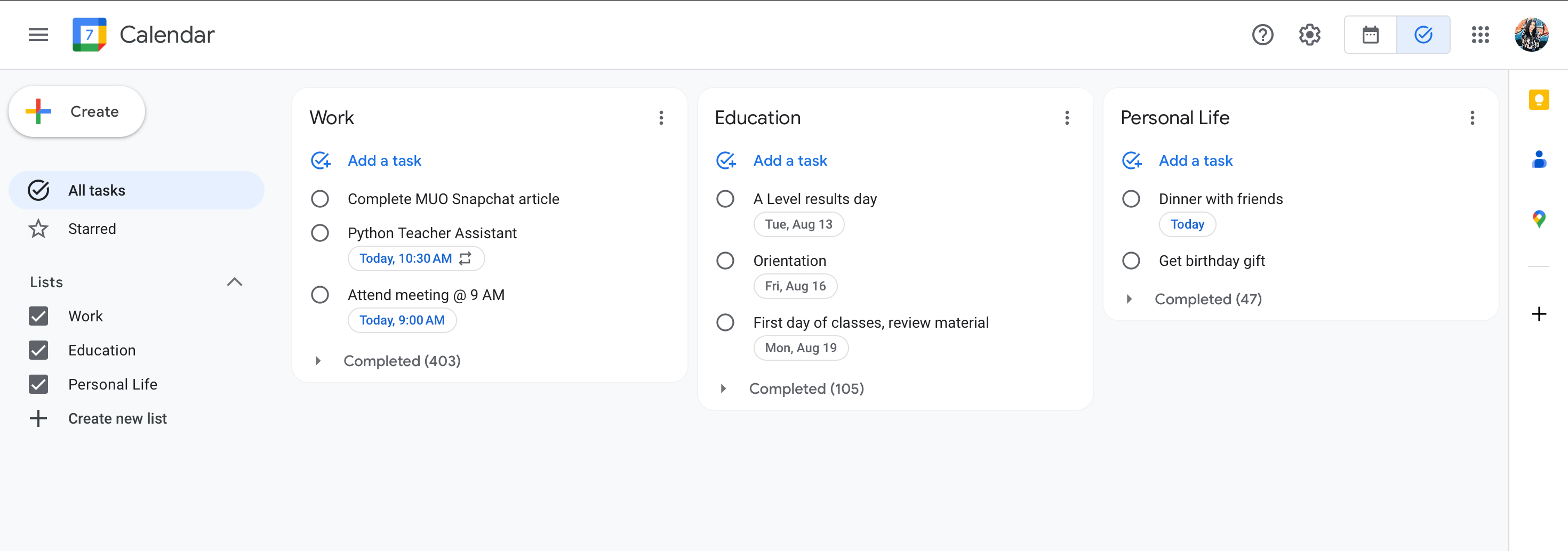
Do not dump every single item into a generic "My Tasks" list. Create distinct lists for different areas of your life or project scope—such as "Operations," "Client Follow-ups," or "Personal Development." You can toggle these lists on and off in the calendar view, allowing you to focus only on what is relevant to the current work cycle.
2. Apply Time-Blocking
When creating a task, do not just assign a date. Add a specific time. When a time is attached to a task, Google Calendar displays it as a distinct block. This serves as a psychological commitment to yourself. If you leave a task without a time, it sits at the top of your day; if you assign a time, it occupies the calendar space, effectively protecting that time from other scheduling requests.
3. Utilize Subtasks for Complex Deliverables
A common mistake is creating "large" tasks that are actually projects. For example, do not create a task named "Finish Quarterly Report." Instead, create the parent task "Finish Quarterly Report" and add subtasks for each component: "Collect data," "Draft executive summary," and "Review charts." This allows you to check off small wins throughout the day, maintaining momentum without cluttering your main calendar view.
4. Leverage the "Star" Feature
Important tasks should be starred. While Google Tasks is a linear list, starring items pushes them to the top of your view. This is essential for distinguishing between "urgent/important" items and "routine" maintenance tasks.
Comparison of Task Management Styles
| Feature | Using Tasks in Calendar | External To-Do Apps | Manual Notebooks |
|---|---|---|---|
| Visibility | Integrated with time | Requires toggling | Requires manual checks |
| Automation | Notifications sync | Often requires API | None |
| Portability | High (Mobile/Desktop) | High | Physical only |
| Cost | Free (Included) | Often subscription-based | Paper cost |
Addressing Common Troubleshooting Issues
Even with an efficient system, users often encounter technical friction that hampers productivity.
- Tasks Not Appearing: If a task does not show on your calendar, ensure the "Tasks" calendar is checked in the "My Calendars" section on the left-hand sidebar of Google Calendar. If it is unchecked, the tasks are still there, but they remain invisible.
- Deleted Tasks: Unlike some project management software that uses an "archive," Google Tasks has a "Completed" section. If you accidentally mark a task as done, click the "Completed" dropdown at the bottom of your task list to find it and uncheck it to restore it to your active list.
- Recurring Tasks: If you have daily or weekly requirements, use the "Repeat" feature. You can set a task to recur every Monday at 9:00 AM. This prevents you from having to manually recreate routine administrative chores.
Expert Guidance on Workflow Sustainability
To maintain efficiency, you must treat your task list as a living document. Conduct a "Weekly Review" every Friday afternoon. During this time, look at your completed tasks, delete any items that are no longer relevant, and move overdue tasks to the following week. Leaving overdue tasks sitting on your calendar creates "clutter fatigue," where the visual representation of your failure to complete work lowers your motivation for the coming week.
Furthermore, avoid the temptation to over-plan. If your calendar is 100% full with tasks, you have no buffer for incoming urgent requests. Aim to fill no more than 60-70% of your available time with scheduled tasks, leaving the remaining space for deep work, unplanned meetings, or buffer time.
Frequently Asked Questions
Can I share my Google Tasks list with colleagues? As of 2026, Google Tasks is primarily designed for individual use. While you can share a Google Calendar, the Tasks integrated into that calendar are private to the account holder. To collaborate on tasks with a team, consider using Google Keep or shared Google Docs for list tracking alongside your personal calendar.
What happens to my tasks if I delete the Google Calendar app? Your tasks are stored in the cloud associated with your Google account. Deleting the app does not delete your tasks. You can access them through any browser by navigating to the Google Tasks web interface or by re-downloading the application.
How do I move tasks between different lists? Open the task, click the three-dot menu (or the list name), and select the option to move the task to a different list. This helps keep your primary view clean by migrating long-term tasks to an "Archive" or "Someday" list.
Are there limits to how many tasks I can have? Google does not impose a hard limit on the number of tasks you can create, but performance may degrade if you maintain thousands of items in a single list. Periodically purging completed tasks or archiving old lists is recommended for optimal load speeds.
Can Google Tasks integrate with my email? Yes. You can add an email to Google Tasks directly from Gmail by using the "Add to Tasks" icon in the top toolbar of an open email. This creates a task linked directly back to that specific email, which is an excellent way to track follow-up requests without leaving your inbox.
Final Recommendation
Start by dedicating fifteen minutes each morning to "Time-Blocking" your tasks. Rather than working from a flat list, drag your tasks directly onto your calendar grid at the start of your day. This enforces a reality check on your capacity and ensures that your most important work has a reserved place in your day. By the end of this week, you will likely find that you are no longer asking "what should I do next," but rather following the visual roadmap you have already created.
Image Gallery