How to Cancel PS4 Plus Subscription
Canceling your PlayStation Plus subscription on a PS4 console or through a web browser prevents auto-renewal by turning off the recurring billing setting. You can complete this process directly through your account settings on the cons...
Canceling your PlayStation Plus subscription on a PS4 console or through a web browser prevents auto-renewal by turning off the recurring billing setting. You can complete this process directly through your account settings on the console, via the official PlayStation website, or on a mobile device, ensuring that your subscription remains active until the end of your current paid billing cycle without incurring future charges.
Contents
Navigating digital subscriptions can sometimes feel convoluted, especially when Sony updated its PlayStation Plus service into a tiered system consisting of Essential, Extra, and Premium (or Deluxe depending on your region). Whether you are looking to trim your monthly entertainment expenses, transition to a different gaming platform, or simply take a break from online multiplayer gaming, stopping the automatic renewal cycle is straightforward once you know where to look. This comprehensive guide details the exact prerequisites, step-by-step methods, financial implications, and troubleshooting techniques required to successfully cancel your PS4 Plus subscription.
Understanding PlayStation Plus Subscription Mechanics
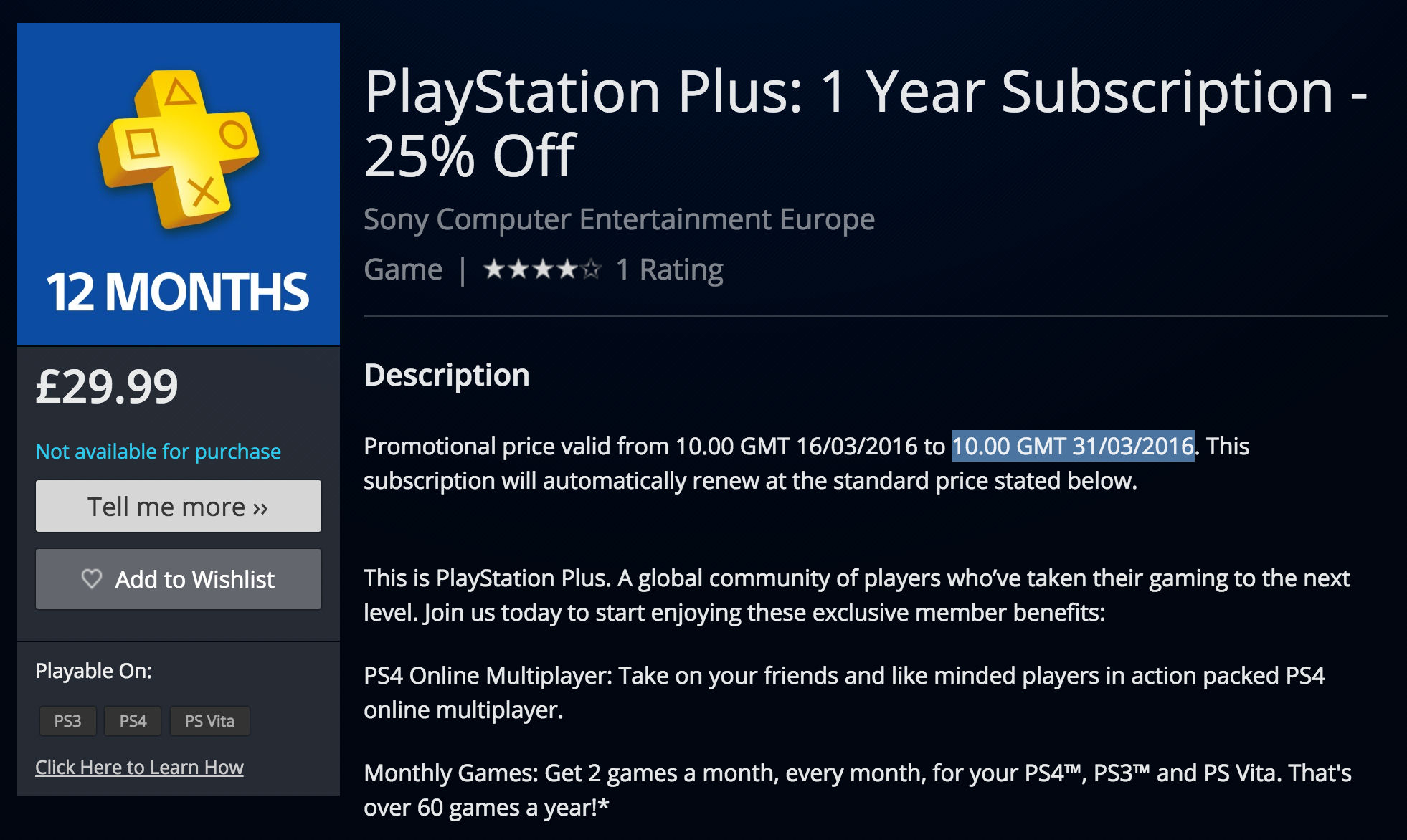
Before diving into the cancellation process, it helps to understand how Sony handles recurring billing and subscription terms. When you sign up for PlayStation Plus—whether via a monthly, quarterly, or annual recurring plan—you authorize Sony Interactive Entertainment to automatically charge your saved payment method at the end of each billing cycle.
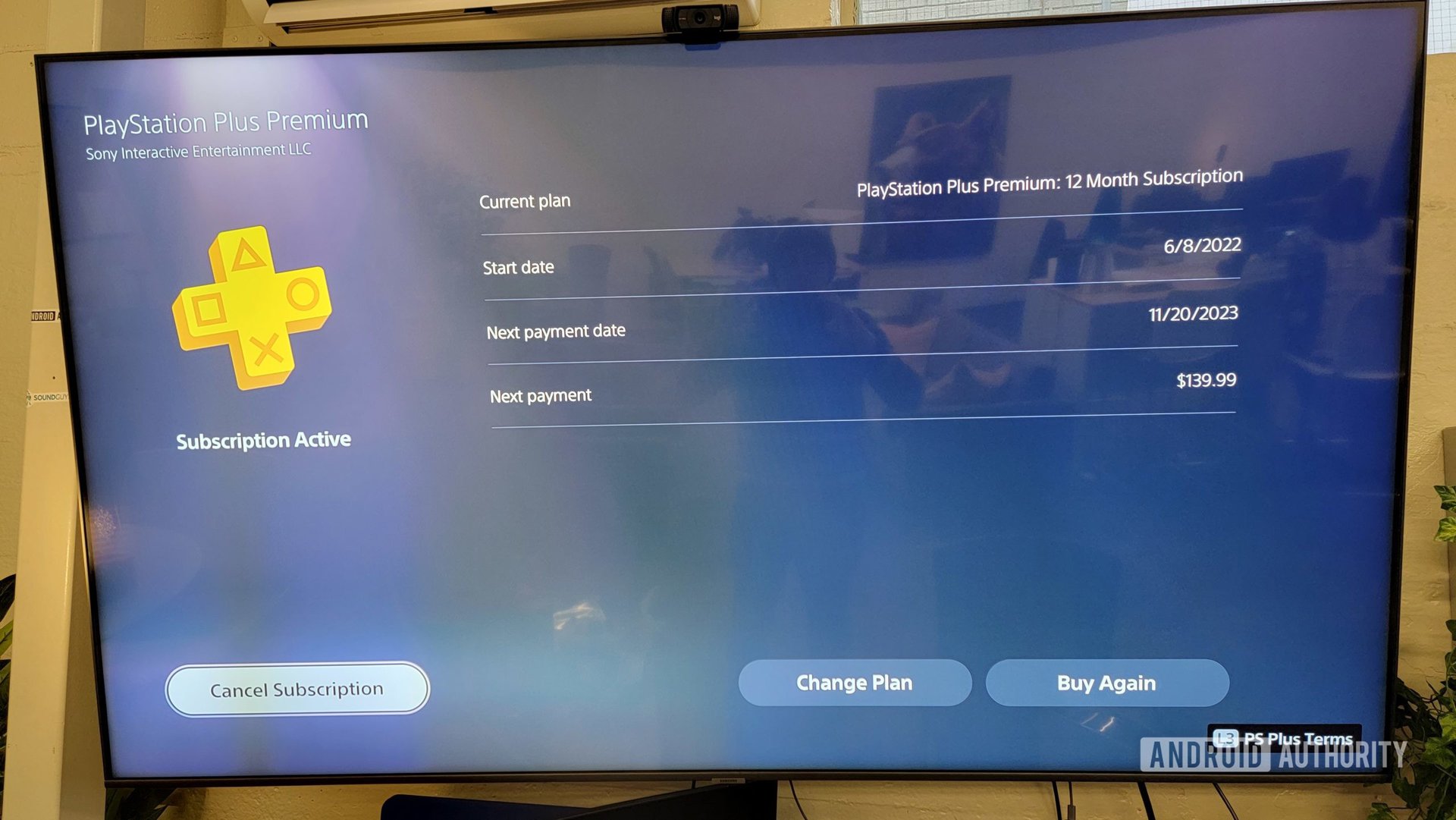
Crucially, canceling your subscription does not mean you get an immediate refund for the unused portion of your term. Instead, it turns off the auto-renewal feature. Your subscription, along with access to online multiplayer, monthly downloadable games, and cloud storage, will remain fully functional until the exact date and time your current prepaid period expires.
Furthermore, any monthly games you claimed while your subscription was active will remain tied to your account, but you will only be able to play them again if you choose to restart your PlayStation Plus subscription in the future. Understanding this retention policy prevents unnecessary panic over lost game libraries.
Prerequisites and Preparation
Before initiating the cancellation steps, gather the necessary account details and access points to ensure a seamless process.
- Account Access: You must know the email address and password associated with the PlayStation Network (PSN) account that purchased the subscription. If you have two-step verification enabled, ensure you have access to your registered mobile phone or authenticator app.
- Active Connection: Both the console and web-based methods require a stable internet connection to communicate with Sony’s account management servers.
- Timing: To avoid being charged for the upcoming billing cycle, you must turn off auto-renewal at least 24 hours before your next scheduled payment date.
Step-by-Step Instructions: How to Cancel PS4 Plus
You can manage your subscription through multiple channels. Choose the method that best fits your current situation.
Method 1: Canceling Directly on a PS4 Console
Using your PS4 console is the most direct route if you have physical access to the hardware and your account is logged in.
- Turn on your PS4 and log into the specific user profile linked to the PlayStation Plus subscription you want to cancel.
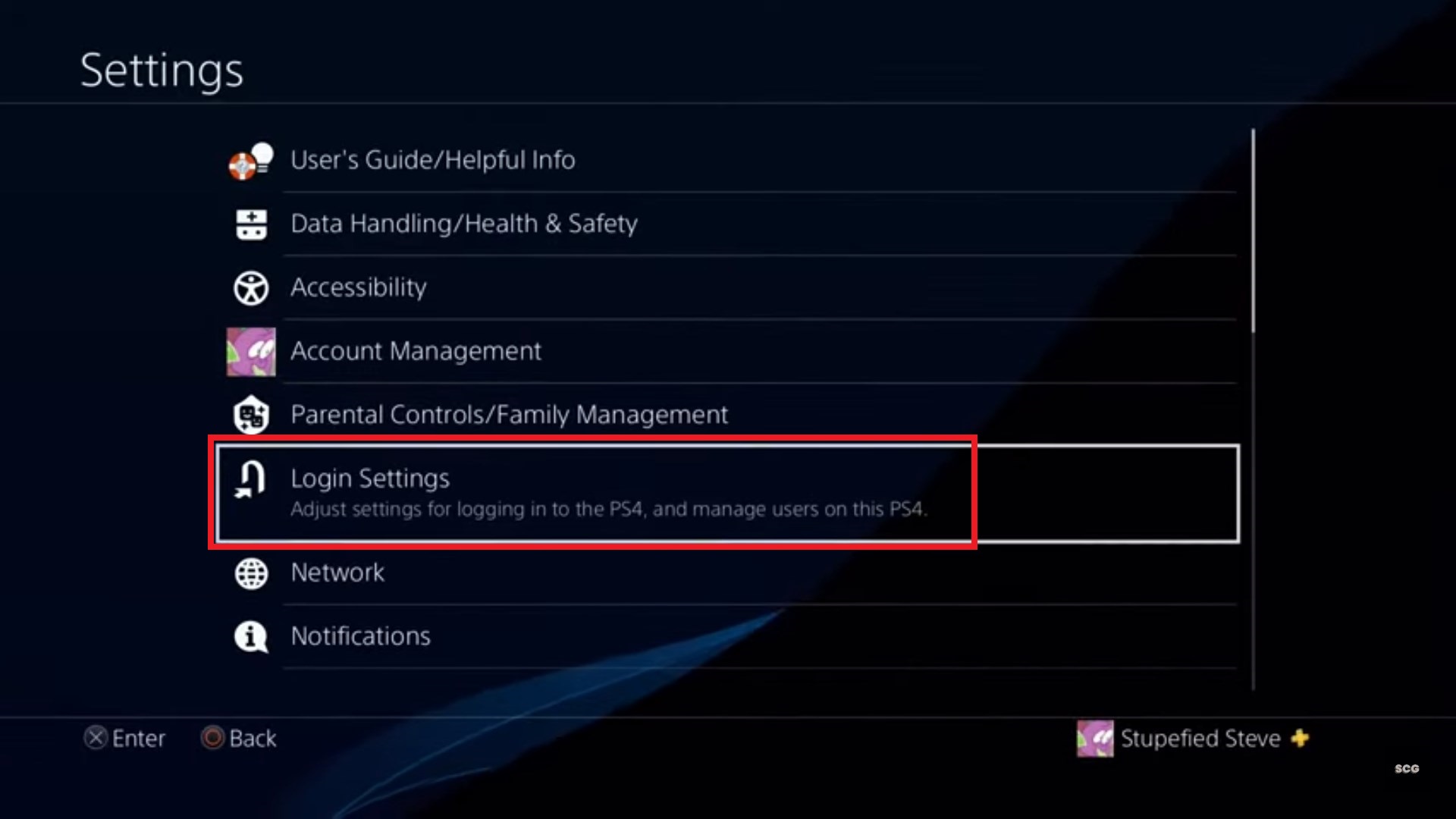
- From the PlayStation dynamic menu, navigate upward to the function area and select Settings (the toolbox icon).
- Scroll down and select Account Management. Depending on your system software version, you may need to select Account Information.
- Scroll down and select PlayStation Subscriptions. (On older system software versions, this might be located under Services List).
- Locate and select PlayStation Plus.
- Select Turn Off Auto-Renewal.
- Confirm your choice by following the on-screen prompts until a confirmation message verifies that auto-renewal has been disabled.
Method 2: Canceling via Web Browser (PC or Mobile)
If your console is inaccessible, disconnected, or you prefer managing digital accounts via a computer or smartphone web browser, you can handle the cancellation online.
- Open any web browser and go to the official PlayStation Account Management page.
- Click the Sign In button in the top right corner and enter your PSN credentials. Complete any required two-step verification checks.
- From the main account dashboard menu, click on Subscription located in the sidebar or account management tabs.
- Find PlayStation Plus in your list of active services.
- Click on the settings icon or the Cancel Subscription / Turn Off Auto-Renewal option associated with the service.
- Confirm the cancellation when prompted. A confirmation screen will display the exact expiration date of your current access.
| Cancellation Method | Primary Device | Technical Requirements | Best Used For |
|---|---|---|---|
| Console Settings | PS4 Console | Logged-in profile, internet connection | Direct control while gaming |
| Web Browser | PC, Mac, Smartphone | Internet browser, PSN login credentials | Remote management, console unavailable |
Financial Implications and Refund Policies
Navigating digital refunds can be frustrating. According to the official PlayStation Cancellation Policy, purchases of digital subscriptions are generally non-refundable once the service has begun, except where required by local consumer protection laws.
- Cooling-Off Period: In certain jurisdictions (such as the European Union and specific U.S. states with mandated consumer laws), subscribers may be entitled to a partial refund if they cancel within 14 days of the initial purchase and have not extensively used the service. However, this is heavily restricted once you download or stream games or access online multiplayer features.
- Wallet Funds vs. Payment Cards: If you qualified for an approved refund, Sony typically credits the funds back to your PSN wallet or original payment method, depending on regional regulations. Standard cancellations simply stop future charges to your credit card, debit card, or PayPal account without issuing a retroactive cash payout.
Common Mistakes and Troubleshooting
Even with clear instructions, users occasionally encounter hurdles when attempting to manage their accounts.
- Canceling the Wrong Account: Many households share consoles among family members. Ensure you are logged into the exact child or adult master profile that originally purchased the subscription, rather than a secondary sub-account.
- Confusing Deletion with Cancellation: Deleting a user profile from your PS4 console does not cancel your recurring subscription. Sony's servers will continue to bill your linked credit card until auto-renewal is manually toggled off via Account Management or online settings.
- Server Outages: If you receive a network error while trying to access Account Management, PlayStation Network servers may be undergoing maintenance. Check the official PlayStation Network Service Status page before trying again.
- Payment Method Errors: If your subscription is already past due or suspended due to an expired card, you may be required to clear an outstanding balance before you can access subscription management menus to stop future billing.
Frequently Asked Questions
Will I lose access to my saved game data if I cancel PS4 Plus?
No. Canceling your subscription does not delete your local save files stored on your console's hard drive. However, you will lose access to cloud storage synchronization, meaning any new game saves generated while unsubscribed will not automatically back up to Sony's servers until you resubscribe.
Can I still play free-to-play games without PlayStation Plus?
Yes. Popular free-to-play titles such as Fortnite, Apex Legends, and Genshin Impact do not require an active PlayStation Plus subscription for online multiplayer access. The subscription requirement applies primarily to paid multiplayer games.
What happens to monthly games I claimed during my subscription?
Games claimed through the monthly PlayStation Plus lineup remain tied to your account library indefinitely. You cannot play them while your subscription is inactive, but regaining your subscription at a later date will instantly restore full access to those titles.
Can I get a refund if I accidentally let my subscription auto-renew?
Sony rarely grants refunds for accidental auto-renewals once the new billing period has started, provided the service was available for use. Contact PlayStation Support immediately if you notice an unintended charge, though success depends heavily on local consumer laws and whether the service has been utilized during the new cycle.
Final Recommendation
To prevent unexpected charges, make it a habit to turn off auto-renewal immediately after purchasing a promotional or time-limited PlayStation Plus subscription. This ensures you retain full control over your digital spending, allowing you to manually evaluate whether the service provides enough value to warrant renewal when your expiration date arrives.
Image Gallery