How to Add CenturyLink Email to Outlook
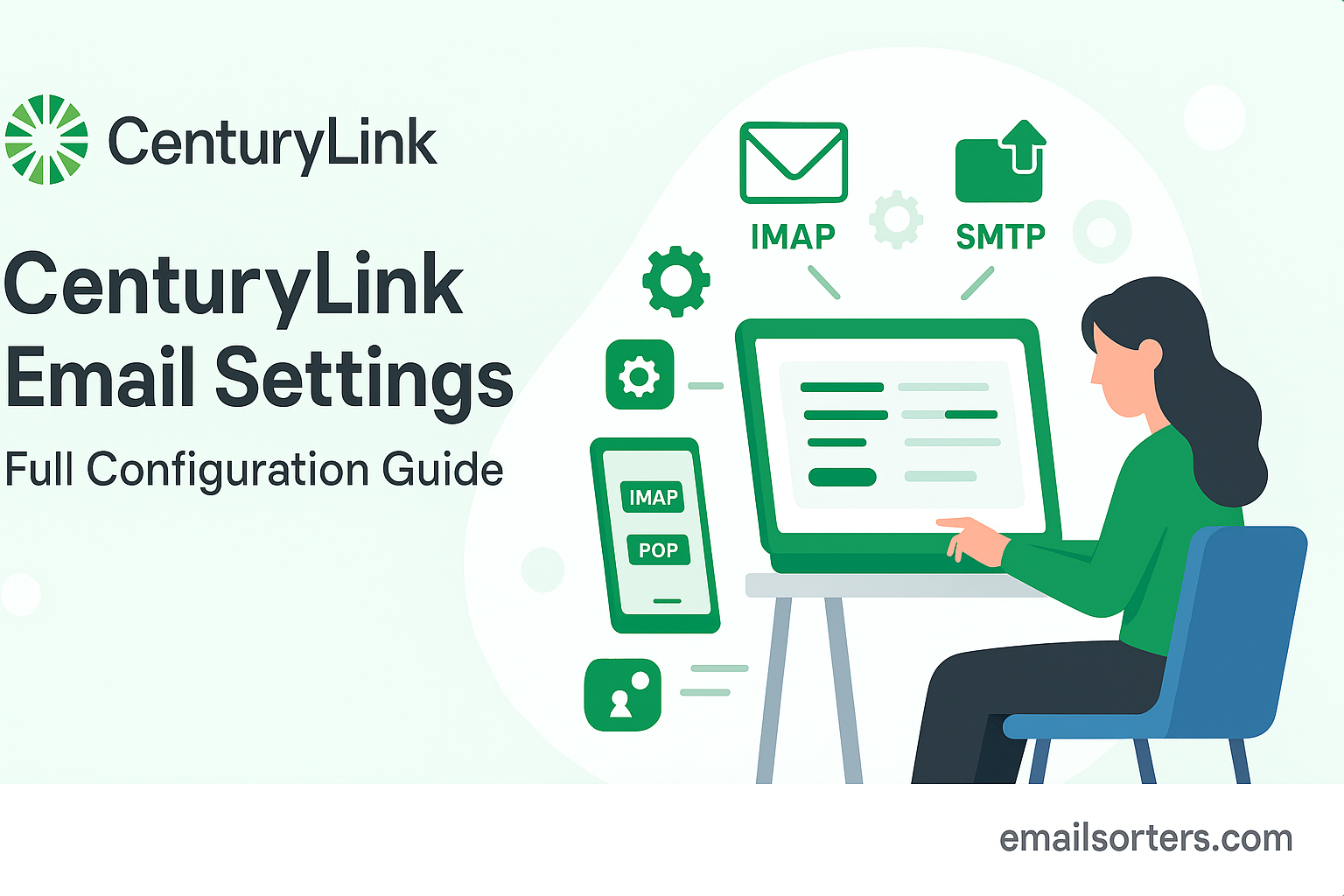
Adding your CenturyLink email account to Microsoft Outlook requires configuring your incoming and outgoing mail server settings using the standard IMAP or POP3 protocols. Because CenturyLink transitioned its email services to Brightspe...
Adding your CenturyLink email account to Microsoft Outlook requires configuring your incoming and outgoing mail server settings using the standard IMAP or POP3 protocols. Because CenturyLink transitioned its email services to Brightspeed in certain regions or relies on CenturyLink-branded infrastructure managed through CenturyLink's webmail portals, locating the exact server parameters is essential for establishing a stable connection.
Contents
Understanding CenturyLink Email and Outlook Integration
Microsoft Outlook remains one of the most powerful desktop and mobile email management tools available, supporting robust organization, calendar synchronization, and security features. However, integrating an Internet Service Provider (ISP) email address like CenturyLink into a modern client requires manual configuration. CenturyLink does not typically use automatic account setup scripts for third-party clients like Outlook, meaning you must explicitly provide your server addresses, port numbers, and encryption protocols.
Before beginning the configuration process, you must verify the status of your CenturyLink email account. CenturyLink historically partnered with third-party providers like CenturyLink.net webmail, powered by platforms such as Yahoo or CenturyLink's own legacy infrastructure. Depending on when you created your account and your geographical service area, your backend mail servers may vary slightly. Ensuring you have your active email address and current password is the critical first step.
Prerequisites Before You Begin Setup
Gathering the necessary credentials and system requirements before launching Outlook prevents connection timeouts and authentication failures. Take time to check each item on this technical checklist:
- Active Credentials: Your full CenturyLink email address (e.g.,
username@centurylink.net) and your primary account password. If you cannot log into the webmail interface, a password reset via the CenturyLink account management portal is required first. - Outlook Application: Access to a desktop version of Microsoft Outlook (such as Outlook for Microsoft 365, Outlook 2021, Outlook 2019, or Outlook 2016) running on Windows or macOS.
- Server Settings: Accurate IMAP/POP3 and SMTP server hostnames, port numbers, and encryption requirements.
- Secure Mail Key or App Password: Depending on whether your CenturyLink email is managed through a legacy portal or a migrated Yahoo-backed interface, you may need to generate a specific app password if multi-factor authentication (MFA) is enabled on your profile.
CenturyLink IMAP and SMTP Server Technical Specifications
Configuring your mail client via IMAP (Internet Message Access Protocol) is strongly recommended over POP3. IMAP syncs your messages across multiple devices, ensuring that actions taken on your phone or webmail reflect inside Outlook. Below are the standard server specifications used for CenturyLink email integration.
| Parameter | IMAP Setting (Recommended) | POP3 Setting (Alternative) | SMTP Setting (Outgoing) |
|---|---|---|---|
| Server Hostname | imap.centurylink.net |
pop.centurylink.net |
smtp.centurylink.net |
| Port Number | 993 |
995 |
465 or 587 |
| Encryption Type | SSL / TLS | SSL / TLS | SSL / TLS (or STARTTLS for 587) |
| Requires Authentication | Yes | Yes | Yes |
Note: In some legacy or regional configurations, server addresses may reference mail.centurylink.net or specific Yahoo-hosted endpoints if your account migration dictates it. Always cross-reference your webmail login portal's help documentation if standard hostnames fail to connect.
Step-by-Step Guide to Adding CenturyLink Email to Outlook
The process for adding an email account varies slightly depending on whether you are launching Outlook for the first time or adding a secondary inbox to an existing profile. Follow these detailed steps to complete the setup on a Windows desktop environment.
Step 1: Open Account Settings in Outlook
- Launch Microsoft Outlook on your computer.
- If this is your first time opening the application, a welcome wizard will appear. Enter your full CenturyLink email address.
- If you already have an existing profile, click on File in the top-left corner, select Info, and click on + Add Account.
Step 2: Choose Manual Setup
- Enter your full CenturyLink email address into the prompt.
- Click on Advanced options below the text box and check the box that says Let me set up my account manually.
- Click the Connect button to proceed.
Step 3: Select Account Type (IMAP)
- Choose IMAP from the list of available mail server icons. (POP is available if you prefer downloading messages locally and removing them from the server, though IMAP is universally preferred).
- You will be directed to the incoming and outgoing configuration screen.
Step 4: Input Server Settings and Port Numbers
- Under the Incoming mail section, enter
imap.centurylink.netas the server hostname. Ensure the port is set to993and check the box requiring encryption (SSL/TLS). - Under the Outgoing mail section, enter
smtp.centurylink.netas the server hostname. Set the port to465or587, and select SSL/TLS (or STARTTLS) as the encryption method. - Click Next.
Step 5: Enter Password and Complete Authentication
- Enter your CenturyLink email account password when prompted by the secure security window.
- Click Connect or Done. Outlook will test the incoming and outgoing server connection. Once authentication succeeds, your CenturyLink inbox will populate within the left-hand navigation pane of Outlook.
Troubleshooting Common CenturyLink Connection Errors
Even with accurate server parameters, technical hurdles can disrupt the synchronization process. Understanding why errors occur helps isolate and resolve problems quickly.
1. Authentication Failures and Incorrect Passwords
If Outlook repeatedly prompts you for your password, verify your credentials by logging directly into the CenturyLink webmail interface via a standard web browser. If you recently updated your CenturyLink primary account password, you must update it within Outlook's account settings. Furthermore, if your account backend was migrated to a partner network, you may be required to generate a third-party application password rather than using your master account login.
2. Port and Firewall Blocks
Network firewalls or third-party antivirus suites can block non-standard ports like 993, 465, or 587. If Outlook hangs on "Establishing connection," temporarily disable your antivirus email scanner or check your router settings to ensure outbound SMTP traffic is not restricted. Switching the outgoing encryption method between SSL and TLS can also resolve handshake failures.
3. Certificate Mismatch Warnings
If a security certificate warning appears indicating that the server name does not match the certificate, verify that your incoming and outgoing server hostnames are spelled correctly (imap.centurylink.net and smtp.centurylink.net). Using regional or legacy suffixes incorrectly will trigger SSL certificate mismatch errors.
Best Practices for Managing CenturyLink Email in Outlook
Maintaining optimal performance within Outlook ensures your email archive remains organized and secure over time.
- Configure Folder Sync Settings: In IMAP configurations, large sent folders or archived directories can slow down synchronization. Right-click your CenturyLink folders in Outlook, select IMAP Folders, and query subscription lists to hide unnecessary directories.
- Set Retention Policies: Because ISP mailboxes often feature strict storage quotas compared to enterprise cloud solutions, configure Outlook's AutoArchive feature or periodically move old messages to local PST files to prevent your mailbox from exceeding its storage limit.
- Keep Software Updated: Regularly update Microsoft Outlook to ensure compatibility with modern security standards, cipher suites, and TLS protocols mandated by email hosting infrastructure.
Frequently Asked Questions
What are the correct incoming and outgoing server settings for CenturyLink?
The standard incoming IMAP server is imap.centurylink.net on port 993 with SSL/TLS encryption. The outgoing SMTP server is smtp.centurylink.net on port 465 or 587 with SSL/TLS or STARTTLS encryption enabled.
Why won't Outlook accept my CenturyLink password?
Outlook may reject your password if you enter incorrect server parameters, if your account requires an app-specific password due to security migrations, or if your account password needs to be reset via the official CenturyLink web portal.
Can I use POP3 instead of IMAP for CenturyLink email?
Yes, you can configure CenturyLink via POP3 using pop.centurylink.net on port 995 with SSL/TLS. However, IMAP is recommended because it synchronizes read states, drafts, and folders across multiple devices and webmail.
Is CenturyLink email still supported after company migrations?
CenturyLink email infrastructure has undergone various transitions and regional migrations, often partnering with external providers like Brightspeed or Yahoo for user management. If your domain is active and you can access webmail, IMAP access remains functional using official server hostnames.
What should I do if my emails are stuck in the Outbox?
Emails stuck in the Outbox usually indicate an incorrect outgoing (SMTP) server port, disabled authentication settings, or a firewall blocking port 465/587. Verify your SMTP authentication credentials match your incoming mail settings.
Summary and Next Actions
Successfully adding your CenturyLink email to Microsoft Outlook requires precise entry of IMAP/SMTP server hostnames, secure port numbers, and valid credentials. By following the manual setup workflow and ensuring your encryption settings match modern standards, you can unify your email management within a single desktop environment. If you encounter persistent connection drops, verify your webmail status, check your firewall configurations, or generate an updated application-specific password.
Image Gallery