Understanding the Status Bar on an iPhone: A Comprehensive Guide
The status bar on an iPhone is the persistent horizontal strip located at the very top of the screen that provides essential real-time information about your device's operating state. It displays critical data such as network connectiv...
The status bar on an iPhone is the persistent horizontal strip located at the very top of the screen that provides essential real-time information about your device's operating state. It displays critical data such as network connectivity, cellular signal strength, battery level, current time, and active background processes, allowing users to monitor their phone’s health and connection status at a glance.
Contents
The Purpose and Evolution of the Status Bar
Since the inception of the iPhone, the status bar has served as the primary interface for system-level notifications. Its purpose is to provide a "quick-look" dashboard that remains consistent across the iOS interface, whether you are on the home screen, within an app, or using the Control Center. While its appearance has shifted over the years—most notably with the introduction of the "notch" and later the "Dynamic Island" on newer models—the core functionality remains a pillar of the user experience.
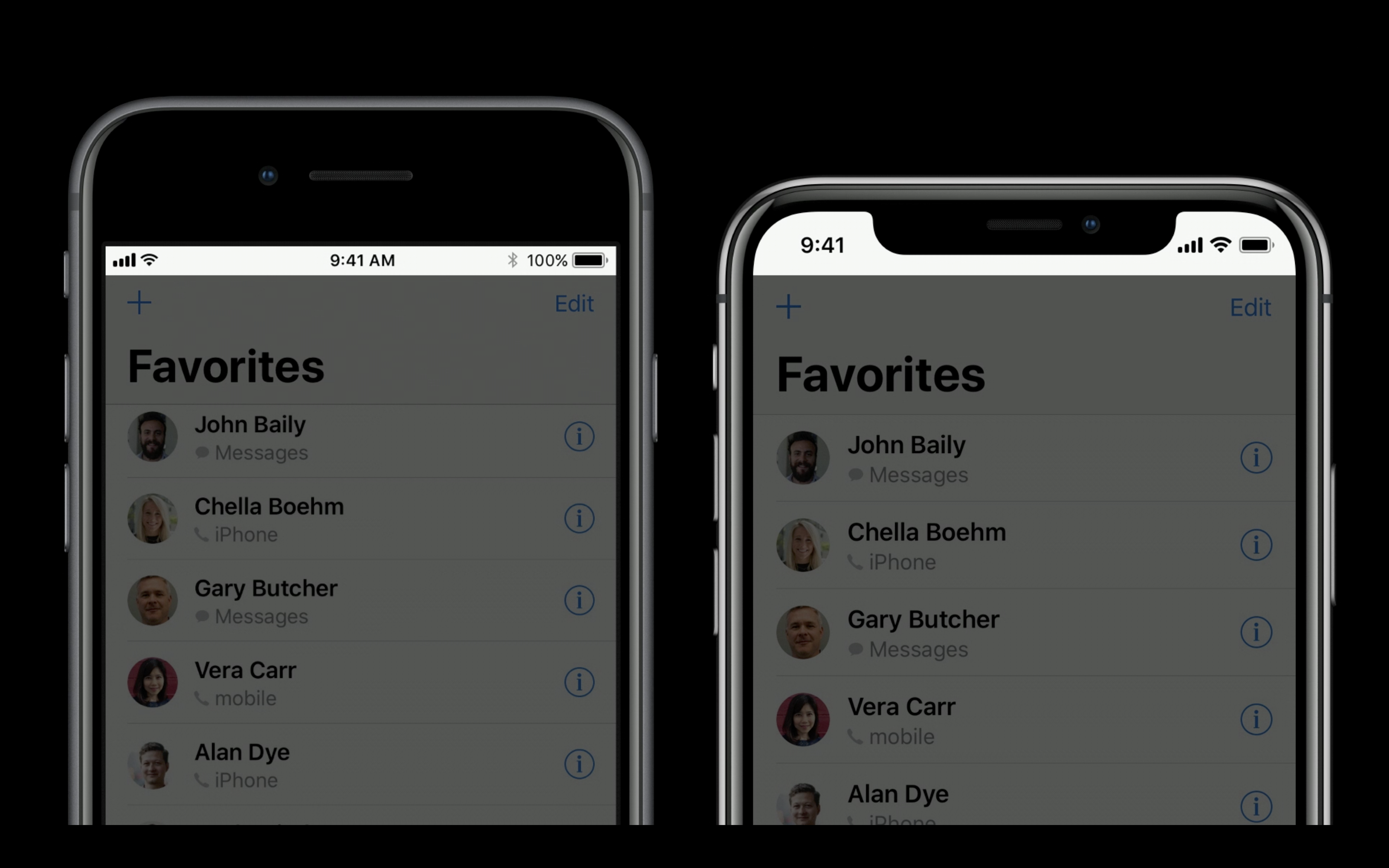
On older iPhone models with a physical Home button, the status bar spanned the full width of the display in a clean, linear fashion. With the advent of edge-to-edge screens starting with the iPhone X, the status bar became more segmented to accommodate the sensor housing. Understanding these indicators is essential for troubleshooting connectivity issues, managing power consumption, and identifying when specific hardware features, like the microphone or camera, are engaged.
Decoding Status Bar Icons and Indicators
The status bar is packed with symbols that represent different hardware and software states. Because screen real estate is limited, Apple uses a standardized iconography system. Familiarizing yourself with these symbols allows you to troubleshoot issues independently before seeking technical support.
Connectivity Indicators
- Signal Strength: Represented by a series of vertical bars (or dots on newer models). Fewer bars indicate a weaker connection to the cellular network.
- Cellular Technology: You will often see labels like 5G, 5G+, LTE, or 4G next to your signal strength, indicating the speed and generation of the data network your carrier is providing.
- Wi-Fi: A fan-shaped icon indicates a connection to a wireless network. The number of solid arcs represents signal strength.
- Personal Hotspot: When another device is connected to your iPhone's internet, you may see two blue, overlapping links or a blue indicator pill in the status bar.
Battery and Power
- Battery Level: The battery icon provides a visual representation of your charge. When your device enters Low Power Mode, the icon turns yellow. It turns red when the battery is critical (below 20%).
- Charging Status: A lightning bolt icon appears inside or next to the battery symbol when the device is connected to a power source.
Privacy and Active Sensors
Modern versions of iOS utilize color-coded indicators to inform the user about privacy:
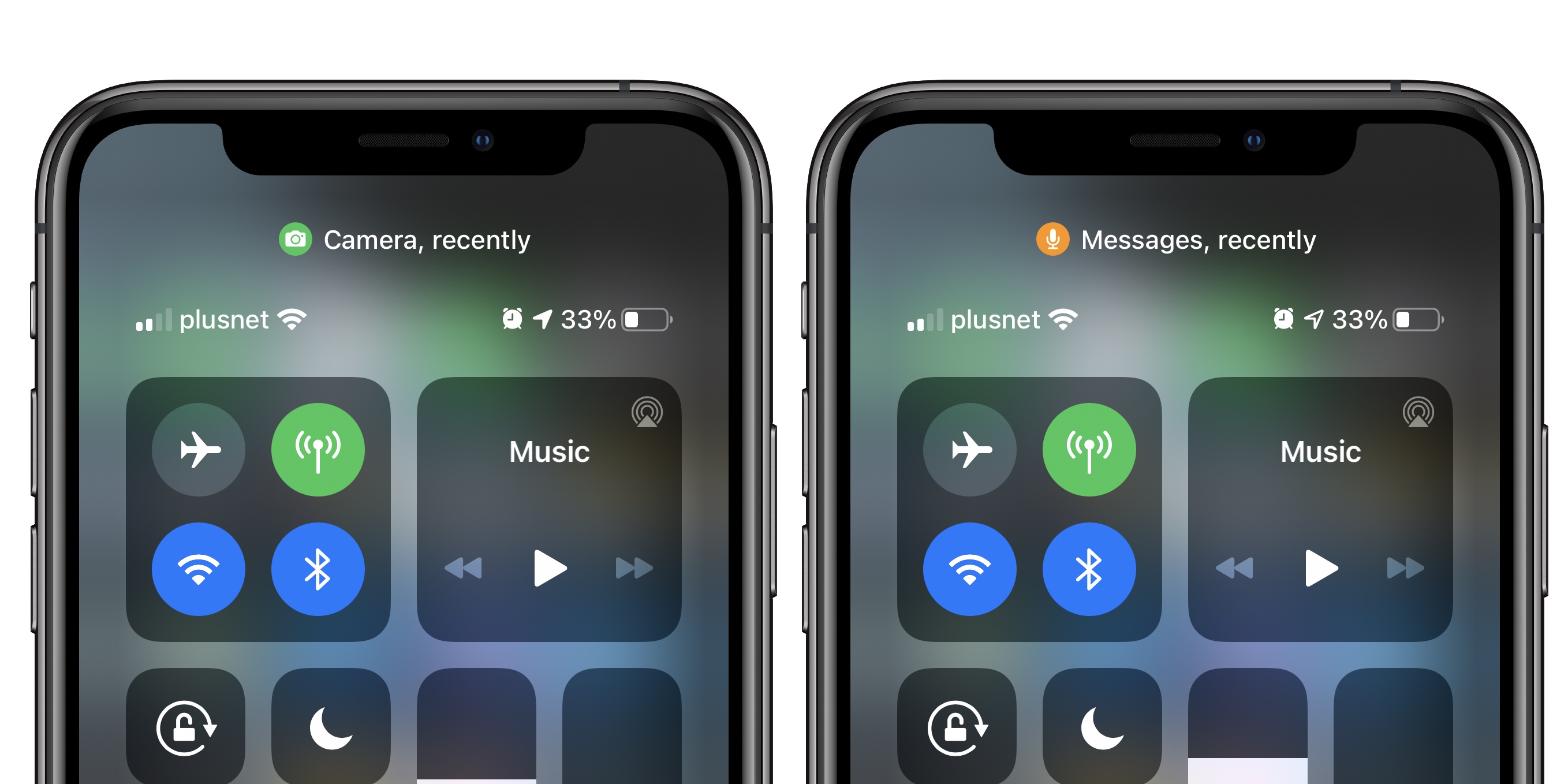
- Orange Dot: Indicates that an app is currently using the device's microphone.
- Green Dot: Indicates that an app is currently using the camera, or both the camera and the microphone.
Comparing Status Bar Layouts Across Models
The physical design of your iPhone dictates how much information can be displayed in the status bar at one time. Newer devices utilize more sophisticated UI elements to manage the lack of space around the front-facing camera array.
| Feature | Pre-iPhone X (Home Button) | iPhone X through iPhone 14 Pro | iPhone 15 Pro and Later |
|---|---|---|---|
| Primary Design | Full width strip | Notch interface | Dynamic Island |
| Time Display | Center | Left side | Left side |
| Status Icons | Distributed | Split (Left/Right) | Split (Left/Right) |
| Dynamic Interaction | None (Static) | Minimal | Expanded (Interactive) |
In the "Dynamic Island" era, the status bar is no longer just a passive display. It can expand to show active timers, music playback controls, or navigation directions, merging the traditional status bar with a contextual notification system.
Troubleshooting Common Status Bar Issues
If your status bar seems to be behaving unexpectedly, or if you cannot find information you expect to be there, follow these logical steps to diagnose the issue:
- Check for Software Updates: Occasionally, UI elements may glitch. Ensure your device is running the latest version of iOS by navigating to Settings > General > Software Update.
- Verify Control Center: If the status bar is cluttered, remember that more granular information—such as the exact battery percentage or the specific Wi-Fi network name—is available by swiping down from the top-right corner to open the Control Center.
- Check Privacy Indicators: If you see an orange or green dot but cannot identify the source, open the Control Center immediately. It will display the name of the app that most recently accessed your microphone or camera.
- Restart the Device: A simple power cycle can resolve temporary software conflicts that might cause icons to disappear or freeze.
Managing Status Bar Visibility
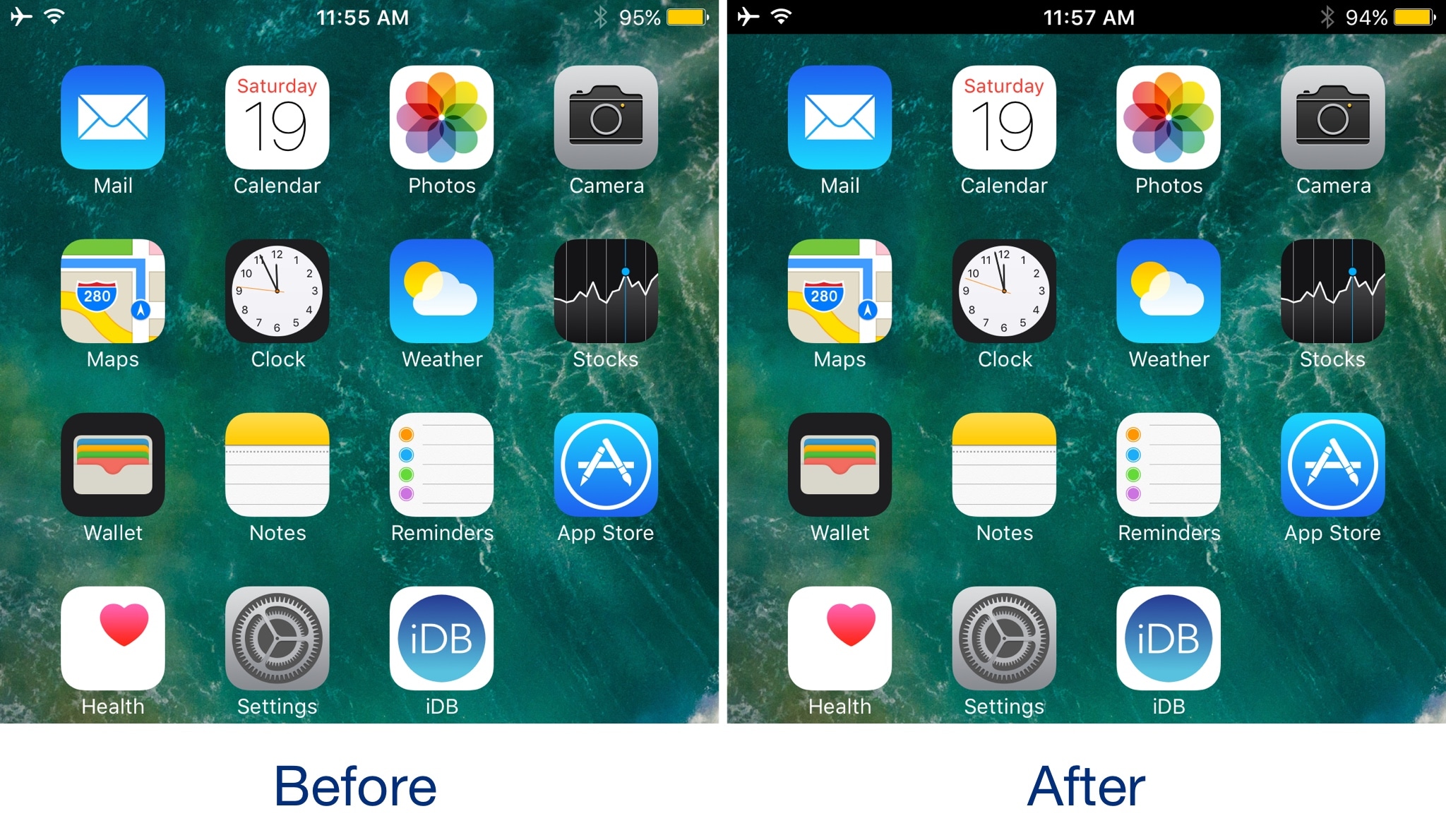
In most cases, the status bar is meant to be visible at all times. However, certain apps—specifically games and video streaming services—may choose to "hide" the status bar to provide an immersive, full-screen experience. If you are stuck in an app and the status bar has vanished, usually a single tap on the screen or a small swipe inward from the top edge will reveal it again.
If you find that the status bar is missing on your home screen or system-wide, it is likely a software bug. Force-restarting your iPhone (pressing volume up, then volume down, then holding the side button) is the standard method for resetting the system interface without losing data.
Frequently Asked Questions
Why is my battery icon yellow? Your iPhone is currently in Low Power Mode. This reduces background activity and visual effects to conserve battery life. It will automatically disable once the phone is charged to 80% or higher.
What does the blue highlight around my time mean? The blue pill or highlight around the time usually indicates that an app is actively using your location services or that you are currently in an active phone call or screen recording session.
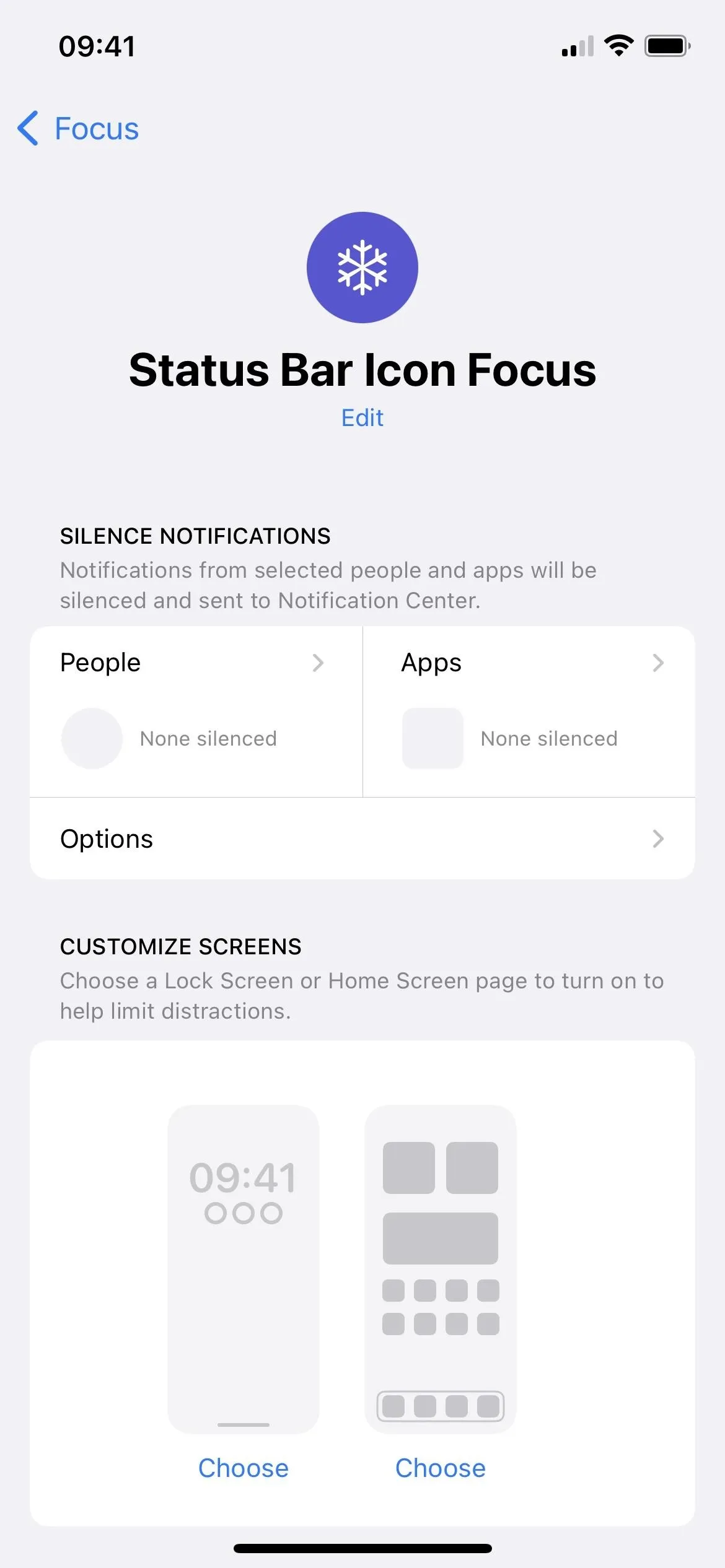
Can I hide the status bar permanently? You cannot hide the status bar globally through iOS settings, as it is a core component of the user interface. It is designed to be a permanent system monitor.
Why are there dots instead of bars for signal? On newer iPhones with the Dynamic Island, Apple utilizes a simplified dot-based signal indicator to save space and maintain a cleaner aesthetic, though the functional meaning remains identical to traditional bars.
Does the status bar burn into the screen? Modern iPhone displays (OLED) are highly resistant to burn-in. However, if you leave your phone at maximum brightness for extended periods with static elements, it is theoretically possible. iOS includes "pixel-shifting" technology to mitigate this risk.
Next Steps for Users
If you are unfamiliar with the status bar, the best practice is to spend time observing it while performing different tasks. Pay attention to how it changes when you receive a call, start a GPS route, or plug your phone into a charger. Should you notice an icon you do not recognize, consult the official Apple User Guide, which provides an exhaustive library of current iOS icons for your specific model. By mastering the information provided in the status bar, you gain better control over your device's connectivity, privacy, and power management.
Image Gallery