How to Clear iPhone Notifications Effectively
To clear iPhone notifications, swipe up from the middle of the Lock Screen or Notification Center to reveal past alerts, then swipe left on an individual notification to tap "Clear" or "Clear All" for a specific app stack. You can also...
To clear iPhone notifications, swipe up from the middle of the Lock Screen or Notification Center to reveal past alerts, then swipe left on an individual notification to tap "Clear" or "Clear All" for a specific app stack. You can also permanently manage notification behavior through the Settings app to prevent unwanted alerts from cluttering your device in the future.
Contents
Understanding the iPhone Notification Architecture
The iOS notification system is designed to provide immediate access to information while maintaining user privacy and focus. As of 2026, Apple’s notification management remains consistent across recent iOS versions. Notifications are categorized into three primary areas: the Lock Screen, the Notification Center, and the Banners that appear while the device is actively in use.
Clearing these notifications is not merely a task of aesthetic maintenance; it is a vital part of managing your digital well-being. A cluttered Notification Center can lead to "notification fatigue," where important alerts from family or professional applications are missed due to a deluge of low-priority pings from social media, marketing emails, or casual games. By mastering the clearing process and customizing delivery settings, you regain control over your attention.
How to Clear Individual and Stacked Notifications
Depending on how your device is configured, notifications may appear as a chronological list or as a "stack" grouped by application. Clearing these requires different gestures based on your current view.
1. Clearing Individual Notifications
When you have a specific alert you no longer need, you can dismiss it quickly:
- From the Lock Screen or Notification Center: Locate the specific notification.
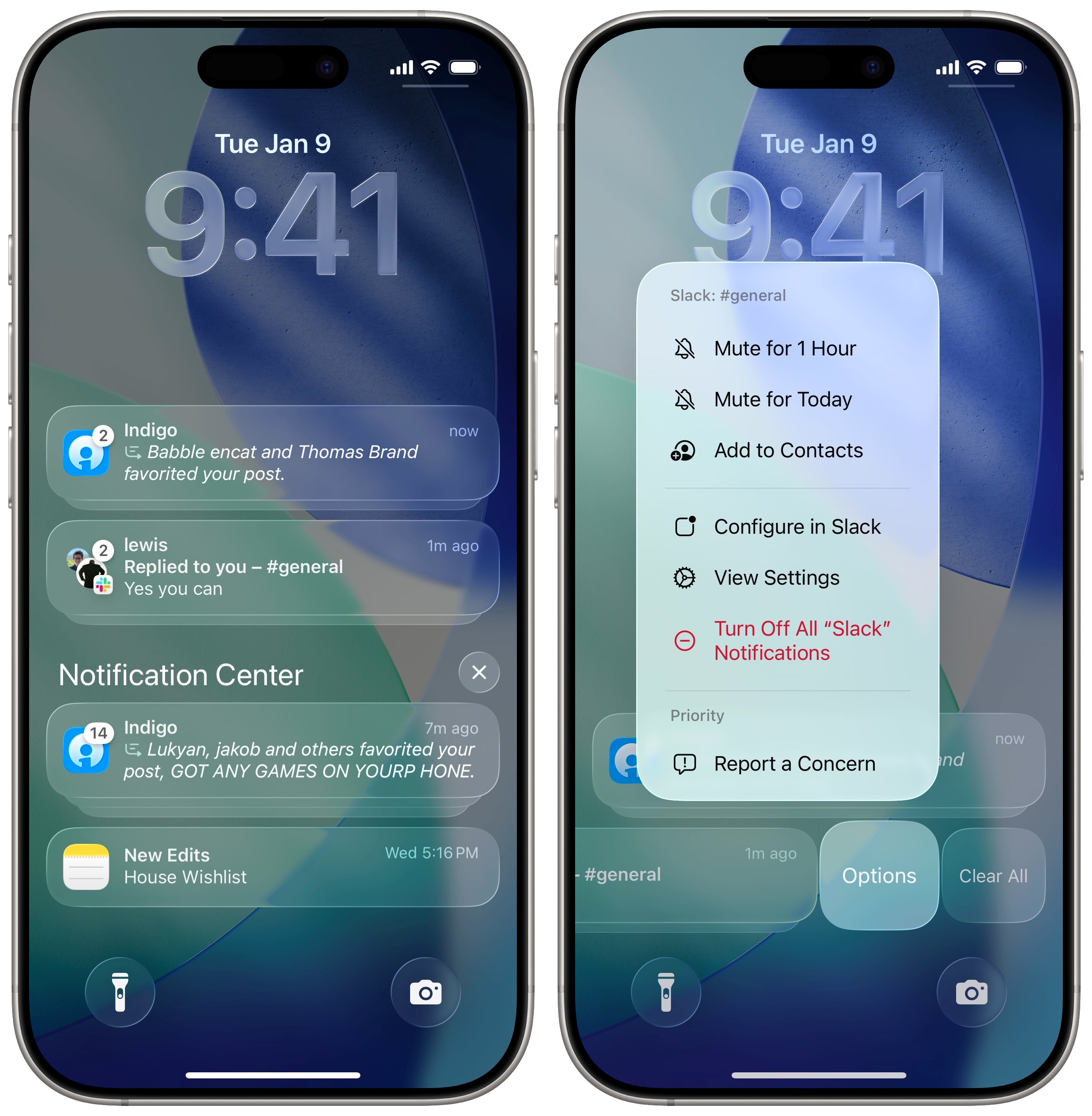
- The Gesture: Swipe left across the notification. You will see options like "Options" and "Clear."
- The Action: Tap "Clear" to remove that single instance. If you swipe all the way to the left, the notification will be dismissed automatically without needing a second tap.
2. Clearing Notification Stacks
Apple introduced the "Stack" view to group alerts from the same application, preventing them from consuming the entire screen.
- Accessing the Stack: If notifications are stacked, tap the stack to expand them.
- Clearing the Entire Group: Once expanded, you can clear the entire stack by tapping the "X" icon located at the top right of the group.
- Batch Clearing: Alternatively, if you wish to clear all notifications from a specific day or category, tap the "X" button at the top of the Notification Center header. This triggers a prompt to "Clear All Notifications," which, when confirmed, empties your list entirely.
Managing Notifications via Settings for Permanent Control
If you find yourself frequently clearing the same type of notifications—such as promotional alerts from a shopping app or recurring updates from a game—it is more efficient to stop them at the source.
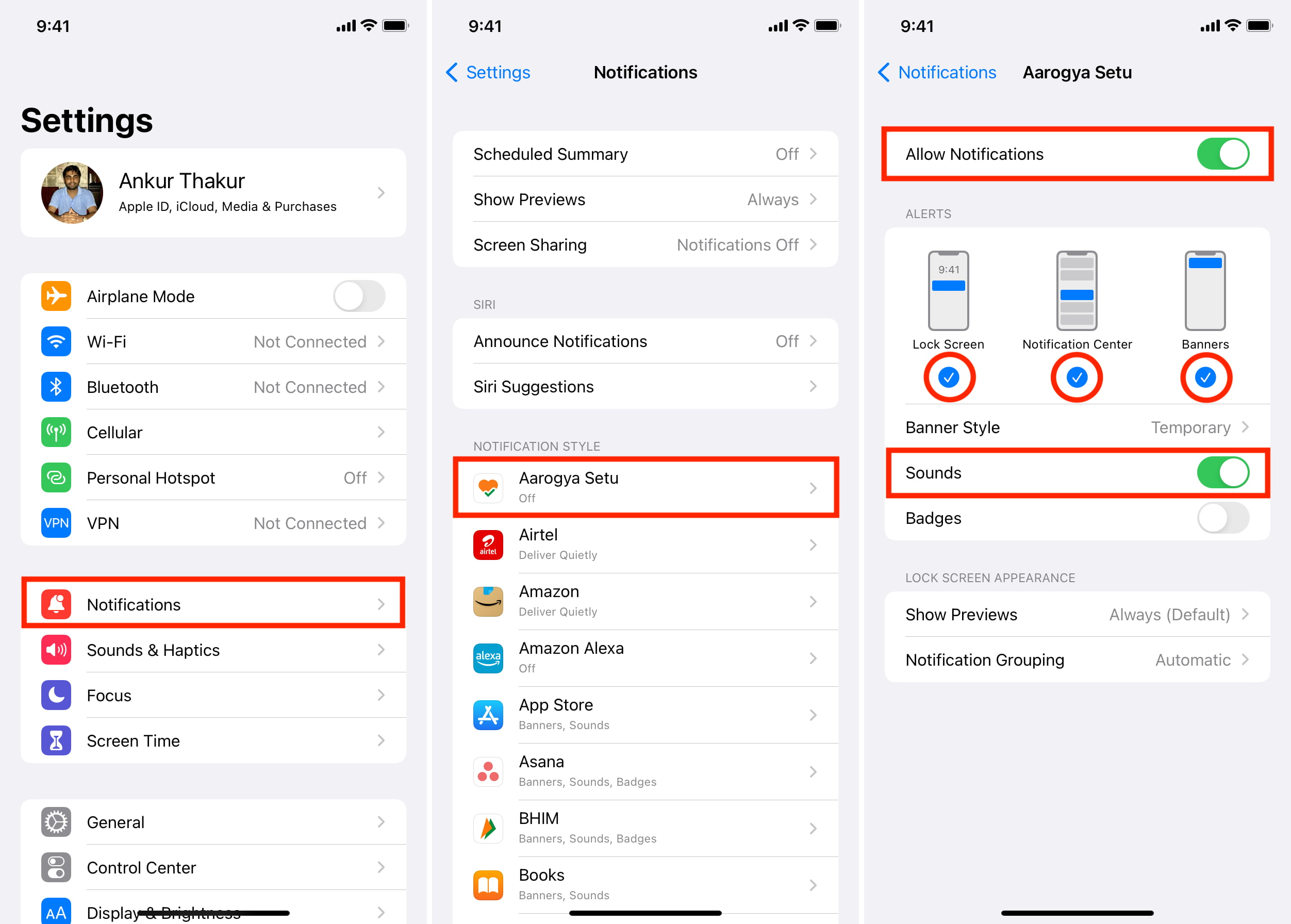
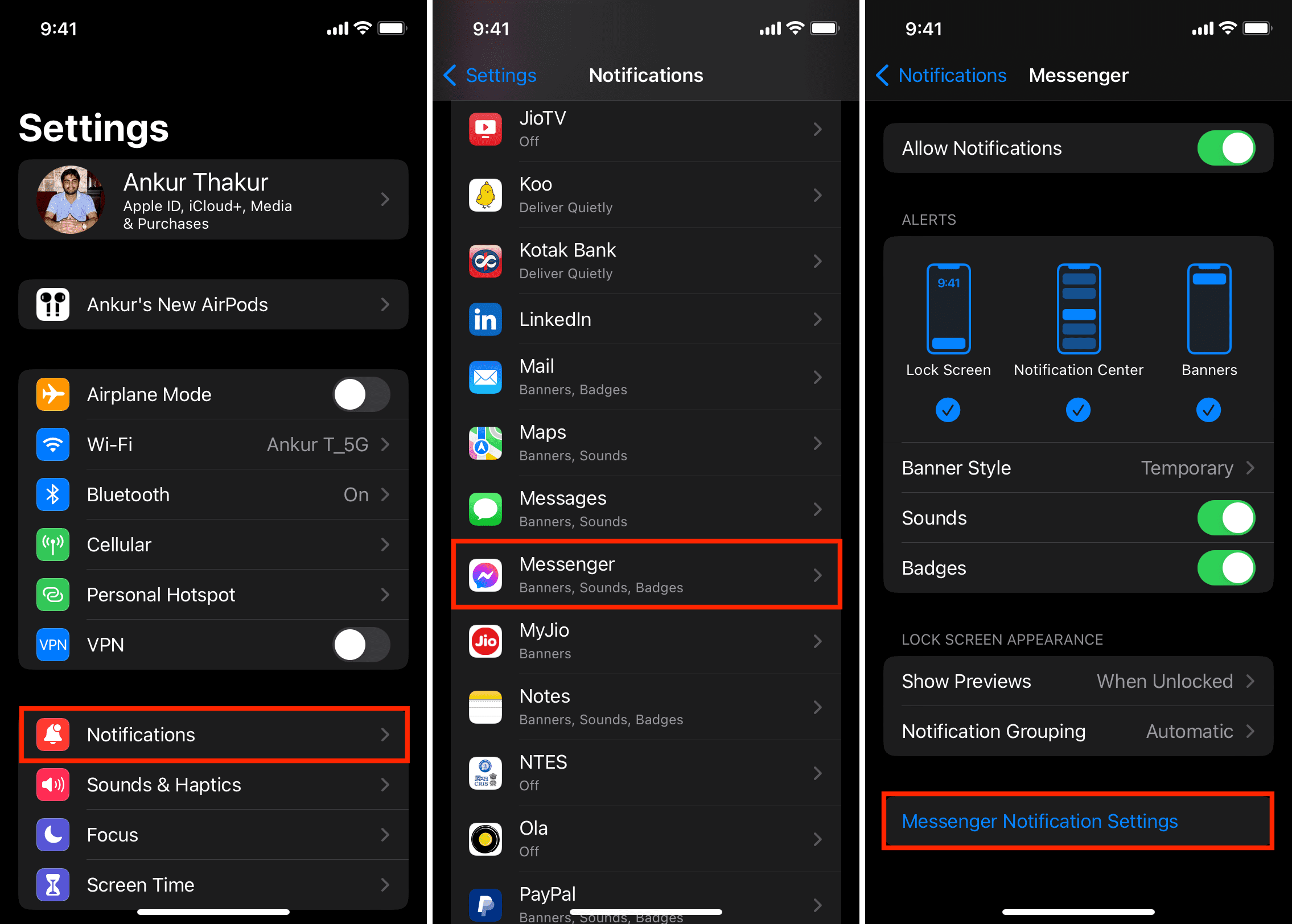
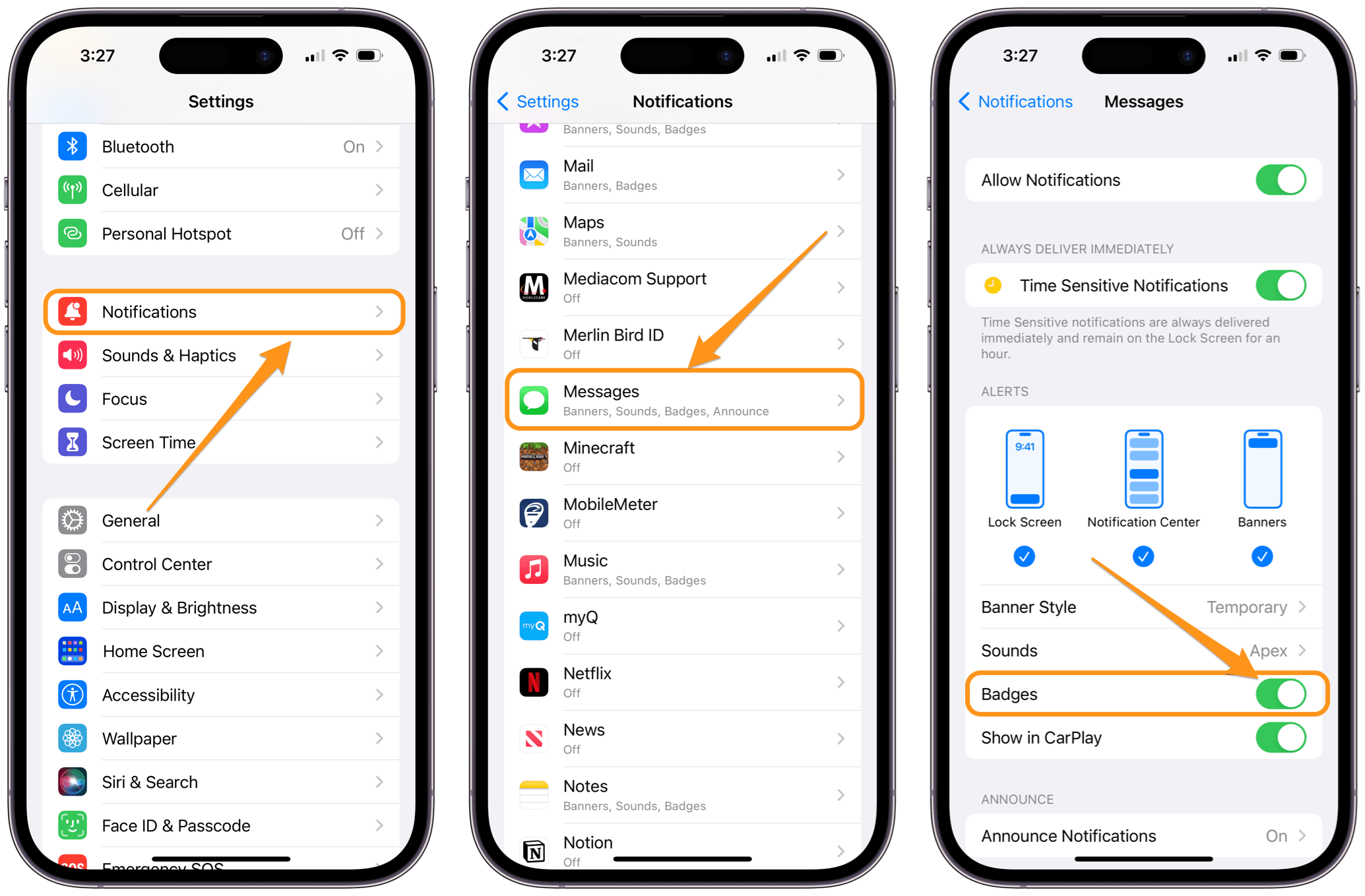
Navigate to Settings > Notifications. Here, you will see a list of every app installed on your iPhone. By selecting an individual app, you can toggle several critical settings:
- Allow Notifications: Toggle this off to silence the app entirely.
- Lock Screen, Notification Center, and Banners: You can choose to show notifications in one, two, or all three locations. For example, if you want an app to notify you only via a badge (the red number on the icon) but not show up on your lock screen, you can uncheck the "Lock Screen" option.
- Delivery Style: You can set alerts to "Immediate Delivery" or "Scheduled Summary." The Scheduled Summary is particularly useful for low-priority notifications, as it aggregates them and delivers them to you at a time of your choosing, keeping your screen clear during the workday.
Comparative Methods for Notification Management
Choosing the right method for notification management depends on how much interaction you require with a specific application.
| Method | Best Used For | Impact on Workflow |
|---|---|---|
| Swipe to Clear | Urgent/Temporary alerts | Immediate; requires manual effort |
| Clear All (X icon) | Clearing end-of-day clutter | High; efficient cleanup |
| Scheduled Summary | Non-urgent apps/social media | Prevents distraction; saves time |
| Turning Off Notifications | Unwanted apps/bloatware | Permanent; prevents future clutter |
Troubleshooting Common Notification Issues
Sometimes, notifications do not appear or cannot be cleared as expected. If you encounter issues, consider these technical checkpoints:
- Focus Modes: Check if "Do Not Disturb" or another Focus mode (like Work or Personal) is active. When these are enabled, notifications are silenced and hidden, which might make it appear as though your notification settings are broken.
- Internet Connectivity: If you are unable to clear notifications that seem "stuck," it may be a sync issue with the application server. Ensure your device has a stable Wi-Fi or cellular connection.
- Software Updates: While iOS stability is generally high, ensure your device is running the latest version available for your model to resolve potential bugs in the Notification Center interface.
- Device Restart: If the interface is non-responsive, a simple power cycle of your iPhone often clears cached processes that might be hindering the ability to swipe or clear alerts.
Frequently Asked Questions
Why can’t I clear a specific notification on my iPhone? Some notifications are "persistent" or system-critical and cannot be dismissed until the underlying action is taken (e.g., an alarm or a low-battery alert). If a notification is not a system alert, check if your screen is frozen; a quick restart often resolves ghost notifications that fail to swipe away.
What is the difference between "Clear" and "Delete"? In the context of iOS, "Clear" removes the notification from your view (Lock Screen/Notification Center) but does not delete the content within the app. For example, clearing an email notification removes the alert, but the email remains in your Inbox.
How do I stop notification badges without turning off notifications? You can disable the "Badges" setting for specific apps in Settings > Notifications. This removes the red numbered circles from the app icon while still allowing the notification to appear in your Notification Center.
Does clearing notifications delete my data? No. Clearing a notification simply removes the interface element that alerts you to the activity. The data—such as messages, emails, or app updates—remains within the respective applications until you choose to delete or manage it from within those apps.
How can I make sure I don't miss important notifications? Use "Critical Alerts" for apps that support them, or ensure your "Focus" modes are configured to allow notifications from specific contacts or apps that you deem essential, even when other distractions are silenced.
Next Steps for a Cleaner Digital Experience
To maintain a streamlined iPhone experience, perform a weekly audit of your notification settings. Spend two minutes in Settings > Notifications to evaluate which apps are sending you the most irrelevant alerts. By disabling notifications for non-essential services and utilizing the "Scheduled Summary" for secondary apps, you will find that you spend significantly less time manually clearing your screen and more time focused on your primary tasks. If an app frequently demands attention for non-urgent tasks, consider removing it or disabling its permissions entirely to reclaim your focus.
Image Gallery