How to Update Safari on Your Mac: A Complete Guide
Updating Safari on your Mac is tied directly to the macOS version installed on your computer, as Apple bundles the browser with the operating system rather than distributing it as a standalone application. To update Safari, you must in...
Updating Safari on your Mac is tied directly to the macOS version installed on your computer, as Apple bundles the browser with the operating system rather than distributing it as a standalone application. To update Safari, you must install the latest available macOS updates or upgrades through your System Settings, which ensures that both your browser security and performance features remain current.
Contents
Understanding the Safari Update Mechanism
Unlike third-party browsers such as Google Chrome or Mozilla Firefox, which maintain their own independent update channels, Safari is an integral component of the macOS infrastructure. Because of this deep integration, Apple does not offer a "Check for Updates" button within the Safari menu itself. Instead, the browser receives its feature enhancements, compatibility fixes, and critical security patches through the centralized macOS update system.
This design choice is primarily driven by security. By coupling the browser engine—WebKit—with the core operating system, Apple ensures that any vulnerability patched in the browser is propagated through the system's core, protecting users from cross-application exploits. For users, this means that "updating Safari" is effectively synonymous with "updating macOS."
Verifying Your Current macOS Version
Before attempting an update, you must identify your current version of macOS to understand whether you are eligible for the latest Safari version or if you have reached the maximum supported version for your specific hardware.
- Click the Apple Menu () in the top-left corner of your screen.
- Select About This Mac.
- A window will appear detailing your Mac model, the processor or chip, and the current macOS version (e.g., macOS Sonoma 14.5).
If your Mac is several years old, you may find that it no longer receives the latest full macOS upgrades. However, Apple typically provides "Security Updates" and "Safari-only updates" for older operating systems for several years after a new major release.
Steps to Update Safari via System Settings
Since Safari updates occur alongside system updates, the process involves navigating the macOS System Settings. In current versions of macOS, the procedure is standardized:
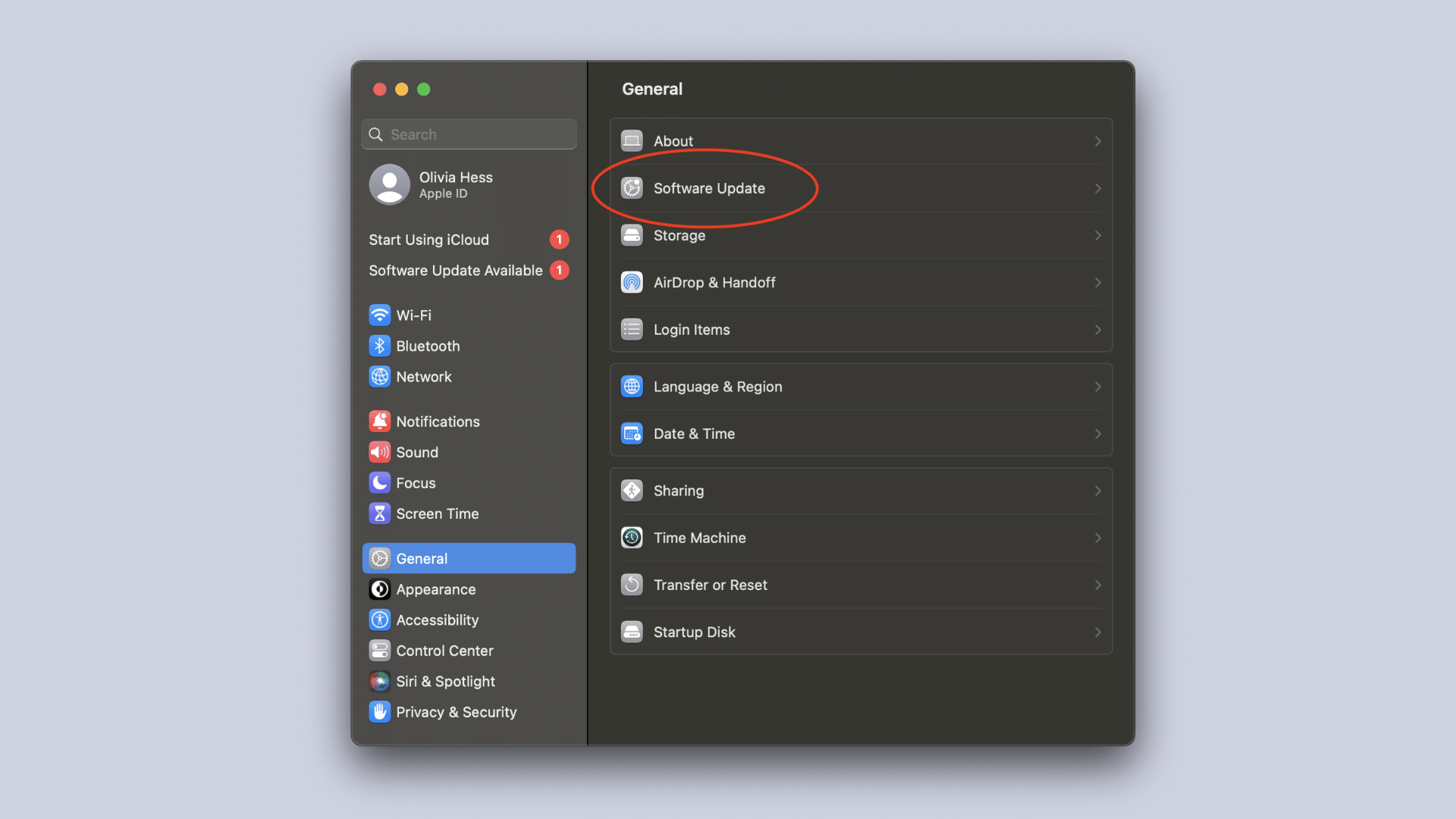
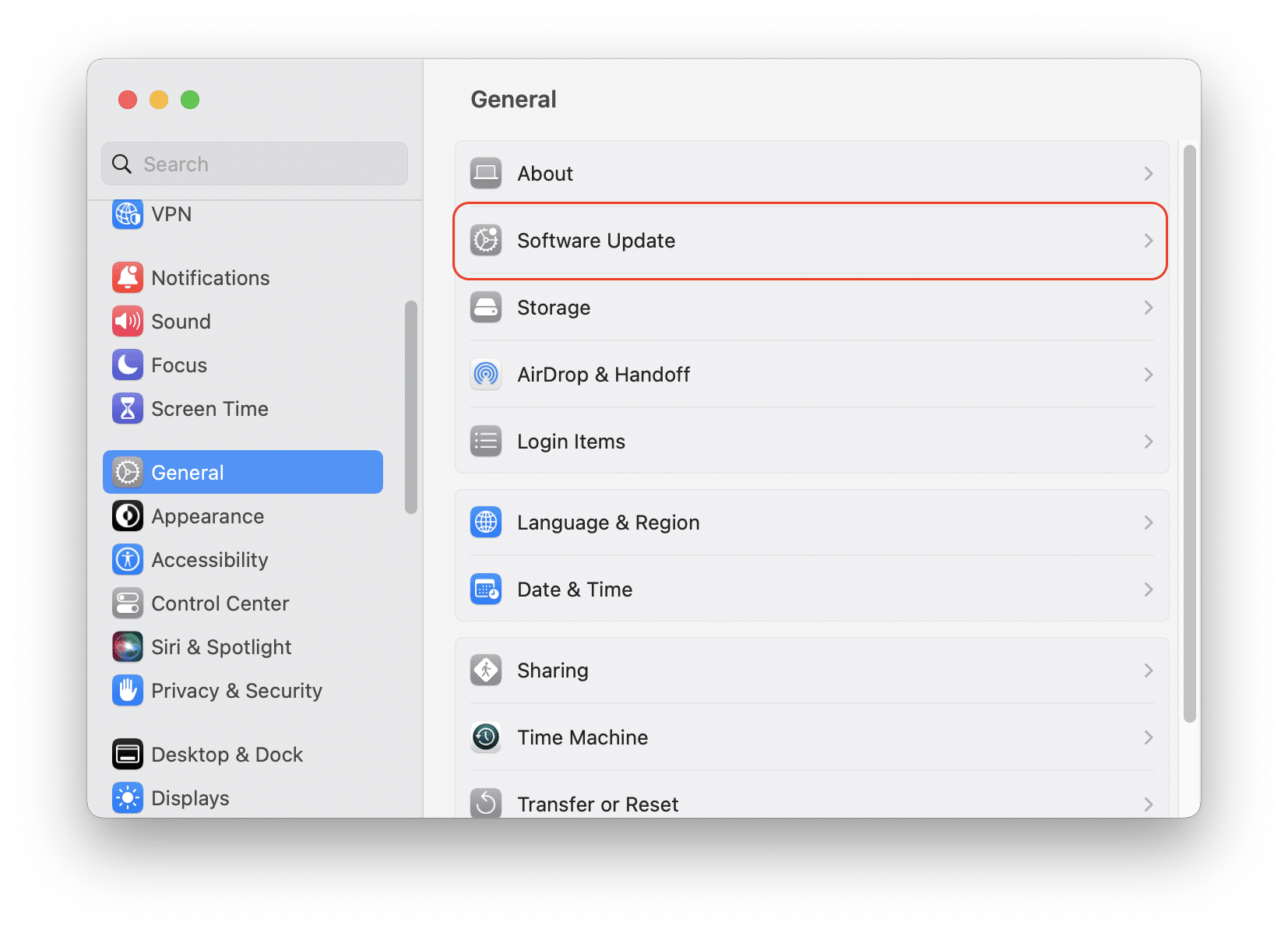
- Click the Apple Menu () and select System Settings.
- Navigate to General in the left-hand sidebar.
- Click on Software Update in the main pane.
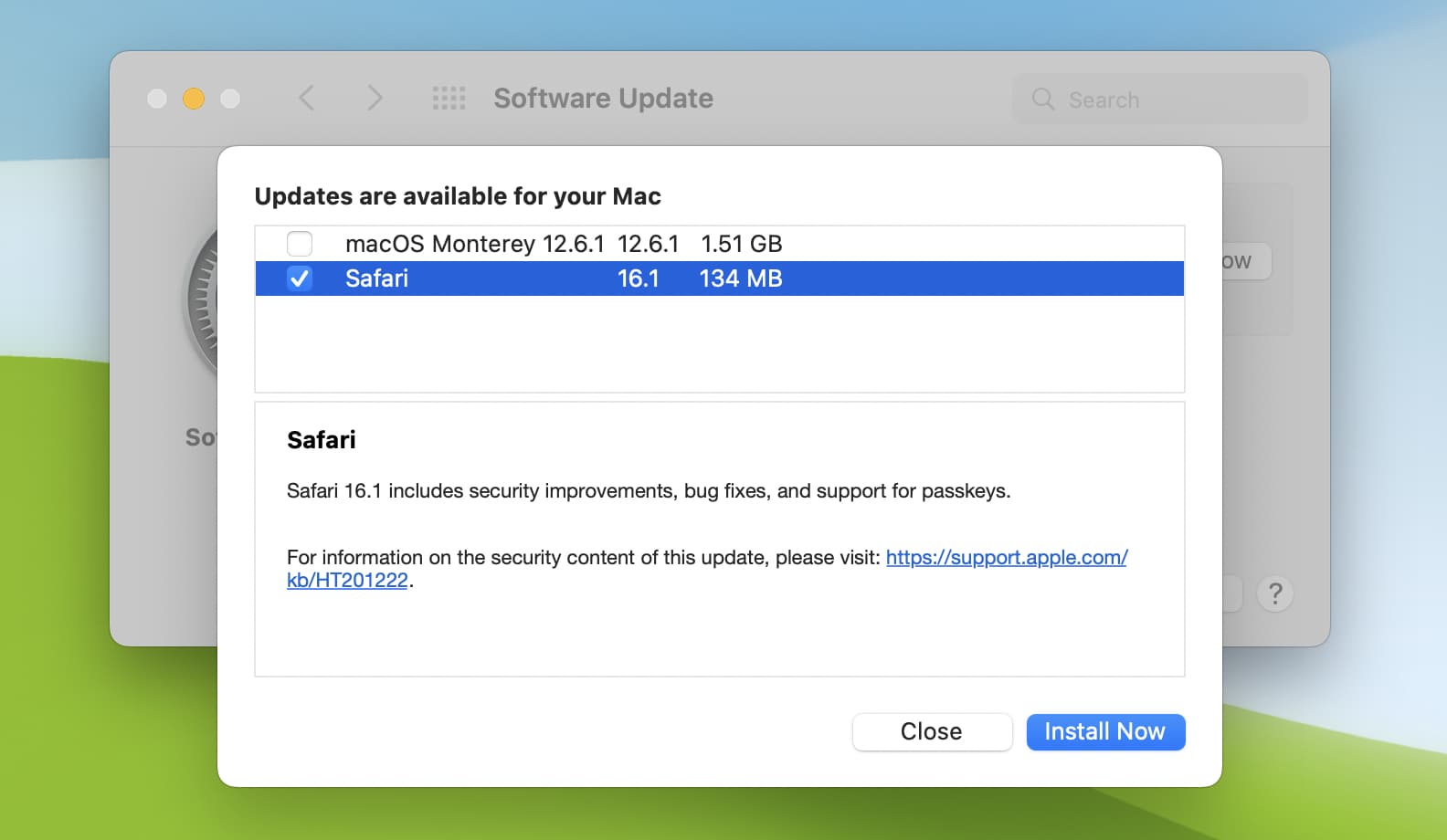
- Your Mac will automatically check for available updates. If an update is available, you will see a button labeled Update Now or Upgrade Now.
- Click the update button. If prompted, enter your Mac administrator password to authorize the change.
- Your Mac will download the necessary packages. Once completed, the system may require a restart to finalize the installation of the Safari engine updates.
What to Do If No Updates Appear
If your Mac indicates that your software is "up to date" but you are experiencing issues with a specific website or service, there are several reasons why this might be occurring.
- Hardware Limitations: Each macOS release has specific hardware requirements. If your Mac hardware is too old to support the latest macOS version, you will not be able to install the newest Safari version.
- Deferred Updates: Sometimes, updates are staged. If you have "Automatic Updates" enabled, your machine might have already downloaded the updates in the background.
- Cached Data: If a website is failing to load correctly in Safari, the issue may not be the browser version but rather corrupted cache or cookies. Clearing your browser data can resolve these performance issues without requiring an update.
Managing Safari Extensions and Performance
Often, users feel the need to "update" Safari because the browser is running slowly or behaving unexpectedly. While a core update is the best way to ensure security, managing your browser environment is equally important. Safari extensions can occasionally cause conflicts.
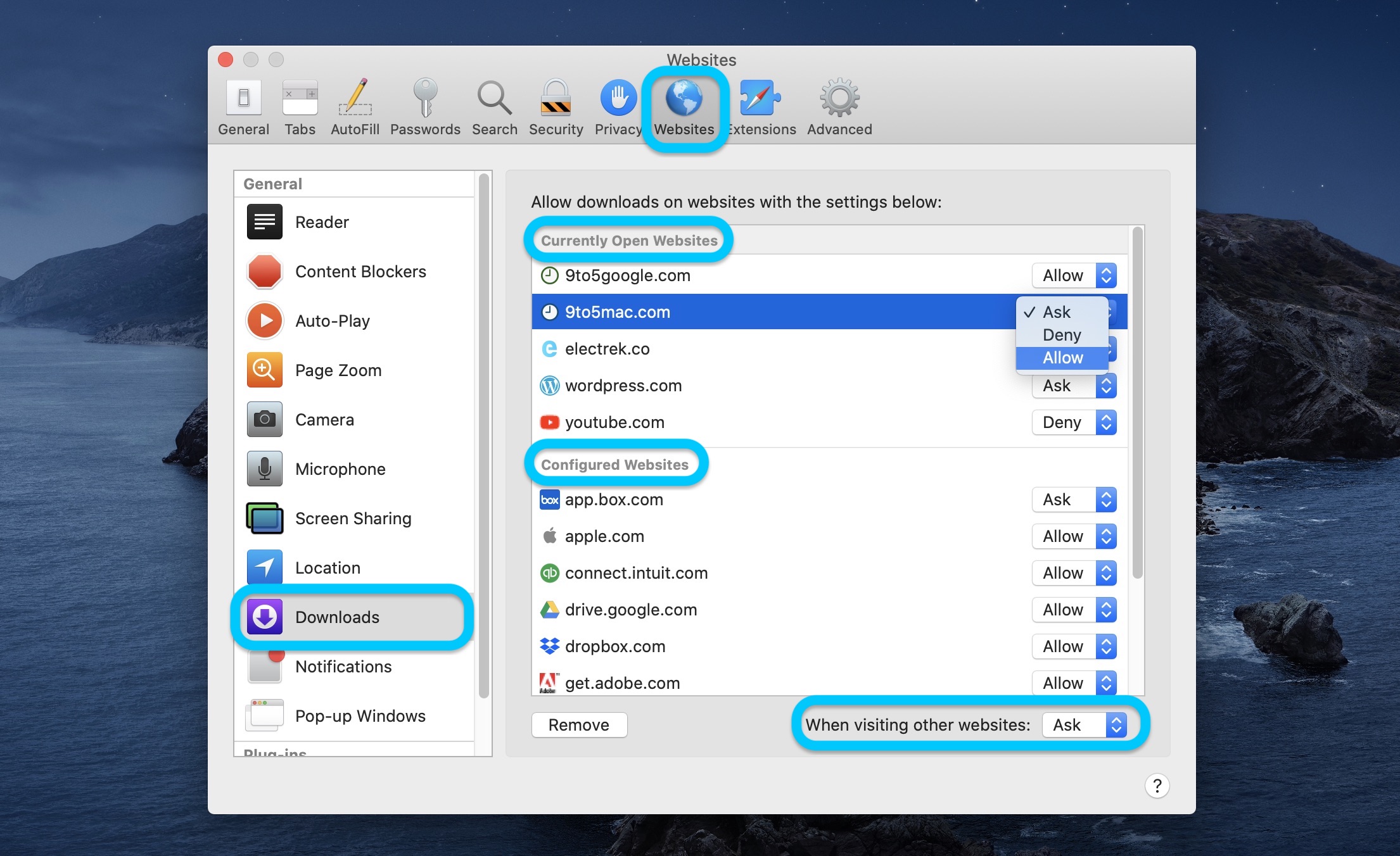
To manage these, go to Safari > Settings (or Preferences) > Extensions. Disabling or removing extensions that have not been updated by their developers can significantly improve browsing speed and stability. Furthermore, checking your Safari > Settings > Websites allows you to manage permissions that might be impacting site performance.
Comparison of Update Methods by macOS Version
The location and nature of updates have shifted slightly across different macOS generations. Use the following table to identify your path based on your system version.
| macOS Version | Update Path | Update Frequency |
|---|---|---|
| macOS Sonoma (14.x) | System Settings > General > Software Update | Monthly/Bi-monthly |
| macOS Ventura (13.x) | System Settings > General > Software Update | Monthly/Bi-monthly |
| macOS Monterey (12.x) | System Preferences > Software Update | Critical Security Only |
| macOS Big Sur (11.x) | System Preferences > Software Update | Critical Security Only |
Troubleshooting Common Update Issues
If you encounter an error message while trying to update your Mac, consider these common solutions:
- Verify Internet Connectivity: Ensure you have a stable, high-speed connection. Updates can be several gigabytes, and an unstable connection often causes the update process to hang.
- Check Available Disk Space: Apple updates typically require significant "headroom" on your startup disk to unpack files safely. If your disk is near capacity, delete unused files or move large media to external storage before retrying the update.
- Safe Mode: If an update fails repeatedly, restart your Mac in Safe Mode. This process clears system caches and disables third-party startup items, providing a clean environment to perform the update.
- Apple Servers: Occasionally, high traffic during a major release day can cause connection timeouts. Wait a few hours and try again.
Frequently Asked Questions
Can I install Safari from the App Store? No. Safari is not available as a standalone download on the Mac App Store. It is included as part of the macOS system software to ensure security and deep integration with system APIs.
Why does my Mac say it is up to date, but a website says my Safari is outdated? This usually occurs because your Mac has reached its "end of life" for major macOS upgrades. When your hardware cannot run the latest version of macOS, you cannot update to the latest Safari engine. In these cases, you may need to use a different, independently updated browser like Firefox or Chrome to maintain compatibility with modern web standards.
Does updating Safari delete my bookmarks or passwords? No. System updates are designed to preserve your user data, including bookmarks, browsing history, and saved passwords in the iCloud Keychain. However, it is always a best practice to ensure you have a current Time Machine backup before performing major system changes.
Is it safe to browse with an older version of Safari? While it is technically possible, it is not recommended. Newer versions of Safari include patches for recently discovered security vulnerabilities. If you cannot update to the latest macOS, using a browser that still receives security updates for your older OS is a safer alternative.
How do I check if my extensions are the cause of performance issues? Go to Safari Settings and select the Extensions tab. Uncheck all extensions. If the browser performance improves, re-enable them one by one to identify the specific extension that is causing the conflict.
Final Recommendation
To maintain the highest level of security and performance, always ensure your macOS is configured to install updates automatically. Navigate to System Settings > General > Software Update > Automatic Updates and toggle on all options. This ensures that Safari receives the latest security patches and engine improvements as soon as Apple releases them, keeping your browsing experience secure and efficient in 2026.
Image Gallery