How to Master Advanced System Properties for Peak Performance
To master Advanced System Properties in Windows, you must navigate to the legacy sysdm.cpl interface, which provides granular control over performance, environment variables, and recovery settings. By optimizing virtual memory, managin...
To master Advanced System Properties in Windows, you must navigate to the legacy sysdm.cpl interface, which provides granular control over performance, environment variables, and recovery settings. By optimizing virtual memory, managing system-wide paths, and configuring startup behaviors, you can significantly improve system stability and responsiveness beyond what the standard Settings app allows.
Contents
The Advanced System Properties menu remains one of the most powerful administrative tools in the Windows environment. Even as of 2026, while Microsoft has migrated much of the operating system's interface to the "Fluent" design of the modern Settings app, the underlying engine of Windows still relies on these legacy "Control Panel" applets for deep-level system tuning. Mastering this interface is essential for IT professionals, software developers, and power users who require precise control over how the OS interacts with hardware and software.
Accessing the Advanced System Properties Interface
Before you can manipulate the settings, you must know how to reach them. Over the years, Microsoft has made this menu slightly more difficult to find through traditional "point-and-click" navigation, preferring users to use the simplified Settings menu. However, for advanced users, the direct routes remain the most efficient.
The Run Command Shortcut
The most reliable way to access these settings regardless of your specific Windows version is through the Run dialog.
- Press Win + R on your keyboard to open the Run box.
- Type
sysdm.cpland press Enter. This opens the System Properties window. - Click on the Advanced tab.
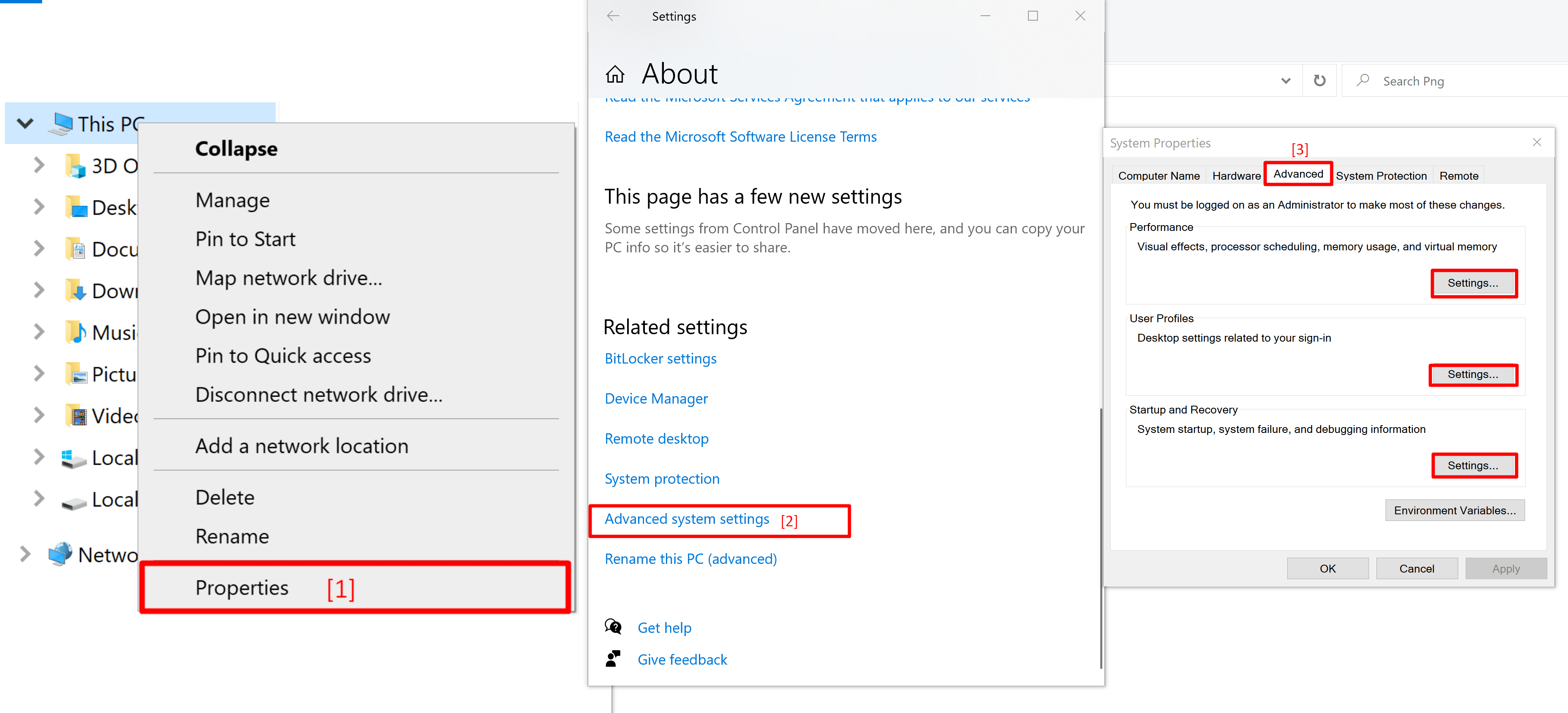
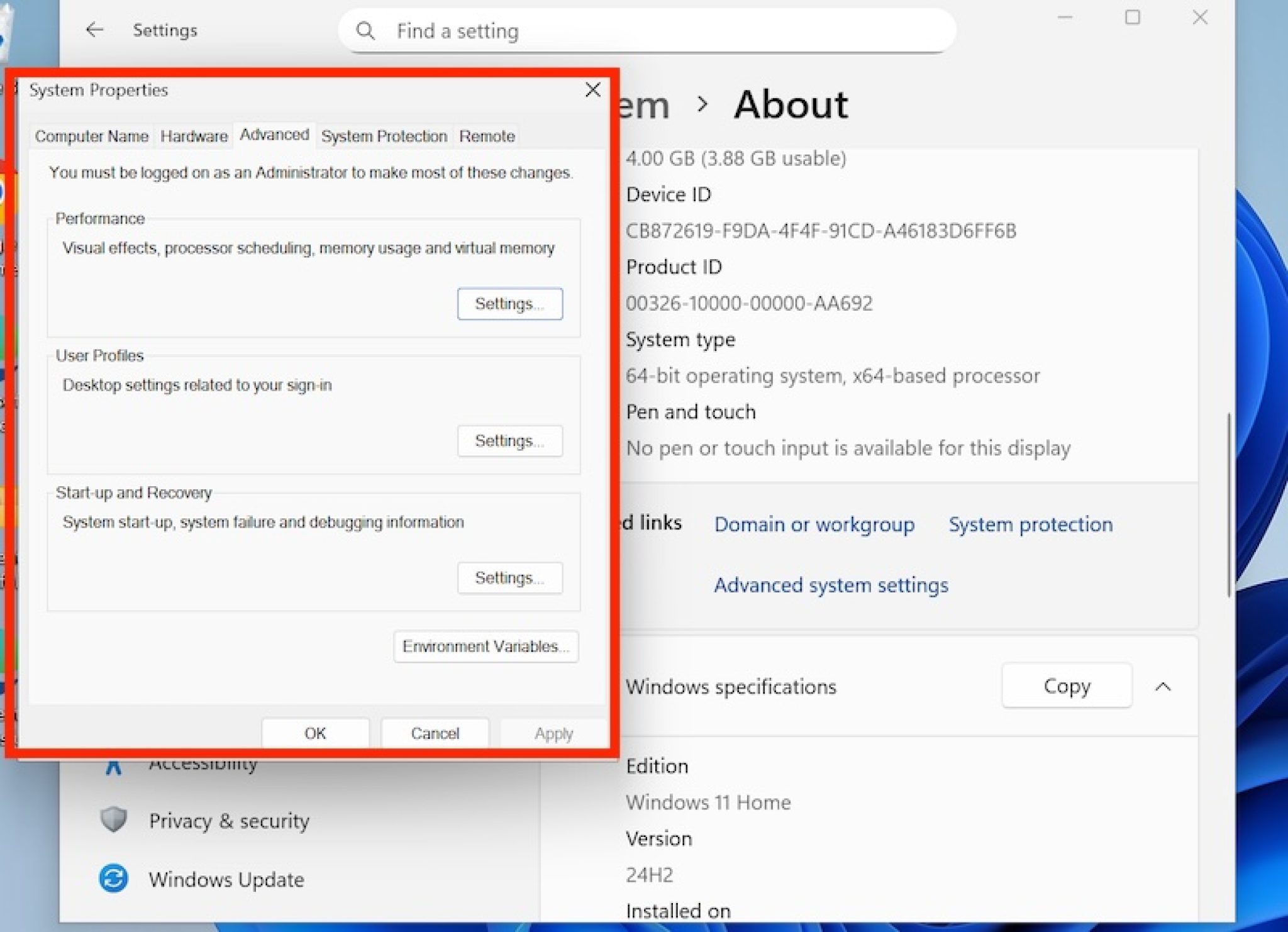
Alternatively, you can skip directly to the Advanced tab by typing SystemPropertiesAdvanced into the Run box or the Start menu search bar. This command bypasses the general "Computer Name" and "Hardware" tabs, dropping you exactly where the most impactful optimizations occur.
Contextual Navigation via Settings
If you prefer using the modern interface as a jumping-off point:
- Open Settings (Win + I).
- Navigate to System > About.
- Look for the link labeled Advanced system settings (usually located on the right side or under the "Related links" section).
Optimizing the Performance Options
The "Performance" section within Advanced System Properties is where users can see the most immediate results in terms of UI responsiveness and system speed. Clicking the Settings button under the Performance heading opens a sub-menu with three distinct tabs: Visual Effects, Advanced, and Data Execution Prevention.
Balancing Visual Effects and Speed
Windows is designed to look aesthetically pleasing with transparency, animations, and drop shadows. However, these features consume GPU and CPU cycles.
- Adjust for best appearance: Enables all visual flourishes. Recommended only for high-end workstations with dedicated GPUs.
- Adjust for best performance: Disables all animations and shadows. This is the "nuclear option" for older hardware or virtual machines where every megabyte of RAM counts.
- Custom: This is the preferred choice for most power users. By unchecking "Animate windows when minimizing and maximizing" and "Show shadows under windows," you can make the OS feel significantly snappier without making it look like Windows 95.
Processor Scheduling and Memory Usage
Under the Advanced tab within Performance Options, you find "Processor scheduling."
- Programs: Optimized for standard desktop use, giving the active window the most resources.
- Background services: Preferred for machines acting as servers or running heavy background tasks like web hosting or automated data processing.
Mastering Virtual Memory (The Paging File)
Virtual memory is a portion of your hard drive or SSD that Windows treats as "overflow" RAM. Mastering this is critical for system stability.
- The Default State: Windows typically manages the paging file size automatically. For most users, this is sufficient.
- Manual Configuration: If you are running memory-intensive applications (like 8K video editing or complex 3D rendering), you may want to set a "Custom size."
- The Golden Rule: A common recommendation is to set the Initial size to 1.5 times your physical RAM and the Maximum size to 3 times your RAM. However, on systems with 64GB of RAM or more, a large paging file is often unnecessary and can waste SSD space.
- Important Note: Never disable the paging file entirely. Even with massive amounts of RAM, many Windows core processes and third-party applications require a pagefile to function correctly and will crash without it.
Managing Environment Variables
For developers and system administrators, the Environment Variables button is arguably the most important feature in this entire menu. These variables are strings that contain information about the system environment and the currently logged-on user.
User vs. System Variables
- User Variables: These apply only to the specific account currently logged in. Use these for personal scripts or user-specific software paths.
- System Variables: These apply to every user on the machine. Modifying these requires administrative privileges and affects how the OS functions at its core.
The "Path" Variable
The most frequently edited variable is the Path. This variable tells the OS where to look for executable files when a command is typed into the Command Prompt or PowerShell. If you install a tool like Python, Git, or Node.js and the system "cannot find" the command, it is usually because the installation directory was not added to the Path variable.
Pro-tip: When adding a new entry to the Path, ensure you do not delete existing entries. Use the "New" button in the Path editor to append your directory. Deleting the default Windows system paths can lead to a system that cannot even find basic utilities like cmd.exe.
Configuring Startup and Recovery
The third section of the Advanced tab deals with how the computer boots and what it does when it encounters a "Blue Screen of Death" (BSOD).
System Startup
If you have multiple operating systems installed (dual-booting), this section allows you to choose the default OS and how long the selection menu stays on screen. Reducing the "Time to display list of operating systems" from 30 seconds to 5 or 10 seconds can significantly speed up your total boot time.
System Failure and Debugging
Windows is designed to protect your data during a crash. In this menu, you can configure:
- Write an event to the system log: Essential for troubleshooting why a crash occurred.
- Automatic restart: While convenient, many IT professionals disable this so they can actually read the error code on the blue screen before the machine reboots.
- Write debugging information: This determines the size of the "Memory Dump" file created after a crash. For home users, a "Small memory dump" (256 KB) is usually enough for basic diagnosis. Developers or sysadmins may require a "Complete memory dump" to analyze kernel-level failures.
Hardware and Device Installation Settings
While the Hardware tab in System Properties is sparse, the Device Installation Settings button is a hidden gem for those who struggle with Windows Update overwriting custom drivers.
By default, Windows tries to find the latest drivers for your hardware via Windows Update. However, if you are a gamer using a specific "stable" version of a GPU driver, or a professional using legacy hardware, Windows' auto-update can actually break your setup. Setting this to "No (your device might not work as expected)" prevents Windows from replacing your manually installed drivers with generic versions from the Microsoft catalog.
Comparison of Advanced System Settings
The following table summarizes the primary functions within the Advanced System Properties and their impact on your computing experience.
| Feature Area | Key Function | Recommended For | Impact Level |
|---|---|---|---|
| Visual Effects | Toggles animations and shadows. | Low-end PCs / VMs | High (Visual Speed) |
| Processor Scheduling | Prioritizes apps vs. background tasks. | Servers / Workstations | Medium (Latency) |
| Virtual Memory | Manages the disk-based RAM swap file. | Systems with low RAM | Critical (Stability) |
| User Profiles | Manages/Deletes local user data. | System Cleanup | Low (Storage) |
| Environment Vars | Sets global/user software paths. | Developers / Power Users | High (Functionality) |
| Startup & Recovery | Manages boot order and crash logs. | Troubleshooting / Dual-boot | Medium (Diagnostic) |
| System Protection | Manages System Restore points. | All Users | High (Safety) |
Common Pitfalls to Avoid
When mastering these properties, it is easy to over-optimize and cause unintended consequences.
- Registry Bloat vs. System Properties: Many users confuse Advanced System Properties with Registry editing. While they overlap, System Properties is safer. Always try to change a setting here before resorting to
regedit. - Over-allocating Virtual Memory: Setting a paging file that is too large doesn't necessarily make the computer faster; it just eats up drive space. If you have 32GB of RAM, your paging file will rarely be used except for crash dumps and certain legacy caches.
- Ignoring System Protection: In the "System Protection" tab (next to the Advanced tab), ensure that protection is "On" for your C: drive. Many users disable this to save a few gigabytes of space, only to regret it when a Windows Update or a driver installation corrupts their boot configuration.
Frequently Asked Questions
Does changing visual effects actually improve gaming performance?
Generally, no. Visual effects in the Advanced System Properties menu primarily affect the Windows Desktop Manager (WDM) and the 2D interface. While disabling them can free up a tiny amount of VRAM and CPU cycles, it will not significantly impact the frames per second (FPS) in modern 3D games. It is, however, excellent for making the OS feel more responsive during daily navigation.
Why can't I edit System Environment Variables?
Editing System Environment Variables requires administrative privileges. If the "New," "Edit," or "Delete" buttons for the System Variables section are grayed out, you likely opened the menu as a standard user. Ensure you are logged into an administrator account or right-click your shortcut and select "Run as administrator."
What is the "Data Execution Prevention" (DEP) tab?
DEP is a security feature that helps prevent damage from viruses and other security threats by monitoring your programs to make sure they use system memory safely. You should generally leave this set to "Turn on DEP for essential Windows programs and services only" unless you are troubleshooting a specific application that explicitly requires a different setting.
Can I move my paging file to a different drive?
Yes. If you have a fast secondary SSD, moving the paging file from your OS drive to the secondary drive can theoretically improve performance by balancing the I/O load. However, with modern NVMe drives, the difference is negligible. Avoid putting the paging file on a slow mechanical HDD, as this will cause massive system stutters whenever the RAM overflows.
Is sysdm.cpl being removed in 2026?
While Microsoft continues to move settings to the modern "Settings" app, sysdm.cpl and the Advanced System Properties dialog have remained for compatibility and deep-system reasons. As of 2026, it remains a vital component of the Windows "God Mode" and administrative toolset.
How do I undo changes if my system becomes unstable?
The safest way to undo these changes is to use a System Restore Point. Before making significant changes to Virtual Memory or Environment Variables, go to the "System Protection" tab in this same window and click "Create" to save a snapshot of your current settings.
Practical Recommendation
If you are looking to master these properties for a faster machine, start with the Performance Options. Set your visual effects to "Custom," keeping only "Smooth edges of screen fonts" and "Show thumbnails instead of icons" checked. Then, ensure your Virtual Memory is system-managed unless you have a specific reason to change it. Finally, take a moment to verify that System Protection is active. These three steps provide 90% of the benefit available in this menu with minimal risk to system stability.
Image Gallery