How to Use OSRS Inventory Tags for Enhanced Gameplay
Inventory tags are a powerful feature within the Runelite client for Old School RuneScape (OSRS) that allow players to color-code the borders of items within their inventory. By assigning specific colors to gear, supplies, or quest ite...
Inventory tags are a powerful feature within the Runelite client for Old School RuneScape (OSRS) that allow players to color-code the borders of items within their inventory. By assigning specific colors to gear, supplies, or quest items, players can significantly reduce reaction times during high-intensity activities such as bossing, prayer flicking, or inventory management, ultimately improving efficiency and reducing costly mistakes in critical game moments.
Contents
Understanding the Role of Runelite Inventory Tags
In the context of OSRS, the game client itself does not provide native inventory highlighting functionality. The "Inventory Tags" feature is exclusively available through Runelite, the most widely used third-party client for the game. Runelite is permitted by Jagex as long as it adheres to their "third-party client" guidelines, which prohibit automation, visual indicators for unspawned objects, or anything that grants an unfair competitive advantage. Inventory tags are considered a quality-of-life feature, as they provide visual cues for items already in your possession.
The primary utility of this feature lies in visual categorization. In a game like OSRS, where complex encounters—such as the Theatre of Blood or the Tombs of Amascut—require rapid switching between gear sets or consumables, misclicking or losing track of items can lead to failure. Inventory tags mitigate this by creating "groups" of items. For example, you can mark all your range gear with a blue border and all melee gear with a red border, allowing your eyes to instantly locate the required switch during a combat tick.
Prerequisites for Using Inventory Tags
Before you can begin tagging your items, you must ensure you are running the correct software environment.
- Runelite Client: You must have the official Runelite client installed and updated to the most recent 2026 version. Avoid using unofficial or "forked" clients that may violate Jagex's Terms of Service.
- Plugin Activation: Even within Runelite, plugins are not always active by default. You must navigate to the Configuration panel (the wrench icon) in the sidebar.
- Plugin Search: Type "Inventory Tags" into the search bar. Ensure the toggle switch is set to "On."
- Game Account: As this feature is local to your client, it does not affect your account security or data, but you must be logged into the game to interact with your inventory.
Step-by-Step Configuration and Usage
Once the plugin is enabled, you can begin the process of customizing your interface. The workflow is designed to be intuitive but requires a systematic approach to be effective.
1. Opening the Tagging Interface
With the Inventory Tags plugin active, hold the Shift key and right-click on any item currently inside your inventory. You will see a new option: "Configure inventory tags." Clicking this opens a small interface where you can assign a color or label to that specific item slot.
2. Creating and Assigning Groups
The plugin allows for several distinct groups (typically represented by numbers or colors). You can assign an item to a specific group by selecting it from the menu. Once assigned, every item placed in that slot—or sometimes every instance of that item depending on your settings—will be highlighted with the corresponding border color.
3. Customizing Colors
To make the system truly effective, navigate to the plugin settings by clicking the "Configuration" wrench, locating the Inventory Tags plugin, and clicking the settings icon. Here, you can define exactly what colors represent specific categories. For example, setting "Group 1" to a bright green for "Prayer Potions" and "Group 2" to a dark purple for "Boss Switches" creates a clear visual language that your brain will quickly learn to parse.
Comparison of Inventory Management Methods
Inventory tags are one of several ways players optimize their performance. Below is a comparison of how tags interact with other common practices.
| Method | Purpose | Difficulty | Reliability |
|---|---|---|---|
| Inventory Tags | Visual color-coding | Low | Very High |
| Fixed Layouts | Keeping items in specific slots | Medium | High |
| Ground Items Plugin | Highlighting drops on the floor | Low | Medium |
| Menu Entry Swapper | Changing click behavior | High | Moderate |
While fixed layouts (the practice of always keeping a super restore in the same slot) are a fundamental skill for advanced players, inventory tags act as a visual safety net. They do not replace the need for organized inventory habits, but they significantly lower the cognitive load required to maintain that organization under pressure.
Troubleshooting Common Issues
Despite the simplicity of the tool, users occasionally run into issues where tags do not appear or items are not highlighted correctly.
- Plugin Overlap: If you use other plugins that modify item interfaces (such as "Bank Tags" or "Item Charges"), ensure that they are not conflicting. Occasionally, a UI-heavy plugin might render its box over the inventory tag border.
- Item Identification: Remember that the tags are often tied to the slot or the specific item ID. If you upgrade a piece of gear (e.g., swapping a Dragon Scimitar for an Abyssal Whip), you may need to re-tag the new item if the plugin is set to slot-specific highlighting.
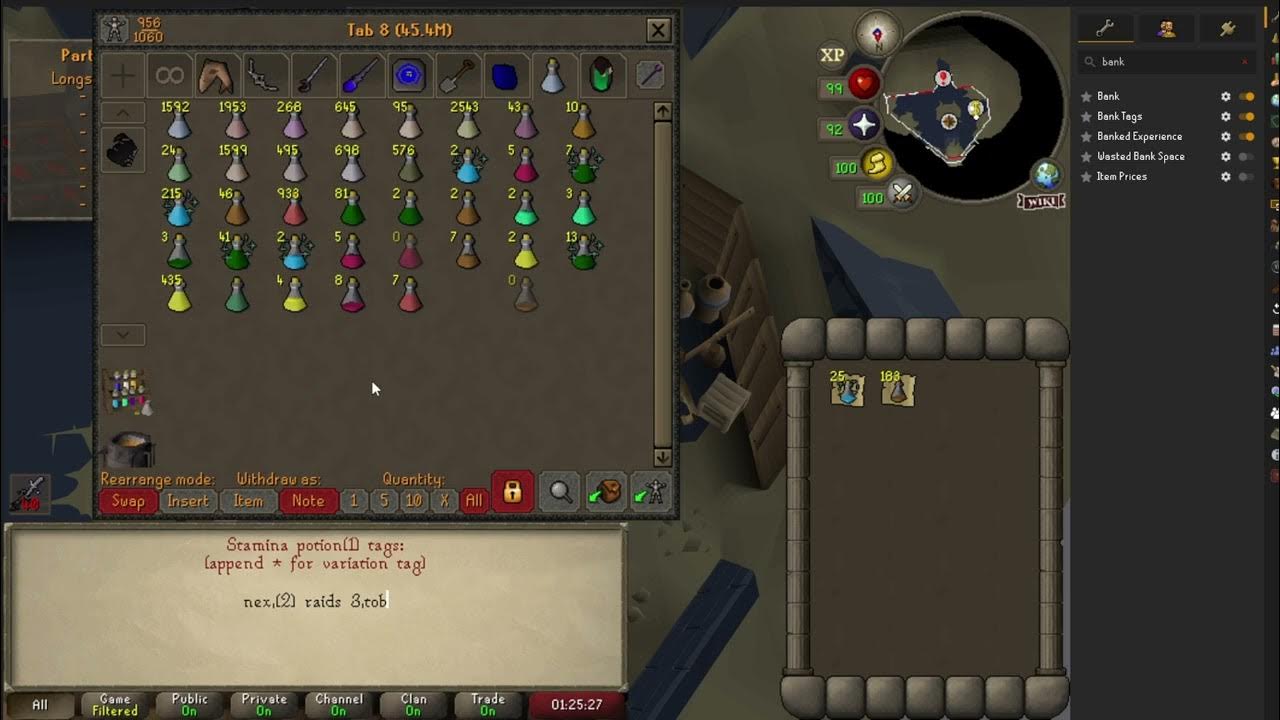
- Visibility Settings: Check the plugin configuration to ensure that "Show inventory tags" is enabled. There are also settings to toggle whether tags appear in your bank or only in your inventory. Adjusting these to your preference is vital; many players prefer to see the tags only while in combat to reduce visual clutter.
Advanced Strategies: The "Tick-Perfect" Approach
For high-level players, inventory tags are not just about finding items; they are about "tick manipulation." In 2026, the meta for end-game PvM (Player vs. Monster) relies on performing actions within the 0.6-second game tick window. By color-coding your inventory, you essentially create a physical "hotkey" map on your screen.
If you are learning a new boss, such as the inferno or high-invocation raids, use the tags to create a "loadout" system. Assign a specific color to your primary weapon, a second color to your special attack weapon, and a third to your prayer restoration items. During the heat of the encounter, you no longer have to read the name of the item; you simply react to the color, which is processed by the brain significantly faster than text.
Frequently Asked Questions
Do inventory tags violate OSRS game rules?
No, using the Inventory Tags plugin on the Runelite client is permitted. It falls under the category of legitimate third-party client modifications because it only changes the visual representation of items you already possess and does not automate any gameplay actions or provide information not already available in the game.
Can I share my inventory tag setups with other players?
Yes, Runelite allows you to export your plugin settings. You can copy your configuration file and share it with friends, which is particularly useful for clan members who are all learning the same boss and want to use a standardized color-coded system to improve group performance.
Will inventory tags work on mobile?
No, the Inventory Tags feature is exclusive to the desktop Runelite client. The official OSRS mobile client does not currently support these types of third-party overlays, meaning mobile players must rely on muscle memory and inventory organization without color-coded visual aids.
Should I tag everything in my inventory?
It is generally discouraged to tag every single item, as this creates visual noise that can be distracting. Instead, reserve tags for essential gear switches and consumables. The fewer items you tag, the more the important ones will stand out when you need them most.
Why do my tags disappear when I change my gear?
If you are using a "slot-based" tagging mode, changing gear will not remove the tag from that slot. However, if you are using "item-based" tagging, the tag is attached to the specific item ID. Ensure your plugin configuration is set to the mode that best fits your playstyle—most players prefer slot-based tagging for consistent inventory layouts.
Next Steps for Improving Your Setup
To master the use of inventory tags, spend time in a low-stakes environment, such as the "Bank" interface or a safe combat encounter like Giant Mole or Barrows. Organize your inventory to your preference, apply your chosen color scheme, and practice switching between your gear sets. Once you are comfortable with the visual cues, gradually introduce them into more difficult content. The ultimate goal is for the tags to become a background element that your peripheral vision monitors automatically, allowing you to focus entirely on the mechanics of the boss encounter itself.
Image Gallery