How to Identify the iPad Model You Have: A Step-by-Step Guide
To identify your iPad model, open the Settings app, tap General, and select About. Look for the Model Name line to see your device's marketing name, or tap the Model Number entry to reveal a code starting with the letter A followed by...
To identify your iPad model, open the Settings app, tap General, and select About. Look for the Model Name line to see your device's marketing name, or tap the Model Number entry to reveal a code starting with the letter A followed by four digits (such as A2759), which specifies your exact generation and technical hardware configuration.
Contents
Why Identifying Your iPad Model Is Essential
Apple has produced dozens of iPad variations across four distinct product families: the standard iPad, iPad mini, iPad Air, and iPad Pro. Because many of these devices share nearly identical physical designs, screen sizes, and aluminum enclosures, telling them apart visually can be challenging.
Determining the exact generation and model number of your iPad is necessary for several practical technical tasks:
- Accessory Compatibility: Key accessories—including the Apple Pencil (1st gen, 2nd gen, USB-C, and Apple Pencil Pro), Smart Keyboards, and Magic Keyboards—depend on specific magnetic array placements, connector types (Lightning vs. USB-C), and wireless pairing protocols.
- Operating System Updates: Apple periodically ends iPadOS upgrade support for older processors. Knowing your hardware generation clarifies whether your device can run current or upcoming software releases.
- Trade-in and Resale Value: Buyers and trade-in platforms require the exact model identifier, storage capacity, and network configuration (Wi-Fi vs. Wi-Fi + Cellular) to calculate fair market values.
- Repair and Part Replacement: Battery replacements, screen repairs, and protective glass applications differ by millimeter increments and internal connector arrangements between generations.
Method 1: Locate the Model Number in iPadOS Settings
The quickest and most reliable method to identify an operational iPad is through the iPadOS Settings menu. This method displays both the consumer-friendly marketing name and the precise engineering identifier.
Step-by-Step Settings Navigation
- Unlock your iPad and open the Settings app.
- Scroll down the left sidebar and tap General.
- Tap About at the top of the right-hand panel.
- Locate the Model Name field to see the official product title (e.g., iPad Air (5th generation) or iPad Pro 11-inch (4th generation)).
- Locate the Model Number field directly below it.
- Settings > General > About
- Model Name: iPad Pro 11-inch (4th generation)
- Model Number: MNXD3LL/A (Tap to reveal: A2759)
Decoding Part Numbers vs. "A-Numbers"
When you first open the About screen, the Model Number field displays a commercial SKU or part number (such as MY232LL/A or MNXD3LL/A). This part number encodes regional distribution details, color finish, and storage capacity:
- Tapping the Field: Tap the alphanumeric SKU once. The text will change to a five-character code starting with an uppercase A followed by four numbers (for example, A2228 or A2759).
- The "A-Number": This A-number is Apple's universal hardware model identifier. It indicates the physical chassis, internal processor platform, and baseline architecture across all global markets.
Method 2: Check the Physical Etching on the Back Cover
If your iPad will not power on, has a broken display, or is locked, you can find the model identifier physically etched onto the exterior of the device.
Where to Look
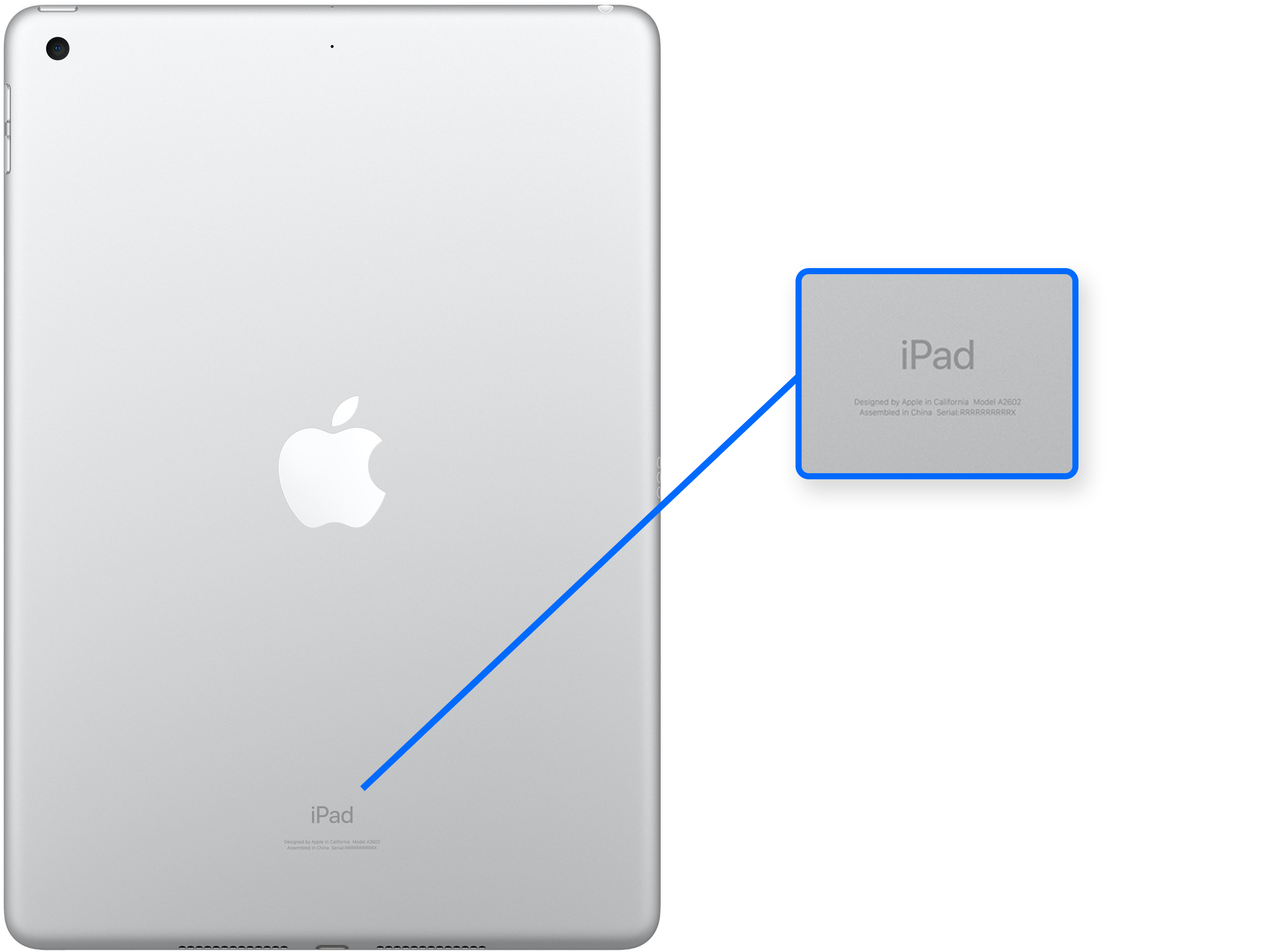
Turn the iPad over so the rear casing faces up. Look toward the bottom center below the Apple logo and the word "iPad." In small, laser-etched text, you will find information regarding design, assembly, and compliance.
Look for the word Model followed by the letter A and four digits.
Example:
Model A2377
- [ Apple ] Logo
- iPad
- Designed by Apple in California ...
- Model A2377 Serial: XXXXXXXXX
Reading Low-Contrast Etchings
On dark color finishes (such as Space Gray, Space Black, or Midnight), the etched text can be subtle. To read it clearly:
- Tilt the iPad under a direct light source or flashlight.
- Clean fingerprint oils off the lower casing using a microfiber cloth.
- Use a smartphone camera with digital zoom to magnify the text.
Method 3: Find the Model via Apple Account or Connected Devices
You can check an iPad's hardware configuration remotely using another device connected to the same Apple ID.
Option A: Using an iPhone or Second iPad
- Open Settings on your second Apple device.
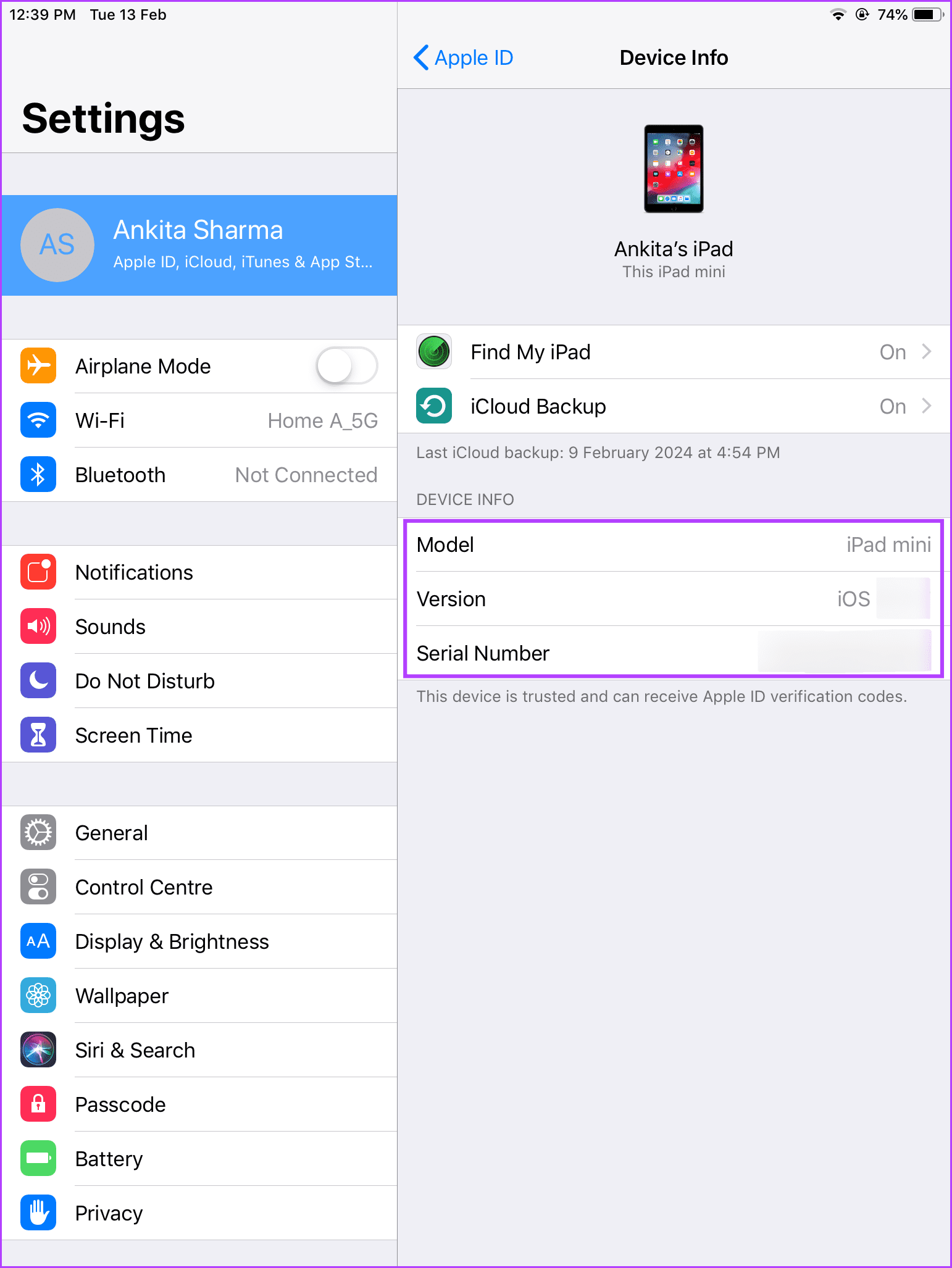
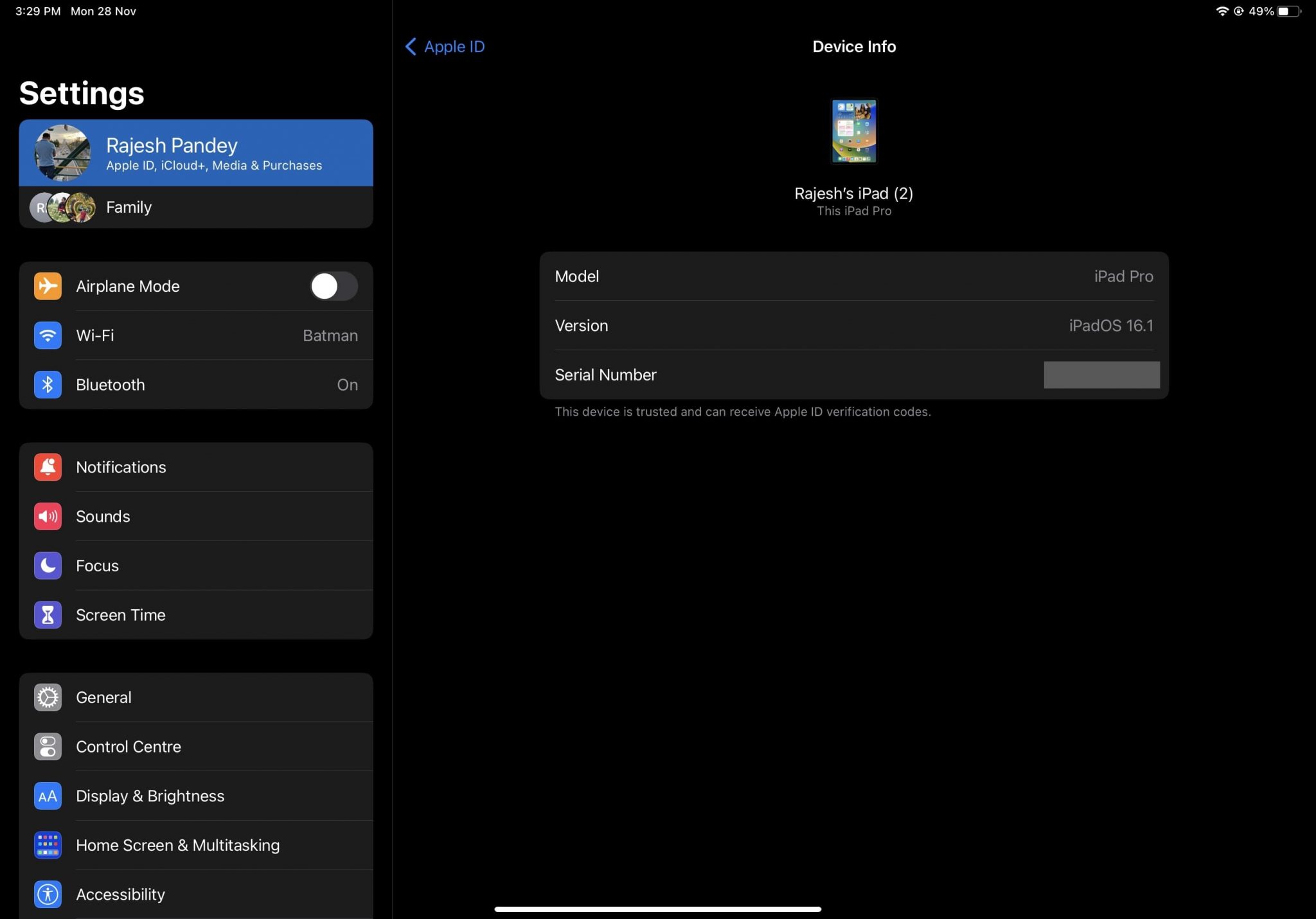
- Tap your Apple ID name banner at the top of the screen.
- Scroll down to the list of registered devices linked to your account.
- Select your iPad from the list. The detail card shows the device name, model description, installed iPadOS version, and Serial Number.
Option B: Using a Web Browser
- Navigate to appleid.apple.com and log in with your Apple ID credentials.
- Go to the Devices section in the side menu.
- Select your iPad to display a pop-up modal containing its hardware model, serial number, and network status.
Option C: Using a Mac or PC via Cable Connection
If you connect the iPad to a computer using a USB-C or Lightning cable:
- On a Mac (macOS Catalina or later): Open Finder, select the iPad under Locations in the left sidebar, and view the hardware generation listed under the device name header.
- On Windows or Older Mac Systems: Open the Apple Devices app or iTunes, select the small device icon, and view the model details on the Summary screen.
Method 4: Check Original Packaging or Sales Receipts
If the device body is inaccessible or severely damaged, original documentation provides definitive identifiers:
- Original Retail Box: Turn the box over to the back. A white barcode label lists the full model name, commercial SKU (e.g.,
MPDY3LL/A), storage capacity (e.g.,256GB), network type, and the fundamental Model A-number. - Proof of Purchase: Apple Store digital receipts, carrier agreements, and tax invoices explicitly detail the model generation and storage capacity.
Comprehensive iPad Model Identification Matrix
The following reference table maps Apple's model numbers (A-numbers) to their official marketing names, product lines, original release years, and processor types. Use your A-number to locate your exact device.
| Marketing Name | Product Line | Release Year | Model A-Numbers (Wi-Fi / Cellular) | Processor | USB / Port Type |
|---|---|---|---|---|---|
| iPad (10th Gen) | Base | 2022 | A2696, A2757, A2777 | A14 Bionic | USB-C |
| iPad (9th Gen) | Base | 2021 | A2602, A2604, A2603, A2605 | A13 Bionic | Lightning |
| iPad (8th Gen) | Base | 2020 | A2270, A2428, A2429, A2430 | A12 Bionic | Lightning |
| iPad (7th Gen) | Base | 2019 | A2197, A2200, A2198 | A10 Fusion | Lightning |
| iPad mini (7th Gen / A17 Pro) | mini | 2024 | A2993, A2995, A2996 | A17 Pro | USB-C |
| iPad mini (6th Gen) | mini | 2021 | A2567, A2568, A2569 | A15 Bionic | USB-C |
| iPad mini (5th Gen) | mini | 2019 | A2133, A2124, A2126, A2125 | A12 Bionic | Lightning |
| iPad Air (11-inch & 13-inch M2) | Air | 2024 | A2902, A2903, A2898, A2899 | M2 | USB-C |
| iPad Air (5th Gen) | Air | 2022 | A2588, A2589, A2591 | M1 | USB-C |
| iPad Air (4th Gen) | Air | 2020 | A2316, A2324, A2325, A2072 | A14 Bionic | USB-C |
| iPad Air (3rd Gen) | Air | 2019 | A2152, A2123, A2153, A2154 | A12 Bionic | Lightning |
| iPad Pro 11-inch & 13-inch (M4) | Pro | 2024 | A2836, A2837, A2925, A2926 | M4 | USB-C (Thunderbolt) |
| iPad Pro 11-inch (4th Gen) | Pro | 2022 | A2759, A2761, A2435, A2762 | M2 | USB-C (Thunderbolt) |
| iPad Pro 12.9-inch (6th Gen) | Pro | 2022 | A2436, A2437, A2764, A2766 | M2 | USB-C (Thunderbolt) |
| iPad Pro 11-inch (3rd Gen) | Pro | 2021 | A2377, A2459, A2301, A2460 | M1 | USB-C (Thunderbolt) |
| iPad Pro 12.9-inch (5th Gen) | Pro | 2021 | A2378, A2461, A2379, A2462 | M1 | USB-C (Thunderbolt) |
For complete lists covering earlier models dating back to 2010, consult the official Apple Support iPad Identification Directory.
Differentiating iPad Families and Physical Attributes
If software access and model numbers are unavailable, you can narrow down your device class using distinct visual markers, chassis designs, and port configurations.
- Front View Identifier Features:
- Home Button Present (Touch ID on bezel): Base iPad (Gen 1–9), older Air/mini
- Thin Uniform Bezels (No front button): All Modern iPads (iPad 10, Air M1/M2, mini 6/7, Pro M1/M2/M4)
- Edge Port Configurations:
- Pill-shaped Lightning Port: Legacy iPads (pre-2022 Base, pre-2020 Air)
- Oval-shaped USB-C / TB Port: Modern Lineup (All current Air, Pro, mini)
1. Home Button vs. Full-Screen Design
- Front Home Button: Indicates a base-model iPad (1st through 9th generation), legacy iPad Air (1st through 3rd generation), or older iPad mini (1st through 5th generation). These devices feature wider top and bottom bezels with an integrated Touch ID sensor beneath the screen glass.
- Uniform Edge-to-Edge Bezel (No Home Button): Found on modern iPad Pro models, iPad Air (4th generation and newer), iPad mini (6th generation and newer), and the base iPad (10th generation). Touch ID is either moved to the top power button or replaced entirely by Face ID sensors in the front bezel.
2. Connector Types (Lightning vs. USB-C)
- Lightning Port: Narrow, pill-shaped connector with exposed metallic pins on the cable tip. Present on all entry-level iPads up to the 9th generation, as well as older Air, mini, and Pro models introduced before 2018.
- USB-C / Thunderbolt Port: Wider, oval connector opening with a central tongue inside the device port. Standard across all modern iPad models, including the iPad 10th gen, iPad Air (4th gen and newer), iPad mini (6th gen and newer), and iPad Pro (3rd gen 12.9-inch / 1st gen 11-inch and newer).
3. Camera Module and Speaker Placement
- Single Round Rear Lens: Standard on entry-level iPads, iPad mini models, and earlier iPad Air iterations.
- Square Rear Camera Bump: Exclusive to higher-end iPad Pro generations (featuring Wide, Ultra-Wide, or LiDAR sensors) and select recent iPad Air configurations.
- Quad-Speaker Grilles: Four separate speaker cutout arrays (two on the top edge, two on the bottom) are uniquely reserved for the iPad Pro line, offering spatial audio separation regardless of orientation.
Troubleshooting Unresponsive or Locked iPads
When an iPad display is damaged, broken, or unresponsive, retrieving internal settings is impossible. Use these procedures to extract identification data without relying on the screen.
Check the SIM Card Tray Identifier
On Wi-Fi + Cellular models, eject the SIM tray using a SIM pin tool or paperclip. On many cellular iPad generations, Apple finely engraves the device's Serial Number or Model A-number directly onto the underside of the metal SIM tray or inside the internal cavity walls of the SIM slot.
- [ SIM Tray ]
- Serial: C39XXXXX Model: AXXXX (Engraved on tray shaft)
Querying Serial Numbers on Official Coverage Portals
If you can only find the Serial Number (from the bottom etching, SIM tray, or computer link), you can translate it into a specific model name:
- Copy the 10-to-12-character alphanumeric Serial Number.
- Visit the official Apple Check Coverage Portal.
- Input the serial number and complete the verification CAPTCHA.
- The resulting summary page will return the exact marketing model name, warranty status, and original technical coverage eligibility.
Frequently Asked Questions
What is the difference between an iPad Model Number and a Serial Number?
An iPad Model Number (such as A2377) identifies the general hardware revision, generation, and screen size shared by thousands of identical units worldwide. A Serial Number (such as DLXN1234F19W) is a unique fingerprint assigned to your individual device, used by Apple to track warranty coverage, ownership, and service history.
How do I check how much storage capacity my iPad has?
Navigate to Settings > General > About and look for the Capacity line, which displays total internal flash storage (such as 64 GB, 256 GB, or 1 TB). If the iPad is powered off, view the original retail box label or look up the unique Serial Number on Apple’s coverage portal.
Why does my Model Number start with an "M", "N", or "F"?
The SKU listed in Settings > General > About begins with a specific prefix indicating the device's retail status:
- M: Standard retail unit purchased new.
- N: Official Apple replacement device provided during service or repair.
- F: Apple Certified Refurbished unit re-packaged for retail sale.
- P: Personalized unit custom-engraved at purchase.
Tapping this code toggles the view to reveal the hardware A-number.
How do I determine which Apple Pencil works with my iPad model?
Pencil compatibility depends on your iPad's model number and connector port:
- Apple Pencil Pro: Compatible with M4 iPad Pro models and M2 iPad Air models.
- Apple Pencil (2nd Gen): Compatible with iPad Pro 11-inch (1st–4th gen), iPad Pro 12.9-inch (3rd–6th gen), iPad Air (4th & 5th gen), and iPad mini (6th gen).
- Apple Pencil (USB-C): Compatible with all iPad models featuring a native USB-C port.
- Apple Pencil (1st Gen): Compatible with base iPads (6th–10th gen; 10th gen requires USB-C adapter), iPad mini (5th gen), iPad Air (3rd gen), and older iPad Pro models with Lightning ports.
Can I find my iPad model if the rear cover is scratched off and it won't turn on?
Yes. Plug the iPad into a Mac or Windows PC running Finder, Apple Devices app, or iTunes via USB cable. Even if the screen remains dark, the computer will detect the hardware interface and display the device name, model tier, and serial number on the host screen.
Next Steps and Practical Advice
Once you have identified your exact iPad model and A-number:
- Save Your Identifier: Record your Model Name, A-number, and Serial Number in a secure password manager or note-taking app for quick reference when buying cases, screen protectors, or trade-in evaluations.
- Check iPadOS Compatibility: Review Apple's current software documentation to determine whether your specific model generation supports the latest features and security updates.
- Verify Accessory Requirements: Double-check whether replacement cables or external keyboards require standard USB-C, Thunderbolt, or legacy Lightning interfaces based on your identified generation.
EDITORIAL CATEGORY METADATA
Image Gallery