How to Cancel an EA Play Subscription
To cancel an EA Play subscription, you must access the management settings of the specific platform where the membership was purchased. Whether you use the EA app, Steam, PlayStation, or Xbox, the process involves navigating to your ac...
To cancel an EA Play subscription, you must access the management settings of the specific platform where the membership was purchased. Whether you use the EA app, Steam, PlayStation, or Xbox, the process involves navigating to your account's subscription or billing section and selecting the option to turn off recurring billing.
Contents
EA Play is a popular gaming subscription service that provides access to a "Vault" of titles, early trials, and exclusive discounts. However, as of 2026, many users find themselves needing to manage their digital expenses by ending subscriptions they no longer utilize. Because Electronic Arts (EA) partners with various storefronts, there is no single "Cancel" button that works for everyone. The cancellation path depends entirely on the merchant of record—the entity that takes your money every month or year.
Identifying Your Billing Provider
Before attempting to cancel, you must verify which platform is handling your payments. An EA Play subscription purchased on an Xbox Series X|S cannot be canceled through the Steam interface, even though you might be playing EA games on your PC.
The most common providers include:
- Electronic Arts: Subscriptions purchased directly through the EA app or EA.com.
- Valve (Steam): Subscriptions purchased via the Steam Store.
- Sony Interactive Entertainment: Subscriptions managed through the PlayStation Store.
- Microsoft: Subscriptions managed through the Microsoft Account dashboard or Xbox console.
Check your bank statement or email receipts to confirm the merchant. Once identified, follow the specific instructions for that platform below.
How to Cancel EA Play on the EA App (PC)
If you subscribed directly through Electronic Arts on your Windows PC, you will manage your membership through your EA Account settings.
- Launch the EA app or visit the EA Help website and log in to your account.
- Click on your Profile Icon (usually in the top right corner) and select Settings.
- Navigate to the My Account tab. This will likely open a web browser window to your global EA Account portal.
- Locate the EA Play tab in the sidebar menu.
- Find the Membership section. Here, you will see your current plan (Monthly or Yearly) and the next billing date.
- Click on Manage Membership or Cancel Membership.
- Follow the prompts to confirm the cancellation. EA will often ask for a reason for leaving; you can select any option to proceed.
Once confirmed, your status will change to "Canceled." You will retain access to the Play List and all subscriber benefits until the end of the current billing cycle.
How to Cancel EA Play on Steam
Steam handles subscriptions differently than the native EA app. If you joined EA Play through Valve’s platform, the EA website will not allow you to cancel it; it will simply redirect you back to Steam.
- Open the Steam Client and log in.
- Click on your Account Name in the top right corner and select Account Details.
- Under the Store & Purchase History section, look for Manage Subscriptions.
- Locate "EA Play" in the list of active services and click Edit.
- Select Cancel my subscription and click Apply.
Steam generally stops recurring payments immediately upon this request, but your games will remain playable until the expiration date listed in your account details.
How to Cancel EA Play on PlayStation (PS4 & PS5)
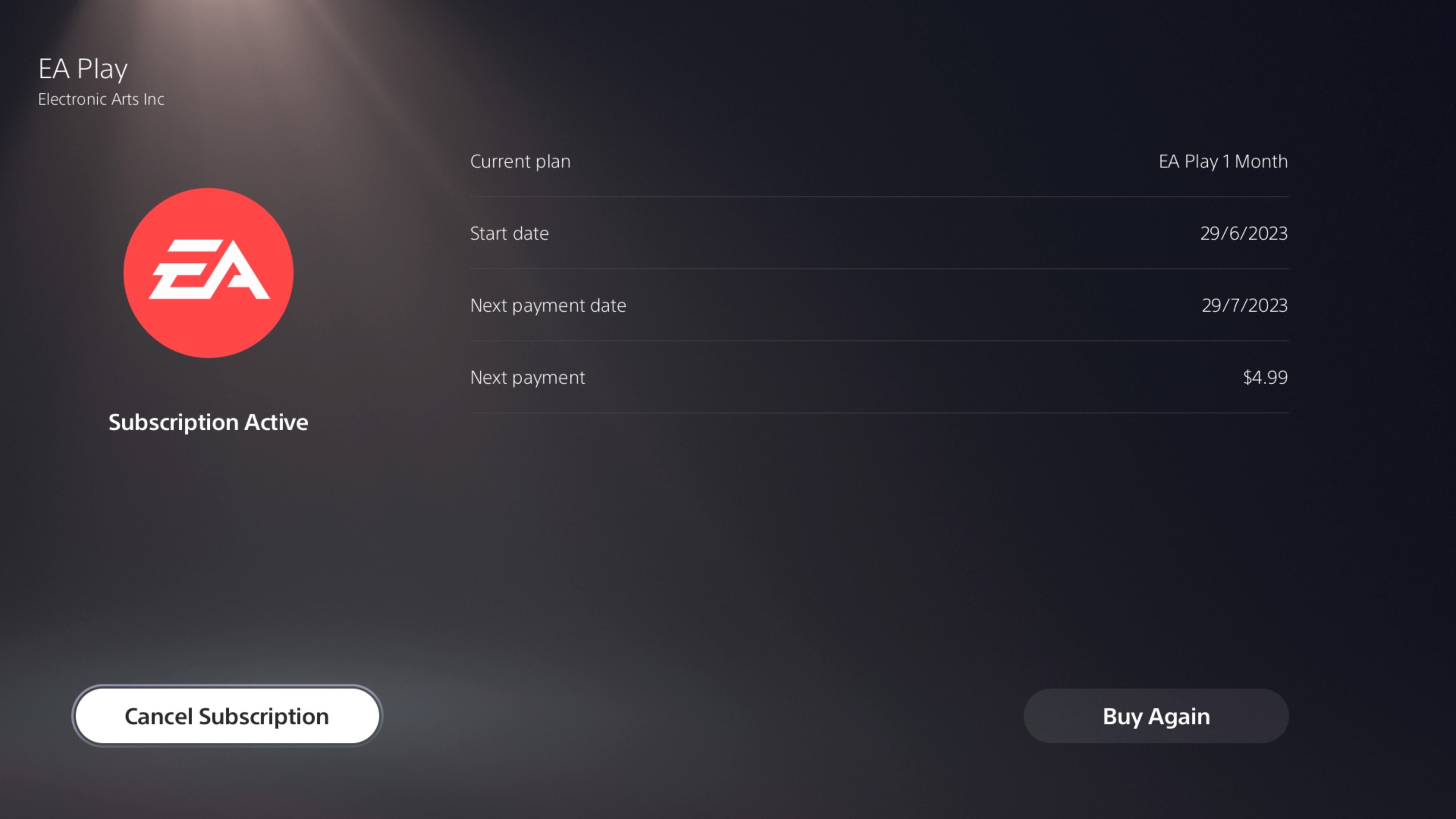
On PlayStation consoles, EA Play is managed through the PlayStation Network (PSN) subscription management system, similar to how you manage PlayStation Plus.
Via Web Browser
- Sign in to your PlayStation Account at Sony’s official website.
- Navigate to the Subscription Management section.
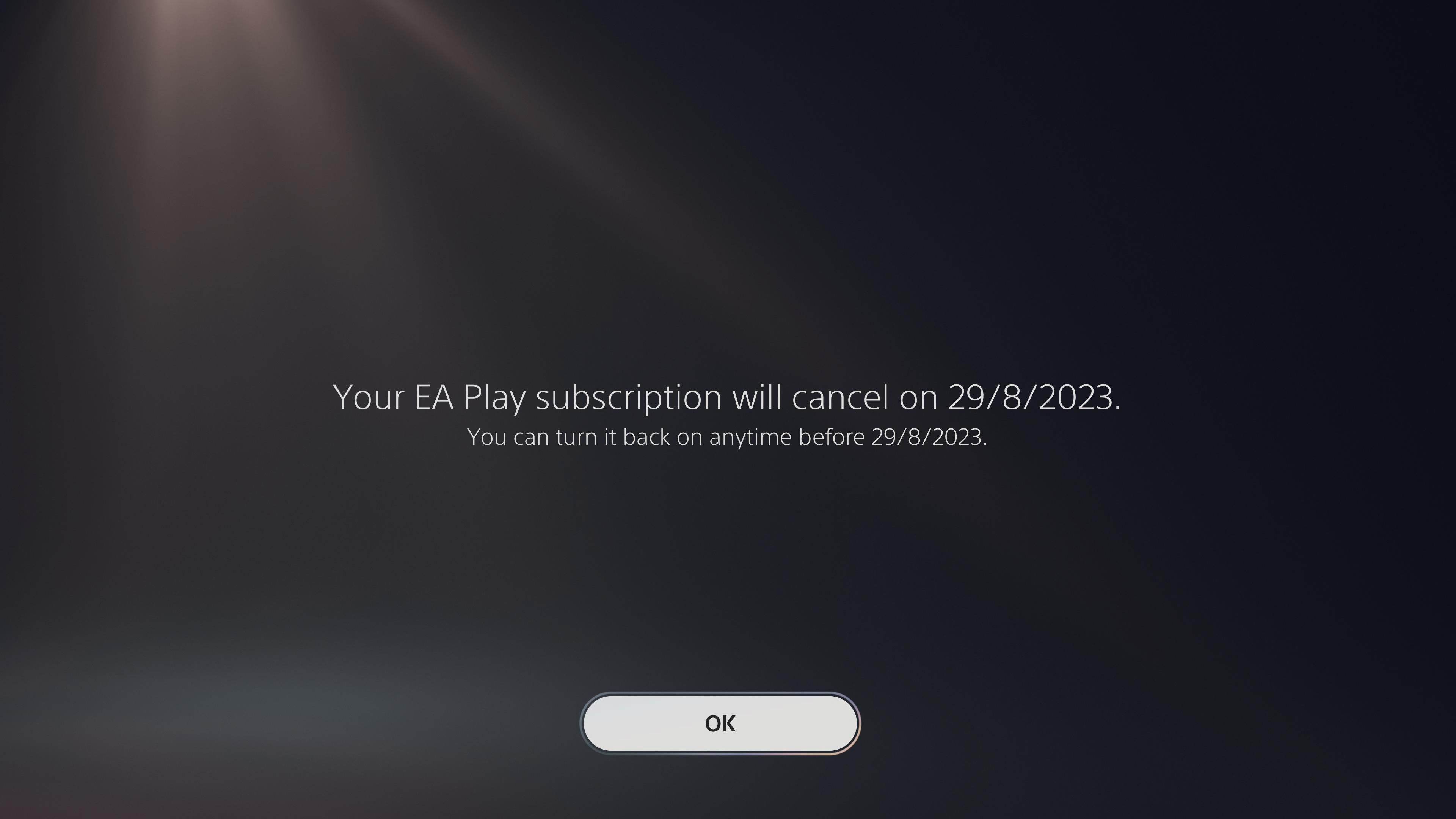
- Locate EA Play and select Turn Off Auto-Renew.
Via PlayStation 5 Console
- Go to Settings (the gear icon).
- Select Users and Accounts.
- Choose Account > Payment and Subscriptions.
- Select Subscriptions and find EA Play.
- Choose Turn Off Auto-Renew.
Via PlayStation 4 Console
- Go to Settings.
- Select Account Management > Account Information.
- Select PlayStation Subscriptions.
- Find EA Play and select Turn Off Auto-Renew.
How to Cancel EA Play on Xbox (Series X|S and Xbox One)
Xbox users often have EA Play as a standalone subscription or as part of Xbox Game Pass Ultimate. If EA Play is bundled with Game Pass, you must cancel the entire Game Pass subscription to stop the service. If you have the standalone version, follow these steps:
- Press the Xbox button on your controller to open the guide.
- Go to Profile & system > Settings > Account.
- Select Subscriptions.
- Choose EA Play.
- Select Turn off recurring billing and follow the prompts.
Alternatively, you can log in to the Microsoft Services & Subscriptions page on a web browser to manage all Xbox-related billing in one place.
Comparison of Platform Cancellation Policies
The following table summarizes the key differences in how platforms handle the termination of an EA Play membership.
| Platform | Cancellation Method | Access Period | Refund Policy |
|---|---|---|---|
| EA App (PC) | EA Account Portal | Until end of cycle | Generally non-refundable |
| Steam | Steam Account Details | Until end of cycle | Per Steam Refund Policy |
| PlayStation | PSN Subscription Menu | Until end of cycle | Subject to PS Store Policy |
| Xbox | Microsoft Account Site | Until end of cycle | Prorated refunds occasionally offered |
Refund Eligibility and Financial Considerations
In 2026, the general policy for EA Play remains "no partial refunds." When you cancel, you are essentially telling the system not to charge you for the next period. You have already paid for the current month or year, and that access is guaranteed.
However, there are three primary exceptions where you might be eligible for a refund:
- Statutory Rights: In certain jurisdictions, such as the European Union, United Kingdom, or parts of Australia, consumer protection laws may allow for a refund if you cancel within a specific "cooling-off" period (usually 14 days) after the initial purchase, provided you haven't used the service extensively.
- Accidental Renewal: If you were charged for a yearly renewal you did not intend to keep, contacting the specific platform's support (EA Help, Xbox Support, etc.) immediately may result in a one-time courtesy refund.
- Technical Errors: If the service is non-functional or you cannot access the games you paid for, you have a stronger case for a full refund through the merchant’s customer service department.
What Happens After You Cancel?
Canceling an EA Play subscription does not delete your data, but it does change how you interact with your library.
- Game Access: You will lose access to all games in the EA Play List (The Vault) the moment your billing period ends. The icons may remain on your console or PC, but launching them will prompt you to either renew the subscription or purchase the game.
- Save Files: Your progress is safe. EA stores save data in the cloud or locally on your hardware. If you choose to buy the game later or resubscribe, you can pick up exactly where you left off.
- In-Game Content: Any DLC or currency purchased with the 10% member discount is yours to keep. However, if the base game was part of the EA Play List, you will still need to own the game to use that DLC.
- Trials: If you were in the middle of a 10-hour "First Play" trial, that trial will expire alongside your membership.
Common Troubleshooting Steps
If you encounter issues while trying to cancel, consider the following common roadblocks:
"I don't see the subscription in my account." This usually means you are logged into the wrong account or purchased the subscription on a different platform. Check your email for the "Welcome to EA Play" message to see which account and platform it was sent to.
"The 'Cancel' button is missing." This often happens if the subscription has already been canceled but is still in its "pending expiration" phase. Check the status to see if it says "Expires on [Date]" instead of "Renews on [Date]."
"I'm being charged for EA Play but I have Game Pass Ultimate." If you have both, you are paying twice for the same benefit. You should cancel the standalone EA Play subscription immediately, as Game Pass Ultimate includes EA Play at no extra cost on both Xbox and PC.
Frequently Asked Questions
Can I get a refund if I cancel halfway through the month? Standard policy across most platforms is that you do not receive a prorated refund. Your membership stays active until the end of the 30-day (or 365-day) cycle you paid for.
Will I lose the games I downloaded? The files stay on your hard drive, but the license to play them is revoked. To save space, it is recommended to uninstall EA Play titles after your subscription expires unless you plan on purchasing them.
What is the difference between EA Play and EA Play Pro? EA Play Pro is a premium tier exclusive to the EA App on PC. It includes "Pro" versions of new releases (including all DLC and rewards) and an expanded library. The cancellation process for Pro is identical to the standard EA Play tier on the EA App.
Can I pause my subscription instead of canceling? Currently, EA Play does not offer a "pause" feature. You must cancel the subscription and manually resubscribe at a later date. Your cloud saves and settings will be preserved in the interim.
Final Recommendation
Before finalizing your cancellation, ensure you have finished any active trials or single-player campaigns you are currently playing. Since refunds are rare, the most cost-effective strategy is to turn off recurring billing immediately after a charge if you know you do not want to continue for another month. This ensures you get the full 30 days of value without the risk of an accidental renewal. After canceling, always check for a confirmation email from the provider (Steam, Microsoft, Sony, or EA) to serve as proof of the transaction.
Image Gallery