Complete Guide to Emulators for iOS in 2026: Performance, Emulation Techniques, and Safe Implementation
Navigating the landscape of iOS emulation in 2026 requires understanding how virtualization has evolved across desktop and mobile architectures. This comprehensive guide explores the current mechanisms used to run iOS applications outs...
Navigating the landscape of iOS emulation in 2026 requires understanding how virtualization has evolved across desktop and mobile architectures. This comprehensive guide explores the current mechanisms used to run iOS applications outside of Apple proprietary hardware, addressing the primary search intent of developers, power users, and security researchers looking for reliable testing and simulation environments.
Contents
The Technical Evolution of iOS Emulation and Simulation in 2026
Running iOS environments on non-Apple hardware has historically presented significant architectural challenges due to the closed nature of Apple's ARM-based silicon, specialized XNU kernel architecture, and strict security enclaves. While Apple historically restricted developers to macOS-exclusive Xcode simulators, the ecosystem in 2026 features advanced hypervisors and translation layers capable of handling complex binaries.
Understanding the difference between a simulator and a true emulator remains critical for technical workflows. A simulator runs compiled application binaries on top of host operating system APIs by translating API calls, which works efficiently for user interface testing on macOS. Conversely, a true emulator attempts to replicate the underlying hardware instruction set architecture, allowing for closer inspection of bare-metal interactions, kernel-level operations, and low-level debugging.
Key Architectural Distinction Simulators vs. Emulators: Simulators execute iOS apps on host hardware by mimicking iOS system behaviors through software abstraction layers. Emulators replicate the processor architecture and hardware registers of Apple Silicon chips, enabling execution of uncompiled or natively compiled ARM binaries on alternate host machines.
Current Options for Testing and Running iOS Environments
Developers and enthusiasts utilize various tools depending on their exact operational requirements, budget, and host operating system limitations. The following matrix details the primary platforms utilized in 2026 for iOS simulation and related workflows.
| Tool Name | Primary Host OS | Execution Type | Target Audience | Primary Use Case |
|---|---|---|---|---|
| Xcode Simulator | macOS | Simulator | iOS Developers | UI/UX testing, fast iteration cycles |
| Corellium | Cloud / Web | Hardware Virtualization | Security Researchers | Firmware analysis, vulnerability research |
| Appetize.io | Web Browser | Cloud-Based Streaming | QA & Support Teams | Quick application demos without local installation |
| PlayCover | macOS (Apple Silicon) | Native Translation Layer | Power Users | Running iOS applications natively on macOS desktop |
Step-by-Step Configuration Guide for Developer Environments
Setting up an official and reliable testing environment remains straightforward for developers utilizing macOS hardware, while alternative workflows require cloud-based instances or virtualization layers. Follow this structured approach to establish a stable testing pipeline:
- Verify Host System Specifications: Ensure your host machine runs macOS on Apple Silicon (M1, M2, M3, or M4 series processors) with at least 16GB of unified memory to handle resource-intensive virtualization tasks smoothly.
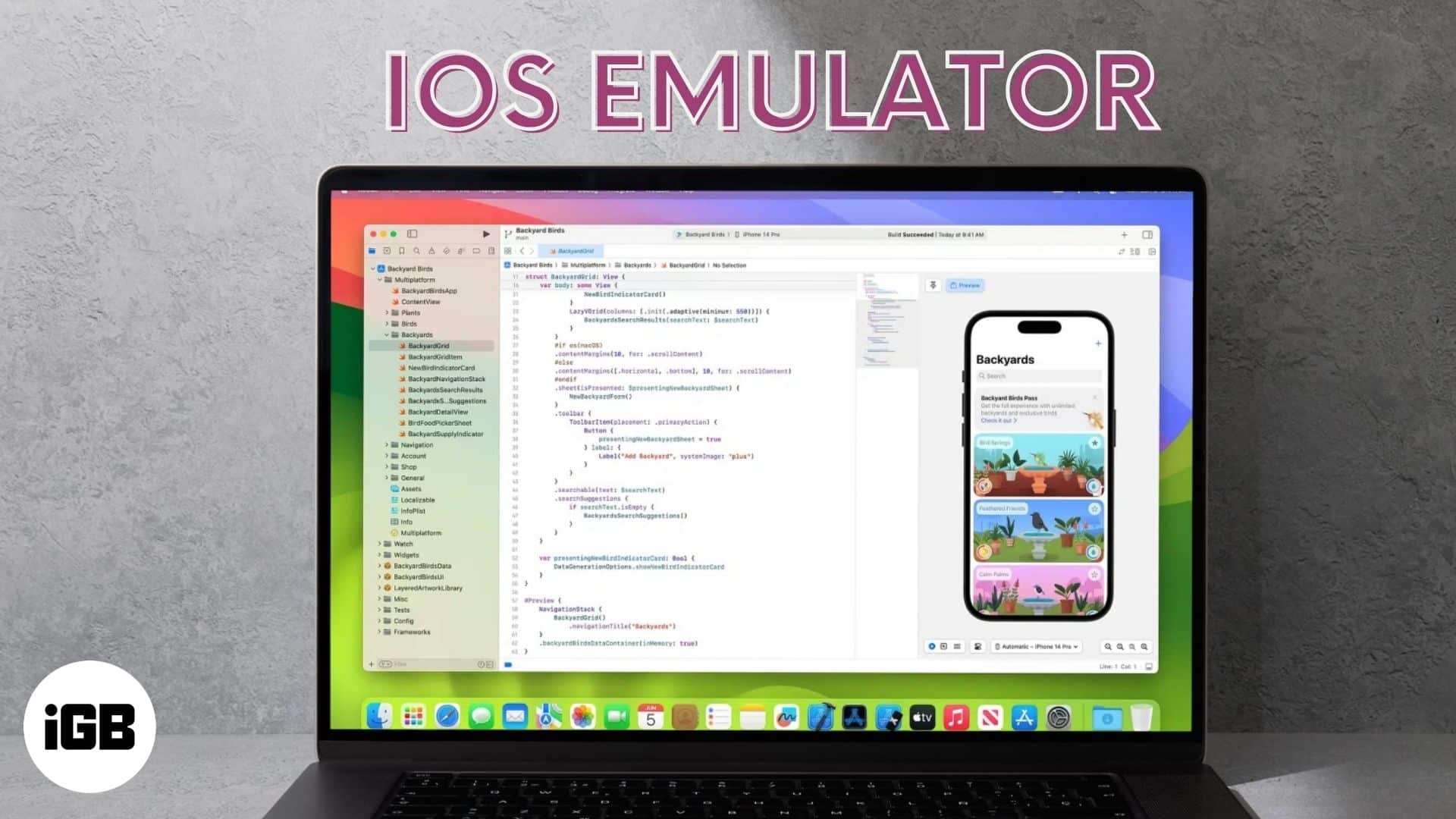
- Install the Current Xcode Release: Access the Mac App Store or developer portal to download and install the latest stable version of Xcode, which includes updated iOS runtime packages and developer command-line tools.
- Configure Device Runtimes: Open Xcode settings, navigate to the Platforms tab, and download specific iOS versions required for your compatibility matrix testing.
- Launch the Simulator Utility: Open the Simulator application directly or trigger it via terminal commands using the specific device UUID identifier to isolate particular screen sizes and iOS versions.
- Optimize Performance Parameters: Adjust graphics quality settings within the simulator menu to match target physical device performance profiles, ensuring accurate frame rate measurements during UI stress testing.
Pros, Cons, and Security Considerations of Third-Party Solutions
Evaluating third-party tools that claim to run iOS apps on Windows or Linux requires careful consideration of security, performance, and legal implications. Most Windows-based "iOS emulators" are marketing misnomers that actually function as web wrappers, Android-based skin emulators, or malicious software designed to harvest user credentials.
Advantages of Authorized Workflows
- Access to official APIs and hardware frameworks directly supported by Apple engineering teams.
- Seamless integration with continuous integration and continuous deployment (CI/CD) pipelines.
- Regular security patches and immediate compatibility updates upon new iOS version releases.
- Full access to native debugging tools, performance profilers, and memory leak detectors.
Disadvantages and Limitations of Alternative Approaches
- Complete absence of true, performant, local bare-metal iOS emulators for Windows or Linux host machines.
- High subscription costs for enterprise cloud-based hardware virtualization platforms.
- Potential violations of Apple's End User License Agreement (EULA) when running system binaries on non-Apple hardware.
- Security risks associated with unverified third-party web tools requesting Apple ID credentials or application source code uploads.
Frequently Asked Questions
Can I run a native iOS app on a Windows PC using an emulator?
True native iOS emulators do not exist for Windows because iOS binaries require proprietary Apple Silicon hardware instructions and the XNU kernel. Windows users typically rely on cloud-based streaming services or web-based testing tools to interact with iOS applications remotely.
What is the difference between Xcode Simulator and a hardware-level emulator?
Xcode Simulator runs compiled iOS apps by translating system calls to run on macOS and host hardware, whereas a hardware-level emulator emulates the physical ARM processor and security chips, typically used for advanced security auditing and firmware research.
Are web-based iOS streaming services safe to use with proprietary source code?
Enterprise-grade cloud testing platforms maintain strict data privacy and encryption standards, but uploading proprietary application binaries to unverified free online simulators poses significant intellectual property and security risks.
Why are there no free local iOS emulators for Linux or Windows?
The extreme complexity of Apple's proprietary hardware architecture, secure enclave processors, and closed-source operating system makes reverse-engineering a stable, performant local emulator exceptionally difficult and legally restricted.
How can developers test their iOS applications without owning physical Apple devices?
Developers utilize the built-in iOS Simulator included with Xcode for standard development, complemented by cloud testing farms and device management platforms for remote hardware validation.
Conclusion and Strategic Next Steps
Implementing effective testing workflows in 2026 relies on leveraging authorized tools like the Xcode Simulator for local development and enterprise cloud virtualization platforms for specialized research. Avoiding unverified third-party desktop emulators protects your infrastructure from security vulnerabilities and ensures compliance with industry standards. Begin your setup today by securing appropriate developer credentials and configuring your testing matrix around officially supported virtualization environments.
Image Gallery