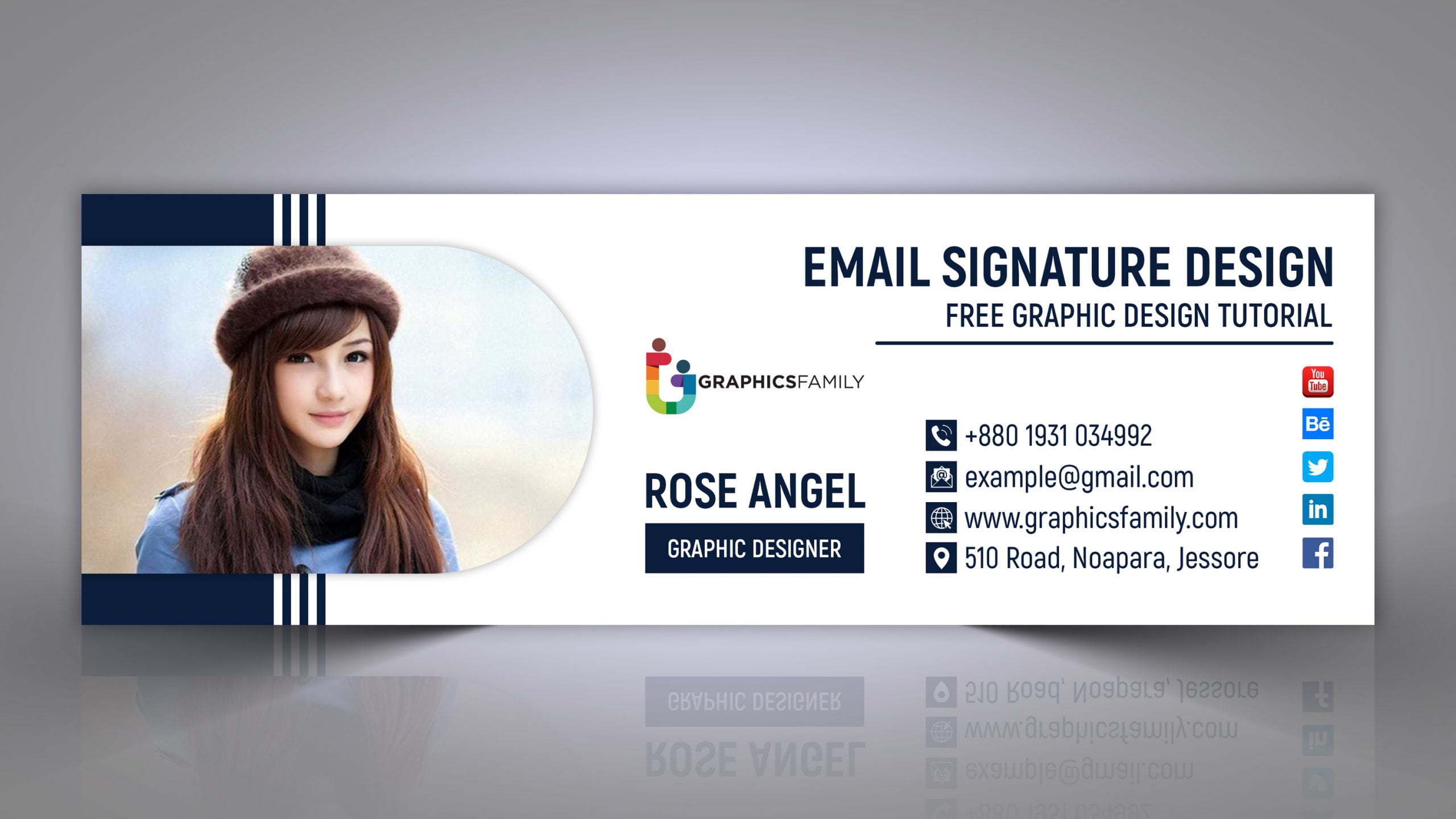
How to Create a Professional Student Email Signature
A professional student email signature is a concise block of text placed at the end of an outgoing message that identifies your academic status, contact details, and professional brand. It typically includes your full name, degree prog...
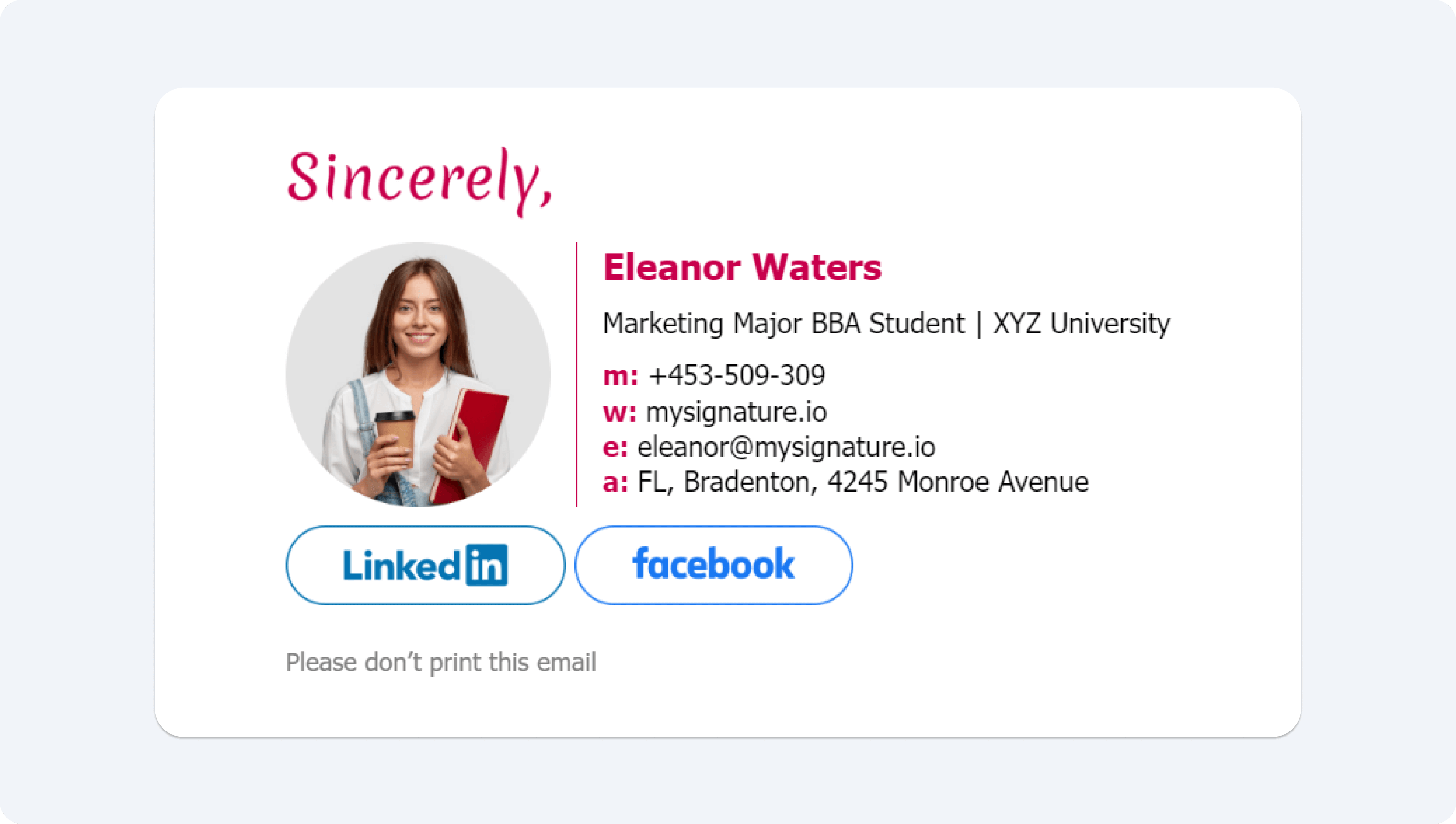
A professional student email signature is a concise block of text placed at the end of an outgoing message that identifies your academic status, contact details, and professional brand. It typically includes your full name, degree program, university, expected graduation year, and a link to a professional portfolio or LinkedIn profile.
Contents
In the academic and professional landscape of 2026, your digital presence begins the moment you hit "send." For students, an email is often the first point of contact with a potential employer, a research supervisor, or a high-ranking university administrator. While many students overlook the signature line, treating it as an afterthought, this small piece of digital real estate serves as a silent "business card." It validates your identity, provides context for your inquiry, and demonstrates a level of professional maturity that sets you apart from peers who use "Sent from my iPhone" or no signature at all.
The Strategic Importance of a Signature for Students
Creating a professional email signature is not merely about aesthetics; it is a strategic tool for career development and networking. In 2026, the volume of digital communication has reached record highs, and professionals often skim emails in seconds. A well-structured signature provides immediate answers to the recipient's unspoken questions: Who is this? What is their background? Are they looking for an internship or a full-time role?
For students, the signature serves three primary functions:
- Identity Verification: It confirms you are a legitimate student at a specific institution, which is vital when requesting access to research databases or contacting alumni.
- Contextual Awareness: By including your major and graduation year, you allow recruiters to instantly categorize you for specific roles based on your academic timeline.
- Call to Action: Including a LinkedIn URL or a portfolio link encourages the recipient to engage further with your work without needing to ask for additional documents.
Essential Components of a Professional Student Signature
A professional signature must balance information density with visual clarity. Overloading the signature with unnecessary details can make it look cluttered, while omitting key data can make you seem unprepared.
1. Full Name and Preferred Pronouns
Your name should be the most prominent element, often bolded or in a slightly larger font size. In 2026, the inclusion of preferred pronouns (e.g., He/Him, She/Her, They/Them) has become a standard practice in global academic and corporate environments to ensure respectful communication and clarity.
2. Academic Identity (Degree, Major, and University)
Clearly state your current pursuit. For example, "B.S. in Mechanical Engineering" or "Candidate for Master of Public Policy." Always include the full name of your university. If you attend a specific college within a larger university system (e.g., The Wharton School at the University of Pennsylvania), include both to leverage the specific brand of your program.
3. Expected Graduation Date
This is perhaps the most critical piece of information for recruiters. It tells them exactly which hiring cycle you fall into. Instead of saying "Junior" or "Third Year," use "Expected Graduation: May 2027." This provides a definitive timeline for internship or full-time availability.
4. Contact Information
While your email address is obvious (as you are sending from it), including a professional phone number is standard. Avoid including physical home addresses for privacy and security reasons.
5. Professional Links
In 2026, a LinkedIn profile is no longer optional for students. Including a clean, hyperlinked URL to your profile is essential. If you are in a creative or technical field, a link to a GitHub repository, Behance portfolio, or personal website is also highly recommended.
Technical Design Principles for Student Signatures
When building your signature, technical execution is just as important as the content. A signature that looks great on a desktop but breaks on a mobile device can appear unprofessional.
Font Selection and Hierarchy
Stick to web-safe fonts like Arial, Helvetica, or Calibri. Custom or "fancy" fonts often fail to load correctly on the recipient's device, reverting to a default system font that may break your formatting. Use a font size between 10pt and 12pt. Use bolding for your name to create a visual anchor, but avoid using more than two different font colors. Generally, black or a dark grey is best, perhaps with one accent color that matches your university's branding.
Mobile Responsiveness
Statistically, over 50% of professional emails are now read on mobile devices. Ensure your signature is not too wide; a width of 320px to 600px is ideal. Avoid using large images or complex multi-column layouts that might wrap awkwardly on a narrow screen.
Image Use and "Alt-Text"
If you choose to include a university logo or a professional headshot, ensure the file size is extremely small (under 50KB) to prevent your email from being flagged by spam filters. Every image must have Alt-Text (e.g., "University Logo" or "Profile Picture of [Your Name]") for accessibility. This ensures that if the recipient has images disabled or uses a screen reader, they still understand the context of the signature.
Step-by-Step Guide to Setting Up Your Signature
Most students use either Gmail (via a university Google Workspace) or Microsoft Outlook. Here is how to implement your signature in 2026’s most common interfaces.
Setting Up in Gmail
- Open Gmail and click the Settings (gear icon) in the top right corner.
- Select See all settings.
- Scroll down to the Signature section in the "General" tab.
- Click + Create new and name your signature (e.g., "Professional Student").
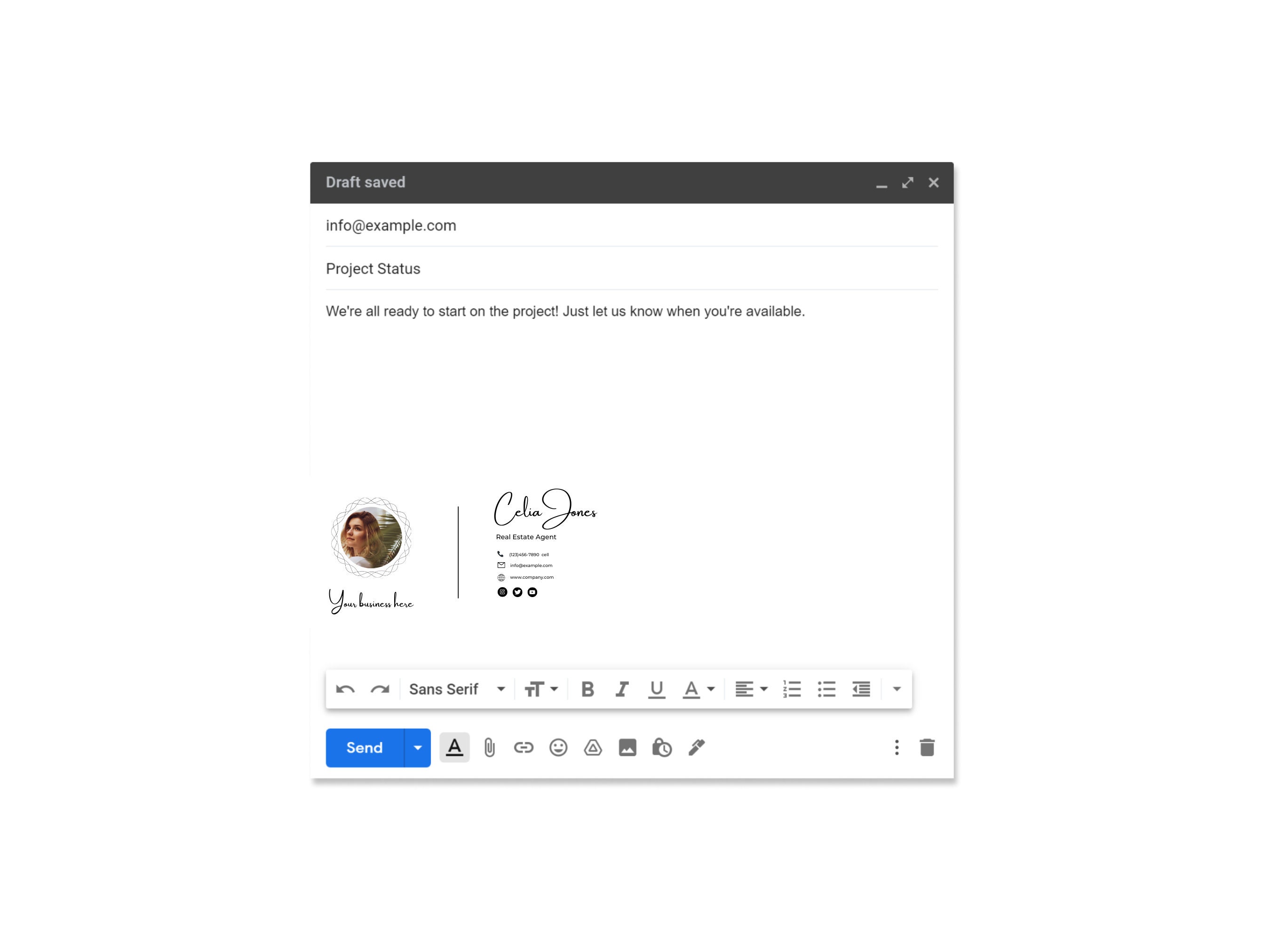
- Enter your details into the text box. Use the formatting toolbar to add bolding and links.
- Under Signature defaults, ensure your new signature is selected for "For new emails use" and "On reply/forward use."
- Scroll to the bottom and click Save Changes.
Setting Up in Microsoft Outlook (Desktop and Web)
- For the web version, click the Settings icon and search for "Signature."
- For the desktop application, go to File > Options > Mail > Signatures.
- Select New to create a fresh template.
- Type your information. If you have a pre-designed HTML signature, you can paste it here, though you may need to check the "Keep Source Formatting" option.
- Assign the signature to your specific student email account.
- Click OK to save.
Student Email Signature Comparison Table
Depending on your field of study and your immediate goals (e.g., applying for a corporate internship vs. a creative role), the structure of your signature may vary.
| Signature Type | Primary Goal | Recommended Elements | Visual Style |
|---|---|---|---|
| Standard Academic | General communication | Name, Major, University, Grad Year, Phone | Simple text, minimal color |
| Corporate/Internship | Recruiting & Networking | Name, Title (e.g., Finance Intern), LinkedIn, Grad Year | Professional, may include university logo |
| Creative/Portfolio | Showcasing work | Name, Creative Discipline, Portfolio Link, Instagram (if professional) | Modern, may use a unique (but legible) font |
| Research/Lab | Academic credibility | Name, Lab Name, Research Interests, Publications link | Very formal, includes specific department details |
Common Mistakes to Avoid
To maintain a professional edge, avoid these frequent errors that can undermine your credibility:
- Unprofessional Quotes: In 2026, the trend of including inspirational or religious quotes at the bottom of an email has largely faded from professional circles. They can be polarizing and take up unnecessary space.
- Low-Resolution Images: A pixelated university logo or a blurry headshot looks worse than no image at all. Use high-quality PNGs and scale them down manually.
- Too Many Social Media Icons: Limit your social links to professional platforms. Your personal TikTok, Snapchat, or private Instagram accounts do not belong in a professional signature.
- "Sent from my iPhone": This default message suggests you are in a rush and haven't bothered to set up your professional identity. Always remove it and replace it with your custom signature.
- Outdated Information: Ensure you update your graduation year and your degree status as you progress. If you change majors, your signature must reflect that change immediately.
Privacy and Security Considerations
When distributing your email signature to hundreds of recipients, you must consider what information you are making public. You should never include your home address, social security number, or private personal details.
Furthermore, be cautious with your phone number. If you are uncomfortable giving out your personal cell phone number, consider using a digital service like Google Voice to create a professional number that forwards to your phone. This provides a layer of privacy while still allowing recruiters to reach you.
Frequently Asked Questions
Should I include my GPA in my email signature?
Generally, no. Your GPA is better suited for your resume or LinkedIn profile. Including it in every email can come across as boastful or unnecessary. The only exception is if you are currently in a high-stakes application process where a specific GPA is a prerequisite for the role you are discussing.
Can I include my photo in my signature?
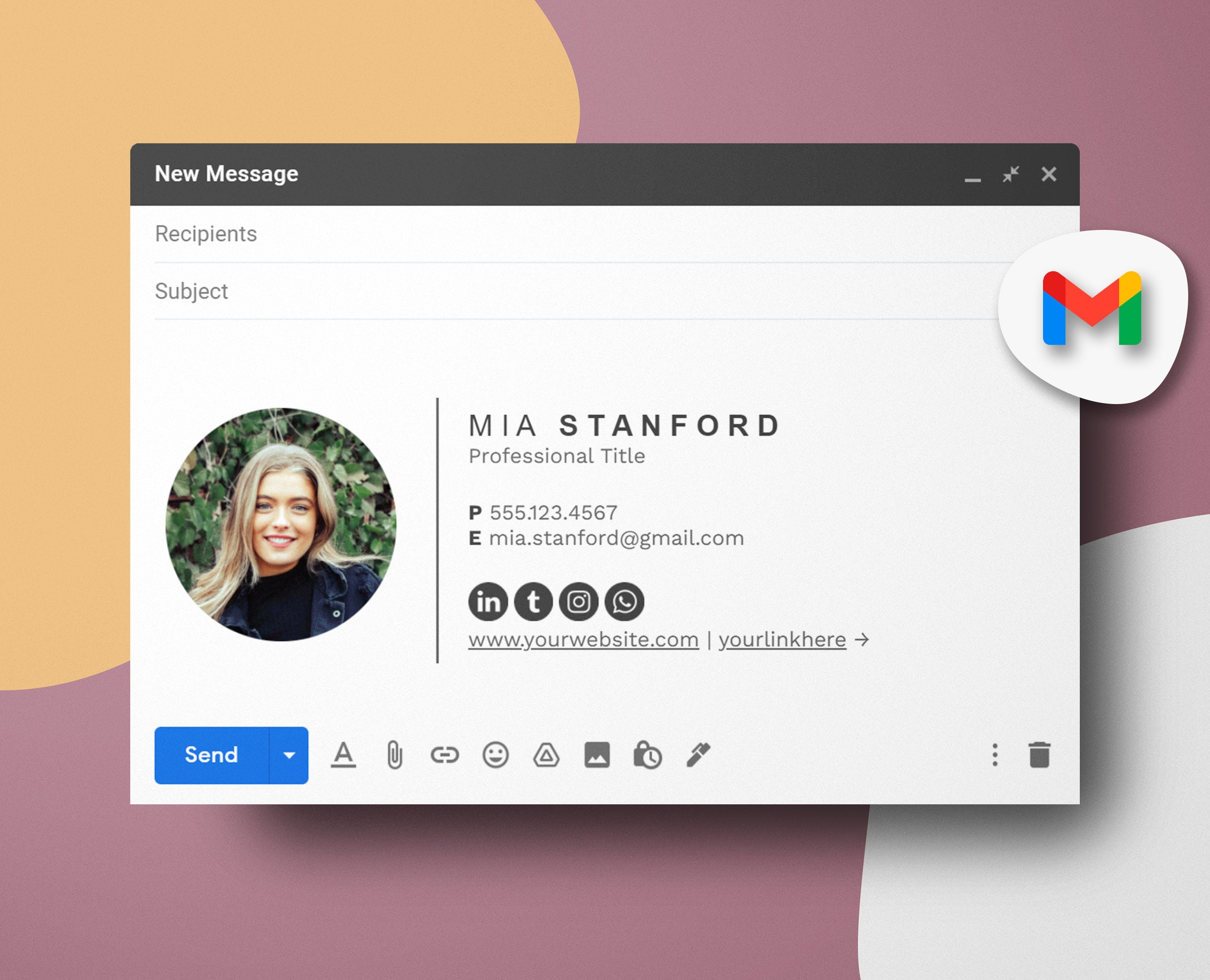
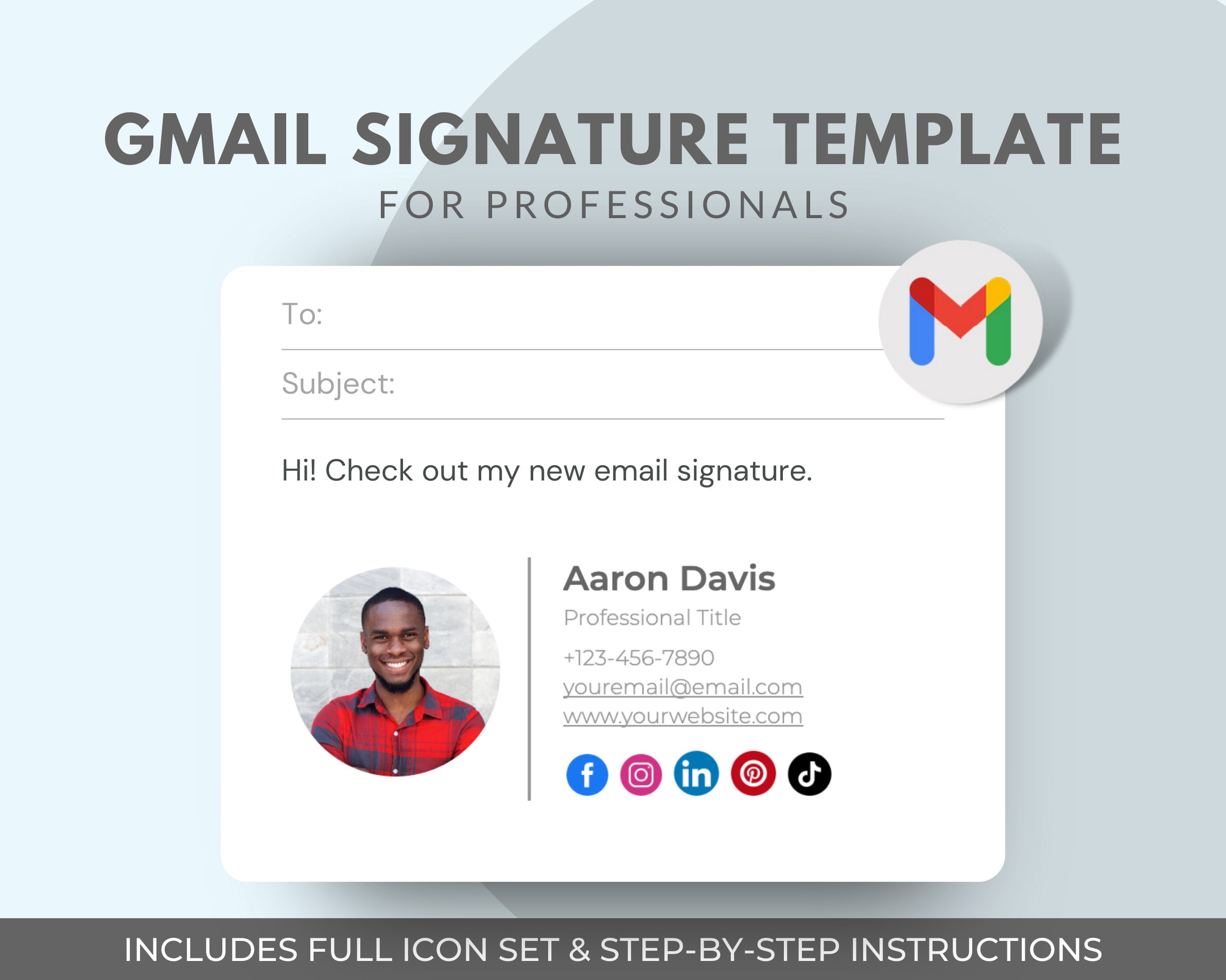
Including a photo is a personal choice and often depends on regional business culture. In some industries, it helps put a face to a name and builds rapport. If you choose to include one, it must be a professional headshot—not a cropped selfie or a casual vacation photo.
How many links are too many?
Limit yourself to two or three primary links. For most students, a LinkedIn profile and a portfolio or GitHub link are sufficient. Including too many links can clutter the interface and may trigger spam filters in some enterprise email systems.
Should I mention my current part-time job?
If your current job is relevant to your career goals (e.g., an accounting student working as a bookkeeper), you should include it. If it is a standard service job (e.g., working at a coffee shop) that isn't related to your professional path, it is better to leave it off and focus on your academic identity.
Is it okay to use a signature generator?
Yes, tools like HubSpot's Email Signature Generator or Wisestamp are excellent for creating clean, professional layouts without needing to know HTML. Just ensure the final product is not overly "branded" by the service provider (some free versions add a "Created by..." link at the bottom).
Practical Recommendation
As a final step, once you have created and installed your signature, send a test email to yourself and a friend. Check the email on both a desktop computer and a smartphone to verify that the formatting remains intact, the links work correctly, and the images (if any) load properly. A signature is a reflection of your attention to detail; ensuring it works perfectly across all platforms is the final mark of a professional student.
Image Gallery