How to Choose an Online Backup Service for Multiple Computers
Choosing an online backup service for multiple computers requires evaluating per-device versus pooled-storage pricing models, centralized management consoles, cross-platform compatibility, and robust zero-knowledge security. The ideal...
Choosing an online backup service for multiple computers requires evaluating per-device versus pooled-storage pricing models, centralized management consoles, cross-platform compatibility, and robust zero-knowledge security. The ideal service balances cost-efficiency across all household or office endpoints while providing automated protection, bandwidth controls, and reliable disaster recovery options.
Contents
Understanding Licensing and Storage Models for Multiple Computers
When backing up more than one computer, the financial and operational structure of an online backup service becomes critical. Providers generally structure their multi-device offerings into two distinct architectures: per-device licensing and pooled-storage licensing.
- Multi-Computer Backup Provider Options
- Per-Device Licensing
- Fee paid per PC/Mac
- Unlimited data per device
- Ideal for data-heavy PCs
- Pooled-Storage Licensing
- Fixed total storage cap
- Unlimited total devices
- Ideal for light/medium
- Per-Device Licensing
Per-Device Licensing
Under a per-device model, you pay a flat rate for each computer added to the account. In exchange, the provider usually offers unlimited or extremely high storage allowances for that specific machine.
- Advantages: Ideal for power users who store multiple terabytes of media, system images, or raw project files on every machine. A computer with 10 TB of data costs the exact same to back up as a laptop with 100 GB.
- Drawbacks: Costs scale linearly with device count. Protecting five or six family or small-office computers can quickly become expensive, even if several of those machines carry minimal data.
Pooled-Storage (Multi-Device) Licensing
Under a pooled-storage model, you pay a fixed fee for a set capacity allocation (such as 5 TB or 10 TB) and are permitted to connect an unlimited or generous number of devices—including Windows PCs, Macs, external drives, and mobile devices—to share that central quota.
- Advantages: Extremely cost-effective for households or small teams where individual device footprints vary widely. A light laptop, a desktop workstation, and a media server can all draw from the same cloud repository.
- Drawbacks: If one device consumes most of the storage pool, all other endpoints run the risk of running out of backup space unless you upgrade to a higher tier or enforce client-side quotas.
Essential Features for Multi-Device Online Backup
Managing cloud backups across several computers introduces logistical challenges that single-device users rarely encounter. To ensure consistent data protection without overwhelming your local network or spending hours configuring individual nodes, look for these foundational capabilities:
Centralized Administrative Dashboard
A unified management console allows account administrators to monitor the backup status of every connected computer from a single web browser or management interface. Look for platforms that issue alert notifications when a specific device has failed to complete a backup over a designated threshold (e.g., 48 hours), allow remote backup initiation, and provide quick visual indicators of account storage consumption per endpoint.
Cross-Platform Support and File System Parity
Households and business networks frequently run mixed operating environments, combining Windows 10/11, macOS, and Linux workstations. Ensure the backup vendor offers native background clients across all required platforms. Verify whether operating-system-specific artifacts—such as macOS APFS metadata, file permissions, resource forks, or Windows hidden system files—are preserved correctly during backup and restored accurately without loss.
Granular Bandwidth Throttling and Scheduling
Simultaneous uploads from three or four machines can saturate a home or office broadband connection, causing network latency and degraded internet performance for other activities. A suitable multi-device solution must offer:
- Bandwidth throttling: Restricting maximum upload/download rates during peak operational hours.
- Intelligent scheduling: Staggering backup windows for different computers so they do not compete for network upload capacity.
- Continuous vs. continuous-delta backups: Transmitting only altered blocks of files (block-level deduplication and incremental tracking) rather than re-uploading entire files when minor changes occur.
Retention Rules and Versioning Policies
File corruption, user error, and ransomware attacks often go unnoticed for days or weeks. A resilient online backup service must maintain robust version history. Search for services offering at least 30 to 90 days of file version history, with options for extended or unlimited retention. In multi-user households or shared administrative environments, strict versioning ensures that overwriting or deleting a file on one machine does not permanently purge the backup from cloud storage.
Security, Encryption, and Zero-Knowledge Architecture
Data privacy becomes increasingly paramount when consolidating files from multiple family members, employees, or distinct workstations into a single cloud repository.
Encryption Standards
At a baseline, backup traffic must be secured in transit using Transport Layer Security (TLS 1.3) and encrypted at rest on cloud servers using Advanced Encryption Standard (AES) 256-bit encryption.
Zero-Knowledge (Private Encryption Key) Models
Standard cloud services hold encryption keys on their servers, meaning employee misconfiguration, legal subpoenas, or server-side security breaches could potentially expose your files. Services offering zero-knowledge encryption require you to generate a private key that never leaves your local machines.
- Zero-Knowledge Architecture
- Local Computer: Encrypts Data Locally (Private Key)
- Network Transmission: Encrypted in Transit (TLS 1.3) (Encrypted Blob)
- Cloud Storage: Stored in AES-256 (Provider cannot read content)
When implementing zero-knowledge protection across multiple computers:
- Master Key Management: Determine whether each computer uses its own sub-key or shares a single master key across the entire account.
- Password Recovery Risks: If the administrative private key or passphrase is lost, the service provider cannot reset it, rendering all backed-up data permanently unrecoverable.
- Web Access Limitations: True zero-knowledge architecture often limits or completely disables the ability to preview or download files via standard mobile apps or web browsers without entering the private decryption key locally.
Disaster Recovery and Data Restoration at Scale
Backing up multiple terabytes of data across multiple computers is only half the equation; restoring that data after a catastrophic hardware failure, drive crash, or ransomware incident is where service quality is truly tested.
Network Bandwidth and Initial Backup Considerations
The initial upload for a network of three to five computers can easily total several terabytes. Over a standard domestic broadband upload speed of 20–50 Mbps, transferring 2 TB of initial data can take anywhere from several days to a few weeks.
To streamline this process, evaluate whether the backup vendor offers a physical courier seeding service. With courier seeding, the vendor sends an external hard drive to your home or office; you perform a local copy from your computers to the drive, ship it back to the data center, and the vendor loads your initial baseline backup directly onto their high-speed server infrastructure.
Emergency Physical Drive Restores
If a primary drive fails or a computer is stolen, downloading 1–2 TB of data over the internet can take days and exhaust internet service provider (ISP) data caps. Premium backup providers offer express courier restore services, shipping an encrypted hard drive containing your backed-up files directly to your door via express mail.
Adherence to the 3-2-1 Backup Strategy
An online backup service should supplement, not completely replace, local backup systems. The industry-standard 3-2-1 strategy dictates:
- 3 total copies of your data (the primary files plus two backups).
- 2 different storage media types (e.g., local external drive or Network-Attached Storage [NAS] and cloud storage).
- 1 copy stored offsite in a secure cloud data center.
Choose a multi-computer backup client that allows you to configure dual backup destinations—simultaneously writing encrypted backups to an attached local USB drive or NAS array for instant local recovery, while concurrently streaming incremental changes offsite to the cloud.
Comparing Multi-Computer Online Backup Solutions
The following table compares the operational structures, pricing paradigms, and ideal deployment scenarios for the top categories of online backup providers suitable for multi-device environments.
| Backup Provider / Category | Primary Pricing Model | Device Allowance | Storage Capacity | Key Architectural Features | Recommended Target Audience |
|---|---|---|---|---|---|
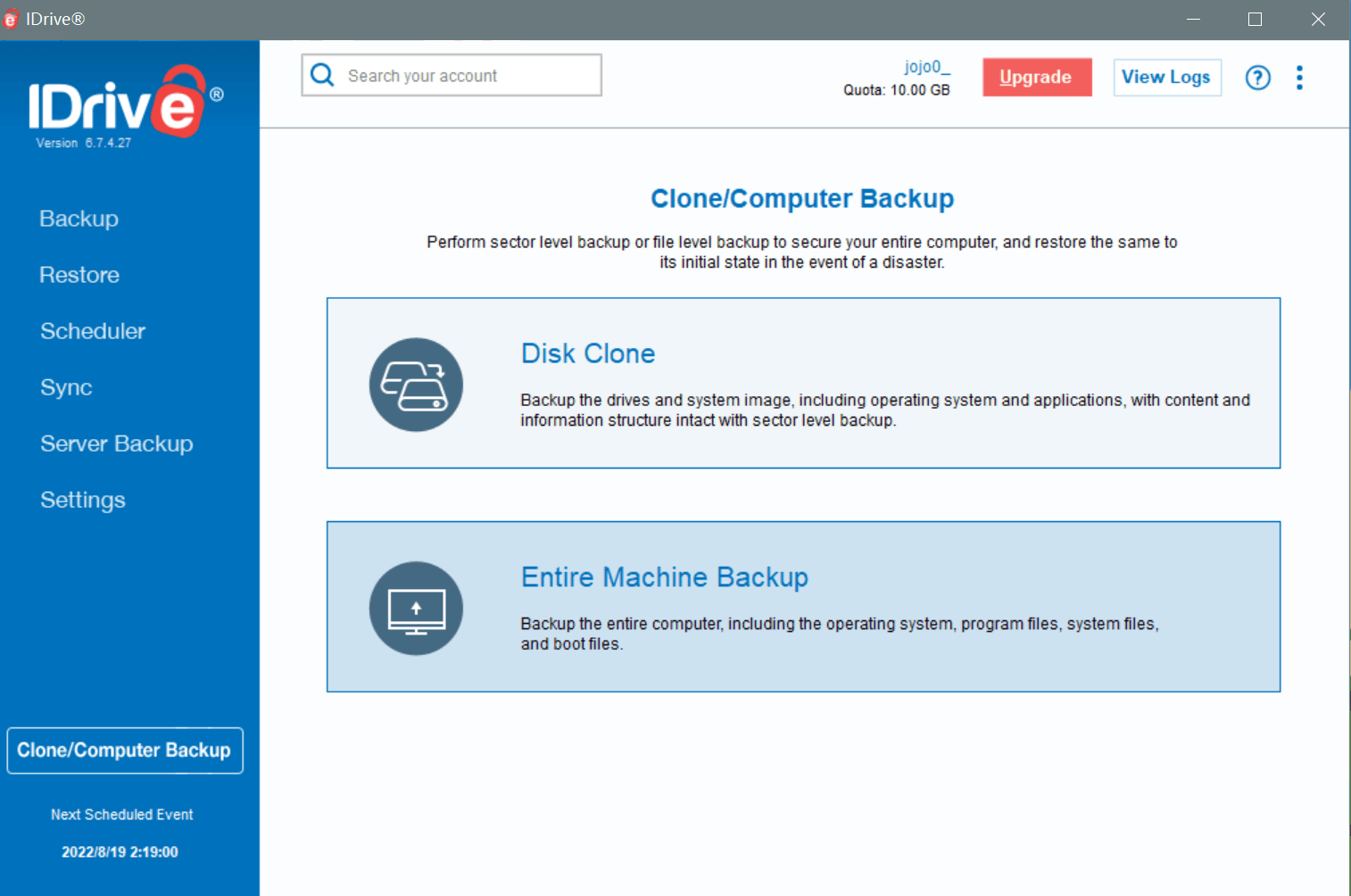
| IDrive | Pooled Annual Storage Fee | Unlimited PCs, Macs, & Mobiles | Fixed Allocation (e.g., 5 TB–10 TB+) | Local + Cloud hybrid, Express physical drive restore, Versioning up to 30 snapshots | Households & small offices with moderate data spread across many devices |
| Backblaze (Business / Centralized) | Per-Device Monthly/Annual Rate | Billed Per Managed Machine | Unlimited Per Computer | Centralized admin console, quiet background execution, Express drive restore | Users with multiple computers containing huge individual data footprints |
| Acronis Cyber Protect Home Office | Multi-Computer License Bundles (1, 3, or 5 PCs) | Tiered Package Limits | Tiered Cloud Quota (500 GB–5 TB) | Full system image restoration, active ransomware protection, local drive cloning | Technical users requiring full bare-metal OS recovery and integrated malware protection |
| CrashPlan (Small Business) | Per-Device / Per-User Subscription | Scalable Device Count | Unlimited Cloud Storage | Advanced retention customization, continuous background block-level backup | Freelancers, small businesses, and advanced home labs with compliance needs |
| DIY Cloud (Arq Backup + Backblaze B2 / AWS S3) | Software License + Pay-As-You-Go Cloud Storage | Unlimited Endpoints (Software Per-Machine or License Pool) | Metered Pay-per-GB Storage | Complete zero-knowledge control, multi-cloud destination support, block-level deduplication | Tech-savvy users wanting exact granular control over storage costs and keys |
Step-by-Step Implementation Strategy
Deploying a multi-computer online backup system systematically prevents bandwidth saturation, missing files, and unmonitored backup failures.
- Multi-Computer Implementation Flow
- Step 1: Audit Data Volumes & Formats across all endpoints
- Step 2: Select Pricing Model (Per-Device vs. Pooled Storage)
- Step 3: Stagger Initial Backups & Configure Bandwidth Rules
- Step 4: Configure Local + Cloud Dual Targets (3-2-1 Rule)
- Step 5: Schedule Quarterly Test Restores & Audit Alerts
Step 1: Audit Data Footprints Across All Endpoints
Before purchasing a subscription, catalog every computer to be backed up. Note operating systems, total used drive space, and the presence of non-standard directories or external drives. Exclude temporary files, operating system caches, downloadable installation files, and virtual machine disk images that do not require cloud protection to minimize unnecessary storage consumption.
Step 2: Choose the Correct Cost Model
If you have five computers with 200 GB of personal documents each (1 TB total), a pooled-storage model (like IDrive) is significantly cheaper than buying five individual licenses. Conversely, if you have three video editing workstations holding 8 TB of footage each (24 TB total), a per-device unlimited model (like Backblaze) offers far greater value.
Step 3: Stagger the Initial Backup Schedule
To prevent local network congestion:
- Connect the first primary desktop via a wired Ethernet cable.
- Complete its initial baseline backup before starting the second machine.
- Configure upload bandwidth throttling in the client software (e.g., cap upload speed at 50% of your total ISP upload bandwidth during business or active waking hours).
Step 4: Implement Centralized Monitoring
Log into the administrative management console and enable email or push notification alerts for backup failures or missing device check-ins. Set alert thresholds to notify you if any computer fails to sync for more than 48 to 72 hours.
Step 5: Conduct Periodic Recovery Audits
A backup system is only as reliable as its restore process. Every three to six months, perform a practice file recovery:
- Select a randomly chosen batch of complex files (such as photo libraries or financial spreadsheets) from different connected machines.
- Restore them to an isolated test folder.
- Verify file integrity, timestamps, and permissions to ensure the restoration pipeline functions as intended.
Frequently Asked Questions
What is the difference between cloud storage and online backup for multiple computers?
Cloud storage services (such as Google Drive, Dropbox, or Microsoft OneDrive) are designed primarily for file syncing, sharing, and active collaboration across devices. Files placed inside specific cloud folders are synchronized continuously, meaning if a file is deleted or corrupted on one computer, that change syncs instantly across all connected endpoints. Online backup services operate automatically in the background, continuously backing up entire file systems, external drives, and application data to secure offsite cloud infrastructure with historical versioning, allowing you to recover older snapshots of deleted or altered files.
How do multi-computer backup plans protect private user data on individual devices?
Most multi-computer backup plans isolate data repositories per computer node inside the central account interface. Administrators can view connected device statuses, but if individual private encryption keys are assigned to each device, account owners cannot read or decrypt the underlying files stored on another user's machine without that specific device's encryption passphrase.
Can external hard drives connected to secondary computers be backed up?
Yes, many online backup services allow you to back up external USB hard drives attached to any registered computer. However, licensing restrictions vary: per-device unlimited plans often require external drives to be re-connected to the host computer at least once every 30 days to keep their cloud backup active, whereas pooled-storage plans treat external drives simply as additional storage paths drawing from your shared account capacity quota.
How long does an initial backup take when setting up multiple computers?
The duration depends entirely on your total data volume and your internet upload speed. For example, uploading 1 TB of data over a standard broadband upload speed of 25 Mbps takes roughly 4 to 6 days of continuous uploading. When backing up multiple machines on the same internet connection, stagger the initial setups sequentially or configure client-side bandwidth limits to prevent network degradation across your home or business network.
What happens if one computer on the account becomes infected with ransomware?
If ransomware encrypts files on one computer, the backup client may back up those encrypted files to the cloud as altered file versions. However, because professional backup services maintain granular file versioning, you can roll back to clean snapshots created prior to the ransomware infection. Furthermore, because cloud backup destinations are accessed via secure client protocols rather than exposed local network shares, the ransomware cannot directly encrypt or wipe your cloud repository.
Practical Recommendation
For households or small teams seeking a balance between cost and ease of use across multiple machines with light-to-moderate data footprints, a pooled-storage plan offers the best financial value. It allows an unlimited number of PCs, Macs, and external drives to share a central allocation under a single management login.
If your network consists of several computers containing large, multi-terabyte media drives, select a per-device unlimited service with a robust administrative console. Although paying per machine increases fixed costs, it eliminates storage caps, ensures consistent background protection, and provides peace of mind through accessible courier-drive recovery options.
Before committing to a long-term plan, take advantage of free trial periods to perform a test upload on at least two different computers, verify the performance of the administrative dashboard, and test a file restoration cycle to ensure the solution meets your operational standards.
Image Gallery