A Comprehensive Guide to Designing a WordPress Site
Designing a WordPress site involves selecting a reliable hosting environment, installing the core software, and configuring a theme and plugin ecosystem to meet your specific functional goals. By following a structured approach—from do...
Designing a WordPress site involves selecting a reliable hosting environment, installing the core software, and configuring a theme and plugin ecosystem to meet your specific functional goals. By following a structured approach—from domain registration to final security hardening—you create a scalable, professional digital presence that balances visual aesthetics with technical performance and user experience.
Contents
Understanding the WordPress Ecosystem
To design a WordPress site effectively, you must first distinguish between WordPress.com and WordPress.org. WordPress.org is a self-hosted content management system (CMS) that allows you complete control over your files, database, and codebase. This is the industry standard for professional design, as it allows for custom themes, advanced plugins, and full ownership of your site’s architecture.
When you choose to host your own WordPress installation, you assume responsibility for maintenance, security, and performance. This flexibility is the primary reason why WordPress powers a significant portion of the web; however, it requires a commitment to learning the foundational elements of web design and server-side management.
Planning Your Site Architecture
Before interacting with the WordPress dashboard, define your site's purpose and structure. A well-designed site begins with a sitemap—a visual representation of how your pages (Home, About, Services, Contact, Blog) connect to one another.
Consider the "user journey." How will a visitor move from your landing page to your call-to-action (CTA)? Keep your navigation simple; a menu with more than seven items can lead to choice paralysis. Ensure that your design goals align with your technical requirements, such as whether you need e-commerce capabilities, membership logins, or heavy media galleries.
Domain Names and Web Hosting Requirements
Your domain name is your brand’s address on the internet. Choose a name that is short, easy to spell, and ideally a .com extension, as it remains the most trusted by users. Once you have a domain, you must purchase web hosting.
For WordPress, look for hosts that offer:
- One-click WordPress installation: Simplifies the setup process significantly.
- SSD Storage: Increases site speed compared to traditional hard drives.
- Free SSL Certificates: Necessary for site security and encrypting data between the server and the visitor's browser.
- Automated Backups: A safety net for when errors occur during development.
Installing and Configuring the Foundation
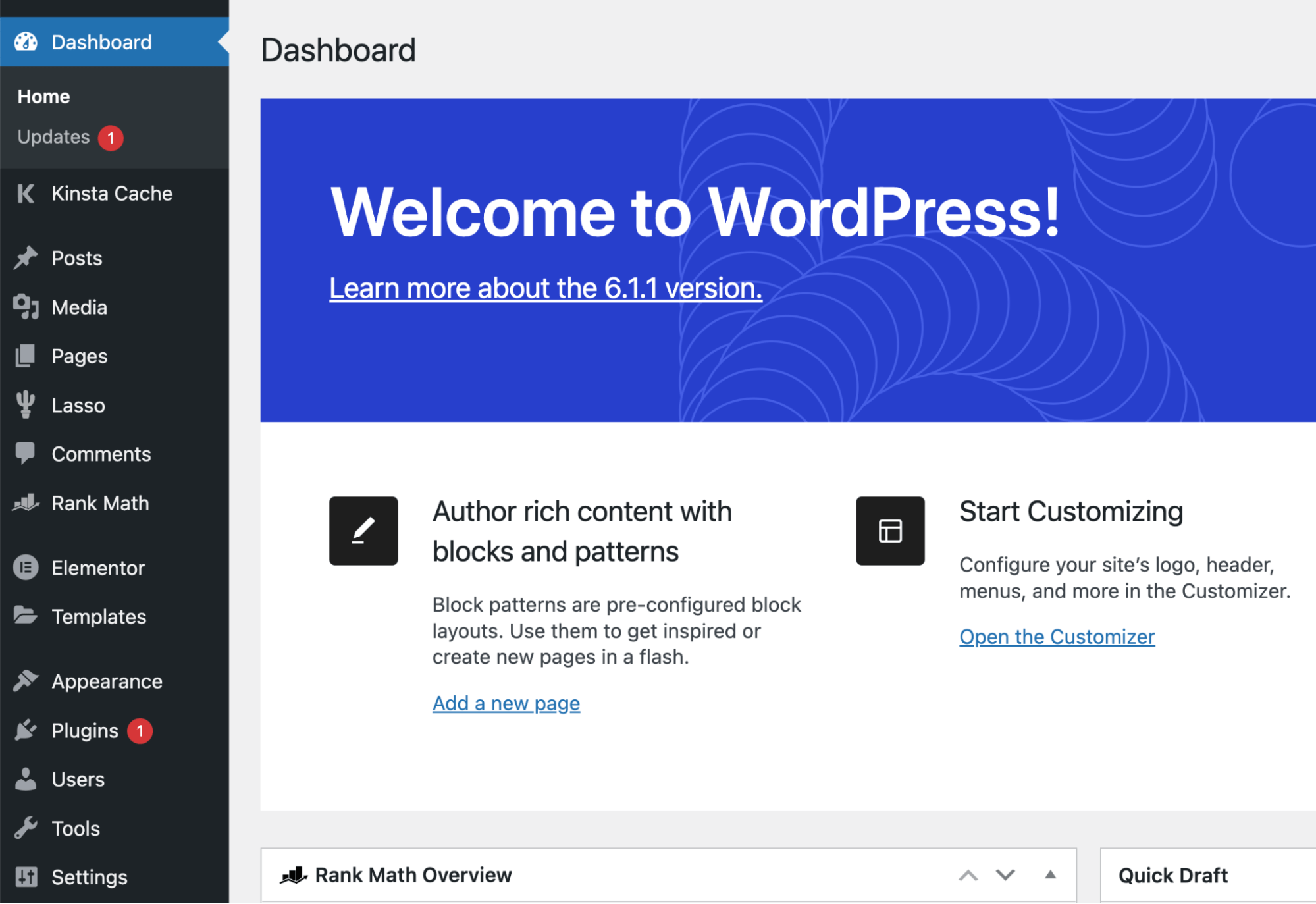
Once your hosting is set up, use the provided installer to launch your WordPress instance. Upon logging in, navigate to the Settings menu to establish your site’s identity.
- General Settings: Update your site title and tagline. Ensure your time zone and language settings are correct, as these influence your automated publication schedules.
- Reading: Decide whether you want a static page (for a traditional business site) or your latest posts (for a news or blog site).
- Permalinks: Set these to "Post name." This ensures your URLs are human-readable (e.g.,
yoursite.com/about-us), which is critical for search engine discoverability.
Selecting a Design Theme
The theme dictates the visual presentation of your site. WordPress offers two types: Free themes from the repository and Premium themes from third-party marketplaces.
When choosing a theme, prioritize speed and responsiveness. A "responsive" design automatically adjusts to fit mobile, tablet, and desktop screens. You can test this by resizing your browser window on a demo version of the theme. Avoid themes that are overly bloated with unnecessary animations or built-in plugins that create "theme lock-in"—a situation where you cannot switch themes later without losing your design features.
Enhancing Functionality with Plugins
Plugins are the "apps" of WordPress. They add functionality that isn't native to the core software. While it is tempting to install many plugins, exercise restraint. Every active plugin can potentially impact page load speeds and create security vulnerabilities.
Essential Plugin Categories
| Plugin Type | Purpose | Recommendation Strategy |
|---|---|---|
| SEO | Meta tags and XML sitemaps | Choose one reputable suite (e.g., Yoast or Rank Math) |
| Security | Firewall and login protection | Use a plugin that offers brute-force protection |
| Backup | Database and file replication | Ensure the plugin offers automated off-site storage |
| Caching | Faster page load times | Select one that integrates with your hosting environment |
Designing the User Experience (UX)
Design is not just about colors and fonts; it is about hierarchy and clarity. Use a consistent color palette (typically 2-3 primary colors) and limit your site to two complementary fonts. Ensure that your text has sufficient contrast against the background to satisfy accessibility standards.
Use the block editor (Gutenberg) to build your pages. This allows you to place text, images, and buttons in a modular way. Focus on "white space"—the empty areas between elements—to keep the layout from feeling cluttered. Ensure every page has a clear, actionable goal, such as signing up for a newsletter or clicking a "Contact Us" button.
Ensuring Security and Performance
As of 2026, web security is non-negotiable. To protect your site:
- Update Regularly: Keep WordPress core, themes, and plugins updated to patch known vulnerabilities.
- Strong Passwords: Use a unique, complex password for your admin account and enable two-factor authentication (2FA).
- Limited Login Attempts: Install a security plugin to block IP addresses that attempt to brute-force your login page.
To improve performance, compress all images before uploading them. Large, unoptimized images are the most common cause of slow site speeds. Aim for file sizes under 200KB per image and use modern formats like WebP.
Common Challenges and Troubleshooting
Even with careful planning, technical issues can occur. If your site displays a "White Screen of Death" (a blank page), it is often caused by a plugin conflict or a recent theme update. You can troubleshoot this by temporarily renaming your plugins folder via FTP to deactivate all plugins at once, then reactivating them one by one to identify the culprit.
Always test your site across multiple devices and browsers before your official launch. Browser behavior can vary, and a layout that looks perfect in Chrome may behave differently in Safari or Firefox.
Frequently Asked Questions
How much does it cost to design a WordPress site? Costs vary based on your hosting provider and whether you choose premium themes or plugins. Generally, you can expect to pay between $50 and $200 per year for hosting and domain registration, with optional premium assets adding $50 to $500 depending on your needs.
Do I need to know how to code? No, you do not need to know how to code to design a functional WordPress site. The block editor and modern themes allow you to build complex pages using a drag-and-drop interface. However, a basic understanding of CSS can help you customize minor visual elements.
How do I make my site appear in search engines? Start by installing an SEO plugin to manage your page titles and descriptions. Ensure your site is connected to Google Search Console, which allows you to submit a sitemap and monitor how Google views your site.
Can I change my theme later? Yes, you can change your theme at any time. Because WordPress separates content from design, your text, images, and page structures will remain intact. However, you may need to reconfigure your menus and sidebars after switching.
What is the best way to back up my site? The best backup strategy is a three-part approach: store one copy on your server, one copy in a cloud storage service like Google Drive or Dropbox, and one copy offline on your local computer. Automate this via a plugin to ensure backups happen even if you forget to initiate them.
Final Recommendation
Your site design is an iterative process. Start by establishing a clean, fast-loading foundation with a responsive theme, then add only the essential plugins needed to fulfill your site's purpose. Launch your site as soon as the core content is complete, and refine the design based on real user feedback rather than chasing perfection in the development phase. Focus on performance and security from day one to ensure your site remains scalable as your audience grows.
Image Gallery